HarmonyOS ArkTS 实战:从零实现一个校园证件照拍摄与预约应用
HarmonyOS ArkTS 实战:从零实现一个校园证件照拍摄与预约应用
本文将带你使用 HarmonyOS + ArkTS 从零搭建一个功能完整的校园证件照拍摄与预约应用,涵盖尺寸选择、背景配色、在线预约、选片下载、打印配送等核心模块,附完整可运行代码。
目录
-
一、项目背景与效果预览
-
二、技术栈与环境准备
-
三、项目结构设计
-
四、数据模型设计
-
4.1 证件照订单模型
-
4.2 照片规格模型
-
4.3 拍摄样片模型
-
4.4 设计思路
-
-
五、页面布局与 UI 实现
-
5.1 整体布局架构
-
5.2 顶部横幅与统计概览
-
5.3 尺寸规格选择网格
-
5.4 背景颜色选择器
-
5.5 拍摄样片展示
-
5.6 价格表展示
-
5.7 预约时间选择
-
5.8 我的订单列表
-
5.9 预约下单弹窗
-
-
六、核心功能实现详解
-
6.1 预约拍摄下单
-
6.2 尺寸与背景选择
-
6.3 在线选片功能
-
6.4 打印配送流程
-
6.5 订单状态流转
-
6.6 拍摄提醒机制
-
-
七、样式与交互动效
-
7.1 主题色系统
-
7.2 状态颜色体系
-
7.3 交互动效
-
-
八、完整代码结构
-
九、运行与调试
-
十、技术要点总结
-
十一、扩展方向
一、项目背景与效果预览
大学校园里,证件照是刚需中的刚需------入学登记、考试报名、求职简历、社团招新......每隔一段时间就需要拍一次。但传统照相馆排队久、价格贵、取片慢,学生体验很不好。
本项目以"校园证件照"为切入点,使用 HarmonyOS ArkTS 开发一个集在线预约、尺寸选择、背景配色、在线选片、打印配送于一体的证件照服务应用,让学生足不出寝就能搞定证件照。
核心功能一览
| 功能模块 | 说明 |
|---|---|
| 📷 拍摄预约 | 选择日期时段,一键预约拍摄 |
| 📐 尺寸选择 | 一寸、二寸、小一寸等多种规格 |
| 🎨 背景配色 | 蓝底、白底、红底,一键切换预览 |
| 🖼️ 在线选片 | 拍摄后在线挑选满意的照片 |
| ⬇️ 照片下载 | 电子照直接下载保存 |
| 📦 打印配送 | 打印纸质版配送到寝 |
| 🖼️ 拍摄样片 | 展示不同尺寸和背景的效果样片 |
| 💰 价格表 | 清晰透明的价格体系 |
| 📋 我的订单 | 所有预约订单一目了然 |
| ⏰ 拍摄提醒 | 预约时间到了自动提醒 |
运行效果
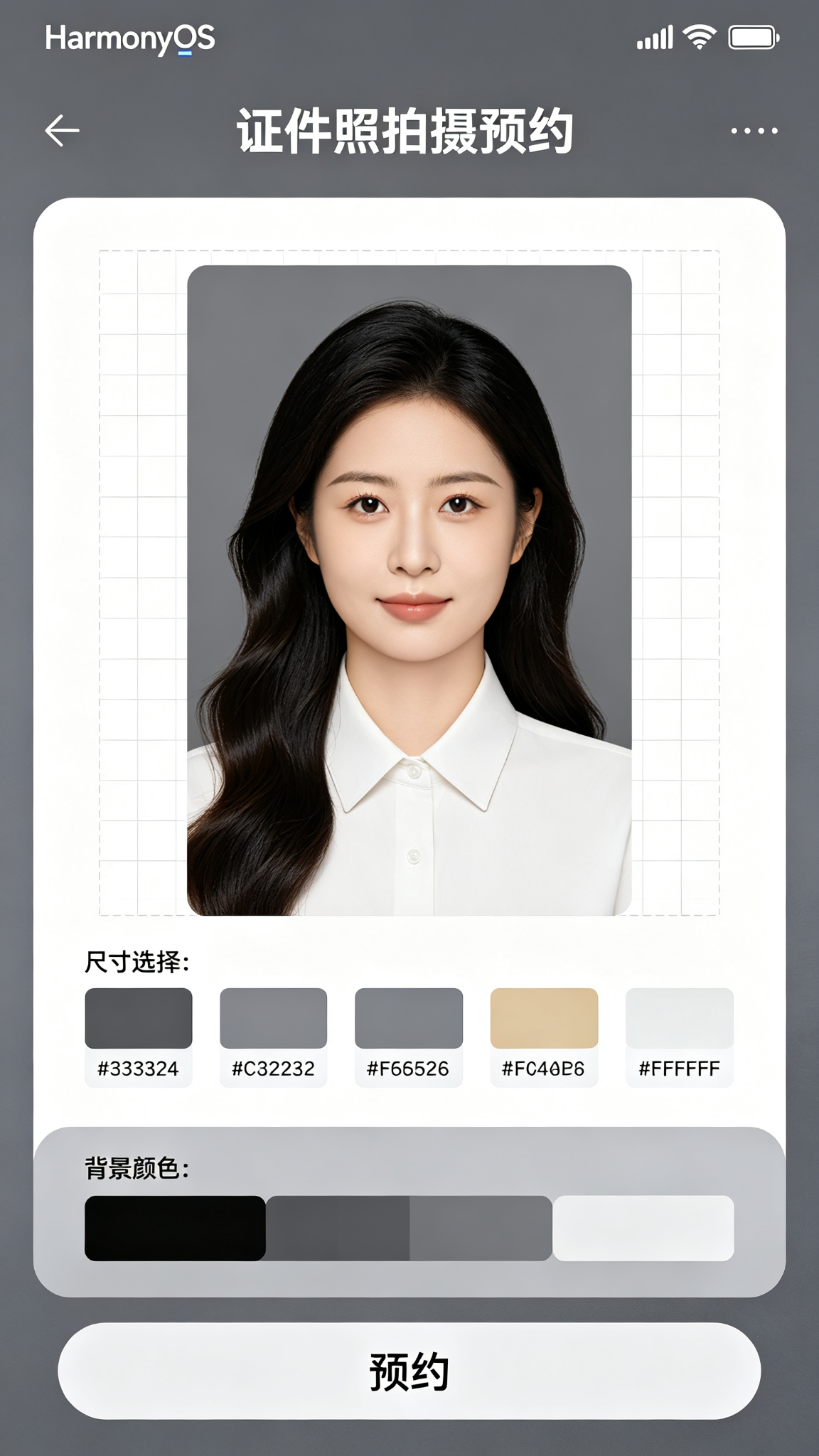
应用整体采用石板灰(#64748B)为主色调,搭配浅灰背景,传递专业、正式、可靠的摄影服务感。顶部为横幅和统计概览,中部为尺寸选择、样片展示、价格表等内容,底部为 Tab 导航,支持上下滑动浏览。
二、技术栈与环境准备
开发环境
| 项目 | 版本要求 | 说明 |
|---|---|---|
| DevEco Studio | 5.0+ | HarmonyOS 官方 IDE |
| HarmonyOS SDK | API 24+ | 基于 ArkTS 声明式开发范式 |
| 运行设备 | HarmonyOS 4.0+ | 手机 / 平板均可 |
项目亮点
本项目不仅是一个 UI 练习,更包含了完整的证件照服务业务闭环:
-
规格系统:多种尺寸规格 + 多种背景色,组合灵活
-
预约流程:选规格 → 选背景 → 选时间 → 确认下单,完整链路
-
订单状态机:已预约 → 拍摄中 → 待选片 → 已完成 / 配送中
-
选片体验:模拟在线选片交互,支持多选、放大预览
-
配送服务:电子照下载 + 纸质照配送,两种交付方式
三、项目结构设计
Plaintext
entry/src/main/
├── ets/
│   ├── pages/
│   │   └── Index.ets              # 主页面(单页应用)
│   ├── model/
│   │   ├── PhotoOrder.ets         # 证件照订单数据模型
│   │   ├── PhotoSize.ets          # 照片规格数据模型
│   │   └── SamplePhoto.ets        # 拍摄样片数据模型
│   ├── components/
│   │   ├── HeaderBanner.ets       # 顶部横幅组件
│   │   ├── StatsOverview.ets      # 统计概览组件
│   │   ├── SizeSelector.ets       # 尺寸选择组件
│   │   ├── ColorPicker.ets        # 背景颜色选择器
│   │   ├── SampleGallery.ets      # 样片展示组件
│   │   ├── PriceTable.ets         # 价格表组件
│   │   ├── TimeSlotPicker.ets     # 预约时间选择器
│   │   ├── OrderList.ets          # 订单列表组件
│   │   └── BookingDialog.ets      # 预约下单弹窗
│   └── utils/
│       ├── MockData.ets           # 模拟数据
│       └── OrderStatus.ets        # 状态常量与工具函数
├── resources/
│   ├── base/
│   │   ├── element/               # 颜色、尺寸等资源
│   │   └── media/                 # 图片资源
│   └── rawfile/                   # 其他资源
└── module.json5                   # 模块配置
💡 架构说明 :本项目采用单页面 + 组件化 架构。主页面
Index.ets负责状态管理和业务逻辑,各功能模块拆分为独立组件,通过@Prop和事件回调通信。这种设计既保持了代码清晰,又降低了初学者的理解门槛。
四、数据模型设计
4.1 证件照订单模型
订单是整个应用的核心实体,记录了一笔证件照预约的所有信息。
TypeScript
/**
 * 证件照订单数据结构
 * 描述一笔完整的证件照预约订单
 */
interface PhotoOrder {
  id: number;                  // 订单唯一标识
  sizeId: number;              // 选择的尺寸 ID
  sizeName: string;            // 尺寸名称(冗余,方便展示)
  sizeSpec: string;            // 尺寸规格(如 25mm×35mm)
  backgroundColor: string;     // 背景颜色(blue/white/red)
  backgroundColorName: string; // 背景颜色名称
  quantity: number;            // 打印数量
  appointmentDate: string;     // 预约日期
  appointmentTime: string;     // 预约时段
  price: number;               // 总价
  isPrinted: boolean;          // 是否需要打印
  deliveryAddress: string;     // 配送地址(打印时需要)
  status: OrderStatus;         // 订单状态
  orderTime: string;           // 下单时间
  selectedPhotos: number[];    // 已选照片 ID 列表
  remark: string;              // 备注信息
  review: Review | null;       // 评价(完成后才有)
}

/**
 * 订单状态
 * booked:     已预约(未拍摄)
 * shooting:   拍摄中(正在拍摄)
 * selecting:  待选片(拍摄完成,等待选片)
 * completed:  已完成(电子照已交付)
 * delivering: 配送中(纸质照配送中)
 * finished:   已结束(纸质照已送达)
 * cancelled:  已取消
 */
type OrderStatus = 'booked' | 'shooting' | 'selecting' | 'completed' | 'delivering' | 'finished' | 'cancelled';
4.2 照片规格模型
TypeScript
/**
 * 证件照尺寸规格数据结构
 */
interface PhotoSize {
  id: number;           // 规格 ID
  name: string;         // 规格名称(如"一寸")
  sizeMm: string;       // 毫米尺寸(如 25mm×35mm)
  sizePx: string;       // 像素尺寸(如 295×413px)
  basePrice: number;    // 基础价格(电子照)
  printPrice: number;   // 打印价格(每版)
  description: string;  // 用途说明
  icon: string;         // 图标 emoji
  isHot: boolean;       // 是否热门
}
4.3 拍摄样片模型
TypeScript
/**
 * 拍摄样片数据结构
 */
interface SamplePhoto {
  id: number;           // 样片 ID
  sizeId: number;       // 对应尺寸 ID
  backgroundColor: string; // 背景颜色
  imageUrl: string;     // 样片图片
  title: string;        // 样片标题
  description: string;  // 样片描述
}

/**
 * 评价数据结构
 */
interface Review {
  id: number;
  orderId: number;
  rating: number;       // 评分 1-5
  content: string;      // 评价内容
  time: string;         // 评价时间
}
4.4 设计思路
| 设计决策 | 理由 |
|---|---|
| 订单状态 7 种 | 覆盖完整生命周期:预约→拍摄→选片→完成→配送→结束 |
| 分离电子照和打印 | 两种交付方式,价格和流程不同 |
| 背景色 3 种经典色 | 蓝底、白底、红底覆盖 90% 以上证件照需求 |
| 尺寸规格独立模型 | 便于扩展新规格,价格统一管理 |
| 选片用 ID 列表 | 轻量存储,避免重复存图片数据 |
五、页面布局与 UI 实现
5.1 整体布局架构
页面采用顶部横幅 + 内容区 + 底部 Tab 的经典三段式布局:
Plaintext
┌─────────────────────────┐
│   顶部横幅 + 统计概览     │  ← HeaderBanner + StatsOverview
├─────────────────────────┤
│                         │
│      尺寸选择网格        │  ← SizeSelector
│                         │
├─────────────────────────┤
│                         │
│      背景颜色选择        │  ← ColorPicker
│                         │
├─────────────────────────┤
│                         │
│      拍摄样片展示        │  ← SampleGallery
│                         │
├─────────────────────────┤
│                         │
│      价格表 / 订单列表    │  ← 根据 Tab 切换
│                         │
├─────────────────────────┤
│ 首页 | 订单 | 样片 | 我的 │  ← BottomTabBar
└─────────────────────────┘
核心布局骨架:
TypeScript
@Entry
@Component
struct Index {
  @State currentTab: number = 0; // 0:首页 1:订单 2:样片 3:我的

  build() {
    Column() {
      // 顶部区域(首页 Tab 时显示横幅)
      if (this.currentTab === 0) {
        HeaderBanner()
        StatsOverview({ stats: this.appStats })
      }

      // 内容区域(可滚动)
      Scroll() {
        Column() {
          if (this.currentTab === 0) {
            // 首页:尺寸选择 + 背景选择 + 价格表
            this.HomeContent()
          } else if (this.currentTab === 1) {
            // 订单
            OrderList({
              orders: this.orders,
              onOrderClick: (order) => this.showOrderDetail(order)
            })
          } else if (this.currentTab === 2) {
            // 样片
            SampleGallery({ samples: this.samplePhotos })
          } else {
            // 我的
            this.ProfileContent()
          }
        }
        .width('100%')
      }
      .layoutWeight(1)

      // 底部 Tab 栏
      BottomTabBar({
        currentTab: this.currentTab,
        onTabChange: (index) => this.currentTab = index
      })
    }
    .width('100%')
    .height('100%')
    .backgroundColor('#F8FAFC') // 浅灰背景
  }
}
5.2 顶部横幅与统计概览
顶部横幅展示应用主题和核心数据,营造专业摄影服务的氛围。
TypeScript
@Component
struct HeaderBanner {
  onBookClick: () => void;

  build() {
    Stack() {
      // 背景渐变
      Column()
        .width('100%')
        .height(180)
        .linearGradient({
          direction: GradientDirection.RightLeft,
          colors: [['#64748B', 0.0], ['#475569', 1.0]]
        })

      // 内容
      Row() {
        Column() {
          Text('校园证件照')
            .fontSize(24)
            .fontWeight(FontWeight.Bold)
            .fontColor('#FFFFFF')

          Text('专业拍摄 · 快速取片 · 配送到寝')
            .fontSize(13)
            .fontColor('#CBD5E1')
            .margin({ top: 6 })

          Button('立即预约')
            .width(100)
            .height(36)
            .margin({ top: 16 })
            .borderRadius(18)
            .backgroundColor('#FFFFFF')
            .fontColor('#64748B')
            .fontSize(14)
            .fontWeight(FontWeight.Medium)
            .onClick(() => {
              this.onBookClick();
            })
        }
        .alignItems(HorizontalAlign.Start)
        .layoutWeight(1)

        // 右侧相机图标
        Text('📷')
          .fontSize(72)
          .opacity(0.3)
      }
      .width('100%')
      .padding(20)
    }
    .width('100%')
    .height(180)
  }
}
统计概览面板
展示关键数据,让用户一目了然服务情况。
TypeScript
@Component
struct StatsOverview {
  @Prop stats: AppStats;

  build() {
    Row() {
      this.StatCard('可预约', this.stats.availableSlots.toString(), '#64748B', '📅')
      this.StatCard('待拍摄', this.stats.pendingShoots.toString(), '#F59E0B', '⏳')
      this.StatCard('已完成', this.stats.completedCount.toString(), '#10B981', '✅')
      this.StatCard('我的订单', this.stats.myOrderCount.toString(), '#3B82F6', '📋')
    }
    .width('100%')
    .padding(16)
    .justifyContent(FlexAlign.SpaceBetween)
    .margin({ top: -20 }) // 向上偏移,与横幅叠加
  }

  @Builder
  StatCard(label: string, value: string, color: string, icon: string) {
    Column() {
      Text(icon)
        .fontSize(20)
      Text(value)
        .fontSize(18)
        .fontWeight(FontWeight.Bold)
        .fontColor(color)
        .margin({ top: 4 })
      Text(label)
        .fontSize(11)
        .fontColor('#666666')
        .margin({ top: 2 })
    }
    .width('23%')
    .padding(12)
    .backgroundColor('#FFFFFF')
    .borderRadius(12)
    .shadow({ radius: 8, color: '#1A000000', offsetX: 0, offsetY: 2 })
    .alignItems(HorizontalAlign.Center)
  }
}

interface AppStats {
  availableSlots: number;    // 可预约时段数
  pendingShoots: number;     // 待拍摄数
  completedCount: number;    // 已完成数
  myOrderCount: number;      // 我的订单数
}
5.3 尺寸规格选择网格
证件照的核心是尺寸规格,用网格布局展示各种规格,直观清晰。
TypeScript
@Component
struct SizeSelector {
  @State sizes: PhotoSize[] = [];
  @State selectedSizeId: number = 1;
  onSizeSelect: (size: PhotoSize) => void;

  build() {
    Column() {
      // 标题
      Row() {
        Text('选择尺寸')
          .fontSize(16)
          .fontWeight(FontWeight.Bold)
          .fontColor('#333333')
        Text('共 ' + this.sizes.length + ' 种规格')
          .fontSize(12)
          .fontColor('#999999')
          .margin({ left: 8 })
      }
      .width('100%')
      .padding({ left: 16, right: 16, top: 16, bottom: 12 })

      // 尺寸网格
      Grid() {
        ForEach(this.sizes, (size: PhotoSize) => {
          GridItem() {
            this.SizeCard(size)
          }
        }, (size: PhotoSize) => size.id.toString())
      }
      .columnsTemplate('1fr 1fr')
      .rowsGap(12)
      .columnsGap(12)
      .padding({ left: 16, right: 16, bottom: 16 })
    }
    .width('100%')
    .backgroundColor('#FFFFFF')
    .borderRadius(12)
    .margin({ left: 16, right: 16, bottom: 12 })
  }

  @Builder
  SizeCard(size: PhotoSize) {
    Column() {
      // 热门标签
      if (size.isHot) {
        Text('热门')
          .fontSize(10)
          .fontColor('#FFFFFF')
          .backgroundColor('#EF4444')
          .padding({ left: 6, right: 6, top: 2, bottom: 2 })
          .borderRadius(8)
          .position({ x: 8, y: 8 })
      }

      // 图标
      Text(size.icon)
        .fontSize(36)

      // 名称
      Text(size.name)
        .fontSize(15)
        .fontWeight(FontWeight.Medium)
        .fontColor(this.selectedSizeId === size.id ? '#64748B' : '#333333')
        .margin({ top: 8 })

      // 尺寸
      Text(size.sizeMm)
        .fontSize(11)
        .fontColor('#999999')
        .margin({ top: 2 })

      // 价格
      Row() {
        Text('¥')
          .fontSize(12)
          .fontColor('#EF4444')
        Text(size.basePrice.toString())
          .fontSize(18)
          .fontColor('#EF4444')
          .fontWeight(FontWeight.Bold)
        Text('起')
          .fontSize(11)
          .fontColor('#999999')
          .margin({ left: 2 })
      }
      .margin({ top: 8 })
    }
    .width('100%')
    .padding(16)
    .backgroundColor(this.selectedSizeId === size.id ? '#F1F5F9' : '#FAFAFA')
    .borderRadius(10)
    .border({
      width: this.selectedSizeId === size.id ? 2 : 1,
      color: this.selectedSizeId === size.id ? '#64748B' : '#E5E7EB'
    })
    .alignItems(HorizontalAlign.Center)
    .onClick(() => {
      this.selectedSizeId = size.id;
      this.onSizeSelect(size);
    })
  }
}设计要点:
-
双列网格:充分利用屏幕宽度,信息密度适中
-
选中态高亮:边框变色 + 背景变色,清晰指示当前选择
-
热门标签:红色标签突出热门规格,引导用户选择
-
价格突出:红色大字价格,一眼看到核心信息
5.4 背景颜色选择器
证件照的背景色是关键选择项,用色块 + 名称的方式直观展示。
TypeScript
@Component
struct ColorPicker {
  @State colors: BgColorOption[] = [];
  @State selectedColor: string = 'blue';
  onColorSelect: (color: string) => void;

  build() {
    Column() {
      Text('背景颜色')
        .fontSize(16)
        .fontWeight(FontWeight.Bold)
        .fontColor('#333333')
        .width('100%')
        .padding({ left: 16, right: 16, top: 16, bottom: 12 })

      Row() {
        ForEach(this.colors, (color: BgColorOption) => {
          this.ColorOption(color)
        }, (color: BgColorOption) => color.value)
      }
      .width('100%')
      .padding({ left: 16, right: 16, bottom: 16 })
      .justifyContent(FlexAlign.SpaceAround)
    }
    .width('100%')
    .backgroundColor('#FFFFFF')
    .borderRadius(12)
    .margin({ left: 16, right: 16, bottom: 12 })
  }

  @Builder
  ColorOption(color: BgColorOption) {
    Column() {
      // 色块
      Stack() {
        Circle({ width: 48, height: 48 })
          .fill(color.hex)
          .stroke(this.selectedColor === color.value ? '#64748B' : '#E5E7EB')
          .strokeWidth(this.selectedColor === color.value ? 3 : 1)

        // 选中对勾
        if (this.selectedColor === color.value) {
          Text('✓')
            .fontSize(20)
            .fontColor('#FFFFFF')
            .fontWeight(FontWeight.Bold)
        }
      }

      // 颜色名称
      Text(color.name)
        .fontSize(13)
        .fontColor(this.selectedColor === color.value ? '#64748B' : '#666666')
        .fontWeight(this.selectedColor === color.value ? FontWeight.Medium : FontWeight.Normal)
        .margin({ top: 8 })

      // 适用场景
      Text(color.scene)
        .fontSize(10)
        .fontColor('#999999')
        .margin({ top: 2 })
    }
    .alignItems(HorizontalAlign.Center)
    .onClick(() => {
      this.selectedColor = color.value;
      this.onColorSelect(color.value);
    })
  }
}

interface BgColorOption {
  value: string;       // 颜色值标识
  name: string;        // 颜色名称
  hex: string;         // 十六进制颜色
  scene: string;       // 适用场景
}背景色配置:
| 颜色 | 色值 | 适用场景 |
|---|---|---|
| 蓝底 | #1E40AF |
简历、毕业证、驾照等最常用 |
| 白底 | #FFFFFF |
护照、签证、身份证等 |
| 红底 | #DC2626 |
结婚照、党员证、保险等 |
5.5 拍摄样片展示
展示实际拍摄效果,让用户有直观预期。
TypeScript
@Component
struct SampleGallery {
  @State samples: SamplePhoto[] = [];
  @State currentSizeFilter: number = 0; // 0:全部

  build() {
    Column() {
      // 标题
      Row() {
        Text('拍摄样片')
          .fontSize(16)
          .fontWeight(FontWeight.Bold)
          .fontColor('#333333')
        .layoutWeight(1)
        Text('查看更多 >')
          .fontSize(12)
          .fontColor('#64748B')
          .onClick(() => {
            // 跳转到样片 Tab
          })
      }
      .width('100%')
      .padding({ left: 16, right: 16, top: 16, bottom: 12 })

      // 样片网格
      Grid() {
        ForEach(this.displaySamples, (sample: SamplePhoto) => {
          GridItem() {
            this.SampleCard(sample)
          }
        }, (sample: SamplePhoto) => sample.id.toString())
      }
      .columnsTemplate('1fr 1fr 1fr')
      .rowsGap(8)
      .columnsGap(8)
      .padding({ left: 16, right: 16, bottom: 16 })
    }
    .width('100%')
    .backgroundColor('#FFFFFF')
    .borderRadius(12)
    .margin({ left: 16, right: 16, bottom: 12 })
  }

  private get displaySamples(): SamplePhoto[] {
    return this.samples.slice(0, 6); // 首页只展示6张
  }

  @Builder
  SampleCard(sample: SamplePhoto) {
    Column() {
      // 样片占位(实际项目中用真实图片)
      Stack() {
        Column()
          .width('100%')
          .aspectRatio(0.72) // 证件照比例
          .backgroundColor(sample.backgroundColor === 'white' ? '#F5F5F5' :
                          sample.backgroundColor === 'blue' ? '#1E40AF' : '#DC2626')
          .borderRadius(8)

        Text('👤')
          .fontSize(32)
          .opacity(0.5)
      }

      Text(sample.title)
        .fontSize(11)
        .fontColor('#666666')
        .margin({ top: 6 })
        .maxLines(1)
        .textOverflow({ overflow: TextOverflow.Ellipsis })
        .width('100%')
    }
    .width('100%')
  }
}
5.6 价格表展示
清晰透明的价格表,让用户放心消费。
TypeScript
@Component
struct PriceTable {
  @State sizes: PhotoSize[] = [];

  build() {
    Column() {
      Text('价格表')
        .fontSize(16)
        .fontWeight(FontWeight.Bold)
        .fontColor('#333333')
        .width('100%')
        .padding({ left: 16, right: 16, top: 16, bottom: 12 })

      // 表头
      Row() {
        Text('规格')
          .fontSize(13)
          .fontColor('#999999')
          .width(80)
        Text('尺寸(mm)')
          .fontSize(13)
          .fontColor('#999999')
          .layoutWeight(1)
        Text('电子照')
          .fontSize(13)
          .fontColor('#999999')
          .width(60)
          .textAlign(TextAlign.End)
        Text('打印版')
          .fontSize(13)
          .fontColor('#999999')
          .width(60)
          .textAlign(TextAlign.End)
      }
      .width('100%')
      .padding({ left: 16, right: 16, bottom: 8 })

      Divider()
        .color('#E5E7EB')
        .margin({ left: 16, right: 16 })

      // 价格行
      ForEach(this.sizes, (size: PhotoSize) => {
        Column() {
          Row() {
            Column() {
              Text(size.name)
                .fontSize(14)
                .fontColor('#333333')
                .fontWeight(FontWeight.Medium)
              if (size.isHot) {
                Text('热门')
                  .fontSize(9)
                  .fontColor('#EF4444')
                  .backgroundColor('#FEE2E2')
                  .padding({ left: 4, right: 4, top: 1, bottom: 1 })
                  .borderRadius(4)
                  .margin({ top: 2 })
              }
            }
            .width(80)
            .alignItems(HorizontalAlign.Start)

            Text(size.sizeMm)
              .fontSize(13)
              .fontColor('#666666')
              .layoutWeight(1)

            Text('¥' + size.basePrice)
              .fontSize(14)
              .fontColor('#333333')
              .fontWeight(FontWeight.Medium)
              .width(60)
              .textAlign(TextAlign.End)

            Text('¥' + size.printPrice)
              .fontSize(14)
              .fontColor('#EF4444')
              .fontWeight(FontWeight.Medium)
              .width(60)
              .textAlign(TextAlign.End)
          }
          .width('100%')
          .padding({ left: 16, right: 16, top: 12, bottom: 12 })

          Divider()
            .color('#F0F0F0')
            .margin({ left: 16, right: 16 })
        }
      }, (size: PhotoSize) => size.id.toString())

      // 说明
      Text('💡 打印版每版含8张(一寸)或4张(二寸)')
        .fontSize(11)
        .fontColor('#999999')
        .width('100%')
        .padding({ left: 16, right: 16, top: 12, bottom: 16 })
    }
    .width('100%')
    .backgroundColor('#FFFFFF')
    .borderRadius(12)
    .margin({ left: 16, right: 16, bottom: 12 })
  }
}
5.7 预约时间选择
选择拍摄日期和时段,是预约流程的关键步骤。
TypeScript
@Component
struct TimeSlotPicker {
  @State selectedDate: string = '';
  @State selectedTime: string = '';
  @State availableDates: DateOption[] = [];
  @State availableTimes: string[] = [];
  onTimeSelect: (date: string, time: string) => void;

  build() {
    Column() {
      Text('选择时间')
        .fontSize(16)
        .fontWeight(FontWeight.Bold)
        .fontColor('#333333')
        .width('100%')
        .padding({ left: 16, right: 16, top: 16, bottom: 12 })

      // 日期选择(横向滚动)
      Text('选择日期')
        .fontSize(13)
        .fontColor('#666666')
        .width('100%')
        .padding({ left: 16, right: 16, bottom: 8 })

      Scroll() {
        Row({ space: 10 }) {
          ForEach(this.availableDates, (date: DateOption) => {
            this.DateItem(date)
          }, (date: DateOption) => date.dateStr)
        }
        .padding({ left: 16, right: 16 })
      }
      .scrollable(ScrollDirection.Horizontal)
      .scrollBar(BarState.Off)
      .margin({ bottom: 16 })

      // 时段选择
      Text('选择时段')
        .fontSize(13)
        .fontColor('#666666')
        .width('100%')
        .padding({ left: 16, right: 16, bottom: 8 })

      Flex({ wrap: FlexWrap.Wrap, justifyContent: FlexAlign.Start }) {
        ForEach(this.availableTimes, (time: string) => {
          this.TimeSlotItem(time)
        }, (time: string) => time)
      }
      .padding({ left: 16, right: 16, bottom: 16 })
    }
    .width('100%')
    .backgroundColor('#FFFFFF')
    .borderRadius(12)
    .margin({ left: 16, right: 16, bottom: 12 })
  }

  @Builder
  DateItem(date: DateOption) {
    Column() {
      Text(date.weekday)
        .fontSize(11)
        .fontColor(this.selectedDate === date.dateStr ? '#FFFFFF' : '#999999')
      Text(date.day)
        .fontSize(18)
        .fontWeight(FontWeight.Bold)
        .fontColor(this.selectedDate === date.dateStr ? '#FFFFFF' : '#333333')
        .margin({ top: 2 })
      Text(date.month)
        .fontSize(10)
        .fontColor(this.selectedDate === date.dateStr ? '#FFFFFF' : '#999999')
    }
    .width(56)
    .height(64)
    .backgroundColor(this.selectedDate === date.dateStr ? '#64748B' : '#F5F5F5')
    .borderRadius(10)
    .justifyContent(FlexAlign.Center)
    .opacity(date.available ? 1 : 0.4)
    .onClick(() => {
      if (date.available) {
        this.selectedDate = date.dateStr;
        // 更新可选时段
        this.availableTimes = this.getTimeSlotsForDate(date.dateStr);
      }
    })
  }

  @Builder
  TimeSlotItem(time: string) {
    Text(time)
      .fontSize(13)
      .fontColor(this.selectedTime === time ? '#FFFFFF' : '#666666')
      .padding({ left: 16, right: 16, top: 8, bottom: 8 })
      .backgroundColor(this.selectedTime === time ? '#64748B' : '#F5F5F5')
      .borderRadius(8)
      .margin({ right: 8, bottom: 8 })
      .onClick(() => {
        this.selectedTime = time;
        this.onTimeSelect(this.selectedDate, time);
      })
  }

  private getTimeSlotsForDate(date: string): string[] {
    // 模拟数据:返回该日期的可预约时段
    return ['09:00-09:30', '09:30-10:00', '10:00-10:30', '10:30-11:00',
            '14:00-14:30', '14:30-15:00', '15:00-15:30', '15:30-16:00'];
  }
}

interface DateOption {
  dateStr: string;    // 日期字符串
  weekday: string;    // 星期几
  day: string;        // 日期数字
  month: string;      // 月份
  available: boolean; // 是否可预约
}
5.8 我的订单列表
展示用户的所有预约订单,按状态分类。
TypeScript
@Component
struct OrderList {
  @State orders: PhotoOrder[] = [];
  @State statusFilter: string = 'all'; // all/booked/completed
  onOrderClick: (order: PhotoOrder) => void;

  private get filteredOrders(): PhotoOrder[] {
    if (this.statusFilter === 'all') return this.orders;
    if (this.statusFilter === 'booked') {
      return this.orders.filter(o =>
        o.status === 'booked' || o.status === 'shooting' || o.status === 'selecting'
      );
    }
    if (this.statusFilter === 'completed') {
      return this.orders.filter(o =>
        o.status === 'completed' || o.status === 'delivering' || o.status === 'finished'
      );
    }
    return this.orders;
  }

  build() {
    Column() {
      // 筛选 Tab
      Row() {
        this.FilterTab('全部', 'all', this.orders.length)
        this.FilterTab('进行中', 'booked', this.inProgressCount)
        this.FilterTab('已完成', 'completed', this.completedCount)
      }
      .width('100%')
      .backgroundColor('#FFFFFF')
      .padding({ top: 12, bottom: 8 })

      // 订单列表
      List({ space: 12 }) {
        ForEach(this.filteredOrders, (order: PhotoOrder) => {
          ListItem() {
            this.OrderCard(order)
          }
        }, (order: PhotoOrder) => order.id.toString())

        if (this.filteredOrders.length === 0) {
          ListItem() {
            Column() {
              Text('📭')
                .fontSize(48)
              Text('暂无订单')
                .fontSize(14)
                .fontColor('#999999')
                .margin({ top: 12 })
            }
            .width('100%')
            .padding(40)
            .alignItems(HorizontalAlign.Center)
          }
        }
      }
      .width('100%')
      .padding(16)
    }
  }

  private get inProgressCount(): number {
    return this.orders.filter(o =>
      o.status === 'booked' || o.status === 'shooting' || o.status === 'selecting'
    ).length;
  }

  private get completedCount(): number {
    return this.orders.filter(o =>
      o.status === 'completed' || o.status === 'delivering' || o.status === 'finished'
    ).length;
  }

  @Builder
  FilterTab(label: string, value: string, count: number) {
    Column() {
      Text(`${label} (${count})`)
        .fontSize(14)
        .fontColor(this.statusFilter === value ? '#64748B' : '#666666')
        .fontWeight(this.statusFilter === value ? FontWeight.Bold : FontWeight.Normal)

      if (this.statusFilter === value) {
        Divider()
          .width(40)
          .height(3)
          .color('#64748B')
          .borderRadius(2)
          .margin({ top: 8 })
      }
    }
    .width('33.3%')
    .alignItems(HorizontalAlign.Center)
    .onClick(() => {
      this.statusFilter = value;
    })
  }

  @Builder
  OrderCard(order: PhotoOrder) {
    Column() {
      // 顶部:尺寸 + 状态
      Row() {
        Row() {
          Text('📷')
            .fontSize(16)
          Text(order.sizeName)
            .fontSize(14)
            .fontColor('#333333')
            .fontWeight(FontWeight.Medium)
            .margin({ left: 6 })
          Text('· ' + order.backgroundColorName)
            .fontSize(12)
            .fontColor('#999999')
            .margin({ left: 4 })
        }
        .layoutWeight(1)

        Text(this.getStatusText(order.status))
          .fontSize(12)
          .fontColor('#FFFFFF')
          .backgroundColor(this.getStatusColor(order.status))
          .padding({ left: 8, right: 8, top: 3, bottom: 3 })
          .borderRadius(10)
      }
      .width('100%')

      // 订单信息
      Row() {
        Column() {
          Text('预约时间')
            .fontSize(11)
            .fontColor('#999999')
          Text(order.appointmentDate + ' ' + order.appointmentTime)
            .fontSize(13)
            .fontColor('#333333')
            .margin({ top: 2 })
        }
        .layoutWeight(1)
        .alignItems(HorizontalAlign.Start)

        Column() {
          Text('数量')
            .fontSize(11)
            .fontColor('#999999')
          Text(order.quantity + '张')
            .fontSize(13)
            .fontColor('#333333')
            .margin({ top: 2 })
        }
        .layoutWeight(1)
        .alignItems(HorizontalAlign.Start)

        Column() {
          Text('金额')
            .fontSize(11)
            .fontColor('#999999')
          Text('¥' + order.price)
            .fontSize(14)
            .fontColor('#EF4444')
            .fontWeight(FontWeight.Bold)
            .margin({ top: 2 })
        }
        .alignItems(HorizontalAlign.End)
      }
      .width('100%')
      .margin({ top: 12 })

      // 底部操作按钮
      Row() {
        Text('订单号:' + order.id)
          .fontSize(11)
          .fontColor('#999999')
          .layoutWeight(1)

        if (order.status === 'booked') {
          Button('取消预约')
            .width(72)
            .height(28)
            .borderRadius(14)
            .backgroundColor('#FEF2F2')
            .fontColor('#EF4444')
            .fontSize(12)
            .margin({ right: 8 })
        }

        if (order.status === 'selecting') {
          Button('去选片')
            .width(72)
            .height(28)
            .borderRadius(14)
            .backgroundColor('#64748B')
            .fontColor('#FFFFFF')
            .fontSize(12)
        }

        if (order.status === 'completed' && !order.isPrinted) {
          Button('打印配送')
            .width(80)
            .height(28)
            .borderRadius(14)
            .backgroundColor('#64748B')
            .fontColor('#FFFFFF')
            .fontSize(12)
        }
      }
      .width('100%')
      .margin({ top: 12 })
    }
    .width('100%')
    .padding(14)
    .backgroundColor('#FFFFFF')
    .borderRadius(12)
    .onClick(() => {
      this.onOrderClick(order);
    })
  }

  private getStatusText(status: OrderStatus): string {
    const texts: Record<OrderStatus, string> = {
      booked: '待拍摄',
      shooting: '拍摄中',
      selecting: '待选片',
      completed: '已完成',
      delivering: '配送中',
      finished: '已结束',
      cancelled: '已取消'
    };
    return texts[status] || '未知';
  }

  private getStatusColor(status: OrderStatus): string {
    const colors: Record<OrderStatus, string> = {
      booked: '#F59E0B',
      shooting: '#3B82F6',
      selecting: '#8B5CF6',
      completed: '#10B981',
      delivering: '#64748B',
      finished: '#9CA3AF',
      cancelled: '#9CA3AF'
    };
    return colors[status] || '#9CA3AF';
  }
}
5.9 预约下单弹窗
整合尺寸、背景、时间选择,完成预约下单。
TypeScript
@CustomDialog
struct BookingDialog {
  controller: CustomDialogController;
  onConfirm: (orderData: Partial<PhotoOrder>) => void;

  @State selectedSizeId: number = 1;
  @State selectedColor: string = 'blue';
  @State selectedDate: string = '';
  @State selectedTime: string = '';
  @State quantity: number = 8;
  @State needPrint: boolean = false;

  private sizes: PhotoSize[] = [
    { id: 1, name: '一寸', sizeMm: '25×35mm', sizePx: '295×413px', basePrice: 9.9, printPrice: 15, description: '简历、证件', icon: '📷', isHot: true },
    { id: 2, name: '二寸', sizeMm: '35×49mm', sizePx: '413×579px', basePrice: 12.9, printPrice: 20, description: '毕业证、签证', icon: '🖼️', isHot: true },
    { id: 3, name: '小一寸', sizeMm: '22×32mm', sizePx: '260×378px', basePrice: 9.9, printPrice: 15, description: '驾驶证、学生证', icon: '📸', isHot: false },
    { id: 4, name: '小二寸', sizeMm: '35×45mm', sizePx: '413×531px', basePrice: 12.9, printPrice: 20, description: '护照、签证', icon: '📷', isHot: false },
  ];

  private colors: BgColorOption[] = [
    { value: 'blue', name: '蓝底', hex: '#1E40AF', scene: '最常用' },
    { value: 'white', name: '白底', hex: '#FFFFFF', scene: '护照签证' },
    { value: 'red', name: '红底', hex: '#DC2626', scene: '保险党员' },
  ];

  build() {
    Scroll() {
      Column() {
        Text('预约拍摄')
          .fontSize(18)
          .fontWeight(FontWeight.Bold)
          .fontColor('#333333')
          .margin({ bottom: 20 })

        // 尺寸选择
        Text('选择尺寸')
          .fontSize(14)
          .fontColor('#666666')
          .alignSelf(ItemAlign.Start)
          .margin({ bottom: 8 })

        Flex({ wrap: FlexWrap.Wrap, justifyContent: FlexAlign.Start }) {
          ForEach(this.sizes, (size: PhotoSize) => {
            this.SizeOption(size)
          }, (size: PhotoSize) => size.id.toString())
        }
        .width('100%')

        // 背景颜色
        Text('背景颜色')
          .fontSize(14)
          .fontColor('#666666')
          .alignSelf(ItemAlign.Start)
          .margin({ top: 20, bottom: 8 })

        Row() {
          ForEach(this.colors, (color: BgColorOption) => {
            this.ColorOption(color)
          }, (color: BgColorOption) => color.value)
        }
        .width('100%')
        .justifyContent(FlexAlign.SpaceAround)

        // 数量
        Text('打印数量')
          .fontSize(14)
          .fontColor('#666666')
          .alignSelf(ItemAlign.Start)
          .margin({ top: 20, bottom: 8 })

        Row() {
          Button('-')
            .width(32)
            .height(32)
            .borderRadius(16)
            .backgroundColor('#F5F5F5')
            .fontColor('#333333')
            .onClick(() => {
              if (this.quantity > 1) this.quantity--;
            })

          Text(this.quantity + ' 张')
            .fontSize(16)
            .fontColor('#333333')
            .width(80)
            .textAlign(TextAlign.Center)

          Button('+')
            .width(32)
            .height(32)
            .borderRadius(16)
            .backgroundColor('#F5F5F5')
            .fontColor('#333333')
            .onClick(() => {
              this.quantity++;
            })
        }

        // 是否打印
        Row() {
          Text('需要打印配送')
            .fontSize(14)
            .fontColor('#333333')
            .layoutWeight(1)
          Toggle({ type: ToggleType.Switch, isOn: this.needPrint })
            .onChange((value: boolean) => {
              this.needPrint = value;
            })
        }
        .width('100%')
        .margin({ top: 20 })

        // 价格汇总
        Row() {
          Text('合计')
            .fontSize(14)
            .fontColor('#666666')
            .layoutWeight(1)

          Text('¥' + this.totalPrice.toFixed(1))
            .fontSize(24)
            .fontColor('#EF4444')
            .fontWeight(FontWeight.Bold)
        }
        .width('100%')
        .margin({ top: 20, bottom: 8 })

        // 提交按钮
        Button('确认预约')
          .width('100%')
          .height(48)
          .margin({ top: 16 })
          .borderRadius(24)
          .backgroundColor('#64748B')
          .fontColor('#FFFFFF')
          .fontSize(16)
          .fontWeight(FontWeight.Bold)
          .enabled(this.canSubmit())
          .opacity(this.canSubmit() ? 1 : 0.5)
          .onClick(() => {
            this.onConfirm({
              sizeId: this.selectedSizeId,
              backgroundColor: this.selectedColor,
              quantity: this.quantity,
              isPrinted: this.needPrint,
              price: this.totalPrice
            });
            this.controller.close();
          })
      }
      .width('100%')
      .padding(24)
    }
    .layoutWeight(1)
  }

  private get totalPrice(): number {
    const size = this.sizes.find(s => s.id === this.selectedSizeId);
    if (!size) return 0;
    let price = size.basePrice; // 电子照基础价
    if (this.needPrint) {
      price += size.printPrice; // 打印费
    }
    return price;
  }

  private canSubmit(): boolean {
    return this.selectedSizeId > 0 && this.selectedColor !== '';
  }

  @Builder
  SizeOption(size: PhotoSize) {
    Column() {
      Text(size.icon)
        .fontSize(24)
      Text(size.name)
        .fontSize(12)
        .fontColor(this.selectedSizeId === size.id ? '#64748B' : '#666666')
        .margin({ top: 4 })
      Text('¥' + size.basePrice)
        .fontSize(11)
        .fontColor('#EF4444')
        .margin({ top: 2 })
    }
    .width('22%')
    .padding(10)
    .margin({ bottom: 8, right: '3%' })
    .backgroundColor(this.selectedSizeId === size.id ? '#F1F5F9' : '#FAFAFA')
    .borderRadius(10)
    .border({
      width: this.selectedSizeId === size.id ? 2 : 1,
      color: this.selectedSizeId === size.id ? '#64748B' : '#E5E7EB'
    })
    .alignItems(HorizontalAlign.Center)
    .onClick(() => {
      this.selectedSizeId = size.id;
    })
  }

  @Builder
  ColorOption(color: BgColorOption) {
    Column() {
      Stack() {
        Circle({ width: 40, height: 40 })
          .fill(color.hex)
          .stroke(this.selectedColor === color.value ? '#64748B' : '#E5E7EB')
          .strokeWidth(this.selectedColor === color.value ? 3 : 1)

        if (this.selectedColor === color.value) {
          Text('✓')
            .fontSize(18)
            .fontColor('#FFFFFF')
            .fontWeight(FontWeight.Bold)
        }
      }
      Text(color.name)
        .fontSize(12)
        .fontColor(this.selectedColor === color.value ? '#64748B' : '#666666')
        .margin({ top: 6 })
    }
    .alignItems(HorizontalAlign.Center)
    .onClick(() => {
      this.selectedColor = color.value;
    })
  }
}
六、核心功能实现详解
6.1 预约拍摄下单
用户选择尺寸、背景、数量后,提交预约订单。
TypeScript
/**
 * 预约拍摄
 */
private bookPhoto(orderData: Partial<PhotoOrder>): void {
  // 1. 校验
  if (!orderData.sizeId || !orderData.backgroundColor) {
    console.warn('请选择尺寸和背景颜色');
    return;
  }

  const size = this.photoSizes.find(s => s.id === orderData.sizeId);
  if (!size) return;

  // 2. 获取颜色名称
  const colorNames: Record<string, string> = {
    blue: '蓝底',
    white: '白底',
    red: '红底'
  };

  // 3. 创建订单
  const newOrder: PhotoOrder = {
    id: this.nextOrderId,
    sizeId: size.id,
    sizeName: size.name,
    sizeSpec: size.sizeMm,
    backgroundColor: orderData.backgroundColor || 'blue',
    backgroundColorName: colorNames[orderData.backgroundColor || 'blue'] || '蓝底',
    quantity: orderData.quantity || 8,
    appointmentDate: orderData.appointmentDate || '明天',
    appointmentTime: orderData.appointmentTime || '10:00-10:30',
    price: orderData.price || size.basePrice,
    isPrinted: orderData.isPrinted || false,
    deliveryAddress: orderData.deliveryAddress || '',
    status: 'booked',
    orderTime: this.formatDate(new Date()),
    selectedPhotos: [],
    remark: orderData.remark || '',
    review: null
  };

  // 4. 加入订单列表(最新的排前面)
  this.orders = [newOrder, ...this.orders];

  // 5. 更新统计
  this.nextOrderId++;
  this.appStats.myOrderCount++;
  this.appStats.pendingShoots++;
}关键设计:
-
价格计算:电子照基础价 + 打印费(如果需要打印)
-
状态初始化 :新订单状态为
booked(已预约) -
时间默认值:未选择时间时默认明天第一个时段
6.2 尺寸与背景选择
尺寸和背景是证件照的两个核心属性,组合决定了最终效果。
TypeScript
/**
 * 选择尺寸
 */
private selectSize(sizeId: number): void {
  const size = this.photoSizes.find(s => s.id === sizeId);
  if (!size) return;

  this.selectedSize = size;
  this.calculatePrice();
}

/**
 * 选择背景颜色
 */
private selectBackgroundColor(color: string): void {
  this.selectedBackgroundColor = color;
}

/**
 * 计算价格
 */
private calculatePrice(): number {
  if (!this.selectedSize) return 0;

  let price = this.selectedSize.basePrice;
  if (this.needPrint) {
    price += this.selectedSize.printPrice;
  }
  return price;
}
为什么尺寸和背景分开选择?
-
灵活性:每种尺寸都可以搭配任意背景色,组合数 = 尺寸数 × 颜色数
-
可扩展性:新增尺寸或背景色时互不影响
-
用户体验:分步选择降低认知负担,每一步只做一个决策
6.3 在线选片功能
拍摄完成后,用户可以在线挑选满意的照片。
TypeScript
/**
 * 切换照片选中状态
 */
private togglePhotoSelection(photoId: number): void {
  const index = this.selectedPhotos.indexOf(photoId);
  if (index > -1) {
    // 取消选中
    this.selectedPhotos = this.selectedPhotos.filter(id => id !== photoId);
  } else {
    // 选中(最多选8张)
    if (this.selectedPhotos.length < 8) {
      this.selectedPhotos = [...this.selectedPhotos, photoId];
    } else {
      console.warn('最多选择8张照片');
    }
  }
}

/**
 * 确认选片
 */
private confirmSelection(orderId: number): void {
  if (this.selectedPhotos.length === 0) {
    console.warn('请至少选择一张照片');
    return;
  }

  this.orders = this.orders.map(o =>
    o.id === orderId
      ? {
          ...o,
          selectedPhotos: [...this.selectedPhotos],
          status: 'completed' as OrderStatus
        }
      : o
  );

  // 更新统计
  this.appStats.pendingShoots--;
  this.appStats.completedCount++;
}选片交互设计要点:
-
数量限制:一寸照一版8张,限制选择数量符合实际
-
视觉反馈:选中照片有边框高亮 + 选中角标
-
放大预览:点击照片可放大查看细节
-
进度提示:显示"已选 X/8 张",让用户知道进度
6.4 打印配送流程
用户可以选择将照片打印出来配送到宿舍。
TypeScript
/**
 * 选择打印配送
 */
private chooseDelivery(orderId: number, address: string): boolean {
  if (!address.trim()) {
    console.warn('请填写配送地址');
    return false;
  }

  this.orders = this.orders.map(o =>
    o.id === orderId
      ? {
          ...o,
          isPrinted: true,
          deliveryAddress: address,
          status: 'delivering' as OrderStatus
        }
      : o
  );

  return true;
}

/**
 * 确认送达
 */
private confirmDelivery(orderId: number): void {
  this.orders = this.orders.map(o =>
    o.id === orderId
      ? { ...o, status: 'finished' as OrderStatus }
      : o
  );
}
6.5 订单状态流转
证件照订单的状态机比普通电商订单更复杂,因为包含拍摄、选片等特殊环节。
Plaintext
┌──────────┐
                    │  booked  │  已预约(待拍摄)
                    └────┬─────┘
                         │ 开始拍摄
                         ▼
                    ┌──────────┐
                    │ shooting │  拍摄中
                    └────┬─────┘
                         │ 拍摄完成
                         ▼
                   ┌────────────┐
                   │ selecting  │  待选片
                   └─────┬──────┘
                         │ 确认选片
                         ▼
                   ┌────────────┐
                   │ completed  │  已完成(电子照)
                   └─────┬──────┘
                         │ 申请打印
                         ▼
                   ┌────────────┐
                   │ delivering │  配送中
                   └─────┬──────┘
                         │ 确认送达
                         ▼
                   ┌────────────┐
                   │  finished  │  已结束
                   └────────────┘

          booked  ──取消──→  cancelled
TypeScript
/**
 * 更新订单状态
 */
private updateOrderStatus(orderId: number, newStatus: OrderStatus): void {
  this.orders = this.orders.map(o => {
    if (o.id !== orderId) return o;

    if (!this.canTransition(o.status, newStatus)) {
      console.warn(`无法从 ${o.status} 转换到 ${newStatus}`);
      return o;
    }

    return { ...o, status: newStatus };
  });
}

/**
 * 检查状态转换是否合法
 */
private canTransition(current: OrderStatus, target: OrderStatus): boolean {
  const validTransitions: Record<OrderStatus, OrderStatus[]> = {
    booked: ['shooting', 'cancelled'],
    shooting: ['selecting'],
    selecting: ['completed'],
    completed: ['delivering'],
    delivering: ['finished'],
    finished: [],
    cancelled: []
  };
  return validTransitions[current]?.includes(target) ?? false;
}
6.6 拍摄提醒机制
预约时间快到时提醒用户,避免错过拍摄。
TypeScript
/**
 * 检查并发送拍摄提醒
 */
private checkShootingReminders(): void {
  const now = new Date();

  this.orders.forEach(order => {
    if (order.status !== 'booked') return;

    // 计算预约时间与当前时间的差值
    const shootTime = this.parseDateTime(order.appointmentDate, order.appointmentTime);
    const diffMinutes = (shootTime.getTime() - now.getTime()) / (1000 * 60);

    // 提前30分钟提醒
    if (diffMinutes <= 30 && diffMinutes > 0 && !order.reminderSent) {
      this.sendReminder(order);
      this.markReminderSent(order.id);
    }
  });
}

/**
 * 发送提醒(模拟)
 */
private sendReminder(order: PhotoOrder): void {
  console.log(`提醒:您的${order.sizeName}证件照预约将在30分钟后开始`);
  // 实际项目中可以接入推送通知 API
}
七、样式与交互动效
7.1 主题色系统
应用采用石板灰为主色调,传递"专业、正式、可靠"的摄影服务感:
| 用途 | 色值 | 说明 |
|---|---|---|
| 主色 | #64748B |
石板灰,按钮、标题、重点元素 |
| 主色深 | #475569 |
深灰,渐变、强调 |
| 主色浅 | #94A3B8 |
浅灰,次要元素 |
| 主色极浅 | #F1F5F9 |
极浅灰,选中背景 |
| 背景色 | #F8FAFC |
页面背景 |
| 卡片背景 | #FFFFFF |
卡片、输入框 |
| 文字主色 | #333333 |
正文 |
| 文字次色 | #666666 |
辅助信息 |
| 文字弱色 | #999999 |
次要信息 |
| 价格色 | #EF4444 |
价格、重要数字 |
| 成功色 | #10B981 |
完成、成功状态 |
| 警告色 | #F59E0B |
待处理、提醒状态 |
7.2 状态颜色体系
订单的 7 种状态各有专属颜色:
| 状态 | 颜色 | 语义 |
|---|---|---|
| 待拍摄 | 🟠 橙色 #F59E0B |
等待中,需要关注 |
| 拍摄中 | 🔵 蓝色 #3B82F6 |
进行中 |
| 待选片 | 🟣 紫色 #8B5CF6 |
需要用户操作 |
| 已完成 | 🟢 绿色 #10B981 |
电子照完成 |
| 配送中 | ⚫ 石板灰 #64748B |
纸质照配送中 |
| 已结束 | ⚪ 浅灰 #9CA3AF |
全部完成 |
| 已取消 | ⚪ 灰色 #9CA3AF |
已取消 |
7.3 交互动效
TypeScript
// 尺寸选择卡片点击动画
private animateSizeCard(): void {
  animateTo({
    duration: 200,
    curve: Curve.EaseInOut,
    onFinish: () => {
      animateTo({
        duration: 200,
        curve: Curve.EaseInOut
      }, () => {
        this.cardScale = 1;
      });
    }
  }, () => {
    this.cardScale = 0.95;
  });
}

// 背景色块切换动画
private animateColorChange(): void {
  animateTo({
    duration: 300,
    curve: Curve.EaseOut
  }, () => {
    this.previewBgColor = this.selectedColor;
  });
}
八、完整代码结构
由于篇幅限制,以上展示了核心组件和逻辑。完整的
Index.ets文件包含所有组件定义、状态管理、业务逻辑和模拟数据,可直接在 DevEco Studio 中运行。
TypeScript
// Index.ets 完整结构概览

@Entry
@Component
struct Index {
  // ===== 状态定义 =====
  @State orders: PhotoOrder[] = [];
  @State photoSizes: PhotoSize[] = [];
  @State samplePhotos: SamplePhoto[] = [];
  @State currentTab: number = 0;
  @State nextOrderId: number = 20;
  @State selectedSize: PhotoSize | null = null;
  @State selectedColor: string = 'blue';
  @State appStats: AppStats = { ... };
  @State showBookingDialog: boolean = false;
  @State showOrderDetail: boolean = false;
  @State selectedOrder: PhotoOrder | null = null;

  // ===== 生命周期 =====
  aboutToAppear() {
    this.initMockData();
    this.checkShootingReminders();
  }

  // ===== 业务方法 =====
  private bookPhoto(...) { ... }
  private selectSize(...) { ... }
  private selectBackgroundColor(...) { ... }
  private togglePhotoSelection(...) { ... }
  private confirmSelection(...) { ... }
  private chooseDelivery(...) { ... }
  private confirmDelivery(...) { ... }
  private updateOrderStatus(...) { ... }
  private canTransition(...) { ... }
  private checkShootingReminders(...) { ... }

  // ===== 页面构建 =====
  build() {
    Column() {
      if (this.currentTab === 0) { HeaderBanner() + StatsOverview() }
      Scroll() { /* 内容区 */ }
      BottomTabBar({ ... })
    }
  }
}

// ===== 子组件 =====
@Component struct HeaderBanner { ... }
@Component struct StatsOverview { ... }
@Component struct SizeSelector { ... }
@Component struct ColorPicker { ... }
@Component struct SampleGallery { ... }
@Component struct PriceTable { ... }
@Component struct TimeSlotPicker { ... }
@Component struct OrderList { ... }
@Component struct BottomTabBar { ... }
@CustomDialog struct BookingDialog { ... }

// ===== 接口与类型 =====
interface PhotoOrder { ... }
interface PhotoSize { ... }
interface SamplePhoto { ... }
interface Review { ... }
interface AppStats { ... }
interface BgColorOption { ... }
interface DateOption { ... }
type OrderStatus = ...;
九、运行与调试
9.1 运行步骤
-
打开 DevEco Studio,新建 HarmonyOS 项目(Empty Ability 模板)
-
将
entry/src/main/ets/pages/Index.ets替换为完整代码 -
在
resources/base/media中添加图标资源 -
连接 HarmonyOS 设备或启动模拟器
-
点击运行按钮 ▶️
9.2 常见问题
Q: 列表数据不更新?
- A: ArkTS 中
@State装饰的数组需要整体替换才能触发更新。使用map、filter、展开运算符等方式返回新数组。
Q: Grid 布局不生效?
- A: 确保使用
Grid+GridItem组合,并设置columnsTemplate定义列数。子元素必须是GridItem。
Q: 自定义弹窗不显示?
- A: 确保
CustomDialogController已正确初始化,且@CustomDialog装饰器已添加到组件上。
Q: 页面内容超出屏幕?
- A: 使用
Scroll组件包裹可滚动内容,固定区域放在Scroll外面。使用layoutWeight(1)让 Scroll 自动填充剩余空间。
Q: 渐变背景不生效?
- A:
linearGradient需要设置在有尺寸的容器上。确保设置了width和height,并且容器有实际内容或明确尺寸。
9.3 调试技巧
-
Previewer 预览:DevEco Studio 内置 Previewer,可实时预览 UI 效果
-
状态快照:在关键节点打印状态快照,追踪数据流
-
组件树检查:使用 DevTools 查看组件层级和属性
-
颜色调试:临时给组件加背景色,快速定位布局问题
十、技术要点总结
通过本项目,你将掌握以下 ArkTS 核心技能:
| 技术点 | 应用场景 | 重要程度 |
|---|---|---|
@State 状态管理 |
所有动态数据驱动 | ⭐⭐⭐⭐⭐ |
@Component 自定义组件 |
模块化 UI 开发 | ⭐⭐⭐⭐⭐ |
@Prop 父子组件通信 |
组件间数据传递 | ⭐⭐⭐⭐⭐ |
@CustomDialog 自定义弹窗 |
预约表单、订单详情 | ⭐⭐⭐⭐ |
@Builder 构建函数 |
UI 片段复用 | ⭐⭐⭐⭐ |
Grid 网格布局 |
尺寸选择、样片展示 | ⭐⭐⭐⭐ |
List + ForEach 列表 |
订单列表 | ⭐⭐⭐⭐⭐ |
| 条件渲染(if/else) | Tab 切换、状态显示 | ⭐⭐⭐⭐ |
| 状态机模式 | 订单状态流转 | ⭐⭐⭐⭐ |
Stack 叠加布局 |
横幅、色块选中效果 | ⭐⭐⭐⭐ |
业务知识收获
除了技术技能,本项目还涵盖了丰富的业务知识:
-
证件照规格体系:各种尺寸规格和用途
-
摄影服务流程:预约→拍摄→选片→交付的完整链路
-
价格策略:电子照 + 打印的组合定价
-
选片体验:在线选片的交互设计
-
配送服务:电子交付 + 实物配送的双模式
十一、扩展方向
本项目作为学习示例,还有大量可以扩展和深化的方向:
功能扩展
-
AI 智能抠图:上传自拍,AI 自动抠图换背景
-
美颜修图:一键美颜、皮肤优化、证件照美化
-
合规检测:自动检测照片是否符合证件照规范(尺寸、比例、表情等)
-
电子照保存:保存到相册、分享到微信
-
照片冲印:多种尺寸、材质、数量的打印选项
-
拍照指南:教用户如何拍出合格的证件照
-
批量处理:一次处理多张不同规格
-
服装更换:AI 换装,添加正装效果
-
底片保存:保存原始底片,后续可重复出片
-
套餐优惠:多人团购、学生特惠等套餐
技术优化
-
相机接入:调用系统相机直接拍摄
-
图片处理:使用 Canvas 进行图片裁剪、缩放、换底
-
数据持久化:使用数据库保存订单和照片
-
网络请求:接入后端 API,实现真实预约
-
推送通知:预约提醒、订单状态变更推送
-
性能优化:图片懒加载、虚拟列表
-
深色模式:适配系统深色模式
-
国际化:支持多语言
架构升级
-
MVVM 架构:引入 ViewModel 层,分离业务逻辑和 UI
-
Repository 模式:数据层抽象,支持本地和远程数据源切换
-
图片处理模块:封装图片裁剪、压缩、换底等工具函数
-
单元测试:为业务逻辑编写单元测试
-
组件库:抽离通用组件,建立项目 UI 组件库
后端对接
-
预约系统:真实的预约排班、时段管理
-
照片存储:云存储用户照片,支持多端同步
-
支付系统:对接第三方支付
-
配送管理:配送员管理、配送轨迹追踪
-
评价系统:完整的评价和反馈体系
运行效果