HarmonyOS 互动卡片实战:快递卡片与睡眠卡片完整开发流程
前言
在前三篇文章中,我们系统讲解了互动卡片的概念原理、配置触发和通信架构。本文将以快递卡片 和睡眠卡片为主线,从零到一拆解完整的开发流程------包括动态卡片 UI、LiveFormExtensionAbility、帧动画实现、陀螺仪交互、破框效果和状态回推。
一、快递卡片完整开发流程
1.1 场景描述
快递卡片需要实现以下功能:
| 功能 | 触发方式 | 效果 |
|---|---|---|
| 点击激活 | 点击卡片 | 激活互动卡片,展示运输动画 |
| 摇一摇激活 | 摇动设备 | 激活互动卡片(HarmonyOS 7.0+) |
| 陀螺仪交互 | 倾斜手机 | 憨憨沿路线跑动,近大远小透视 |
| 页面跳转 | 点击底部区域 | 跳转到快递详情页 |
| 取消动效 | 点击激活态卡片 | 回到非激活态 |
1.2 步骤一:配置文件和声明
form_config.json:
json
{
  "forms": [
    {
      "name": "DeliveryCard",
      "displayName": "$string:DeliveryCard",
      "description": "$string:DeliveryCardDes",
      "src": "./ets/widget/pages/DeliveryCard.ets",
      "uiSyntax": "arkts",
      "isDynamic": true,
      "defaultDimension": "2*2",
      "supportDimensions": ["2*2"],
      "sceneAnimationParams": {
        "abilityName": "DeliveryLiveCardAbility",
        "triggerTypes": ["click", "shake"]
      }
    }
  ]
}module.json5:
json5
{
  "module": {
    "extensionAbilities": [
      {
        "name": "EntryFormAbility",
        "srcEntry": "./ets/entryformability/EntryFormAbility.ets",
        "type": "form",
        "metadata": [{
          "name": "ohos.extension.form",
          "resource": "$profile:form_config"
        }]
      },
      {
        "name": "DeliveryLiveCardAbility",
        "srcEntry": "./ets/livecardability/DeliveryLiveCardAbility.ets",
        "type": "liveForm"
      }
    ]
  }
}
1.3 步骤二:动态卡片 UI
typescript
// entry/src/main/ets/widget/pages/DeliveryCard.ets
import { ActionUtils } from '../../utils/ActionUtils';
import { LiveCardScale } from '../../constants/LiveCardConstants';

const LIVE_CARD_DURATION: number = 5000;

@Entry
@Component
struct DeliveryCard {
  build() {
    RelativeContainer() {
      // 背景图片
      Image($rawfile('delivery/background.png'))
        .objectFit(ImageFit.Contain)
        .width('100%')
        .height('100%')
        .aspectRatio(1)
        .id('delivery_bg');

      // 憨憨角色(静态展示)
      Image($rawfile('delivery/fuzzball.png'))
        .objectFit(ImageFit.Contain)
        .width('145%')
        .height('145%')
        .offset({ x: `-22.5%`, y: `-22.5%` })
        .id('hanhan');

      // 文字说明
      Image($rawfile('delivery/delivery_text.png'))
        .objectFit(ImageFit.Contain)
        .width('100%')
        .height('100%')
        .aspectRatio(1)
        .id('delivery_text');

      // 底部跳转区域
      Stack()
        .width('100%')
        .height('30%')
        .onClick(() => {
          ActionUtils.jumpAppPage(this, 'DeliveryPage');
        })
        .alignRules({
          left: { anchor: '__container__', align: HorizontalAlign.Start },
          bottom: { anchor: '__container__', align: VerticalAlign.Bottom }
        })
        .id('jump_area');
    }
    .width('100%')
    .height('100%')
    .onClick(() => {
      // 点击触发互动卡片激活
      ActionUtils.requestOverFlow(
        this,
        LiveCardScale.DELIVERY_WIDTH,
        LiveCardScale.DELIVERY_HEIGHT,
        LIVE_CARD_DURATION
      );
    });
  }
}
1.4 步骤三:LiveFormExtensionAbility
typescript
// entry/src/main/ets/livecardability/DeliveryLiveCardAbility.ets
import { LiveFormExtensionAbility, LiveFormInfo, formInfo } from '@kit.FormKit';
import { UIExtensionContentSession } from '@kit.AbilityKit';

export default class DeliveryLiveCardAbility extends LiveFormExtensionAbility {
  onLiveFormCreate(liveFormInfo: LiveFormInfo, session: UIExtensionContentSession): void {
    const storage: LocalStorage = new LocalStorage();

    // 传递核心数据
    storage.setOrCreate('context', this.context);
    storage.setOrCreate('session', session);
    storage.setOrCreate('formId', liveFormInfo.formId);
    storage.setOrCreate('borderRadius', liveFormInfo.borderRadius);
    storage.setOrCreate('formRect', liveFormInfo.rect);

    try {
      session.loadContent('livecardability/pages/DeliveryLiveCard', storage);
    } catch (error) {
      console.error(`session.loadContent error: ${JSON.stringify(error)}`);
    }
  }

  onLiveFormDestroy(liveFormInfo: LiveFormInfo): void {
    console.info(`DeliveryLiveCard destroyed: ${liveFormInfo.formId}`);
  }
}
1.5 步骤四:互动卡片动画 UI(陀螺仪交互)
typescript
// entry/src/main/ets/livecardability/pages/DeliveryLiveCard.ets
import { formProvider, formInfo } from '@kit.FormKit';
import { sensor } from '@kit.SensorKit';
import { BusinessError } from '@kit.BasicServicesKit';

@Entry({ useSharedStorage: true })
@Component
struct DeliveryLiveCard {
  @LocalStorageProp('formRect') rect?: formInfo.Rect = undefined;
  @LocalStorageProp('borderRadius') radius: number = 0;
  @LocalStorageProp('formId') formId: string = '';

  // 憨憨位置和缩放(陀螺仪驱动)
  @State ballSize: number = 0.3;
  @State ballTranslateX: number = 150;
  @State ballY: number = 0;

  // 陀螺仪数据
  private gyroTranslateX: number = 0;
  private gyroTranslateY: number = 0;
  private gyroTranslateZ: number = 0;
  private readonly maxGyroValue: number = 10;
  private readonly threshold: number = 0.3;
  private accumulatedY: number = 0;

  aboutToAppear(): void {
    this.subscribeGyroscope();
  }

  aboutToDisappear(): void {
    this.unsubscribeGyroscope();
  }

  /**
   * 订阅陀螺仪数据
   */
  private subscribeGyroscope(): void {
    try {
      sensor.on(
        sensor.SensorId.GYROSCOPE,
        (data: sensor.GyroscopeResponse) => {
          this.gyroTranslateX = Math.max(
            -this.maxGyroValue,
            Math.min(this.maxGyroValue, data.y)
          );
          this.gyroTranslateY = Math.max(
            -this.maxGyroValue,
            Math.min(this.maxGyroValue, data.x)
          );
          this.gyroTranslateZ = Math.max(
            -this.maxGyroValue,
            Math.min(this.maxGyroValue, data.z)
          );
          this.updateBallPosition();
        },
        { interval: 100000000 } // 100ms 采样间隔
      );
    } catch (err) {
      const error = err as BusinessError;
      console.error(`陀螺仪订阅失败: ${error.code}, ${error.message}`);
    }
  }

  /**
   * 取消陀螺仪订阅
   */
  private unsubscribeGyroscope(): void {
    try {
      sensor.off(sensor.SensorId.GYROSCOPE);
    } catch (err) {
      console.error(`取消陀螺仪订阅失败: ${JSON.stringify(err)}`);
    }
  }

  /**
   * 根据陀螺仪数据更新憨憨位置
   * 向右倾斜 → 憨憨向右移动并缩小(近→远透视)
   * 向左倾斜 → 憨憨向左移动并放大(远→近透视)
   */
  private updateBallPosition(): void {
    const normalizedValue = this.gyroTranslateX / this.maxGyroValue;

    if (Math.abs(normalizedValue) > this.threshold) {
      const direction = normalizedValue > 0 ? 1 : -1;
      const t = Math.min(
        (Math.abs(normalizedValue) - this.threshold) / (1 - this.threshold),
        1
      );

      // 向右移动
      if (direction > 0) {
        this.ballTranslateX = 150 + t * 100;
        this.ballSize = 0.3 - t * 0.15; // 缩小(远)
      } else {
        // 向左移动
        this.ballTranslateX = 150 - t * 100;
        this.ballSize = 0.3 + t * 0.15; // 放大(近)
      }
    }
  }

  build() {
    Stack({ alignContent: Alignment.TopStart }) {
      // 背景
      Image($rawfile('delivery/background.png'))
        .borderRadius(this.radius)
        .width(this.rect?.width || 0)
        .height(this.rect?.height || 0)
        .margin({ top: this.rect?.top, left: this.rect?.left });

      // 憨憨角色(动态位置和缩放)
      Stack() {
        Image($rawfile('delivery/fuzzball.png'))
          .width('100%')
          .height('100%')
          .scale({ x: this.ballSize, y: this.ballSize })
          .translate({ x: this.ballTranslateX, y: this.ballY })
          .animation({ duration: 200, curve: Curve.EaseOut })
      }
      .width('100%')
      .height('100%')
    }
    .onClick(() => {
      // 点击取消动效
      formProvider.cancelOverflow(this.formId).catch((err: BusinessError) => {
        console.error(`cancelOverflow error: ${err.code}, ${err.message}`);
      });
    })
    .width('100%')
    .height('100%');
  }
}
1.6 快递卡片开发要点
- 陀螺仪采样间隔:建议 100ms,平衡实时性和性能
- 阈值过滤 :设置
threshold避免微小抖动引起的频繁更新 - 透视效果:向右倾斜缩小(远),向左倾斜放大(近)
- 取消动效 :点击激活态卡片调用
cancelOverflow回到非激活态
二、睡眠卡片完整开发流程
2.1 场景描述
睡眠卡片功能清单:
| 功能 | 说明 |
|---|---|
| 非激活态展示 | 显示憨憨睡眠状态、时间和睡眠数据 |
| 点击触发 | 发送 requestOverflow 消息 |
| 激活动画 | 憨憨起床帧动画 |
| 破框效果 | 三叶草旋转,气球飘出卡片边界 |
| 状态更新 | 憨憨变为醒姿,状态更新为"按时起床" |
| 数据回推 | 通过 formProvider.updateForm 回推 isSleep 状态 |
2.2 睡眠卡片配置
json
{
  "name": "SleepCard",
  "displayName": "$string:SleepCard",
  "src": "./ets/widget/pages/SleepCard.ets",
  "uiSyntax": "arkts",
  "isDynamic": true,
  "defaultDimension": "2*2",
  "supportDimensions": ["2*2"],
  "sceneAnimationParams": {
    "abilityName": "SleepLiveCardAbility",
    "triggerTypes": ["click"]
  }
}
2.3 睡眠卡片动态卡片 UI
typescript
// entry/src/main/ets/widget/pages/SleepCard.ets
import { ActionUtils } from '../../utils/ActionUtils';
import { LiveCardScale } from '../../constants/LiveCardConstants';

const LIVE_CARD_DURATION: number = 5000;

@Entry
@Component
struct SleepCard {
  @LocalStorageProp('isSleep') isSleep: boolean = true;
  @LocalStorageProp('sleepTime') sleepTime: string = '07:00';
  @LocalStorageProp('wakeStatus') wakeStatus: string = '';

  build() {
    RelativeContainer() {
      // 背景
      Image($rawfile('sleep/background.png'))
        .width('100%').height('100%')
        .id('sleep_bg');

      // 憨憨状态图
      Image(this.isSleep
        ? $rawfile('sleep/sleep_hanhan.png')
        : $rawfile('sleep/wake_hanhan.png'))
        .width('60%').height('60%')
        .id('hanhan')
        .alignRules({
          center: { anchor: '__container__', align: Alignment.Center }
        });

      // 睡眠时间
      Text(this.sleepTime)
        .fontSize(24)
        .fontWeight(FontWeight.Bold)
        .fontColor('#FFF')
        .id('sleep_time')
        .alignRules({
          top: { anchor: '__container__', align: VerticalAlign.Top },
          left: { anchor: '__container__', align: HorizontalAlign.Start }
        })
        .margin({ top: 8, left: 12 });

      // 状态文字
      if (this.wakeStatus) {
        Text(this.wakeStatus)
          .fontSize(12)
          .fontColor('#FFF')
          .id('wake_status')
          .alignRules({
            bottom: { anchor: '__container__', align: VerticalAlign.Bottom },
            center: { anchor: '__container__', align: HorizontalAlign.Center }
          })
          .margin({ bottom: 8 });
      }

      // 跳转按钮区域
      Stack()
        .width('100%')
        .height('25%')
        .onClick(() => {
          ActionUtils.jumpAppPage(this, 'SleepReport');
        })
        .alignRules({
          left: { anchor: '__container__', align: HorizontalAlign.Start },
          bottom: { anchor: '__container__', align: VerticalAlign.Bottom }
        })
        .id('report_area');
    }
    .width('100%')
    .height('100%')
    .onClick(() => {
      ActionUtils.requestOverFlow(
        this,
        LiveCardScale.SLEEP_WIDTH,
        LiveCardScale.SLEEP_HEIGHT,
        LIVE_CARD_DURATION
      );
    });
  }
}
2.4 睡眠卡片 LiveFormExtensionAbility
typescript
// entry/src/main/ets/livecardability/SleepLiveCardAbility.ets
import { LiveFormExtensionAbility, LiveFormInfo, formInfo } from '@kit.FormKit';
import { UIExtensionContentSession } from '@kit.AbilityKit';

export default class SleepLiveCardAbility extends LiveFormExtensionAbility {
  onLiveFormCreate(liveFormInfo: LiveFormInfo, session: UIExtensionContentSession): void {
    const storage: LocalStorage = new LocalStorage();

    storage.setOrCreate('context', this.context);
    storage.setOrCreate('session', session);
    storage.setOrCreate('formId', liveFormInfo.formId);
    storage.setOrCreate('borderRadius', liveFormInfo.borderRadius);
    storage.setOrCreate('formRect', liveFormInfo.rect);

    try {
      session.loadContent('livecardability/pages/SleepLiveCard', storage);
    } catch (error) {
      console.error(`session.loadContent error: ${JSON.stringify(error)}`);
    }
  }
}
2.5 睡眠卡片动画 UI(帧动画 + 破框)
typescript
// entry/src/main/ets/livecardability/pages/SleepLiveCard.ets
import { formProvider } from '@kit.FormKit';
import { formBindingData, formInfo } from '@kit.FormKit';

@Entry({ useSharedStorage: true })
@Component
struct SleepLiveCard {
  @LocalStorageProp('formRect') rect?: formInfo.Rect = undefined;
  @LocalStorageProp('borderRadius') radius: number = 0;
  @LocalStorageProp('formId') formId: string = '';

  // 帧动画状态
  @State currentFrame: number = 0;
  @State isAnimating: boolean = false;
  @State balloonOffsetY: number = 0;
  @State cloverRotation: number = 0;

  private readonly totalFrames: number = 30;
  private frameTimer: number | null = null;

  aboutToAppear(): void {
    this.startWakeUpAnimation();
  }

  /**
   * 起床帧动画
   */
  private startWakeUpAnimation(): void {
    this.isAnimating = true;
    let frame = 0;

    this.frameTimer = setInterval(() => {
      frame++;
      this.currentFrame = frame;

      // 三叶草旋转
      this.cloverRotation = frame * 12;

      // 气球上升(破框效果)
      if (frame > 10) {
        this.balloonOffsetY = -(frame - 10) * 5;
      }

      // 动画结束
      if (frame >= this.totalFrames) {
        this.stopAnimation();
        this.pushWakeUpState();
      }
    }, 100); // 100ms 每帧,总计 3 秒
  }

  /**
   * 停止动画
   */
  private stopAnimation(): void {
    if (this.frameTimer !== null) {
      clearInterval(this.frameTimer);
      this.frameTimer = null;
    }
    this.isAnimating = false;
  }

  /**
   * 回推起床状态
   */
  private async pushWakeUpState(): Promise<void> {
    try {
      const bindingData = formBindingData.createFormBindingData({
        isSleep: false,
        wakeStatus: '按时起床'
      });
      await formProvider.updateForm(this.formId, bindingData);
      console.info('起床状态已回推');
    } catch (err) {
      console.error(`状态回推失败: ${JSON.stringify(err)}`);
    }
  }

  build() {
    Stack({ alignContent: Alignment.TopStart }) {
      // 背景
      Image($rawfile('sleep/background.png'))
        .borderRadius(this.radius)
        .width(this.rect?.width || 0)
        .height(this.rect?.height || 0)
        .margin({ top: this.rect?.top, left: this.rect?.left });

      // 憨憨起床动画(帧序列)
      Image($rawfile(`sleep/wake_up_${this.currentFrame}.png`))
        .width('100%')
        .height('100%')
        .objectFit(ImageFit.Contain);

      // 三叶草旋转(破框效果)
      Image($rawfile('sleep/clover.png'))
        .width(40)
        .height(40)
        .rotate({ angle: this.cloverRotation })
        .position({ x: 20, y: 20 })
        .animation({ duration: 100 });

      // 气球飘出(破框效果)
      Image($rawfile('sleep/balloon.png'))
        .width(30)
        .height(30)
        .translate({ y: this.balloonOffsetY })
        .position({ x: '80%', y: '50%' })
        .animation({ duration: 100 });
    }
    .width('100%')
    .height('100%')
  }
}
2.6 睡眠卡片开发要点
- 帧动画 :使用
setInterval循环切换帧图片,100ms 每帧,总计 30 帧 - 破框效果 :气球和三叶草的位置超出原始卡片边界,通过
position和translate实现 - 状态回推 :动画结束后调用
formProvider.updateForm将isSleep: false回推到动态卡片 - 资源管理 :确保
sleep/wake_up_0.png到sleep/wake_up_29.png共 30 帧资源文件存在
三、快递卡片与睡眠卡片对比
| 维度 | 快递卡片 | 睡眠卡片 |
|---|---|---|
| 触发方式 | 点击 + 摇一摇 | 仅点击 |
| 核心交互 | 陀螺仪驱动憨憨跑动 | 帧动画 + 破框 |
| 传感器 | 陀螺仪 | 无 |
| 破框元素 | 憨憨移动范围 | 气球、三叶草 |
| 状态回推 | 无 | isSleep、wakeStatus |
| 动画时长 | 持续(陀螺仪驱动) | 固定 3 秒(30 帧) |
四、总结
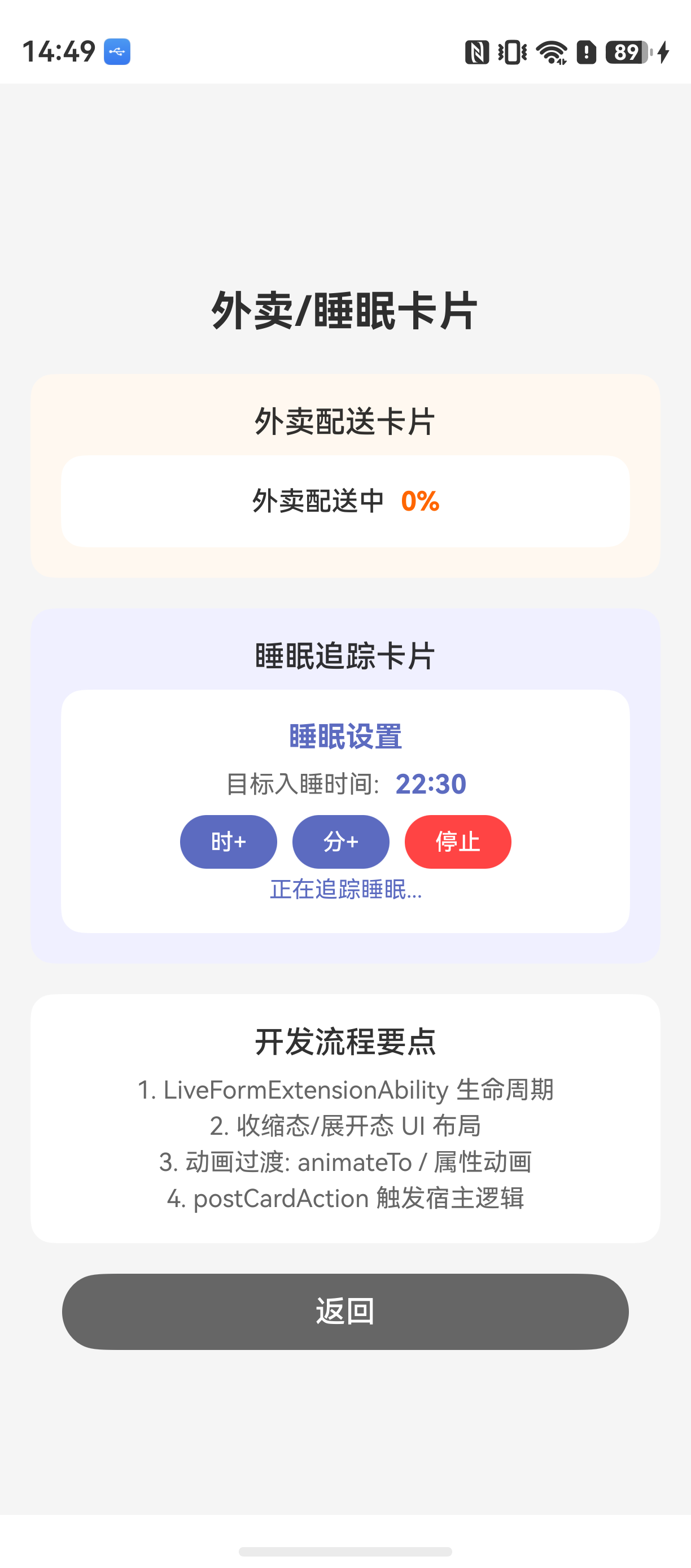
本文以快递卡片和睡眠卡片为主线,完整拆解了互动卡片的开发流程:
- 快递卡片:陀螺仪订阅(100ms 采样)→ 阈值过滤 → 憨憨位置更新(近大远小透视)→ 取消动效
- 睡眠卡片 :帧动画(30 帧/100ms)→ 三叶草旋转 + 气球破框 → 状态回推(
updateForm)
下一篇将以运动卡片和音乐卡片为主线,深入讲解 Canvas 自绘制、运动状态管理、音频控制 的实战实现。
如果这篇文章对你有帮助,欢迎点赞👍、收藏⭐、关注🔔,你的支持是我持续创作的动力!
相关资源: