基于 m3u8dl-tauri(Rust + Tauri 2 m3u8 多线程下载器)从 Windows 移植到 OpenHarmony / HarmonyOS 鸿蒙 PC(ARM64)的真实经验整理。 参考:Tauri 应用移植到 OpenHarmony/鸿蒙PC完整指南、 MQTT Client 移植实践记录。
更多交流学习,欢迎加入开源鸿蒙PC社区 :harmonypc.csdn.net/
欢迎在PC社区平台申请新建项目 :atomgit.com/OpenHarmony...
猫哥的博客 :blog.csdn.net/qq8864
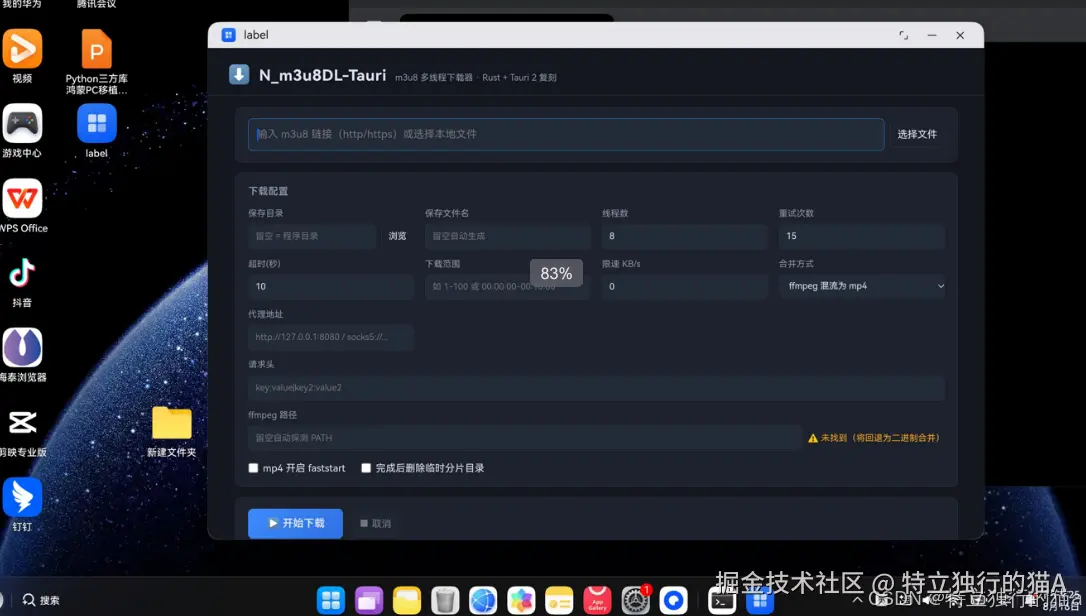
m3u8dl-tauri项目介绍:基于 Rust + Tauri 2 对 N_m3u8DL-CLI(C# / .NET)的复刻实现一个简单易用的 m3u8 多线程下载器,自带可视化配置界面。核心下载逻辑(src-tauri/src/core/)与 GUI 完全解耦,可作为独立 Rust 库复用,并通过单元测试与端到端集成测试验证。本文详细介绍如何将其移植到鸿蒙PC上。
@TOC
一、移植原理
Tauri 应用 = Rust 后端 + Web 前端。移植到 HarmonyOS 不需要重写 UI, 核心思路是:
java
Tauri App (Rust + WebView)
       │
       ▼
   napi-ohos 桥接层     ← Rust 与 OHOS 原生代码的桥梁
       │
       ▼
   OHOS ArkWeb WebView  ← 渲染前端页面
       │
       ▼
   HAP 打包              ← DevEco Studio / hvigor 打包
社区先锋 richerfu/tauri 维护了 Tauri v2 的 OHOS 分支(feat/open-harmony),我们直接基于它做交叉编译。
一句话总结 :把 Rust 后端交叉编译成 libxxx.so(aarch64 ELF),前端零改动塞进 rawfile,套上一个 DevEco 工程壳,交给 hvigor 打包成 HAP。
二、环境准备
2.1 硬件/软件清单
| 项目 | 要求 | 备注 |
|---|---|---|
| 开发机 | Windows 10/11 x86_64 | 本指南基于 Windows |
| Rust | 1.75+(本机 1.97) | rustup 管理 |
| Node.js | 18+ | 本机 24 |
| OHOS SDK / NDK | HarmonyOS NEXT 及以上 | 见 2.2 |
| DevEco Studio | 5.0+ | 自带 hvigor / ohpm / hdc / node |
| 真机 | 鸿蒙 PC / 平板(ARM64) | 开启开发者模式 + USB 调试 |
2.2 安装 Rust 交叉编译目标
OHOS 的 Rust 目标已被 Rust 官方提升为 Tier 2,标准库可直接通过 rustup 下载:
bash
rustup target add aarch64-unknown-linux-ohos   # ARM64(平板/鸿蒙PC ARM)
rustup target add x86_64-unknown-linux-ohos    # x86_64(鸿蒙PC x86)
2.3 OHOS SDK(NDK)目录结构
从华为开发者网站下载 SDK 后,注意区分两个概念:
- NDK(native):交叉编译 Rust/C++ 用,含 clang / lld / llvm-ar / sysroot
- 完整 SDK :DevEco Studio 打包 HAP 用,含
ets/js/native/toolchains等组件
本机布局:
python
D:\oh\DevEcoStudio\sdk\HarmonyOS-NEXT-DB6\openharmony\
└── native\                    # ← NDK(只有这一个组件)
    ├── llvm\bin\clang.exe     # 交叉编译器
    ├── llvm\bin\lld.exe       # 链接器
    ├── llvm\bin\llvm-ar.exe   # 归档工具
    └── sysroot\               # OHOS 系统头文件与库(musl libc)

D:\Program Files\Huawei\DevEco Studio\
├── sdk\default\openharmony\   # ← 完整 SDK(含 ets/js/native/toolchains)
└── tools\
    ├── hvigor\bin\hvigorw.bat # 构建工具
    ├── node\                  # 自带 Node
    └── ohpm\bin\ohpm.bat      # 包管理器
⚠️ DevEco 的 SDK 位置必须指向完整 SDK (含
ets组件)。 只指向 NDK 目录会报SDK component missing(见第八节)。
2.4 网络加速(中国大陆)
GitHub 代码拉取和 crates.io 下载建议加速:
bash
# GitHub 代理
git config --global url."https://ghfast.top/https://github.com".insteadOf "https://github.com"

# crates.io 镜像(可选,写入 ~/.cargo/config.toml)
[source.crates-io]
replace-with = "ustc-sparse"
[source.ustc-sparse]
registry = "sparse+https://mirrors.ustc.edu.cn/crates.io-index/"
[net]
git-fetch-with-cli = true
三、安装 OHOS 版工具链
3.1 克隆 Tauri OHOS 分支
bash
git clone --branch feat/open-harmony https://github.com/richerfu/tauri.git tauri-ohos
# 代理写法:git clone --branch feat/open-harmony https://ghfast.top/https://github.com/richerfu/tauri.git tauri-ohos
3.2 ⚠️ 必须修复 cargo-mobile2 版本(关键!)
编辑 tauri-ohos/crates/tauri-cli/Cargo.toml,找到:
toml
[target."cfg(any(target_os = "linux", ...windows...))".dependencies]
cargo-mobile2 = { version = "0.20.6", default-features = false }
把版本改成 0.22:
toml
cargo-mobile2 = { version = "0.22", default-features = false }为什么? 旧版 0.20.x 没有 open_harmony 模块,编译 CLI 时会报 cannot find open_harmony in cargo_mobile2。
3.3 安装 tauri-cli 与 ohrs
bash
cargo install --path tauri-ohos/crates/tauri-cli
cargo install ohrs
验证:
bash
cargo tauri --version   # tauri-cli 2.8.4(OHOS fork)
ohrs --version          # 1.5.0
cargo tauri ohos --help # 出现 init/dev/build 子命令即成功
ohrs是cargo tauri ohos build内部调用的 OHOS 构建助手 (错误Failed to run ohrs build: program not found就是没装它)。
四、Windows 专属坑:GNU 工具链无法链接
这是本机(llvm-mingw 环境)踩到的最大的坑,Linux 用户可跳过本节。
4.1 现象
cargo install 或 cargo build 时,凡是需要链接(含 build script)的 crate 全部失败:
vbnet
error: linking with `x86_64-w64-mingw32-gcc` failed: exit code: 1
  = note: lld: error: unable to find library -lgcc_eh
          lld: error: unable to find library -lgcc
          clang-22: error: linker command failed with exit code 1
4.2 原因
默认 x86_64-pc-windows-gnu 工具链用 PATH 里的 x86_64-w64-mingw32-gcc (llvm-mingw 的 clang 包装脚本)做链接器,它把 -lgcc_eh/-lgcc 原样传给 lld, 而 llvm-mingw 不提供 libgcc,所以链接失败。
4.3 解决:使用 gnullvm 工具链
rustup 提供了专为 llvm-mingw 设计的 x86_64-pc-windows-gnullvm 工具链 (基于 lld + compiler-rt,不需要 libgcc):
bash
rustup toolchain install stable-x86_64-pc-windows-gnullvm
rustup target add --toolchain stable-x86_64-pc-windows-gnullvm aarch64-unknown-linux-ohos
在项目 src-tauri/ 下新建 rust-toolchain.toml 固定工具链(这样 cargo tauri ohos build 内部调用的 cargo 也会用 gnullvm):
toml
[toolchain]
channel = "stable-x86_64-pc-windows-gnullvm"
targets = ["aarch64-unknown-linux-ohos"]
这条同时修复了本机 Windows 本机构建(原来 GNU 工具链连 Windows 构建都过不去)。
五、改造项目代码
假设你已有一个标准 Tauri v2 项目。核心改动如下。
5.1 拆分入口:lib.rs + main.rs
Tauri v2 标准模板已经是这种结构(OHOS 的关键是 mobile_entry_point 宏)。
src-tauri/src/lib.rs:
rust
pub mod commands;
pub mod core;

/// Tauri 应用入口
#[cfg_attr(mobile, tauri::mobile_entry_point)]
pub fn run() {
    tauri::Builder::default()
        .manage(...)
        .invoke_handler(tauri::generate_handler![...])
        .run(tauri::generate_context!())
        .expect("error while running tauri application");
}src-tauri/src/main.rs:
rust
#![cfg_attr(not(debug_assertions), windows_subsystem = "windows")]

fn main() {
    m3u8dl_tauri_lib::run()
}
5.2 Cargo.toml
toml
[package]
name = "m3u8dl-tauri"
edition = "2021"

# 必须有这三种 crate-type(OHOS 需要 cdylib 产出 .so)
[lib]
name = "m3u8dl_tauri_lib"
crate-type = ["staticlib", "cdylib", "rlib"]

[build-dependencies]
# tauri-build 指向本地 fork
tauri-build = { path = "../../tauri-ohos/crates/tauri-build", default-features = false, features = ["codegen"] }

[dependencies]
# tauri 指向本地 fork(保持一套 Cargo.toml,Windows 也能用 fork 构建)
tauri = { path = "../../tauri-ohos/crates/tauri", features = [] }
serde = { version = "1", features = ["derive"] }
serde_json = "1"
tokio = { version = "1", features = ["full"] }
reqwest = { version = "0.12", default-features = false, features = ["stream"] }
url = "2"
# ... 其他业务依赖不变

# 桌面平台:原生系统根证书 + 原生文件对话框
[target.'cfg(not(target_env = "ohos"))'.dependencies]
reqwest = { version = "0.12", default-features = false, features = ["rustls-tls-native-roots", "stream"] }
rfd = "0.15"

# OHOS:无系统证书库/对话框,改用内置 webpki 根证书
[target.'cfg(target_env = "ohos")'.dependencies]
reqwest = { version = "0.12", default-features = false, features = ["rustls-tls-webpki-roots", "stream"] }
# mobile_entry_point 宏展开需要 napi 桥接(缺了会报 cannot find crate napi_ohos)
napi-derive-ohos = "1.1"
napi-ohos = { version = "1.1", features = ["napi8"] }
⚠️ 依赖名在
[dependencies]和[target...dependencies]同时出现时, 目标匹配的条目会覆盖通用条目(不会合并),所以每个分支要写全所需 features。
5.3 平台差异代码:命令层
OHOS 的 ArkWeb 里没有原生文件对话框、没有资源管理器,需要给命令做平台分支:
rust
/// 选择保存目录(原生对话框;OHOS 无原生对话框,返回 None)
#[cfg(not(target_env = "ohos"))]
#[tauri::command]
pub async fn pick_folder() -> Option<String> {
    tauri::async_runtime::spawn_blocking(|| {
        rfd::FileDialog::new()
            .set_title("选择保存目录")
            .pick_folder()
            .map(|p| p.to_string_lossy().to_string())
    })
    .await
    .ok()
    .flatten()
}

/// OHOS 占位实现:ArkWeb 内无法弹系统目录选择器
#[cfg(target_env = "ohos")]
#[tauri::command]
pub async fn pick_folder() -> Option<String> {
    None
}
open_in_explorer 同理(OHOS 返回 Err)。命令名保持一致,前端零改动。
5.4 链接器包装脚本(Windows 特有)
OHOS NDK 自带的 aarch64-unknown-linux-ohos-clang 是 Unix shell 脚本, Windows 无法直接执行。在 src-tauri/ 下创建 ohos-clang.cmd:
bat
@echo off
REM ohos-clang.cmd - aarch64 OHOS linker wrapper for Rust (Windows)
"D:\oh\DevEcoStudio\sdk\HarmonyOS-NEXT-DB6\openharmony\native\llvm\bin\clang.exe" ^
  -target aarch64-linux-ohos ^
  --sysroot="D:\oh\DevEcoStudio\sdk\HarmonyOS-NEXT-DB6\openharmony\native\sysroot" ^
  -D__MUSL__ -fuse-ld=lld %*
5.5 .cargo/config.toml
src-tauri/.cargo/config.toml(注意 linker 相对路径是相对 .cargo/ 所在目录):
toml
[target.aarch64-unknown-linux-ohos]
linker = "..\\ohos-clang.cmd"
ar = "D:\\oh\\DevEcoStudio\\sdk\\HarmonyOS-NEXT-DB6\\openharmony\\native\\llvm\\bin\\llvm-ar.exe"
rustflags = [
    "-C", "link-arg=-fuse-ld=lld",
    "-C", "link-arg=--rtlib=compiler-rt",
]
5.6 图标必须是 RGBA PNG
generate_context!() 宏会校验图标格式,RGB 三通道会报 icon is not RGBA。 在 src-tauri/icons/ 放一个 1024x1024 的 RGBA PNG,命名 icon.png。 可用 Pillow 生成:
python
from PIL import Image, ImageDraw
img = Image.new("RGBA", (1024, 1024), (0, 0, 0, 0))
# ... 画你的图标
img.save("src-tauri/icons/icon.png")  # 确保 mode 是 RGBA
5.7 tauri.conf.json
确认 withGlobalTauri: true(OHOS WebView 需要 window.__TAURI__ 全局桥):
json
{
  "identifier": "com.example.myapp",
  "app": {
    "withGlobalTauri": true
  }
}
六、初始化 OHOS 工程
设置环境变量(指向 SDK 根目录,不是 native/ ,CLI 会自动拼 native):
powershell
$env:OHOS_HOME = "D:\oh\DevEcoStudio\sdk\HarmonyOS-NEXT-DB6\openharmony"进入 src-tauri 初始化:
bash
cd src-tauri
cargo tauri ohos init --skip-targets-install
成功会生成 src-tauri/gen/ohos/(完整 DevEco 工程):
bash
gen/ohos/
├── AppScope/app.json5          # bundleName: com.example.myapp(连字符自动转下划线)
├── build-profile.json5
├── hvigor/hvigor-config.json5
├── entry/
│   ├── src/main/
│   │   ├── ets/entryability/EntryAbility.ets   # RustAbility, moduleName=xxx_lib
│   │   ├── ets/pages/Index.ets
│   │   └── resources/
│   ├── libs/arm64-v8a/         # .so 输出位置
│   └── oh-package.json5        # 含 @ohos-rs/ability 依赖
└── ...
七、交叉编译 Rust 后端
bash
cd src-tauri
cargo tauri ohos build -t aarch64   # 或 -t x86_64
做的事:调用 ohrs build 编译出 .so、生成 index.d.ts、尝试装配 HAP。
产物:
bash
src-tauri/target/aarch64-unknown-linux-ohos/release/libm3u8dl_tauri_lib.so
src-tauri/gen/ohos/entry/libs/arm64-v8a/libm3u8dl_tauri_lib.so   # 已自动复制
验证 ELF 格式(file 命令或 Python 读魔数):
vbnet
ELF 64-bit LSB shared object, ARM aarch64, version 1 (SYSV), dynamically linked, stripped7.1 ⚠️ Windows 上 HAP 装配必然失败(预期)
cargo tauri ohos build 最后的装配步骤在 Windows 上会报:
vbnet
Error Failed to assemble HAP: 系统找不到指定的文件。 (os error 2)原因是 cargo-mobile2 用 CreateProcess 直接拉起 ohpm.bat / hvigorw.bat, Windows 不能这样执行 .bat。不用慌 ,.so 已经就位,按下面手工完成打包即可。
7.2 手工完成 HAP 装配(Windows)
powershell
# 把工具链加进 PATH(DevEco 自带 node / hvigor,ohpm 单独安装)
$env:PATH = "D:\Program Files\Huawei\DevEco Studio\tools\node;" +
            "D:\Program Files\Huawei\DevEco Studio\tools\hvigor\bin;" +
            "D:\ohpm\ohpm-1.2.5\bin;" + $env:PATH
$env:DEVECO_SDK_HOME = "D:\Program Files\Huawei\DevEco Studio\sdk"

cd src-tauri\gen\ohos
cmd /c "ohpm install"                                  # 根工程依赖
cd entry
cmd /c "ohpm install"                                  # entry 模块依赖(@ohos-rs/ability 等)
cd ..
cmd /c "hvigorw assembleHap --mode module -p product=default --no-daemon"
为什么用
cmd /c?因为 bash/PowerShell 直接调 .bat 的路径解析有各种坑, 交给 cmd 最稳。
7.3 同步前端到 rawfile
cargo tauri ohos build 不会自动同步前端,需要手动复制:
powershell
Copy-Item -Force ..\..\..\..\frontend\* `
  "src-tauri\gen\ohos\entry\src\main\resources\rawfile\" -Recurse
八、DevEco Studio 打包 HAP
8.1 打开工程
File → Open → 选择 src-tauri/gen/ohos/,等待 Sync。
8.2 注释掉 hvigorfile 里的 cargo 调用
gen/ohos/entry/hvigorfile.ts 里 DevEco 会尝试调用 cargo tauri ohos dev-eco-studio-script 重复编译 Rust(我们已用命令行编译过), 注释掉:
typescript
function tauriPlugin(): HvigorPlugin {
  return {
    pluginId: 'tauri',
    apply(node: HvigorNode) {
      const buildRustCode = () => {
        // Rust 交叉编译已在命令行完成,这里不再重复构建
      }
      node.getTaskByName('default@ConfigureCmake')!.afterRun(buildRustCode);
    }
  }
}
8.3 ⚠️ SDK component missing(00303168)
Sync 报 SDK component missing 有两个原因:
- DevEco 的 SDK 位置指向了只有 native 的 NDK 目录 。 File → Settings → SDK(HarmonyOS SDK),必须指向完整 SDK (含
ets/js/native/toolchains),例如D:\Program Files\Huawei\DevEco Studio\sdk。 - compatibleSdkVersion 与已装 SDK 不匹配 。 生成的工程默认是
5.0.0(12),而你的 DevEco SDK 是 API 26 → 无 API 12 组件。 按 8.4 处理。
8.4 compatibleSdkVersion 怎么填
经验法则:compatibleSdkVersion ≤ 真机 API,且 ≤ DevEco SDK 支持的 API。
- 查真机 API:
hdc shell "param get const.ohos.apiversion"(本机为 24) - 查 SDK API:
sdk\default\openharmony\ets\oh-uni-package.json的apiVersion(本机 26)
gen/ohos/build-profile.json5:
json5
"products": [
  {
    "name": "default",
    "signingConfig": "default",
    "targetSdkVersion": "26.0.0",       // 构建所用 SDK
    "compatibleSdkVersion": "6.1.1(24)", // 匹配真机 OpenHarmony 6.1.1 / API 24
    "runtimeOS": "HarmonyOS",
  }
]
DevEco 有时会把
compatibleSdkVersion自动迁移成26.0.0,在 API 24 真机上会 安装失败:install failed due to older sdk version in the device,改回 6.1.1(24) 即可。
8.5 配置签名
File → Project Structure → Signing Configs → Automatically generate signature (需要登录华为账号)。签名材料会写进 build-profile.json5 的 signingConfigs。
8.6 构建 HAP
命令行(等价于 IDE 的 Build → Build HAP(s)):
powershell
cd src-tauri\gen\ohos
cmd /c "hvigorw assembleHap --mode module -p product=default --no-daemon"产物:entry/build/default/outputs/default/entry-default-signed.hap
九、真机部署与验证
9.1 连接设备
bash
hdc list targets # 看到设备序列号即连接成功hdc 位置:
D:\Program Files\Huawei\DevEco Studio\sdk\default\openharmony\toolchains\hdc.exe
9.2 安装
bash
cd src-tauri\gen\ohos\entry\build\default\outputs\default
hdc install -r entry-default-signed.hap
⚠️ hdc 的路径处理有坑:传绝对路径时会在前面拼当前目录导致找不到文件, 用相对路径最稳。
9.3 启动
bash
hdc shell "aa start -a EntryAbility -b com.atomgit.m3u8dl_tauri"bundle 名以 gen/ohos/AppScope/app.json5 里的 bundleName 为准 (原 identifier 中的连字符会被自动替换为下划线)。
9.4 验证运行状态
bash
# 1. 进程在不在(应有主进程 + gpu + render 进程)
hdc shell "ps -ef" | grep 包名

# 2. 日志有没有 panic / crash
hdc shell "hilog -x" | grep -iE "panic|fatal|crash"

# 3. 截图确认 UI 渲染出来了
hdc shell "snapshot_display -f /data/local/tmp/screen.jpeg"
hdc file recv /data/local/tmp/screen.jpeg screen.jpeg
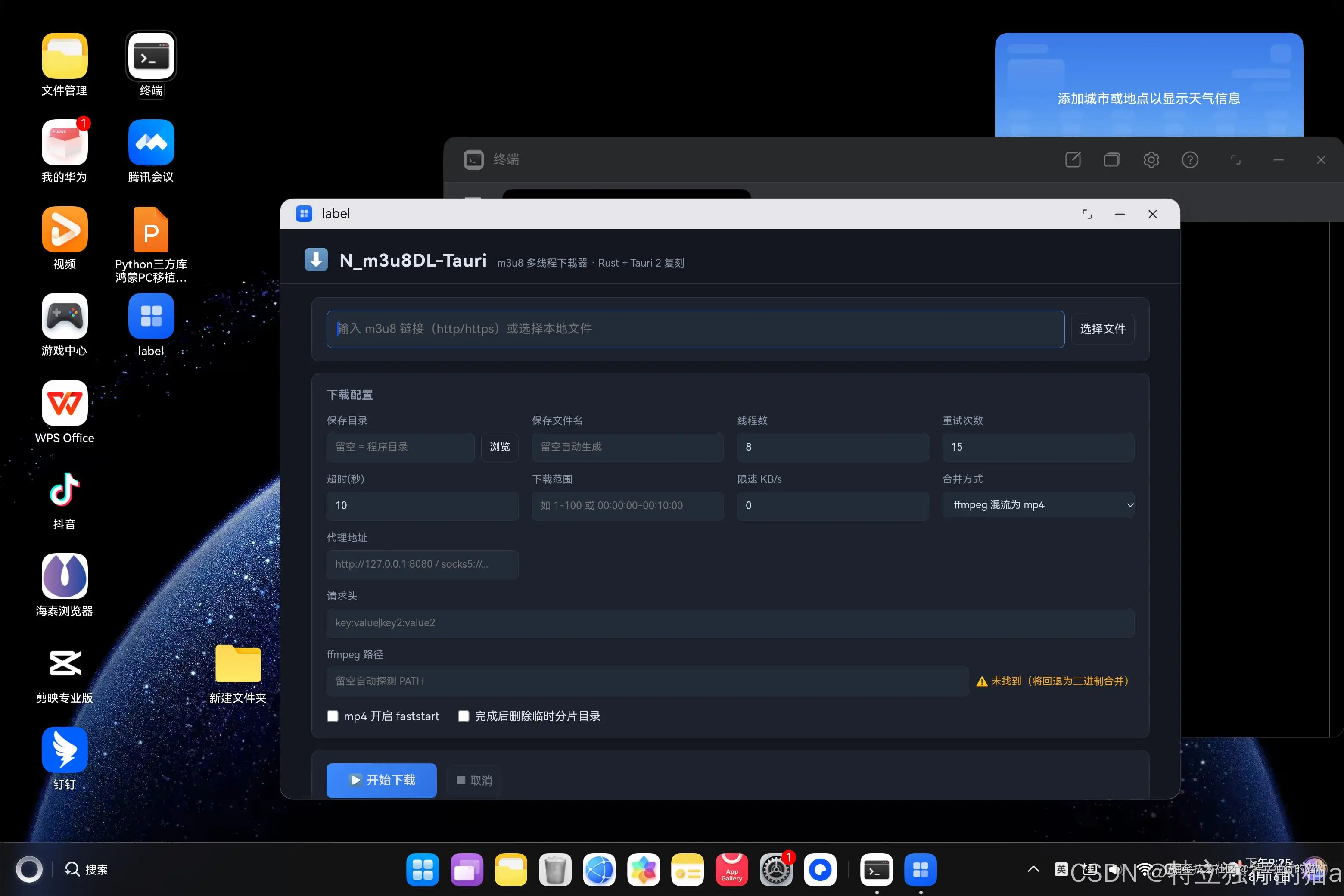
看到主进程 + render 进程存活、日志无 panic、截图是应用的深色 UI, 就说明移植成功了。
真机验证截图:
十、核心要点与避坑总结
移植核心要点
- 复用社区 fork,不要自己造轮子 :
richerfu/tauri的feat/open-harmony分支是当前唯一可用的 OHOS 支持,前端零改动、命令层只做少量平台分支。 - 一条流水线 :交叉编译
.so→ 同步前端到 rawfile → DevEco 工程壳 → HAP。 前端(HTML/JS/CSS)越朴素,移植越省事;有 npm 构建步骤的项目记得先构建出静态产物。 mobile_entry_point宏 +crate-type:入口拆分 lib.rs/main.rs,crate-type必须含cdylib,OHOS 下宏展开需要napi-ohos系依赖。- 证书方案 :OHOS 没有系统证书库,reqwest 等用
rustls-tls-webpki-roots内置根证书,否则 https 全挂。 - 平台能力要降级:原生对话框、资源管理器、ffmpeg 这些桌面能力在 OHOS 上要么没有、要么用不了,代码里做好回退/占位,别让 UI 崩。
避坑清单
| # | 坑 | 现象 | 解法 |
|---|---|---|---|
| 1 | cargo-mobile2 版本旧 | cannot find open_harmony in cargo_mobile2 |
tauri-cli 的 cargo-mobile2 改 0.22 |
| 2 | 没装 ohrs | Failed to run ohrs build: program not found |
cargo install ohrs |
| 3 | llvm-mingw GNU 工具链 | unable to find library -lgcc_eh |
固定 x86_64-pc-windows-gnullvm 工具链 |
| 4 | 缺 napi 依赖 | cannot find crate napi_ohos(宏展开报错) |
[target.'cfg(target_env = "ohos")'] 加 napi-derive-ohos/napi-ohos |
| 5 | 图标非 RGBA | icon ... is not RGBA |
生成 RGBA PNG(Pillow mode="RGBA") |
| 6 | OHOS_HOME 多拼一层 |
toolchain file not found |
指到 SDK 根目录(...\openharmony),不要指 native/ |
| 7 | Windows 拉不起 .bat | Failed to assemble HAP: os error 2 |
手工 cmd /c ohpm install + hvigorw assembleHap |
| 8 | SDK 位置是纯 NDK | SDK component missing (00303168) |
DevEco SDK 指到含 ets 组件的完整 SDK |
| 9 | compatibleSdkVersion 高于真机 | install failed due to older sdk version in the device |
设为真机 API 对应的版本(如 6.1.1(24)) |
| 10 | hdc 路径怪 | open path:E:\xxx\E:/xxx 找不到文件 |
用相对路径传参 |
| 11 | JS 错误被静默 | WebView 白屏但无报错 | 构建前 node --check script.js,部署后看 hilog |
| 12 | 中文乱码 | 界面文字乱码 | 文件统一 UTF-8 无 BOM 保存 |
收尾建议
- 把整个流程固化成
build-ohos.ps1脚本(交叉编译 → 同步前端 → ohpm → hvigor), 一键出包。 .so建议加[profile.release] lto = true + strip = true减小体积; 追求极限体积可再加opt-level = "z"、codegen-units = 1、panic = "abort"(代价是每次 release 全量重编,很慢)。- 真机验证过的版本号、设备 API、SDK 版本记进 README,避免后人踩同样的 compatibleSdkVersion 坑。