出来找工作,遇到需要使用qml做车载测试开发,写了demo快速上手。
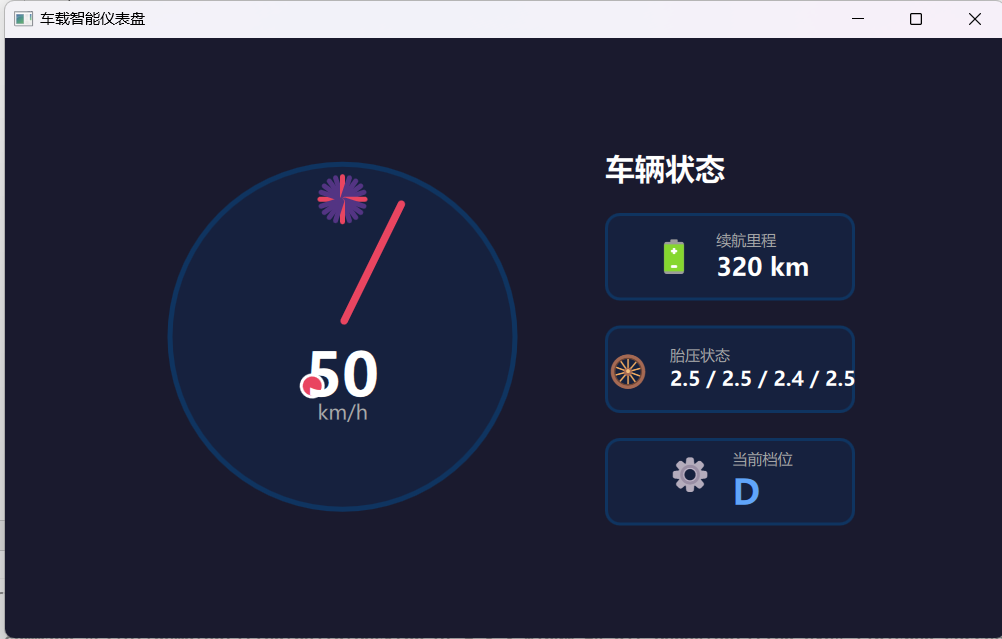
通过一个随机数,每50ms刷新,指针需要从0到随机数,从而得到一个动画的效果。
效果代码如下:
javascript
// ========== 模拟车速数据 ==========
    property int currentSpeed: 0
    property int targetSpeed: 0

    Timer {
        interval: 50
        running: true
        repeat: true
        onTriggered: {
            targetSpeed = Math.floor(Math.random() * 180)
            speedAnimation.start()
        }
    }

    NumberAnimation {
        id: speedAnimation
        target: dashboard
        property: "currentSpeed"
        from: dashboard.currentSpeed
        to: targetSpeed
        duration: 300
        easing.type: Easing.InOutQuad
    }
完整main.qml
javascript
import QtQuick 2.15
import QtQuick.Window 2.15
import QtQuick.Controls 2.15

Window {
    id: dashboard
    width: 800
    height: 480
    visible: true
    title: "车载智能仪表盘"
    color: "#1a1a2e"

    // ========== 模拟车速数据 ==========
    property int currentSpeed: 0
    property int targetSpeed: 0

    Timer {
        interval: 50
        running: true
        repeat: true
        onTriggered: {
            targetSpeed = Math.floor(Math.random() * 180)
            speedAnimation.start()
        }
    }

    NumberAnimation {
        id: speedAnimation
        target: dashboard
        property: "currentSpeed"
        from: dashboard.currentSpeed
        to: targetSpeed
        duration: 300
        easing.type: Easing.InOutQuad
    }

    // ========== 布局 ==========
    Row {
        anchors.centerIn: parent
        spacing: 60

        // -------- 左侧:速度表盘 --------
        Item {
            width: 300
            height: 300

            Rectangle {
                width: 280
                height: 280
                radius: 140
                color: "#16213e"
                border.color: "#0f3460"
                border.width: 4
                anchors.centerIn: parent
            }

            Repeater {
                model: 20
                Item {
                    x: 150 - 2
                    y: 20
                    width: 4
                    height: 20
                    rotation: index * 18 - 90
                    transformOrigin: Item.Bottom
                    Rectangle {
                        width: parent.width
                        height: parent.height
                        color: index % 5 === 0 ? "#e94560" : "#533483"
                        radius: 2
                    }
                }
            }

            Rectangle {
                id: pointer
                width: 6
                height: 110
                color: "#e94560"
                radius: 3
                anchors.bottom: parent.verticalCenter
                anchors.bottomMargin: 10
                anchors.horizontalCenter: parent.horizontalCenter
                transformOrigin: Item.Bottom
                rotation: -120 + (currentSpeed / 180) * 240
                Behavior on rotation {
                    NumberAnimation { duration: 200; easing.type: Easing.InOutQuad }
                }
                Rectangle {
                    width: 20
                    height: 20
                    radius: 10
                    color: "#e94560"
                    anchors.centerIn: parent
                    anchors.verticalCenterOffset: 110
                    border.color: "white"
                    border.width: 2
                }
            }

            Text {
                text: currentSpeed
                font.pixelSize: 48
                font.bold: true
                color: "white"
                anchors.horizontalCenter: parent.horizontalCenter
                anchors.verticalCenter: parent.verticalCenter
                anchors.verticalCenterOffset: 30
            }

            Text {
                text: "km/h"
                font.pixelSize: 16
                color: "#aaaaaa"
                anchors.horizontalCenter: parent.horizontalCenter
                anchors.top: parent.verticalCenter
                anchors.topMargin: 50
            }
        }

        // -------- 右侧:信息卡片 --------
        Column {
            spacing: 20
            anchors.verticalCenter: parent.verticalCenter

            Text {
                text: "车辆状态"
                font.pixelSize: 24
                font.bold: true
                color: "white"
            }

            Rectangle {
                width: 200
                height: 70
                color: "#16213e"
                radius: 12
                border.color: "#0f3460"
                border.width: 2
                Row {
                    anchors.centerIn: parent
                    spacing: 15
                    Text { text: "🔋"; font.pixelSize: 28; color: "#4ade80" }
                    Column {
                        Text { text: "续航里程"; font.pixelSize: 12; color: "#aaaaaa" }
                        Text { text: "320 km"; font.pixelSize: 20; font.bold: true; color: "white" }
                    }
                }
            }

            Rectangle {
                width: 200
                height: 70
                color: "#16213e"
                radius: 12
                border.color: "#0f3460"
                border.width: 2
                Row {
                    anchors.centerIn: parent
                    spacing: 15
                    Text { text: "🛞"; font.pixelSize: 28; color: "#facc15" }
                    Column {
                        Text { text: "胎压状态"; font.pixelSize: 12; color: "#aaaaaa" }
                        Text { text: "2.5 / 2.5 / 2.4 / 2.5"; font.pixelSize: 16; font.bold: true; color: "white" }
                    }
                }
            }

            Rectangle {
                width: 200
                height: 70
                color: "#16213e"
                radius: 12
                border.color: "#0f3460"
                border.width: 2
                Row {
                    anchors.centerIn: parent
                    spacing: 15
                    Text { text: "⚙️"; font.pixelSize: 28; color: "#60a5fa" }
                    Column {
                        Text { text: "当前档位"; font.pixelSize: 12; color: "#aaaaaa" }
                        Text { text: "D"; font.pixelSize: 28; font.bold: true; color: "#60a5fa" }
                    }
                }
            }
        }
    }
}
零基础小白直接复制代码容易犯的错,项目名称是自定义的untined,项目是有(compt),在下载qt的时候大家应该就明白这句话解释的是啥了。
qt的下载,参考博客
Qt Creator 安装教程(详细)_qt creator安装-CSDN博客
这里如果不用vs编码的话,需要在下载时选择mingGW,MCVS还有qt creator
或者后面需要自己配置环境的时候直接在 修改配置即可。