Cursor / VS Code 自定义文件颜色
怎么改
要换颜色,改配置文件 settings.json 即可。
Ctrl + Shift + P → 输入Preferences: Open User Settings (JSON) 打开 settings.json
加上这段:
json
{
  // ...此处省略其他配置

  // 以下是默认颜色的配置
  "workbench.colorCustomizations": {
    // Git:已修改
    "gitDecoration.modifiedResourceForeground": "#E2C08D",
    // Git:未跟踪(新增未提交)
    "gitDecoration.untrackedResourceForeground": "#73C991",
    // Git:已暂存的新增
    "gitDecoration.addedResourceForeground": "#81b88b",
    // Git:已删除
    "gitDecoration.deletedResourceForeground": "#c74e39",
    // Git:冲突
    "gitDecoration.conflictingResourceForeground": "#e4676b",
    // Git:被忽略
    "gitDecoration.ignoredResourceForeground": "#8C8C8C",
    // Git:重命名
    "gitDecoration.renamedResourceForeground": "#73C991",
    // Git:已暂存的修改
    "gitDecoration.stageModifiedResourceForeground": "#E2C08D",
    // Git:已暂存的删除
    "gitDecoration.stageDeletedResourceForeground": "#c74e39",
    // Git:子模块
    "gitDecoration.submoduleResourceForeground": "#8db9e2",

    // 资源管理器:有警告的文件名
    "list.warningForeground": "#CCA700",
    // 资源管理器:有错误的文件名
    "list.errorForeground": "#F88070",
  },
}
保存即生效。
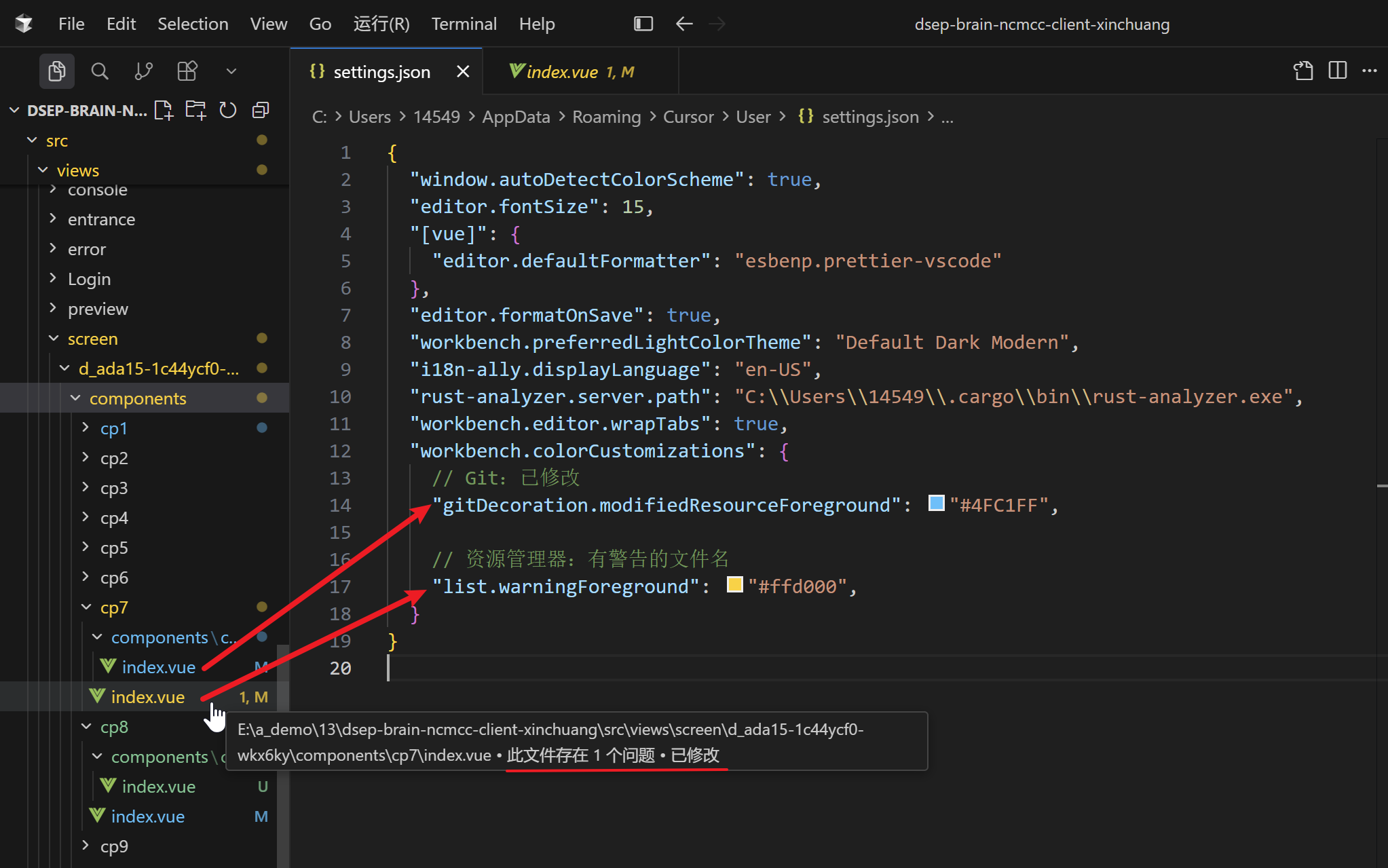
有警告的文件名会盖过 Git 色。
注意:悬停文件看到「此文件存在 1 个问题 - 已修改」,改的是 list.warningForeground,不是 Git 那项。
示例:
换电脑会不会生效
不会。 这份是本机 User Settings,绑的是当前电脑 + 当前 Windows 用户,所有项目生效。
同一 Cursor 账号换电脑登录,不会 自动带上。要生效只能:拷贝这份 settings.json,或 Profiles: Export Profile 再在新电脑 Import。
只想改某一个项目:写到该仓库的 .vscode/settings.json。提交 Git 后,别人拉取也会跟着变。