格式化是把 Date 变成文本,解析是反过来------把用户输入的字符串还原成 Date 对象。这篇介绍 Date.fromLocaleString() 的严格匹配规则,以及时间戳和日期互转的两种方向。
- 交互式解析 --- 格式下拉框与输入框联动,实时解析并给出结果
- 时间戳转换 ---
getTime()取毫秒时间戳,new Date(ts)转回日期
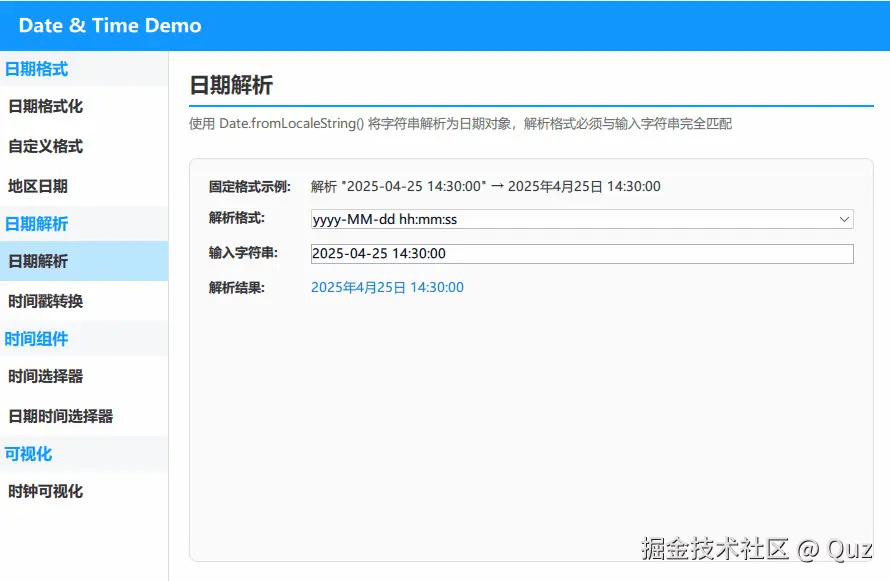
Demo 1:交互式日期解析
一个解析格式下拉框、一个输入框、一个结果行:选好格式,输入对应字符串,立即看到解析结果。
演示代码
qml
import QtQuick
import QtQuick.Controls
import QtQuick.Layouts

FadeInAnimation {
    ColumnLayout {
        anchors.fill: parent
        anchors.margins: 20
        spacing: 15

        // ... 省略标题组件 TitleSeparator ...

        Rectangle {
            Layout.fillWidth: true
            Layout.fillHeight: true
            color: "#fafafa"
            radius: 8
            border.color: "#e0e0e0"

            GridLayout {
                anchors.fill: parent
                anchors.margins: 20
                columns: 2
                columnSpacing: 20
                rowSpacing: 15

                // ===== 静态示例 =====
                Text { text: "固定格式示例:"; font.bold: true }
                Text {
                    property var parsed: Date.fromLocaleString(Qt.locale(), "2025-04-25 14:30:00", "yyyy-MM-dd hh:mm:ss")
                    text: "解析 \"2025-04-25 14:30:00\" → " + parsed.toLocaleString(Qt.locale())
                    wrapMode: Text.Wrap
                    Layout.fillWidth: true
                }

                // ===== 交互区:格式选择 =====
                Text { text: "解析格式:"; font.bold: true }
                ComboBox {
                    id: fmtCombo
                    Layout.fillWidth: true
                    Layout.preferredWidth: 280
                    model: ListModel {
                        ListElement { fmt: "yyyy-MM-dd"; hint: "2025-12-25" }
                        ListElement { fmt: "yyyy-MM-dd hh:mm:ss"; hint: "2025-04-25 14:30:00" }
                        ListElement { fmt: "yyyy/MM/dd"; hint: "2025/04/25" }
                        ListElement { fmt: "yyyy年MM月dd日"; hint: "2025年04月25日" }
                        ListElement { fmt: "yyyy-MM-dd hh:mm AP"; hint: "2025-04-25 02:30 PM" }
                    }
                    textRole: "fmt"

                    // 切换格式时,自动把输入框内容换成该格式的示例
                    onCurrentIndexChanged: {
                        var item = model.get(currentIndex)
                        inputField.placeholderText = item.hint
                        inputField.text = item.hint
                    }
                    Component.onCompleted: currentIndex = 1
                }

                // ===== 交互区:输入 =====
                Text { text: "输入字符串:"; font.bold: true }
                TextField {
                    id: inputField
                    Layout.fillWidth: true
                    Layout.preferredWidth: 280
                    placeholderText: "yyyy-MM-dd"
                    selectByMouse: true
                }

                // ===== 交互区:结果 =====
                Text { text: "解析结果:"; font.bold: true }
                Text {
                    id: resultText
                    property string fmt: fmtCombo.currentText
                    property var parsed: Date.fromLocaleString(Qt.locale(), inputField.text, fmt)
                    property bool hasTime: fmt.indexOf("hh") >= 0 || fmt.indexOf("HH") >= 0
                    text: isNaN(parsed.getTime())
                          ? "✗ 无效日期(输入与格式不匹配)"
                          : (hasTime
                             ? parsed.toLocaleString(Qt.locale())
                             : parsed.toLocaleDateString(Qt.locale(), Locale.LongFormat))
                    color: isNaN(parsed.getTime()) ? "#e74c3c" : "#1976D2"
                    wrapMode: Text.Wrap
                    Layout.fillWidth: true
                }

                Item { Layout.fillHeight: true }
            }
        }
    }
}
关键逻辑解析
解析函数与严格匹配
Date.fromLocaleString(locale, string, format) 是核心:按 format 去拆解 string,两者必须完全对应。格式里写了 yyyy-MM-dd hh:mm:ss,输入就必须是 2025-04-25 14:30:00 这种完整形态,多一个空格、少一个字段都会失败。格式里没写时间部分,输入带了时间,同样解析不出来------这就是本篇 Demo 1 交互设计成「格式和输入联动」的原因,先选格式、再按该格式的示例输入,就不会对不上。
结果是否有效的判断
Date.fromLocaleString 解析失败时返回的是 Invalid Date。判断方式是:
qml
isNaN(parsed.getTime())Invalid Date 的 getTime() 返回 NaN,所以 isNaN 一测便知。结果行据此切换文案和颜色:失败显示红色「✗ 无效日期」,成功显示蓝色解析结果。
格式决定输出样式
结果文本根据格式里有没有时间字段,选择不同的显示方式:
qml
property bool hasTime: fmt.indexOf("hh") >= 0 || fmt.indexOf("HH") >= 0有 hh/HH 说明格式含时间,用 toLocaleString() 完整输出;只有日期则用 toLocaleDateString(Qt.locale(), Locale.LongFormat) 输出长格式日期。
联动逻辑
ComboBox 的模型里每个条目带 fmt(格式串)和 hint(示例文本)两个字段。切换时在 onCurrentIndexChanged 里把 hint 同时写进输入框的 placeholderText 和 text,用户改格式后输入框自动变成该格式的合法样例,直接看结果即可。Component.onCompleted: currentIndex = 1 让启动时默认选中日期时间格式。

Demo 2:时间戳转换
时间戳是给程序用的时间格式,单位是毫秒。这个 demo 展示两个方向:Date 取时间戳、时间戳还原成 Date。
演示代码
qml
import QtQuick
import QtQuick.Controls
import QtQuick.Layouts

FadeInAnimation {
    ColumnLayout {
        anchors.fill: parent
        anchors.margins: 20
        spacing: 15

        // ... 省略标题组件 TitleSeparator ...

        Rectangle {
            Layout.fillWidth: true
            Layout.fillHeight: true
            color: "#fafafa"
            radius: 8
            border.color: "#e0e0e0"

            ColumnLayout {
                anchors.fill: parent
                anchors.margins: 20
                spacing: 12

                Text {
                    text: "Date → 时间戳"
                    font.bold: true
                    color: "#1976D2"
                }

                Text {
                    property date d: new Date()
                    property var ts: d.getTime()
                    text: "当前日期: " + d.toLocaleString(Qt.locale())
                          + "\n时间戳(毫秒): " + ts
                          + "\n时间戳(秒): " + Math.floor(ts / 1000)
                    lineHeight: 1.5
                }

                Rectangle {
                    Layout.fillWidth: true
                    height: 1
                    color: "#e0e0e0"
                }

                Text {
                    text: "时间戳 → Date"
                    font.bold: true
                    color: "#1976D2"
                }

                Text {
                    property var ts: 1745590669000
                    property date d: new Date(ts)
                    text: "时间戳: " + ts
                          + "\n转换为日期: " + d.toLocaleString(Qt.locale())
                    lineHeight: 1.5
                }

                Item { Layout.fillHeight: true }
            }
        }
    }
}
关键逻辑解析
Date → 时间戳
date.getTime() 返回自 1970-01-01 起经过的毫秒数,这是标准时间戳。服务端接口常用的是秒,换算就是 Math.floor(ts / 1000)(毫秒除以 1000 再取整)。
时间戳 → Date
把时间戳直接传给构造函数 new Date(ts) 就能得到对应的 Date 对象,之后可以随意调用 toLocaleString() 格式化。例子里 1745590669000 毫秒对应 2025 年 4 月的一个时间点。
时间戳互转的价值在于:跨语言、跨系统传递时间,字符串格式容易有歧义,时间戳是纯数字,不会因为地区习惯不同而错乱。存数据库、传接口,优先用时间戳。
两个 demo 的分工
| 场景 | 用哪个 |
|---|---|
| 用户输入日期字符串,需要校验和转换 | Demo 1 的 fromLocaleString |
| 前后端传参、数据库存取时间 | Demo 2 的 getTime / new Date(ts) |
| 拿到的是秒级时间戳 | Demo 2 的 ts * 1000 再 new Date |
运行验证
- 用 Qt Creator 打开
qml_date/CMakeLists.txt; - 按
Ctrl+R运行; - 左侧导航「日期解析」分类下:Demo 1 切换格式下拉框观察输入自动联动和结果变化;Demo 2 查看时间戳换算结果。
扩展复用方向
- 给 Demo 1 加一个「解析成功」的状态标记,配合表单提交做输入校验。
- 把解析结果做成可编辑的
Date属性,直接驱动日历控件。 - 封装
tsToDate(seconds)工具函数,统一处理接口返回的秒级时间戳。
已验证环境:
- Qt 版本:Qt 6.8.2 / Qt 6.11.1
- 操作系统:Windows 11
- GitHub:QML-Minimal-Demos/qml_date