第四十八节:驾驶舱大屏进阶:数字滚动动画 + 渐变边框美化
🎯本节目标
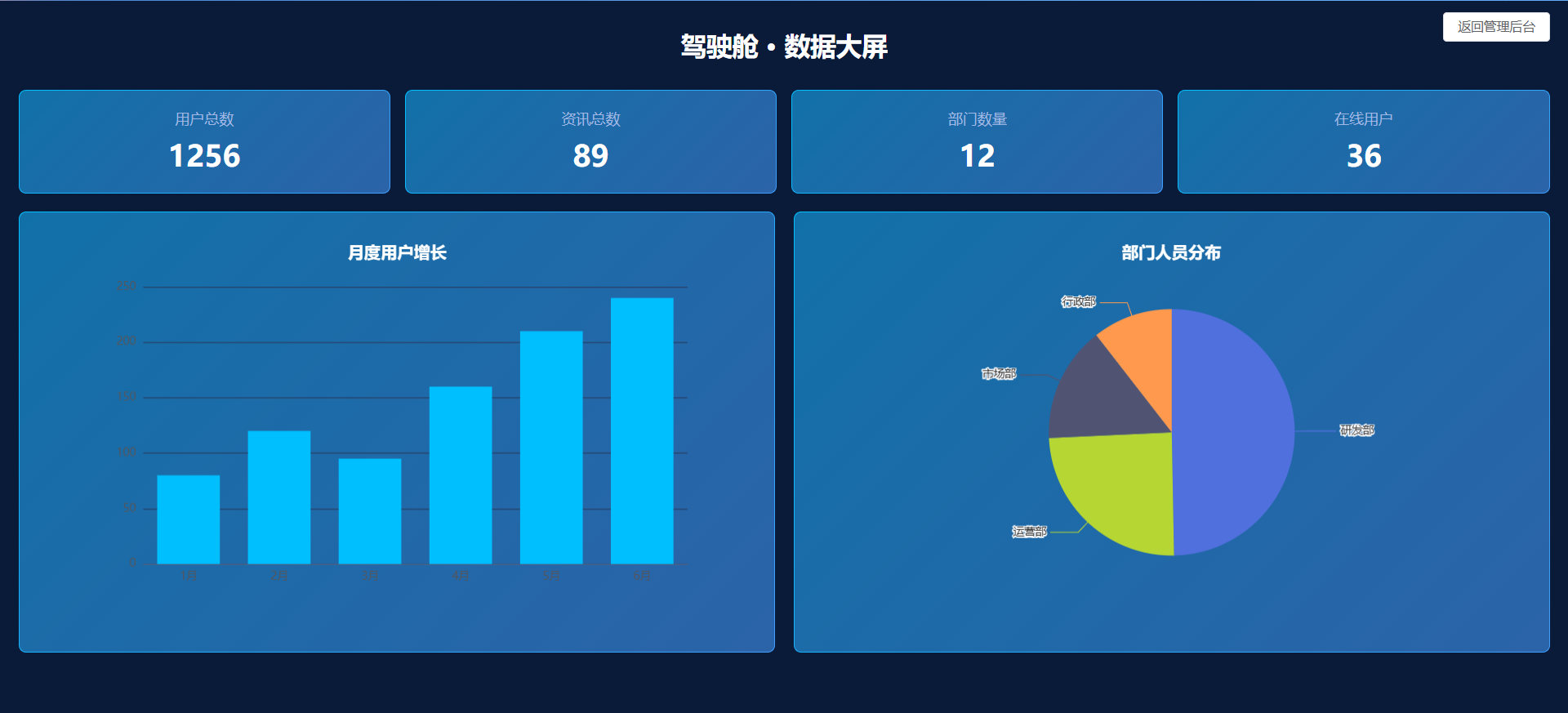
- 实现统计卡片数字滚动动画(从 0 平滑增长到目标数值)
- 给卡片、图表容器增加大屏经典渐变发光边框
- 优化图表配色,适配深色大屏风格
- 封装数字动画工具函数,可复用
步骤 1:新建工具 src/utils/numberHelper.js
// 数字滚动动画
export function animateNumber(targetDom, startNum, endNum, duration = 1500) {
  let startTime = null
  const animate = (timestamp) => {
    if (!startTime) startTime = timestamp
    const progress = timestamp - startTime
    const rate = Math.min(progress / duration, 1)
    const current = Math.floor(startNum + (endNum - startNum) * rate)
    targetDom.innerText = current
    if (rate < 1) {
      requestAnimationFrame(animate)
    }
  }
  requestAnimationFrame(animate)
}
步骤 2:修改 cockpit.vue 完整代码
<template>
  <div class="cockpit-wrap">
    <!-- 返回后台按钮 -->
    <el-button
      class="back-btn"
      @click="backAdmin"
    >返回管理后台</el-button>
    <h1 class="title">驾驶舱 · 数据大屏</h1>

    <!-- 顶部指标卡片 -->
    <div class="card-row">
      <div class="stat-card">
        <div class="label">用户总数</div>
        <div class="num" ref="userTotalRef">0</div>
      </div>
      <div class="stat-card">
        <div class="label">资讯总数</div>
        <div class="num" ref="newsTotalRef">0</div>
      </div>
      <div class="stat-card">
        <div class="label">部门数量</div>
        <div class="num" ref="deptTotalRef">0</div>
      </div>
      <div class="stat-card">
        <div class="label">在线用户</div>
        <div class="num" ref="onlineUserRef">0</div>
      </div>
    </div>

    <!-- 图表行 -->
    <div class="chart-row">
      <div class="chart-item">
        <div
          ref="barRef"
          class="chart"></div>
      </div>
      <div class="chart-item">
        <div
          ref="pieRef"
          class="chart"></div>
      </div>
    </div>
  </div>
</template>

<script setup>
import { ref, onMounted, onUnmounted } from 'vue'
import { useRouter } from 'vue-router'
import * as echarts from 'echarts'
import axios from '@/api/request'
import { animateNumber } from '@/utils/numberHelper'

const router = useRouter()
const barRef = ref(null)
const pieRef = ref(null)
// 数字DOM ref
const userTotalRef = ref(null)
const newsTotalRef = ref(null)
const deptTotalRef = ref(null)
const onlineUserRef = ref(null)

let barChart = null
let pieChart = null

// 统计数据
const statData = ref({
  userTotal: 0,
  newsTotal: 0,
  deptTotal: 0,
  onlineUser: 0
})

// 返回后台
const backAdmin = () => {
  router.push('/dashboard/dashboard')
}

// 获取大屏统计接口
const getCockpitStat = async () => {
  try {
    const res = await axios.get('/cockpit/getStat')
    console.log('大屏接口返回:', res)
    if (res.code === 200) {
      statData.value = res.data
      // 启动数字动画
      animateNumber(userTotalRef.value, 0, statData.value.userTotal)
      animateNumber(newsTotalRef.value, 0, statData.value.newsTotal)
      animateNumber(deptTotalRef.value, 0, statData.value.deptTotal)
      animateNumber(onlineUserRef.value, 0, statData.value.onlineUser)
    }
  } catch (err) {
    console.error('大屏接口请求失败', err)
  }
  renderChart()
}

// 渲染图表
const renderChart = () => {
  if(!barRef.value || !pieRef.value) return
  // 柱状图
  barChart = echarts.init(barRef.value)
  barChart.setOption({
    title: { text: '月度用户增长', textStyle: { color: '#fff' } },
    tooltip: {},
    xAxis: {
      type: 'category',
      data: ['1月', '2月', '3月', '4月', '5月', '6月'],
      axisLine: { lineStyle: { color: '#506688' } }
    },
    yAxis: {
      type: 'value',
      axisLine: { lineStyle: { color: '#506688' } },
      splitLine: { lineStyle: { color: '#273b60' } }
    },
    series: [
      {
        data: [80, 120, 95, 160, 210, 240],
        type: 'bar',
        color: '#00bfff'
      }
    ]
  })

  // 饼图
  pieChart = echarts.init(pieRef.value)
  pieChart.setOption({
    title: { text: '部门人员分布', textStyle: { color: '#fff' } },
    tooltip: {},
    series: [
      {
        type: 'pie',
        radius: '60%',
        data: [
          { value: 85, name: '研发部' },
          { value: 42, name: '运营部' },
          { value: 26, name: '市场部' },
          { value: 18, name: '行政部' }
        ]
      }
    ]
  })
}

// 窗口大小变化自适应
const resizeHandler = () => {
  barChart?.resize()
  pieChart?.resize()
}

onMounted(() => {
  getCockpitStat()
  window.addEventListener('resize', resizeHandler)
})

// 销毁释放实例,防止内存泄漏
onUnmounted(() => {
  window.removeEventListener('resize', resizeHandler)
  barChart?.dispose()
  pieChart?.dispose()
})
</script>

<style scoped>
.cockpit-wrap {
  width: 100vw;
  height: 100vh;
  box-sizing: border-box;
  padding: 20px;
  background-color: #091b39;
  color: #fff;
}
.back-btn {
  position: absolute;
  top: 12px;
  right: 20px;
  z-index: 99;
}
.title {
  text-align: center;
  font-size: 28px;
  margin: 10px 0 30px;
}
.card-row {
  display: grid;
  grid-template-columns: repeat(4, 1fr);
  gap: 16px;
  margin-bottom: 20px;
}
.stat-card {
  background: rgba(30, 60, 110, 0.6);
  padding: 20px;
  border-radius: 8px;
  text-align: center;
  /* 渐变边框 */
  border: 1px solid transparent;
  background-image: linear-gradient(rgba(30, 60, 110, 0.6), rgba(30, 60, 110, 0.6)), linear-gradient(135deg,#00bfff,#409eff);
  background-origin: border-box;
  background-clip: padding-box, border-box;
}
.stat-card .label {
  font-size: 16px;
  color: #a0b8e3;
}
.stat-card .num {
  font-size: 32px;
  font-weight: bold;
  margin-top: 8px;
}
.chart-row {
  display: grid;
  grid-template-columns: 1fr 1fr;
  gap: 20px;
  height: 480px;
}
.chart-item {
  background: rgba(30, 60, 110, 0.6);
  border-radius: 8px;
  padding: 16px;
  width: 100%;
  height: 100%;
  border: 1px solid transparent;
  background-image: linear-gradient(rgba(30, 60, 110, 0.6), rgba(30, 60, 110, 0.6)), linear-gradient(135deg,#00bfff,#409eff);
  background-origin: border-box;
  background-clip: padding-box, border-box;
}
.chart {
  width:100%;
  height:100%;
}
</style>
✅测试清单
- 进入驾驶舱,数字从 0 平滑滚动到目标值
- 卡片、图表容器出现淡蓝色渐变边框,大屏质感提升
- 图表正常渲染,窗口缩放自适应
- 返回后台按钮正常跳转
登录后先进入驾驶舱(登录成功回调 + 路由守卫)
方案 1:修改登录页面 login.vue(登录成功时直接跳驾驶舱,推荐)
找到登录表单 handleLogin 登录成功的代码,原来跳转 /dashboard/dashboard,改成 /cockpit
// login.vue
const handleLogin = async () => {
  const res = await loginApi(formData)
  if(res.code === 200) {
    // 保存token
    userStore.setToken(res.data.token)
    // 登录成功,直接跳驾驶舱大屏
    router.push('/cockpit')
  }
}
方案 2:修改路由守卫 router/index.js(刷新页面、访问/根路径也自动跳驾驶舱)
你原来守卫里这一行:
if (to.path === '/login') {
  return '/dashboard/dashboard'
}
👉替换成:
if (to.path === '/login') {
  return '/cockpit'
}
再修改根路由重定向:
export const constantRoutes = [
  // 原来:{ path: '/', redirect: '/login' }
  { path: '/', redirect: '/cockpit' },
  // ✅驾驶舱:独立全屏页面,不套Layout
  {
    path: '/cockpit',
    name: 'Cockpit',
    component: () => import('@/views/cockpit/cockpit.vue'),
    meta: { title: '驾驶舱大屏' }
  },
  { path: '/login', component: () => import('@/views/login/login.vue') },
  { path: '/401', component: () => import('@/views/error/401.vue') },
  { path: '/404', component: () => import('@/views/error/404.vue') },
  { path: '/500', component: () => import('@/views/error/500.vue') }
]
📌完整修改后的路由守卫片段
router.beforeEach(async (to, from) => {
  const userStore = useUserStore()
  // 白名单:不需要登录就能访问
  const whiteList = ['/login', '/404', '/401', '/500']

  if (userStore.token) {
    // 有 token,访问登录页 → 直接跳驾驶舱大屏
    if (to.path === '/login') {
      return '/cockpit'
    }

    // roles 为空 = 还没加载用户信息(刚登录 / 刷新页面)
    if (userStore.roles.length === 0) {
      try {
        // 1. 获取用户信息,拿到转换完成的动态路由
        const accessRoutes = await userStore.getUserInfo()

        // 2. 循环注册动态路由
        accessRoutes.forEach((route) => {
          router.addRoute(route)
        })

        // 3. 最后注册 404 通配路由(必须在所有业务路由之后!)
        router.addRoute({
          path: '/:pathMatch(.*)*',
          redirect: '/404'
        })

        // 4. 重新触发导航
        return { ...to, replace: true }
      } catch (err) {
        console.error('加载动态路由失败:', err)
        userStore.logout()
        return '/login'
      }
    }

    // 已经加载过用户信息,直接放行
    return true
  } else {
    // 没有 token
    if (whiteList.includes(to.path)) {
      return true
    } else {
      return '/login'
    }
  }
})
⚠️注意事项
- 现在登录成功后直接进入全屏驾驶舱,没有侧边栏、标签栏;页面内保留【返回管理后台】按钮,可以切回工作台
- 驾驶舱路由不在 Layout 布局,tagsView 后置守卫已经过滤,不会新增标签
- 刷新页面,有 token 时,访问根路径
/也会自动跳转到驾驶舱
🧪测试清单
- 输入账号密码登录,登录成功直接进入驾驶舱大屏
- 浏览器地址栏输入
/login,已登录状态会自动跳转驾驶舱 - 浏览器直接访问根路径
/,自动跳驾驶舱 - 驾驶舱页面【返回管理后台】按钮正常,切回工作台页面