本文面向 Linux 新手,介绍基础命令,带你初识 Linux。
习惯图形界面系统的同学初学 Linux,常会感到吃力。Linux 以命令操作为主,大量命令看起来很难背诵。但其实无需刻意死记,学习 Linux 本质就是学习操控计算机,命令本身就是可执行文件,也就是 Linux 著名的 "一切皆文件" 理念。多动手实操,用得多自然就能掌握。下面开始介绍基础指令。
目录
[27.uname -r 指令](#27.uname -r 指令)
[28.重要的几个热键 Tab, Ctrl-c, Ctrl-d](#28.重要的几个热键 [Tab], [Ctrl]-c, [Ctrl]-d)
[shell 命令以及运行原理](#shell 命令以及运行原理)
1.Linux下基本指令
01.ls指令
语法:ls 选项 目录或文件
功能:对于目录,该命令列出该目录下的所有子目录与文件。对于文件,将列出文件名以及其他信
息。
常用选项:
-l:长格式展示,显示文件权限、所有者、大小、修改时间等详细信息-a:显示所有文件,包含隐藏文件(以.开头的文件)-d:查看目录本身信息,而不是目录内的内容-t:按文件修改时间排序
示例
[root@VM-0-14-centos ~]# ls
aaa  bbb
[root@VM-0-14-centos ~]# ls -l
total 8
drwxr-xr-x 4 root root 4096 Sep 13 22:10 aaa
drwxr-xr-x 2 root root 4096 Sep  7 19:01 bbb
[root@VM-0-14-centos ~]# ls -a
.   aaa            .bash_logout   .bashrc  .cache   .cshrc    .npmrc  .pydistutils.cfg  .tcshrc
..  .bash_history  .bash_profile  bbb      .config  .lesshst  .pip    .ssh              .viminfo
[root@VM-0-14-centos aaa]# ls -a -l
total 28
drwxr-xr-x  4 root root 4096 Sep 13 22:10 .
dr-xr-x---. 8 root root 4096 Sep 11 21:23 ..
drwxr-xr-x  3 root root 4096 Sep 13 21:31 gxy
-rw-r--r--  1 root root    0 Sep  7 19:04 .notsee
drwxr-xr-x  3 root root 4096 Sep 13 22:10 test
-rw-r--r--  1 root root 9893 Sep 13 21:15 test.txt
02.pwd指令
语法:pwd
功能:显示用户当前所在的目录
常用选项:无
示例
[root@VM-0-14-centos aaa]# pwd
/root/aaa
[root@VM-0-14-centos aaa]#
03.cd指令
语法:cd 目录名
功能:改变工作目录。将当前工作目录改变到指定的目录下
cd ..:回到上一级目录cd ~:回到当前用户的家目录cd -:在最近两个目录之间来回切换
示例
#cd 到指定的路径
[root@VM-0-14-centos ~]# cd /root/aaa/gxy
[root@VM-0-14-centos gxy]# pwd
/root/aaa/gxy
#cd 到上一级目录
[root@VM-0-14-centos gxy]# cd ..
[root@VM-0-14-centos aaa]# pwd
/root/aaa
#回到家目录
[root@VM-0-14-centos aaa]# cd ~
[root@VM-0-14-centos ~]# pwd
/root
#回到上次的路径
[root@VM-0-14-centos ~]# cd -
/root/aaa
[root@VM-0-14-centos aaa]# pwd
/root/aaa
04.touch指令
语法:touch选项···文件..
功能:touch命令参数可更改文档或目录的日期时间,包括存取时间和更改时间,或者新建一个不存在的文件
示例
[root@VM-0-14-centos aaa]# touch hello.txt
[root@VM-0-14-centos aaa]# ll
total 20
drwxr-xr-x 3 root root 4096 Sep 13 21:31 gxy
-rw-r--r-- 1 root root    0 Oct  9 20:04 hello.txt
drwxr-xr-x 3 root root 4096 Sep 13 22:10 test
-rw-r--r-- 1 root root 9893 Sep 13 21:15 test.txt
05.mkdir指令
语法:mkdir 选项dirname..
功能:在当前目录下创建一个名为"dirname"的目录
常用选项:
-p:递归创建多级目录,父目录不存在时自动创建
示例
#在当前目录下创建a目录
[root@VM-0-14-centos aaa]# mkdir a
[root@VM-0-14-centos aaa]# ll
total 20
drwxr-xr-x 2 root root 4096 Oct  9 20:09 a
drwxr-xr-x 3 root root 4096 Sep 13 21:31 gxy
-rw-r--r-- 1 root root    0 Oct  9 20:04 hello.txt
-rw-r--r-- 1 root root 9893 Sep 13 21:15 test.txt

#递归创建
[root@VM-0-14-centos aaa]# mkdir -p  d1/d2/d3
[root@VM-0-14-centos aaa]# ll
total 24
drwxr-xr-x 2 root root 4096 Oct  9 20:09 a
drwxr-xr-x 3 root root 4096 Oct  9 20:10 d1
drwxr-xr-x 3 root root 4096 Sep 13 21:31 gxy
-rw-r--r-- 1 root root    0 Oct  9 20:04 hello.txt
-rw-r--r-- 1 root root 9893 Sep 13 21:15 test.txt
[root@VM-0-14-centos aaa]#
06.rmdir&&rm指令
rmdir:删除空目录,只能删除没有任何文件的文件夹,实用性有限。rm:删除文件 / 目录,日常删除最常用。-r:递归删除,用于删除目录以及目录内所有内容-f:强制删除,不弹出确认提示
示例
#删除一个目录要带上 -r 选项
[root@VM-0-14-centos aaa]# rm -r a
rm: remove directory 'a'? y
[root@VM-0-14-centos aaa]#
#删除普通文件
[root@VM-0-14-centos aaa]# rm hello.txt
rm: remove regular empty file 'hello.txt'? y
[root@VM-0-14-centos aaa]#
#递归删除多级目录,并强制删除
[root@VM-0-14-centos aaa]# rm -rf d1
[root@VM-0-14-centos aaa]# ll
total 16
drwxr-xr-x 3 root root 4096 Sep 13 21:31 gxy
-rw-r--r-- 1 root root 9893 Sep 13 21:15 test.txt
[root@VM-0-14-centos aaa]#
07.man指令
man是 Linux 自带的手册工具,可以查看任意命令的官方帮助文档。当忘记命令用法时,直接用 man 查询
示例
#查看ls指令
[root@VM-0-14-centos aaa]# man ls
08.cp指令
语法:cp 选项 源文件或目录 目标文件或目录
功能:复制文件或目录
说明:
cp指令用于复制文件或目录
如同时指定两个以上的文件或目录,且最后的目的地是一个已经存在的目录,则它会把前面指定
的所有文件或目录复制到此目录中
常用选项
-r:递归复制目录,复制文件夹必须带上该选项
示例
#拷贝普通文件到指定目录
[root@VM-0-14-centos aaa]# cp test.txt gxy
[root@VM-0-14-centos aaa]# tree
.
|-- gxy
|   `-- test.txt
`-- test.txt


#拷贝目录到指定目录下
[root@VM-0-14-centos aaa]# cp -r d1 gxy
[root@VM-0-14-centos aaa]# tree
.
|-- d1
|   `-- d2
|       `-- d3
|-- gxy
|   |-- d1
|   |   `-- d2
|   |       `-- d3
|   `-- test.txt
`-- test.txt
09.mv指令
mv命令是move的缩写,可以用来移动文件或者将文件改名(move(rename)files,经常用来备份文件或者目录
语法:mv 选项 源文件或目录 目标文件或目录
功能:
- 若第二个参数是目标文件 :执行重命名操作。此时源只能写一个(可以是源文件或源目录),会把指定的源文件 / 目录,重命名为目标文件名。
- 若第二个参数是已经存在的目录 :执行移动操作。此时可以传入多个源文件 / 目录,mv 会把所有源文件全部移动到这个目标目录内。
示例
#重命名
[root@VM-0-14-centos test]# touch file.txt
[root@VM-0-14-centos test]# ll
total 0
-rw-r--r-- 1 root root 0 Oct  9 20:38 file.txt
[root@VM-0-14-centos test]# mv file.txt newfile.txt
[root@VM-0-14-centos test]# ll
total 0
-rw-r--r-- 1 root root 0 Oct  9 20:38 newfile.txt
#移动文件到指定目录
[root@VM-0-14-centos test]# mv newfile.txt ../gxy
[root@VM-0-14-centos test]# ll
total 0
[root@VM-0-14-centos test]# cd ..
[root@VM-0-14-centos aaa]# tree
.
|-- gxy
|   `-- newfile.txt
|-- test
`-- test.txt
10.cat指令
语法:cat选项文件
功能:查看目标文件的内容
常用选项:
- -b对非空输出行编号,空行不做编号
- -n对输出的所有行编号
- -s不输出多行空行
示例
#普通输出
[root@VM-0-14-centos aaa]# cat test.txt
hello
hello
hello
hello
hello
hello
hello
#带行号输出
[root@VM-0-14-centos aaa]# cat -n test.txt
     1	hello
     2	hello
     3	hello
     4	hello
     5	hello
11.echo指令
echo 用于向终端输出文本内容,也常配合重定向操作,把内容写入文件。
示例 1:
echo "hello linux",直接在终端打印字符串 hello linux。
[root@VM-0-14-centos aaa]# echo "hello Linux"
hello Linux
示例 2:
echo hello > test.txt,将字符串写入文件。
[root@VM-0-14-centos aaa]# cat test.txt
hello
输入输出重定向
Linux 中程序默认有 3 个标准流:
- 标准输入(stdin,0):默认从键盘读取
- 标准输出(stdout,1):默认输出到屏幕
- 标准错误(stderr,2):错误信息,默认输出到屏幕
简单理解重定向:就是改变数据的读写位置,不再使用默认的键盘 / 屏幕。
输出重定向 > 将命令的标准输出写入文件,会覆盖文件原有内容。
示例:
echo "test" > test.txt,把文字写入 test.txt,覆盖原有内容。
[root@VM-0-14-centos aaa]# echo "test" >test.txt
[root@VM-0-14-centos aaa]# cat test.txt
test
追加重定向 >> 将输出追加到文件末尾,不会覆盖原有内容。
示例:
echo "new line" >> test.txt,在文件末尾新增一行。
[root@VM-0-14-centos aaa]# echo "new line" >> test.txt
[root@VM-0-14-centos aaa]# cat test.txt
test
new line
**输入重定向 <**不从键盘读取,而是从文件读取内容作为命令输入。
示例:
cat < test.txt,把 test.txt 作为 cat 的输入源。
[root@VM-0-14-centos aaa]# cat < test.txt
test
new line
**错误重定向 2>**把命令的错误信息单独重定向到文件。
示例:
ls nofile.txt 2> err.log,将报错信息存入 err.log。
[root@VM-0-14-centos aaa]# ls nofile.txt 2> err.log
[root@VM-0-14-centos aaa]# ll
total 20
-rw-r--r-- 1 root root   56 Oct  9 22:29 err.log
drwxr-xr-x 2 root root 4096 Oct  9 20:51 gxy
-rw-r--r-- 1 root root  608 Oct  9 21:47 gxy.zip
drwxr-xr-x 2 root root 4096 Oct  9 20:41 test
-rw-r--r-- 1 root root   14 Oct  9 22:25 test.txt
[root@VM-0-14-centos aaa]# cat err.log
ls: cannot access nofile.txt: No such file or directory
12.more指令
分页查看文件内容,按回车向下逐行滚动,空格翻页,q退出。
特点:只能向下浏览,无法向上回看。
常用选项:
- -n 指定输出行数
- -q 退出more
示例:
more test.txt
13.less指令
- less工具也是对文件或其它输出进行分页显示的工具,应该说是linux正统查看文件内容的工具功能极其强大
- less的用法比起more更加的有弹性,在more的时候,我们并没有办法向前面翻,只能往后面看但若使用了less时,就可以使用pageuppagedown等按键的功能来往前往后翻看文件,更容易用来查看一个文件的内容
- 除此之外,在less里头可以拥有更多的搜索功能,不止可以向下搜,也可以向上搜。
分页阅读工具,是 more 的增强版,支持上下方向键滚动,搜索文本,浏览更灵活。推荐优先使用 less。
选项:
- -i忽略搜索时的大小写
- -N显示每行的行号
- /字符串:向下搜索"字符串"的功能
- ?字符串:向上搜索"字符串"的功能
- n:重复前一个搜索(与/或?有关)
- N:反向重复前一个搜索(与/或?有关)
- q:quit
示例:less test.txt
14.head指令
查看文件开头内容,默认读取前 10 行。
-n:指定查看多少行
示例:
head -n 5 test.txt,读取文件前 5 行。
15.tail指令
查看文件末尾内容,默认读取最后 10 行,常用于查看日志。
-n:指定末尾行数-f:持续跟踪文件新增内容(实时刷新日志)
示例:
tail -f log.txt,实时监控日志文件新增输出。
16.date指令
查看与设置系统时间。不加参数直接执行,会输出当前系统日期时间;也可以格式化输出时间。
示例
[root@VM-0-14-centos aaa]# date
Fri Oct  9 21:08:26 CST 2026

[root@VM-0-14-centos aaa]# date +%Y/%m/%d
2026/10/09
17.cal指令
命令格式:cal 参数 年份
功能:用于查看日历等时间信息,如只有一个参数,则表示年份(1-9999),如有两个参数,则表示月份和年份
常用选项:
- -3显示系统前一个月,当前月,下一个月的月历
- -j显示在当年中的第几天(一年日期按天算,从1月1号算起,默认显示当前月在一年中的天数)
- -y显示当前年份的日历
示例
[root@VM-0-14-centos aaa]# cal
    October 2026
Su Mo Tu We Th Fr Sa
             1  2  3
 4  5  6  7  8  9 10
11 12 13 14 15 16 17
18 19 20 21 22 23 24
25 26 27 28 29 30 31

[root@VM-0-14-centos aaa]# cal -j
        October 2026
Sun Mon Tue Wed Thu Fri Sat
                274 275 276
277 278 279 280 281 282 283
284 285 286 287 288 289 290
291 292 293 294 295 296 297
298 299 300 301 302 303 304
18.find指令
在指定路径下搜索文件,可以按文件名、大小、时间等条件查找。
示例
#在家目录下查找所有.txt后缀的文件
[root@VM-0-14-centos aaa]# find ~ -name *.txt
/root/aaa/test.txt
19.which指令
查找可执行命令所在的程序路径。
示例:
which ls,查看 ls 命令程序存放位置。
20.whereis指令
查找命令对应的程序、源代码、帮助手册文件,查找范围比 which 更广。
示例:
whereis ls
21.alias指令
给命令设置别名,简化长命令输入。
示例
[root@VM-0-14-centos aaa]# alias myls='ls -a -l'
[root@VM-0-14-centos aaa]# myls
total 20
drwxr-xr-x  4 root root 4096 Oct  9 20:39 .
dr-xr-x---. 8 root root 4096 Sep 11 21:23 ..
drwxr-xr-x  2 root root 4096 Oct  9 20:51 gxy
-rw-r--r--  1 root root    0 Sep  7 19:04 .notsee
drwxr-xr-x  2 root root 4096 Oct  9 20:41 test
-rw-r--r--  1 root root  132 Oct  9 20:45 test.txt
[root@VM-0-14-centos aaa]#
22.grep指令
语法:grep 选项 搜寻字符串 文件
功能:在文件中搜索字符串,将找到的行打印出来
常用选项:
- -i:忽略大小写的不同,所以大小写视为相同
- -n:顺便输出行号
- -v:反向选择,亦即显示出没有'搜寻字符串'内容的那一行
示例
[root@VM-0-14-centos aaa]# grep "o" test.txt
hello
hello
ooo
[root@VM-0-14-centos aaa]# grep -v "o" test.txt
aaa
23.top指令
实时查看系统资源占用,类似 Windows 任务管理器,可以看到 CPU、内存、进程负载。按q退出。
24.zip/unzip指令
语法:zip 压缩文件.zip 目录或文件
功能:将目录或文件压缩成zip格式
常用选项
-r:递归处理,将指定目录下的所有文件和子目录一并处理
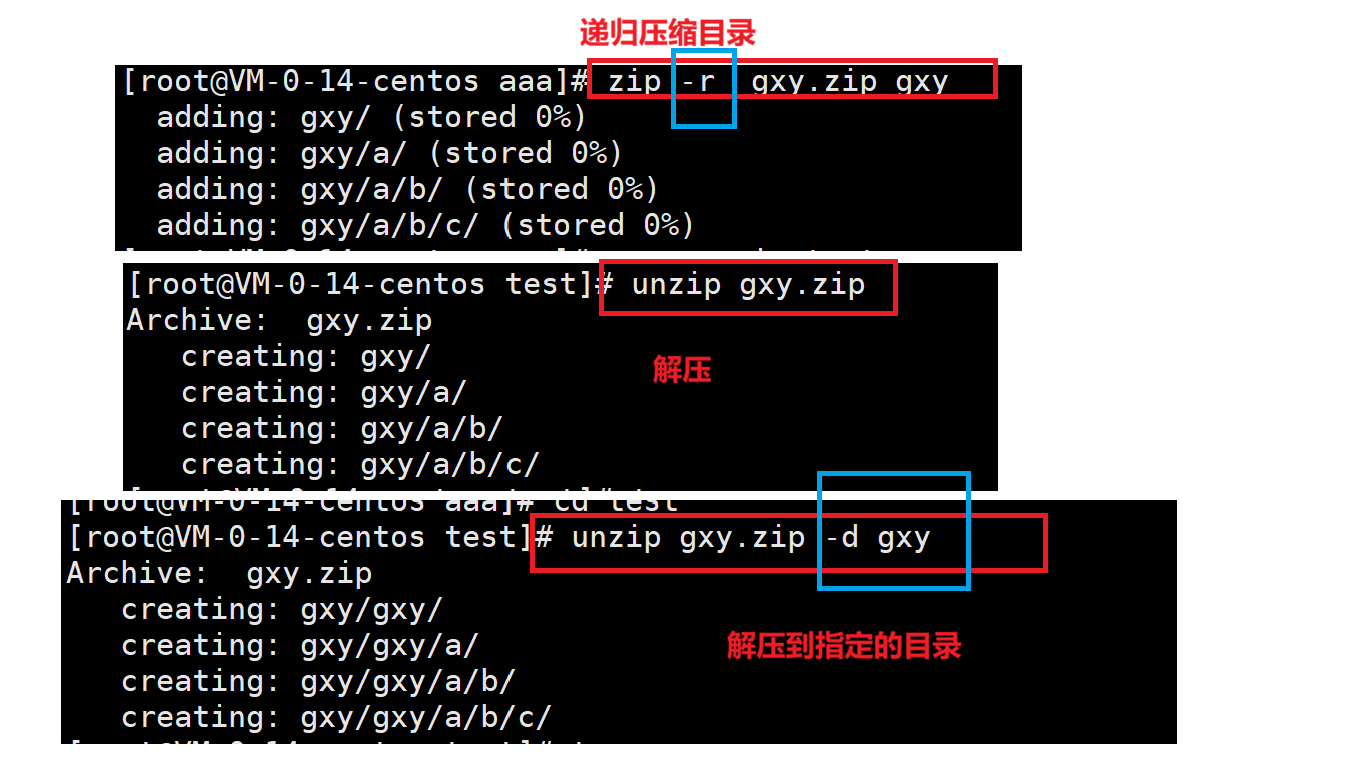
关于 rzsz
rzsz 是终端传输工具,依赖 ssh 连接。
rz:弹出窗口,把本地文件上传到 Linux 服务器sz filename:把服务器上的文件下载到本地电脑
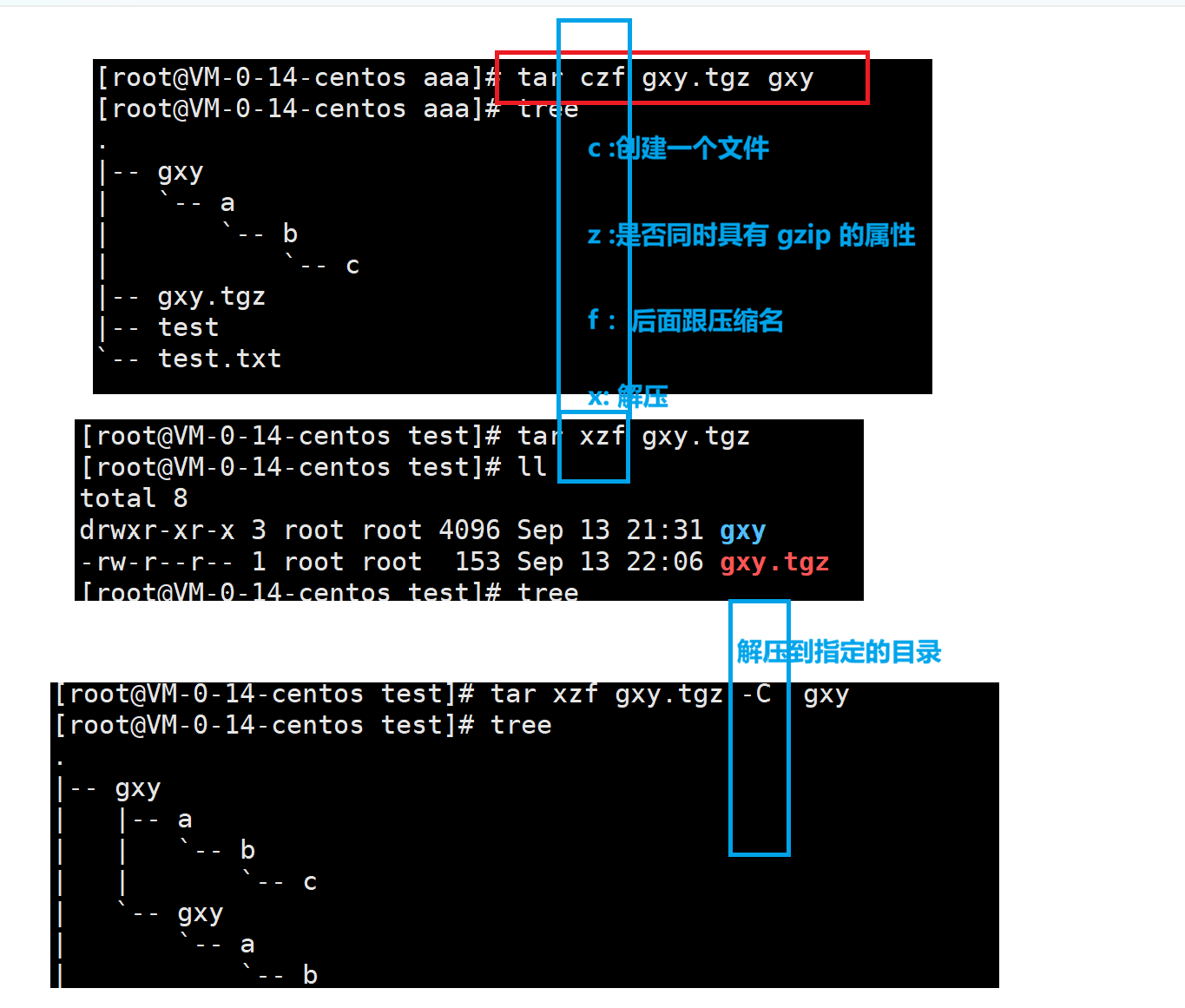
25.tar指令
语法:tar -cxtzjvf 文件与目录
参数:
-c:建立一个压缩文件的参数指令(create的意思);
-x:解开一个压缩文件的参数指令!
-t:查看tarfile里面的文件!
-z:是否同时具有gzip的属性?亦即是否需要用gzip压缩?
-j:是否同时具有bzip2的属性?亦即是否需要用bzip2压缩?
-v:压缩的过程中显示文件!这个常用,但不建议用在背景执行过程!
-f:使用档名,请留意,在f之后要立即接档名喔!不要再加参数!
-C:解压到指定目录
Linux 归档打包工具,常用于打包压缩,生产环境高频使用。常用组合:
tar -czf:打包并压缩(gzip)tar -xzf:解压 gzip 压缩包
示例
26.bc指令
终端计算器,可以在命令行做数学运算。输入表达式计算,输入quit退出。
27.uname -r 指令
语法:uname选项
功能:uname用来获取电脑和操作系统的相关信息。
补充说明:uname可显示linux主机所用的操作系统的版本、硬件的名称等基本信息。
常用选项:
-a或-all详细输出所有信息,依次为内核名称,主机名,内核版本号,内核版本,硬件名,处理器类型,硬件平台类型,操作系统名称
示例
[root@VM-0-14-centos aaa]# uname -r
3.10.0-1160.119.1.el7.x86_64
[root@VM-0-14-centos aaa]# uname -ra
Linux VM-0-14-centos 3.10.0-1160.119.1.el7.x86_64 #1 SMP Tue Jun 4 14:43:51 UTC 2024 x86_64 x86_64 x86_64 GNU/Linux
28.重要的几个热键 Tab, Ctrl-c, Ctrl-d
- Tab:命令 / 文件名自动补全,Linux 最高频快捷键,输入一半按 Tab 自动补全,减少输入,防止输错。
- Ctrl + c:终止当前正在运行的程序,强制停止命令。
- Ctrl + d:退出终端会话,等价于输入 exit
29.关机
常用关机命令:
shutdown -h now:立刻关机halt:停机poweroff:断电关机重启:shutdown -r now/reboot
shell 命令以及运行原理
Shell 本质是命令解释器,作为用户和操作系统内核之间的桥梁。用户输入命令,shell 接收解析,交给操作系统内核执行,再把执行结果返回给用户。我们在终端敲的指令,都是由 shell 负责解析运行。
本文主要介绍了Linux基础的指令,下文接着介绍文件的权限的问题。