在进行界面排版和自定义控件设计时,通常需要处理两类核心计算:一是字体本身的固有尺寸,例如单行文字的总高度、基线位置以及上下延伸的距离;二是特定文本排版后的实际尺寸,例如边界框的大小和光标的前进量。
QML 针对这两个需求提供了对应的组件:FontMetrics 用于测量字体本身,而 TextMetrics 用于测量具体文本。这两个组件均为纯计算对象,不参与界面渲染。当输入的属性发生改变时,它们会自动重新计算结果,常用于编写自绘控件或处理手动排版逻辑。
本篇结合示例项目 qml_font 的后两个页面,说明字体度量与文本度量的计算机制与应用场景。
一、文本排版中的基线概念
在了解度量属性之前,需要明确文本在计算机图形学中的坐标参考系。文本在渲染时并非以控件的顶边为对齐基准,而是依托于一条基线(Baseline)进行排列。
text
───────────── ascent 线(字形最高顶边)
   H  字
      x  x  ← xHeight(小写字母字高)
───────────── baseline(基线坐标原点)
   p  g     ← descent(向下延伸的距离)
───────────── descent 线(字形最低底边)- ascent:字形最高点到基线的垂直距离。
- descent:字形最低点到基线的垂直距离(例如字母 g、p 的下沉部分)。
- xHeight:小写字母 x 的高度,常作为视觉实际大小的参考依据。
这些线条的比例关系由字体文件自身的内部元数据决定,与具体的字号大小无关。在相同的字号下,不同风格的字体其 ascent 和 descent 的比例可能存在显著差异。示例项目特意选用"站酷快乐体"作为演示,正是因为其字形特征明显,辅助线随字号变化的幅度更易于观察。
二、FontMetrics:测量字体固有的尺寸属性
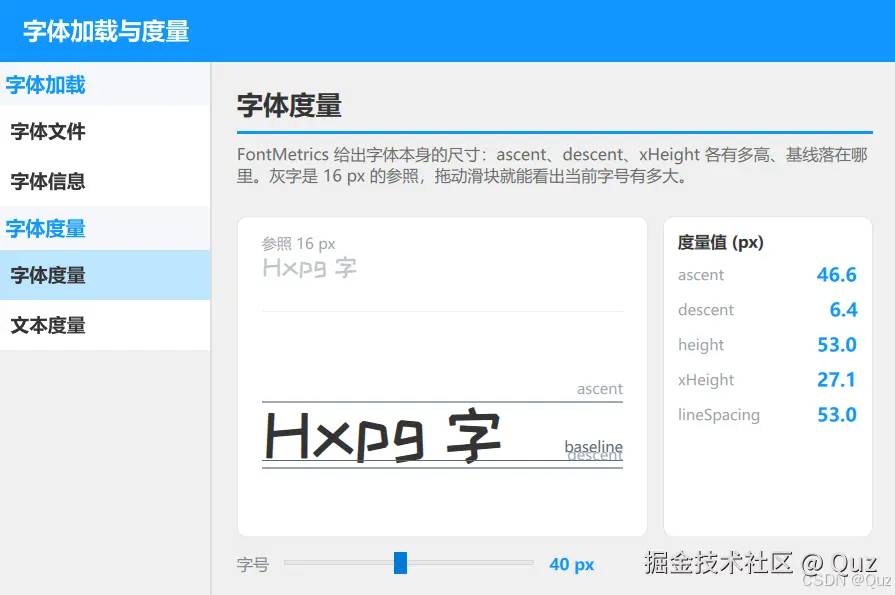
FontMetrics 组件只需要指定 font 属性(包含字族与字号),即可报告该字体的通用固有尺寸。其输出结果与具体的文本内容无关,测量的是字体本身的属性。
基础声明与配置方式如下:
qml
FontMetrics {
    id: metrics
    font.family: kuaileLoader.name
    font.pointSize: sizeSlider.value
}
其核心只读属性的含义如下表所示:
| 属性名称 | 技术含义说明 |
|---|---|
| ascent | 基线到字形顶边的距离(像素值) |
| descent | 基线到字形底边的距离(像素值) |
| height | ascent + descent,代表单行文字的净高度 |
| xHeight | 小写字母 x 的高度,用于评估视觉实际高度 |
| lineSpacing | 相邻两行基线之间的距离,在多行排版中作为行高依据 |
在示例页面中,通过滑块改变字号时,左侧渲染的文本区域会实时绘制出三条辅助线(ascent / baseline / descent),右侧的数值面板也会同步刷新:
qml
import QtQuick
import QtQuick.Controls
import QtQuick.Layouts

FadeInAnimation {
    id: root

    FontLoader { id: kuaileLoader; source: "qrc:/fonts/ZCOOLKuaiLe-Regular.ttf" }

    // 度量属性随滑块字号的变化实时重新计算
    FontMetrics {
        id: metrics
        font.family: kuaileLoader.name
        font.pointSize: sizeSlider.value
    }

    component MetricRow: RowLayout {
        property string label
        property real value

        Layout.fillWidth: true
        spacing: 8

        Text {
            text: label
            font.pointSize: 9
            color: "#9AA0A6"
            Layout.fillWidth: true
            elide: Text.ElideRight
        }

        Text {
            text: value.toFixed(1)
            font.pointSize: 11
            font.bold: true
            color: "#1296FF"
        }
    }

    // 辅助线组件:根据传入的 Y 轴坐标在文本区绘制参考线
    component GuideLine: Rectangle {
        property string label
        property real lineY
        property color lineColor

        anchors.left: parent.left
        anchors.right: parent.right
        anchors.leftMargin: 20
        anchors.rightMargin: 20
        y: lineY
        height: 1
        color: lineColor

        Text {
            x: parent.width - width
            y: -height - 2
            text: parent.label
            font.pointSize: 9
            color: parent.lineColor
        }
    }

    ColumnLayout {
        anchors.fill: parent
        anchors.margins: 20
        spacing: 12

        TitleSeparator {
            title: "字体度量"
            description: "FontMetrics 提供字体本身的固有尺寸。通过调整字号滑块,可以实时观察对应像素值的变化。"
        }

        RowLayout {
            Layout.fillWidth: true
            Layout.fillHeight: true
            spacing: 12

            Rectangle {
                Layout.fillWidth: true
                Layout.fillHeight: true
                color: "#FFFFFF"
                border.color: "#E6E6E6"
                radius: 8
                clip: true

                Text {
                    x: 20
                    y: 14
                    text: "参照 16 px"
                    font.pointSize: 9
                    color: "#9AA0A6"
                }

                Text {
                    x: 20
                    y: 30
                    text: "Hxpg 字"
                    font.family: kuaileLoader.name
                    font.pointSize: 16
                    color: "#C0C6CC"
                }

                Rectangle {
                    x: 20
                    y: 76
                    width: parent.width - 40
                    height: 1
                    color: "#EEEEEE"
                }

                Item {
                    id: sample
                    anchors.left: parent.left
                    anchors.right: parent.right
                    anchors.top: parent.top
                    anchors.topMargin: 92
                    anchors.bottom: parent.bottom

                    // 计算基线的 Y 轴位置,使文本在不同字号下均能在区域内垂直居中
                    readonly property real baselineY: height / 2 + (metrics.ascent - metrics.descent) / 2

                    Text {
                        x: 20
                        y: sample.baselineY - metrics.ascent
                        text: "Hxpg 字"
                        font: metrics.font
                        color: "#333333"
                    }

                    GuideLine {
                        lineY: sample.baselineY - metrics.ascent
                        label: "ascent"
                        lineColor: "#9AA7B5"
                    }
                    GuideLine {
                        lineY: sample.baselineY
                        label: "baseline"
                        lineColor: "#5A6470"
                    }
                    GuideLine {
                        lineY: sample.baselineY + metrics.descent
                        label: "descent"
                        lineColor: "#9AA7B5"
                    }
                }
            }

            Rectangle {
                Layout.preferredWidth: 168
                Layout.fillHeight: true
                color: "#FFFFFF"
                border.color: "#E6E6E6"
                radius: 8

                ColumnLayout {
                    anchors.fill: parent
                    anchors.margins: 12
                    spacing: 8

                    Text {
                        text: "度量值 (px)"
                        font.pointSize: 10
                        font.bold: true
                        color: "#333333"
                    }

                    MetricRow { label: "ascent"; value: metrics.ascent }
                    MetricRow { label: "descent"; value: metrics.descent }
                    MetricRow { label: "height"; value: metrics.height }
                    MetricRow { label: "xHeight"; value: metrics.xHeight }
                    MetricRow { label: "lineSpacing"; value: metrics.lineSpacing }

                    Item { Layout.fillHeight: true }
                }
            }
        }

        RowLayout {
            Layout.fillWidth: true
            spacing: 12

            Text { text: "字号"; font.pointSize: 10; color: "#7A8288" }

            Slider {
                id: sizeSlider
                Layout.preferredWidth: 200
                from: 12
                to: 72
                value: 40
                stepSize: 1
            }

            Text {
                text: sizeSlider.value.toFixed(0) + " px"
                font.pointSize: 10
                font.bold: true
                color: "#1296FF"
                Layout.preferredWidth: 50
            }

            Item { Layout.fillWidth: true }
        }
    }
}
垂直居中
在上述代码中,文本的垂直居中采用了基于基线的精确定位公式:
qml
readonly property real baselineY: height / 2 + (metrics.ascent - metrics.descent) / 2由于文本组件在底层是围绕基线进行排列的,实现文本区域居中的本质是确定基线在控件内部的相对坐标。文字的视觉物理中心位于 ascent 与 descent 的正中,将其映射到区域中心,即可确保在任意字号下文本均能稳定居中。这是 FontMetrics 的典型应用场景之一:基于基线精确控制排版坐标,而非依赖文本组件的顶边。
此外需要明确的是,font.pointSize 的单位是磅(Point,1 磅 = 1/72 英寸),实际转换为像素时需要结合当前屏幕的 DPI。FontMetrics 反馈的所有度量值均为真实的像素值(px),因此相同的 pointSize 在不同的高分屏缩放比例下,返回的度量数值会有所不同。如果项目开发需要与物理像素严格对应,建议直接使用 pixelSize 属性。
三、TextMetrics:测量特定文本排版后的实际尺寸
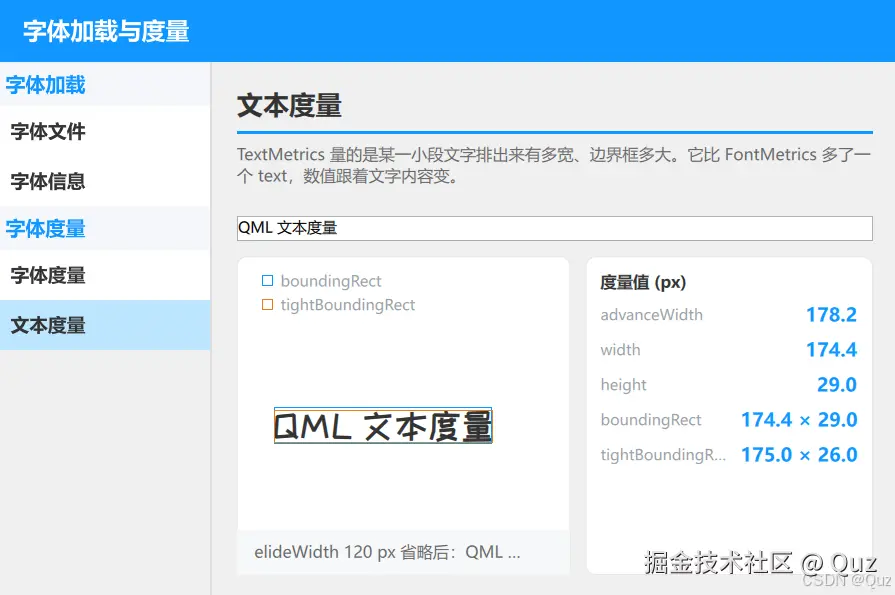
TextMetrics 在 FontMetrics 的基础上引入了 text 属性。它度量的对象不再是抽象的字模,而是具体的文本内容在应用该字体排版后的物理尺寸。只要文本内容或配置发生变更,相关的几何数值就会同步刷新。
qml
TextMetrics {
    id: tm
    font.family: kuaileLoader.name
    font.pointSize: 22
    text: input.text
    elide: Text.ElideRight
    elideWidth: 120
}
示例页面提供了一个输入框,当修改输入的文本时,左侧渲染的两种边界框(蓝框与橙框)会自动重新计算尺寸,右侧的数值面板同步反馈最新的测量数据:
qml
import QtQuick
import QtQuick.Controls
import QtQuick.Layouts

FadeInAnimation {
    id: root

    FontLoader { id: kuaileLoader; source: "qrc:/fonts/ZCOOLKuaiLe-Regular.ttf" }

    // 当 text 属性变更时,相关几何指标自动重算
    TextMetrics {
        id: tm
        font.family: kuaileLoader.name
        font.pointSize: 22
        text: input.text
        elide: Text.ElideRight
        elideWidth: 120
    }

    // 引入 FontMetrics 用于获取基线偏移量
    FontMetrics {
        id: fm
        font: tm.font
    }

    component MetricRow: RowLayout {
        property string label
        property string value

        Layout.fillWidth: true
        spacing: 8

        Text {
            text: label
            font.pointSize: 9
            color: "#9AA0A6"
            Layout.fillWidth: true
            elide: Text.ElideRight
        }

        Text {
            text: value
            font.pointSize: 11
            font.bold: true
            color: "#1296FF"
        }
    }

    ColumnLayout {
        anchors.fill: parent
        anchors.margins: 20
        spacing: 12

        TitleSeparator {
            title: "文本度量"
            description: "TextMetrics 量化具体字符串的排版尺寸。其数值随文本内容的变化而动态更新。"
        }

        TextField {
            id: input
            Layout.fillWidth: true
            text: "QML 文本度量"
            placeholderText: "输入要测量的文字"
        }

        RowLayout {
            Layout.fillWidth: true
            Layout.fillHeight: true
            spacing: 12

            Rectangle {
                Layout.fillWidth: true
                Layout.fillHeight: true
                color: "#FFFFFF"
                border.color: "#E6E6E6"
                radius: 8
                clip: true

                Column {
                    x: 20
                    y: 12
                    spacing: 3
                    Row {
                        spacing: 6
                        Rectangle { y: 3; width: 9; height: 9; color: "transparent"; border.color: "#1296FF" }
                        Text { text: "boundingRect"; font.pointSize: 9; color: "#9AA0A6" }
                    }
                    Row {
                        spacing: 6
                        Rectangle { y: 3; width: 9; height: 9; color: "transparent"; border.color: "#E67E22" }
                        Text { text: "tightBoundingRect"; font.pointSize: 9; color: "#9AA0A6" }
                    }
                }

                Item {
                    id: drawArea
                    anchors.left: parent.left
                    anchors.right: parent.right
                    anchors.top: parent.top
                    anchors.topMargin: 52
                    anchors.bottom: band.top

                    Text {
                        id: rawText
                        x: 28
                        anchors.verticalCenter: parent.verticalCenter
                        text: tm.text
                        font: tm.font
                        color: "#333333"
                    }

                    // 绘制标准边界框(包含字体的标准内外留白)
                    Rectangle {
                        x: rawText.x + tm.boundingRect.x
                        y: rawText.y + fm.ascent + tm.boundingRect.y
                        width: tm.boundingRect.width
                        height: tm.boundingRect.height
                        color: "transparent"
                        border.color: "#1296FF"
                    }

                    // 绘制紧凑边界框(紧贴字形实际墨迹)
                    Rectangle {
                        x: rawText.x + tm.tightBoundingRect.x
                        y: rawText.y + fm.ascent + tm.tightBoundingRect.y
                        width: tm.tightBoundingRect.width
                        height: tm.tightBoundingRect.height
                        color: "transparent"
                        border.color: "#E67E22"
                    }
                }

                // 底栏展示文本省略的计算结果
                Rectangle {
                    id: band
                    anchors.left: parent.left
                    anchors.right: parent.right
                    anchors.bottom: parent.bottom
                    height: 36
                    color: "#F7F8FA"

                    Text {
                        anchors.left: parent.left
                        anchors.right: parent.right
                        anchors.verticalCenter: parent.verticalCenter
                        anchors.leftMargin: 14
                        anchors.rightMargin: 14
                        text: "elideWidth 120 px 省略后:" + tm.elidedText
                        font.pointSize: 10
                        color: "#666666"
                        elide: Text.ElideRight
                    }
                }
            }

            Rectangle {
                Layout.preferredWidth: 230
                Layout.fillHeight: true
                color: "#FFFFFF"
                border.color: "#E6E6E6"
                radius: 8

                ColumnLayout {
                    anchors.fill: parent
                    anchors.margins: 12
                    spacing: 8

                    Text {
                        text: "度量值 (px)"
                        font.pointSize: 10
                        font.bold: true
                        color: "#333333"
                    }

                    MetricRow { label: "advanceWidth"; value: tm.advanceWidth.toFixed(1) }
                    MetricRow { label: "width"; value: tm.width.toFixed(1) }
                    MetricRow { label: "height"; value: tm.height.toFixed(1) }
                    MetricRow {
                        label: "boundingRect"
                        value: tm.boundingRect.width.toFixed(1) + " × " + tm.boundingRect.height.toFixed(1)
                    }
                    MetricRow {
                        label: "tightBoundingRect"
                        value: tm.tightBoundingRect.width.toFixed(1) + " × " + tm.tightBoundingRect.height.toFixed(1)
                    }

                    Item { Layout.fillHeight: true }
                }
            }
        }
    }
}
宽度与边界矩形属性的区别
在 TextMetrics 的反馈属性中,有几个几何概念容易产生混淆,具体的技术差异如下:
- advanceWidth:排完当前字符串后,下一个字符应当落笔的起始 X 轴位置。它包含字形右侧固有的间距留白,常用于等宽排版或手动精细调整字距。
- width 与 boundingRect:返回标准边界矩形的宽与高,包含了字体的正常排版留白,主要用于评估容器是否能完整容纳该段文本。
- tightBoundingRect:紧贴字形实体墨迹边缘的最小外接矩形,不包含字体自带的上下空白区域。主要用于实现精确对齐的背景高亮、描边效果或粒子动效。
通过输入包含 g、p、y 等下沉字符的字符串可以清晰地观察到,tightBoundingRect 的底边会由于字形下沉而明显低于 boundingRect 的基准。
需要特别注意的一个底层设计是:这两个矩形的几何坐标(x, y)均是以基线(Baseline)作为原点进行计算的,而不是以文本组件的左上角为原点。 参考代码中定位边界框的计算逻辑:
qml
y: rawText.y + fm.ascent + tm.boundingRect.y由于 TextMetrics 自身不直接输出基线相对于控件顶部的绝对位置,因此常规的技术实现方式是声明一个临时的 FontMetrics 组件来获取 ascent 属性,首先将基线由 Text 的顶边推导下去,再叠加矩形自身的 Y 轴偏移量。这种组合开发方式在处理自绘控件时属于固定逻辑。
四、组件职责划分与适用场景对照
为了在开发阶段能够准确选择对应的度量组件,可参考以下具体划分:
选用 FontMetrics 的场景:
- 获取特定字体的 ascent、descent 高度或基线相对位置。
- 确定多行文本排版时的标准行高(lineSpacing)。
选用 TextMetrics 的场景:
- 测量特定字符串排版后的实际宽度或前进量。
- 针对具体文本内容绘制高精度贴合的背景矩形或特殊滤镜特效(tightBoundingRect)。
- 在非 UI 逻辑层提前计算省略号文本的内容变更(elidedText)。
两组件协同的场景:
在 Canvas 自绘或高级排版中,需要将文本精确按基线对齐到指定位置,此时由 FontMetrics 提供 ascent 基础偏移,TextMetrics 提供边界矩形信息。
五、关键开发注意事项与潜在缺陷拦截
数值单位的一致性。所有度量组件输出的几何尺寸(如 width、height、ascent 等)均为像素值(px)。由于 font.pointSize 基于磅值并依赖设备 DPI 的换算,跨屏幕设备开发时,若要追求绝对尺寸的严格统一,应在字体配置时改用 pixelSize。
基线原点偏移。boundingRect 与 tightBoundingRect 返回的 Y 坐标是相对基线的相对位移。直接将其作为常规的局部坐标应用会导致位置向上错位,必须在算法中加入 ascent 作为补偿。
避免混淆 Text 组件的几何属性。在排版逻辑计算中,应避免直接读取 Text.width 或 Text.height 作为度量指标。因为 Text 组件的尺寸必须等界面完成布局和实际渲染后才会吐出,且容易受到换行策略(wrap)、省略策略(elide)的二次干扰。而 TextMetrics 属于纯粹的数学计算对象,不依赖任何 UI 架构的存在,在任何逻辑上下文里均能即时计算。
省略属性的显式要求。TextMetrics 的 elidedText 属性必须在组件明确指定了 elide 模式和具体的 elideWidth 限制后才会生效,否则默认不会自动截断。此外,该组件仅支持单行文本的几何测量,若面对复杂的多行文本排版,需要自行编写逻辑按行切分后分别测量。
已验证环境:
- Qt 版本:Qt 6.12.0
- 操作系统:Windows 11
- GitHub:QML-Minimal-Demos/qml_font