废话不多上效果
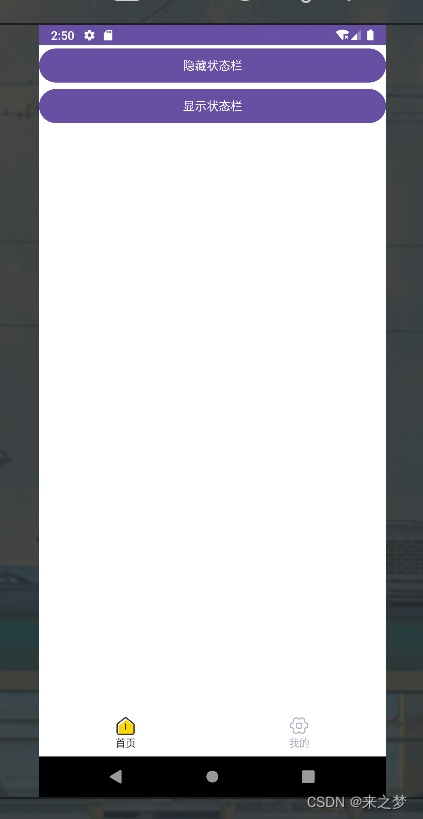
隐藏
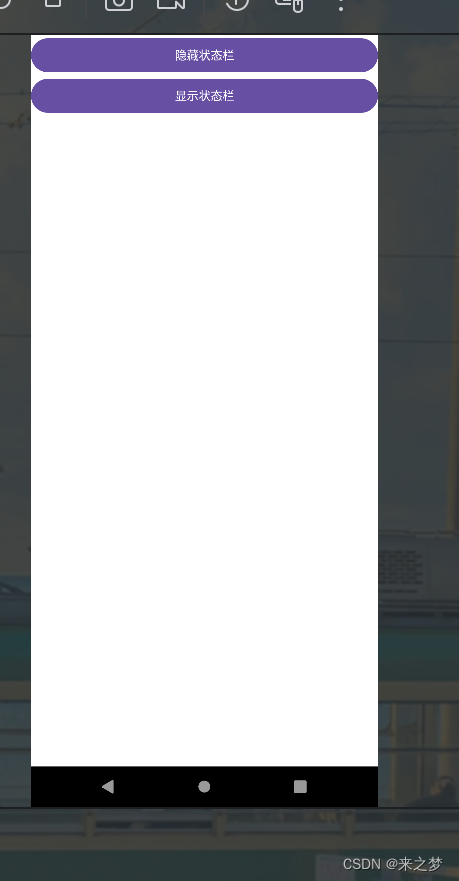
显示
核心代码
首先是Framgrent
java
package com.zx.tab;

import android.content.Context;
import android.os.Bundle;
import android.view.LayoutInflater;
import android.view.View;
import android.view.ViewGroup;
import android.widget.Button;

import androidx.annotation.NonNull;
import androidx.annotation.Nullable;
import androidx.fragment.app.Fragment;

/**
 * 首页Fragment,用于展示和控制状态栏的显示与隐藏。
 */
public class HomeFragment extends Fragment {

    private static final String ARG_PARAM1 = "首页";
    private Button btn_hide_status_bar; // 控制隐藏状态栏的按钮
    private Button btn_show_status_bar; // 控制显示状态栏的按钮
    // 数据传递监听器接口
    public interface OnDataPassListener {
        void onHideStatusBar(String data); // 当隐藏状态栏时被调用
        void onShowStatusBar(String data); // 当显示状态栏时被调用
    }

    // 用于接收Activity传回的监听实例
    private OnDataPassListener mDataPassListener;

    // 创建HomeFragment实例的方法,用于传入参数
    public static HomeFragment newInstance(String param1) {
        HomeFragment fragment = new HomeFragment();
        Bundle args = new Bundle();
        args.putString(ARG_PARAM1, param1);
        fragment.setArguments(args);
        return fragment;
    }

    @Nullable
    @Override
    public View onCreateView(@NonNull LayoutInflater inflater, @Nullable ViewGroup container, @Nullable Bundle savedInstanceState) {
        View contentView = inflater.inflate(R.layout.home, container, false);
        btn_hide_status_bar = contentView.findViewById(R.id.btn_hide_status_bar);
        btn_show_status_bar = contentView.findViewById(R.id.btn_show_status_bar);
        // 设置按钮点击事件
        btn_hide_status_bar.setOnClickListener(v -> {
            if (mDataPassListener != null) {
                mDataPassListener.onHideStatusBar("状态栏已隐藏");
            }
        });

        btn_show_status_bar.setOnClickListener(v -> {
            if (mDataPassListener != null) {
                mDataPassListener.onShowStatusBar("状态栏已显示");
            }
        });

        return contentView;
    }
    // 在Fragment与Activity建立关联时设置监听器
    @Override
    public void onAttach(@NonNull Context context) {
        super.onAttach(context);
        try {
            mDataPassListener = (OnDataPassListener) context;
        } catch (ClassCastException e) {
            throw new ClassCastException(context.toString() + " 必须实现 OnDataPassListener 接口");
        }
    }
}
布局
XML
<?xml version="1.0" encoding="utf-8"?>
<LinearLayout xmlns:android="http://schemas.android.com/apk/res/android"
    android:layout_width="match_parent"
    android:orientation="vertical"
    android:layout_height="match_parent">
<!--  隐藏状态栏 显示状态栏-->
<Button
    android:layout_width="match_parent"
    android:layout_height="wrap_content"
    android:text="隐藏状态栏"
    android:id="@+id/btn_hide_status_bar"/>
    <Button
        android:id="@+id/btn_show_status_bar"
        android:layout_width="match_parent"
        android:layout_height="wrap_content"
        android:text="显示状态栏"/>
</LinearLayout>
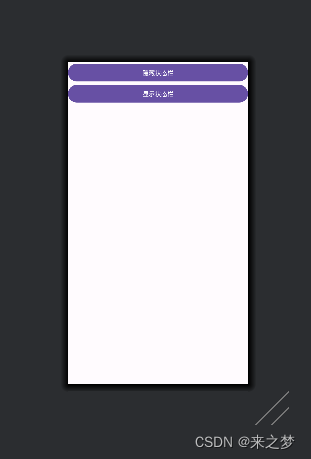
布局效果
最后这里是Activity代码
java
package com.zx.tab;

import androidx.appcompat.app.AppCompatActivity;
import androidx.fragment.app.Fragment;
import androidx.viewpager2.widget.ViewPager2;

import android.os.Build;
import android.os.Bundle;
import android.view.View;
import android.view.WindowInsets;
import android.view.WindowInsetsController;
import android.view.WindowManager;
import android.widget.ImageView;
import android.widget.LinearLayout;
import android.widget.TextView;
import android.widget.Toast;

import java.util.ArrayList;
import java.util.List;

public class MainActivity extends AppCompatActivity implements HomeFragment.OnDataPassListener{
    private final List<Fragment> fragmentList = new ArrayList<>();
    private final int[] tabIds = {
            R.id.ll_home,
            R.id.ll_mine
    };
    private final int[] iconIds = {
            R.id.im_home,
            R.id.im_mine
    };
    private final int[] textIds = {
            R.id.tv_home,
            R.id.tv_mine
    };
    private ViewPager2 viewPager2=null;
    private ImageView[] tabIcons=null;
    private TextView[] tabTexts=null;
    private ImageView imCurrent=null;
    private TextView tvCurrent=null;
    private LinearLayout ll_tabbar;
    @Override
    protected void onCreate(Bundle savedInstanceState) {
        super.onCreate(savedInstanceState);
        setContentView(R.layout.activity_main);

        this.initializeViews();
        this.initViewPager();
        this.changeTab(0);
    }
    private void initializeViews() {

        this.viewPager2 = findViewById(R.id.viewPager2);
        this.ll_tabbar=findViewById(R.id.ll_tabbar);
        LinearLayout[] tabLayouts = new LinearLayout[2];
        this.tabIcons = new ImageView[2];
        this. tabTexts = new TextView[2];

        for (int i = 0; i < 2; i++) {
            tabLayouts[i] = findViewById(tabIds[i]);
            tabIcons[i] = findViewById(iconIds[i]);
            tabTexts[i] = findViewById(textIds[i]);
            final int index = i;
            tabLayouts[i].setOnClickListener(view -> {
                viewPager2.setCurrentItem(index, false);
                changeTab(index);
            });
        }

    }
    private void initViewPager() {
    this. fragmentList.add(HomeFragment.newInstance(getString(R.string.tv_home)));
        this.fragmentList.add(MeFragment.newInstance(getString(R.string.tv_mine)));
        this.viewPager2.setAdapter(new FragmentAdapter(getSupportFragmentManager(), getLifecycle(), fragmentList));
        this. viewPager2.setUserInputEnabled(false);//是否滑动
        this.viewPager2.registerOnPageChangeCallback(new ViewPager2.OnPageChangeCallback() {
            @Override
            public void onPageScrolled(int position, float positionOffset, int positionOffsetPixels) {
                super.onPageScrolled(position, positionOffset, positionOffsetPixels);
                changeTab(position);
            }
        });
    }
    private void changeTab(int position) {
        if (imCurrent != null && tvCurrent != null) {
            this.imCurrent.setSelected(false);
            this.tvCurrent.setSelected(false);
        }
        this.imCurrent = tabIcons[position];
        this.tvCurrent = tabTexts[position];
        this.imCurrent.setSelected(true);
        this.tvCurrent.setSelected(true);
    }

    //实现接口 隐藏状态栏
    public void onHideStatusBar(String data) {
        this.ll_tabbar.setVisibility(View.GONE);

        // 隐藏顶部状态栏
        if (getSupportActionBar() != null) {
            getSupportActionBar().hide();
        }

        if (Build.VERSION.SDK_INT >= Build.VERSION_CODES.R) {
            // 使用WindowInsetsController的动画
            WindowInsetsController insetsController = getWindow().getInsetsController();
            if (insetsController != null) {
                insetsController.hide(WindowInsets.Type.statusBars());
                insetsController.setSystemBarsBehavior(WindowInsetsController.BEHAVIOR_SHOW_TRANSIENT_BARS_BY_SWIPE);
            }
        } else {
            // 兼容旧版本,使用系统UI标志,并添加淡出动画
            getWindow().addFlags(WindowManager.LayoutParams.FLAG_FULLSCREEN);
            getWindow().getDecorView().setSystemUiVisibility(View.SYSTEM_UI_FLAG_FULLSCREEN
                    | View.SYSTEM_UI_FLAG_LAYOUT_FULLSCREEN
                    | View.SYSTEM_UI_FLAG_LAYOUT_STABLE);
        }
    }


    // 实现接口 显示状态栏
    public void onShowStatusBar(String data) {
        this.ll_tabbar.setVisibility(View.VISIBLE);

        // 显示顶部状态栏
        if (Build.VERSION.SDK_INT >= Build.VERSION_CODES.R) {
            WindowInsetsController insetsController = getWindow().getInsetsController();
            if (insetsController != null) {
                insetsController.show(WindowInsets.Type.statusBars());
                insetsController.setSystemBarsBehavior(WindowInsetsController.BEHAVIOR_SHOW_TRANSIENT_BARS_BY_SWIPE);
            }
        } else {
            getWindow().clearFlags(WindowManager.LayoutParams.FLAG_FULLSCREEN);
            getWindow().getDecorView().setSystemUiVisibility(View.SYSTEM_UI_FLAG_LAYOUT_STABLE);
            // 同样,这里可以考虑使用淡入动画来平滑显示状态栏
        }

        if (getSupportActionBar() != null) {
            getSupportActionBar().show();
        }

        // 如果状态栏颜色需要透明处理,可以在显示时设置(这取决于您的UI设计)
        // getWindow().addFlags(WindowManager.LayoutParams.FLAG_TRANSLUCENT_STATUS);
        // 或者使用setStatusBarColor设置特定颜色
    }


}
下面是布局
XML
<?xml version="1.0" encoding="utf-8"?>
<LinearLayout xmlns:android="http://schemas.android.com/apk/res/android"
    android:layout_width="match_parent"
    android:layout_height="match_parent"
    android:background="@color/white"
    android:orientation="vertical">

    <androidx.viewpager2.widget.ViewPager2
        android:id="@+id/viewPager2"
        android:layout_width="match_parent"
        android:layout_height="0dp"
        android:layout_weight="1" />

    <View
        android:layout_width="match_parent"
        android:layout_height="0.1dp"
        android:background="#f0f0f0" />

    <LinearLayout
        android:id="@+id/ll_tabbar"
        android:layout_width="match_parent"
        android:layout_height="56dp"
        android:background="@color/white"
        android:orientation="horizontal">

        <LinearLayout
            android:id="@+id/ll_home"
            android:layout_width="0dp"
            android:layout_height="match_parent"
            android:layout_weight="1"
            android:gravity="center"
            android:orientation="vertical">

            <ImageView
                android:id="@+id/im_home"
                android:layout_width="24dp"
                android:layout_height="24dp"
                android:background="@drawable/tab_menu_home" />

            <TextView
                android:id="@+id/tv_home"
                android:layout_width="wrap_content"
                android:layout_height="wrap_content"
                android:text="@string/tv_home"
                android:textColor="@drawable/tabar_title_text"
                android:textSize="12sp" />
        </LinearLayout>


        <LinearLayout
            android:id="@+id/ll_mine"
            android:layout_width="0dp"
            android:layout_height="56dp"
            android:layout_weight="1"
            android:gravity="center"
            android:orientation="vertical">

            <ImageView
                android:id="@+id/im_mine"
                android:layout_width="24dp"
                android:layout_height="24dp"
                android:background="@drawable/tab_menu_mine" />

            <TextView
                android:id="@+id/tv_mine"
                android:layout_width="wrap_content"
                android:layout_height="wrap_content"
                android:text="@string/tv_mine"
                android:textColor="@drawable/tabar_title_text"
                android:textSize="12sp" />
        </LinearLayout>
    </LinearLayout>

</LinearLayout>
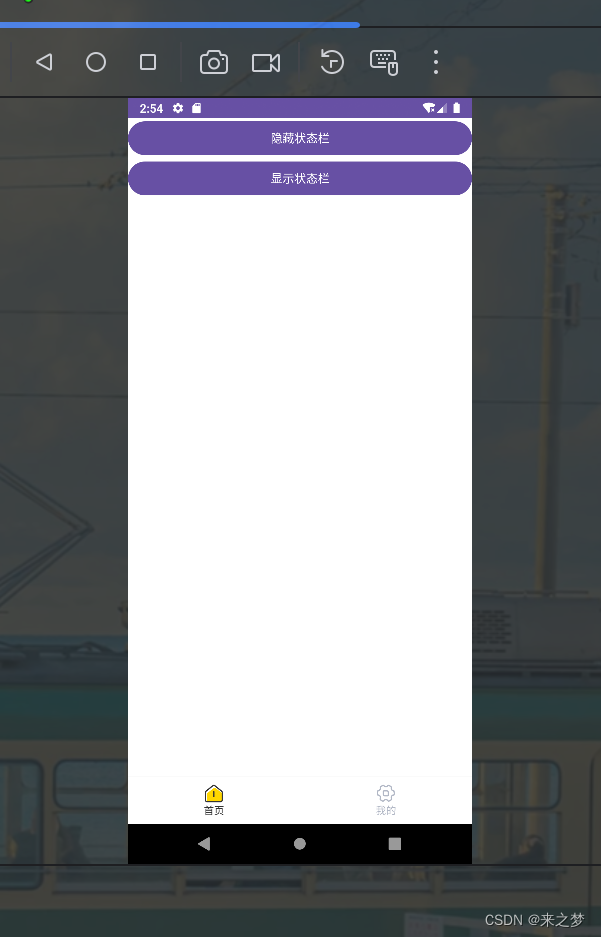
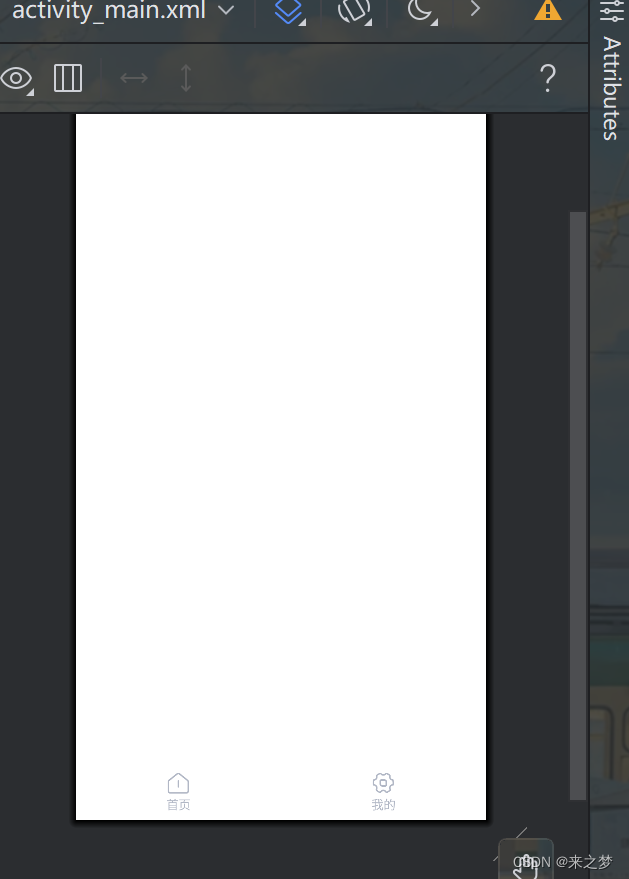
效果
以上就是 安卓在Fragment控制状态栏显示隐藏的代码,
下面是dome地址