本文由TinySpace组件贡献者夏雯斐同学原创。
前言
近期,TinyVue正式发布 v3.27.0版本,这次版本更新也增加了很多新特性,space组件就是其中比较重要的一个特性。
Space组件 是 OpenTiny Vue组件库中的一个布局容器组件,用于在子元素之间提供灵活的间距控制。 它支持水平与垂直方向排列、自动换行、对齐与分布控制、以及顺序调整等功能,能帮助开发者轻松实现响应式、整齐的组件布局。
适用场景
- 表单项或按钮组的布局
- 列表项的水平/垂直间距
- 工具栏元素的分布控制
- 在响应式布局中控制间距与换行
环境准备与安装
1. 环境要求
确保已安装 Node.js 10.13+ 及包管理器 npm/pnpm/yarn。
bash
node -v2. 安装 OpenTiny Vue
bash
# npm
npm install @opentiny/vue

# 或 pnpm
pnpm add @opentiny/vue
3.引入TinySpace
vue
import { TinySpace } from '@opentiny/vue'快速开始
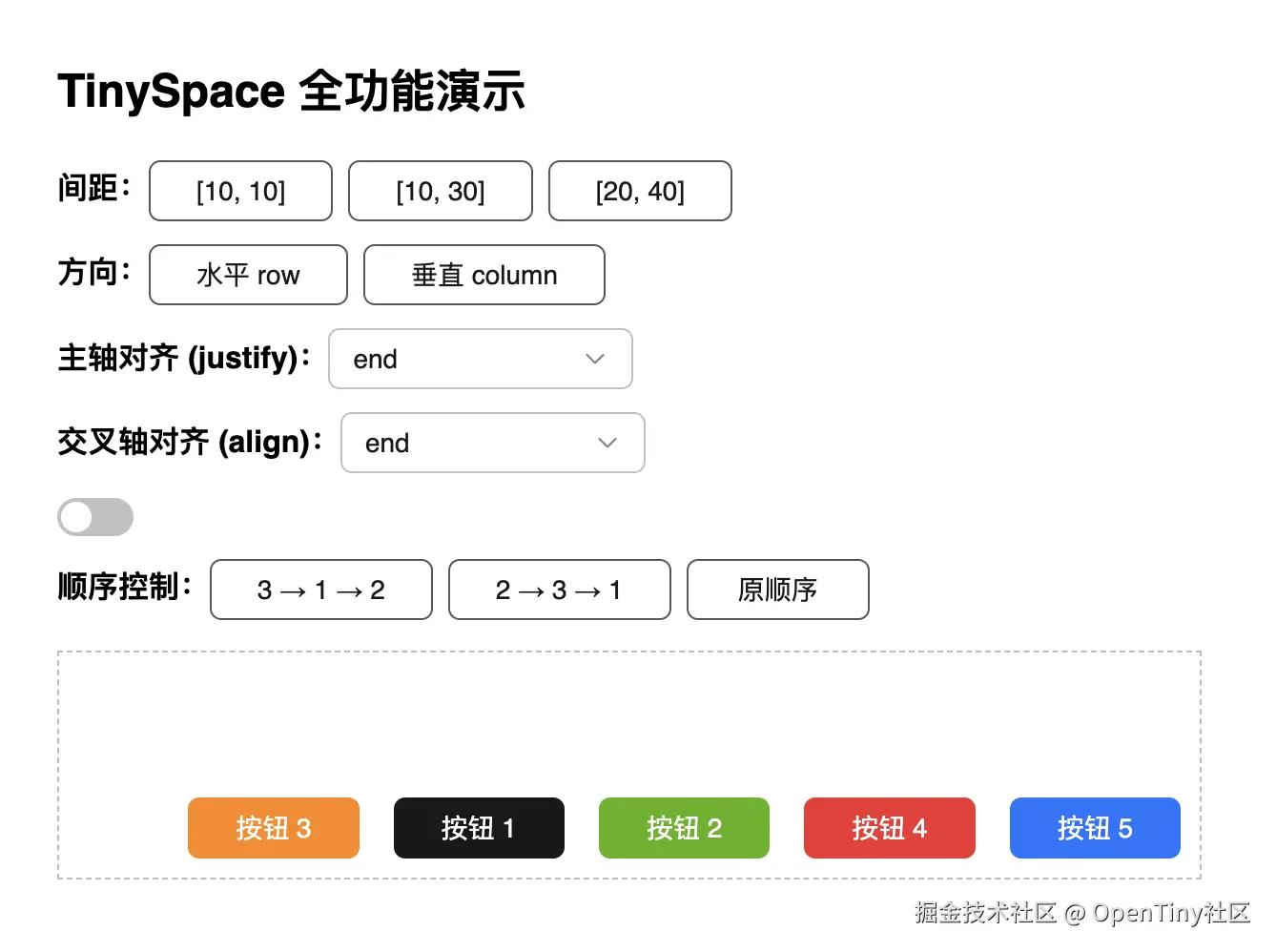
基础使用
vue
<template>
  <div id="tiny-space-all" style="padding: 16px; max-width: 600px">
    <h2>TinySpace 全功能演示</h2>

    <!-- 控制面板 -->
    <div style="margin-bottom: 16px; display: flex; flex-direction: column; gap: 12px;">
      <!-- 间距控制 -->
      <div>
        <strong>间距:</strong>
        <tiny-button @click="size = [10, 10]">[10, 10]</tiny-button>
        <tiny-button @click="size = [10, 30]">[10, 30]</tiny-button>
        <tiny-button @click="size = [20, 40]">[20, 40]</tiny-button>
      </div>

      <!-- 布局方向 -->
      <div>
        <strong>方向:</strong>
        <tiny-button-group>
          <tiny-button @click="direction = 'row'">水平 row</tiny-button>
          <tiny-button @click="direction = 'column'">垂直 column</tiny-button>
        </tiny-button-group>
      </div>

      <!-- 主轴对齐 -->
      <div>
        <strong>主轴对齐 (justify):</strong>
        <tiny-select v-model="justify" style="width: 160px">
          <tiny-option label="start" value="start" />
          <tiny-option label="center" value="center" />
          <tiny-option label="end" value="end" />
          <tiny-option label="space-between" value="space-between" />
          <tiny-option label="space-around" value="space-around" />
        </tiny-select>
      </div>

      <!-- 交叉轴对齐 -->
      <div>
        <strong>交叉轴对齐 (align):</strong>
        <tiny-select v-model="align" style="width: 160px">
          <tiny-option label="start" value="start" />
          <tiny-option label="center" value="center" />
          <tiny-option label="end" value="end" />
          <tiny-option label="baseline" value="baseline" />
        </tiny-select>
      </div>

      <!-- 自动换行 -->
      <div>
        <tiny-switch v-model="wrap" active-text="自动换行" inactive-text="不换行" />
      </div>

      <!-- 顺序控制 -->
      <div>
        <strong>顺序控制:</strong>
        <tiny-button @click="order = ['3', '1', '2']">3 → 1 → 2</tiny-button>
        <tiny-button @click="order = ['2', '3', '1']">2 → 3 → 1</tiny-button>
        <tiny-button @click="order = []">原顺序</tiny-button>
      </div>
    </div>

    <!-- Space 布局演示 -->
    <tiny-space
      class="tiny-space-demo"
      :size="size"
      :direction="direction"
      :justify="justify"
      :align="align"
      :wrap="wrap"
      :order="order"
      style="border: 1px dashed #bbb; padding: 10px; min-height: 120px;"
    >
      <tiny-button key="1" type="primary">按钮 1</tiny-button>
      <tiny-button key="2" type="success">按钮 2</tiny-button>
      <tiny-button key="3" type="warning">按钮 3</tiny-button>
      <tiny-button key="4" type="danger">按钮 4</tiny-button>
      <tiny-button key="5" type="info">按钮 5</tiny-button>
    </tiny-space>
  </div>
</template>

<script setup>
import { ref } from 'vue'
import { TinyButton, TinyButtonGroup, TinySwitch, TinySelect, TinyOption } from '@opentiny/vue'
import TinySpace from '@opentiny/vue-space'


// 响应式配置项
const size = ref([10, 20])
const direction = ref('row')
const justify = ref('start')
const align = ref('center')
const wrap = ref(true)
const order = ref([])
</script>

<style scoped>
.tiny-space-demo .tiny-button {
  min-width: 80px;
}
</style>
默认方向为
row(水平排列),默认间距为8px。
配置详解
1.控制间距 size
size 是最核心的属性,支持多种写法。
1.1数值写法
vue
<tiny-space :size="20"/>间距为 20px。
1.2数组写法(rowGap, columnGap)
vue
<tiny-space :size="[50, 50]"/>行间距 50px,列间距 50px,方便实现不等距布局。
1.3字符串写法
vue
<tiny-space size="100px"/>间距为 100px
vue
<tiny-space size="small"/>
// small | medium | large
2.控制排列方向 direction
vue
<tiny-space :size="12" direction="row"/>-
'row'(默认):水平排列 -
'column':垂直排列
可以通过切换 direction 实现响应式布局(如手机端竖排、PC端横排)。
3.对齐 align 与分布 justify
通过 align 和 justify 控制元素对齐与分布方式。
3.1 justify
vue
<tiny-space :size="10" justify="center"/>3.2 aligin
VUE
<tiny-space :size="10" align="baseline"/> | 属性 | 说明 | 可选值 |
|---|---|---|
align |
垂直对齐 | start / center / end/baseline/stretch |
justify |
水平分布 | start / center / end / space-between |
4.自动换行 wrap
vue
<tiny-space :wrap="true" :size="[10, 12]">
  <tiny-button v-for="n in 10" :key="n">按钮 {{ n }}</tiny-button>
</tiny-space>效果: 当宽度不够时,按钮会自动换行,仍然保持间距一致。

5.控制顺序 order
vue
<template>
  <tiny-space :order="order" style="border: 1px dashed #ccc">
    <tiny-button key="1">First Button</tiny-button>
    <tiny-button key="2">Second Button</tiny-button>
    <tiny-button key="3">Third Button</tiny-button>
    <tiny-button>Fourth Button</tiny-button>
  </tiny-space>
</template>
<script setup>
import { TinyButton, TinySpace } from '@opentiny/vue'
const order = ['2', '3', '1'] // 自定义顺序:第二个、第三个、然后第一个
</script>
设置 order="['2', '3', '1']" 后,渲染顺序会变为 2 → 3 → 1。
适用于在响应式布局中快速调换内容顺序。
6.嵌套布局(组合使用)
vue
<tiny-space direction="column" :size="16">
 <tiny-space direction="row" :size="8">
  <tiny-button>左</tiny-button>
  <tiny-button>中</tiny-button>
  <tiny-button>右</tiny-button>
 </tiny-space>

 <tiny-space direction="row" :size="8">
  <tiny-button>上</tiny-button>
  <tiny-button>下</tiny-button>
 </tiny-space>
</tiny-space>
7.测试与稳定性
TinySpace 已通过 Playwright E2E 自动化测试,验证:
-
间距正确渲染(
rowGap/columnGap) -
动态数据更新响应
-
换行与方向切换稳定
-
兼容 Vue 2 & Vue 3 环境
8.最佳实践总结
| 场景 | 推荐配置 |
|---|---|
| 表单项垂直间距 | <tiny-space direction="column" :size="12"> |
| 按钮组 | <tiny-space :size="8" align="center"> |
| 可换行标签集合 | <tiny-space :size="[8, 16]" wrap> |
9.小结
TinySpace 是一个轻量级、灵活的布局组件,专为控制子元素间距而设计。 它支持:
- 数值、预设、数组多种间距形式
- 垂直与水平排列
- 自动换行与对齐分布
- 顺序控制
- Vue 2 / Vue 3 双版本兼容
通过它,开发者可以轻松构建整洁、美观、响应式的 UI 布局。
属性一览
| 属性 | 类型 | 默认值 | 说明 |
|---|---|---|---|
size |
number /array / string |
small |
设置间距大小,可为字符串、数字或数组,数组形式为 横向间距, 纵向间距 |
direction |
string |
row |
row | column |
align |
string |
stretch |
设置交叉轴上的对齐方式,对应 CSS align-items 属性 |
justify |
string |
start |
设置主轴上的对齐方式,对应 CSS justify-content 属性 |
wrap |
boolean |
false |
是否自动换行 |
order |
string[] |
- | 控制子项显示顺序 |
关于OpenTiny
欢迎加入 OpenTiny 开源社区。添加微信小助手:opentiny-official 一起参与交流前端技术~
OpenTiny 官网:opentiny.design
OpenTiny 代码仓库:github.com/opentiny
TinyVue 源码:github.com/opentiny/ti...
TinyEngine 源码: github.com/opentiny/ti...
欢迎进入代码仓库 Star🌟TinyEngine、TinyVue、TinyNG、TinyCLI、TinyEditor~ 如果你也想要共建,可以进入代码仓库,找到 good first issue 标签,一起参与开源贡献~