想把一个东西很多的界面拆分一下,拆成几个小界面再拼接起来,脑袋里有UserControl / ContentControl这些概念,但是不知道具体怎么实现,记录一下两种方法:
法一:UserControl实现
主界面View:
XML
<Page x:Class="Lithography.View.MainPage"
      xmlns="http://schemas.microsoft.com/winfx/2006/xaml/presentation"
      xmlns:x="http://schemas.microsoft.com/winfx/2006/xaml"
      xmlns:d="http://schemas.microsoft.com/expression/blend/2008"
      xmlns:mc="http://schemas.openxmlformats.org/markup-compatibility/2006"
      xmlns:telerik="http://schemas.telerik.com/2008/xaml/presentation"
      xmlns:lc="clr-namespace:FluentVision.Controls;assembly=FluentVision.Controls"
      xmlns:sonPage="clr-namespace:Lithography.View.SonPage"
      d:DesignHeight="600"
      d:DesignWidth="800"
      mc:Ignorable="d">

    <Grid>
        <Grid.ColumnDefinitions>
            <ColumnDefinition Width="*"/>
            <ColumnDefinition Width="*"/>
        </Grid.ColumnDefinitions>
        <Grid.RowDefinitions>
            <RowDefinition Height="*"/>
            <RowDefinition Height="Auto"/>
        </Grid.RowDefinitions>

        <!-- 平台运动控制模块 -->
        <sonPage:PlatformMovementControlPage
            Grid.Row="0" Grid.Column="0"
            DataContext="{Binding PlatformMovement}"
            Margin="5"/>

        <!-- 真空控制模块 -->
        <sonPage:VacuumControlPage
            Grid.Row="0" Grid.Column="1"
            DataContext="{Binding VacuumControl}"
            Margin="5"/>

        <!-- IO状态显示模块 -->
        <sonPage:IoStatusPage
            Grid.Row="1" Grid.Column="0" Grid.ColumnSpan="2"
            DataContext="{Binding IoStatus}"
            Margin="5"/>
    </Grid>
</Page>
主界面ViewModel
cs
using ReactiveUI;

namespace Lithography.ViewModel
{
    public class MainViewModel : ReactiveObject
    {
        public PlatformMovementControlViewModel PlatformMovement { get; }
        public VacuumControlViewModel VacuumControl { get; }
        public IoStatusViewModel IoStatus { get; }

        public MainViewModel()
        {
            PlatformMovement = new PlatformMovementControlViewModel();
            VacuumControl = new VacuumControlViewModel();
            IoStatus = new IoStatusViewModel();
        }
    }
}
主界面声明这些子对象是为了给子界面提供数据源(DataContext绑定),也可以直接在子界面窗体构造函数中指定数据源:
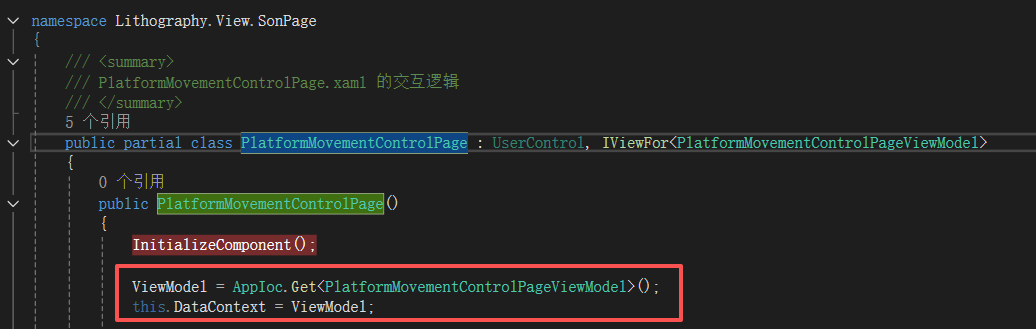
当然还要集合具体使用的MVVM框架,寻求更好实现;
法二:ContentControl + DataTemplate
主界面View:
XML
<Page x:Class="Lithography.View.MainPage"
      xmlns="http://schemas.microsoft.com/winfx/2006/xaml/presentation"
      xmlns:x="http://schemas.microsoft.com/winfx/2006/xaml"
      xmlns:d="http://schemas.microsoft.com/expression/blend/2008"
      xmlns:mc="http://schemas.openxmlformats.org/markup-compatibility/2006"
      xmlns:telerik="http://schemas.telerik.com/2008/xaml/presentation"
      xmlns:viewModels="clr-namespace:Lithography.ViewModel.SonPage"
      d:DesignHeight="600"
      d:DesignWidth="800"
      mc:Ignorable="d">

    <Page.Resources>
        <!-- 定义 ViewModel 到 View 的映射 -->
        <DataTemplate DataType="{x:Type viewModels:PlatformMovementControlViewModel}">
            <sonPage:PlatformMovementControlPage/>
        </DataTemplate>

        <DataTemplate DataType="{x:Type viewModels:VacuumControlViewModel}">
            <sonPage:VacuumControlPage/>
        </DataTemplate>

        <DataTemplate DataType="{x:Type viewModels:IoStatusViewModel}">
            <sonPage:IoStatusPage/>
        </DataTemplate>
    </Page.Resources>

    <Grid>
        <Grid.ColumnDefinitions>
            <ColumnDefinition Width="*"/>
            <ColumnDefinition Width="*"/>
        </Grid.ColumnDefinitions>
        <Grid.RowDefinitions>
            <RowDefinition Height="*"/>
            <RowDefinition Height="Auto"/>
        </Grid.RowDefinitions>

        <!-- 使用 ContentControl 自动选择模板 -->
        <ContentControl
            Grid.Row="0" Grid.Column="0"
            Content="{Binding PlatformMovement}"
            Margin="5"/>

        <ContentControl
            Grid.Row="0" Grid.Column="1"
            Content="{Binding VacuumControl}"
            Margin="5"/>

        <ContentControl
            Grid.Row="1" Grid.Column="0" Grid.ColumnSpan="2"
            Content="{Binding IoStatus}"
            Margin="5"/>
    </Grid>
</Page>
主界面ViewModel:
cs
 public class MainViewModel : ReactiveObject
    {
        public PlatformMovementControlViewModel PlatformMovement { get; }
        public VacuumControlViewModel VacuumControl { get; }
        public IoStatusViewModel IoStatus { get; }

        public MainViewModel()
        {
            PlatformMovement = new PlatformMovementControlViewModel();
            VacuumControl = new VacuumControlViewModel();
            IoStatus = new IoStatusViewModel();
        }
    }
ContentControl严格上来说也是一个控件,是常见的Button、ScrollViewer的基类:
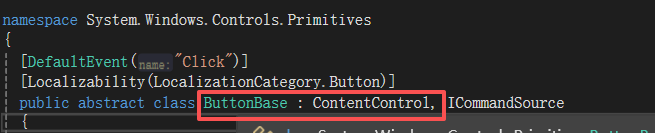
ContentControl 的 Content 属性的类型为 Object(同样Button的Content也是,只不过常用来显示文本,也可以显示图片和其他布局控件等等),这里在主界面把 ContentControl 的Content 绑定上后台子界面ViewModel,然后设置了ContentControl的ContentTemplate属性,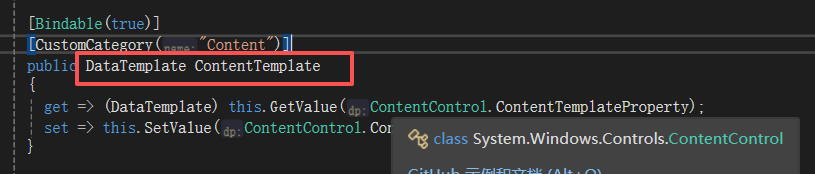 ContentTemplate是DataTemplate类型,注意上方xaml 窗体资源中定义的DataTemplate就是变相指定了ContentControl的ContentTemplate属性,还可以下面这样写:
cs
<Window x:Class="_11_4.MainWindow"
        xmlns="http://schemas.microsoft.com/winfx/2006/xaml/presentation"
        xmlns:x="http://schemas.microsoft.com/winfx/2006/xaml"
        Title="MainWindow" Height="350" Width="525">
    <Window.Resources>
        <DataTemplate x:Key="datatemplate1">
            <StackPanel Orientation="Horizontal">
                <CheckBox/>
                <TextBlock Text=" Hello World"/>
            </StackPanel>
        </DataTemplate>
    </Window.Resources>
    <Grid>
        <Button Content="Button" Height="23" HorizontalAlignment="Left" Margin="153,26,0,0" Name="button1" VerticalAlignment="Top" Width="130"
                ContentTemplate="{StaticResource datatemplate1}"/>
        <Label Content="Label" Height="28" HorizontalAlignment="Left" Margin="153,68,0,0" Name="label1" VerticalAlignment="Top" Width="130"
               ContentTemplate="{StaticResource datatemplate1}"/>
        <ScrollViewer Height="23" HorizontalAlignment="Left" Margin="153,127,0,0" Name="scrollViewer1" VerticalAlignment="Top" Width="120"
                ContentTemplate="{StaticResource datatemplate1}"/>

    </Grid>
</Window>
或者:
XML
<Button>
    <Button.ContentTemplate>
        <DataTemplate>
            <StackPanel Orientation="Horizontal">
                <Image Source="/Icons/settings.png" Width="16" Height="16" Margin="0,0,5,0"/>
                <TextBlock Text="设置" VerticalAlignment="Center"/>
            </StackPanel>
        </DataTemplate>
    </Button.ContentTemplate>
</Button>
...很多种写法,想了解的话可以问一下AI,我就不愿意列举了。