Electron04-系统通知小闹钟
练习使用Electron,在此记录学习过程

1-参考网址
- electron中文官网:https://www.electronjs.org/zh/docs/latest
- 禹神Electron视频教程地址:https://www.bilibili.com/video/BV1sE421N7M5
- 禹神Electron博文教程地址::https://blog.csdn.net/qq_33650655/article/details/140364298
- 当前博客代码实现地址:https://gitee.com/enzoism/electron_clock
2-快速入门
1-快速动手验证
上手可以参考禹神Electron博文教程地址::https://blog.csdn.net/qq_33650655/article/details/140364298
shell
# 1-init之后就一路回车即可
npm init

# 2-按照package.json中的配置添加【index.js或者main.js】

# 3-可以在【index.js或者main.js】加一个打印
console.log("hello electron")

# 4-添加start脚本
{
  "scripts": {
    "start": "electron ."
   }
}

# 5-直接运行项目
ump run start
3-题目「 系统通知小闹钟 」
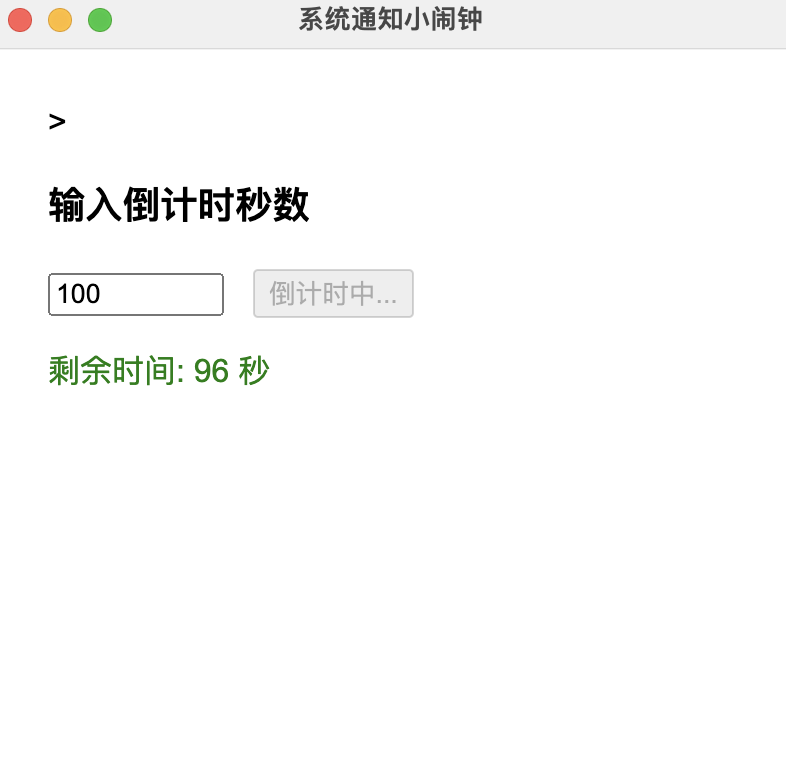
- 需求:输入倒计时秒数,点击"开始"后,主进程定时并在结束时弹出系统级通知(new Notification)。
- 技能点:主进程使用 Notification;双向通信(渲染 invoke,主进程 handle 并返回"已完成")。
参考步骤:
- 渲染页输入框 + 按钮
- 渲染 invoke('start-timer', seconds)
- 主进程 handle 里 setTimeout → new Notification({title:'时间到!'})
1. 主进程代码 (main.js)
javascript
// main.js
const {app, BrowserWindow, ipcMain, Notification} = require('electron');
const path = require('path');

let win;

function createWindow() {
    win = new BrowserWindow({
        width: 400,
        height: 800,
        webPreferences: {
            preload: path.join(__dirname, 'preload.js'),
            nodeIntegration: false,          // 安全最佳实践
            contextIsolation: true
        }
    });
    // 窗口加载之后要加载的内容
    win.loadFile(path.join(__dirname, 'pages/index/index.html'));
    win.openDevTools()  //自动打开调试窗口
}

/* ===== 核心:双向通信 ===== */
// 渲染进程 invoke('start-timer', 秒数) 会走到这里
ipcMain.handle('start-timer', async (event, seconds) => {
    return new Promise(resolve => {
        let remainingTime = seconds;

        // 立即发送一次初始时间
        win.webContents.send('timer-update', remainingTime);

        // 每秒更新一次倒计时
        const timer = setInterval(() => {
            remainingTime--;
            win.webContents.send('timer-update', remainingTime);

            // 当倒计时结束时
            if (remainingTime <= 0) {
                clearInterval(timer);

                // 1. 系统级通知
                new Notification({
                    title: '闹钟响了',
                    body: `倒计时 ${seconds} 秒已结束!`
                }).show();

                // 2. 把结果回传(resolve 会作为 invoke 的返回值)
                resolve('已完成');
            }
        }, 1000);
    });
});

app.on('ready', () => {
    createWindow()
    //兼容核心代码1
    app.on('activate', () => {
        if (BrowserWindow.getAllWindows().length === 0) createWindow()
    })

});

app.on('window-all-closed', () => {
    if (process.platform !== 'darwin') {
        app.quit();
    }
});
2. 渲染进程代码 (index.html)
html
<!doctype html>
<html>
<head>
    <meta charset="UTF-8">
    <!-- 在 HTML 头部添加或修改 CSP -->
    <meta http-equiv="Content-Security-Policy"
          content="script-src 'self'; script-src-elem 'self'">
    >
    <title>系统通知小闹钟</title>
    <style>
        body {
            font-family: Arial;
            padding: 20px
        }

        input {
            width: 80px
        }

        button {
            margin-left: 10px
        }

        #status {
            margin-top: 15px;
            color: green
        }
    </style>
</head>
<body>
<h3>输入倒计时秒数</h3>
<input id="seconds" type="number" min="1" value="10">
<button id="startBtn">开始</button>
<div id="status"></div>
<script src="./render.js"></script>
</body>
</html>
3. 渲染进程逻辑 (render.js)
javascript
// DOM 逻辑
document.getElementById('startBtn').addEventListener('click', async () => {
    const sec = Number(document.getElementById('seconds').value);
    if (!sec || sec <= 0) return alert('请输入正整数');

    // 禁用按钮防止重复点击
    const startBtn = document.getElementById('startBtn');
    startBtn.disabled = true;
    startBtn.textContent = '倒计时中...';

    // 显示初始倒计时
    const statusElement = document.getElementById('status');
    statusElement.textContent = `剩余时间: ${sec} 秒`;

    // 发送倒计时请求到主进程
    const msg = await window.electron.startTimer(sec);
    statusElement.textContent = msg;

    // 恢复按钮状态
    startBtn.disabled = false;
    startBtn.textContent = '开始';
});

// 监听主进程发送的倒计时更新事件
window.electron.onTimerUpdate((remainingSeconds) => {
    document.getElementById('status').textContent = `剩余时间: ${remainingSeconds} 秒`;
});
4. 预加载进程逻辑 (preload.js)
javascript
const {contextBridge, ipcRenderer} = require('electron')

contextBridge.exposeInMainWorld('electron', {
    startTimer: (s) => ipcRenderer.invoke('start-timer', s),
    onTimerUpdate: (callback) => ipcRenderer.on('timer-update', (event, remainingSeconds) => callback(remainingSeconds))
})
5. 使用说明
- 安装依赖:
bash
npm install- 运行应用:
bash
npm start- 使用步骤 :
- 点击"选择目录"按钮选择要创建项目的目录
- 在文本框中输入readme文件的内容
- 点击"创建项目"按钮
- 系统会在选择的目录下创建
hello-electron文件夹,并在其中生成readme.txt文件