在鸿蒙生态(HarmonyOS)持续扩张的背景下,Flutter 凭借跨平台特性成为鸿蒙应用开发的优选框架。蓝牙低功耗(BLE)作为 IoT 设备通信的核心技术,广泛应用于智能穿戴、智能家居、工业传感器等场景。本文将从实战角度出发,系统讲解鸿蒙 Flutter 环境下 BLE 开发的进阶技巧,涵盖设备扫描、稳定连接、数据读写、通知订阅、设备管理等核心功能,结合完整代码示例与最佳实践,助力开发者快速落地 IoT 应用。
一、开发前准备:环境搭建与核心依赖
1.1 鸿蒙 Flutter 环境要求
- 鸿蒙系统版本:HarmonyOS 3.0 及以上(支持 Flutter 应用原生运行,低版本需通过兼容层适配)
- Flutter 版本:3.10.0 及以上(确保与鸿蒙 Flutter 插件兼容)
- 开发工具:DevEco Studio 4.0+(集成 Flutter 开发环境,支持鸿蒙设备调试)
- 硬件要求:支持 BLE 4.0+ 的鸿蒙设备(手机、平板、智能手表等)或模拟器(需开启蓝牙模拟功能)
1.2 核心依赖库选型
鸿蒙 Flutter 生态中,BLE 开发主要依赖兼容鸿蒙的蓝牙插件,推荐使用 flutter_blue_plus (flutter_blue 的优化版本,支持鸿蒙系统,修复了多个兼容性问题),同时需配合鸿蒙原生能力封装,确保权限申请、后台运行等功能正常工作。
1.2.1 依赖配置
在 pubspec.yaml 中添加核心依赖:
yaml
dependencies:
  flutter:
    sdk: flutter
  # BLE 核心插件(兼容鸿蒙)
  flutter_blue_plus: ^1.13.3
  # 权限管理(鸿蒙系统权限申请)
  permission_handler: ^10.2.0
  # 数据序列化/反序列化(处理 IoT 设备数据格式)
  json_annotation: ^4.8.1
  # 蓝牙状态监听
  flutter_reactive_ble: ^5.3.0  # 可选,用于补充蓝牙状态监听能力
  # 日志工具(调试用)
  logger: ^1.1.0

dev_dependencies:
  flutter_test:
    sdk: flutter
  build_runner: ^2.4.4
  json_serializable: ^6.7.0
1.2.2 鸿蒙权限配置
BLE 开发需要申请蓝牙权限、位置权限(部分设备扫描需位置信息),在 module.json5 中配置权限:
json
{
  "module": {
    "abilities": [
      {
        "name": ".MainAbility",
        "type": "page",
        "visible": true,
        "skills": [
          {
            "entities": ["entity.system.home"],
            "actions": ["action.system.home"]
          }
        ]
      }
    ],
    "requestPermissions": [
      {
        "name": "ohos.permission.BLUETOOTH",
        "reason": "$string:bluetooth_permission_reason",
        "usedScene": {
          "ability": [".MainAbility"],
          "when": "always"
        }
      },
      {
        "name": "ohos.permission.BLUETOOTH_ADMIN",
        "reason": "$string:bluetooth_admin_permission_reason",
        "usedScene": {
          "ability": [".MainAbility"],
          "when": "always"
        }
      },
      {
        "name": "ohos.permission.LOCATION",
        "reason": "$string:location_permission_reason",
        "usedScene": {
          "ability": [".MainAbility"],
          "when": "inuse"
        }
      },
      // 后台蓝牙运行权限(IoT 设备常需后台连接)
      {
        "name": "ohos.permission.KEEP_BACKGROUND_RUNNING",
        "reason": "$string:background_running_reason",
        "usedScene": {
          "ability": [".MainAbility"],
          "when": "always"
        }
      }
    ]
  }
}
1.2.3 关键依赖说明
flutter_blue_plus:核心 BLE 操作库,支持设备扫描、连接、GATT 服务交互、特征值读写、通知订阅等功能,鸿蒙系统兼容性优于原生flutter_blue,官方文档:flutter_blue_plus 官网permission_handler:统一处理鸿蒙、Android、iOS 权限申请,简化权限逻辑flutter_reactive_ble:可选补充库,提供更稳定的蓝牙状态监听和数据传输能力,适合高并发场景json_annotation:处理 IoT 设备数据的 JSON 序列化,适配设备端常用的数据格式
1.3 开发前关键概念梳理
- BLE 核心术语 :
- GATT(Generic Attribute Profile):通用属性配置文件,BLE 设备通信的基础,定义了服务(Service)、特征(Characteristic)、描述符(Descriptor)的层级结构
- Service:服务集合,每个设备可包含多个服务(如 "电池服务""温度传感器服务"),由 UUID 唯一标识
- Characteristic:特征值,服务的最小功能单元,支持读(Read)、写(Write)、通知(Notify)等操作,是数据交互的核心
- UUID:统一标识符,用于区分服务、特征值(如
0000ffe0-0000-1000-8000-00805f9b34fb常用作 BLE 通信服务 UUID)
- 鸿蒙 BLE 限制 :
- 单次连接设备数量上限:默认 6 个(可通过系统配置调整)
- 数据传输 MTU(最大传输单元):默认 23 字节(可协商扩展至 517 字节)
- 后台连接时长:需申请后台运行权限,否则应用退到后台后可能断开连接
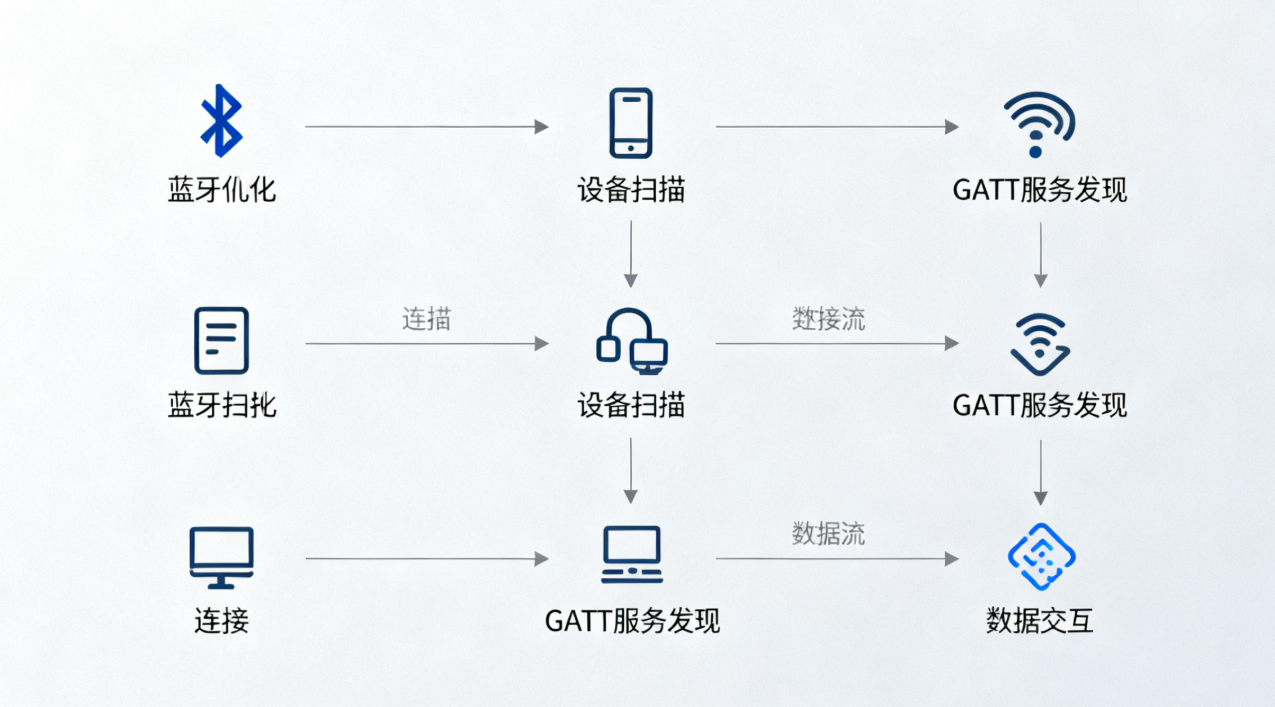
二、核心功能实现:从设备扫描到连接
2.1 蓝牙适配器初始化与状态监听
在进行任何 BLE 操作前,需先初始化蓝牙适配器并监听其状态(开启 / 关闭 / 不可用),确保设备支持 BLE 且蓝牙已开启。
2.1.1 初始化逻辑实现
dart
import 'package:flutter_blue_plus/flutter_blue_plus.dart';
import 'package:permission_handler/permission_handler.dart';
import 'package:logger/logger.dart';

final Logger logger = Logger();

class BLEManager {
  // 蓝牙适配器实例
  FlutterBluePlus _flutterBlue = FlutterBluePlus.instance;
  // 蓝牙状态流(用于 UI 响应)
  Stream<BluetoothState> get bluetoothStateStream => _flutterBlue.state;

  // 初始化蓝牙适配器
  Future<bool> initBluetooth() async {
    // 申请必要权限
    bool hasPermission = await _requestPermissions();
    if (!hasPermission) {
      logger.e("权限申请失败,无法使用蓝牙功能");
      return false;
    }

    // 检查蓝牙状态
    BluetoothState state = await _flutterBlue.state.first;
    if (state == BluetoothState.off) {
      // 请求开启蓝牙
      bool isTurnedOn = await _flutterBlue.turnOn();
      if (!isTurnedOn) {
        logger.e("蓝牙开启失败");
        return false;
      }
    } else if (state == BluetoothState.unavailable) {
      logger.e("设备不支持蓝牙");
      return false;
    }

    // 监听蓝牙状态变化
    _flutterBlue.state.listen((state) {
      logger.i("蓝牙状态变化:$state");
      switch (state) {
        case BluetoothState.off:
          // 处理蓝牙关闭逻辑(如提示用户开启)
          break;
        case BluetoothState.on:
          // 蓝牙已开启,可开始扫描设备
          break;
        default:
          break;
      }
    });

    logger.i("蓝牙初始化成功");
    return true;
  }

  // 申请权限(蓝牙+位置)
  Future<bool> _requestPermissions() async {
    Map<Permission, PermissionStatus> statuses = await [
      Permission.bluetooth,
      Permission.bluetoothScan,
      Permission.bluetoothConnect,
      Permission.locationWhenInUse,
    ].request();

    // 检查所有必要权限是否通过
    bool bluetoothGranted = statuses[Permission.bluetooth]?.isGranted ?? false;
    bool scanGranted = statuses[Permission.bluetoothScan]?.isGranted ?? false;
    bool connectGranted = statuses[Permission.bluetoothConnect]?.isGranted ?? false;
    bool locationGranted = statuses[Permission.locationWhenInUse]?.isGranted ?? false;

    return bluetoothGranted && scanGranted && connectGranted && locationGranted;
  }
}
2.1.2 UI 层状态响应
在 Flutter 页面中监听蓝牙状态,动态更新 UI:
dart
class BLEHomePage extends StatefulWidget {
  @override
  _BLEHomePageState createState() => _BLEHomePageState();
}

class _BLEHomePageState extends State<BLEHomePage> {
  final BLEManager _bleManager = BLEManager();
  BluetoothState _bluetoothState = BluetoothState.unknown;

  @override
  void initState() {
    super.initState();
    _initBluetoothAndListenState();
  }

  Future<void> _initBluetoothAndListenState() async {
    bool initSuccess = await _bleManager.initBluetooth();
    if (initSuccess) {
      _bleManager.bluetoothStateStream.listen((state) {
        setState(() {
          _bluetoothState = state;
        });
      });
    }
  }

  @override
  Widget build(BuildContext context) {
    return Scaffold(
      appBar: AppBar(title: Text("鸿蒙 Flutter BLE 开发")),
      body: Center(
        child: _bluetoothState == BluetoothState.on
            ? Text("蓝牙已开启,可开始扫描设备")
            : Text("蓝牙未开启,请授权并开启蓝牙"),
      ),
    );
  }
}
2.2 BLE 设备扫描与过滤
扫描设备是 BLE 开发的第一步,需注意扫描效率(避免无限制扫描)和设备过滤(只保留目标设备)。
2.2.1 设备扫描实现
dart
class BLEManager {
  // 已扫描到的设备列表
  List<BluetoothDevice> _scannedDevices = [];
  // 扫描状态(是否正在扫描)
  bool _isScanning = false;
  // 扫描结果流(供 UI 层监听)
  StreamController<List<BluetoothDevice>> _scanResultController = StreamController.broadcast();
  Stream<List<BluetoothDevice>> get scanResultStream => _scanResultController.stream;

  // 开始扫描设备(带过滤逻辑)
  Future<void> startScan({Duration? timeout = const Duration(seconds: 10)}) async {
    if (_isScanning) return;

    _isScanning = true;
    _scannedDevices.clear();
    logger.i("开始扫描 BLE 设备,超时时间:${timeout?.inSeconds}s");

    // 开始扫描(设置扫描模式:低功耗模式)
    _flutterBlue.startScan(
      timeout: timeout,
      scanMode: ScanMode.lowPower, // 低功耗模式,适合长时间扫描
      // 过滤目标设备(根据设备名称或服务 UUID)
      withServices: [Guid("0000ffe0-0000-1000-8000-00805f9b34fb")], // 只扫描包含目标服务的设备
    );

    // 监听扫描结果
    _flutterBlue.scanResults.listen((List<ScanResult> results) {
      for (ScanResult result in results) {
        BluetoothDevice device = result.device;
        // 过滤重复设备和无效设备(设备名称不为空)
        if (!_scannedDevices.contains(device) && device.name.isNotEmpty) {
          _scannedDevices.add(device);
          // 发送扫描结果到 UI 层
          _scanResultController.add(List.unmodifiable(_scannedDevices));
          logger.i("扫描到设备:${device.name}(${device.id.id}),信号强度:${result.rssi}dBm");
        }
      }
    });

    // 扫描超时后停止扫描
    await Future.delayed(timeout ?? Duration(seconds: 10));
    stopScan();
  }

  // 停止扫描
  void stopScan() {
    if (_isScanning) {
      _flutterBlue.stopScan();
      _isScanning = false;
      logger.i("扫描停止,共发现 ${_scannedDevices.length} 个设备");
    }
  }

  // 释放资源
  void dispose() {
    _scanResultController.close();
    _flutterBlue.stopScan();
  }
}
2.2.2 扫描结果 UI 展示
dart
class DeviceScanPage extends StatefulWidget {
  @override
  _DeviceScanPageState createState() => _DeviceScanPageState();
}

class _DeviceScanPageState extends State<DeviceScanPage> {
  final BLEManager _bleManager = BLEManager();
  List<BluetoothDevice> _devices = [];
  bool _isScanning = false;

  @override
  void initState() {
    super.initState();
    _listenScanResults();
    _startScan();
  }

  // 监听扫描结果
  void _listenScanResults() {
    _bleManager.scanResultStream.listen((devices) {
      setState(() {
        _devices = devices;
      });
    });
  }

  // 开始扫描
  Future<void> _startScan() async {
    setState(() {
      _isScanning = true;
    });
    await _bleManager.startScan();
    setState(() {
      _isScanning = false;
    });
  }

  @override
  Widget build(BuildContext context) {
    return Scaffold(
      appBar: AppBar(title: Text("扫描 BLE 设备")),
      body: Column(
        children: [
          ElevatedButton(
            onPressed: _isScanning ? null : _startScan,
            child: Text(_isScanning ? "扫描中..." : "重新扫描"),
          ),
          Expanded(
            child: ListView.builder(
              itemCount: _devices.length,
              itemBuilder: (context, index) {
                BluetoothDevice device = _devices[index];
                return ListTile(
                  title: Text(device.name),
                  subtitle: Text(device.id.id),
                  trailing: Icon(Icons.arrow_forward_ios),
                  onTap: () {
                    // 跳转到设备连接页面
                    Navigator.push(
                      context,
                      MaterialPageRoute(
                        builder: (context) => DeviceConnectPage(device: device),
                      ),
                    );
                  },
                );
              },
            ),
          ),
        ],
      ),
    );
  }

  @override
  void dispose() {
    _bleManager.stopScan();
    _bleManager.dispose();
    super.dispose();
  }
}
2.3 设备连接与 GATT 服务发现
扫描到目标设备后,需建立 BLE 连接并发现 GATT 服务,才能进行后续的数据交互。连接过程需处理连接失败、断开重连等异常情况。
2.3.1 设备连接核心逻辑
dart
class BLEManager {
  // 当前连接的设备
  BluetoothDevice? _connectedDevice;
  // 当前连接的 GATT 服务
  BluetoothService? _targetService;
  // 目标特征值(如数据读写特征、通知特征)
  BluetoothCharacteristic? _readWriteChar;
  BluetoothCharacteristic? _notifyChar;
  // 连接状态流
  StreamController<ConnectionState> _connectionStateController = StreamController.broadcast();
  Stream<ConnectionState> get connectionStateStream => _connectionStateController.stream;

  // 连接设备
  Future<bool> connectDevice(BluetoothDevice device) async {
    if (_connectedDevice != null && _connectedDevice!.isConnected) {
      logger.w("已连接其他设备,先断开现有连接");
      await disconnectDevice();
    }

    _connectionStateController.add(ConnectionState.connecting);
    try {
      // 建立连接(设置超时时间)
      await device.connect(
        timeout: Duration(seconds: 15),
        autoConnect: false, // 关闭自动重连(手动控制重连逻辑更灵活)
      );

      logger.i("设备连接成功:${device.name}(${device.id.id})");
      _connectedDevice = device;

      // 发现 GATT 服务
      bool serviceFound = await _discoverGattServices();
      if (!serviceFound) {
        logger.e("未找到目标 GATT 服务,连接失败");
        await disconnectDevice();
        return false;
      }

      _connectionStateController.add(ConnectionState.connected);
      // 监听设备连接状态变化(如意外断开)
      _listenDeviceConnectionState();
      return true;
    } catch (e) {
      logger.e("设备连接失败:$e");
      _connectionStateController.add(ConnectionState.disconnected);
      return false;
    }
  }

  // 发现 GATT 服务和特征值
  Future<bool> _discoverGattServices() async {
    if (_connectedDevice == null || !_connectedDevice!.isConnected) {
      logger.e("设备未连接,无法发现服务");
      return false;
    }

    // 获取所有服务
    List<BluetoothService> services = await _connectedDevice!.discoverServices();
    logger.i("发现 ${services.length} 个 GATT 服务");

    // 查找目标服务(根据 UUID)
    _targetService = services.firstWhere(
      (service) => service.uuid == Guid("0000ffe0-0000-1000-8000-00805f9b34fb"),
      orElse: () => throw Exception("目标服务未找到"),
    );

    // 查找目标特征值(假设读写特征 UUID:0000ffe1-0000-1000-8000-00805f9b34fb,通知特征 UUID 相同或不同)
    List<BluetoothCharacteristic> characteristics = _targetService!.characteristics;
    _readWriteChar = characteristics.firstWhere(
      (char) => char.uuid == Guid("0000ffe1-0000-1000-8000-00805f9b34fb"),
      orElse: () => throw Exception("读写特征值未找到"),
    );

    // (可选)查找通知特征值(若与读写特征不同)
    _notifyChar = characteristics.firstWhere(
      (char) => char.uuid == Guid("0000ffe2-0000-1000-8000-00805f9b34fb"),
      orElse: () => _readWriteChar!, // 若通知和读写共用一个特征值,则直接赋值
    );

    logger.i("成功找到目标特征值:读写=${_readWriteChar?.uuid.id},通知=${_notifyChar?.uuid.id}");
    return true;
  }

  // 监听设备连接状态
  void _listenDeviceConnectionState() {
    _connectedDevice?.connectionState.listen((state) {
      logger.i("设备连接状态变化:$state");
      if (state == BluetoothConnectionState.disconnected) {
        _connectionStateController.add(ConnectionState.disconnected);
        // 触发自动重连逻辑(可选)
        _autoReconnect();
      }
    });
  }

  // 自动重连(失败后重试 3 次)
  Future<void> _autoReconnect() async {
    if (_connectedDevice == null) return;

    int retryCount = 0;
    while (retryCount < 3) {
      logger.i("尝试重连设备(第 ${retryCount + 1} 次)");
      bool reconnectSuccess = await connectDevice(_connectedDevice!);
      if (reconnectSuccess) {
        logger.i("重连成功");
        return;
      }
      retryCount++;
      await Future.delayed(Duration(seconds: 3)); // 间隔 3 秒重试
    }
    logger.e("重连失败(已重试 3 次)");
  }

  // 断开设备连接
  Future<void> disconnectDevice() async {
    if (_connectedDevice != null && _connectedDevice!.isConnected) {
      await _connectedDevice!.disconnect();
      logger.i("设备已断开连接:${_connectedDevice?.name}");
    }
    _connectedDevice = null;
    _targetService = null;
    _readWriteChar = null;
    _notifyChar = null;
    _connectionStateController.add(ConnectionState.disconnected);
  }
}

// 连接状态枚举
enum ConnectionState {
  disconnected, // 未连接
  connecting,   // 连接中
  connected,    // 已连接
}
2.3.2 设备连接页面实现
dart
class DeviceConnectPage extends StatefulWidget {
  final BluetoothDevice device;

  const DeviceConnectPage({Key? key, required this.device}) : super(key: key);

  @override
  _DeviceConnectPageState createState() => _DeviceConnectPageState();
}

class _DeviceConnectPageState extends State<DeviceConnectPage> {
  final BLEManager _bleManager = BLEManager();
  ConnectionState _connectionState = ConnectionState.disconnected;

  @override
  void initState() {
    super.initState();
    _listenConnectionState();
    _connectDevice();
  }

  // 监听连接状态
  void _listenConnectionState() {
    _bleManager.connectionStateStream.listen((state) {
      setState(() {
        _connectionState = state;
      });

      if (state == ConnectionState.connected) {
        // 连接成功,跳转到数据交互页面
        Navigator.pushReplacement(
          context,
          MaterialPageRoute(
            builder: (context) => DataInteractionPage(device: widget.device),
          ),
        );
      } else if (state == ConnectionState.disconnected) {
        ScaffoldMessenger.of(context).showSnackBar(
          SnackBar(content: Text("设备断开连接")),
        );
      }
    });
  }

  // 连接设备
  Future<void> _connectDevice() async {
    bool connectSuccess = await _bleManager.connectDevice(widget.device);
    if (!connectSuccess) {
      ScaffoldMessenger.of(context).showSnackBar(
        SnackBar(content: Text("设备连接失败,请重试")),
      );
    }
  }

  @override
  Widget build(BuildContext context) {
    return Scaffold(
      appBar: AppBar(title: Text("连接 ${widget.device.name}")),
      body: Center(
        child: _connectionState == ConnectionState.connecting
            ? Column(
                mainAxisAlignment: MainAxisAlignment.center,
                children: [
                  CircularProgressIndicator(),
                  SizedBox(height: 20),
                  Text("正在连接 ${widget.device.name}..."),
                ],
              )
            : ElevatedButton(
                onPressed: _connectDevice,
                child: Text("重新连接"),
              ),
      ),
    );
  }

  @override
  void dispose() {
    _bleManager.disconnectDevice();
    super.dispose();
  }
}
三、数据交互进阶:读写与通知订阅
设备连接成功后,核心功能是数据交互,包括读特征值 (从设备获取数据)、写特征值 (向设备发送指令)、订阅通知(实时接收设备推送的数据)。
3.1 特征值读写实现
3.1.1 基础读写逻辑
dart
class BLEManager {
  // 读特征值(从设备获取数据)
  Future<Uint8List?> readCharacteristic() async {
    if (_readWriteChar == null || !_connectedDevice!.isConnected) {
      logger.e("特征值未初始化或设备未连接,无法读取数据");
      return null;
    }

    try {
      Uint8List value = await _readWriteChar!.read();
      logger.i("读取数据成功:${_bytesToHex(value)}(十六进制)");
      return value;
    } catch (e) {
      logger.e("读取数据失败:$e");
      return null;
    }
  }

  // 写特征值(向设备发送数据)
  Future<bool> writeCharacteristic(Uint8List data) async {
    if (_readWriteChar == null || !_connectedDevice!.isConnected) {
      logger.e("特征值未初始化或设备未连接,无法写入数据");
      return false;
    }

    try {
      // 写入数据(根据设备要求选择写入类型:withResponse/withoutResponse)
      await _readWriteChar!.write(
        data,
        withoutResponse: false, // 带响应写入(确保设备收到数据)
      );
      logger.i("写入数据成功:${_bytesToHex(data)}(十六进制)");
      return true;
    } catch (e) {
      logger.e("写入数据失败:$e");
      return false;
    }
  }

  // 字节数组转十六进制字符串(便于日志查看)
  String _bytesToHex(Uint8List bytes) {
    return bytes.map((byte) => byte.toRadixString(16).padLeft(2, '0')).join(':');
  }

  // 十六进制字符串转字节数组(设备数据格式常用)
  Uint8List _hexToBytes(String hexString) {
    hexString = hexString.replaceAll(':', '');
    List<int> bytes = [];
    for (int i = 0; i < hexString.length; i += 2) {
      String hex = hexString.substring(i, i + 2);
      bytes.add(int.parse(hex, radix: 16));
    }
    return Uint8List.fromList(bytes);
  }
}
3.1.2 读写数据格式化(适配 IoT 设备)
IoT 设备数据通常采用固定格式(如 "指令码 + 数据长度 + 数据内容 + 校验位"),需封装格式化工具类:
dart
class IoTDataFormatter {
  // 设备指令枚举(示例:智能灯控指令)
  enum LightCommand {
    turnOn(0x01),    // 开灯
    turnOff(0x02),   // 关灯
    setBrightness(0x03), // 调节亮度
    getStatus(0x04); // 获取状态

    final int code;
    const LightCommand(this.code);
  }

  // 构建发送给设备的指令(格式:指令码 + 数据长度 + 数据内容 + CRC8 校验位)
  static Uint8List buildCommand(LightCommand command, List<int> data) {
    List<int> frame = [];
    // 1. 指令码(1字节)
    frame.add(command.code);
    // 2. 数据长度(1字节)
    frame.add(data.length);
    // 3. 数据内容(N字节)
    frame.addAll(data);
    // 4. CRC8 校验位(1字节)
    int crc8 = _calculateCRC8(Uint8List.fromList(frame));
    frame.add(crc8);
    return Uint8List.fromList(frame);
  }

  // 解析设备返回的数据(格式:状态码 + 数据长度 + 数据内容 + 校验位)
  static Map<String, dynamic>? parseResponse(Uint8List response) {
    // 校验数据长度(至少 4 字节:状态码+长度+数据+校验位)
    if (response.length < 4) {
      logger.e("响应数据长度异常:${response.length}");
      return null;
    }

    // 1. 状态码(1字节)
    int statusCode = response[0];
    // 2. 数据长度(1字节)
    int dataLength = response[1];
    // 3. 数据内容(dataLength 字节)
    Uint8List data = response.sublist(2, 2 + dataLength);
    // 4. 校验位(1字节)
    int crc8 = response[2 + dataLength];

    // 校验 CRC8
    Uint8List frameWithoutCrc = response.sublist(0, 2 + dataLength);
    int calculatedCrc8 = _calculateCRC8(frameWithoutCrc);
    if (calculatedCrc8 != crc8) {
      logger.e("CRC8 校验失败:实际=$crc8,计算=$calculatedCrc8");
      return null;
    }

    return {
      "statusCode": statusCode,
      "dataLength": dataLength,
      "data": data,
      "isSuccess": statusCode == 0x00, // 假设 0x00 表示成功
    };
  }

  // CRC8 校验算法(设备端需使用相同算法)
  static int _calculateCRC8(Uint8List data) {
    int crc = 0xFF;
    for (int byte in data) {
      crc ^= byte;
      for (int i = 0; i < 8; i++) {
        if ((crc & 0x80) != 0) {
          crc = (crc << 1) ^ 0x31;
        } else {
          crc <<= 1;
        }
      }
    }
    return crc & 0xFF;
  }
}
3.1.3 读写功能 UI 实现(智能灯控示例)
dart
class DataInteractionPage extends StatefulWidget {
  final BluetoothDevice device;

  const DataInteractionPage({Key? key, required this.device}) : super(key: key);

  @override
  _DataInteractionPageState createState() => _DataInteractionPageState();
}

class _DataInteractionPageState extends State<DataInteractionPage> {
  final BLEManager _bleManager = BLEManager();
  bool _isLightOn = false;
  int _brightness = 50; // 亮度(0-100)
  String _deviceStatus = "未知";

  @override
  void initState() {
    super.initState();
    _getStatusFromDevice(); // 初始化时获取设备状态
  }

  // 开灯
  Future<void> _turnOnLight() async {
    Uint8List command = IoTDataFormatter.buildCommand(
      IoTDataFormatter.LightCommand.turnOn,
      [], // 无额外数据
    );
    bool success = await _bleManager.writeCharacteristic(command);
    if (success) {
      setState(() {
        _isLightOn = true;
        _deviceStatus = "已开启(亮度:$_brightness%)";
      });
    }
  }

  // 关灯
  Future<void> _turnOffLight() async {
    Uint8List command = IoTDataFormatter.buildCommand(
      IoTDataFormatter.LightCommand.turnOff,
      [],
    );
    bool success = await _bleManager.writeCharacteristic(command);
    if (success) {
      setState(() {
        _isLightOn = false;
        _deviceStatus = "已关闭";
      });
    }
  }

  // 调节亮度
  Future<void> _setBrightness(int value) async {
    if (value < 0) value = 0;
    if (value > 100) value = 100;
    Uint8List command = IoTDataFormatter.buildCommand(
      IoTDataFormatter.LightCommand.setBrightness,
      [value], // 亮度值(1字节)
    );
    bool success = await _bleManager.writeCharacteristic(command);
    if (success) {
      setState(() {
        _brightness = value;
        _deviceStatus = "已开启(亮度:$_brightness%)";
      });
    }
  }

  // 从设备获取状态
  Future<void> _getStatusFromDevice() async {
    Uint8List command = IoTDataFormatter.buildCommand(
      IoTDataFormatter.LightCommand.getStatus,
      [],
    );
    bool writeSuccess = await _bleManager.writeCharacteristic(command);
    if (writeSuccess) {
      Uint8List? response = await _bleManager.readCharacteristic();
      if (response != null) {
        Map<String, dynamic>? parsedData = IoTDataFormatter.parseResponse(response);
        if (parsedData != null && parsedData["isSuccess"]) {
          Uint8List data = parsedData["data"];
          setState(() {
            _isLightOn = data[0] == 0x01; // 假设 data[0] 是开关状态(0x01=开,0x00=关)
            _brightness = data[1]; // data[1] 是亮度值
            _deviceStatus = _isLightOn
                ? "已开启(亮度:$_brightness%)"
                : "已关闭";
          });
        }
      }
    }
  }

  @override
  Widget build(BuildContext context) {
    return Scaffold(
      appBar: AppBar(title: Text("控制 ${widget.device.name}")),
      body: Padding(
        padding: EdgeInsets.all(16.0),
        child: Column(
          crossAxisAlignment: CrossAxisAlignment.stretch,
          children: [
            Text(
              "设备状态:$_deviceStatus",
              style: TextStyle(fontSize: 18, fontWeight: FontWeight.bold),
              textAlign: TextAlign.center,
            ),
            SizedBox(height: 30),
            Row(
              mainAxisAlignment: MainAxisAlignment.center,
              children: [
                ElevatedButton(
                  onPressed: _turnOnLight,
                  child: Text("开灯"),
                  style: ElevatedButton.styleFrom(minWidth: 100),
                ),
                SizedBox(width: 20),
                ElevatedButton(
                  onPressed: _turnOffLight,
                  child: Text("关灯"),
                  style: ElevatedButton.styleFrom(minWidth: 100),
                ),
              ],
            ),
            SizedBox(height: 30),
            Text("亮度调节:$_brightness%"),
            Slider(
              value: _brightness.toDouble(),
              min: 0,
              max: 100,
              divisions: 10,
              onChanged: (value) {
                setState(() {
                  _brightness = value.toInt();
                });
              },
              onChangedEnd: (value) {
                _setBrightness(value.toInt()); // 滑动结束后发送调节指令
              },
            ),
            SizedBox(height: 20),
            ElevatedButton(
              onPressed: _getStatusFromDevice,
              child: Text("刷新设备状态"),
            ),
          ],
        ),
      ),
    );
  }

  @override
  void dispose() {
    _bleManager.disconnectDevice();
    super.dispose();
  }
}
3.2 通知订阅(实时接收设备数据)
很多 IoT 设备(如传感器)会主动推送数据(如实时温度、心率),需通过订阅特征值通知实现实时接收。
3.2.1 通知订阅逻辑
dart
class BLEManager {
  // 通知数据流(供 UI 层监听)
  StreamController<Uint8List> _notifyDataController = StreamController.broadcast();
  Stream<Uint8List> get notifyDataStream => _notifyDataController.stream;

  // 订阅通知
  Future<bool> enableNotification() async {
    if (_notifyChar == null || !_connectedDevice!.isConnected) {
      logger.e("通知特征值未初始化或设备未连接,无法订阅通知");
      return false;
    }

    try {
      // 启用通知
      await _notifyChar!.setNotifyValue(true);
      logger.i("通知订阅成功");

      // 监听通知数据
      _notifyChar!.value.listen((Uint8List value) {
        logger.i("收到通知数据:${_bytesToHex(value)}");
        _notifyDataController.add(value);
      });
      return true;
    } catch (e) {
      logger.e("通知订阅失败:$e");
      return false;
    }
  }

  // 取消通知订阅
  Future<bool> disableNotification() async {
    if (_notifyChar == null || !_connectedDevice!.isConnected) {
      logger.e("通知特征值未初始化或设备未连接,无法取消订阅");
      return false;
    }

    try {
      await _notifyChar!.setNotifyValue(false);
      logger.i("通知取消成功");
      return true;
    } catch (e) {
      logger.e("通知取消失败:$e");
      return false;
    }
  }
}
3.2.2 通知数据 UI 展示(温度传感器示例)
dart
class NotificationPage extends StatefulWidget {
  final BluetoothDevice device;

  const NotificationPage({Key? key, required this.device}) : super(key: key);

  @override
  _NotificationPageState createState() => _NotificationPageState();
}

class _NotificationPageState extends State<NotificationPage> {
  final BLEManager _bleManager = BLEManager();
  bool _isNotificationEnabled = false;
  double _temperature = 0.0; // 实时温度
  String _lastUpdateTime = "未更新";

  @override
  void initState() {
    super.initState();
    _listenNotifyData();
    _enableNotification();
  }

  // 监听通知数据
  void _listenNotifyData() {
    _bleManager.notifyDataStream.listen((data) {
      // 解析温度数据(假设设备返回格式:温度整数部分 + 小数部分,如 25 + 0x0A = 25.10℃)
      Map<String, dynamic>? parsedData = IoTDataFormatter.parseResponse(data);
      if (parsedData != null && parsedData["isSuccess"]) {
        Uint8List tempData = parsedData["data"];
        double temperature = tempData[0] + (tempData[1] / 100);
        String updateTime = DateTime.now().toString().substring(0, 19);
        setState(() {
          _temperature = temperature;
          _lastUpdateTime = updateTime;
        });
      }
    });
  }

  // 启用通知
  Future<void> _enableNotification() async {
    bool success = await _bleManager.enableNotification();
    setState(() {
      _isNotificationEnabled = success;
    });
  }

  // 取消通知
  Future<void> _disableNotification() async {
    bool success = await _bleManager.disableNotification();
    setState(() {
      _isNotificationEnabled = !success;
    });
  }

  @override
  Widget build(BuildContext context) {
    return Scaffold(
      appBar: AppBar(title: Text("实时温度监测")),
      body: Padding(
        padding: EdgeInsets.all(16.0),
        child: Column(
          crossAxisAlignment: CrossAxisAlignment.stretch,
          children: [
            Text(
              "当前温度:${_temperature.toStringAsFixed(2)}℃",
              style: TextStyle(fontSize: 32, fontWeight: FontWeight.bold, color: Colors.blue),
              textAlign: TextAlign.center,
            ),
            SizedBox(height: 10),
            Text(
              "最后更新时间:$_lastUpdateTime",
              style: TextStyle(fontSize: 14, color: Colors.grey),
              textAlign: TextAlign.center,
            ),
            SizedBox(height: 30),
            ElevatedButton(
              onPressed: _isNotificationEnabled ? _disableNotification : _enableNotification,
              child: Text(_isNotificationEnabled ? "取消通知" : "启用通知"),
            ),
          ],
        ),
      ),
    );
  }

  @override
  void dispose() {
    _bleManager.disableNotification();
    _bleManager.disconnectDevice();
    super.dispose();
  }
}
四、设备管理高级功能
4.1 多设备管理(同时连接多个 BLE 设备)
鸿蒙系统支持同时连接多个 BLE 设备(默认上限 6 个),需扩展 BLEManager 以支持多设备管理:
dart
class MultiDeviceBLEManager {
  // 管理多个设备连接(key:设备 ID,value:设备管理实例)
  Map<String, BLEManager> _deviceManagers = {};

  // 连接设备(新增设备管理实例)
  Future<bool> connectDevice(BluetoothDevice device) async {
    if (_deviceManagers.containsKey(device.id.id)) {
      logger.w("设备已在管理中,直接连接");
      return _deviceManagers[device.id.id]!.connectDevice(device);
    }

    BLEManager manager = BLEManager();
    bool success = await manager.connectDevice(device);
    if (success) {
      _deviceManagers[device.id.id] = manager;
    }
    return success;
  }

  // 断开指定设备连接
  Future<void> disconnectDevice(String deviceId) async {
    if (_deviceManagers.containsKey(deviceId)) {
      await _deviceManagers[deviceId]!.disconnectDevice();
      _deviceManagers.remove(deviceId);
    }
  }

  // 断开所有设备连接
  Future<void> disconnectAllDevices() async {
    for (BLEManager manager in _deviceManagers.values) {
      await manager.disconnectDevice();
    }
    _deviceManagers.clear();
  }

  // 获取指定设备的管理实例
  BLEManager? getDeviceManager(String deviceId) {
    return _deviceManagers[deviceId];
  }

  // 获取所有已连接设备
  List<String> getConnectedDeviceIds() {
    return _deviceManagers.keys.toList();
  }
}
4.2 设备信息存储与快速重连
将常用设备的信息(设备 ID、名称、服务 UUID、特征值 UUID)存储到本地,下次启动应用时可直接扫描并连接目标设备,无需用户手动选择。
4.2.1 设备信息模型与存储
dart
import 'package:hive/hive.dart';

// 设备信息模型(支持 Hive 存储)
@HiveType(typeId: 0)
class BLEDeviceInfo extends HiveObject {
  @HiveField(0)
  String deviceId; // 设备唯一 ID

  @HiveField(1)
  String deviceName; // 设备名称

  @HiveField(2)
  String serviceUuid; // 目标服务 UUID

  @HiveField(3)
  String readWriteCharUuid; // 读写特征值 UUID

  @HiveField(4)
  String notifyCharUuid; // 通知特征值 UUID

  @HiveField(5)
  bool isFavorite; // 是否为常用设备

  BLEDeviceInfo({
    required this.deviceId,
    required this.deviceName,
    required this.serviceUuid,
    required this.readWriteCharUuid,
    required this.notifyCharUuid,
    this.isFavorite = false,
  });
}

// 设备存储工具类
class BLEDeviceStorage {
  static const String _boxName = "ble_devices";
  late Box<BLEDeviceInfo> _deviceBox;

  // 初始化存储
  Future<void> init() async {
    _deviceBox = await Hive.openBox<BLEDeviceInfo>(_boxName);
  }

  // 保存设备信息
  Future<void> saveDevice(BLEDeviceInfo deviceInfo) async {
    await _deviceBox.put(deviceInfo.deviceId, deviceInfo);
  }

  // 删除设备信息
  Future<void> deleteDevice(String deviceId) async {
    await _deviceBox.delete(deviceId);
  }

  // 获取所有设备信息
  List<BLEDeviceInfo> getAllDevices() {
    return _deviceBox.values.toList();
  }

  // 获取常用设备(快速重连)
  List<BLEDeviceInfo> getFavoriteDevices() {
    return _deviceBox.values.where((device) => device.isFavorite).toList();
  }

  // 更新设备是否为常用
  Future<void> updateFavoriteStatus(String deviceId, bool isFavorite) async {
    BLEDeviceInfo? device = _deviceBox.get(deviceId);
    if (device != null) {
      device.isFavorite = isFavorite;
      await device.save();
    }
  }
}
4.2.2 快速重连实现
dart
class BLEQuickConnectManager {
  final MultiDeviceBLEManager _multiDeviceManager = MultiDeviceBLEManager();
  final BLEDeviceStorage _deviceStorage = BLEDeviceStorage();

  // 初始化存储并尝试快速重连常用设备
  Future<void> initAndQuickConnect() async {
    await _deviceStorage.init();
    List<BLEDeviceInfo> favoriteDevices = _deviceStorage.getFavoriteDevices();
    if (favoriteDevices.isEmpty) {
      logger.i("无常用设备,无需快速重连");
      return;
    }

    logger.i("开始快速重连 ${favoriteDevices.length} 个常用设备");
    for (BLEDeviceInfo deviceInfo in favoriteDevices) {
      // 扫描目标设备(根据设备 ID 过滤)
      FlutterBluePlus.instance.startScan(
        timeout: Duration(seconds: 5),
        withDevices: [BluetoothDevice.fromId(deviceInfo.deviceId)],
      );

      // 监听扫描结果,找到目标设备后连接
      FlutterBluePlus.instance.scanResults.listen((results) {
        for (ScanResult result in results) {
          if (result.device.id.id == deviceInfo.deviceId) {
            _multiDeviceManager.connectDevice(result.device);
            FlutterBluePlus.instance.stopScan();
          }
        }
      });
    }
  }
}
4.3 低功耗优化(延长设备续航)
BLE 开发中,低功耗是关键优化点,尤其对于电池供电的 IoT 设备和移动应用:
- 优化扫描策略 :
- 使用
ScanMode.lowPower低功耗扫描模式 - 限制扫描时长(如 10 秒超时),避免持续扫描
- 只扫描目标服务 UUID(
withServices参数),减少无效扫描
- 使用
- 减少连接次数 :
- 保持长连接(必要时),避免频繁断开重连
- 批量发送数据,减少单次写入次数
- 优化通知频率 :
- 设备端合理控制数据推送频率(如每秒 1 次,而非实时推送)
- 应用端根据需求过滤重复通知数据
- 及时释放资源 :
- 应用退到后台时,断开非必要设备连接
- 关闭未使用的通知订阅
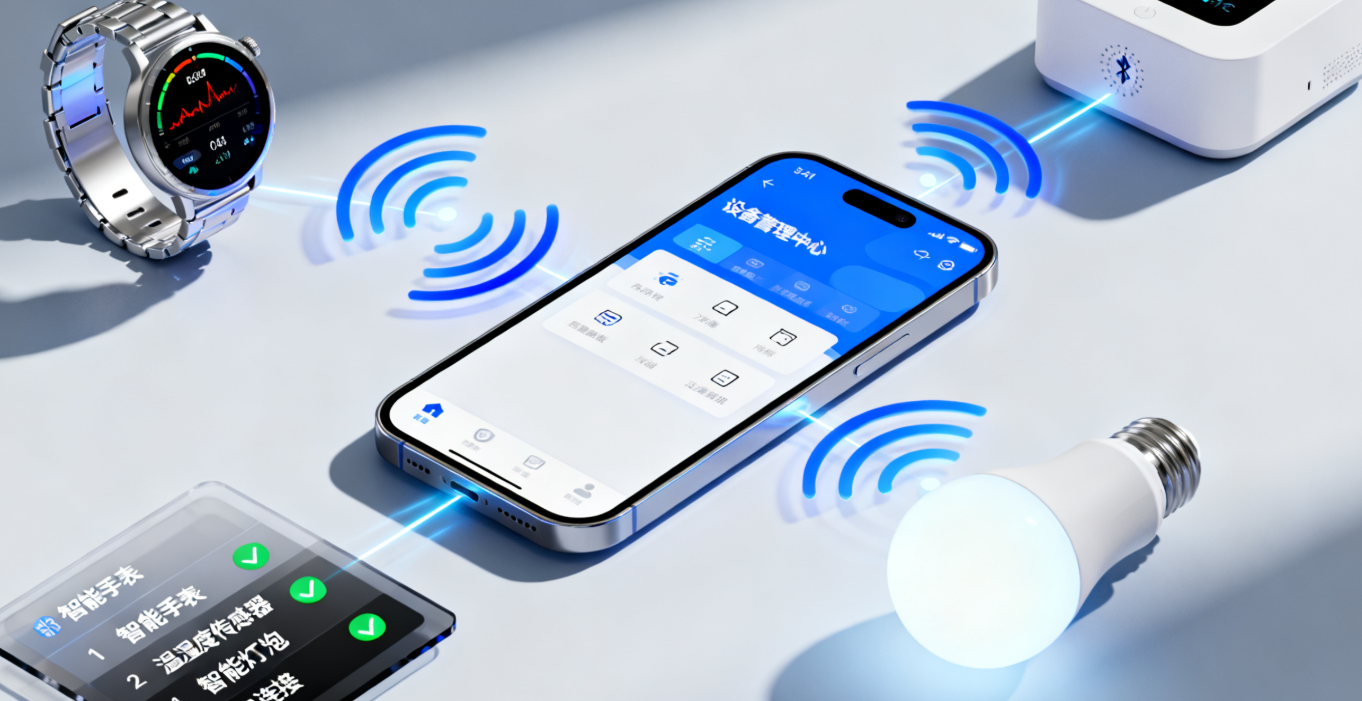
五、常见问题排查与最佳实践
5.1 常见问题及解决方案
| 问题现象 | 可能原因 | 解决方案 |
|---|---|---|
| 扫描不到设备 | 1. 蓝牙未开启;2. 权限未申请;3. 设备未广播;4. 扫描模式错误 | 1. 检查蓝牙状态并提示用户开启;2. 确保申请 BLUETOOTH_SCAN 权限;3. 确认设备处于广播状态;4. 使用 ScanMode.lowLatency 高功耗模式测试 |
| 连接失败 | 1. 设备已连接其他设备;2. 超时时间过短;3. 设备 UUID 错误 | 1. 断开设备其他连接;2. 延长连接超时时间(如 15 秒);3. 核对服务 / 特征值 UUID |
| 读写数据失败 | 1. 特征值权限不足;2. 数据格式错误;3. 设备未响应 | 1. 确认特征值支持读写操作;2. 按照设备协议格式化数据;3. 检查设备是否正常工作 |
| 通知接收不到 | 1. 未启用通知;2. 通知特征值错误;3. 设备未推送数据 | 1. 调用 setNotifyValue(true) 启用通知;2. 核对通知特征值 UUID;3. 检查设备推送逻辑 |
| 连接不稳定(频繁断开) | 1. 信号强度弱;2. 设备电量低;3. 应用后台被杀死 | 1. 靠近设备测试;2. 给设备充电;3. 申请后台运行权限,或在后台服务中保持连接 |
5.2 最佳实践
- 代码分层 :
- 分离 UI 层、业务逻辑层、BLE 核心层,提高代码可维护性
- 使用单例模式管理
BLEManager,避免重复初始化
- 异常处理 :
- 所有 BLE 操作(连接、读写、通知)都需捕获异常
- 对设备返回的错误状态码进行统一处理
- 日志调试 :
- 使用
logger库输出详细日志(设备信息、数据内容、状态变化) - 日志中包含时间戳、设备 ID,便于问题定位
- 使用
- 兼容性适配 :
- 适配不同鸿蒙系统版本(3.0+),处理 API 差异
- 测试不同品牌、型号的 BLE 设备,确保兼容性
- 安全性考虑 :
- 敏感数据(如设备控制指令)可进行加密传输(如 AES 加密)
- 验证设备身份(如通过设备 MAC 地址或预共享密钥)
六、总结与扩展
本文详细讲解了鸿蒙 Flutter 环境下 BLE 开发的核心流程,从环境搭建、设备扫描、连接、数据交互到设备管理,覆盖了 IoT 应用开发的关键环节。通过实战代码示例,开发者可快速落地 BLE 相关功能,同时结合低功耗优化、多设备管理、快速重连等进阶技巧,提升应用的稳定性和用户体验。
扩展学习资源
- 官方文档 :
- HarmonyOS 蓝牙开发指南:https://developer.harmonyos.com/cn/docs/documentation/doc-guides/device-bluetooth-dev-0000001524358997
- Flutter 官方文档:https://docs.flutter.dev/
- flutter_blue_plus 文档:https://pub.dev/packages/flutter_blue_plus
- 进阶主题 :
- BLE 数据加密传输(AES、RSA)
- 鸿蒙系统后台蓝牙服务开发
- BLE 5.0+ 新特性(如长距离通信、高吞吐量)
- MQTT 与 BLE 结合(实现远程控制)
随着鸿蒙生态的不断完善,Flutter 与 BLE 的结合将在 IoT 领域发挥更大的作用。开发者可基于本文内容,结合具体业务场景进行扩展,打造更强大、更稳定的 IoT 应用。如果在开发过程中遇到问题,欢迎在评论区交流讨论!