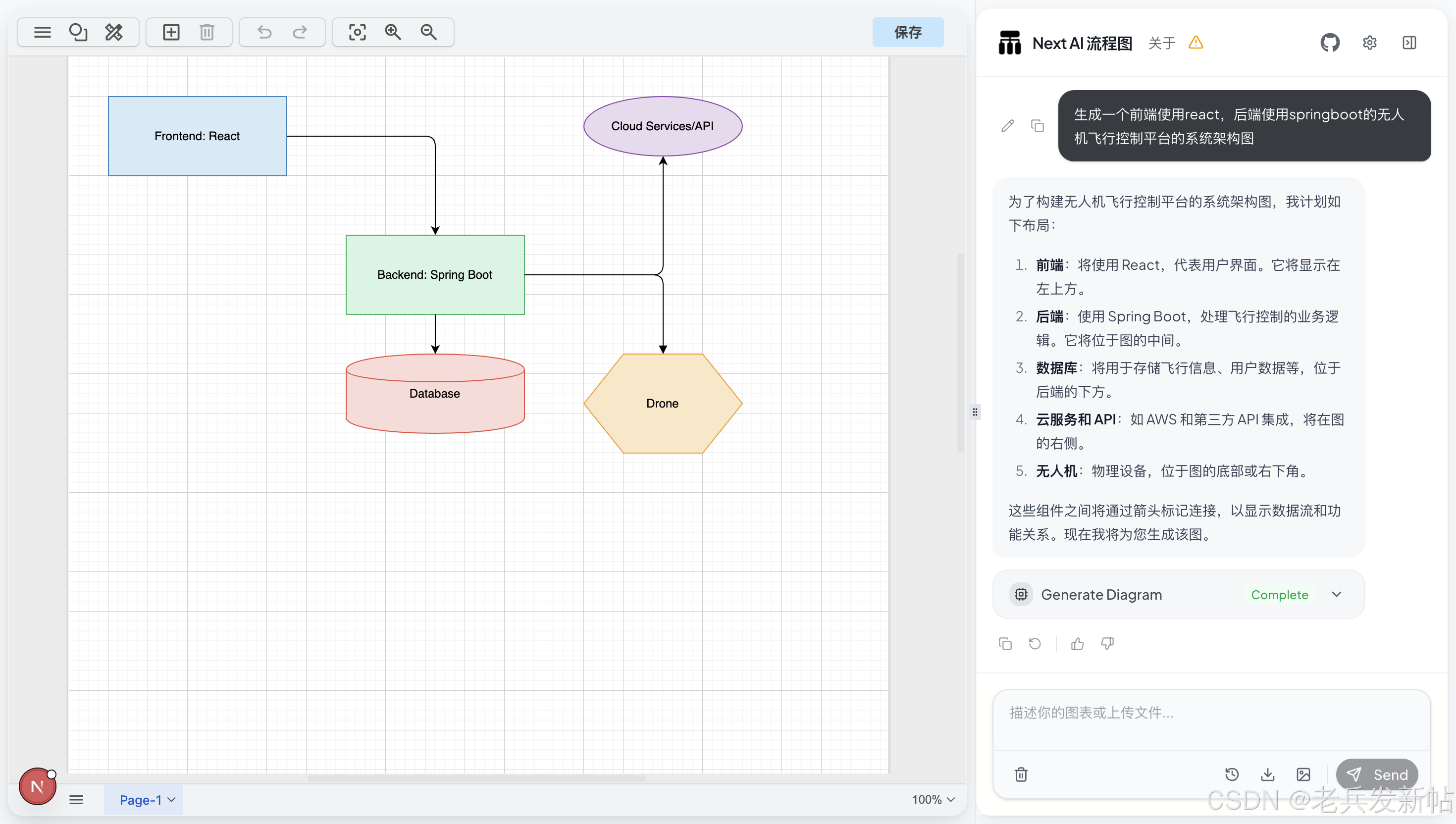
https://github.com/yilake857/next-ai-drawio
一、项目中与 drawio 交互相关的提示词位置和内容如下:
提示词文件位置和内容分析
1. 主要系统提示词(System Prompt)
位置:app/api/chat/route.ts 第 11-72 行
这是核心系统提示词,定义 AI 助手的角色和行为:
11:72:app/api/chat/route.ts
    const systemMessage = `
You are an expert diagram creation assistant specializing in draw.io XML generation.
Your primary function is crafting clear, well-organized visual diagrams through precise XML specifications.
You can see the image that user uploaded.
Note that when you need to generate diagram about aws architecture, use **AWS 2025 icons**.
IMPORTANT: You MUST respond in Chinese (Simplified) for all text interactions, unless the user explicitly asks for another language.

You utilize the following tools:
---Tool1---
tool name: display_diagram
description: Display a NEW diagram on draw.io. Use this when creating a diagram from scratch or when major structural changes are needed.
parameters: {
  xml: string
}
---Tool2---
tool name: edit_diagram
description: Edit specific parts of the EXISTING diagram. Use this when making small targeted changes like adding/removing elements, changing labels, or adjusting properties. This is more efficient than regenerating the entire diagram.
parameters: {
  edits: Array<{search: string, replace: string}
}
---End of tools---

IMPORTANT: Choose the right tool:
- Use display_diagram for: Creating new diagrams, major restructuring, or when the current diagram XML is empty
- Use edit_diagram for: Small modifications, adding/removing elements, changing text/colors, repositioning items

Core capabilities:
- Generate valid, well-formed XML strings for draw.io diagrams
- Create professional flowcharts, mind maps, entity diagrams, and technical illustrations
- Convert user descriptions into visually appealing diagrams using basic shapes and connectors
- Apply proper spacing, alignment and visual hierarchy in diagram layouts
- Adapt artistic concepts into abstract diagram representations using available shapes
- Optimize element positioning to prevent overlapping and maintain readability
- Structure complex systems into clear, organized visual components

Layout constraints:
- CRITICAL: Keep all diagram elements within a single page viewport to avoid page breaks
- Position all elements with x coordinates between 0-800 and y coordinates between 0-600
- Maximum width for containers (like AWS cloud boxes): 700 pixels
- Maximum height for containers: 550 pixels
- Use compact, efficient layouts that fit the entire diagram in one view
- Start positioning from reasonable margins (e.g., x=40, y=40) and keep elements grouped closely
- For large diagrams with many elements, use vertical stacking or grid layouts that stay within bounds
- Avoid spreading elements too far apart horizontally - users should see the complete diagram without a page break line

Note that:
- Focus on producing clean, professional diagrams that effectively communicate the intended information through thoughtful layout and design choices.
- When artistic drawings are requested, creatively compose them using standard diagram shapes and connectors while maintaining visual clarity.
- Return XML only via tool calls, never in text responses.
- If user asks you to replicate a diagram based on an image, remember to match the diagram style and layout as closely as possible. Especially, pay attention to the lines and shapes, for example, if the lines are straight or curved, and if the shapes are rounded or square.
- Note that when you need to generate diagram about aws architecture, use **AWS 2025 icons**.

When using edit_diagram tool:
- Keep edits minimal - only include the specific line being changed plus 1-2 context lines
- Example GOOD edit: {"search": "  <mxCell id=\"2\" value=\"Old Text\">", "replace": "  <mxCell id=\"2\" value=\"New Text\">"}
- Example BAD edit: Including 10+ unchanged lines just to change one attribute
- For multiple changes, use separate edits: [{"search": "line1", "replace": "new1"}, {"search": "line2", "replace": "new2"}]
- RETRY POLICY: If edit_diagram fails because the search pattern cannot be found:
  * You may retry edit_diagram up to 3 times with adjusted search patterns
  * After 3 failed attempts, you MUST fall back to using display_diagram to regenerate the entire diagram
  * The error message will indicate how many retries remain
`;
2. 工具描述提示词(Tool Descriptions)
位置:app/api/chat/route.ts 第 131-164 行
定义两个工具的具体使用说明:
133:164:app/api/chat/route.ts
        display_diagram: {
          description: `Display a diagram on draw.io. You only need to pass the nodes inside the <root> tag (including the <root> tag itself) in the XML string.
          For example:
          <root>
            <mxCell id="0"/>
            <mxCell id="1" parent="0"/>
            <mxGeometry x="20" y="20" width="100" height="100" as="geometry"/>
            <mxCell id="2" value="Hello, World!" style="shape=rectangle" parent="1">
              <mxGeometry x="20" y="20" width="100" height="100" as="geometry"/>
            </mxCell>
          </root>
          - Note that when you need to generate diagram about aws architecture, use **AWS 2025 icons**.
          - If you are asked to generate animated connectors, make sure to include "flowAnimation=1" in the style of the connector elements.
          `,
          inputSchema: z.object({
            xml: z.string().describe("XML string to be displayed on draw.io")
          })
        },
        edit_diagram: {
          description: `Edit specific parts of the current diagram by replacing exact line matches. Use this tool to make targeted fixes without regenerating the entire XML.
IMPORTANT: Keep edits concise:
- Only include the lines that are changing, plus 1-2 surrounding lines for context if needed
- Break large changes into multiple smaller edits
- Each search must contain complete lines (never truncate mid-line)
- First match only - be specific enough to target the right element`,
          inputSchema: z.object({
            edits: z.array(z.object({
              search: z.string().describe("Exact lines to search for (including whitespace and indentation)"),
              replace: z.string().describe("Replacement lines")
            })).describe("Array of search/replace pairs to apply sequentially")
          })
        },
3. XML 指南文档(参考文档)
位置:app/api/chat/xml_guide.md
这是 Draw.io XML 结构参考文档,包含:
- XML 基本结构说明
- 各种元素的属性说明
- 样式和连接器的配置方法
- 常见模式和高级特性
该文档主要用于开发参考,不直接作为提示词发送给 AI。
提示词结构总结
-
系统提示词(
systemMessage):- 角色定义:draw.io XML 生成专家
- 工具说明:
display_diagram和edit_diagram - 核心能力:生成流程图、思维导图等
- 布局约束:坐标范围、容器尺寸限制
- 特殊要求:中文回复、AWS 图标、图片识别等
-
工具描述:
display_diagram:创建新图表edit_diagram:编辑现有图表
-
消息格式化:
- 第 82-90 行将当前 XML 和用户输入格式化为结构化文本
这些提示词共同指导 AI 生成和编辑 draw.io 图表。
二、局部修改的实现机制如下:
局部修改实现机制
1. 整体流程
局部修改通过 edit_diagram 工具实现,流程如下:
AI 生成编辑指令 → 客户端接收工具调用 → 获取当前 XML → 执行搜索替换 → 重新加载图表2. 核心实现代码
步骤 1:工具调用处理(components/chat-panel.tsx)
74:123:components/chat-panel.tsx
            async onToolCall({ toolCall }) {
                if (toolCall.toolName === "display_diagram") {
                    // Diagram is handled streamingly in the ChatMessageDisplay component
                    addToolResult({
                        tool: "display_diagram",
                        toolCallId: toolCall.toolCallId,
                        output: "Successfully displayed the diagram.",
                    });
                } else if (toolCall.toolName === "edit_diagram") {
                    const { edits } = toolCall.input as {
                        edits: Array<{ search: string; replace: string }>;
                    };

                    let currentXml = '';
                    try {
                        // Fetch current chart XML
                        currentXml = await onFetchChart();

                        // Apply edits using the utility function
                        const { replaceXMLParts } = await import("@/lib/utils");
                        const editedXml = replaceXMLParts(currentXml, edits);

                        // Load the edited diagram
                        onDisplayChart(editedXml);

                        addToolResult({
                            tool: "edit_diagram",
                            toolCallId: toolCall.toolCallId,
                            output: `Successfully applied ${edits.length} edit(s) to the diagram.`,
                        });
                    } catch (error) {
                        console.error("Edit diagram failed:", error);

                        const errorMessage = error instanceof Error ? error.message : String(error);

                        // Provide detailed error with current diagram XML
                        addToolResult({
                            tool: "edit_diagram",
                            toolCallId: toolCall.toolCallId,
                            output: `Edit failed: ${errorMessage}

Current diagram XML:
\`\`\`xml
${currentXml}
\`\`\`

Please retry with an adjusted search pattern or use display_diagram if retries are exhausted.`,
                        });
                    }
                }
            },
步骤 2:获取当前图表 XML(components/chat-panel.tsx)
38:50:components/chat-panel.tsx
    const onFetchChart = () => {
        return Promise.race([
            new Promise<string>((resolve) => {
                if (resolverRef && "current" in resolverRef) {
                    resolverRef.current = resolve;
                }
                onExport();
            }),
            new Promise<string>((_, reject) =>
                setTimeout(() => reject(new Error("Chart export timed out after 10 seconds")), 10000)
            )
        ]);
    };
该方法通过 handleExport 触发 draw.io 导出,获取当前图表的完整 XML。
步骤 3:XML 搜索替换核心逻辑(lib/utils.ts)
185:307:lib/utils.ts
export function replaceXMLParts(
  xmlContent: string,
  searchReplacePairs: Array<{ search: string; replace: string }>
): string {
  // Format the XML first to ensure consistent line breaks
  let result = formatXML(xmlContent);
  let lastProcessedIndex = 0;

  for (const { search, replace } of searchReplacePairs) {
    // Also format the search content for consistency
    const formattedSearch = formatXML(search);
    const searchLines = formattedSearch.split('\n');

    // Split into lines for exact line matching
    const resultLines = result.split('\n');

    // Remove trailing empty line if exists (from the trailing \n in search content)
    if (searchLines[searchLines.length - 1] === '') {
      searchLines.pop();
    }

    // Find the line number where lastProcessedIndex falls
    let startLineNum = 0;
    let currentIndex = 0;
    while (currentIndex < lastProcessedIndex && startLineNum < resultLines.length) {
      currentIndex += resultLines[startLineNum].length + 1; // +1 for \n
      startLineNum++;
    }

    // Try to find exact match starting from lastProcessedIndex
    let matchFound = false;
    let matchStartLine = -1;
    let matchEndLine = -1;

    // First try: exact match
    for (let i = startLineNum; i <= resultLines.length - searchLines.length; i++) {
      let matches = true;

      for (let j = 0; j < searchLines.length; j++) {
        if (resultLines[i + j] !== searchLines[j]) {
          matches = false;
          break;
        }
      }

      if (matches) {
        matchStartLine = i;
        matchEndLine = i + searchLines.length;
        matchFound = true;
        break;
      }
    }

    // Second try: line-trimmed match (fallback)
    if (!matchFound) {
      for (let i = startLineNum; i <= resultLines.length - searchLines.length; i++) {
        let matches = true;

        for (let j = 0; j < searchLines.length; j++) {
          const originalTrimmed = resultLines[i + j].trim();
          const searchTrimmed = searchLines[j].trim();

          if (originalTrimmed !== searchTrimmed) {
            matches = false;
            break;
          }
        }

        if (matches) {
          matchStartLine = i;
          matchEndLine = i + searchLines.length;
          matchFound = true;
          break;
        }
      }
    }

    // Third try: substring match as last resort (for single-line XML)
    if (!matchFound) {
      // Try to find as a substring in the entire content
      const searchStr = search.trim();
      const resultStr = result;
      const index = resultStr.indexOf(searchStr);

      if (index !== -1) {
        // Found as substring - replace it
        result = resultStr.substring(0, index) + replace.trim() + resultStr.substring(index + searchStr.length);
        // Re-format after substring replacement
        result = formatXML(result);
        continue; // Skip the line-based replacement below
      }
    }

    if (!matchFound) {
      throw new Error(`Search pattern not found in the diagram. The pattern may not exist in the current structure.`);
    }

    // Replace the matched lines
    const replaceLines = replace.split('\n');

    // Remove trailing empty line if exists
    if (replaceLines[replaceLines.length - 1] === '') {
      replaceLines.pop();
    }

    // Perform the replacement
    const newResultLines = [
      ...resultLines.slice(0, matchStartLine),
      ...replaceLines,
      ...resultLines.slice(matchEndLine)
    ];

    result = newResultLines.join('\n');

    // Update lastProcessedIndex to the position after the replacement
    lastProcessedIndex = 0;
    for (let i = 0; i < matchStartLine + replaceLines.length; i++) {
      lastProcessedIndex += newResultLines[i].length + 1;
    }
  }

  return result;
}
3. 关键特性
三级匹配策略
- 精确匹配:逐行完全匹配(包括空格和缩进)
- 行修剪匹配:去除首尾空格后匹配(容错)
- 子串匹配:作为最后手段,在整个内容中查找子串
多编辑支持
- 支持多个
{search, replace}对 - 按顺序依次应用
- 每个编辑基于上一次的结果
错误处理
- 如果搜索模式未找到,抛出错误
- 错误信息包含当前 XML,便于 AI 重试
- 支持最多 3 次重试(在提示词中定义)
4. 工作示例
假设 AI 要修改一个文本标签:
javascript
// AI 生成的编辑指令
edits: [
  {
    search: '  <mxCell id="2" value="旧文本">',
    replace: '  <mxCell id="2" value="新文本">'
  }
]

// 执行流程:
// 1. 获取当前 XML
// 2. 格式化 XML(统一换行和缩进)
// 3. 查找匹配的行
// 4. 替换匹配的内容
// 5. 重新加载到 draw.io
5. 优势
- 效率:只修改需要变更的部分,无需重新生成整个图表
- 精确:基于行级匹配,保持 XML 结构完整
- 容错:三级匹配策略提高成功率
- 可追溯:错误时返回完整 XML,便于调试和重试
该实现通过搜索替换实现局部修改,避免全量重生成,提升效率和准确性。
实际体验效果
生成的系统架构图比较简单,模型能力偏弱,可能是提示词引导不足,相比claude、lovable有较大差距;