# vue-ego

## Project setup
```
yarn install
```

### Compiles and hot-reloads for development
```
yarn serve
```

### Compiles and minifies for production
```
yarn build
```

### Customize configuration
See [Configuration Reference](https://cli.vuejs.org/config/).

## 后台管理系统
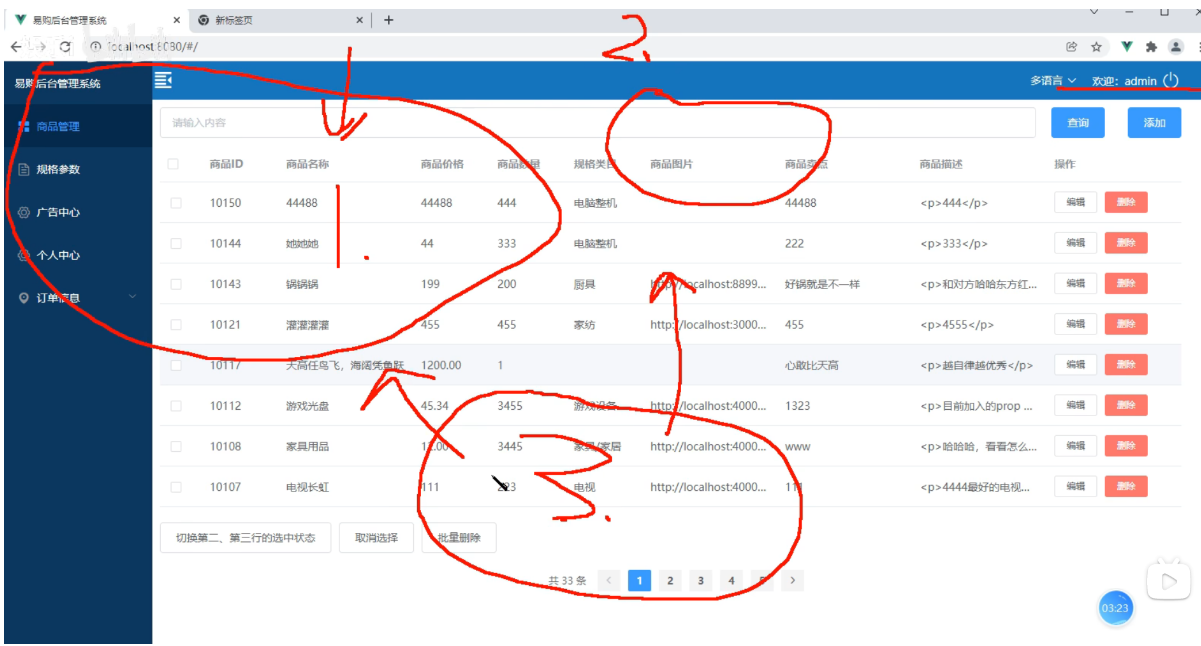
某个个后台管理系统,包含商品管理 用户管理 订单等等信息

## 技术点
vue+Vue-router+Vuex+Element-ui+axios+其他第三方库

## 项目准备
1,mysql
2,iconfont

# 项目搭建
1,vue create vue-ego
2,vue-router vuex
3,axios
4, vue add element --(按需)

# 项目初始化
1,删除无用的组件 home.vue about.vue helloworld.vue...
2, css 初始化
3,incofont 图标导入

## 后台服务
1, express // 安装 npm i express -S
2, node.js 服务
3, jwt(生成token) jsonwebtoken  //安装 npm i jsonwebtoken -S
	在前台安装 jwt-decode  解析 token  // 安装 npm i jwt-decode -S
4, mysql
5, mockjs -- 模拟数据  他是一个独立的模块知识点 前台后台随便放  mock.js不是后台服务
	1, 安装  npm i mockjs -S
	2, 引入
		node.js 中使用  const Mock = require('mockjs')
		前端 xx.js 文件中使用  import Mock from 'mockjs'
	3, 语法  mock()方法
		Mock.mock()

注意:mock()是一个方法,里面是一个对象,对象里面要生成某个字段
比如:要生成一个五角星
Mock.mock({
  "string|1-10": "★"
})


## 路由大配置
1, 页码布局配置,同级登录界面

## 商品管理界面

## 类目选择

## 上传图片
1, element-ui upload 组件
2, 实现后台支持:
	1, 后台安装 multer 模块 同时引入fs模块
	2, router.js 入口文件导入模块
		const fs = require('fs')
		const multer = require('multer')
	3, 上传图片 配置 upload

## 富文本编辑
1, 百度编译器
2, wangEditor

wangEditor 使用步骤:
1,官网网址: https://www.wangeditor.com/doc/
2, 基本使用
	1, 安装: npm i wangeditor --save
	2,  引入模块:
		import E from "wangeditor"
	3, 使用 wangeditor
		const editor = new E("#div1")
		editor.create()

3, 常用配置
  1, 清空内容
  editor.txt.clear()  清空编辑器内容

  2, 设置内容
  editor.txt.html('') 获取 html

  3, 配置菜单
    1, 配置菜单使用 editor.config.menus  定义显示哪些菜单和菜单的顺序

  4, 配置 onchange 回调函数
     配置 onchange 函数之后,用户操作 (鼠标点击,键盘打字等)导致的内容变化之后,会自		动触发 onchange 函数执行

## vue-i18n
1, 介绍:
   Vue I18n 是 vue.js 的国际化插件,他可以轻松第将一些本地化功能集成到你的 vue.js    应用程序中。

2, 安装
  1, npm install vue-i18n
  2, main.js 导入   或者是单独的文件
  	import Vue from 'vue'
  	import VueI18n from 'vue-i18n'
  	Vue.use(VueI18n)


  3, 使用步骤
     1, 如果使用模块系统 (例如通过 vue-cli),则需要导入 Vue 和 VueI18n,然后调用      Vue.use(VueI18n).

     import Vue from 'vue'
     import VueI18n from 'vue-i18n'
     Vue.use(VueI18n)

     2, 准备翻译的语言环境信息
	 const messages = {
	 	en: {// 英文
	 		home: {
	 			hello: 'hello world',
	 			xx: xx,
	 			...
	 		},
	 		goods: {
	 			//
	 		}
	 	},
	 	zh: {// 中文
	 		home: {
	 			hello: '您好 世界',
	 			xx: xx,
	 			...
	 		},
	 		goods: {
	 			//
	 		}
	 	}
	 }

	 3, 通过选项创建 VueI18n 实例
	 const i18n = new VueI18n({
	 	locale: 'en', // 设置当前选中的语言
	 	messages, // 语言环境
	 })

	4, 通过 `i18n` 选项创建 vue 实例
       new Vue({ i18n }).$mount('#app')


    5, 使用语法:
       <p>{{ $t("home.hello") }}</p>


### element 国际化
1, 导入
	import Element from 'element-ui'

2, 导入语言环境
	import enLocale from 'element-ui/lib/locale/lang/en'
	import zhLocale from 'element-ui/lib/locale/lang/zh-CN'

	目前 Element 内置了以下语言:
		简体中文(zh-CN)
		英语(en)
		德语(de)
		葡萄牙语(pt)
		西班牙语(es)
		丹麦语(da)
		法语(fr)
		...

3, 配置语言环境
const messages = {
	en: {
		message: 'hello',
		...enLocale // 或者用 object.assign({message: 'hello'}, enLocale)
	},
	zh: {
		message: '您好',
		...zhLocale // 或者用 Object.assign({message: '您好'},zhLocale)
	}
}

4, 配置使用
Vue.use(Element, {
	i18n: (key, value) => i18n.t(key, value)
})

##
安装 npm i jsonwebtoken -S


## 登录 路由拦截

```javascript
import router from '@/router/index.js';

// 获取 vuex 数据
import store from '@/store/index.js'

// 路由拦截
router.beforeEach((to, from, next) => {
	// console.log('---to---', to);
	// 1, 判断是否需要登录
	if (to.matched.some(ele => ele.meta.isLogin)) {
		// 2, 判断当前的用户是否已经登录
		let token = store.state.loginModule.userinfo.token;
		if (token) {
			// 判断已登录
			next();
		} else { // 判断未登录
			// 跳转到登录页面
			next('/login');
		}
	} else { // 不需要登录
		next();
	}
})
```

## echats
## 1 安装 npm install echarts -S
## 2 使用方式
	  1, 导入 echarts 在组件内使用
	  2, 导入 全局, 挂载原型上 全局使用
	  3, 开发成 vue 插件

## 使用 - main.js
	 1, 导入 import * as echarts from 'echarts'
			 Vue.prototype.$echarts = echarts;
	 2, 直接使用
		1, this.$echarts.xxx


## 规格参数
	1, element-ui 官网 https://element.eleme.cn/#/zh-CN
	2, mockjs 官网  http://mockjs.com/
	3, iconfont 官网 https://www.iconfont.cn/
	4, echarts 官网 https://echarts.apache.org/
	5, echarts 实例官网 https://echarts.apache.org/examples/zh/index.html#chart-type-line