1、命令:adb shell dumpsys activity activities
adb shell dumpsys activity activities作用:主要用于获取当前窗口系统的详细状态信息。
在命令行输入命令后,显示如下信息:
C:\Users\batytao>adb shell dumpsys activity activities
ACTIVITY MANAGER ACTIVITIES (dumpsys activity activities)
Display #0 (activities from top to bottom):
  * Task{545b61 #7395 type=standard A=10250:com.tencent.mm U=0 displayId=0 mode=fullscreen sz=1 U=0 visible=true visibleRequested=true mode=fullscreen translucent=false sz=1}
    mLastPausedActivity: ActivityRecord{be7b8ba u0 com.tencent.mm/.ui.LauncherUI t7395 d0}
    isBubbleTask=false
    mLastNonFullscreenBounds=Rect(285, 717 - 795, 1797)
    isSleeping=false
    topResumedActivity=ActivityRecord{be7b8ba u0 com.tencent.mm/.ui.LauncherUI t7395 d0}
    * Hist  #0: ActivityRecord{be7b8ba u0 com.tencent.mm/.ui.LauncherUI t7395 d0}
      packageName=com.tencent.mm processName=com.tencent.mm
      launchedFromUid=10143 launchedFromPackage=com.bbk.launcher2 launchedFromFeature=null userId=0
      app=ProcessRecord{65ff9ef 11489:com.tencent.mm/u0a250}
      Intent { act=android.intent.action.MAIN cat=[android.intent.category.LAUNCHER] flg=0x30200000 cmp=com.tencent.mm/.ui.LauncherUI bnds=[555,1415][771,1667] }
      rootOfTask=true task=Task{545b61 #7395 type=standard A=10250:com.tencent.mm U=0 displayId=0 mode=fullscreen sz=1}
      taskAffinity=10250:com.tencent.mm
      mActivityComponent=com.tencent.mm/.ui.LauncherUI
      baseDir=/data/app/~~jiazHqi9_0Vc-owHdBf8hg==/com.tencent.mm-zQY-tIT9Gnt_F6mKHJla4w==/base.apk
      dataDir=/data/user/0/com.tencent.mm
      stateNotNeeded=false componentSpecified=true mActivityType=standard
      compat={480dpi} theme=0x7f1102ab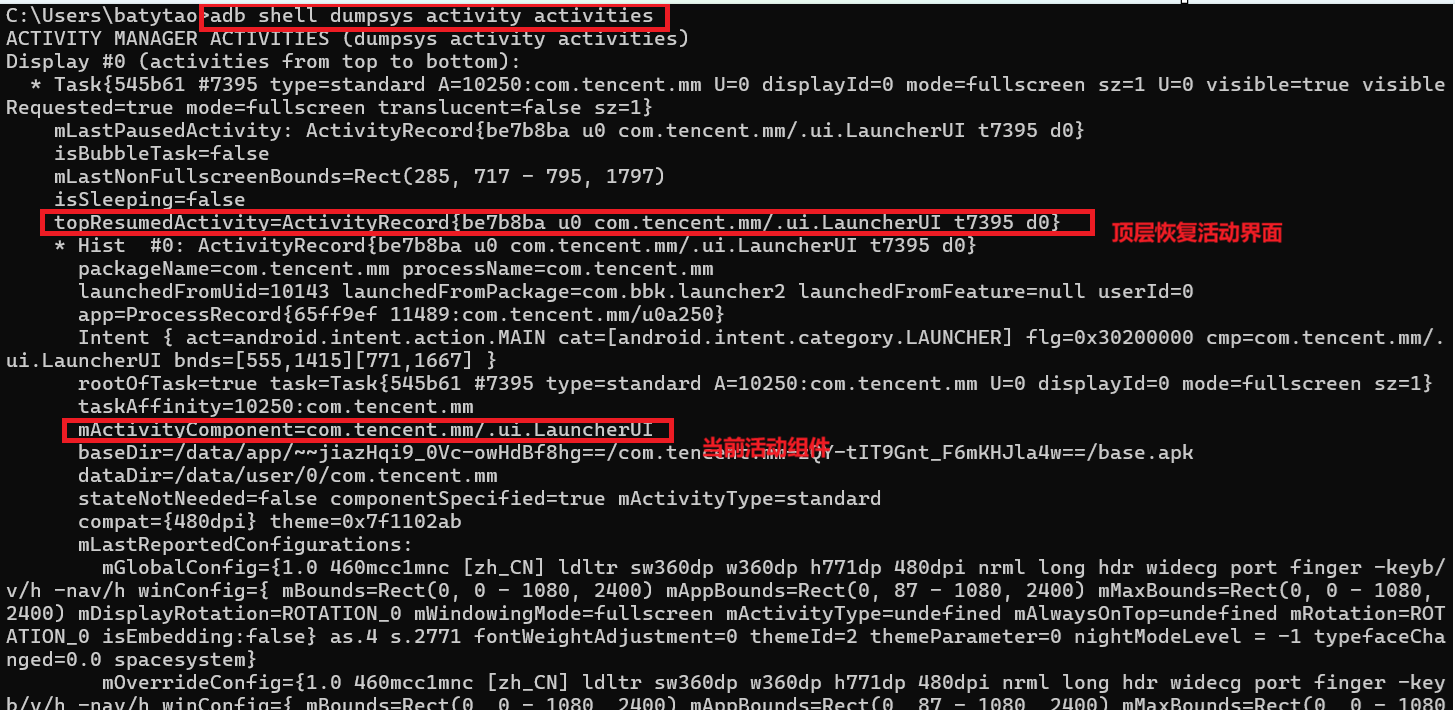
输入命令:adb shell dumpsys activity activities | findstr topResumedActivity。显示当前手机顶层打开的app和界面
C:\Users\batytao>adb shell dumpsys activity activities | findstr topResumedActivity
    topResumedActivity=ActivityRecord{be7b8ba u0 com.tencent.mm/.ui.LauncherUI t7395 d0}
adb shell dumpsys activity activities | findstr mFocusedWindow
mLastPausedActivity 最后暂停活动的
mResumedActivity 恢复活动的
mActivityComponent
mFocusedWindow 当前聚焦窗口
topResumedActivity 当前顶部恢复活动的界面
2、使用 ADB 命令截图
操作步骤:
在命令行执行以下命令:
adb shell uiautomator dump /sdcard/app.uix
adb pull /sdcard/app.uix E:/app.uix
adb shell screencap -p /sdcard/app.png
adb pull /sdcard/app.png E:/app.png
在 UI Automator Viewer 中导入 app.uix 和 app.png 文件。
说明:此方法适用于 Android 8.0+ 系统,需提前在 E 盘创建 app.uix 和 app.png 文件。
3、appium 首次连接真机
一、连接方式
Appium 支持通过 USB 或 Wi-Fi 两种方式连接 Android 手机。以下是具体操作步骤:
1. **USB 连接(推荐)**
步骤:
-
启用开发者选项和 USB 调试
- 打开手机 设置 → 关于手机 → 连续点击版本号(7 次)
- 返回 设置 → 系统 → 开发者选项 → 启用 USB 调试
- 重新插线手机,弹窗授权 USB 调试(若无弹窗,手动授权)
-
检查设备连接
-
在电脑命令行输入:
db devices -
显示类似:
List of devices attached 14e9058c device -
若无设备显示,尝试:
-
换 USB 端口或线
-
重启
adb服务:adb kill-server adb start-server -
检查驱动是否安装(Windows)
-
-
2. **Wi-Fi 连接(无需数据线)**
步骤:
-
USB 连接并启用 Wi-Fi 调试
-
连接手机 USB,执行:
db tcpip 5555 -
返回:
restarting in TCP mode port: 5555
-
-
获取手机 IP 地址
-
通过命令:
db shell ip -f inet addr show wlan0 -
或手机设置 → Wi-Fi → 长按已连接网络 → IP 地址
-
-
断开 USB 并通过 Wi-Fi 连接
-
执行:
db connect <手机IP>:5555 -
返回:
connected to <手机IP>:5555 -
再次检查:
db devices三、配置 Appium 启动参数
必要参数:
| 参数名 | 说明 | 获取方法 |
|-------------------|------------------------------|---------------------------------------------------------|---------------------|
|platformName| 平台(Android/iOS) | 固定值Android|
|platformVersion| 系统版本(如 11.0) |adb shell getprop ro.build.version.release|
|deviceName| 设备名称(如 OnePlus8) |adb devices -l或adb shell getprop ro.product.model|
|appPackage| 应用包名(如 com.example) | `adb shell dumpsys activity | findstr "mResume"` |
|appActivity| 启动 Activity(如 .MainActivity) | 同上 |
desired_caps = {
"platformName": "Android",
"platformVersion": "11.0",
"deviceName": "OnePlus8",
"appPackage": "com.example",
"appActivity": ".MainActivity",
"noReset": True
} -
四、启动 Appium 服务
-
启动 Appium 服务器
- 打开 Appium GUI,点击 Start Server
- 点击 Start Inspector Session,输入参数启动会话
-
验证连接
- 若手机提示安装
Appium Settings和io.appium.uiautomator2.server,允许安装
- 若手机提示安装
(注意:1、手机连接电脑;2、adb 连接手机正常;3、启动appium;4、python代码配置连接appium。按上述步骤执行,在真机(手机)装,会提示安装 Appium Settings 。正常安装后,可正常通过appium进行调试)