创建项目
bash
mkdir hello-world
cd hello-world
创建一个文件夹
bash
npm init
# npm init -y 将直接使用默认值进行设置
输入 npm init 后,将要求我们输入项目名称,版本,描述等信息,我们也可以直接按回车使用默认值。
执行完成后,将会生成一个 package.json 文件,如下所示。
json
{
  "name": "hello-world",
  "version": "1.0.0",
  "description": "",
  "license": "ISC",
  "author": "",
  "type": "commonjs",
  "main": "index.js",
  "scripts": {
    "test": "echo \"Error: no test specified\" && exit 1"
  }
}
其中 main 字段的 index.js 就是程序主入口对应的文件。
修改 scripts,添加 start 项,这样我们就可以通过 npm start 启动程序了。
json
"scripts": {
    "start": "electron .",
    "test": "echo \"Error: no test specified\" && exit 1"
  }
cpp
npm install electron --save-dev
# npm i -D electron 两者是等价的
安装 electron,cnpm 命令同 npm,将 npm 替换成 cnpm 即可。
创建 index.js 文件,这里,我们将以 《Electron 项目开发实战》中的代码为例。
javascript
const { app, BrowserWindow } = require('electron')
let window;
app.on('ready', () => {
    const win = new BrowserWindow({
    width: 800,
    height: 600,
    webPreferences: {
      nodeIntegration: true
    }
  })
  win.loadFile('index.html')
});
这里创建了一个 800*600 的窗口,加载并显示 index.html,nodeIntegration 决定了渲染进程(Web 页面)是否能直接访问 Node.js 的核心 API(如 fs、path、process)和 Node.js 环境
创建 index.html
html
<!DOCTYPE html>
<html lang="en">
  <head>
    <meta charset="UTF-8" />
    <meta name="viewport" content="width=device-width, initial-scale=1.0" />
    <meta
      http-equiv="Content-Security-Policy"
      content="script-src 'self' 'unsafe-inline';"
    />
    <title>Document</title>
  </head>
  <body>
    <h1>Hello World!</h1>
    We are using node
    <script>
      document.write(process.versions.node);</script
    >, Chrome
    <script>
      document.write(process.versions.chrome);</script
    >, and Electron
    <script>
      document.write(process.versions.electron);</script
    >.
  </body>
</html>
执行 npm start 启动程序
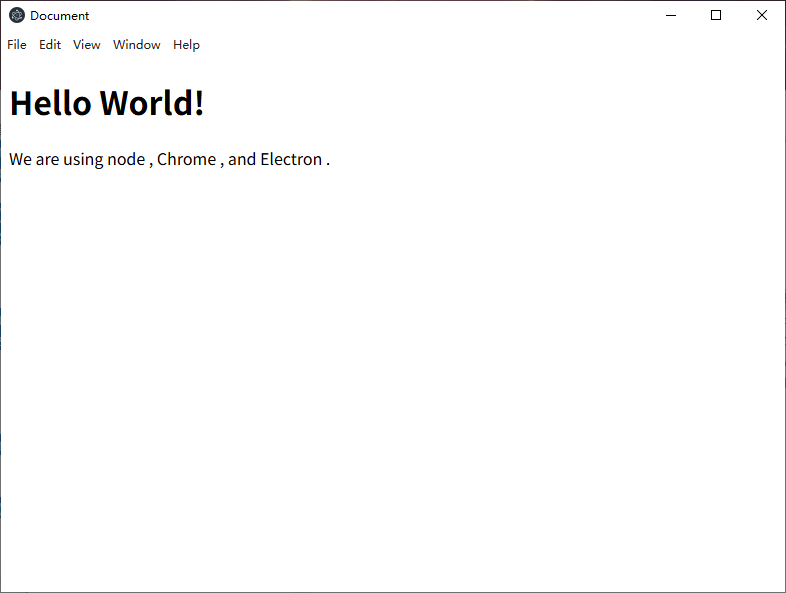
程序运行起来的,但是和我们预期的不太一致,node、Chrome 和 Electron 的版本都没有显示出来。这是因为从 Electron 12 开始 ,渲染进程和主进程的上下文是隔离的,无法访问 process。
这里解释下什么是渲染进程,什么是主进程,简单来说,"main" 中声明的 index.js 文件以及加载的 js 都是属于主进程,BrowserWindow 加载执行的 html js css 都是属于渲染进程。
为了解决渲染进程无法访问 process 的问题,我们可以修改 index.js,允许渲染进程访问 node.js 环境和关闭上下文隔离都是不安全的行为,我们可以通过预加载脚本,把主进程的部分函数和属性暴露给渲染进程。这点我们后面再讲。
javascript
webPreferences: {
      nodeIntegration: true,
      contextIsolation: false
    }
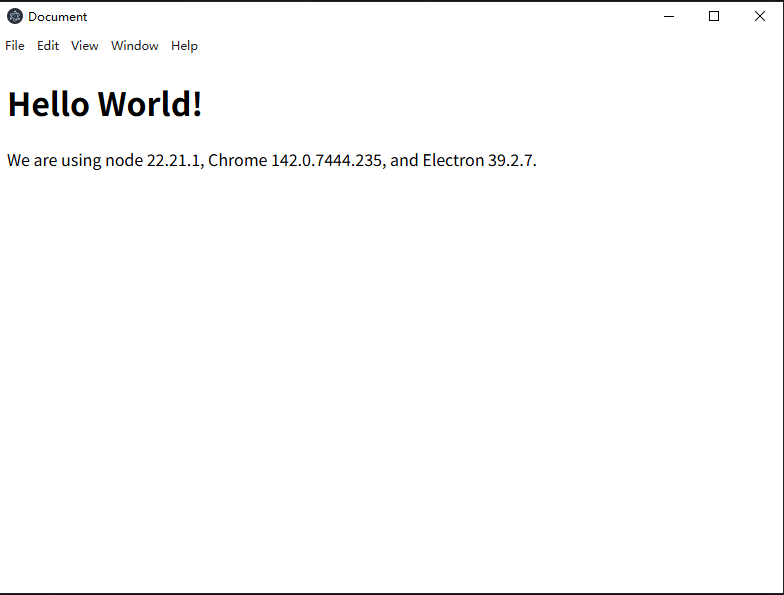
修改后,再次运行 npm start,如下所示,我们成功显示出了 node、Chrome 和 Electron 的版本