数学公式生成器HTML版
上一篇介绍了"轻量级数学符号点击复制工具HTML版" https://blog.csdn.net/cnds123/article/details/156151803
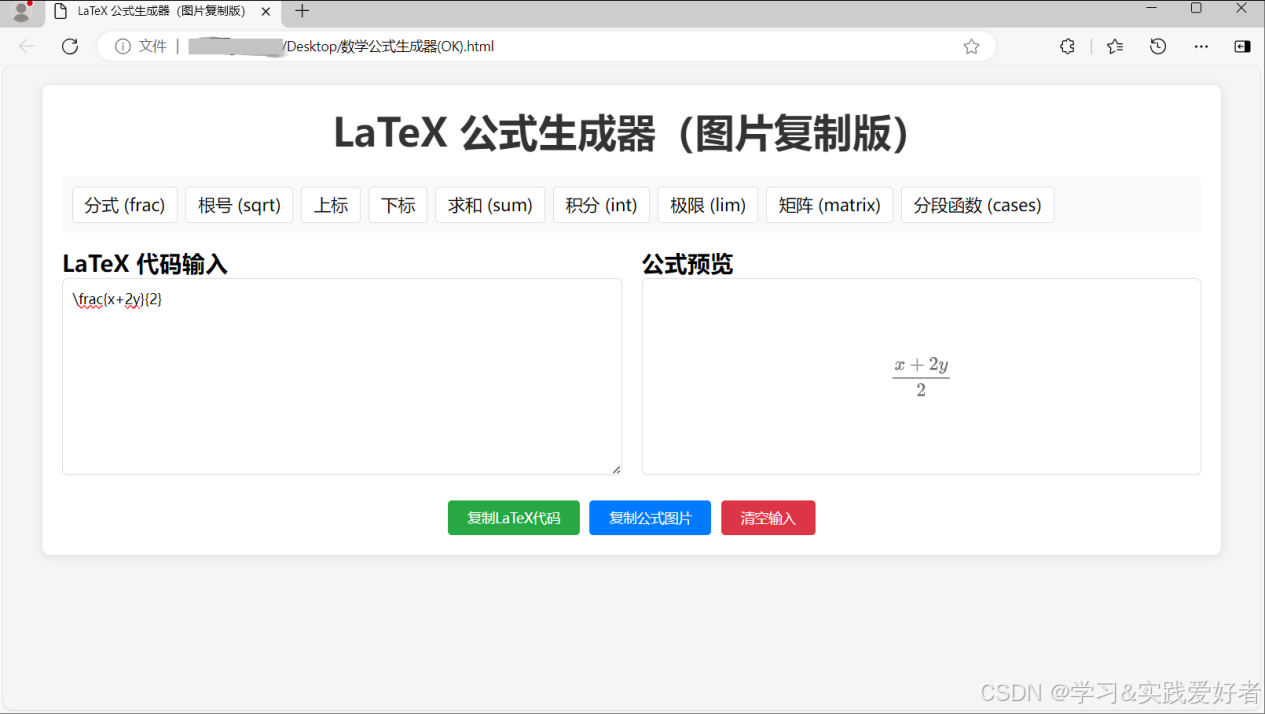
现在介绍数学公式生成器。这是一个功能相对完整的LaTeX公式生成器,具有将公式转换为图片并复制的功能。用于在博客、文档中插入数学公式,使用HTML+CSS+JavaScript实现。
运行截图:
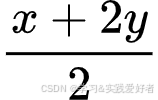
复制图片到word中的情况
1.识别页面中的LaTeX代码(通常包裹在...或.....中,或者使用...和...)。
2.将LaTeX代码转换为高质量的SVG图形,并嵌入到网页中。
3.由于使用SVG,公式可以无损缩放,适应不同的屏幕大小和缩放级别。
在代码中,我们通过以下方式使用MathJax:
• 在实时预览中,我们将公式代码包裹在$$中,然后调用MathJax.typeset()来重新渲染。
• 在复制图片时,我们使用MathJax.tex2svg()函数直接生成SVG节点,然后将其转换为图片。
源码如下:
html
<!DOCTYPE html>
<html lang="zh-CN">
<head>
    <meta charset="UTF-8">
    <meta name="viewport" content="width=device-width, initial-scale=1.0">
    <title>LaTeX 公式生成器(图片复制版)</title>
    <!-- 引入 MathJax 用于渲染 LaTeX 公式 -->
    <script src="https://cdn.jsdelivr.net/npm/mathjax@3/es5/tex-svg.js"></script>
    <style>
        * {
            margin: 0;
            padding: 0;
            box-sizing: border-box;
            font-family: "Microsoft YaHei", sans-serif;
        }
        body {
            padding: 20px;
            background-color: #f5f5f5;
        }
        .container {
            max-width: 1200px;
            margin: 0 auto;
            background: white;
            padding: 20px;
            border-radius: 8px;
            box-shadow: 0 2px 10px rgba(0,0,0,0.1);
        }
        h1 {
            text-align: center;
            color: #333;
            margin-bottom: 20px;
        }
        /* 省略了部分样式代码以保持简洁 */
        .toolbar {
            margin-bottom: 15px;
            padding: 10px;
            background: #f8f9fa;
            border-radius: 6px;
            display: flex;
            flex-wrap: wrap;
            gap: 8px;
        }
        .toolbar button {
            padding: 6px 12px;
            border: 1px solid #ddd;
            border-radius: 4px;
            background: white;
            cursor: pointer;
            transition: all 0.2s;
        }
        .toolbar button:hover {
            background: #007bff;
            color: white;
            border-color: #007bff;
        }
        .editor-area {
            display: flex;
            gap: 20px;
            margin-bottom: 20px;
            flex-wrap: wrap;
        }
        @media (max-width: 768px) {
            .editor-area {
                flex-direction: column;
            }
        }
        .input-box, .preview-box {
            flex: 1;
            min-width: 300px;
        }
        textarea {
            width: 100%;
            height: 200px;
            padding: 10px;
            border: 1px solid #ddd;
            border-radius: 6px;
            resize: vertical;
            font-size: 14px;
            line-height: 1.5;
        }
        .preview {
            width: 100%;
            height: 200px;
            padding: 20px;
            border: 1px solid #ddd;
            border-radius: 6px;
            background: white;
            display: flex;
            align-items: center;
            justify-content: center;
            font-size: 16px;
            color: #666;
        }
        .btn-group {
            display: flex;
            gap: 10px;
            justify-content: center;
            margin-top: 15px;
        }
        .btn-group button {
            padding: 8px 20px;
            border: none;
            border-radius: 4px;
            cursor: pointer;
            font-size: 14px;
        }
        .btn-copy-code {
            background: #28a745;
            color: white;
        }
        .btn-copy-img {
            background: #007bff;
            color: white;
        }
        .btn-clear {
            background: #dc3545;
            color: white;
        }
        .toast {
            position: fixed;
            top: 20px;
            right: 20px;
            padding: 10px 20px;
            background: rgba(0,0,0,0.7);
            color: white;
            border-radius: 4px;
            opacity: 0;
            transition: opacity 0.3s;
            pointer-events: none;
            z-index: 9999;
        }
        .toast.show {
            opacity: 1;
        }
        .loading {
            position: fixed;
            top: 50%;
            left: 50%;
            transform: translate(-50%, -50%);
            width: 50px;
            height: 50px;
            border: 5px solid #f3f3f3;
            border-top: 5px solid #007bff;
            border-radius: 50%;
            animation: spin 1s linear infinite;
            display: none;
            z-index: 9998;
        }
        @keyframes spin {
            0% { transform: translate(-50%, -50%) rotate(0deg); }
            100% { transform: translate(-50%, -50%) rotate(360deg); }
        }
        /* 新增:纯净的截图容器样式,避免干扰 */
        #screenshot-container {
            position: fixed;
            top: -9999px;
            left: -9999px;
            background: white;
            padding: 15px;
            /* 禁用硬件加速,避免截图重复 */
            transform: none !important;
            -webkit-transform: none !important;
        }
    </style>
</head>
<body>
    <div class="container">
        <h1>LaTeX 公式生成器(图片复制版)</h1>

        <!-- 快捷工具栏 -->
        <div class="toolbar">
            <button onclick="insertLatex('\\frac{分子}{分母}')">分式 (frac)</button>
            <button onclick="insertLatex('\\sqrt{被开方数}')">根号 (sqrt)</button>
            <button onclick="insertLatex('x^{上标}')">上标</button>
            <button onclick="insertLatex('x_{下标}')">下标</button>
            <button onclick="insertLatex('\\sum_{i=1}^n x_i')">求和 (sum)</button>
            <button onclick="insertLatex('\\int_{下限}^{上限} f(x)dx')">积分 (int)</button>
            <button onclick="insertLatex('\\lim_{x \\to 0} f(x)')">极限 (lim)</button>
            <button onclick="insertLatex('\\begin{matrix}a&b\\\\c&d\\end{matrix}')">矩阵 (matrix)</button>
            <button onclick="insertLatex('\\begin{cases}y=x, & x>0\\\\y=-x, & x\\leq0\\end{cases}')">分段函数 (cases)</button>
        </div>

        <!-- 编辑和预览区域 -->
        <div class="editor-area">
            <div class="input-box">
                <h3>LaTeX 代码输入</h3>
                <textarea id="latex-input" placeholder="请输入LaTeX公式代码,例如:E=mc^2 或 \\frac{1}{2}mv^2"></textarea>
            </div>
            <div class="preview-box">
                <h3>公式预览</h3>
                <div id="latex-preview" class="preview">预览区域</div>
            </div>
        </div>

        <!-- 功能按钮组 -->
        <div class="btn-group">
            <button class="btn-copy-code" onclick="copyLatexCode()">复制LaTeX代码</button>
            <button class="btn-copy-img" onclick="copyLatexAsImage()">复制公式图片</button>
            <button class="btn-clear" onclick="clearInput()">清空输入</button>
        </div>
    </div>

    <!-- 提示框和加载动画 -->
    <div class="toast" id="toast"></div>
    <div class="loading" id="loading"></div>

    <script>
        // 实时渲染公式
        const latexInput = document.getElementById('latex-input');
        const latexPreview = document.getElementById('latex-preview');

        latexInput.addEventListener('input', renderLatex);

        // 初始化渲染
        renderLatex();

        // 渲染LaTeX公式
        function renderLatex() {
            const latexCode = latexInput.value.trim();
            if (!latexCode) {
                latexPreview.innerHTML = '预览区域';
                return;
            }
            // 使用MathJax渲染公式,包裹$确保是数学公式
            latexPreview.innerHTML = `$$${latexCode}$$`;
            // 触发MathJax重新渲染
            MathJax.typeset([latexPreview]);
        }

        // 插入LaTeX模板
        function insertLatex(template) {
            const cursorPos = latexInput.selectionStart;
            const currentValue = latexInput.value;
            // 在光标位置插入模板
            latexInput.value = currentValue.substring(0, cursorPos) + template + currentValue.substring(cursorPos);
            latexInput.focus();
            // 重新渲染
            renderLatex();
        }

        // 复制LaTeX代码
        function copyLatexCode() {
            const code = latexInput.value.trim();
            if (!code) {
                showToast('请先输入LaTeX代码');
                return;
            }
            navigator.clipboard.writeText(code).then(() => {
                showToast('LaTeX代码已复制');
            }).catch(err => {
                showToast('复制失败:' + err);
            });
        }

        // 复制公式为图片(核心优化部分)
        // copyLatexAsImage 函数
        async function copyLatexAsImage() {
            const latexCode = latexInput.value.trim();
            if (!latexCode) {
                showToast('请先输入LaTeX代码');
                return;
            }

            const loading = document.getElementById('loading');
            loading.style.display = 'block';

            try {
                // 使用 MathJax.tex2svg 直接渲染,不要额外加 \[ \]
                const node = MathJax.tex2svg(latexCode, { display: true });
                const svg = node.querySelector('svg');
                svg.setAttribute('xmlns', 'http://www.w3.org/2000/svg');
                svg.style.background = 'white';

                const serializer = new XMLSerializer();
                const svgStr = serializer.serializeToString(svg);
                const blob = new Blob([svgStr], { type: 'image/svg+xml;charset=utf-8' });
                const url = URL.createObjectURL(blob);

                const img = new Image();
                img.onload = async () => {
                    const canvas = document.createElement('canvas');
                    const ctx = canvas.getContext('2d');
                    const scale = 2;
                    canvas.width = img.width * scale;
                    canvas.height = img.height * scale;
                    ctx.fillStyle = 'white';
                    ctx.fillRect(0, 0, canvas.width, canvas.height);
                    ctx.drawImage(img, 0, 0, img.width, img.height, 0, 0, canvas.width, canvas.height);

                    canvas.toBlob(async (pngBlob) => {
                        try {
                            await navigator.clipboard.write([new ClipboardItem({ 'image/png': pngBlob })]);
                            showToast('公式图片已复制');
                        } catch (e) {
                            fallbackDownloadFromCanvas(canvas);
                        }
                        URL.revokeObjectURL(url);
                        loading.style.display = 'none';
                    }, 'image/png');
                };
                img.src = url;

            } catch (err) {
                console.error(err);
                loading.style.display = 'none';
                showToast('生成失败');
            }
        }


        function fallbackDownloadFromCanvas(canvas) {
            const link = document.createElement('a');
            link.download = 'formula.png';
            link.href = canvas.toDataURL('image/png');
            link.click();
        }


        // 降级方案:下载图片
        async function fallbackDownloadImage() {
            const preview = document.getElementById('latex-preview');
            const canvas = await html2canvas(preview, { scale: 2, useCORS: true });
            const link = document.createElement('a');
            link.download = 'latex-formula.png';
            link.href = canvas.toDataURL('image/png');
            link.click();
        }

        // 清空输入
        function clearInput() {
            latexInput.value = '';
            latexPreview.innerHTML = '预览区域';
            renderLatex();
            showToast('已清空输入');
        }

        // 显示提示框
        function showToast(message) {
            const toast = document.getElementById('toast');
            toast.textContent = message;
            toast.classList.add('show');
            setTimeout(() => {
                toast.classList.remove('show');
            }, 2000);
        }
    </script>
</body>
</html>