我们可以不安装任何软件,直接写HTML语句调用WEB API,用浏览器直接录屏。
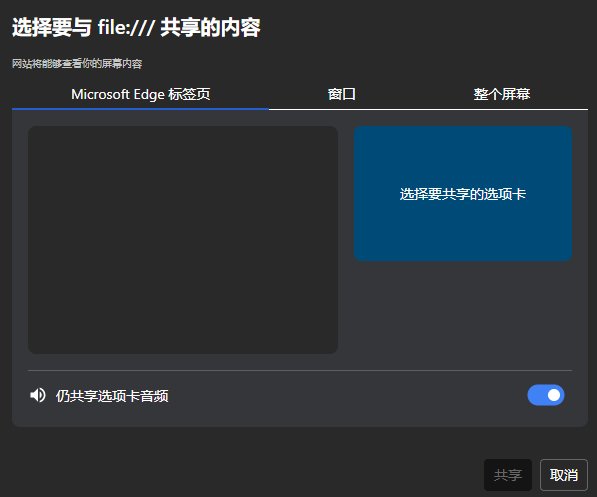
录制范围:
浏览器标签页
应用程序的窗口
整个屏幕
使用方法:
代码保存为UTF-8格式。
运行HTML文件之后,点击"开始录屏",在以上3个录制范围之中选择一个。
若要录制系统音频,打开下方的"仍共享选项卡音频"。
点击"共享"按钮,弹出保存视频文件的窗口,指定文件名和路径之后点"保存"开始录屏。
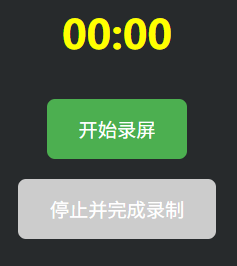
当视频播放结束,点"停止并完成录制",视频文件即导出完毕。
HTML代码:
用记事本保存为HTML后缀的文件,双击会自动调用浏览器运行。
在Win10、Win11的Edge和谷歌浏览器上调试通过。
输出为VP9编码的webm文件,无法手动设置码率,自动码率1~5 Mbps(动态内容可能更高)。
<!DOCTYPE html>
<html lang="zh-CN">
<head>
  <meta charset="UTF-8" />
  <title>录屏工具</title>
  <style>
body {
  margin: 0;
  padding: 0;
  background-color: rgb(39, 42, 44);
  color: white;
  font-family: "Microsoft YaHei", "PingFang SC", "Hiragino Sans GB", "SimHei", sans-serif;
  display: flex;
  flex-direction: column;
  align-items: center;
  justify-content: center;
  height: 100vh;
  overflow: hidden;
}

#timer {
  color: yellow;
  font-size: 2.5em;
  margin-bottom: 30px;
  font-weight: bold;
}

#start, #stop {
  padding: 16px 32px;
  font-size: 1.2em;
  margin: 10px;
  border: none;
  border-radius: 8px;
  cursor: pointer;
  transition: background-color 0.3s;
}

#start {
  background-color: #4CAF50;
  color: white;
}

#start:hover {
  background-color: #45a049;
}

#stop {
  background-color: #f44336;
  color: white;
}

#stop:hover {
  background-color: #da190b;
}

#stop:disabled {
  background-color: #cccccc;
  cursor: not-allowed;
}
  </style>
</head>
<body>
  <div id="timer">00:00</div>
  <button id="start">开始录屏</button>
  <button id="stop" disabled>停止并完成录制</button>

  <script>
    let recorder;
    let stream;
    let writableStream;
    let useFileSystemAPI = false;
    let startTime;
    let timerInterval;

    const startBtn = document.getElementById('start');
    const stopBtn = document.getElementById('stop');
    const timerDisplay = document.getElementById('timer');

    const supportsFileSystemAccess = 'showSaveFilePicker' in window;

    function formatTime(ms) {
      const totalSeconds = Math.floor(ms / 1000);
      const minutes = Math.floor(totalSeconds / 60).toString().padStart(2, '0');
      const seconds = (totalSeconds % 60).toString().padStart(2, '0');
      return `${minutes}:${seconds}`;
    }

    function startTimer() {
      startTime = Date.now();
      timerInterval = setInterval(() => {
        const elapsed = Date.now() - startTime;
        timerDisplay.textContent = formatTime(elapsed);
      }, 1000);
    }

    function stopTimer() {
      if (timerInterval) {
        clearInterval(timerInterval);
        timerInterval = null;
      }
    }

    startBtn.onclick = async () => {
      try {
        stream = await navigator.mediaDevices.getDisplayMedia({
          video: true,
          audio: true
        });

        const options = { mimeType: 'video/webm;codecs=vp9' };
        if (!MediaRecorder.isTypeSupported(options.mimeType)) {
          options.mimeType = 'video/webm;codecs=vp8';
        }
        if (!MediaRecorder.isTypeSupported(options.mimeType)) {
          options.mimeType = 'video/webm';
        }

        let fileHandle = null;
        if (supportsFileSystemAccess) {
          try {
            fileHandle = await window.showSaveFilePicker({
              suggestedName: 'screen-recording.webm',
              types: [{
                description: 'WebM Video',
                accept: { 'video/webm': ['.webm'] }
              }]
            });
            writableStream = await fileHandle.createWritable();
            useFileSystemAPI = true;
          } catch (err) {
            console.warn('File System Access API not used:', err);
            useFileSystemAPI = false;
          }
        }

        const chunks = useFileSystemAPI ? null : [];

        recorder = new MediaRecorder(stream, options);

        recorder.ondataavailable = async (e) => {
          if (e.data.size === 0) return;

          if (useFileSystemAPI && writableStream) {
            await writableStream.write(e.data);
          } else {
            chunks.push(e.data);
          }
        };

        recorder.onstop = async () => {
          stream.getTracks().forEach(track => track.stop());

          if (useFileSystemAPI && writableStream) {
            await writableStream.close();
            alert('录制已完成,文件已保存到您选择的位置。');
          } else {
            const blob = new Blob(chunks, { type: options.mimeType || 'video/webm' });
            const url = URL.createObjectURL(blob);
            const a = document.createElement('a');
            a.style.display = 'none';
            a.href = url;
            a.download = 'screen-recording.webm';
            document.body.appendChild(a);
            a.click();
            document.body.removeChild(a);
            URL.revokeObjectURL(url);
          }

          writableStream = null;
          useFileSystemAPI = false;
          startBtn.disabled = false;
          stopBtn.disabled = true;

          stopTimer(); // 停止计时器
        };

        recorder.start(10000);
        startTimer(); // 启动计时器

        startBtn.disabled = true;
        stopBtn.disabled = false;

      } catch (err) {
        console.error('录屏失败:', err);
        alert('无法开始录屏:' + (err.message || '用户取消或浏览器不支持'));
        startBtn.disabled = false;
        stopBtn.disabled = true;
        stopTimer(); // 确保失败时也停止计时器
      }
    };

    stopBtn.onclick = () => {
      if (recorder && recorder.state !== 'inactive') {
        recorder.stop();
      }
    };
  </script>
</body>
</html>
FFMPEG压缩命令行:
原始视频文件体积不算很大,但仍可以用FFMPEG压缩,H.265算法使体积进一步缩小到原来的十分之一
其中的 -i 后跟输入文件名,输出文件名是output.mkv
ffmpeg -y -i 1.webm -c:v libx265 -x265-params lossless=0:strong-intra-smoothing=0:bframes=16:keyint=250:min-keyint=120:rc-lookahead=60 -b:v 0 -preset slow -crf 28 -c:a copy output.mkv资源管理器显示视频文件预览图:
辛苦做出来的视频文件,如果进入文件夹直接就能显示预览图岂不美哉。
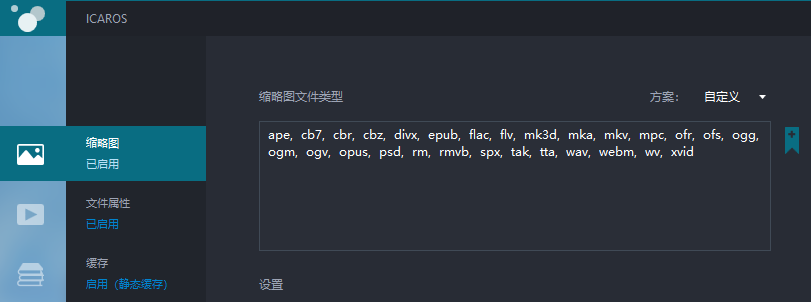
进入 https://github.com/Xanashi/Icaros/releases 下载Icaros,运行之后改为中文简体。
点击左侧"缩略图"为已启用,在资源管理器中可显示缩略图。
"文件属性"为"已启用",资源管理器中可显示视频文件属性。
"缓存"也就是缩略图是否缓存,可自定。