1 - Microsoft Graph API 必备前置信息
- SiteUrl
- ClientId
- ClientSecret
- TargetFolder
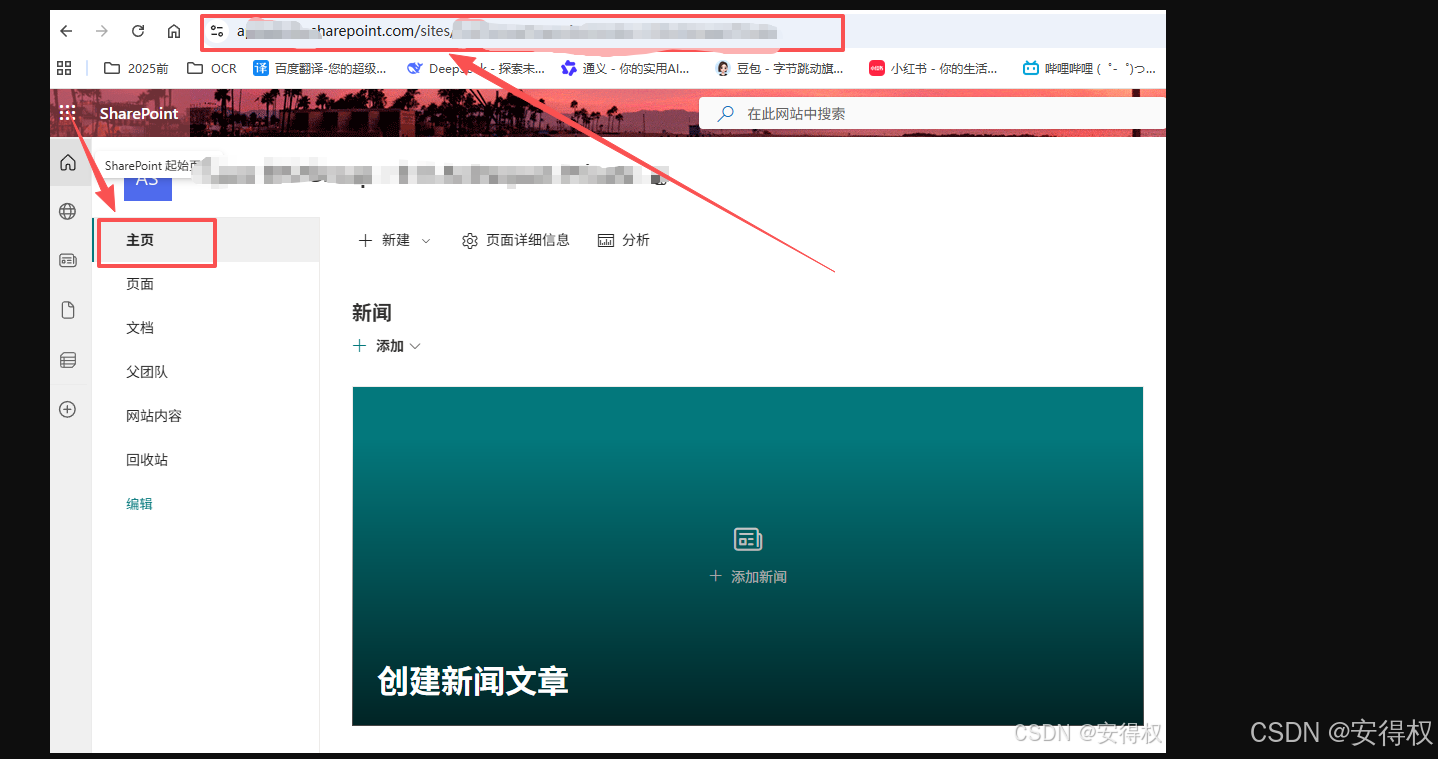
SiteUrl 取值来源:
点击主页,地址栏的就是SiteUrl
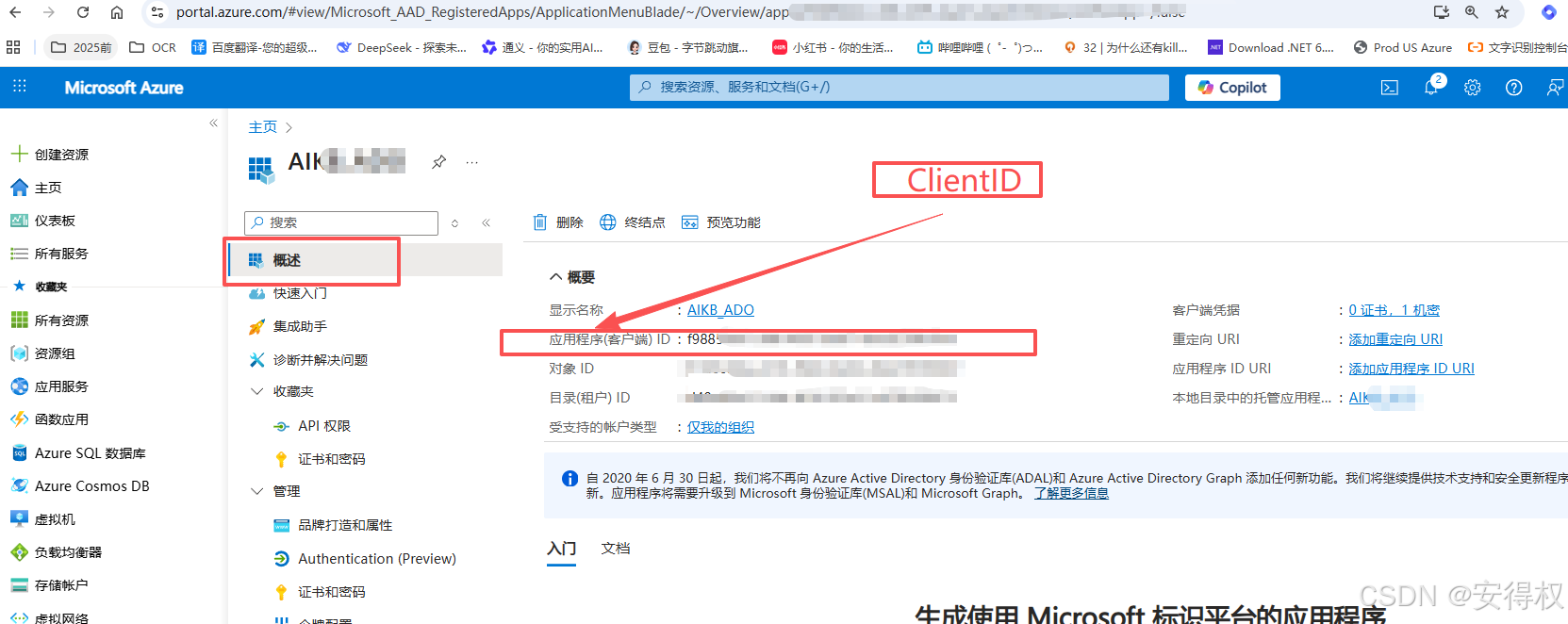
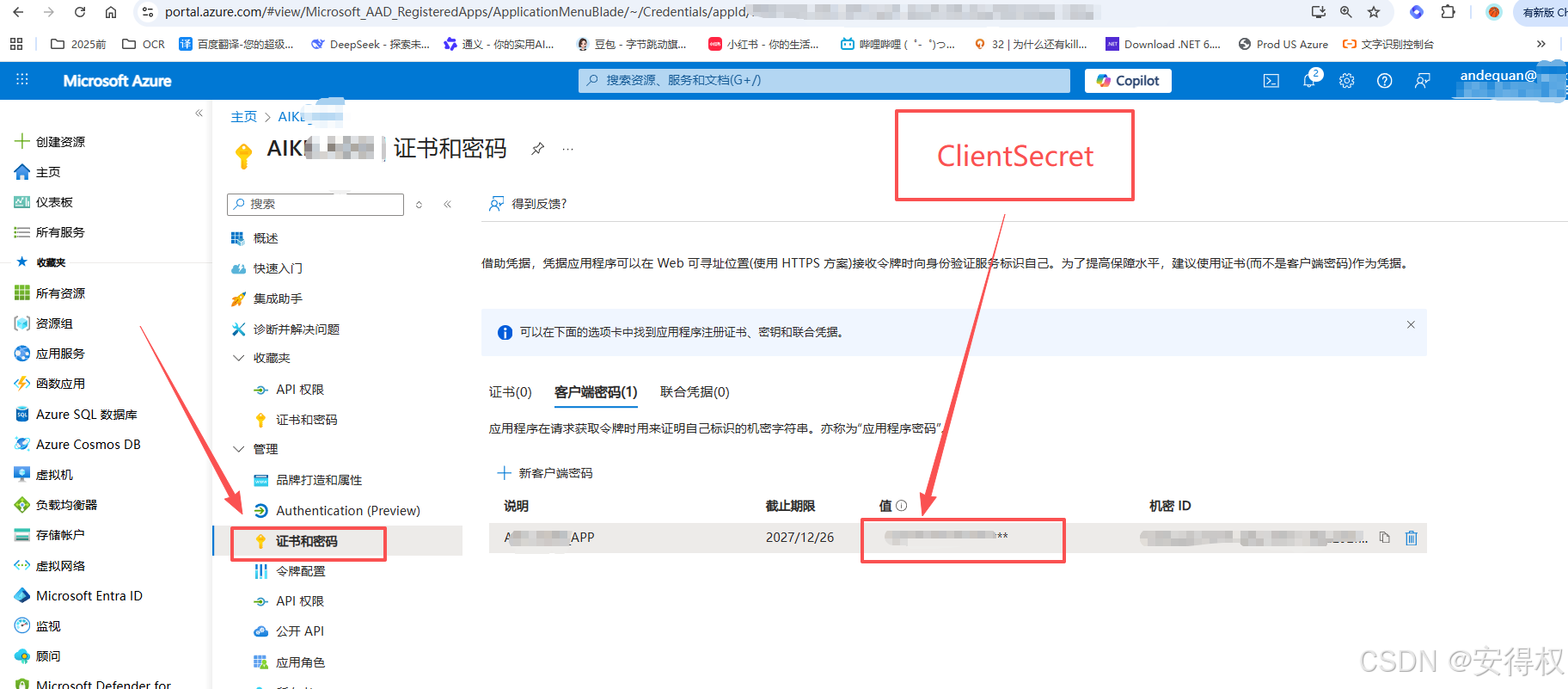
ClientId 和 ClientSecret 取值来源:
bash
1. 打开 https://portal.azure.com 并登录
2. 进入应用注册
- 搜索并点击 **"Azure Active Directory"** (或 **"Microsoft Entra ID"**)
- 左侧菜单选择 **"应用注册"** (App registrations)
3.创建新应用(如果还没有)
- 点击 **"新注册"** (New registration)
- 填写名称(如 "KBS-SharePoint-App")
- 选择支持的账户类型(通常选择"仅此组织目录中的账户")
- 点击 **"注册"**
4.获取 ClientId
- 在应用的 **"概述"** (Overview) 页面
- 复制 **"应用程序(客户端)ID"** (Application (client) ID)
- 这就是你的 `ClientId`
5.创建 ClientSecret
- 左侧菜单选择 **"证书和密码"** (Certificates & secrets)
- 点击 **"新客户端密码"** (New client secret)
- 添加描述(如 "KBS App Secret")
- 选择过期时间
- 点击 **"添加"**
- **⚠️ 立即复制"值"列的内容**,这就是 `ClientSecret`(离开页面后将无法再查看)
如下图:
TargetFolder 取值来源:
bash
sharepoint进入目标文件夹,点击"复制链接" 如下:
https://域名/:f:/r/sites/站点/Shared%20Documents/AI_KnowledgeBase/ADO?csf=1&web=1&e=CfytE3

站点/ 后边  到 ADO 的 ? 号前边
即:/Shared%20Documents/AI_KnowledgeBase/ADO

规则就是:/Shared Docments/自定义目录
注:Shared%20Documents是Shared Docments 带空格转义后的字符串。
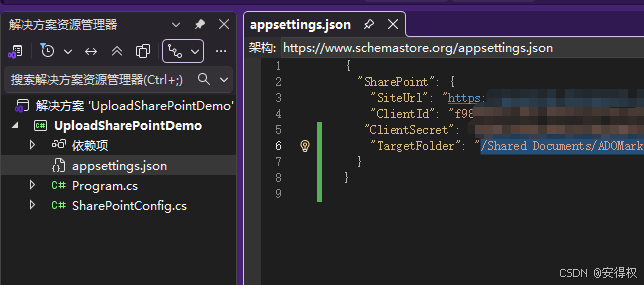
JSON配置实例:
bash
{
  "SharePoint": {
    "SiteUrl": "https://域名/sites/站点名称",
    "ClientId": "f988xxxx-xxxx-xxxx-xxxx-xxxxxxxxxxxx",
   "ClientSecret": "xxxxx~xxxxxxxxxxxxxxxxxxxxxxxxxxxxxxxxxx",
    "TargetFolder": "/Shared Documents/AI_KnowledgeBase/ADO"
  }
}
2 - Microsoft Graph API 方式上传文件到SharePoint必须的API权限
问答:
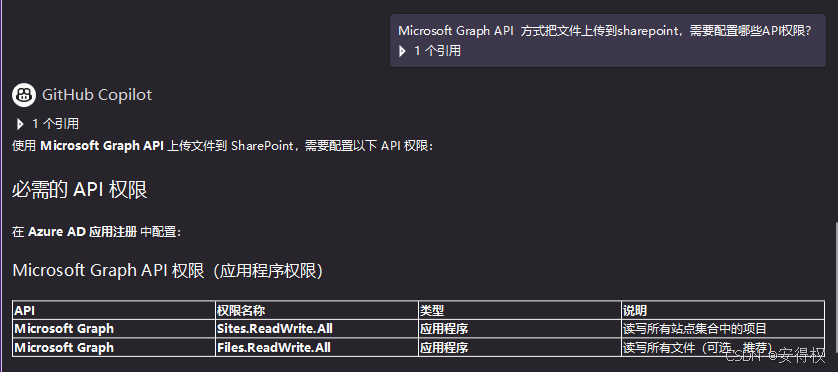
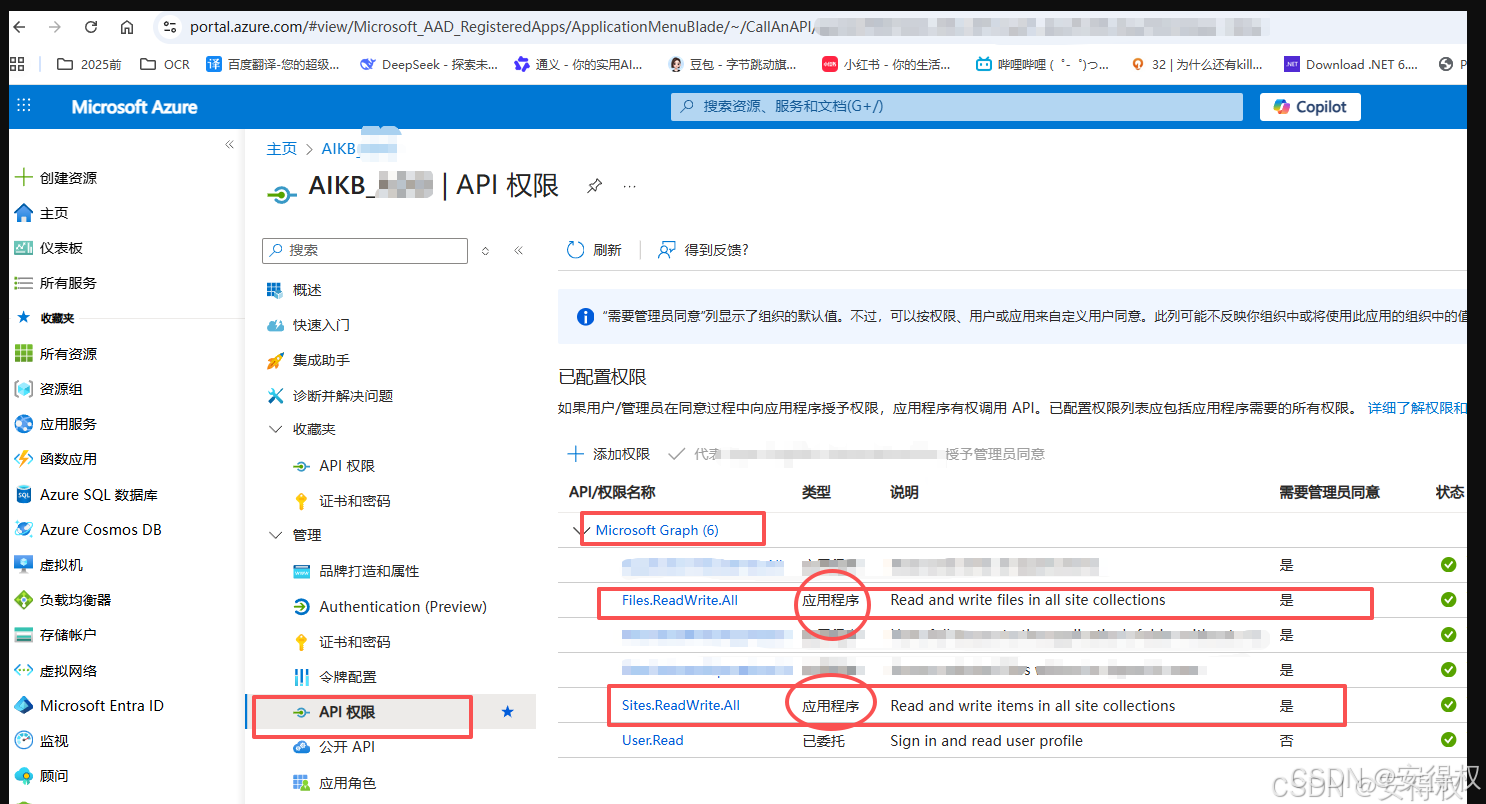
配置好的样子:
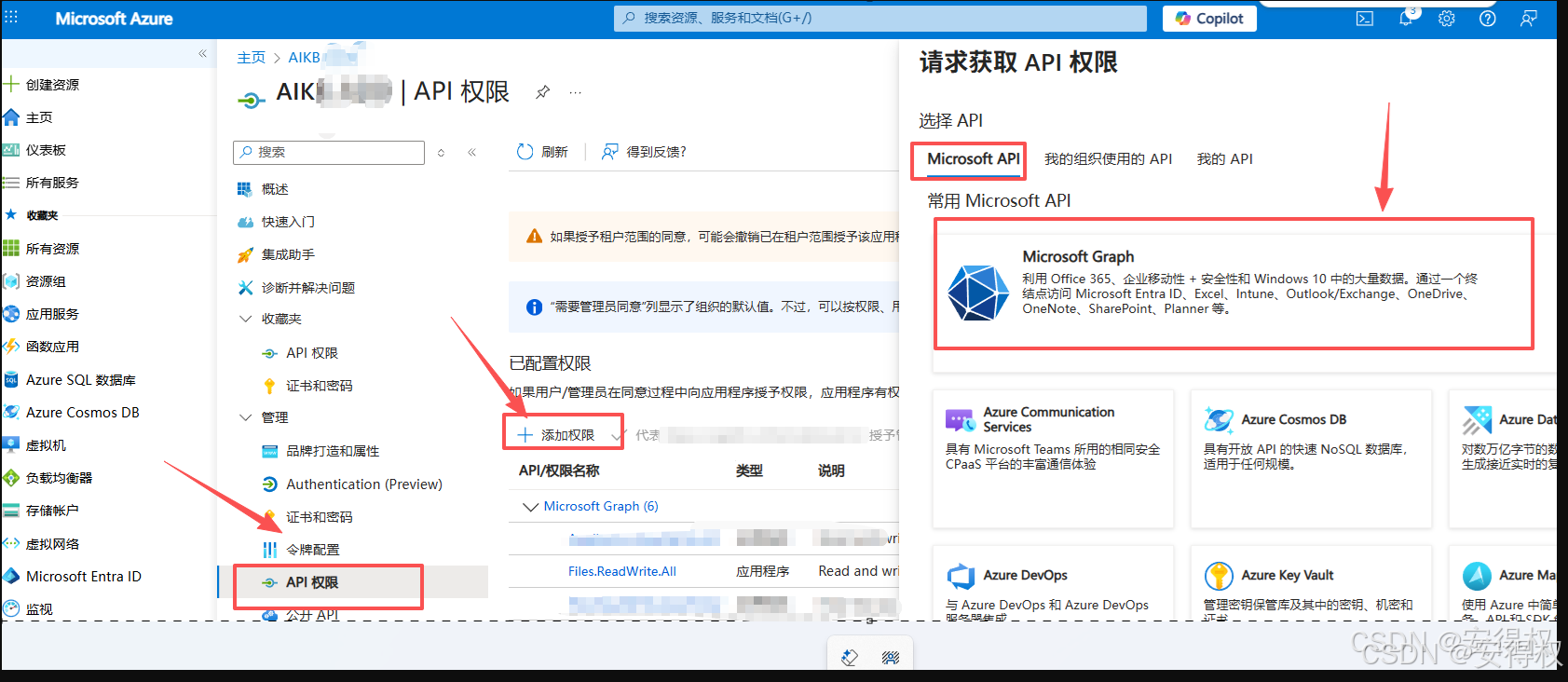
参照步骤:
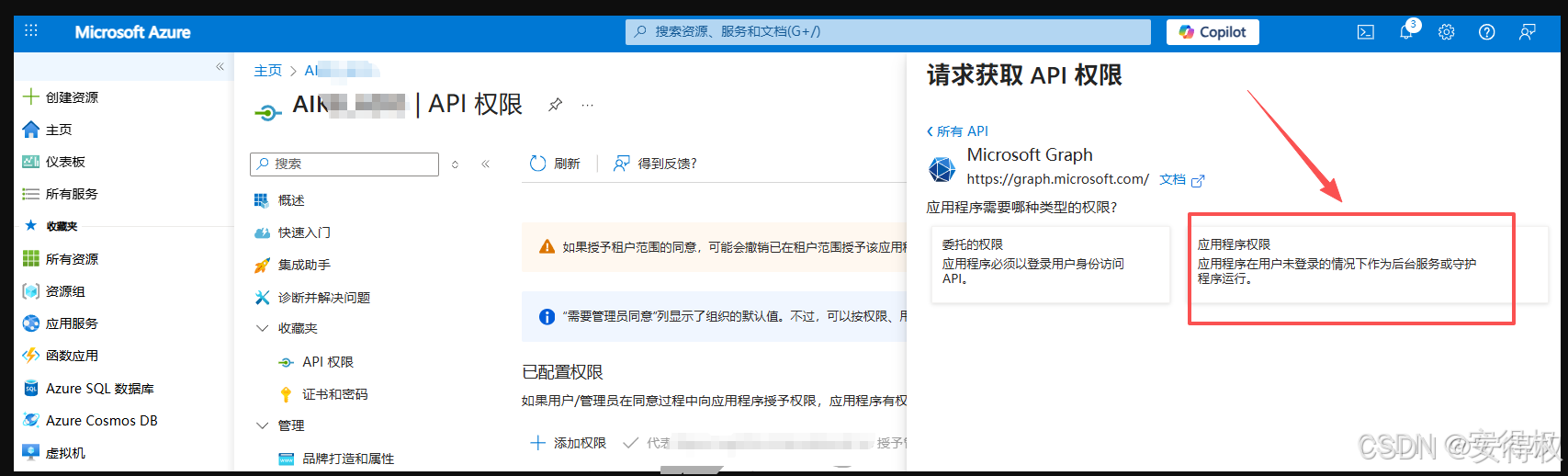
添加权限 -> Microsoft API -> Microsoft Graph
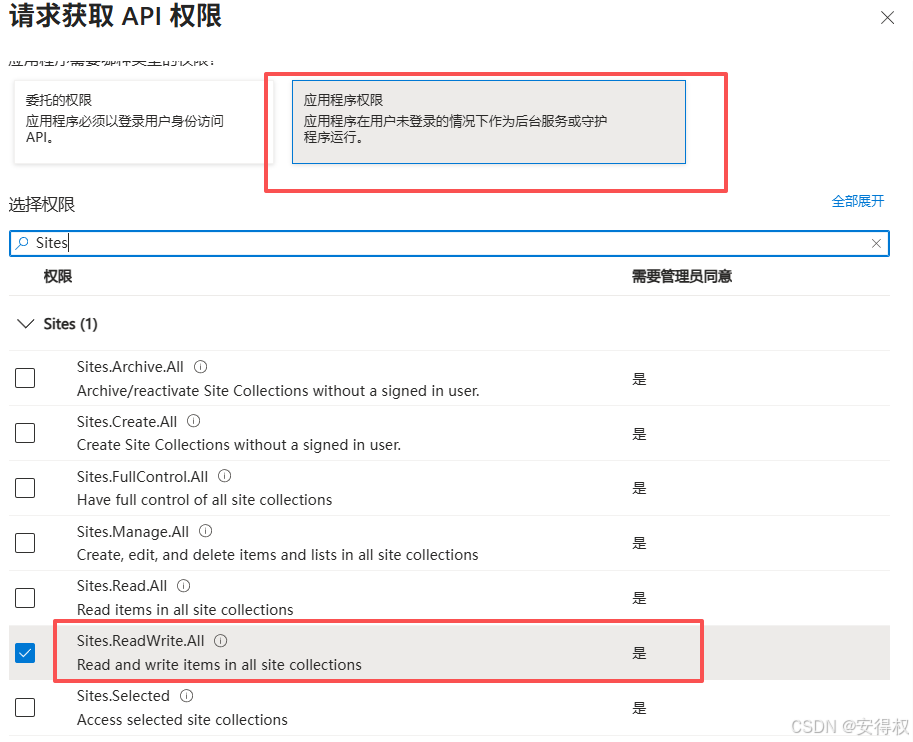
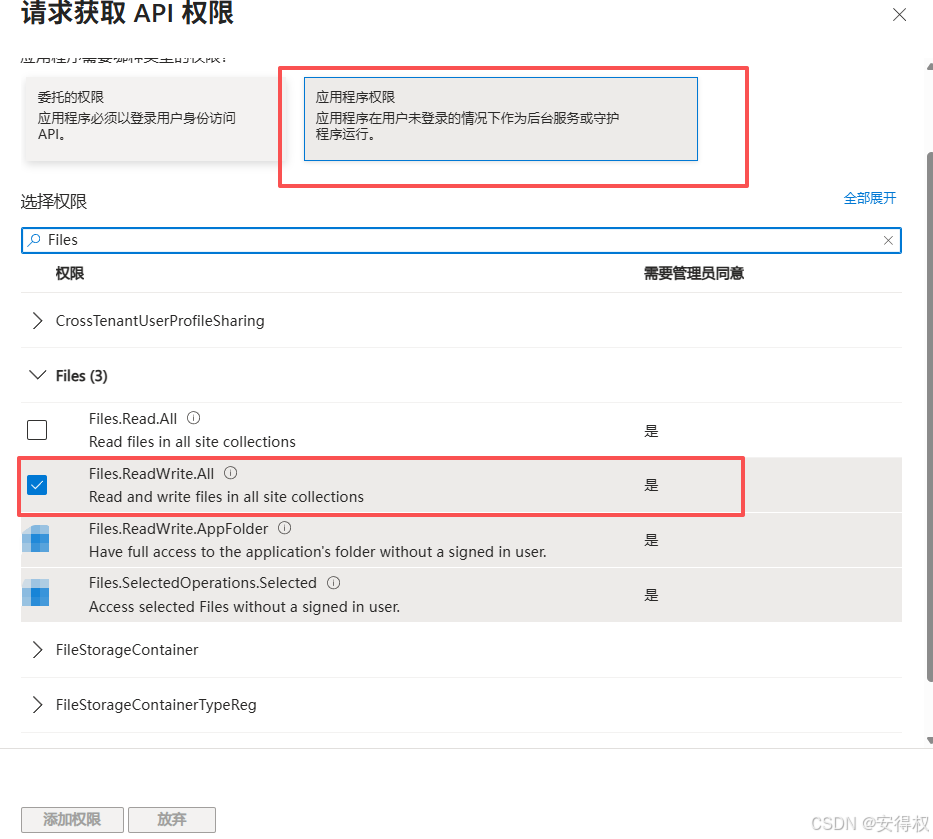
应用程序权限
在应用程序里边找到
✅ Sites.ReadWrite.All
✅ Files.ReadWrite.All
注:这样设置是完整访问,开发/测试环境 推荐。
生产环境推荐如下:
bash
✅ Sites.Selected
使用 Sites.Selected 后,需要通过 PowerShell 或 Graph API 授予特定站点权限:

# 授予特定站点权限
Connect-MgGraph -Scopes "Sites.FullControl.All"

$appId = "f9885bb6-xxxx-xxxx-xxxx-xxxxxxxxxxxx"
$siteId = "<你的站点ID>"

# 授予写入权限
Invoke-MgGraphRequest -Method POST `
  -Uri "https://graph.microsoft.com/v1.0/sites/$siteId/permissions" `
  -Body @{
    roles = @("write")
    grantedToIdentities = @(
      @{
        application = @{
          id = $appId
          displayName = "YourAppName"
        }
      }
    )
  }
3 - 实例代码
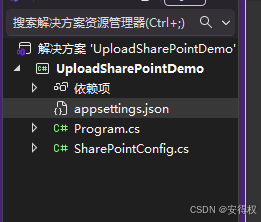
3.1 项目结构
3.1.1 appsettings.json
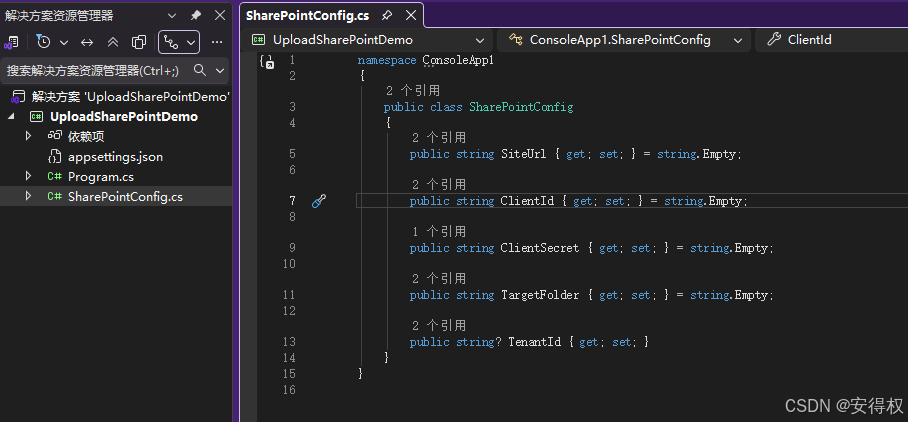
3.1.2 SharePointConfig.cs
3.1.3 Program.cs
csharp
using Microsoft.Extensions.Configuration;
using Microsoft.Graph;
using Azure.Identity;
using Microsoft.Graph.Models;
using Microsoft.Kiota.Abstractions;

namespace ConsoleApp1
{
    internal class Program
    {
        static async Task Main(string[] args)
        {
            // 检查是否运行诊断模式
            if (args.Length > 0 && args[0].Equals("--diagnose", StringComparison.OrdinalIgnoreCase))
            {
                return;
            }

            try
            {
                // 读取配置文件
                var configuration = new ConfigurationBuilder()
                    .SetBasePath(Directory.GetCurrentDirectory())
                    .AddJsonFile("appsettings.json", optional: false, reloadOnChange: true)
                    .Build();

                var config = configuration.GetSection("SharePoint").Get<SharePointConfig>();
                if (config == null)
                {
                    Console.WriteLine("无法读取 SharePoint 配置");
                    return;
                }

                // 要上传的文件路径
                string localFilePath = @"D:\TempExcel\1.txt";

                if (!File.Exists(localFilePath))
                {
                    Console.WriteLine($"文件不存在: {localFilePath}");
                    return;
                }

                Console.WriteLine("开始上传文件到 SharePoint...");
                Console.WriteLine($"本地文件: {localFilePath}");
                Console.WriteLine($"目标站点: {config.SiteUrl}");
                Console.WriteLine($"目标文件夹: {config.TargetFolder}");

                // 上传文件
                await UploadFileToSharePoint(config, localFilePath);

                Console.WriteLine("文件上传成功!");
            }
            catch (Exception ex)
            {
                Console.WriteLine($"错误: {ex.Message}");
                Console.WriteLine($"详细信息: {ex}");
                Console.WriteLine("\n提示: 运行 'dotnet run --diagnose' 来诊断配置问题");
            }
        }

        static async Task UploadFileToSharePoint(SharePointConfig config, string filePath)
        {
            // 从 SiteUrl 中提取租户、站点路径
            var uri = new Uri(config.SiteUrl);
            var tenantName = uri.Host.Split('.')[0]; // 例如:xxx
            var sitePath = uri.AbsolutePath; // 例如:/sites/xxx

            // 确定租户 ID
            string tenantId;
            if (!string.IsNullOrEmpty(config.TenantId))
            {
                tenantId = config.TenantId;
                Console.WriteLine($"使用配置的租户 ID: {tenantId}");
            }
            else
            {
                tenantId = $"{tenantName}.onmicrosoft.com";
                Console.WriteLine($"使用推断的租户 ID: {tenantId}");
            }

            // 创建 ClientSecretCredential
            Console.WriteLine($"客户端 ID: {config.ClientId}");
            var credential = new ClientSecretCredential(
                tenantId: tenantId,
                clientId: config.ClientId,
                clientSecret: config.ClientSecret
            );

            // 创建 Graph 客户端
            var graphClient = new GraphServiceClient(credential, new[] { "https://graph.microsoft.com/.default" });

            // 获取站点 ID
            Console.WriteLine("正在获取站点信息...");
            Console.WriteLine($"站点标识符: {tenantName}.sharepoint.com:{sitePath}");

            var site = await graphClient.Sites[$"{tenantName}.sharepoint.com:{sitePath}"].GetAsync();

            if (site == null || site.Id == null)
            {
                throw new Exception("无法获取站点信息");
            }

            Console.WriteLine($"站点 ID: {site.Id}");

            // 获取驱动器
            var drive = await graphClient.Sites[site.Id].Drive.GetAsync();
            if (drive == null || drive.Id == null)
            {
                throw new Exception("无法获取驱动器信息");
            }

            Console.WriteLine($"驱动器 ID: {drive.Id}");

            // 获取文件名
            string fileName = Path.GetFileName(filePath);

            // 构建目标路径(移除开头的斜杠)
            string targetPath = config.TargetFolder.TrimStart('/');
            string fullPath = $"{targetPath}/{fileName}";

            // 读取文件内容
            using var fileStream = File.OpenRead(filePath);

            // 上传文件
            Console.WriteLine($"正在上传文件: {fileName}...");

            // 对于小文件(< 4MB),使用简单上传
            var fileInfo = new FileInfo(filePath);
            if (fileInfo.Length < 4 * 1024 * 1024) // 4MB
            {
                // 使用 PUT 方法上传小文件
                await graphClient.Drives[drive.Id]
                    .Items["root"]
                    .ItemWithPath(fullPath)
                    .Content
                    .PutAsync(fileStream);

                Console.WriteLine($"文件已上传到: {fullPath}");
            }
            else
            {
                // 对于大文件,使用分块上传
                var uploadSessionRequestBody = new Microsoft.Graph.Drives.Item.Items.Item.CreateUploadSession.CreateUploadSessionPostRequestBody
                {
                    Item = new DriveItemUploadableProperties
                    {
                        AdditionalData = new Dictionary<string, object>
                        {
                            { "@microsoft.graph.conflictBehavior", "replace" }
                        }
                    }
                };

                var uploadSession = await graphClient.Drives[drive.Id]
                    .Items["root"]
                    .ItemWithPath(fullPath)
                    .CreateUploadSession
                    .PostAsync(uploadSessionRequestBody);

                if (uploadSession?.UploadUrl == null)
                {
                    throw new Exception("无法创建上传会话");
                }

                // 使用上传会话上传大文件
                var maxSliceSize = 320 * 1024; // 320 KB - 每次上传的块大小
                var fileUploadTask = new LargeFileUploadTask<DriveItem>(uploadSession, fileStream, maxSliceSize, graphClient.RequestAdapter);

                var uploadResult = await fileUploadTask.UploadAsync();

                if (uploadResult.UploadSucceeded)
                {
                    Console.WriteLine($"大文件已上传到: {fullPath}");
                }
                else
                {
                    throw new Exception("文件上传失败");
                }
            }
        }
    }
}
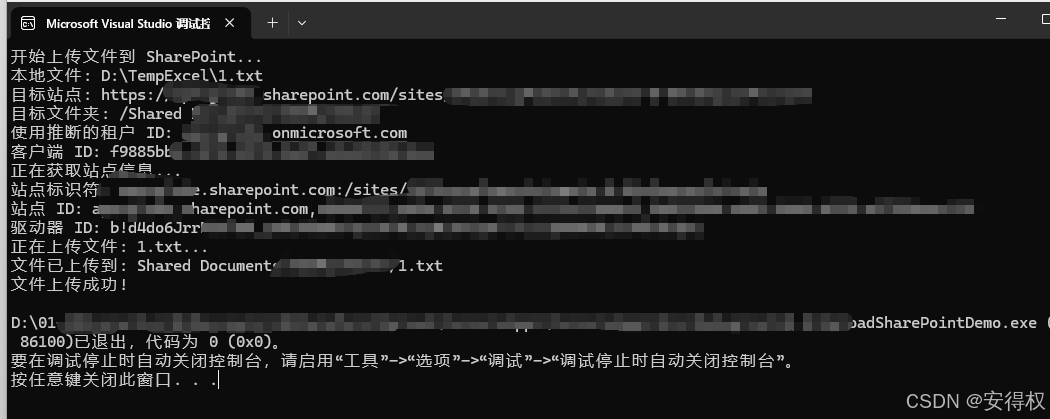
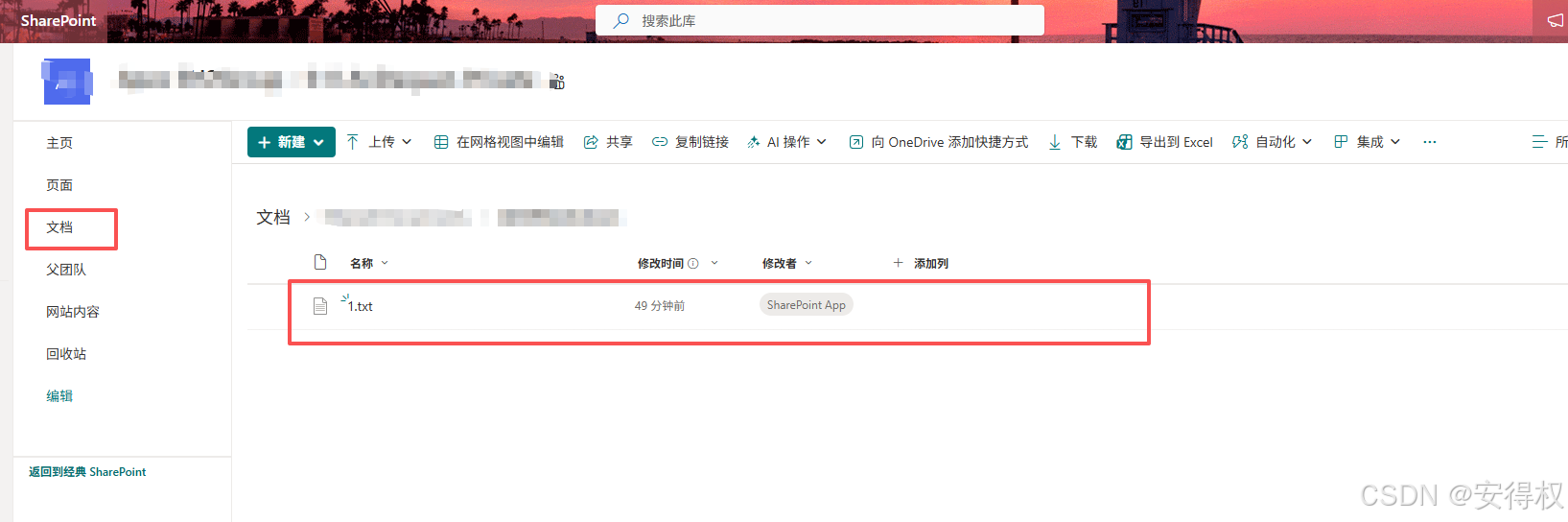
4-1 运行结果 - Success