✅ 步骤一:创建 ASP.NET Web Service 项目(.asmx)
前提:安装了 Visual Studio(建议 VS 2019/2022)和 .NET Framework 开发组件(因为 .asmx 是 .NET Framework 技术,不适用于 .NET Core/.NET 6+)。
. 新建项目
打开 Visual Studio。
选择 "创建新项目"。
搜索并选择 "ASP.NET Web 应用程序 (.NET Framework)"。
项目名称例如:TestSFCWebService
点击"下一步"。
. 选择模板
在模板中选择 "空"。
勾选 "Web Forms"(虽然你不需要页面,但 .asmx 依赖 Web Forms 运行时)。
点击"创建"。
. 添加 .asmx Web Service
在解决方案资源管理器中,右键项目 → "添加" → "新建项"。
选择 "Web 服务 (ASMX)"。
文件名输入:SFCFunctionList.asmx
点击"添加"。
. 编写服务方法
打开 SFCFunctionList.asmx.cs,修改为如下内容:
cs
using System;
using System.Web.Services;
using System.Xml;

namespace TestSFCWebService
{
    [WebService(Namespace = "http://tempuri.org/")]
    [WebServiceBinding(ConformsTo = WsiProfiles.BasicProfile1_1)]
    [System.ComponentModel.ToolboxItem(false)]
    public class SFCFunctionList : System.Web.Services.WebService
    {
        [WebMethod]
        public string ReadXmlData(string arg0)
        {
            try
            {
                // 解析传入的 XML
                XmlDocument doc = new XmlDocument();
                doc.LoadXml(arg0);

                // 示例:提取 SSN 和 result
                var ssnNode = doc.SelectSingleNode("//ServiceParam[@Name='SSN']");
                var resultNode = doc.SelectSingleNode("//ServiceParam[@Name='result']");

                string ssn = ssnNode?.Attributes["Value"]?.Value ?? "N/A";
                string result = resultNode?.Attributes["Value"]?.Value ?? "N/A";

                // 返回模拟成功响应(你可以自定义格式)
                return $"<Response><Status>Success</Status><SSN>{ssn}</SSN><Result>{result}</Result></Response>";
            }
            catch (Exception ex)
            {
                return $"<Response><Status>Error</Status><Message>{ex.Message}</Message></Response>";
            }
        }
    }
}
✅ 这个方法会接收你提供的 XML 字符串,解析后返回一个简单的 XML 响应。
✅ 步骤二:启用 HTTPS(SSL)
为了模拟 https://...:8885 的效果,你需要启用 HTTPS。
方式 A:使用 IIS Express(开发调试用,默认端口如 443xx)
在 Visual Studio 中,点击运行(IIS Express)。
默认会启动一个 https://localhost:xxxxx/... 地址。
你可以通过修改 applicationhost.config(位于 .vs\config)来指定端口为 8885:
Xml
编辑
<binding protocol="https" bindingInformation="*:8885:localhost" />
启动后访问:https://localhost:8885/SFCFunctionList.asmx
通过以上方式生成的项目,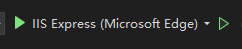 运行后,https无法访问
需要绑定证书
打开证书管理器 certlm.msc
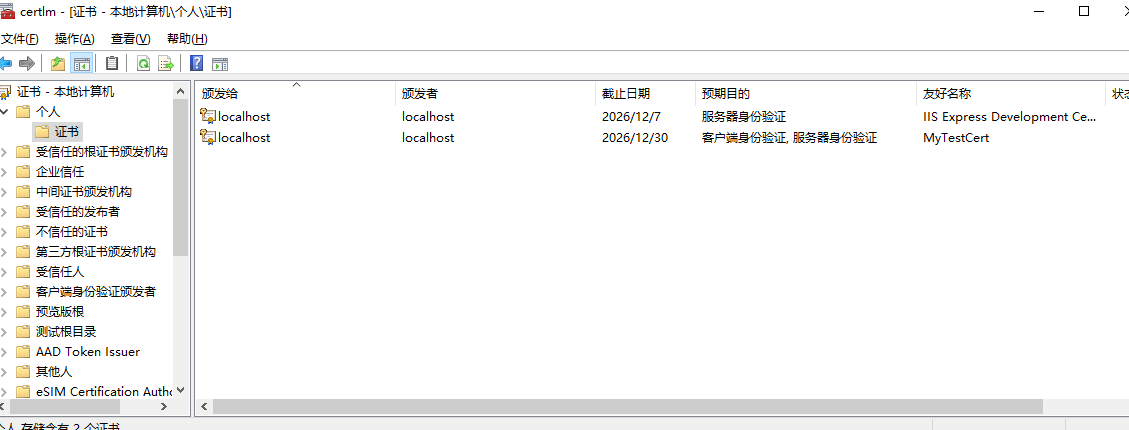
右键申请新证书--> 打开查看 指纹
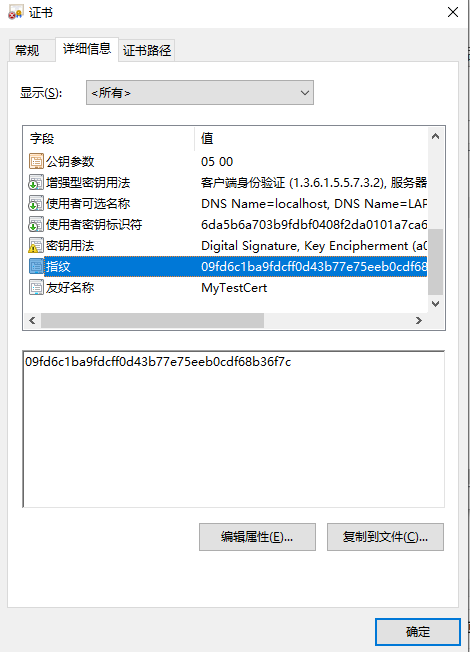
右键 管理私钥 添加权限 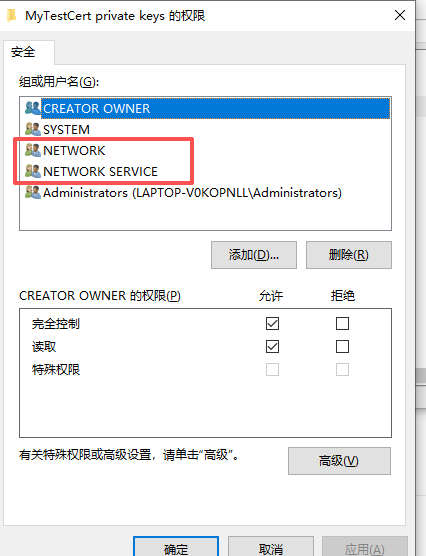
然后打开power shell
 appid可以随便填