文章目录
一、滑动验证码
在现代网络安全体系中,人机验证机制扮演着至关重要的角色。传统的文本验证码由于识别困难、用户体验差等问题逐渐被更先进的验证方式取代。滑动验证码作为一种新型的人机验证手段,凭借其直观的操作体验和良好的安全性,广泛应用于各类网站和应用程序中。本文将详细介绍如何使用 HTML、CSS 和 JavaScript 构建一个完整的滑动验证码系统。
二、效果演示
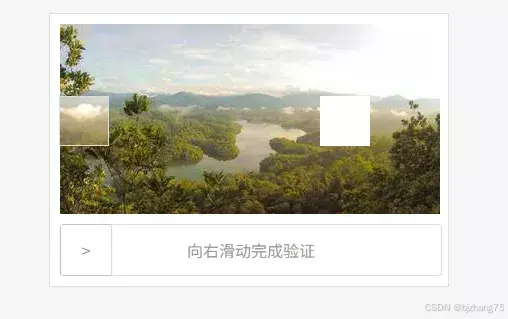
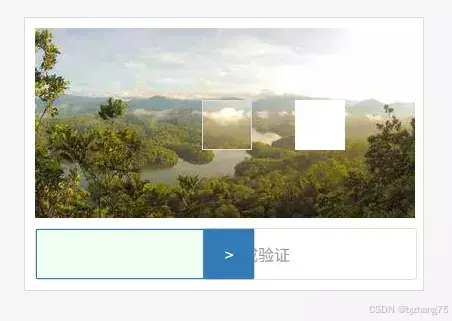
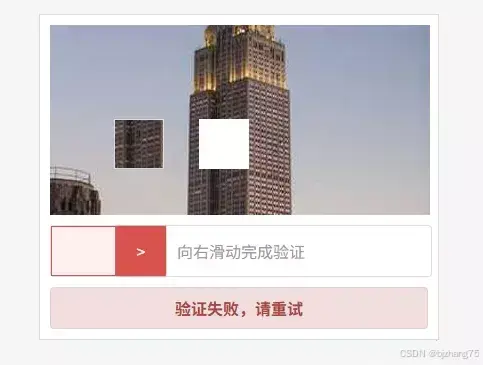
滑动验证码的核心交互流程包括图像加载、拼图生成、用户拖拽和验证判断四个阶段,用户通过拖拽右侧滑块向右移动,使拼图块与背景图像中的缺口对齐,验证成功时显示绿色成功提示,失败则显示红色错误信息并自动重置。
三、系统分析
1、页面结构
整个滑动验证码系统采用简洁清晰的 HTML 结构设计,主要包括图像显示区(verify-img)、滑动控制区(erify-bar-box)和结果显示区(verify-result)三个核心部分。
html
<div class="verify-container">
<div class="verify-box">
<div class="verify-img">
<img class="back-img" src="" style="width:100%;height:100%;"/>
<div class="loading-indicator" id="backImgLoading" style="position:absolute;top:50%;left:50%;transform:translate(-50%,-50%);color:#666;font-size:14px;display:none;">加载中...</div>
</div>
<div class="verify-bar-box">
<span class="verify-msg">向右滑动完成验证</span>
<div class="verify-left-bar"></div>
<div class="verify-move-block">
<span>></span>
<div class="verify-sub-block">
<img class="block-img" src="" style="width:100%;height:100%;"/>
</div>
</div>
</div>
</div>
<div class="verify-result" id="verifyResult"></div>
</div>2、核心功能实现
2.1 初始化流程
主要实现了随机位置生成、图像加载和拼图绘制三个步骤。
javascript
async function init() {
  // 显示加载指示器
  showLoading()
  targetX = Math.floor(Math.random() * (imgWidth - bolckSize - 60)) + 30;
  targetY = Math.floor(Math.random() * (imgHeight - bolckSize - 20)) + 10;
  var img = await loadImg(imgUrl+'?'+Math.random());
  // 创建背景画布并绘制带缺口的图像
  var backCanvas = document.createElement('canvas')
  backCanvas.width = imgWidth;
  backCanvas.height = imgHeight;
  var backCtx = backCanvas.getContext('2d');
  backCtx.drawImage(img, 0, 0, 380, 190, 0, 0, imgWidth, imgHeight);
  backCtx.fillStyle = '#FFFFFF';
  backCtx.fillRect(targetX, targetY, 50, 50);
  backImg.src = backCanvas.toDataURL('image/png');
  // 创建拼图块
  var canvas = document.createElement('canvas')
  canvas.width = 50;
  canvas.height = 50;
  var ctx = canvas.getContext('2d');
  ctx.drawImage(img, targetX, targetY, bolckSize, bolckSize, 0, 0, bolckSize, bolckSize)
  blockImg.src = canvas.toDataURL('image/png');
  subBlock.style.top = (-201 + targetY) + 'px';
  // 隐藏加载指示器
  hideLoading()
}
2.2 拖拽交互处理
通过鼠标事件监听实现流畅的拖拽体验,当用户在滑块上按下鼠标并移动时,滑块滑块会随鼠标移动;当用户释放鼠标时,进行位置校验,如果失败滑块会变为红色并平滑的回到起点位置。
javascript
// 鼠标按下事件 - 开始拖拽
moveBlock.addEventListener('mousedown', function(e) {
  isDragging = true;
  startX = e.clientX;
  moveBlock.style.backgroundColor = '#337AB7';
  moveBlock.style.color = '#FFFFFF';
  verifyLeftBar.style.border = '1px solid #337AB7';
});
// 鼠标移动事件 - 拖拽过程
document.addEventListener('mousemove', function(e) {
  if (!isDragging) return;
  var newLeft = e.clientX - startX - 2;
  // 限制滑块移动范围
  if (newLeft < 0) newLeft = 0;
  if (newLeft > maxWidth) newLeft = maxWidth;

  moveBlock.style.left = newLeft + 'px';
  verifyLeftBar.style.width = newLeft + 'px';
  verifyLeftBar.style.border = '1px solid #337AB7';
});
// 鼠标释放事件 - 结束拖拽
document.addEventListener('mouseup', function() {
  if (!isDragging) return;
  isDragging = false;
  var currentPosition = moveBlock.offsetLeft;
  if (Math.abs(currentPosition - targetX) <= tolerance) {
    moveBlock.style.backgroundColor = '#5CB85C';
    moveBlock.style.color = '#FFFFFF';
    verifyLeftBar.style.border = '1px solid #5CB85C';

    // 显示成功提示
    verifyResult.textContent = '验证成功!';
    verifyResult.className = 'verify-result success';
    return;
  }
  moveBlock.style.backgroundColor = '#D9534F';
  moveBlock.style.color = '#FFFFFF';
  verifyLeftBar.style.border = '1px solid #D9534F';
  verifyLeftBar.style.backgroundColor = '#fff0f0';
  // 显示失败提示
  verifyResult.textContent = '验证失败,请重试';
  verifyResult.className = 'verify-result fail';
  // 滑块回弹动画
  moveBlock.style.transition = 'left 0.8s';
  moveBlock.style.left = '0px';

  verifyLeftBar.style.transition = 'width 0.8s';
  verifyLeftBar.style.width = '0px';

  // 动画结束后清除过渡效果
  setTimeout(() => {
    init()
    moveBlock.style.transition = '';
    verifyLeftBar.style.transition = '';
    moveBlock.style.backgroundColor = '#FFFFFF';
    moveBlock.style.color = '#999';
    verifyLeftBar.style.backgroundColor = '#F0FFF0';
    // 清除验证结果提示
    verifyResult.className = 'verify-result';
  }, 800);
});
四、扩展建议
- 添加服务器端验证,防止客户端伪造结果
- 增加行为特征检测,识别自动化工具攻击
- 添加个性化拼图形状设计,丰富视觉表现
- 增加重试次数限制机制,防止无限重试
五、完整代码
html
<!DOCTYPE html>
<html lang="zh-CN">
<head>
<meta charset="UTF-8">
<meta name="viewport" content="width=device-width, initial-scale=1.0">
<title>滑动验证码</title>
<style>
* {
margin: 0;
padding: 0;
box-sizing: border-box;
}
body {
background: #f5f5f5;
}
.container {
display: flex;
padding: 20px;
justify-content: center;
}
.verify-container {
background: #fff;
width:400px;
padding: 10px;
border: 1px solid #ddd;
user-select: none;
}
.verify-img {
width: 380px;
height: 190px;
margin-bottom: 10px;
position: relative;
}
.verify-bar-box {
width: 380px;
height: 50px;
line-height: 50px;
position: relative;
background: #FFFFFF;
text-align: center;
box-sizing: content-box;
border: 1px solid #ddd;
border-radius: 4px;
color: #999;
}
.verify-left-bar {
background: #f0fff0;
position: absolute;
top: 0;
left: 0;
height: 50px;
}
.verify-move-block {
position: absolute;
top: 0;
left: 0;
background: #fff;
cursor: pointer;
box-sizing: content-box;
box-shadow: 0 0 2px #888888;
border-radius: 1px;
width: 50px;
height: 50px;
}
.verify-sub-block {
position: absolute;
border: 1px solid #ddd;
height: 50px;
left: -2px;
top: -201px;
}
.verify-result {
margin-top: 10px;
padding: 8px 12px;
text-align: center;
border-radius: 4px;
font-weight: bold;
display: none;
}
.verify-result.success {
background-color: #dff0d8;
color: #3c763d;
border: 1px solid #d6e9c6;
display: block;
}
.verify-result.fail {
background-color: #f2dede;
color: #a94442;
border: 1px solid #ebccd1;
display: block;
}
.loading-indicator {
padding: 5px 10px;
border-radius: 4px;
}
</style>
</head>
<body>
<div class="container">
<div class="verify-container">
<div class="verify-box">
<div class="verify-img">
<img class="back-img" src="" style="width:100%;height:100%;"/>
<div class="loading-indicator" id="backImgLoading" style="position:absolute;top:50%;left:50%;transform:translate(-50%,-50%);color:#666;font-size:14px;display:none;">加载中...</div>
</div>
<div class="verify-bar-box">
<span class="verify-msg">向右滑动完成验证</span>
<div class="verify-left-bar"></div>
<div class="verify-move-block">
<span>></span>
<div class="verify-sub-block">
<img class="block-img" src="" style="width:100%;height:100%;"/>
</div>
</div>
</div>
</div>
<div class="verify-result" id="verifyResult"></div>
</div>
</div>
<script>
var verifyBarBox = document.querySelector('.verify-bar-box');
var moveBlock = document.querySelector('.verify-move-block');
var verifyLeftBar = document.querySelector('.verify-left-bar');
var backImg = document.querySelector('.back-img');
var subBlock = document.querySelector('.verify-sub-block');
var blockImg = document.querySelector('.block-img');
var verifyResult = document.getElementById('verifyResult');
var backImgLoading = document.getElementById('backImgLoading');
var startX = 0;
var isDragging = false;
var maxWidth = verifyBarBox.offsetWidth - moveBlock.offsetWidth;
var imgUrl = 'https://picsum.photos/380/190';
var imgWidth = 380;
var imgHeight = 190;
var bolckSize = 50;
var targetX = 0;
var targetY = 0;
var tolerance = 5;
init();
async function init() {
// 显示加载指示器
showLoading()
targetX = Math.floor(Math.random() * (imgWidth - bolckSize - 60)) + 30;
targetY = Math.floor(Math.random() * (imgHeight - bolckSize - 20)) + 10;
var img = await loadImg(imgUrl+'?'+Math.random());
// 创建背景画布并绘制带缺口的图像
var backCanvas = document.createElement('canvas')
backCanvas.width = imgWidth;
backCanvas.height = imgHeight;
var backCtx = backCanvas.getContext('2d');
backCtx.drawImage(img, 0, 0, 380, 190, 0, 0, imgWidth, imgHeight);
backCtx.fillStyle = '#FFFFFF';
backCtx.fillRect(targetX, targetY, 50, 50);
backImg.src = backCanvas.toDataURL('image/png');
// 创建拼图块
var canvas = document.createElement('canvas')
canvas.width = 50;
canvas.height = 50;
var ctx = canvas.getContext('2d');
ctx.drawImage(img, targetX, targetY, bolckSize, bolckSize, 0, 0, bolckSize, bolckSize)
blockImg.src = canvas.toDataURL('image/png');
subBlock.style.top = (-201 + targetY) + 'px';
// 隐藏加载指示器
hideLoading()
}
function showLoading() {
backImgLoading.style.display = 'block';
subBlock.style.display = 'none'
backImg.style.display = 'none'
}
function hideLoading() {
backImgLoading.style.display = 'none';
subBlock.style.display = 'block'
backImg.style.display = 'block'
}
// 绘制拼图块
function loadImg(url){
return new Promise((res,rej)=>{
const im = new Image();
im.crossOrigin='anonymous';
im.onload = ()=>res(im);
im.onerror= rej;
im.src = url;
});
}
// 鼠标按下事件 - 开始拖拽
moveBlock.addEventListener('mousedown', function(e) {
isDragging = true;
startX = e.clientX;
moveBlock.style.backgroundColor = '#337AB7';
moveBlock.style.color = '#FFFFFF';
verifyLeftBar.style.border = '1px solid #337AB7';
});
// 鼠标移动事件 - 拖拽过程
document.addEventListener('mousemove', function(e) {
if (!isDragging) return;
var newLeft = e.clientX - startX - 2;
// 限制滑块移动范围
if (newLeft < 0) newLeft = 0;
if (newLeft > maxWidth) newLeft = maxWidth;
moveBlock.style.left = newLeft + 'px';
verifyLeftBar.style.width = newLeft + 'px';
verifyLeftBar.style.border = '1px solid #337AB7';
});
// 鼠标释放事件 - 结束拖拽
document.addEventListener('mouseup', function() {
if (!isDragging) return;
isDragging = false;
var currentPosition = moveBlock.offsetLeft;
if (Math.abs(currentPosition - targetX) <= tolerance) {
moveBlock.style.backgroundColor = '#5CB85C';
moveBlock.style.color = '#FFFFFF';
verifyLeftBar.style.border = '1px solid #5CB85C';
// 显示成功提示
verifyResult.textContent = '验证成功!';
verifyResult.className = 'verify-result success';
return;
}
moveBlock.style.backgroundColor = '#D9534F';
moveBlock.style.color = '#FFFFFF';
verifyLeftBar.style.border = '1px solid #D9534F';
verifyLeftBar.style.backgroundColor = '#fff0f0';
// 显示失败提示
verifyResult.textContent = '验证失败,请重试';
verifyResult.className = 'verify-result fail';
// 滑块回弹动画
moveBlock.style.transition = 'left 0.8s';
moveBlock.style.left = '0px';
verifyLeftBar.style.transition = 'width 0.8s';
verifyLeftBar.style.width = '0px';
// 动画结束后清除过渡效果
setTimeout(() => {
init()
moveBlock.style.transition = '';
verifyLeftBar.style.transition = '';
moveBlock.style.backgroundColor = '#FFFFFF';
moveBlock.style.color = '#999';
verifyLeftBar.style.backgroundColor = '#F0FFF0';
// 清除验证结果提示
verifyResult.className = 'verify-result';
}, 800);
});
</script>
</body>
</html>