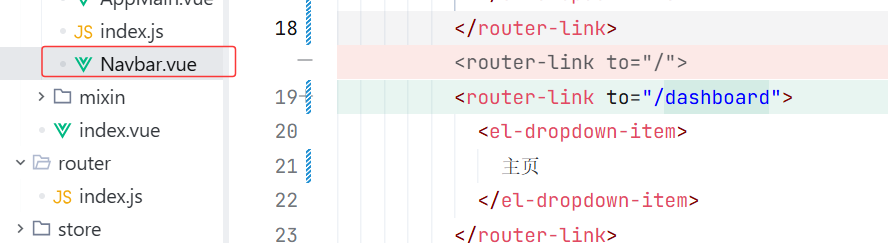
创建项目
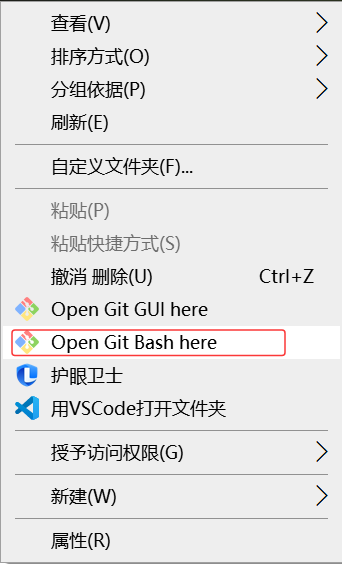
下载了 PanJiaChen 大神写的 vue-admin-template (这是一个在 GitHub 上非常火的后台管理系统模板)
- 这个模板自带了: 登录页、侧边栏、顶部导航、权限控制 等基础功能
git clone https://github.com/PanJiaChen/vue-admin-template.git health-web
-
安装依赖 : npm install
-
启动 : npm run dev
连接后端
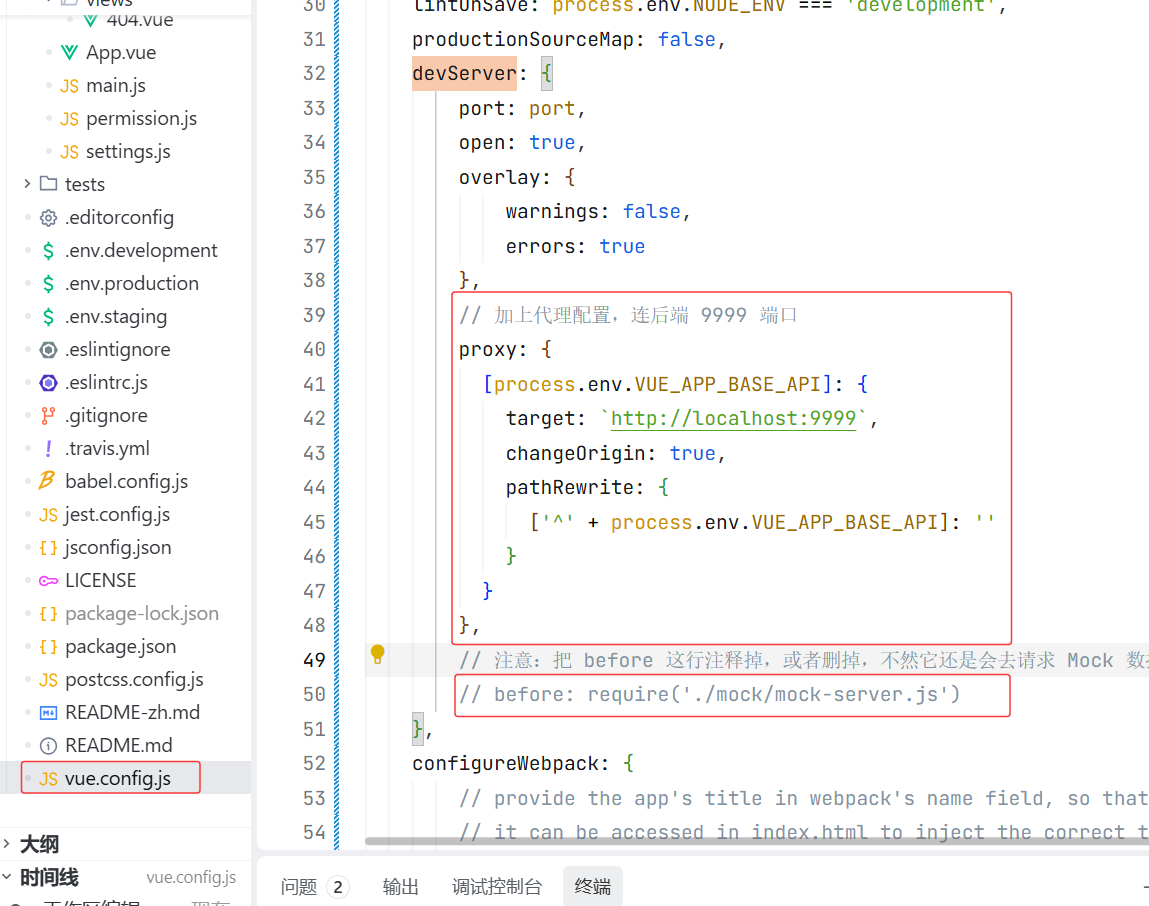
先取消Mock 数据(假数据)
在vue.config.js里面搜索devServer
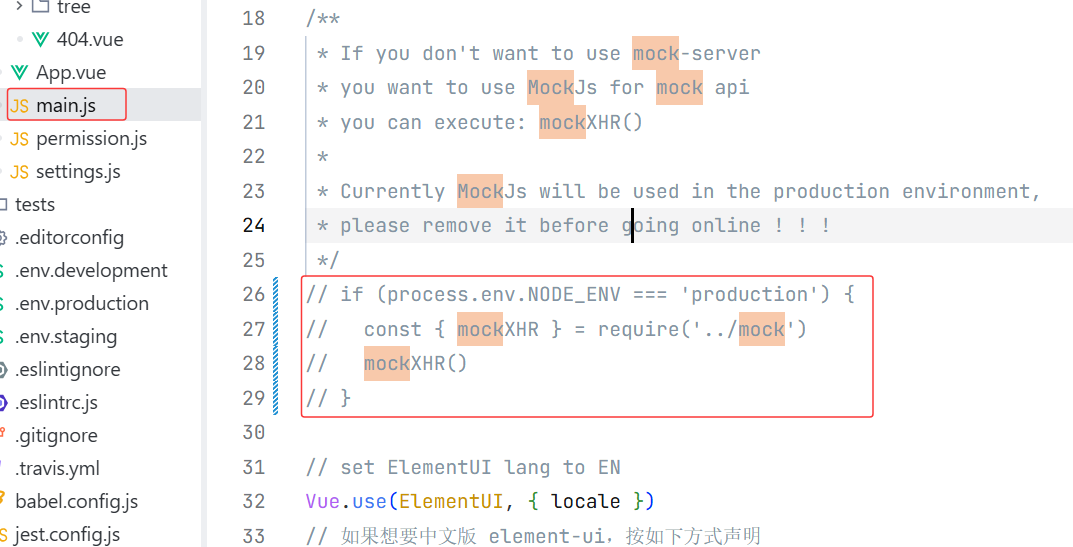
在main.js里面搜索mock 注释掉
完成登录页面
先完成样式 element ui一开始就有不用再配置
<template>
  <div class="login-container">
    <!-- 外层大框:圆角半透明背景 -->
    <div style="width: 500px; display: flex;background-color: rgba(0, 0, 0, 0); border-radius: 10px;">
      <!-- 内层表单区域 -->
      <div style="flex: 1;width: 50%;padding: 20px;display: flex;flex-direction: column;justify-content: center;" >

        <el-form ref="loginForm" :model="loginForm" class="login-form" auto-complete="on" label-position="top">

            <!-- 标题 -->
            <div class="title-container">
              <h3 class="title">"Welcome to the Personal Health Login System."</h3>
            </div>

            <!-- 用户名输入框 -->
            <el-form-item prop="username">
                <span class="svg-container">
                  <svg-icon icon-class="user" />
                </span>
                <el-input
                  v-model="loginForm.username"
                  placeholder="用户名"
                  name="username"
                  type="text"
                  tabindex="1"
                  auto-complete="on"
                  style="width: 80%;margin-left: 20px"
                />
            </el-form-item>

            <!-- 密码输入框 -->
            <el-form-item prop="password">
              <span class="svg-container">
                <svg-icon icon-class="password" />
              </span>
              <el-input
                :key="passwordType"
                ref="password"
                v-model="loginForm.password"
                :type="passwordType"
                placeholder="密码"
                name="password"
                tabindex="2"
                auto-complete="on"
                style="width: 80%;margin-left: 20px;"/>
              <span class="show-pwd" @click="showPwd">
                <svg-icon :icon-class="passwordType === 'password' ? 'eye' : 'eye-open'" />
              </span>
            </el-form-item>

            <!-- 登录按钮 -->
            <el-button
              type="primary"
              style="width: 30%;margin-left: 20px;margin-bottom: -50px"
              @click.native.prevent="handleLogin">登 陆</el-button>

            <!-- 注册按钮 -->
            <el-button
              type="primary"
              style="width: 30%; margin-left: 120px;"
              @click.native.prevent="handleRegister">注 册</el-button>
        </el-form>
      </div>
    </div>
  </div>
</template>

<script>
export default {
  name: "Login",
  data() {
    return {
      // 这里的变量是为了让输入框有地方存值,不报错
      loginForm: {
        username: "",
        password: "",
      },
      passwordType: "password",
      loading: false
    };
  },
  methods: {
    // 切换密码显示/隐藏的小眼睛功能(保留了这个,不然点小眼睛没反应)
    showPwd() {
      if (this.passwordType === "password") {
        this.passwordType = "";
      } else {
        this.passwordType = "password";
      }
      this.$nextTick(() => {
        this.$refs.password.focus();
      });
    },
    // 暂时只是打印一下,不发请求
    handleLogin() {
      console.log("点击了登录按钮,但现在只是个空壳子");
    },
    handleRegister() {
      console.log("点击了注册按钮");
    },
  },
};
</script>

<style lang="scss">
/* 修复input 背景不协调 和光标变色 */
$bg: #2d3a4b;
$dark_gray: #000000;
$light_gray: #eee;

.login-container {
  min-height: 100vh;
  width: 100%;
  background-color: $bg;
  display: flex;
  justify-content: center;
  align-items: center;

  // 背景图路径
  background-image: url("../../image/登录封面.png");
  background-size: 100%;

  .tips {
    font-size: 14px;
    color: #fff;
    margin-bottom: 10px;
    span {
      &:first-of-type {
        margin-right: 16px;
      }
    }
  }

  .svg-container {
    padding: 6px 5px 6px 15px;
    color: $dark_gray;
    vertical-align: middle;
    width: 30px;
    display: inline-block;
  }

  .title-container {
    position: relative;
    .title {
      font-size: 19px;
      color: $dark_gray;
      margin: 0px auto 50px auto;
      text-align: center;
      font-weight: bold;
    }
  }

  .show-pwd {
    position: absolute;
    right: 10px;
    top: 50%;
    transform: translateY(-50%);
    font-size: 16px;
    color: $dark_gray;
    cursor: pointer;
    user-select: none;
  }

  .el-form-item {
    margin-bottom: 20px;
  }

  .el-input {
    width: 100%;
    border: none;
    border-radius: 5px;
    background-color: #f7f7f7;
    input {
      padding: 15px;
      color: $dark_gray;
      &::placeholder {
        color: #ccc;
      }
    }
  }

  .el-button {
    height: 50px;
    border-radius: 25px;
    font-size: 16px;
    background-color: $dark_gray;
    border: none;
    &:hover,
    &:focus {
      background-color: darken($dark_gray, 10%);
    }
  }
}
</style>
发送登录请求
先写方法
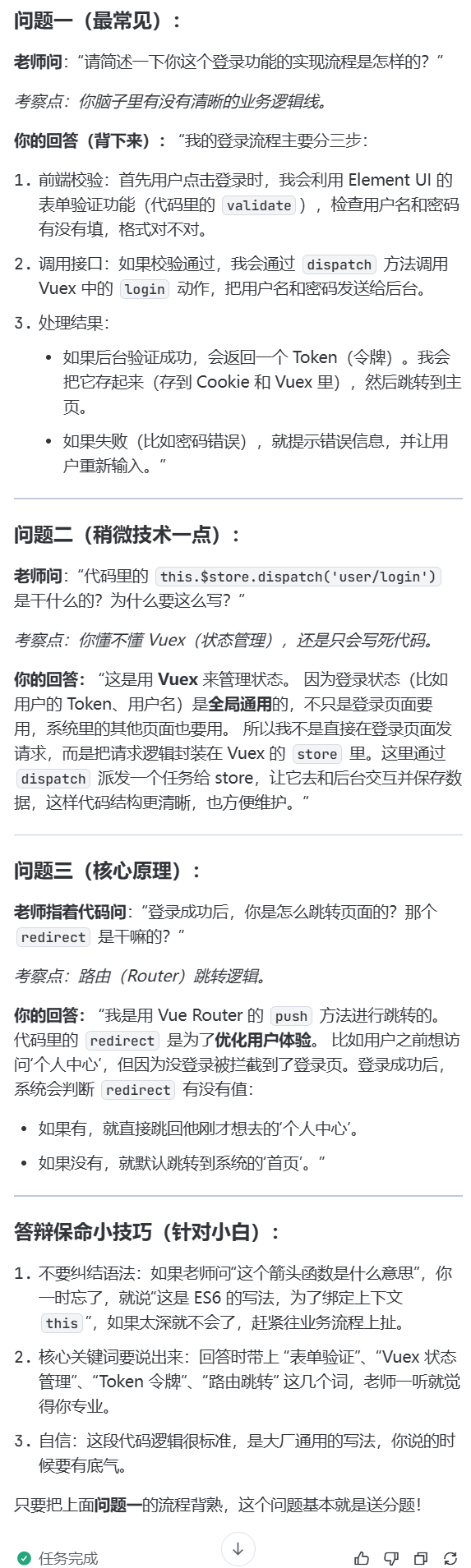
handleLogin() {
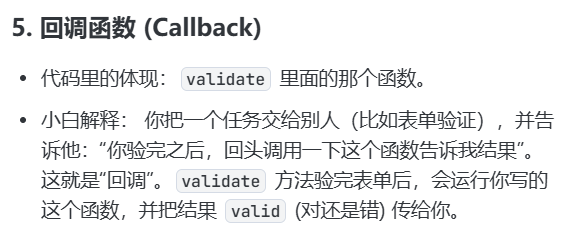
      this.$refs.loginForm.validate((valid) => {
        if (valid) {
          this.loading = true; // 显示 loading 状态圈
          this.$store
            .dispatch("user/login", this.loginForm)
            .then(() => {
              // 登录成功,跳转到目标路由
              console.log("数据", this.redirect)
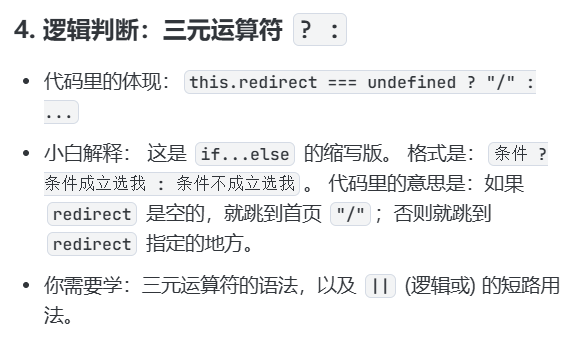
              this.$router.push({ path: this.redirect === undefined ? "/" : this.redirect || "/" });
              this.loading = false; // 隐藏 loading 状态
            })
            .catch(() => {
              this.loading = false; // 隐藏 loading 状态
            });
        } else {
          console.log("error submit!!");
          return false;
        }
      });
    },
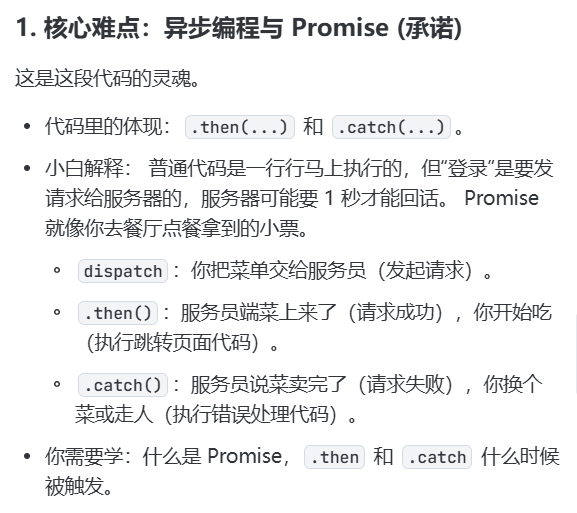
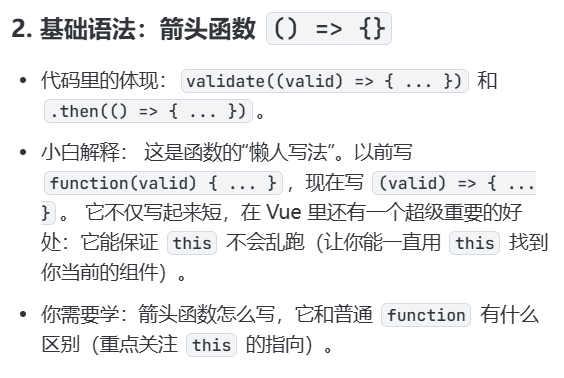
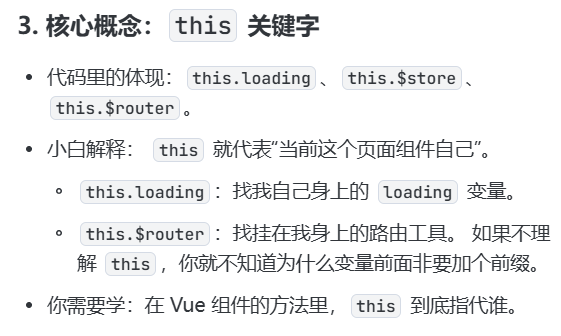
要实现这个功能你需要掌握
总结:学习路线建议
如果你想快速上手修改这类逻辑,建议按这个顺序补课:
ES6 箭头函数 (看懂 => 符号)
Promise 基础 (看懂 .then 是在等结果)
对象与 this (明白为什么要加 this. )
去后端完成接收请求的操作
接下来我们点击一下登录 看报错
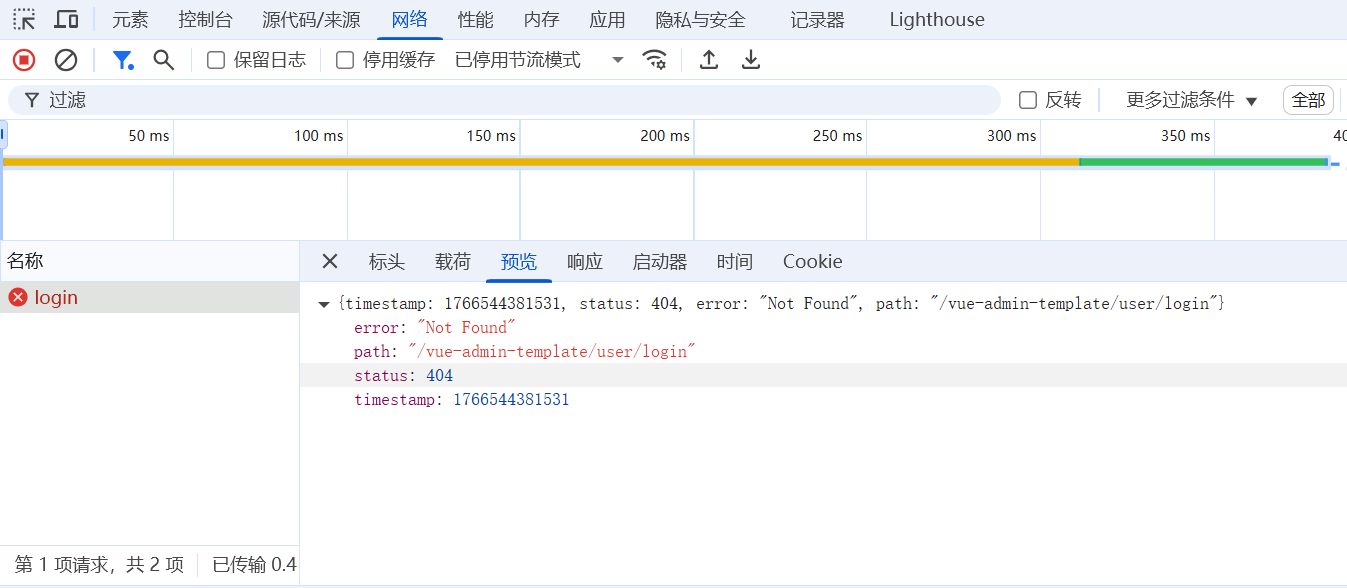
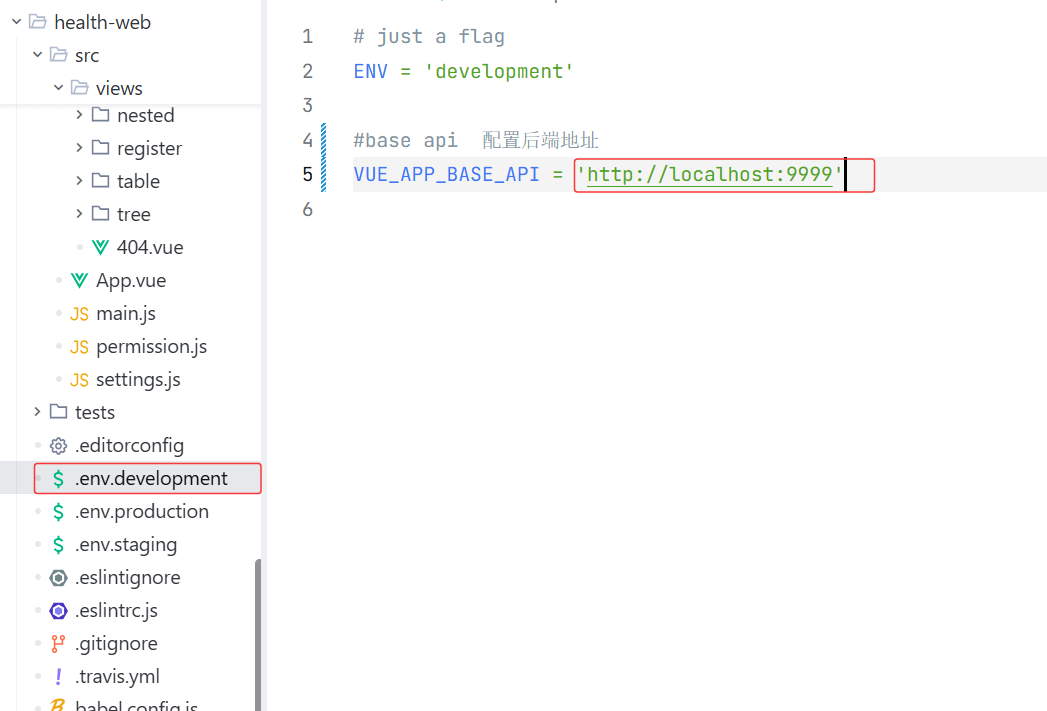
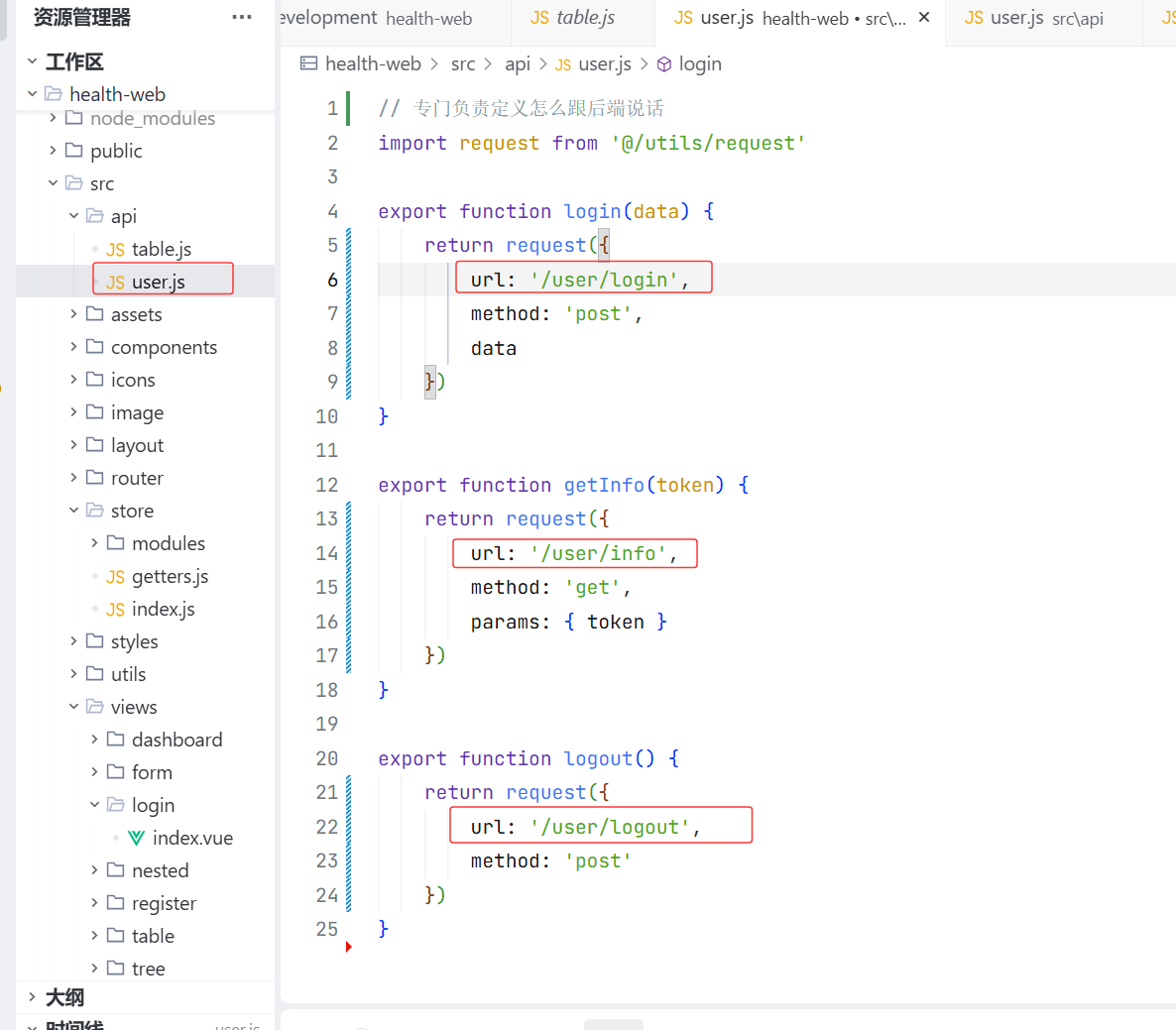
去api文件夹 axios
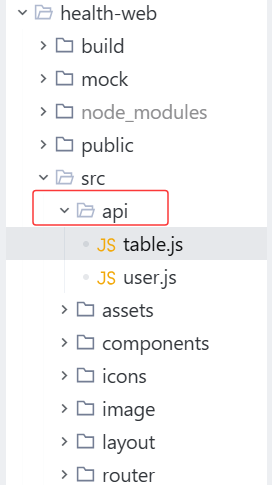
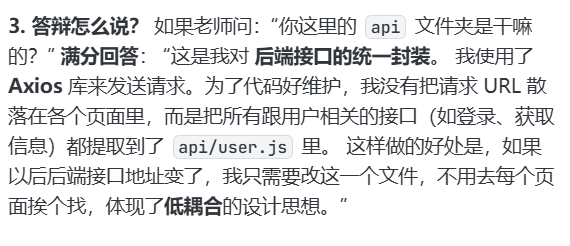
改成和后端接口一样的路径 用户登录 用户信息 用户退出
现在登录成功 但是还有一条报错
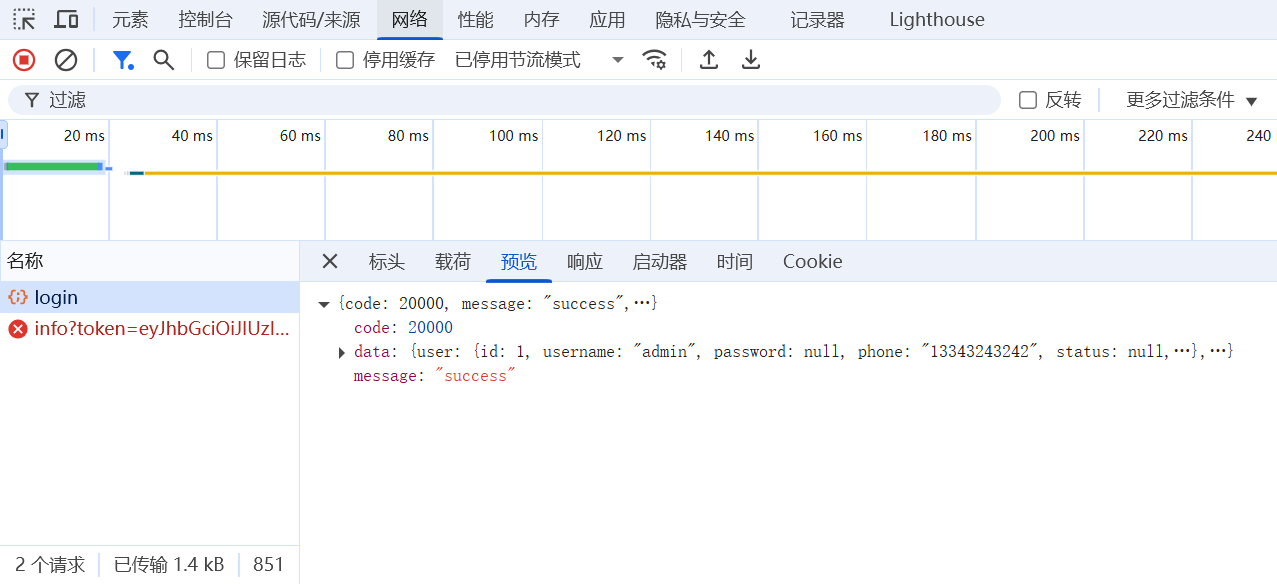
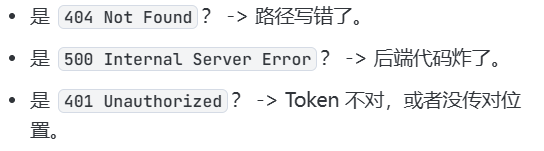
是因为后端没有写获取用户信息的接口

去后端写,写完之后 成功!!! 棒棒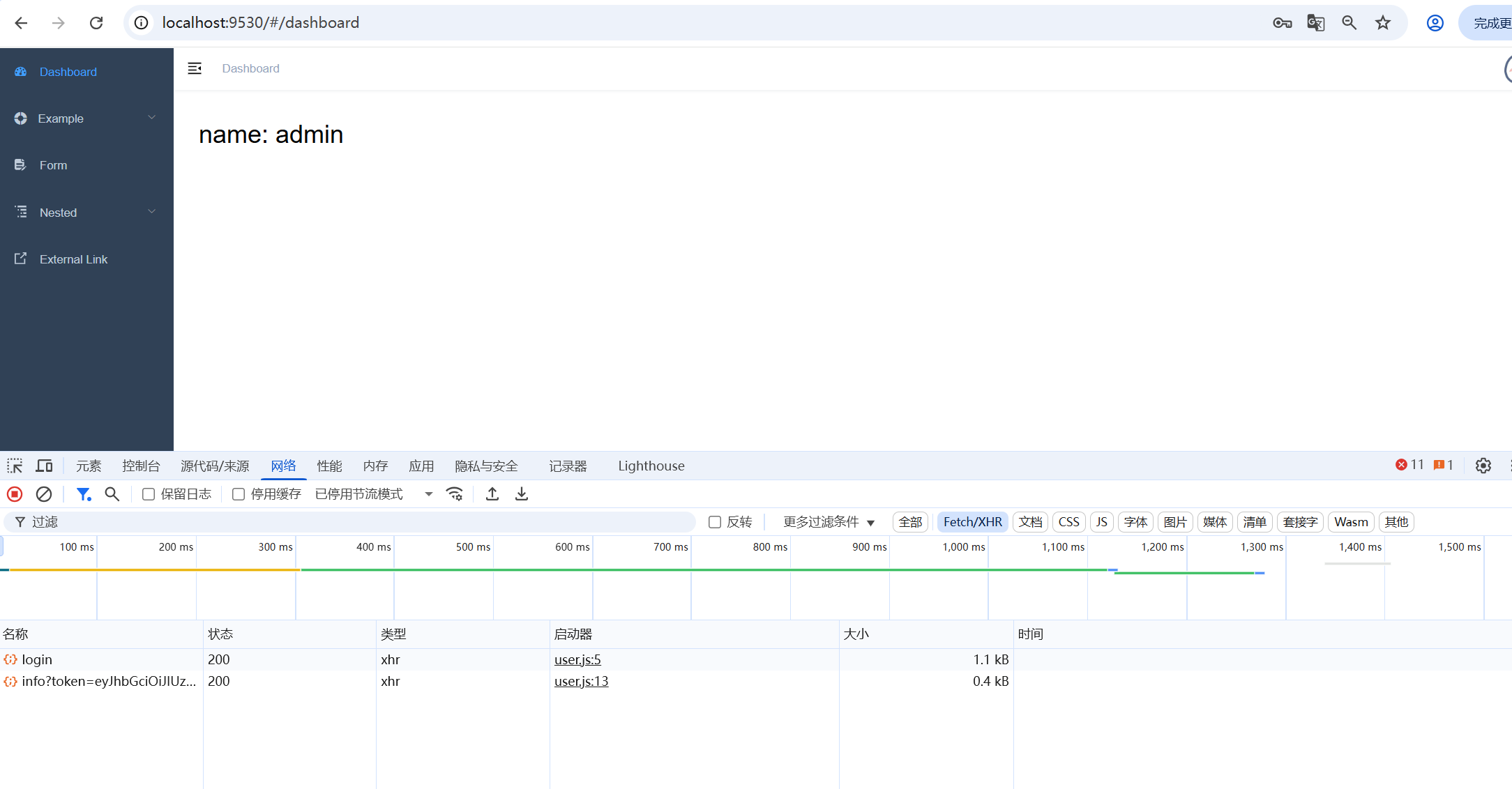
完善登录验证
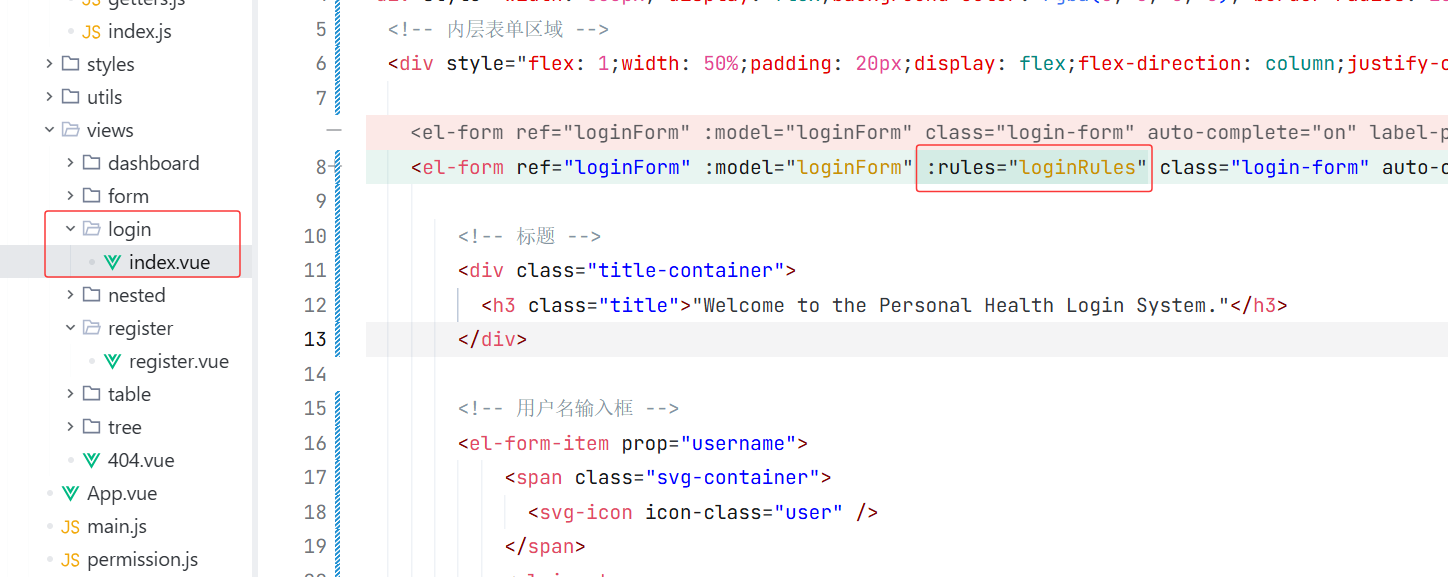
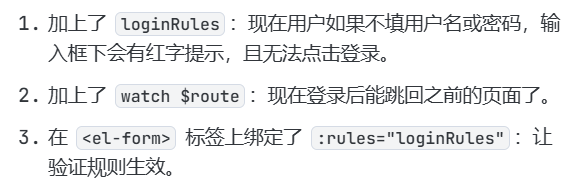
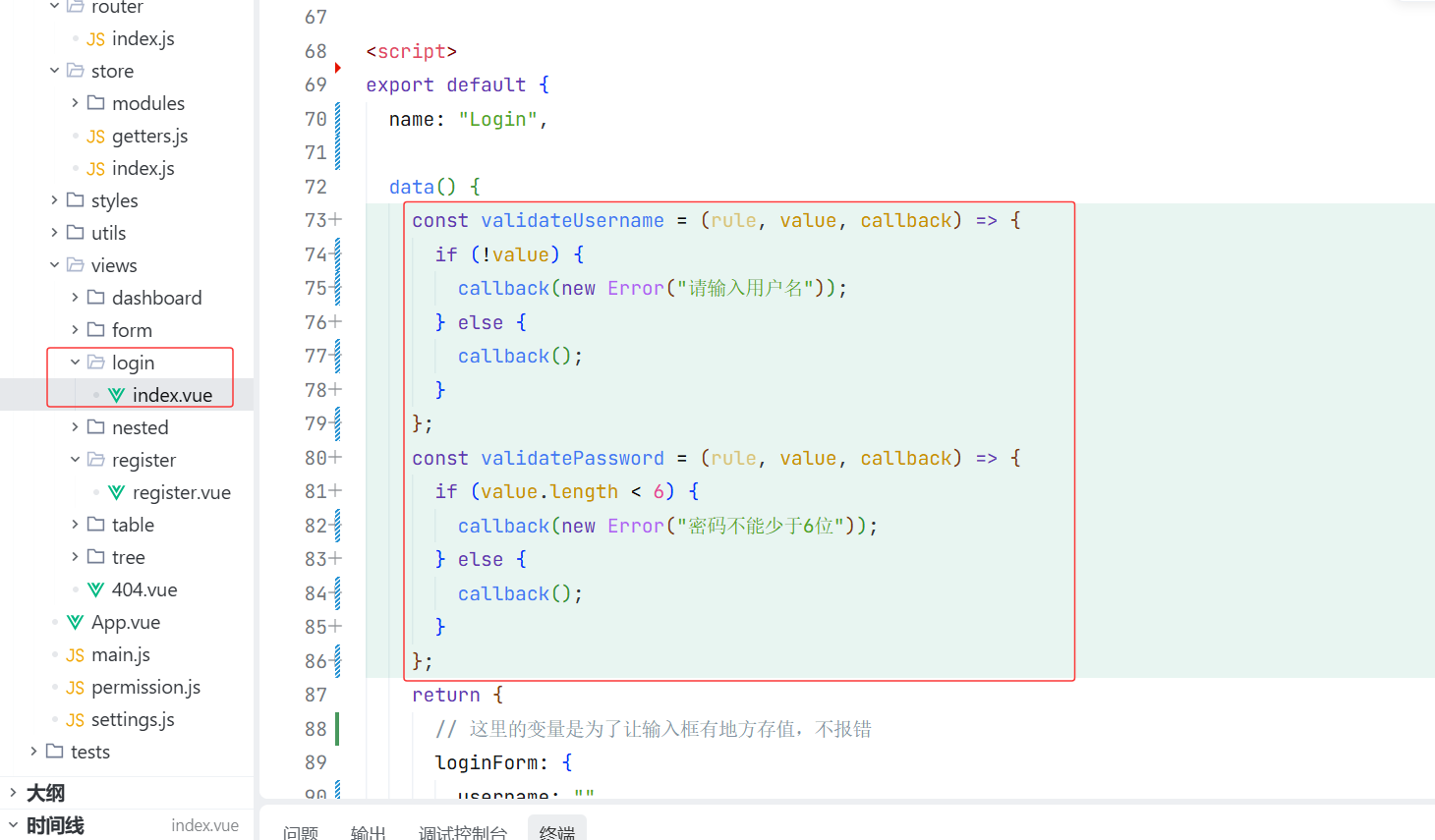
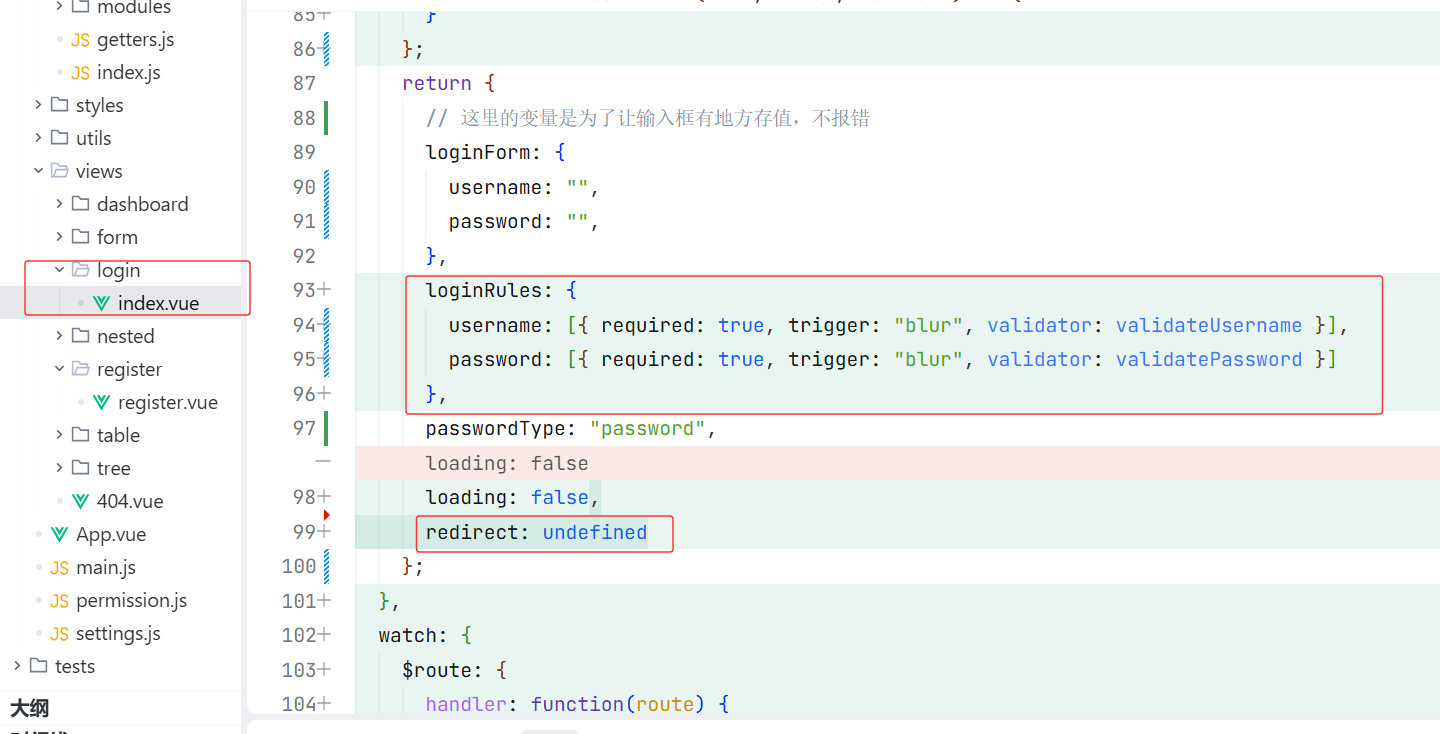
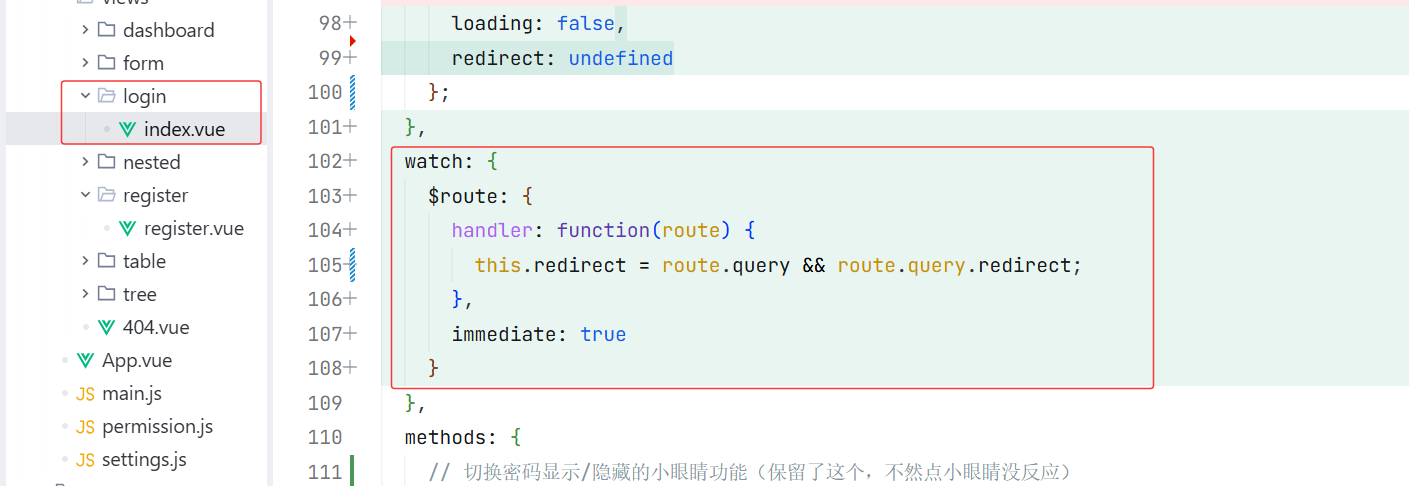
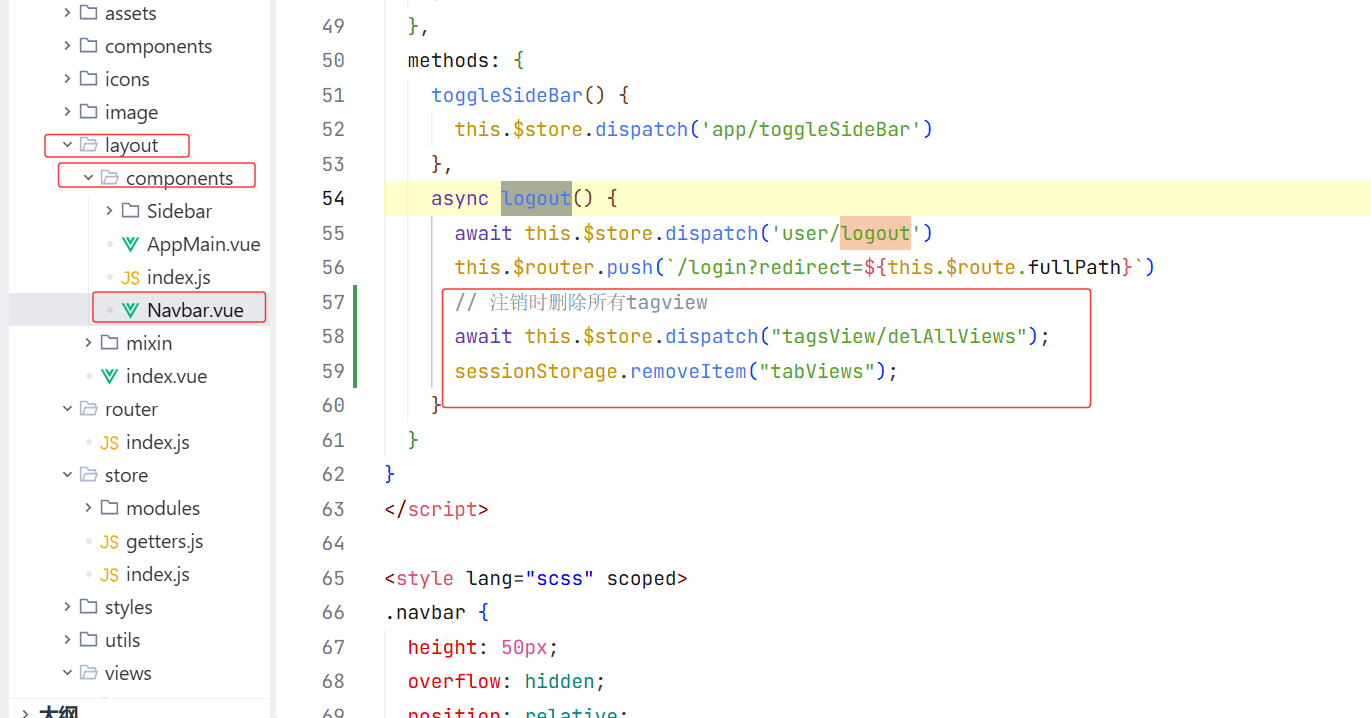
实现退出
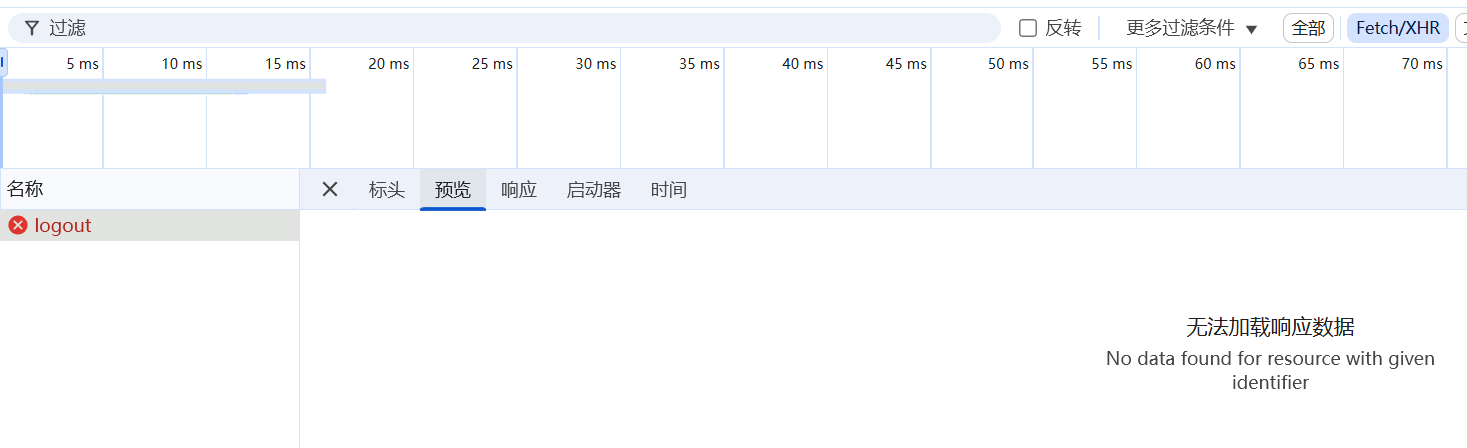
现在去完成后端
登录页面跳转到注册页面
完成功能跳转
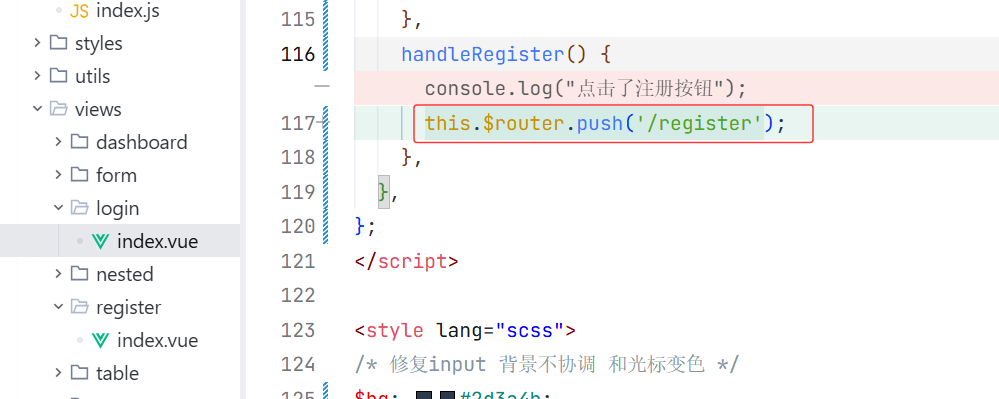
但是点击页面没有效果 我发现是因为路由我没加进去
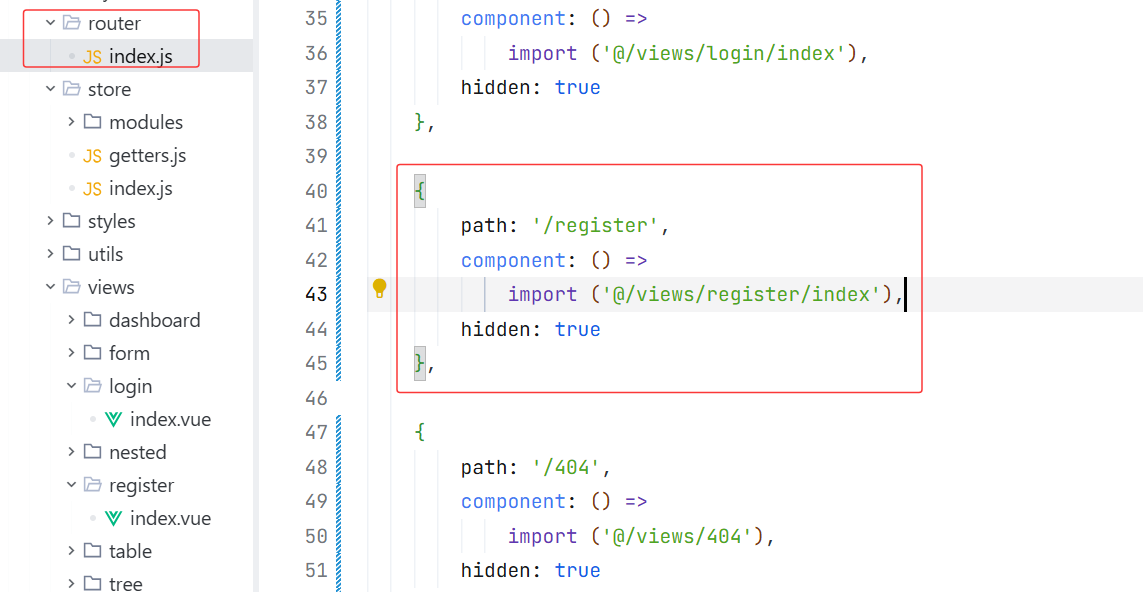
点击注册没反应,检查了路由,发现写错
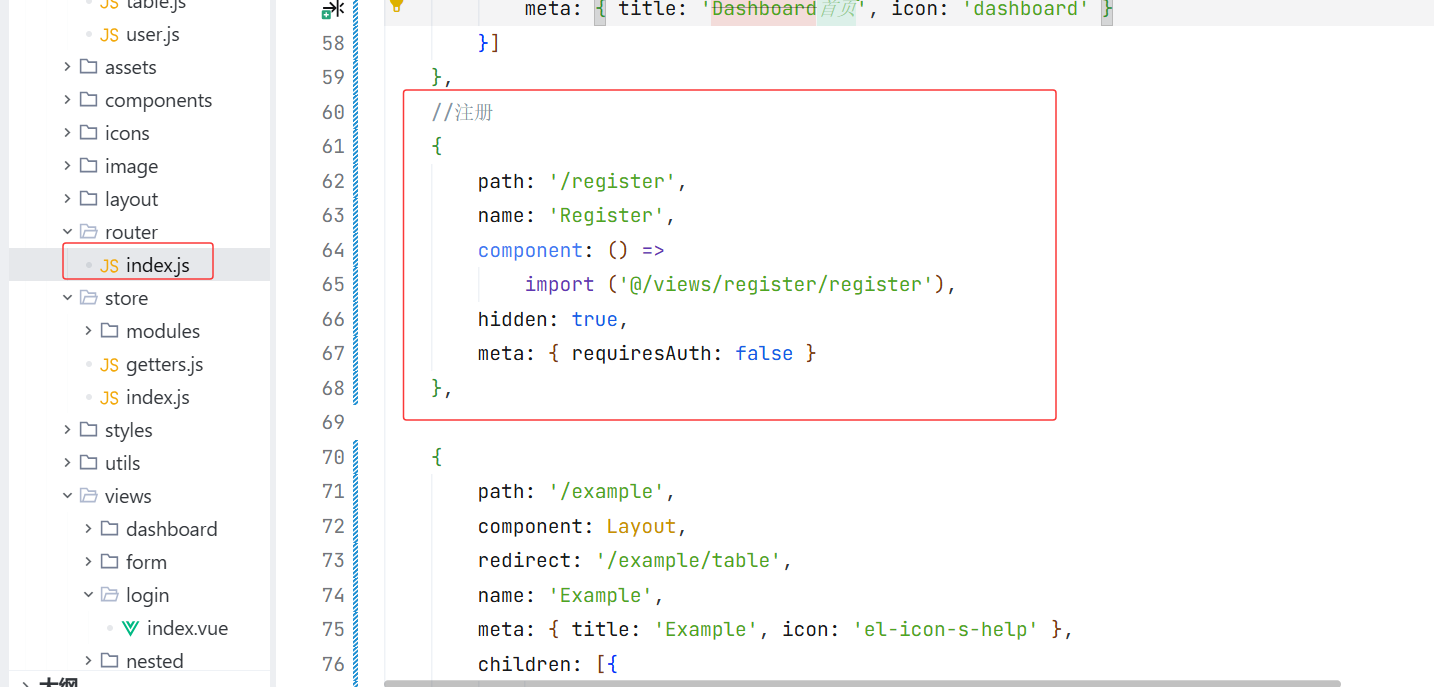
现在的问题 我点击注册不跳转 ,然后我再去点输入账号密码登录,就进入了注册页面,然后点击注册直接进首页,出现这种情况是因为
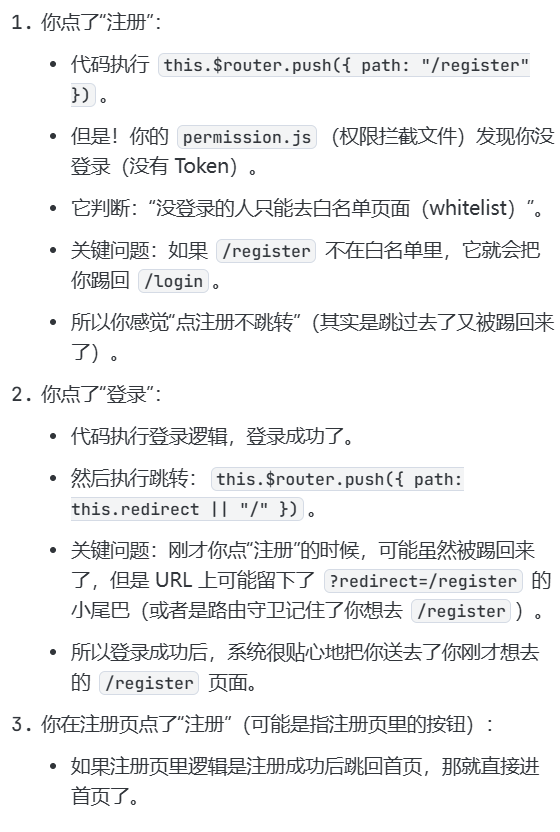 需要把 /register 加入到 路由白名单 里,告诉权限系统:"这个页面,没登录也能看!"
白名单列表里只有 /login :这意味着,除了 /login 页面,其他所有页面(包括 /register )如果没登录去访问,都会被强制踢回登录页。
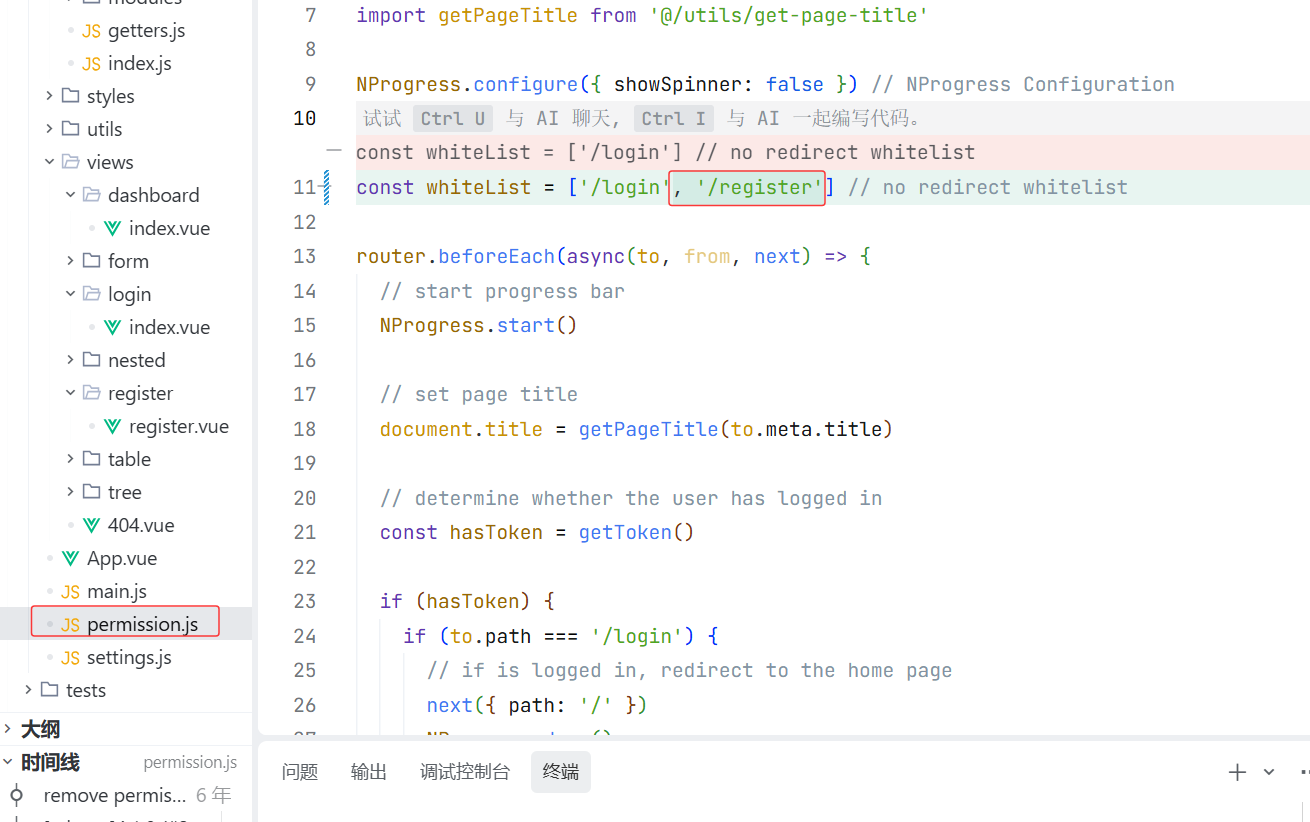
注册功能实现
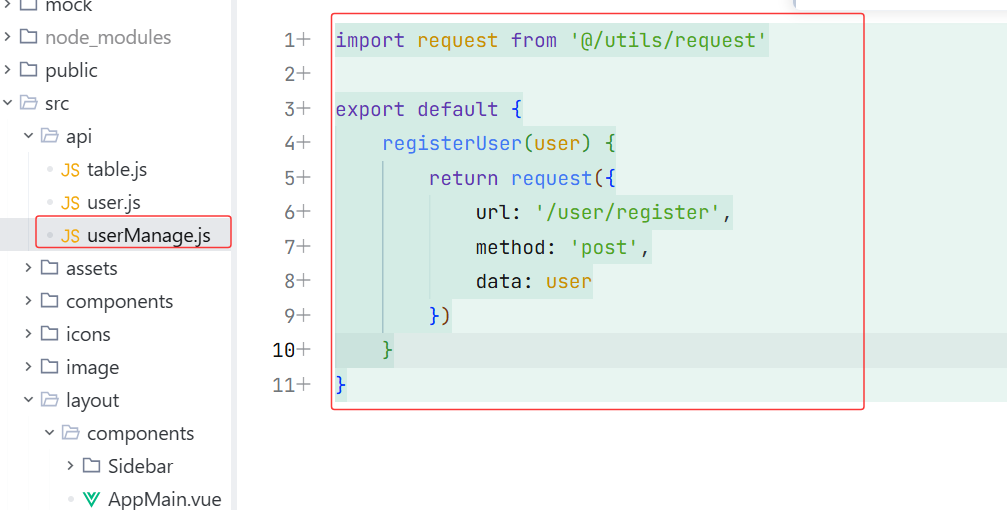
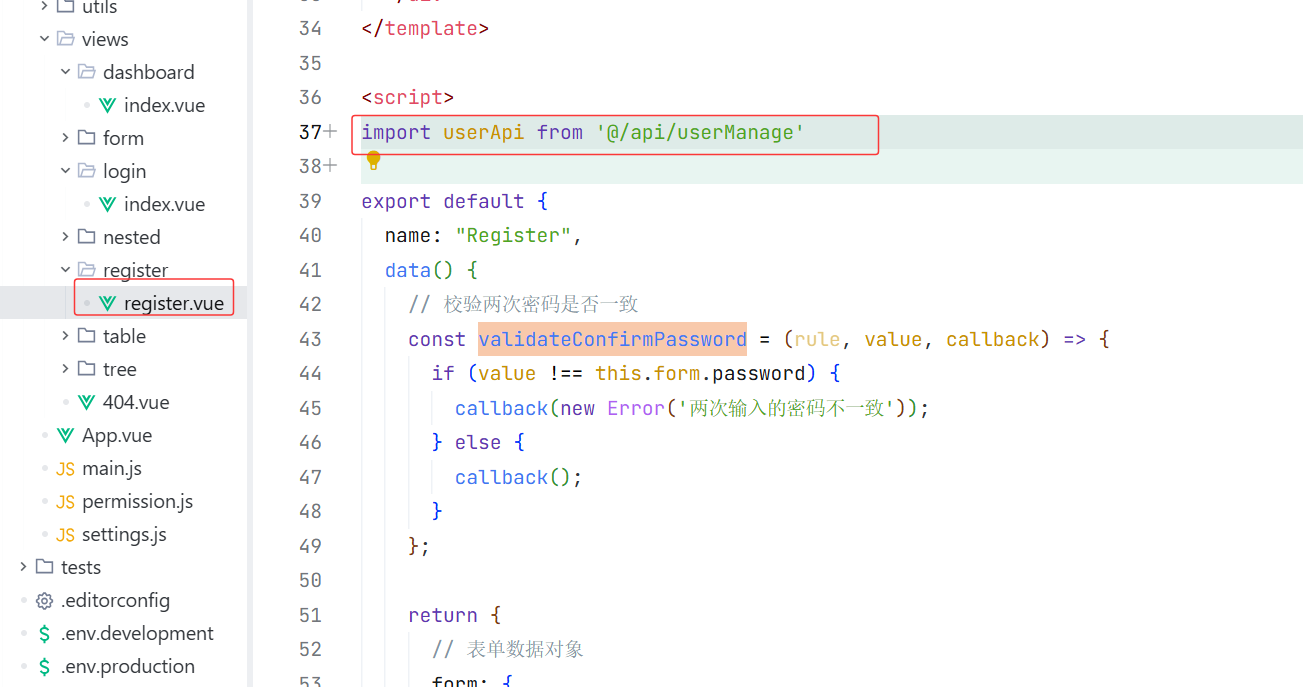
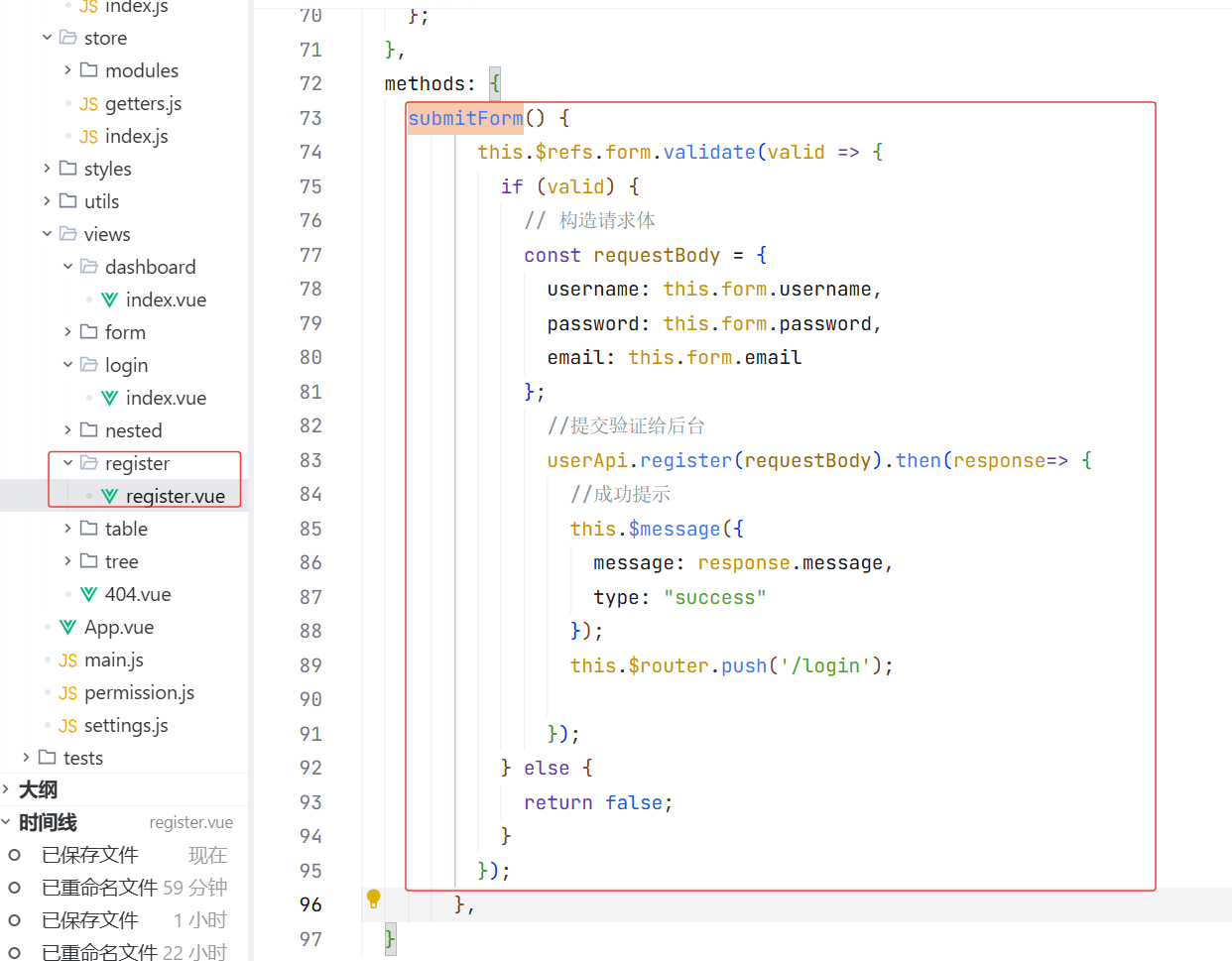
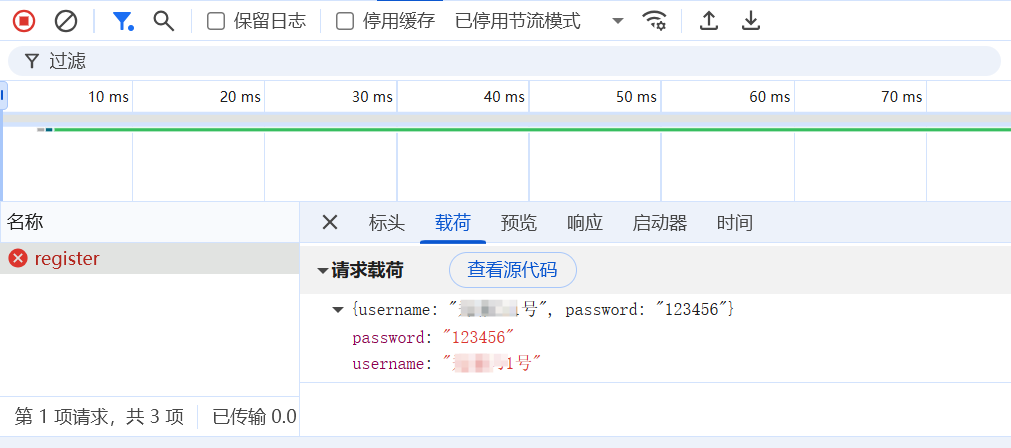
现在去完成后端
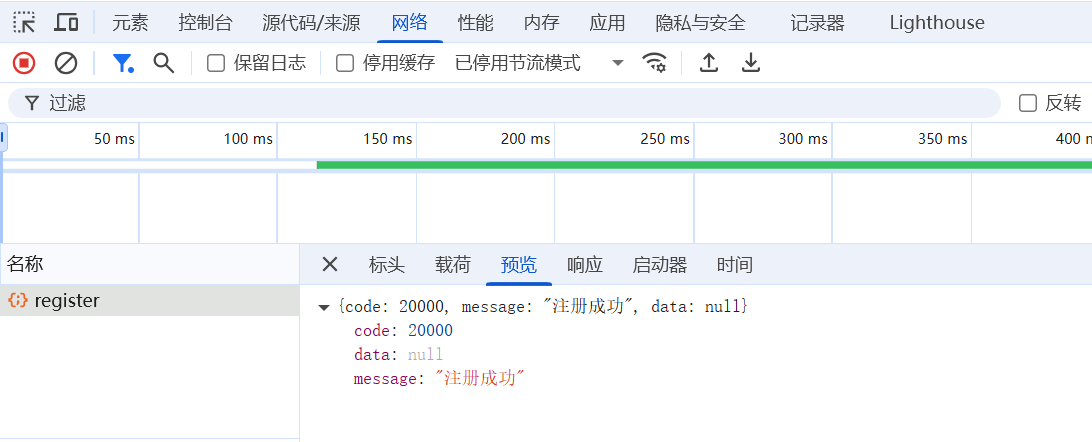
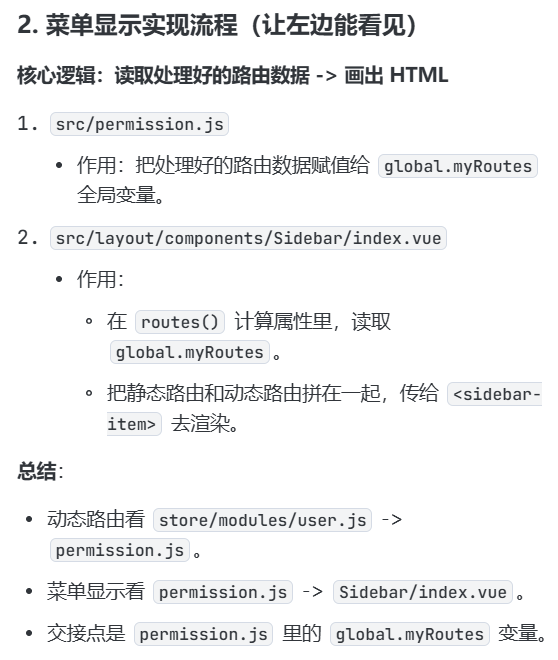
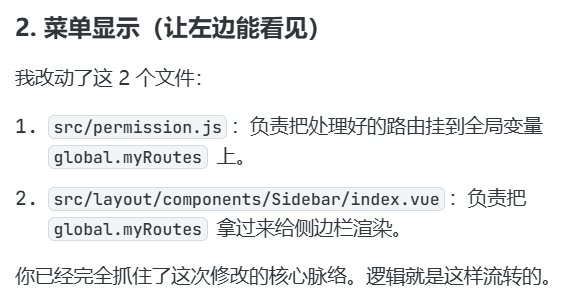
"动态路由"和"菜单显示"
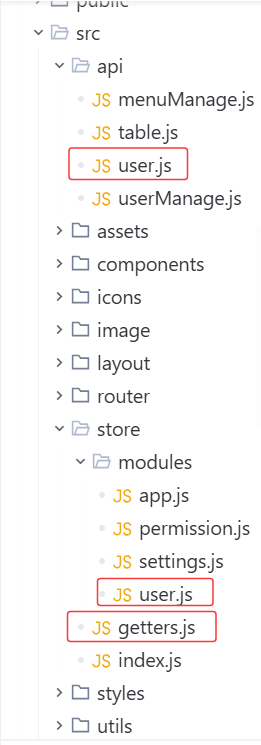
采用的是 打包返回 的方式:- 逻辑 :当它请求"获取用户信息"接口( /user/info )时,后端顺便把 menuList (菜单列表)一起打包发回来了。
- 结果 :因为数据已经在"用户信息"里带过来了,所以它 不需要 再发一个单独的 /menu 请求。
getSportList: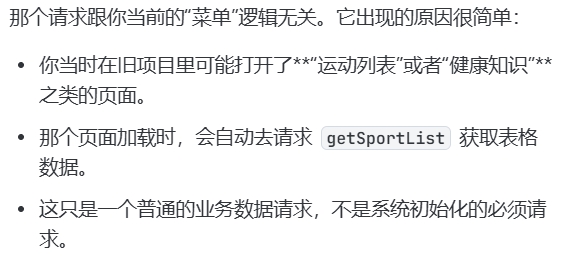
有了菜单结构之后,
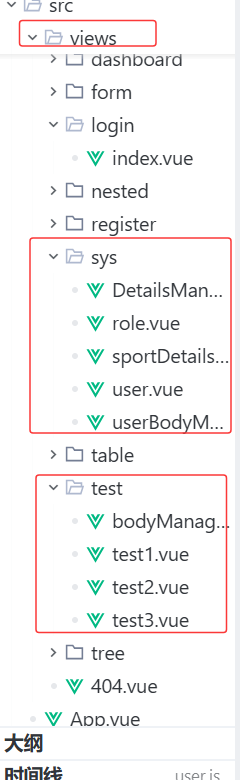
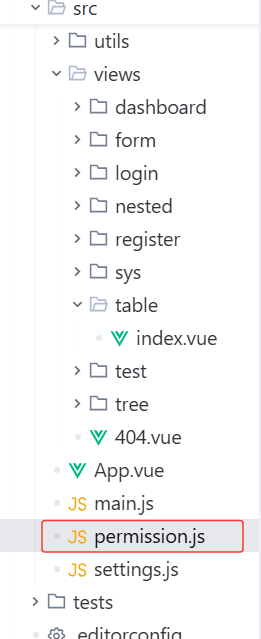
- 创建页面文件 :先在 src/views/ 下建好对应的文件夹和 .vue 文件
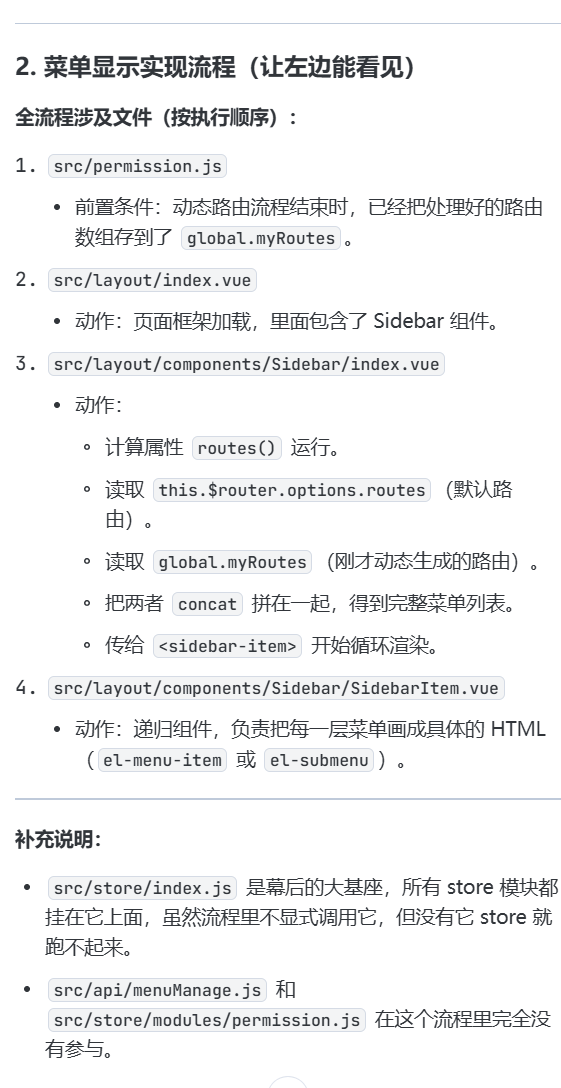
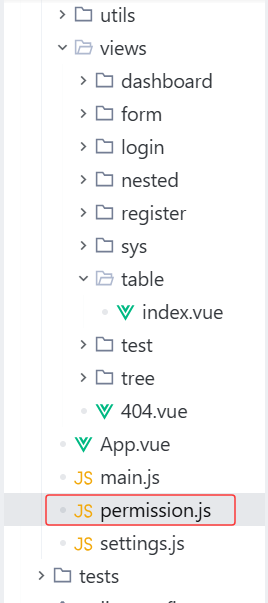
新建文件permission.js
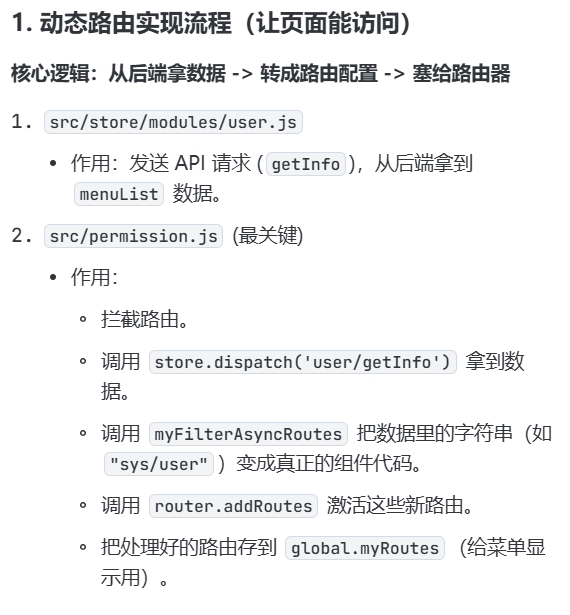
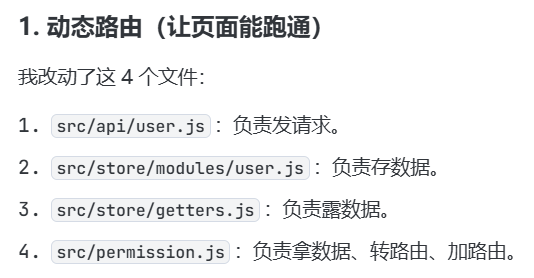
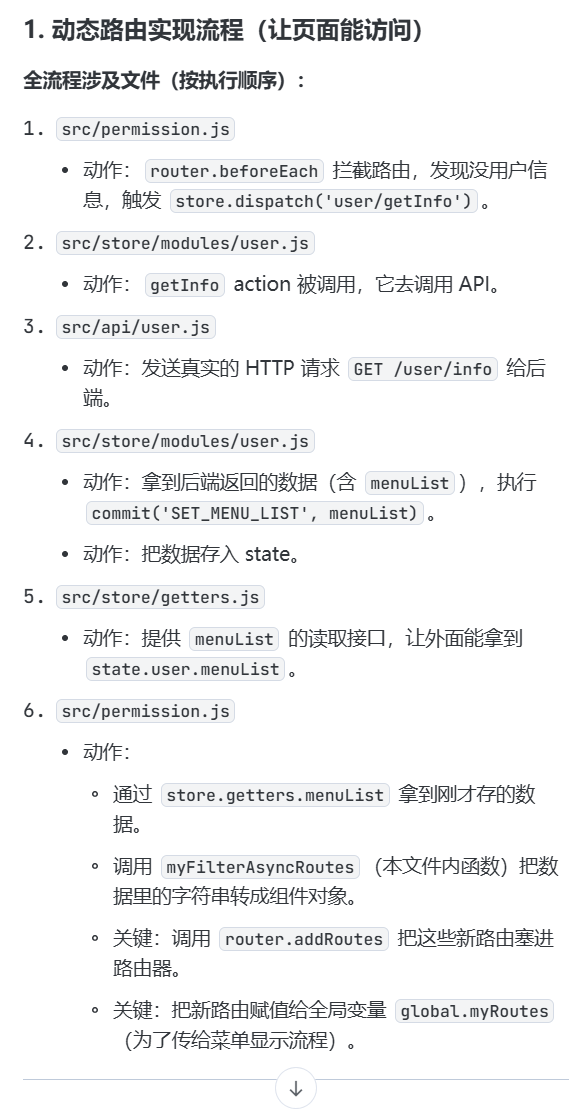
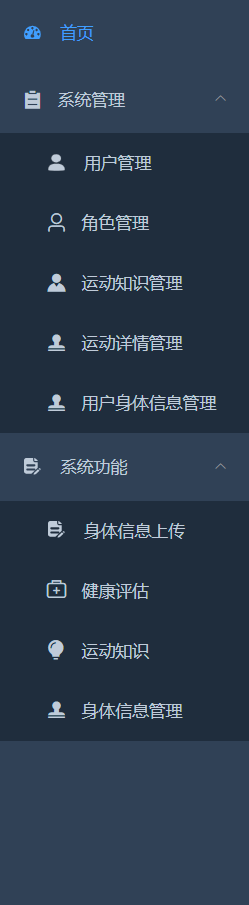
侧边栏的权限实现
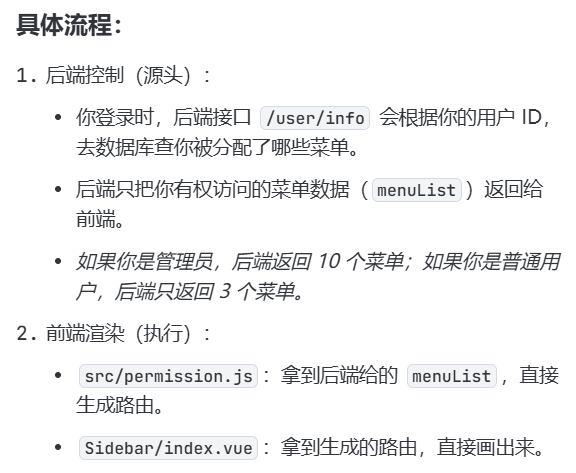
后端给什么,前端就渲染什么。
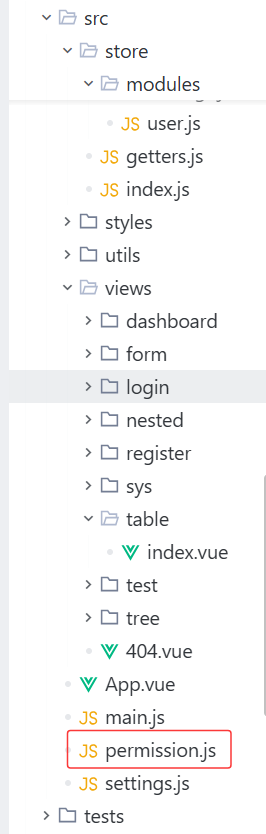
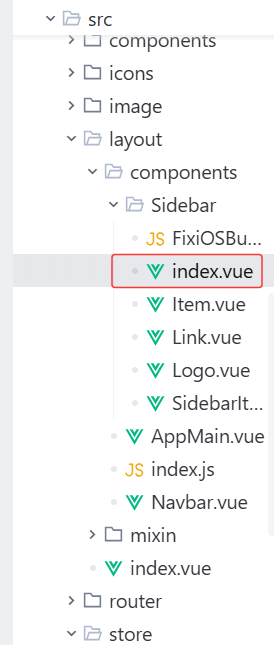
完成
 接下来改一下颜色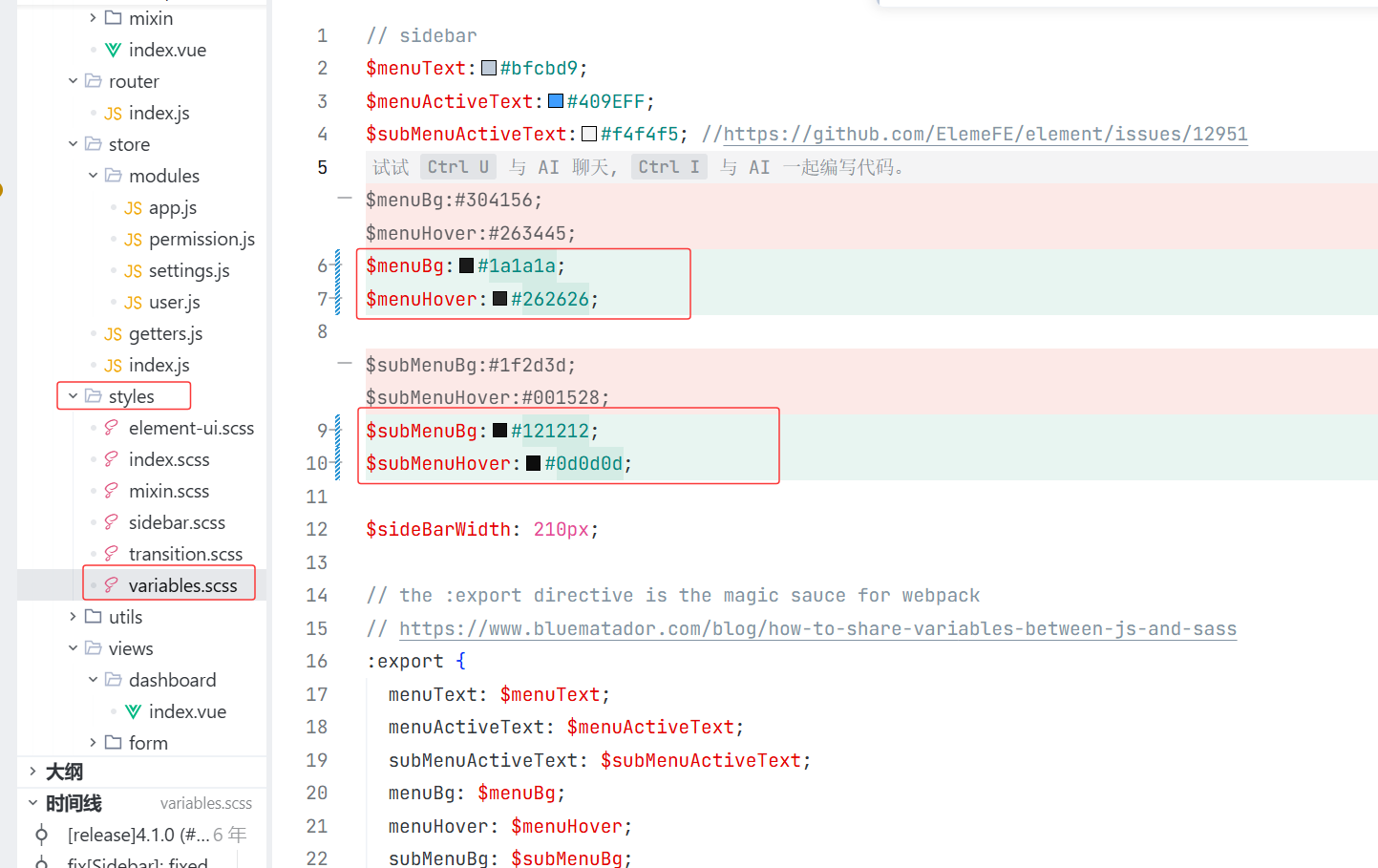
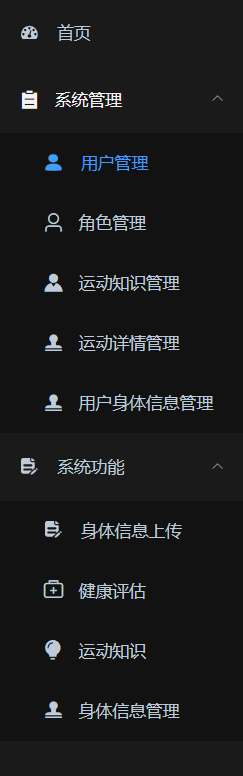 完成
完成
导航条
新建文件夹TagsView和文件tagsView.js,导航条不需要后端,完成代码后实现效果
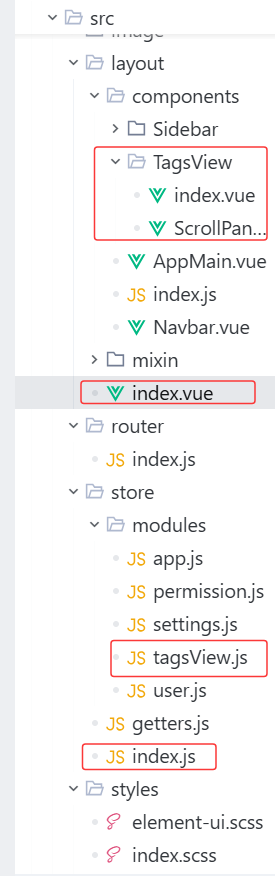
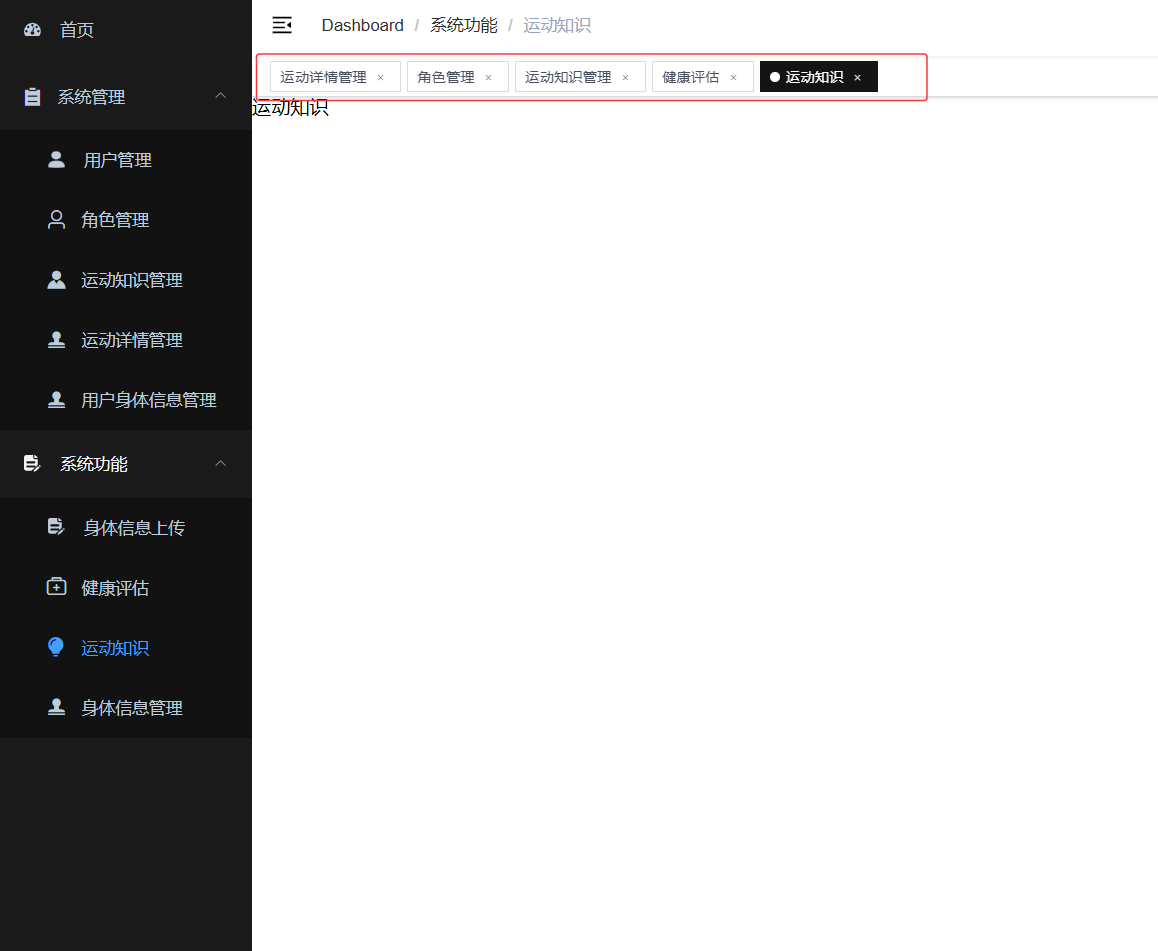
用户管理
先实现表面样式
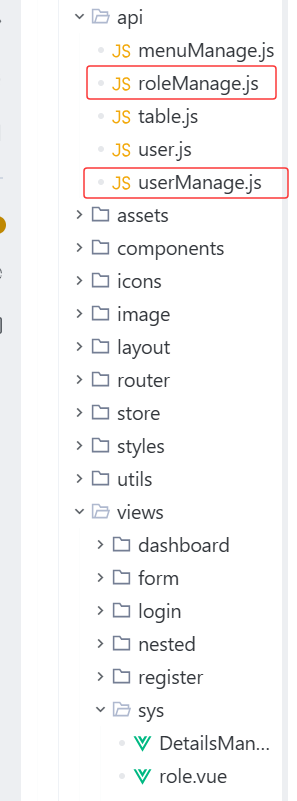
新加了roleManage.js文件
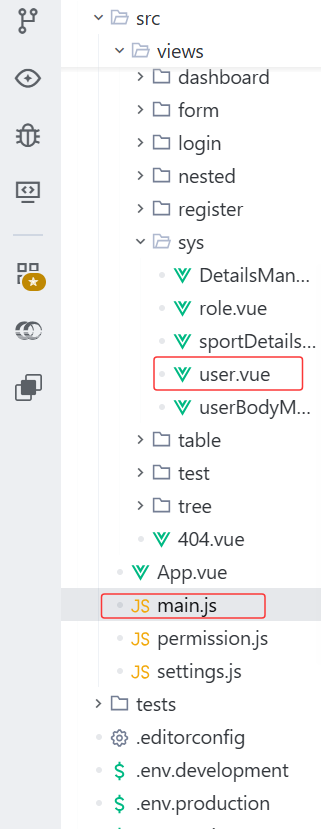 完成
完成
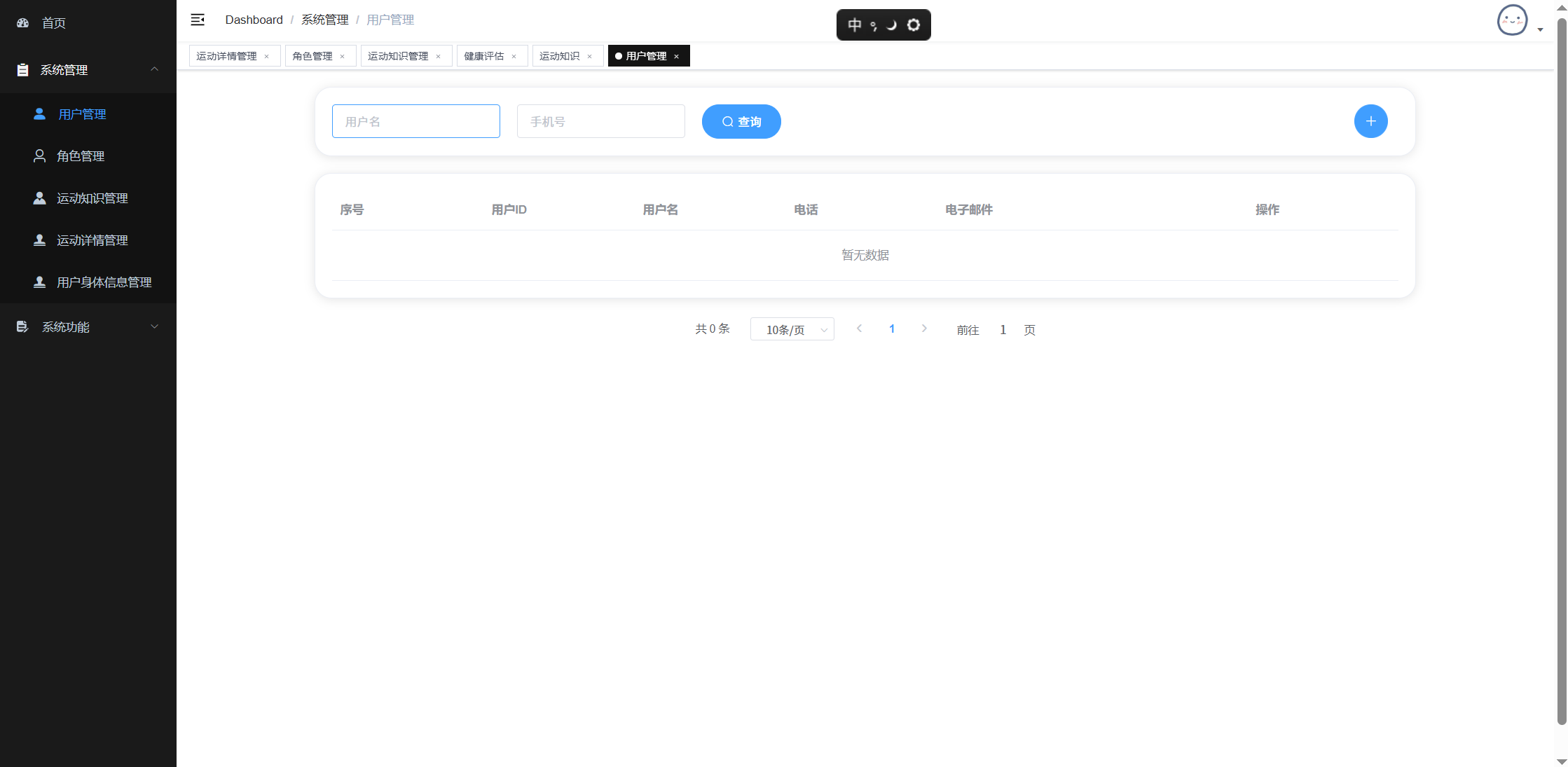
再来实现功能
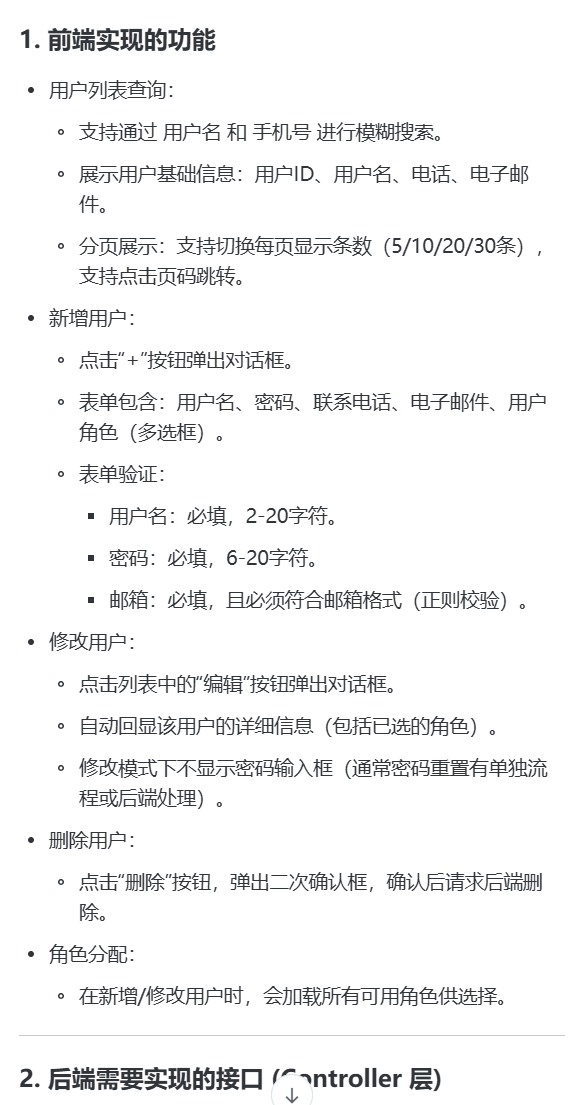
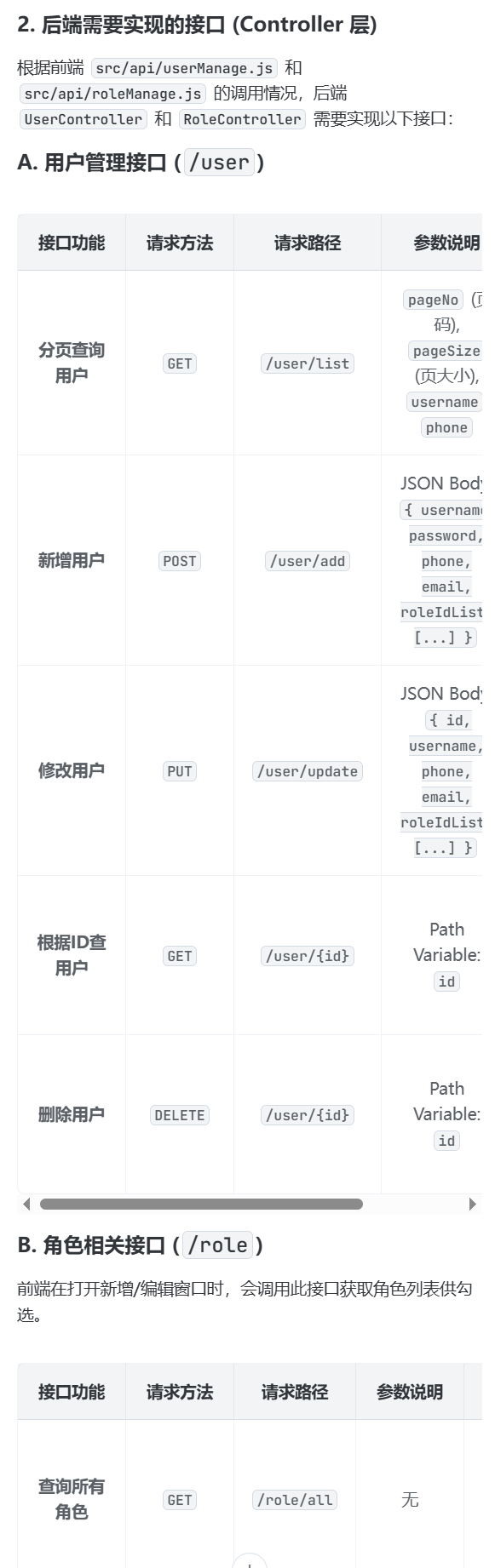
分页查询,用户列表查询
新增用户
修改用户
角色分配
删除用户
先实现功能---分页查询,用户列表查询
先去后端写接口 写完之后
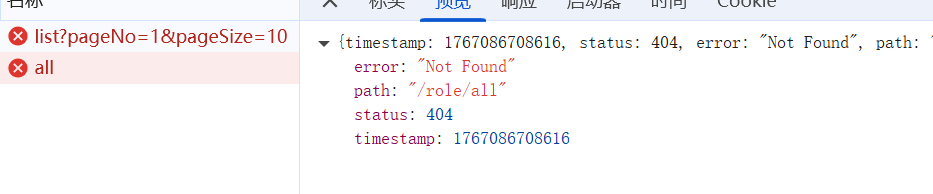
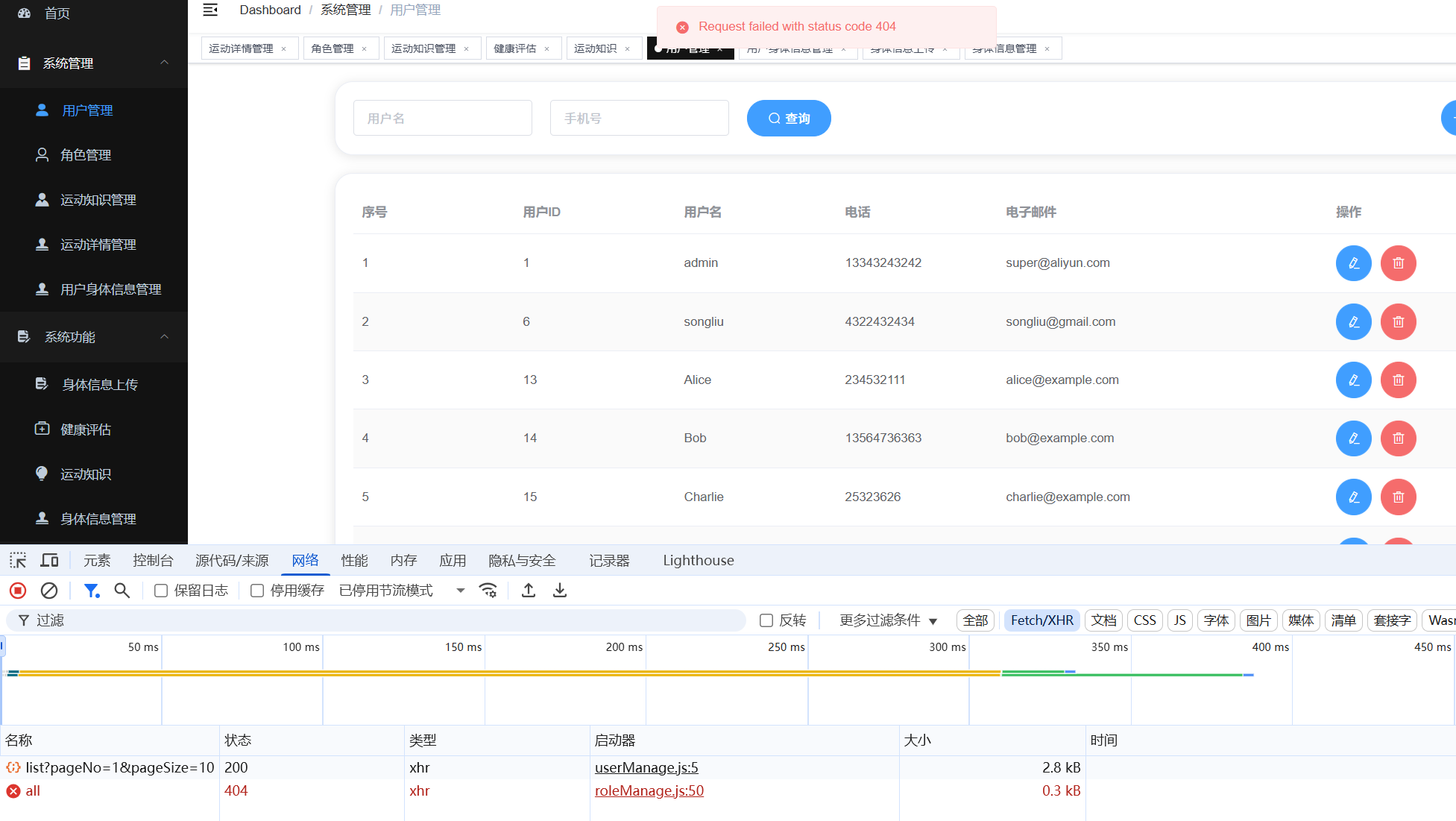
去前端写
新增用户,修改用户,根据ID查用户,删除用户
后端完成之后,完成前端
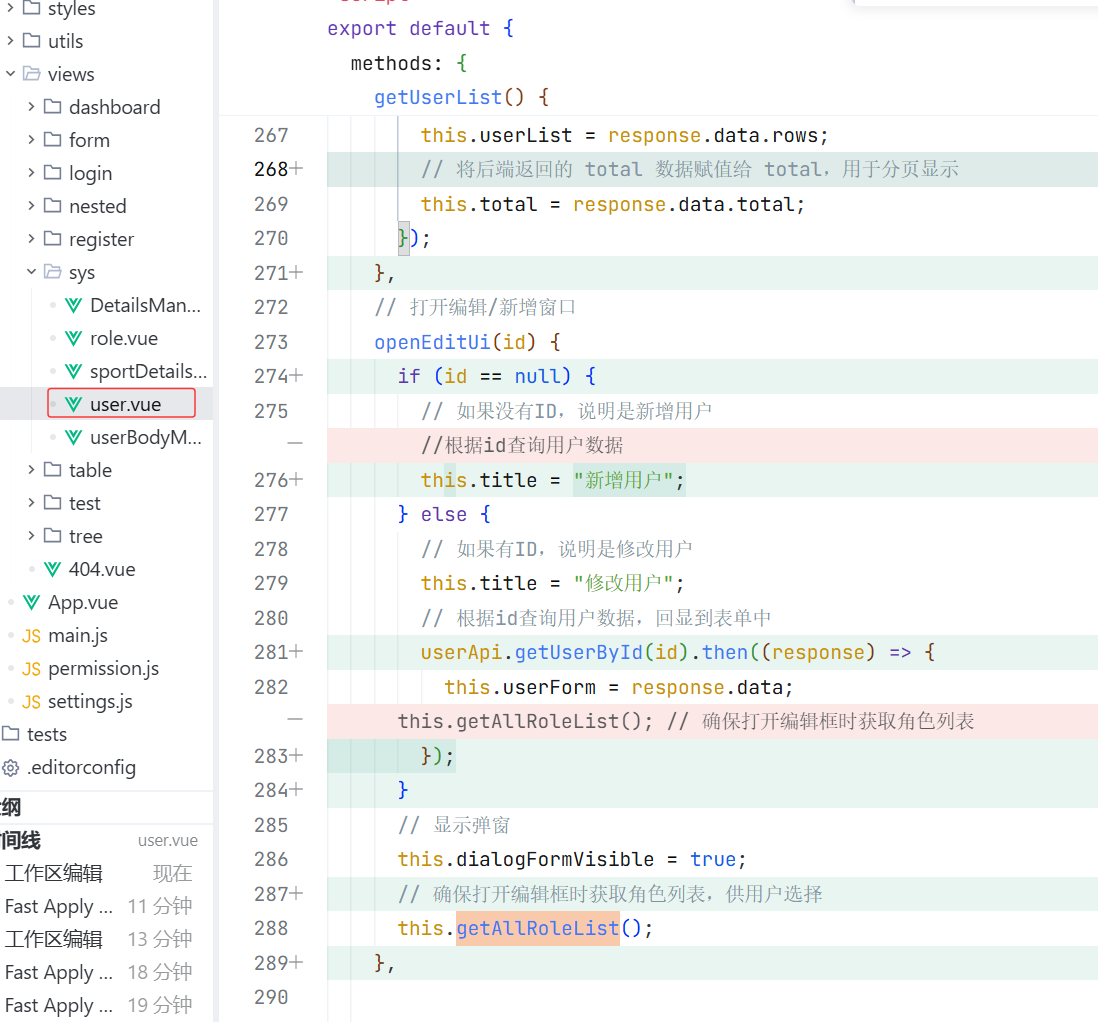
完成
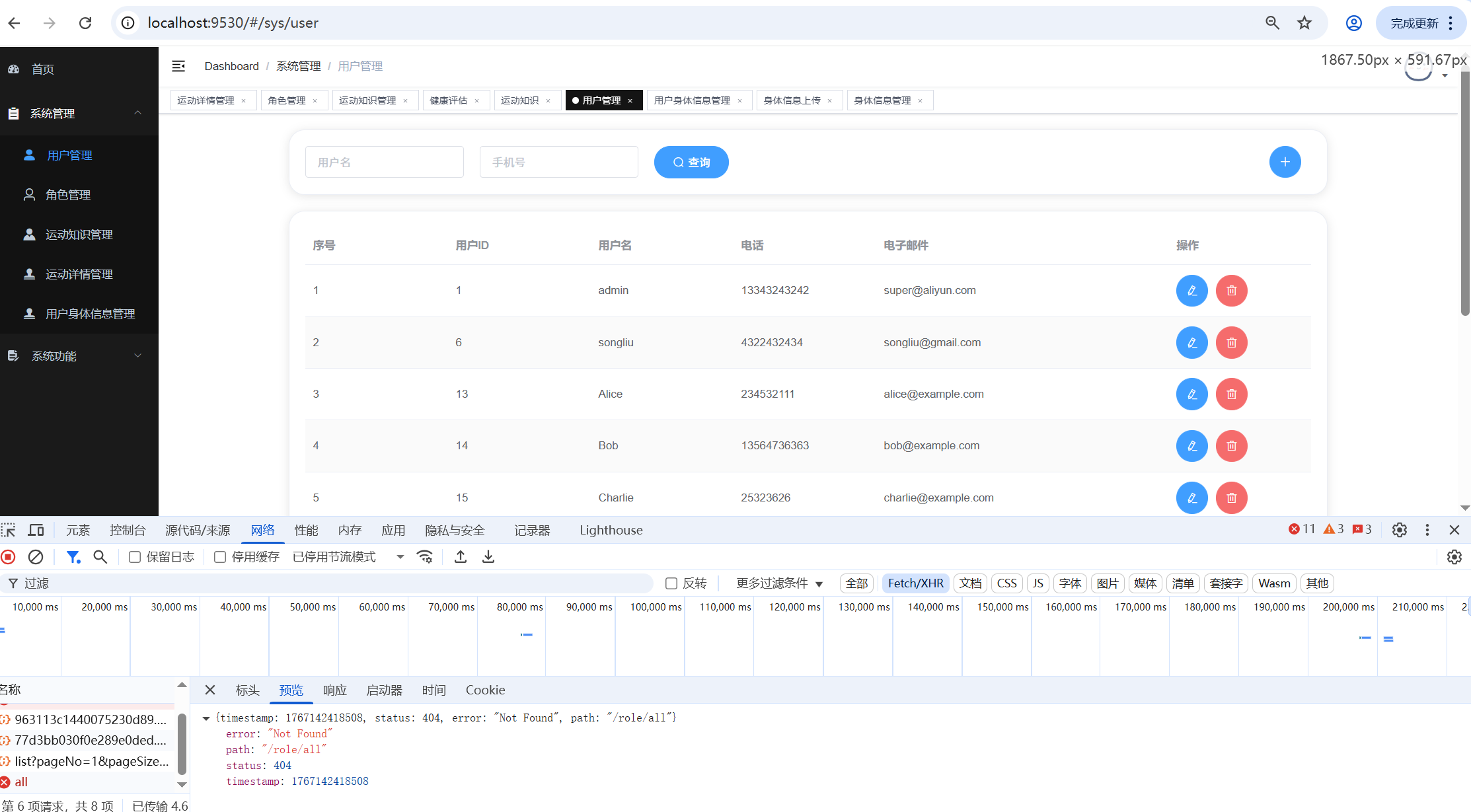
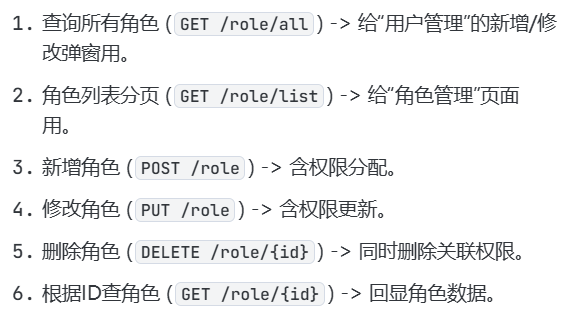
现在去后端完成 查询所有角色 ( GET /role/all ) -> 给"用户管理"的新增/修改弹窗用 。
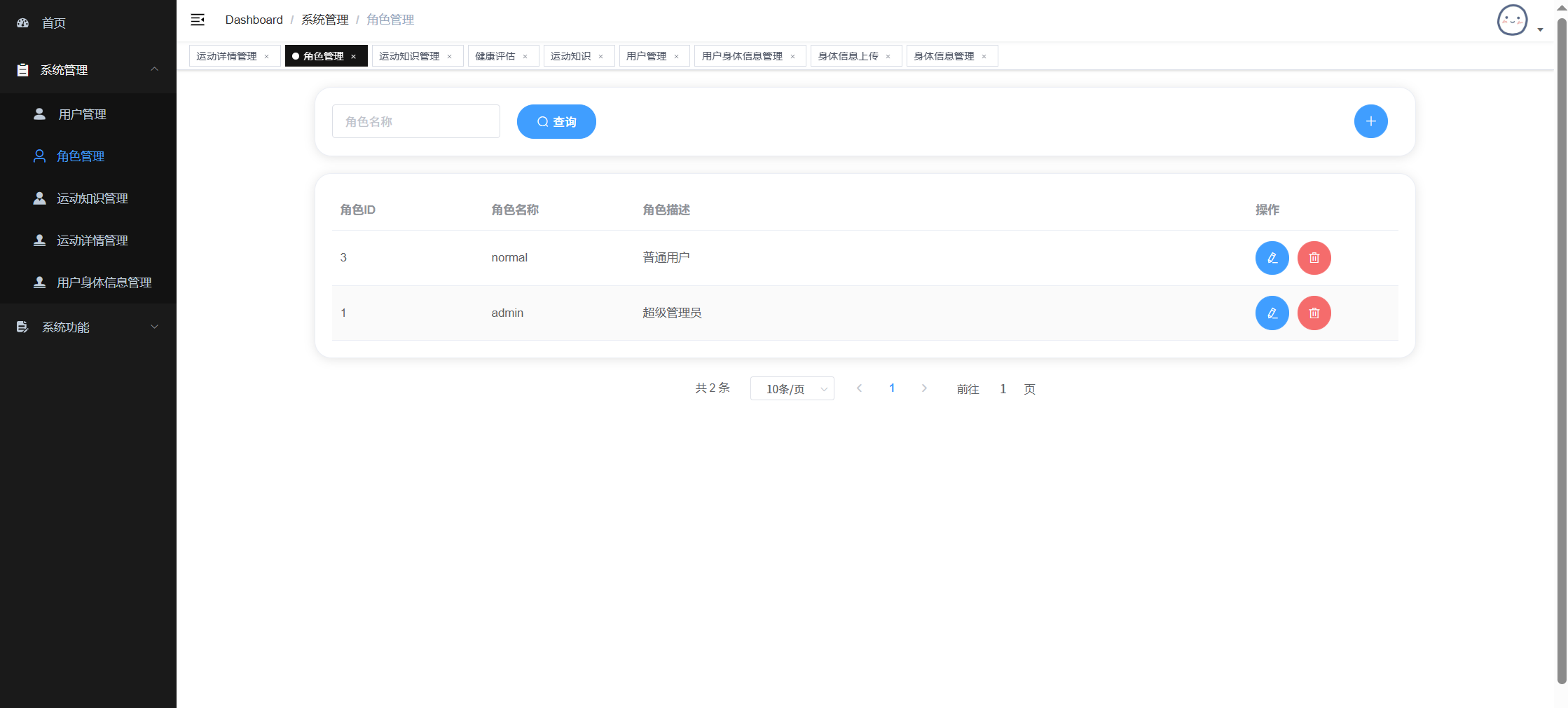
角色管理
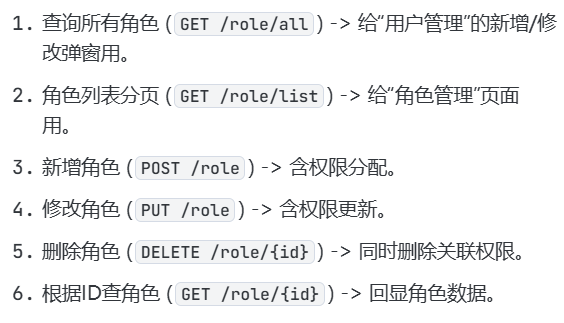
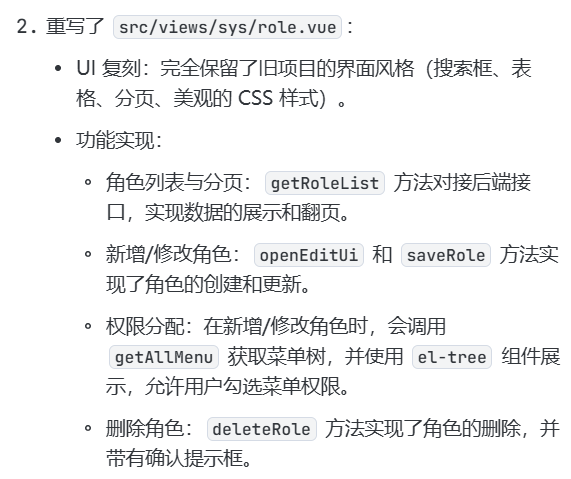
角色列表分页 ( GET /role/list ) -> 给"角色管理"页面用 。
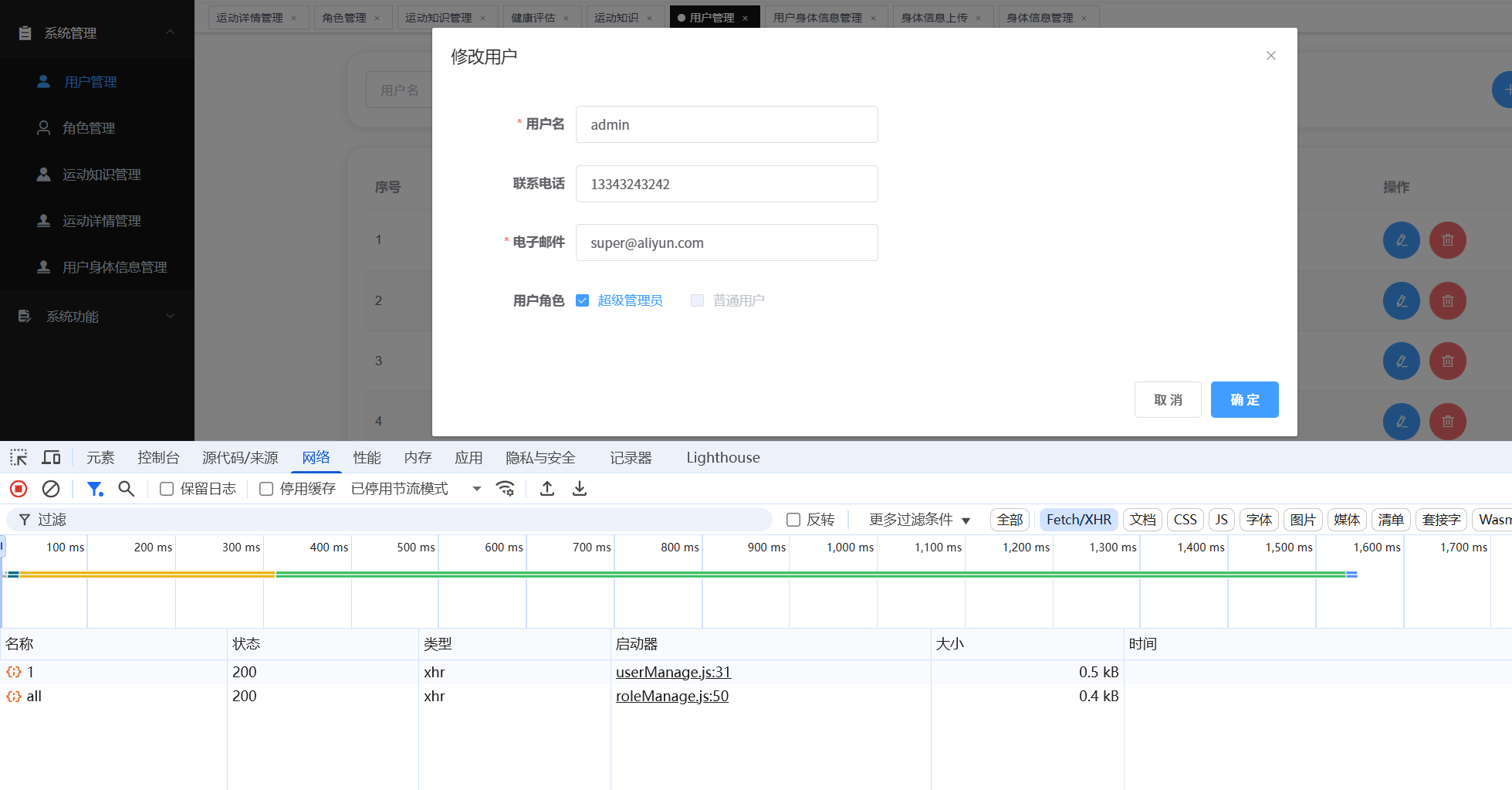
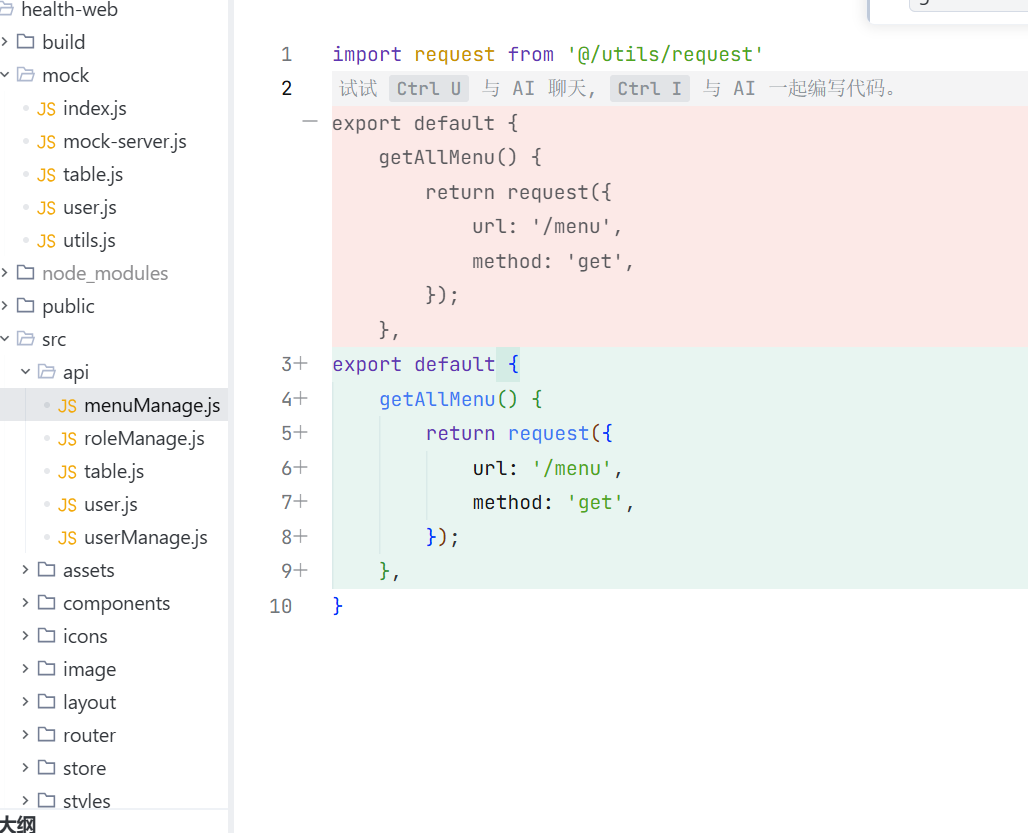
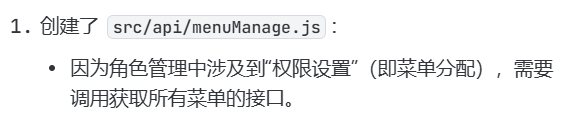
完成页面role.vue menuManage.js
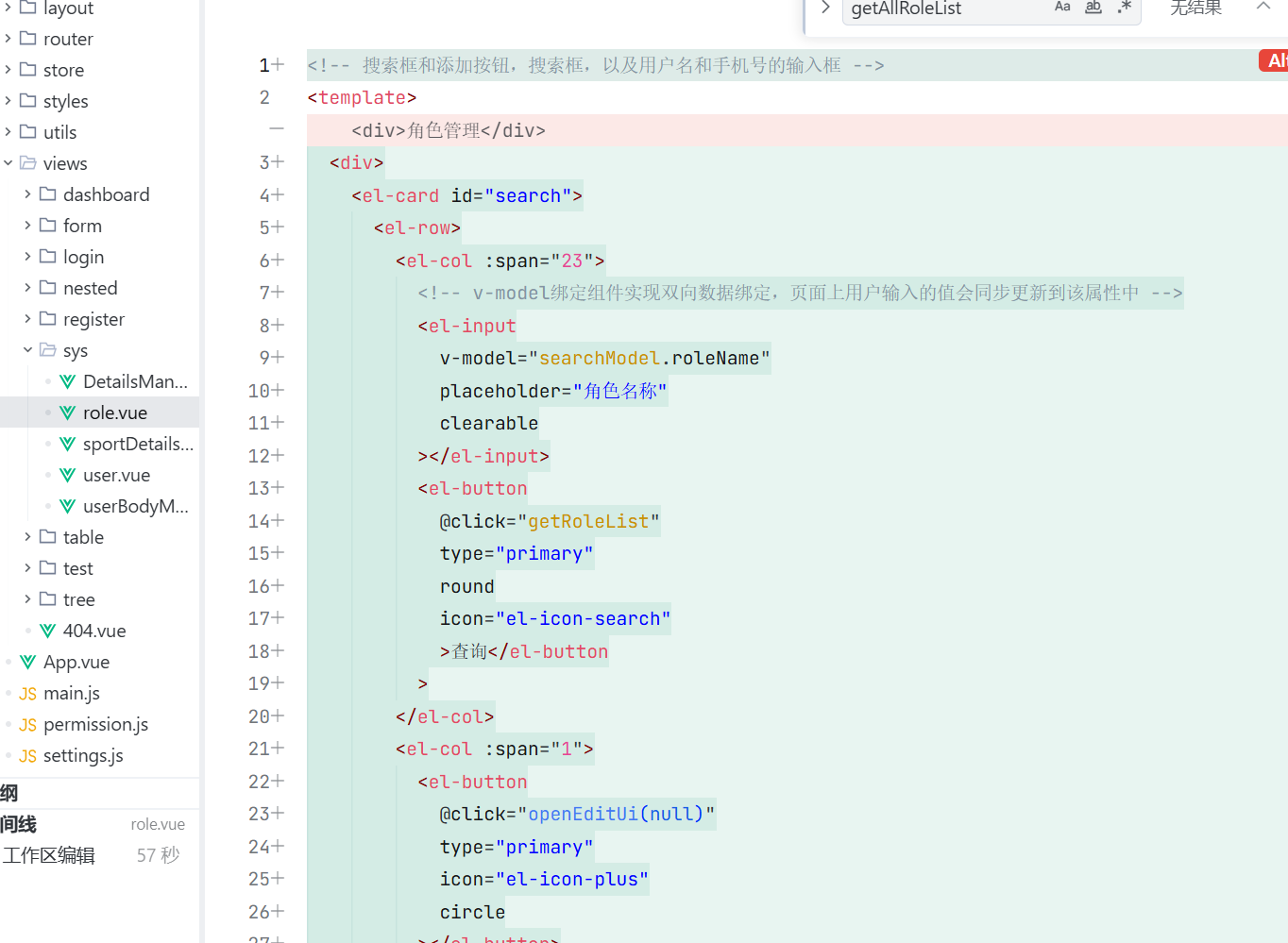
完成
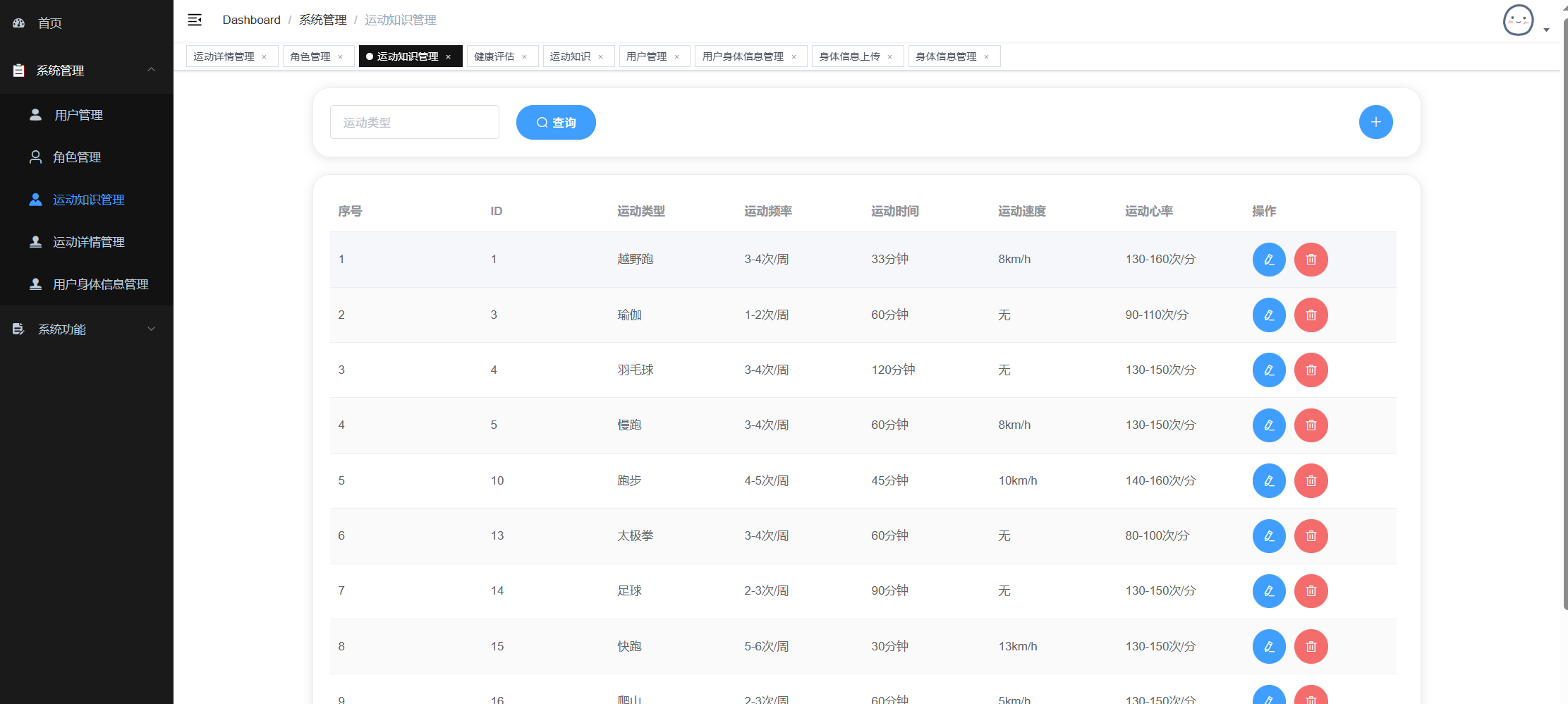
运动知识管理
去后端先完成接口
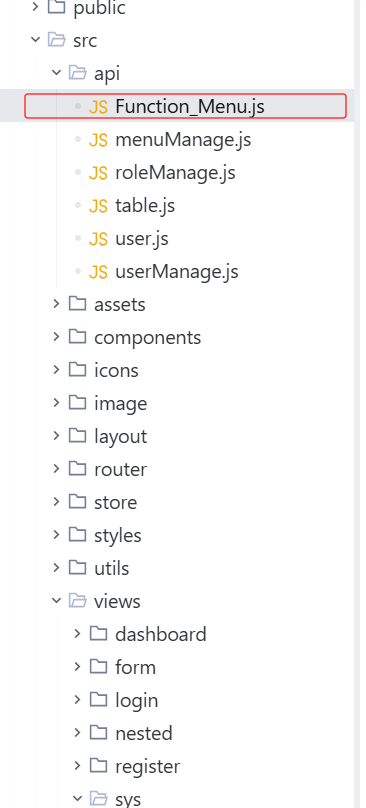
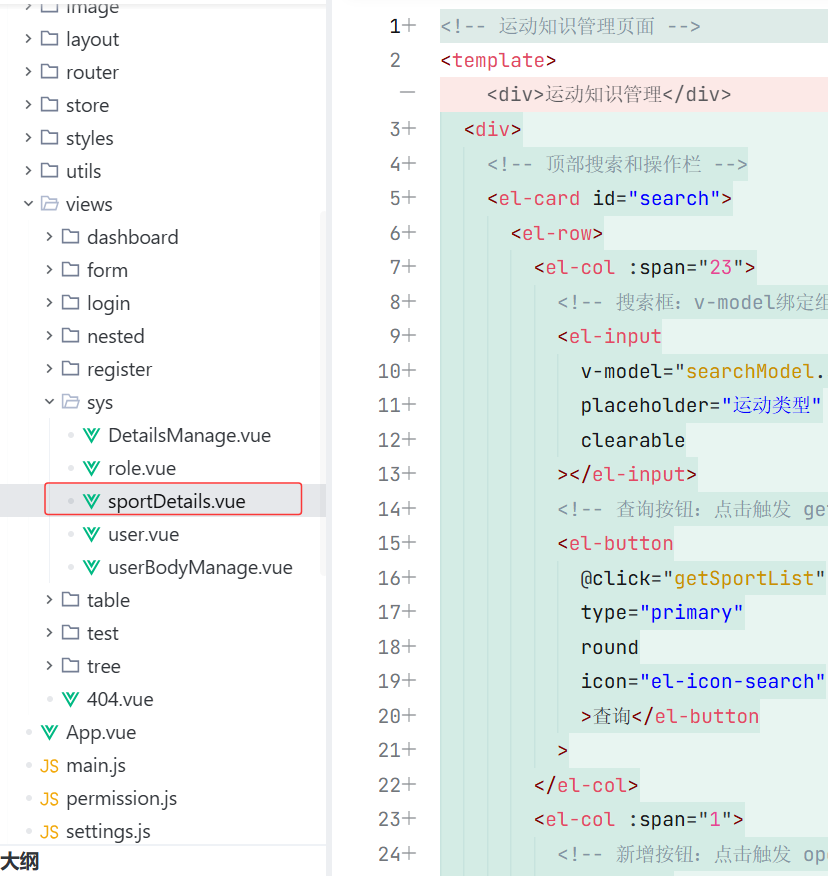
完成
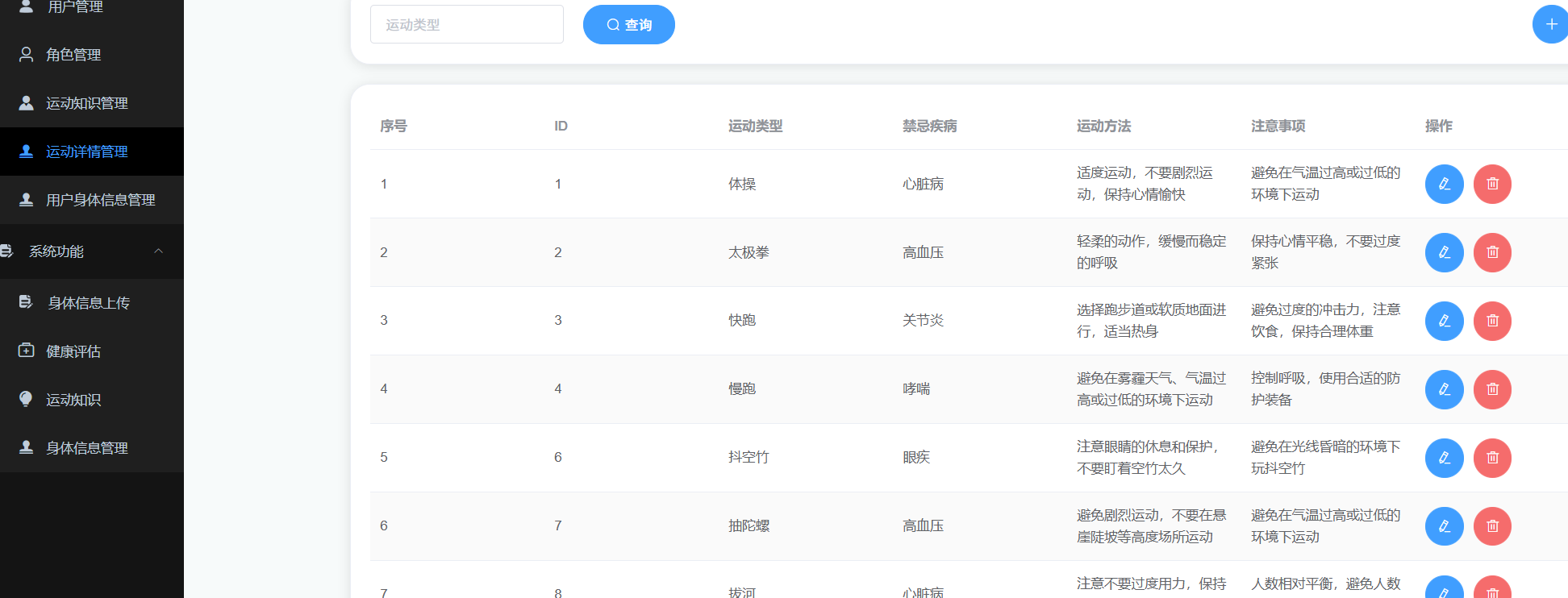
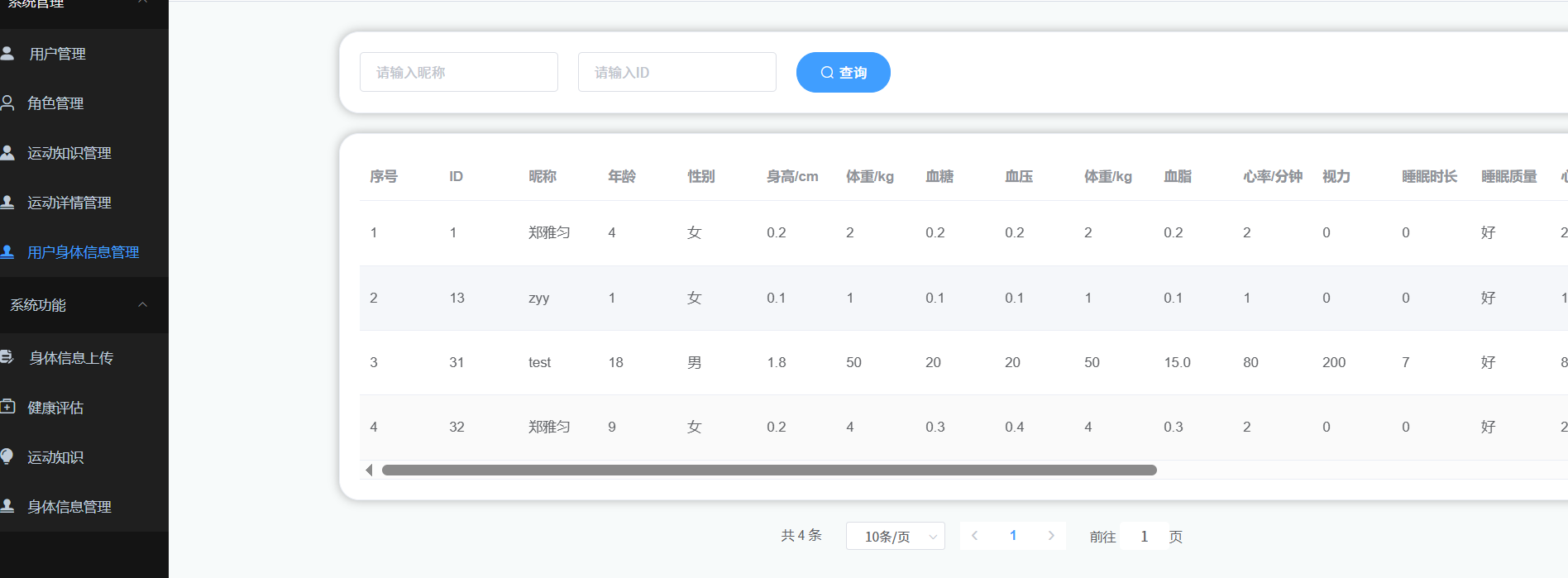
运动详情管理 用户身体信息管理
先去后端完成接口
前端完成页面实现
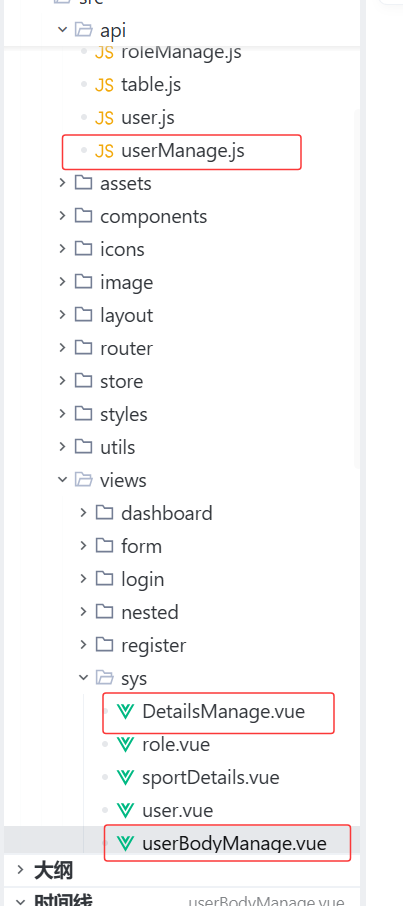
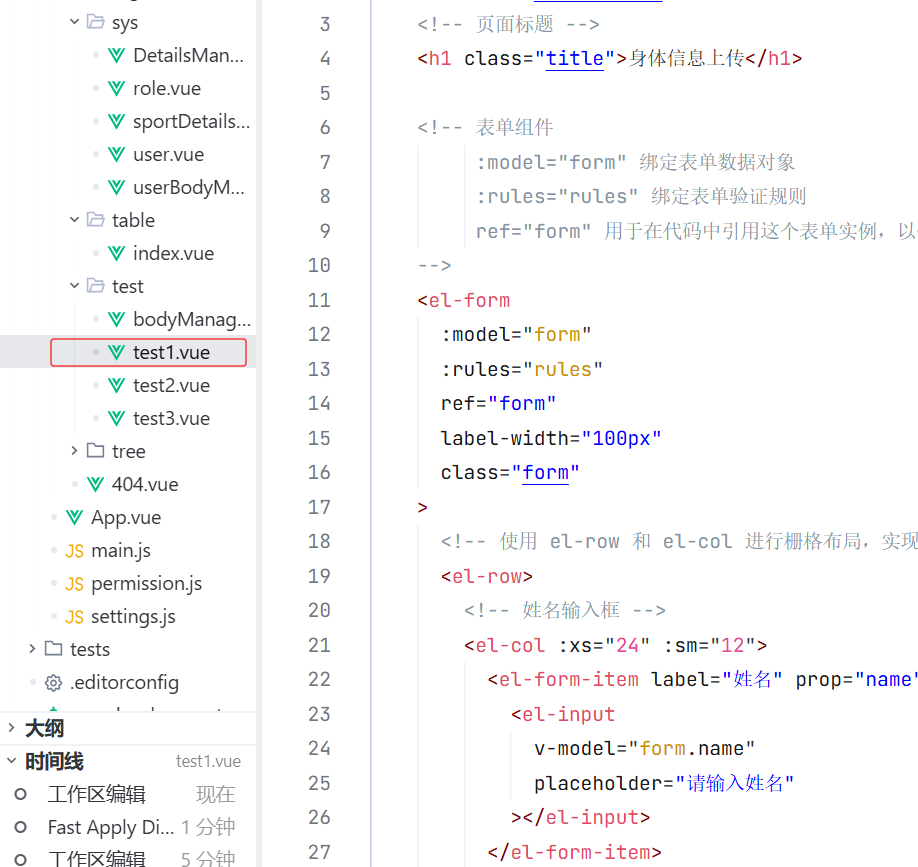
身体信息上传
后端完成接口
健康评估
后端完成接口
前端
运动知识
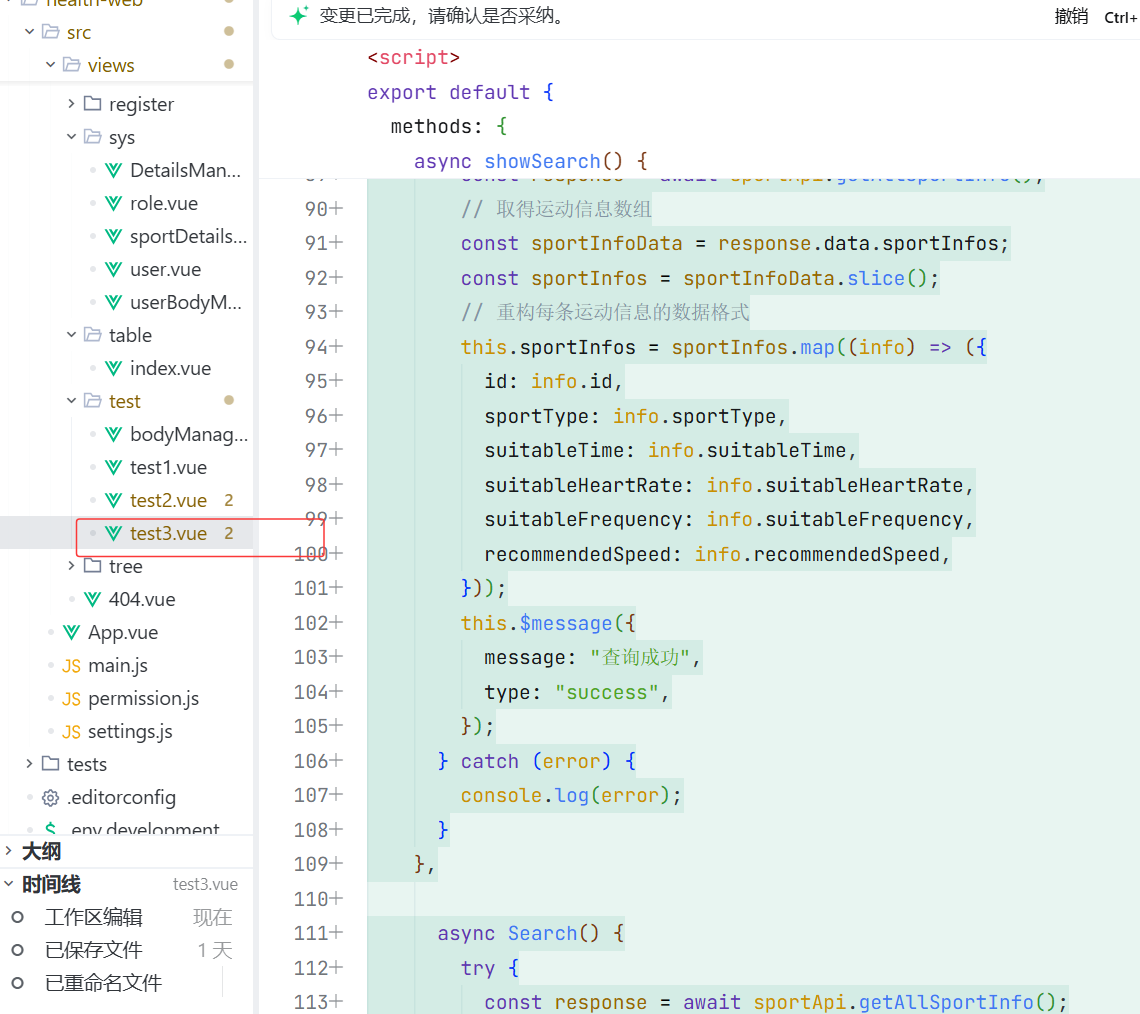
身体信息管理
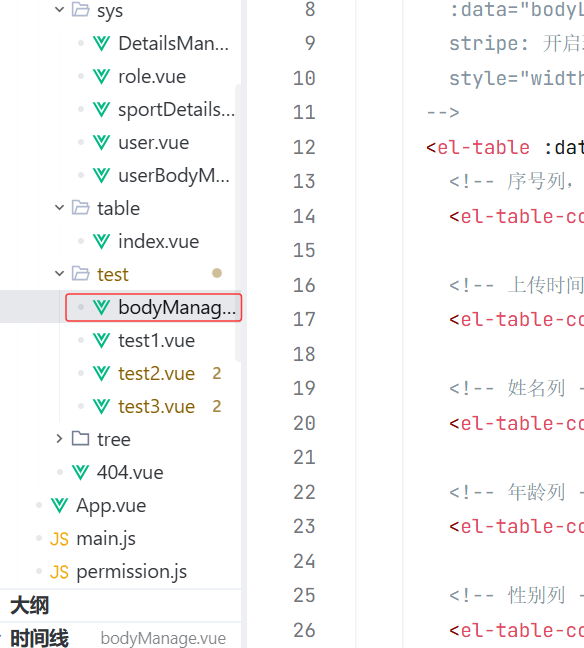
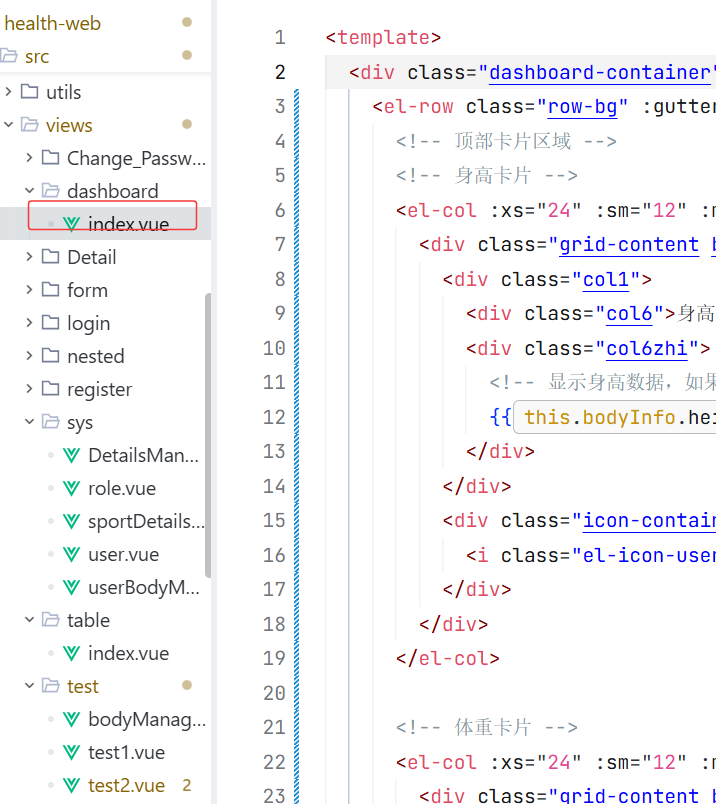
首页
修改密码
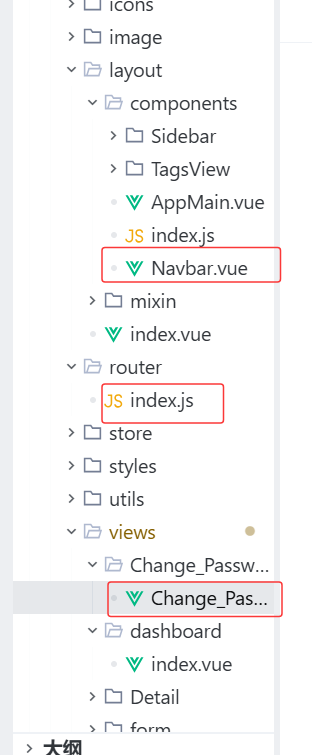
点击主页跳转首页