iOS 18 越狱及巨魔安装教程
前言
本文记录了使用 palera1n 工具对 iPad 7 进行 iOS 18 越狱,并安装巨魔商店的完整过程。
palera1n 基于 Checkm8 漏洞实现越狱。Checkm8 是一个硬件级别的 Bootrom 漏洞,存在于 A5-A11 芯片中,苹果无法通过软件更新修复。该工具在系统启动的最早期阶段劫持引导流程,实现越狱。
官方资源:
本文测试环境:
- 电脑:Intel Mac
- 设备:iPad 7(iOS 18.7.2)
- 工具:palera1n v2.2.1
- 越狱方式:无根越狱(Rootless)
支持设备列表
| iPhone | iPad | iPod | Apple TV |
|---|---|---|---|
| iPhone 6s | iPad mini 4 | iPod Touch 7代 | Apple TV HD |
| iPhone 6s Plus | iPad 5代 | Apple TV 4K 1代 | |
| iPhone SE (2016) | iPad 6代 | ||
| iPhone 7 | iPad 7代 | ||
| iPhone 7 Plus | iPad Pro 9.7寸 | ||
| iPhone 8 | iPad Pro 12.9寸 1代 | ||
| iPhone 8 Plus | iPad Pro 10.5寸 | ||
| iPhone X | iPad Pro 12.9寸 2代 | ||
| iPad Air 2 |
上述设备中,只有 iPad 7 能够升级到 iOS 18 系统,因此选择它作为越狱设备。
palera1n 常用命令
Rootless 模式(推荐)
目前主流的越狱方式,不修改系统分区,不占用大量存储空间。
首次越狱 / 引导启动:
bash
palera1n -l-l 表示 rootless 模式。首次运行进行越狱安装,设备重启后再次运行此命令恢复越狱状态。
Rootful 模式(传统方式)
如果需要修改系统文件(某些老旧插件必须写根目录),使用此模式。注意:会占用约 10-15GB 存储空间。
第一步:创建环境(仅首次)
bash
palera1n -f -c-f 表示 fakefs(伪造文件系统),-c 表示 create(创建)。运行完成后设备会自动重启。
第二步:引导启动(日常使用)
bash
palera1n -f每次重启设备后,运行此命令激活越狱环境。
救砖与维护命令
进入安全模式:
bash
# Rootless 模式
palera1n -l -s

# Rootful 模式
palera1n -f -s
-s 表示 safe mode。启动时不加载任何插件,用于卸载导致崩溃的插件。
清除越狱(恢复纯净系统):
bash
palera1n --force-revert彻底删除越狱环境、Loader 和已安装的插件。
辅助命令
bash
# 查看详细日志
palera1n -V

# 查看设备信息
palera1n -i

# 退出 Recovery 模式
palera1n -n
命令速查表
| 命令 | 场景 | 备注 |
|---|---|---|
palera1n -l |
日常引导 / 首次安装 (Rootless) | 最常用 |
palera1n -l -s |
插件装坏了,进安全模式卸载 | 救急用 |
palera1n --force-revert |
彻底卸载越狱 | 想回正或重做越狱时用 |
palera1n -f -c |
创建 Rootful 环境 | 仅限需要修改系统分区的用户 |
palera1n -f |
引导 Rootful 环境 | 配合上一条使用 |
开始越狱
1. 下载工具
根据电脑系统下载对应版本的 palera1n,Intel Mac 下载 palera1n-macos-x86_64。
2. 执行越狱
打开终端,运行:
bash
xattr -c palera1n-macos-x86_64
chmod 777 palera1n-macos-x86_64
./palera1n-macos-x86_64 -l
按照提示操作:
- 等待设备进入恢复模式
- 按 Enter 准备进入 DFU 模式
- 同时按住 Home 键 + 电源键
- 松开电源键,继续按住 Home 键
看到 Booting Kernel... 后,越狱完成,等待设备重启。
palera1n 图标大约 1 分钟后出现在桌面。
常见问题: 如果提示 error code: -status_open_device_error,手动重启设备后重试。
shell
muyang@Mac-Pro Downloads % ./palera1n-macos-x86_64 -l
#
# palera1n: v2.2.1
#
# ========  Made by  =======
# Made by: Nick Chan, Ploosh, Khcrysalis, Mineek, staturnz, kok3shidoll, HAHALOSAH
# ======== Thanks to =======
# Thanks to: llsc12, Nebula, Lrdsnow, nikias (libimobiledevice),
# checkra1n team (Siguza, axi0mx, littlelailo et al.),
# Procursus Team (Hayden Seay, Cameron Katri, Keto et.al)
# ==========================

 - [01/09/26 11:29:30] <Info>: Waiting for devices
 - [01/09/26 11:29:30] <Info>: Entering recovery mode
 - [01/09/26 11:29:41] <Info>: Press Enter when ready for DFU mode

Hold home + power button (0)
Hold home button (3)
 - [01/09/26 11:30:00] <Info>: Device entered DFU mode successfully
 - [01/09/26 11:30:00] <Info>: About to execute checkra1n
#
# Checkra1n 0.1337.3
#
# Proudly written in nano
# (c) 2019-2023 Kim Jong Cracks
#
#========  Made by  =======
# argp, axi0mx, danyl931, jaywalker, kirb, littlelailo, nitoTV
# never_released, nullpixel, pimskeks, qwertyoruiop, sbingner, siguza
#======== Thanks to =======
# haifisch, jndok, jonseals, xerub, lilstevie, psychotea, sferrini
# Cellebrite (ih8sn0w, cjori, ronyrus et al.)
#==========================

 - [01/09/26 11:45:48] <Verbose>: Starting thread for Apple TV 4K Advanced board
 - [01/09/26 11:45:48] <Info>: Waiting for DFU mode devices
 - [01/09/26 11:45:48] <Verbose>: DFU mode device found
 - [01/09/26 11:45:48] <Info>: Checking if device is ready
 - [01/09/26 11:45:48] <Verbose>: Attempting to perform checkm8 on 8010 11
 - [01/09/26 11:45:48] <Info>: Setting up the exploit
 - [01/09/26 11:45:48] <Verbose>: == checkm8 setup stage ==
 - [01/09/26 11:45:48] <Verbose>: Entered initial checkm8 state after 1 steps
 - [01/09/26 11:45:48] <Verbose>: Stalled input endpoint after 8 steps
 - [01/09/26 11:45:48] <Verbose>: DFU mode device disconnected
 - [01/09/26 11:45:48] <Verbose>: DFU mode device found
 - [01/09/26 11:45:48] <Verbose>: == checkm8 trigger stage ==
 - [01/09/26 11:45:49] <Info>: Checkmate!
 - [01/09/26 11:45:49] <Verbose>: Device should now reconnect in download mode
 - [01/09/26 11:45:49] <Verbose>: DFU mode device disconnected
 - [01/09/26 11:45:55] <Info>: Entered download mode
 - [01/09/26 11:45:55] <Verbose>: Download mode device found
 - [01/09/26 11:45:55] <Info>: Booting PongoOS...
 - [01/09/26 11:45:57] <Info>: Found PongoOS USB Device
 - [01/09/26 11:45:59] <Info>: Booting Kernel...
安装 Sileo 商店
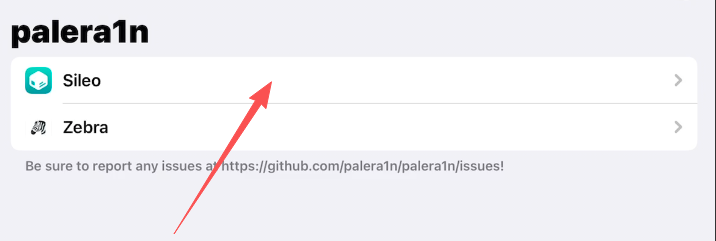
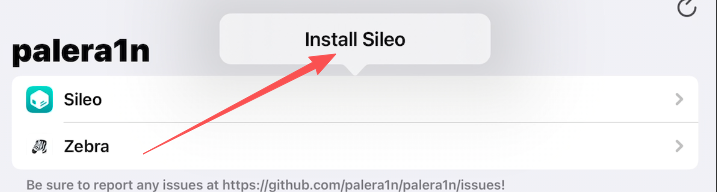
- 点击桌面上的 palera1n 图标
- 点击 Sileo 进行安装
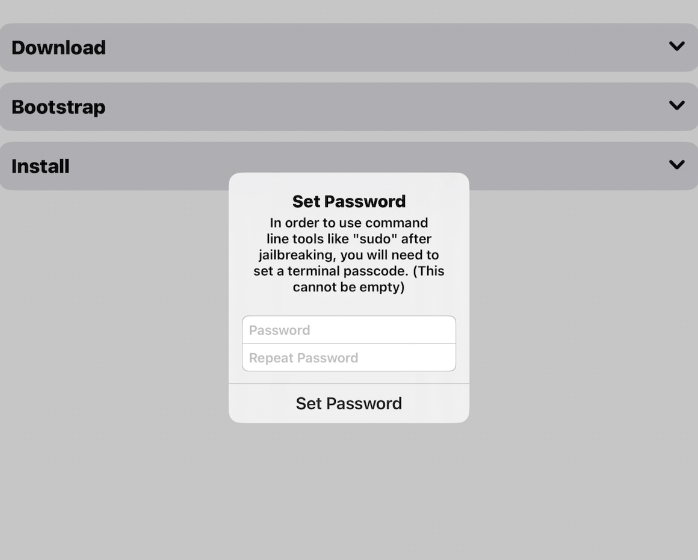
- 跳转设置界面,设置 sudo 密码(务必记住,默认可设为
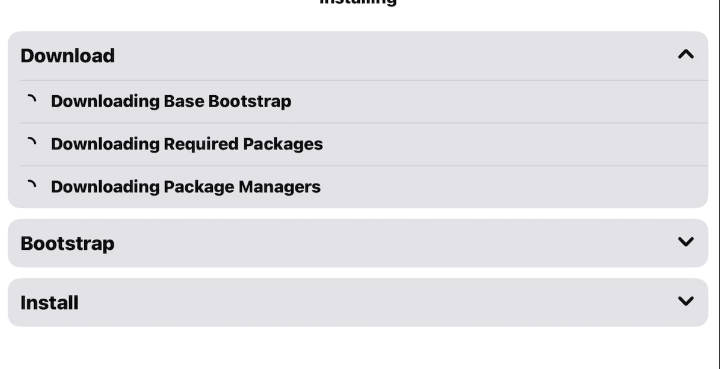
alpine) - 等待安装流程完成,自动退出到主界面
安装巨魔商店
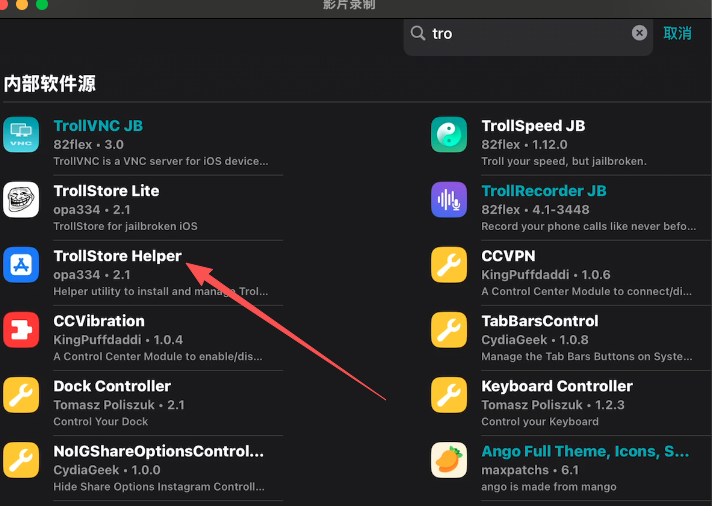
1. 安装 TrollStore Helper
打开 Sileo 商店,搜索 TrollStore ,找到并安装 TrollStore Helper。
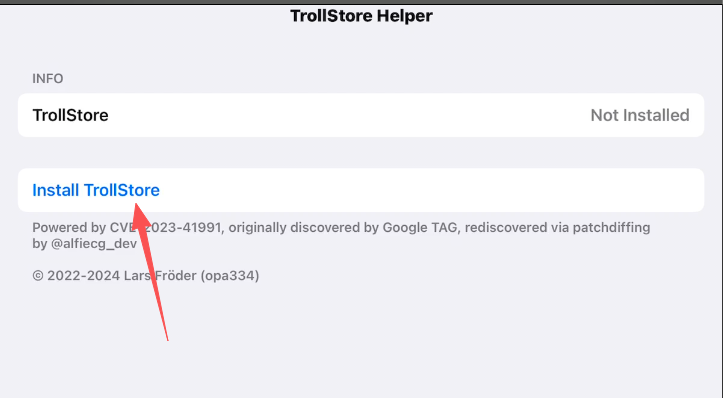
2. 安装 TrollStore
打开 TrollStore Helper,点击安装(需要科学)。
3. 配置 TrollStore
- 打开巨魔商店
- 点击 Settings
- 安装 ldid
FAQ参考资料
- https://github.com/palera1n/palera1n
- https://docs.website-msw.pages.dev/docs/reference/faq/
- https://docs.website-msw.pages.dev/docs/troubleshoot/troubleshooting-steps/
以上就是 iOS 18 越狱及安装巨魔商店的完整流程。