hi,大家好!
在日常工作中,我们经常需要将Access数据库中的数据整理成PPT报告进行汇报。手工复制粘贴不仅效率低下,还容易出错。本文将手把手教你使用VBA实现Access数据自动导出到PowerPoint,生成一份专业的数据分析报告。
0 1准备测试数据
在Access中创建一个名为销售数据的表:
| 字段名 | 数据类型 |
|---|---|
| 订单ID | 自动编号 |
| 客户名称 | 短文本 |
| 产品名称 | 短文本 |
| 销售额 | 货币 |
| 销售日期 | 日期/时间 |
| 区域 | 短文本 |
添加一些测试数据:
客户名称 产品名称 销售额 销售日期 区域
张三公司 产品A 15000 2024-01-15 华东
李四企业 产品B 28000 2024-01-16 华北
王五集团 产品A 22000 2024-01-18 华南
赵六商贸 产品C 18000 2024-01-20 华东
0 2创建查询
再创建几个查询,用于统计分析
查询1:销售统计
sql
SELECT 产品名称,
       Sum(销售额) AS 总销售额,
       Count(订单ID) AS 订单数量
FROM 销售数据
GROUP BY 产品名称
ORDER BY Sum(销售额) DESC;
查询2:区域分析
sql
SELECT 区域,
       Sum(销售额) AS 总销售额,
       Count(订单ID) AS 订单数量,
       Format(Avg(销售额),"Currency") AS 平均订单额
FROM 销售数据
GROUP BY 区域
ORDER BY Sum(销售额) DESC;
查询3:客户排名
sql
SELECT 客户名称,
       Sum(销售额) AS 累计销售额,
       Count(订单ID) AS 购买次数
FROM 销售数据
GROUP BY 客户名称
ORDER BY Sum(销售额) DESC;
0 3添加代码
接下去就是添加代码了,注意,需要引用上Microsoft PowerPoint XX.0 Object Librar
先添加一个通用模块:modExportToPPT
vbscript
' filepath: 模块名称为 modExportToPPT
Option Compare Database
Option Explicit
' ==================== 主函数:生成完整报告 ====================
Public Sub CreateCompleteReport()

    Dim pptApp As PowerPoint.Application
    Dim pptPres As PowerPoint.Presentation
    Dim savePath As String

    On Error GoTo ErrorHandler

    ' 设置保存路径(保存在数据库同一文件夹)
    savePath = CurrentProject.path & "\数据分析报告_" & Format(Date, "yyyymmdd") & ".pptx"

    ' 创建PowerPoint应用程序
    Set pptApp = New PowerPoint.Application
    pptApp.Visible = True

    ' 创建新演示文稿
    Set pptPres = pptApp.Presentations.Add

    ' 设置幻灯片尺寸为16:9
    pptPres.PageSetup.SlideWidth = 720  ' 10英寸
    pptPres.PageSetup.SlideHeight = 540  ' 5.625英寸

    ' 步骤1:创建封面页
    Call CreateCoverSlide(pptPres)

    ' 步骤2:创建目录页
    Call CreateContentsSlide(pptPres)

    ' 步骤3:创建数据页
    Call AddQuerySlide(pptPres, "销售统计", "产品销售统计分析", 3)
    Call AddQuerySlide(pptPres, "区域分析", "区域销售分布情况", 4)
    Call AddQuerySlide(pptPres, "客户排名", "Top5客户排名", 5)

    ' 步骤4:创建总结页
    Call CreateSummarySlide(pptPres)

    ' 保存PPT文件
    pptPres.SaveAs savePath

    MsgBox "报告生成成功!" & vbCrLf & vbCrLf & _
           "文件位置:" & vbCrLf & savePath, _
           vbInformation, "完成"

    ' 清理对象
    Set pptPres = Nothing
    Set pptApp = Nothing

    Exit Sub

ErrorHandler:
    MsgBox "生成报告时发生错误:" & vbCrLf & vbCrLf & _
           "错误描述:" & Err.Description & vbCrLf & _
           "错误编号:" & Err.Number, _
           vbCritical, "错误"

    ' 清理对象
    If Not pptApp Is Nothing Then
        pptApp.Quit
        Set pptApp = Nothing
    End If
End Sub
' ==================== 创建封面页 ====================
Private Sub CreateCoverSlide(pptPres As PowerPoint.Presentation)

    Dim pptSlide As PowerPoint.Slide
    Dim shpTitle As PowerPoint.Shape
    Dim shpSubtitle As PowerPoint.Shape
    Dim shpBackground As PowerPoint.Shape

    ' 添加空白幻灯片
    Set pptSlide = pptPres.Slides.Add(1, ppLayoutBlank)

    ' 添加背景矩形
    Set shpBackground = pptSlide.Shapes.AddShape(msoShapeRectangle, 0, 0, 720, 405)
    With shpBackground
        .Fill.ForeColor.RGB = RGB(0, 51, 102)  ' 深蓝色背景
        .Line.Visible = msoFalse
        .ZOrder msoSendToBack
    End With

    ' 添加主标题
    Set shpTitle = pptSlide.Shapes.AddTextbox(msoTextOrientationHorizontal, _
                                              100, 120, 520, 80)
    With shpTitle.TextFrame.TextRange
        .text = "数据分析报告"
        .font.name = "黑体"
        .font.Size = 54
        .font.Bold = True
        .font.color.RGB = RGB(255, 255, 255)
        .ParagraphFormat.Alignment = ppAlignCenter
    End With

    ' 添加副标题(日期)
    Set shpSubtitle = pptSlide.Shapes.AddTextbox(msoTextOrientationHorizontal, _
                                                 100, 220, 520, 40)
    With shpSubtitle.TextFrame.TextRange
        .text = Format(Date, "yyyy年mm月dd日")
        .font.name = "黑体"
        .font.Size = 24
        .font.color.RGB = RGB(200, 200, 200)
        .ParagraphFormat.Alignment = ppAlignCenter
    End With

    ' 添加装饰线
    Dim shpLine As PowerPoint.Shape
    Set shpLine = pptSlide.Shapes.AddShape(msoShapeRectangle, 260, 270, 200, 3)
    With shpLine
        .Fill.ForeColor.RGB = RGB(255, 255, 255)
        .Line.Visible = msoFalse
    End With

End Sub
' ==================== 创建目录页 ====================
Private Sub CreateContentsSlide(pptPres As PowerPoint.Presentation)

    Dim pptSlide As PowerPoint.Slide
    Dim shpTitle As PowerPoint.Shape
    Dim shpContent As PowerPoint.Shape

    ' 添加幻灯片
    Set pptSlide = pptPres.Slides.Add(2, ppLayoutBlank)

    ' 添加标题
    Set shpTitle = pptSlide.Shapes.AddTextbox(msoTextOrientationHorizontal, _
                                              50, 30, 620, 50)
    With shpTitle.TextFrame.TextRange
        .text = "目录"
        .font.name = "黑体"
        .font.Size = 36
        .font.Bold = True
        .font.color.RGB = RGB(0, 51, 102)
    End With

    ' 添加目录内容
    Set shpContent = pptSlide.Shapes.AddTextbox(msoTextOrientationHorizontal, _
                                                80, 100, 560, 250)
    With shpContent.TextFrame.TextRange
        .text = "1. 产品销售统计分析" & vbCrLf & vbCrLf & _
                "2. 区域销售分布情况" & vbCrLf & vbCrLf & _
                "3. Top5客户排名" & vbCrLf & vbCrLf & _
                "4. 总结与建议"
        .font.name = "黑体"
        .font.Size = 24
        .font.color.RGB = RGB(68, 68, 68)
        .ParagraphFormat.LineRuleWithin = msoTrue
        .ParagraphFormat.SpaceAfter = 12
    End With

    ' 为每个目录项添加项目符号
    Dim i As Integer
    For i = 1 To 4
        shpContent.TextFrame.TextRange.Paragraphs(i).ParagraphFormat.Bullet.Visible = msoTrue
        shpContent.TextFrame.TextRange.Paragraphs(i).ParagraphFormat.Bullet.Type = ppBulletNumbered
        shpContent.TextFrame.TextRange.Paragraphs(i).ParagraphFormat.Bullet.style = ppBulletArabicPeriod
    Next i

End Sub
' ==================== 添加数据查询幻灯片 ====================
Private Sub AddQuerySlide(pptPres As PowerPoint.Presentation, _
                         QueryName As String, _
                         SlideTitle As String, _
                         SlideIndex As Integer)

    Dim pptSlide As PowerPoint.Slide
    Dim pptTable As PowerPoint.Shape
    Dim shpTitle As PowerPoint.Shape
    Dim rs As DAO.Recordset
    Dim db As DAO.Database
    Dim rowNum As Long
    Dim colNum As Long
    Dim i As Long, j As Long
    Dim maxRows As Long

    On Error GoTo ErrorHandler

    ' 打开数据库和记录集
    Set db = CurrentDb
    Set rs = db.OpenRecordset(QueryName)

    ' 检查是否有数据
    If rs.EOF Then
        MsgBox "查询 [" & QueryName & "] 没有数据!", vbExclamation
        rs.Close
        Set rs = Nothing
        Set db = Nothing
        Exit Sub
    End If

    ' 添加空白幻灯片
    Set pptSlide = pptPres.Slides.Add(SlideIndex, ppLayoutBlank)

    ' 添加标题
    Set shpTitle = pptSlide.Shapes.AddTextbox(msoTextOrientationHorizontal, _
                                              50, 30, 620, 50)
    With shpTitle.TextFrame.TextRange
        .text = SlideTitle
        .font.name = "黑体"
        .font.Size = 32
        .font.Bold = True
        .font.color.RGB = RGB(0, 51, 102)
    End With

    ' 计算表格行列数
    rs.MoveLast
    rowNum = rs.RecordCount + 1  ' 包含表头
    rs.MoveFirst
    colNum = rs.Fields.count

    ' 限制最大显示行数(避免表格太长)
    maxRows = 12
    If rowNum > maxRows Then
        rowNum = maxRows
    End If

    ' 创建表格
    Set pptTable = pptSlide.Shapes.AddTable(rowNum, colNum, 50, 100, 620, 280)

    ' 设置表格整体样式
    With pptTable.Table
        .ApplyStyle "{5C22544A-7EE6-4342-B048-85BDC9FD1C3A}"  ' Medium Style 2
    End With

    ' 填充表头
    For i = 0 To rs.Fields.count - 1
        With pptTable.Table.Cell(1, i + 1)
            .Shape.TextFrame.TextRange.text = rs.Fields(i).name
            .Shape.TextFrame.TextRange.font.name = "黑体"
            .Shape.TextFrame.TextRange.font.Bold = True
            .Shape.TextFrame.TextRange.font.Size = 12
            .Shape.TextFrame.TextRange.ParagraphFormat.Alignment = ppAlignCenter
            .Shape.TextFrame.VerticalAnchor = msoAnchorMiddle
            .Shape.Fill.ForeColor.RGB = RGB(68, 114, 196)
            .Shape.TextFrame.TextRange.font.color.RGB = RGB(255, 255, 255)
        End With
    Next i

    ' 填充数据行
    j = 2
    Do While Not rs.EOF And j <= rowNum
        For i = 0 To rs.Fields.count - 1
            With pptTable.Table.Cell(j, i + 1)
                ' 处理不同数据类型
                Dim cellValue As String
                If IsNull(rs.Fields(i).value) Then
                    cellValue = ""
                ElseIf rs.Fields(i).Type = dbCurrency Then
                    cellValue = Format(rs.Fields(i).value, "Currency")
                ElseIf rs.Fields(i).Type = dbDate Then
                    cellValue = Format(rs.Fields(i).value, "yyyy-mm-dd")
                Else
                    cellValue = Nz(rs.Fields(i).value, "")
                End If

                .Shape.TextFrame.TextRange.text = cellValue
                .Shape.TextFrame.TextRange.font.name = "黑体"
                .Shape.TextFrame.TextRange.font.Size = 11
                .Shape.TextFrame.TextRange.ParagraphFormat.Alignment = ppAlignCenter
                .Shape.TextFrame.VerticalAnchor = msoAnchorMiddle

                ' 设置交替行颜色
                If j Mod 2 = 0 Then
                    .Shape.Fill.ForeColor.RGB = RGB(242, 242, 242)
                Else
                    .Shape.Fill.ForeColor.RGB = RGB(255, 255, 255)
                End If
            End With
        Next i

        j = j + 1
        rs.MoveNext
    Loop

    ' 调整列宽
    Dim totalWidth As Single
    totalWidth = pptTable.Width
    Dim colWidth As Single
    colWidth = totalWidth / colNum

    For i = 1 To colNum
        pptTable.Table.Columns(i).Width = colWidth
    Next i

    ' 清理对象
    rs.Close
    Set rs = Nothing
    Set db = Nothing

    Exit Sub

ErrorHandler:
    MsgBox "添加幻灯片 [" & SlideTitle & "] 时出错:" & vbCrLf & Err.Description, vbCritical

    rs.Close
    Set rs = Nothing

    Set db = Nothing
End Sub
' ==================== 创建总结页 ====================
Private Sub CreateSummarySlide(pptPres As PowerPoint.Presentation)

    Dim pptSlide As PowerPoint.Slide
    Dim shpTitle As PowerPoint.Shape
    Dim shpContent As PowerPoint.Shape

    ' 添加幻灯片
    Set pptSlide = pptPres.Slides.Add(pptPres.Slides.count + 1, ppLayoutBlank)

    ' 添加标题
    Set shpTitle = pptSlide.Shapes.AddTextbox(msoTextOrientationHorizontal, _
                                              50, 30, 620, 50)
    With shpTitle.TextFrame.TextRange
        .text = "总结与建议"
        .font.name = "黑体"
        .font.Size = 36
        .font.Bold = True
        .font.color.RGB = RGB(0, 51, 102)
    End With

    ' 添加总结内容
    Set shpContent = pptSlide.Shapes.AddTextbox(msoTextOrientationHorizontal, _
                                                80, 120, 560, 220)
    With shpContent.TextFrame.TextRange
        .text = "主要发现:" & vbCrLf & vbCrLf & _
                " 1.产品销售呈现稳定增长态势" & vbCrLf & vbCrLf & _
                " 2.华东区域市场表现优异" & vbCrLf & vbCrLf & _
                " 3.重点客户贡献度持续提升"
        .font.name = "黑体"
        .font.Size = 18
        .font.color.RGB = RGB(68, 68, 68)
        .ParagraphFormat.LineRuleWithin = msoTrue
        .ParagraphFormat.SpaceAfter = 8
    End With

    ' 添加页脚文字
    Dim shpFooter As PowerPoint.Shape
    Set shpFooter = pptSlide.Shapes.AddTextbox(msoTextOrientationHorizontal, _
                                               50, 360, 620, 30)
    With shpFooter.TextFrame.TextRange
        .text = "感谢观看 | Generated by Access VBA"
        .font.name = "黑体"
        .font.Size = 12
        .font.color.RGB = RGB(150, 150, 150)
        .ParagraphFormat.Alignment = ppAlignCenter
    End With

End Sub
0 4创建窗体
模块代码添加好了,我们再创建一个窗体,在窗体上放一个按钮,用于导出。
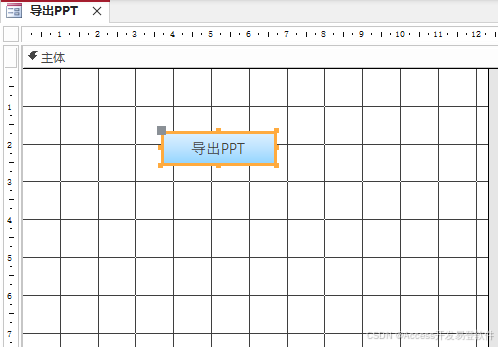
接着,添加代码按钮的单击事件:
vbscript
Private Sub Command0_Click()

    On Error GoTo ErrorHandler

    DoCmd.Hourglass True

    ' 调用生成报告函数
    CreateCompleteReport

    DoCmd.Hourglass False

    Exit Sub

ErrorHandler:
    DoCmd.Hourglass False
    MsgBox "操作失败:" & Err.Description, vbCritical, "错误"
End Sub
0 5导出测试
最好就是导出测试一下,给大家看一下生成PPT的截图,总共5个PPT。
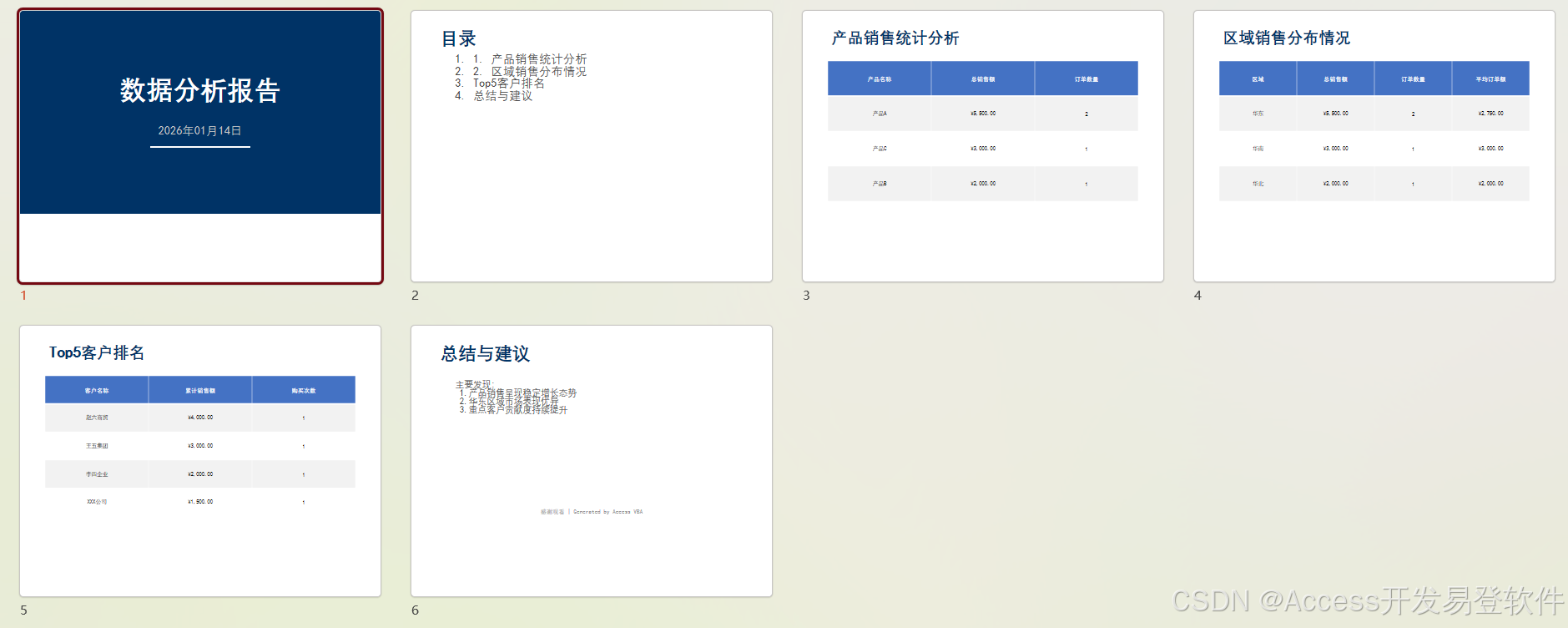
我这里只是给大家一个参考,具体的样式还是要自己去开发,如果样式比较复杂可以考虑用模板导出。
性能优化建议
-
减少对象创建:重用变量,避免频繁创建新对象
-
批量操作:一次性设置多个属性,减少属性访问次数
-
延迟显示:设置 pptApp.Visible = False,完成后再显示
-
关闭屏幕刷新:使用 DoCmd.Echo False
总结
通过本教程,你已经掌握了:
✅ Access与PowerPoint的VBA交互
✅ 动态创建PPT幻灯片
✅ 将数据库数据导出为表格
✅ 自动化报告生成流程
✅ 错误处理和用户界面设计
这套代码可以直接应用到实际工作中,根据需求调整查询名称、标题文字和配色方案即可。
如遇到问题,欢迎在评论区留言讨论!如果觉得我做的还行,给个一键三连吧!爱你哦!!!