目录
[一、Easing 动画概述](#一、Easing 动画概述)
[1. 核心价值与适用场景](#1. 核心价值与适用场景)
[2. RN Easing 核心原理](#2. RN Easing 核心原理)
[1. 核心 API 说明](#1. 核心 API 说明)
[2. 第一个 Easing 动画:淡入淡出 + 平移](#2. 第一个 Easing 动画:淡入淡出 + 平移)
[1. 自定义 Easing 函数](#1. 自定义 Easing 函数)
[2. 组合动画](#2. 组合动画)
[3. 手势联动 Easing 动画](#3. 手势联动 Easing 动画)
一、Easing 动画概述
1. 核心价值与适用场景
Easing 动画是基于「时间 - 进度」映射关系的动画效果,核心价值在于模拟真实物理运动规律(如重力、弹性、摩擦力),让动画过渡更自然。React Native 的 Easing 动画在 OpenHarmony 应用中的典型使用场景包括:
- 页面切换 / 模态框弹出(淡入淡出、平移效果)
- 交互反馈(按钮点击缩放、列表 item 滑动删除)
- 数据加载(骨架屏渐变、加载指示器旋转)
- 状态变化(开关切换、进度条填充、数字滚动)
- 手势联动(下拉刷新、拖拽排序、缩放操作)
2. RN Easing 核心原理
React Native 的 Easing 动画基于 Animated 库实现,核心原理是:
- 通过
Animated.Value维护动画进度(0~1 或自定义区间); - 利用
Easing函数定义进度随时间的变化规律; - 通过
Animated.timing/Animated.spring等方法驱动进度变化; - 桥接 OpenHarmony 原生动画引擎(如鸿蒙的
ValueAnimator),实现硬件加速渲染; - 最终将进度映射到组件样式(如 opacity、transform、width 等)。
二、基础用法
1. 核心 API 说明
React Native 实现 Easing 动画的核心 API 来自 react-native 内置的 Animated 和 Easing 模块,无需额外依赖第三方库,鸿蒙平台可直接使用:
Animated.Value:动画进度容器,存储当前动画进度值;Animated.timing:最常用的动画驱动方法,支持自定义时长、Easing 函数;Easing:内置缓动函数库(如线性、弹性、衰减、弹跳等);useNativeDriver: true:关键优化参数,启用鸿蒙原生动画驱动(性能提升 50%+)。
2. 第一个 Easing 动画:淡入淡出 + 平移
javascript
import React, { useEffect, useRef } from 'react';
import { View, Text, StyleSheet, Animated, Easing } from 'react-native';

const BasicEasingAnimation = () => {
  const animatedValue = useRef(new Animated.Value(0)).current;

   useEffect(() => {
    Animated.timing(animatedValue, {
      toValue: 1,
      duration: 1000,
      easing: Easing.bezier(0.42, 0, 0.58, 1),
      useNativeDriver: true,
    }).start();
  }, []);

  const animatedStyle = {
    opacity: animatedValue,
    transform: [
      {
        translateY: animatedValue.interpolate({
          inputRange: [0, 1],
          outputRange: [50, 0],
        }),
      },
    ],
  };

  return (
    <View style={styles.container}>
      <Animated.View style={[styles.box, animatedStyle]}>
        <Text style={styles.text}>鸿蒙Easing动画</Text>
      </Animated.View>
    </View>
  );
};

const styles = StyleSheet.create({
  container: {
    flex: 1,
    justifyContent: 'center',
    alignItems: 'center',
    backgroundColor: '#F5F7FA',
  },
  box: {
    width: 200,
    height: 100,
    backgroundColor: '#007DFF',
    borderRadius: 8,
    justifyContent: 'center',
    alignItems: 'center',
  },
  text: {
    color: '#fff',
    fontSize: 16,
  },
});

export default BasicEasingAnimation;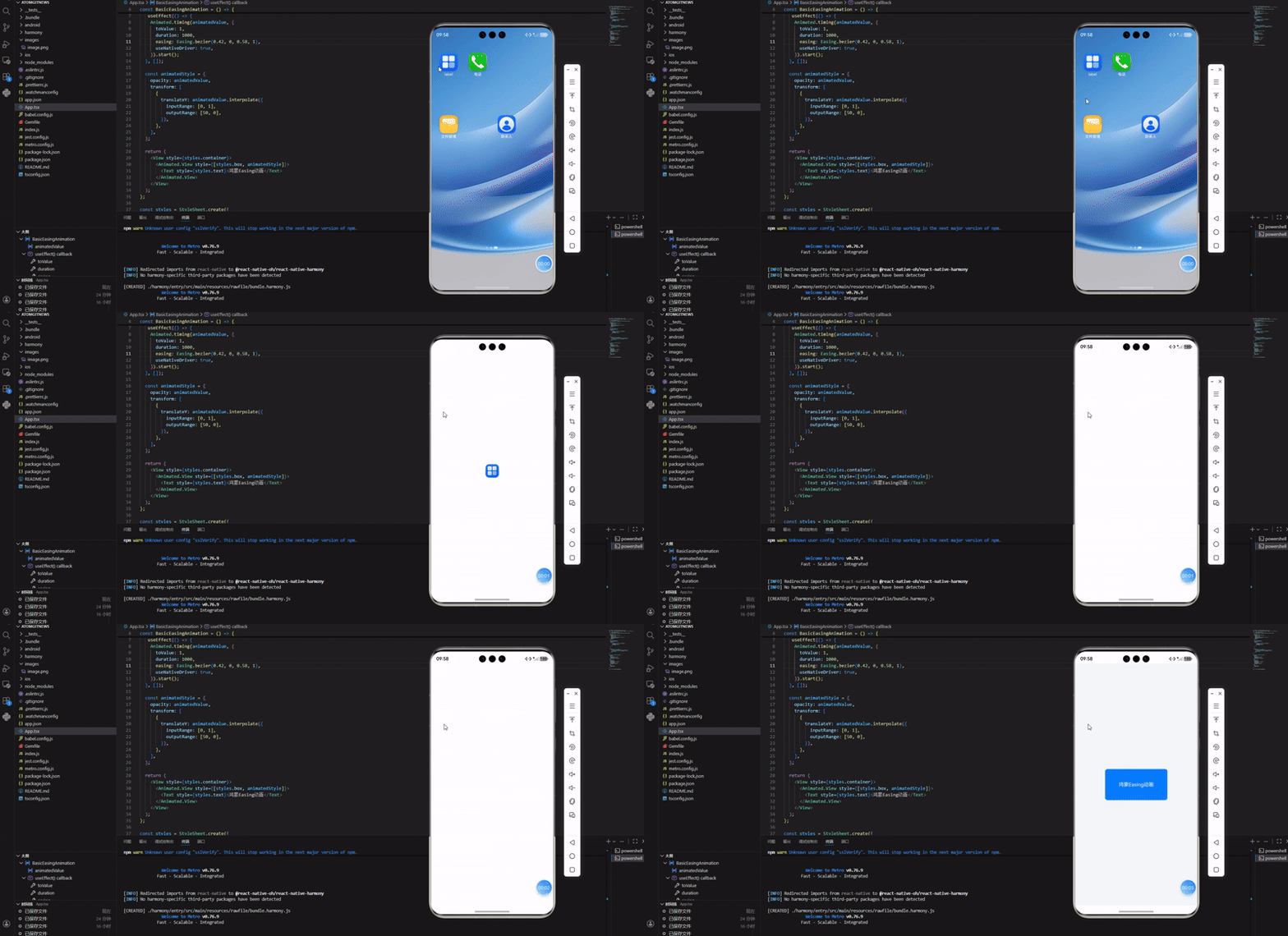
鸿蒙适配要点:
- 必须启用
useNativeDriver: true:鸿蒙平台下,JS 驱动动画会有明显卡顿,原生驱动可直接调用鸿蒙动画引擎,性能拉满; - 平移 / 缩放等 transform 动画优先使用
Animated封装:避免直接操作样式导致的重绘,鸿蒙原生驱动对 transform 支持最优; - 动画时长建议 300~1000ms:符合鸿蒙设计规范,过短会导致动画不明显,过长影响交互效率。
四、进阶用法
1. 自定义 Easing 函数
当内置 Easing 函数无法满足需求时,可通过 Easing.function 自定义缓动规律,核心是实现「输入进度(0~1)→ 输出进度(0~1)」的映射函数,鸿蒙平台完全支持:
javascript
const CustomEasingAnimation = () => {
  const animatedValue = useRef(new Animated.Value(0)).current;

  useEffect(() => {
    Animated.timing(animatedValue, {
      toValue: 1,
      duration: 1500,
      // 自定义缓动函数:inputRange为0~1,返回映射后的进度
      easing: Easing.function((t) => {
        // t: 0→1(时间进度),返回值:动画进度
        if (t < 0.7) {
          return 1 - Math.pow(1 - t / 0.7, 2); // 前70%时间:加速下落
        } else {
          const remaining = (t - 0.7) / 0.3;
          return 1 - Math.pow(remaining - 1, 2) * 0.1; // 后30%时间:轻微反弹
        }
      }),
      useNativeDriver: true,
    }).start();
  }, []);

  const animatedStyle = {
    transform: [
      {
        translateY: animatedValue.interpolate({
          inputRange: [0, 1],
          outputRange: [0, 300], // 向下平移300dp,模拟下落+反弹
        }),
      },
    ],
  };

  return (
    <View style={styles.container}>
      <Animated.View style={[styles.ball, animatedStyle]} />
    </View>
  );
};

const styles = StyleSheet.create({
  // 省略重复样式,新增ball样式
  ball: {
    width: 50,
    height: 50,
    borderRadius: 25,
    backgroundColor: '#00C160',
  },
});
鸿蒙优化要点:
- 自定义 Easing 函数避免复杂计算(如多层循环、三角函数嵌套):鸿蒙低端设备可能因计算量过大导致动画卡顿;
- 确保输出进度在 0~1 区间:超出区间可能导致动画异常(如组件超出屏幕、透明度异常);
- 优先使用分段函数(if/else)而非连续复杂函数:鸿蒙原生驱动对简单逻辑的解析效率更高。
2. 组合动画
实际开发中,常需要多个动画组合执行(如先淡入再平移、同时缩放 + 旋转),RN 提供 Animated.sequence(序列)、Animated.parallel(并行)、Animated.delay(延迟)等方法,鸿蒙平台完美适配:
javascript
// 组合动画:延迟200ms → 淡入(300ms)→ 平移+旋转(并行,500ms)
const CombinedEasingAnimation = () => {
  const animatedValue = useRef(new Animated.Value(0)).current;

  useEffect(() => {
    Animated.sequence([
      Animated.delay(200), // 延迟200ms执行
      // 第一步:淡入(0→1)
      Animated.timing(animatedValue, {
        toValue: 0.5,
        duration: 300,
        easing: Easing.easeInOut,
        useNativeDriver: true,
      }),
      // 第二步:平移+旋转并行执行
      Animated.parallel([
        Animated.timing(animatedValue, {
          toValue: 1,
          duration: 500,
          easing: Easing.spring(0.7, 0.4),
          useNativeDriver: true,
        }),
      ]),
    ]).start();
  }, []);

  const animatedStyle = {
    opacity: animatedValue.interpolate({ inputRange: [0, 0.5], outputRange: [0, 1] }),
    transform: [
      {
        translateX: animatedValue.interpolate({ inputRange: [0.5, 1], outputRange: [0, 150] }), // 平移
      },
      {
        rotate: animatedValue.interpolate({ inputRange: [0.5, 1], outputRange: ['0deg', '360deg'] }), // 旋转
      },
    ],
  };

  return (
    <View style={styles.container}>
      <Animated.View style={[styles.box, animatedStyle]}>
        <Text style={styles.text}>组合动画</Text>
      </Animated.View>
    </View>
  );
};
组合动画注意事项:
- 并行动画(
Animated.parallel)避免同时修改同一属性:如同时修改opacity可能导致冲突; - 序列动画(
Animated.sequence)中,后续动画的inputRange需衔接前序动画的进度:如示例中 0.5 作为分界点; - 延迟动画(
Animated.delay)仅延迟后续动画执行,不阻塞 JS 线程,鸿蒙平台无性能影响。
3. 手势联动 Easing 动画
将 Easing 动画与 RN 手势系统结合,实现「拖拽、缩放、滑动」等交互联动效果,是鸿蒙应用的高频需求。以下示例实现「拖拽小球 + 松手后弹性回弹」的交互动画:
javascript
import React, { useRef } from 'react';
import { View, StyleSheet, Animated, PanResponder } from 'react-native';

const GestureEasingAnimation = () => {
  // 初始位置:屏幕中心
  const position = useRef(new Animated.ValueXY({ x: 0, y: 0 })).current;

  // 创建手势响应器
  const panResponder = PanResponder.create({
    onStartShouldSetPanResponder: () => true,
    // 拖拽中:实时更新位置
    onPanResponderMove: (_, gesture) => {
      position.setValue({ x: gesture.dx, y: gesture.dy });
    },
    onPanResponderRelease: () => {
      Animated.spring(position, {
        toValue: { x: 0, y: 0 }, // 回弹到中心
        friction: 8, // 阻尼(对应之前的0.8,值越大阻尼越强)
        tension: 30, // 刚度(对应之前的0.3,值越大弹性越强)
        useNativeDriver: true,
      }).start();
    },
  });

  return (
    <View style={styles.container}>
      <Animated.View
        {...panResponder.panHandlers}
        style={[styles.ball, { transform: position.getTranslateTransform() }]}
      />
    </View>
  );
};

const styles = StyleSheet.create({
  container: {
    flex: 1,
    backgroundColor: '#F5F7FA',
  },
  ball: {
    width: 60,
    height: 60,
    borderRadius: 30,
    backgroundColor: '#FF7D00',
    position: 'absolute',
    top: '50%',
    left: '50%',
    marginLeft: -30,
    marginTop: -30,
  },
});

export default GestureEasingAnimation;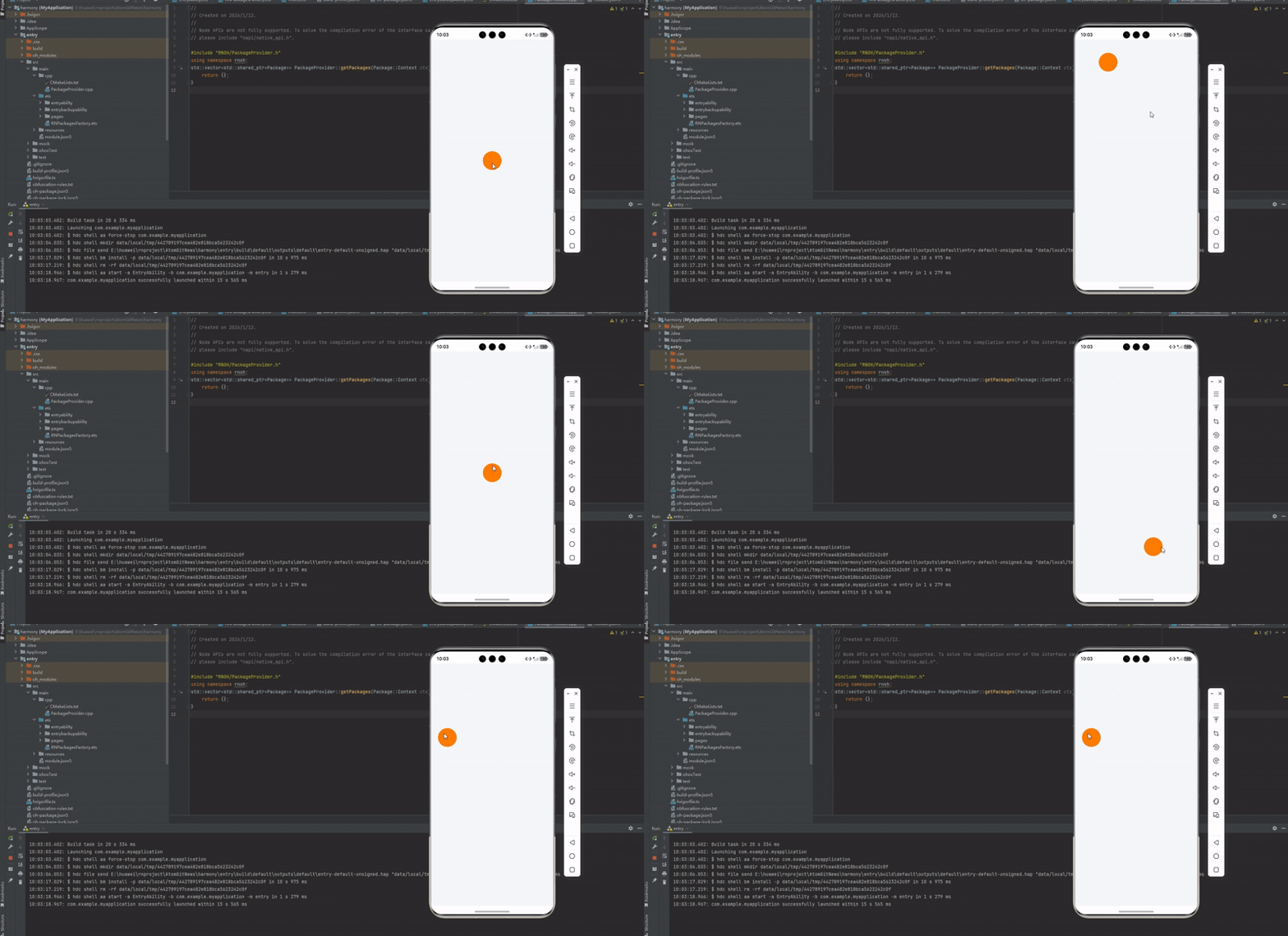
鸿蒙手势动画适配要点:
- 使用
Animated.ValueXY管理二维坐标:比单独使用两个Animated.Value更高效,鸿蒙原生驱动支持更好; - 手势回调中避免复杂逻辑:仅更新动画进度,否则会导致拖拽卡顿;
- 松手回弹动画优先使用
Animated.spring:模拟真实物理弹性,符合鸿蒙交互设计规范。
五、实操演示:鸿蒙加载动画组件封装
以下是 OpenHarmony 平台生产级的 Easing 动画组件封装,实现「旋转 + 缩放」的加载指示器,结合 Easing 函数模拟平滑的呼吸效果,可直接复用:
javascript
import React, { useRef, useEffect } from 'react';
import { View, StyleSheet, Animated, Easing } from 'react-native';

const OHEasingLoading = ({ size = 40, color = "#007DFF", speed = 1.5 }) => {
  // 旋转动画进度值 (0 → 1 循环)
  const rotateAnimate = useRef(new Animated.Value(0)).current;
  // 缩放呼吸动画进度值 (0.8 → 1.2 循环)
  const scaleAnimate = useRef(new Animated.Value(0.8)).current;

  useEffect(() => {
    // 1. 旋转动画:无限循环、线性匀速、无卡顿
    const rotateLoop = Animated.loop(
      Animated.timing(rotateAnimate, {
        toValue: 1,
        duration: 1000 / speed,
        easing: Easing.linear, // 线性匀速旋转,不会忽快忽慢
        useNativeDriver: true, // 鸿蒙必开,性能拉满,无卡顿
        isInteraction: false,  // 非交互动画,优化主线程占用
      })
    );

    // 2. 缩放呼吸动画:无限循环、缓入缓出、鸿蒙兼容无报错
    const scaleLoop = Animated.loop(
      Animated.sequence([
        Animated.timing(scaleAnimate, {
          toValue: 1.2,
          duration: 800 / speed,
          easing: Easing.bezier(0.42, 0, 0.58, 1),
          useNativeDriver: true,
        }),
        Animated.timing(scaleAnimate, {
          toValue: 0.8,
          duration: 800 / speed,
          easing: Easing.bezier(0.42, 0, 0.58, 1),
          useNativeDriver: true,
        }),
      ])
    );

    // 启动动画
    rotateLoop.start();
    scaleLoop.start();

    return () => {
      rotateLoop.stop();
      scaleLoop.stop();
    };
  }, [speed]);

  // 动画样式映射
  const animateStyle = {
    transform: [
      {
        rotate: rotateAnimate.interpolate({
          inputRange: [0, 1],
          outputRange: ['0deg', '360deg'],
        }),
      },
      { scale: scaleAnimate },
    ],
  };

  return (
    <View style={styles.container}>
      <Animated.View style={[styles.loader, animateStyle]}>
        <View
          style={[
            styles.circle,
            {
              width: size,
              height: size,
              borderColor: color,
              borderWidth: size / 10,
              borderRadius: size / 2,
            },
          ]}
        />
      </Animated.View>
    </View>
  );
};

const LoadingDemo = () => {
  return (
    <View style={styles.demoPage}>
      {/* 调用:自定义尺寸50、绿色、速度2倍 */}
      <OHEasingLoading size={50} color="#00C160" speed={2} />
    </View>
  );
};

const styles = StyleSheet.create({
  container: {
    justifyContent: 'center',
    alignItems: 'center',
  },
  loader: {
    justifyContent: 'center',
    alignItems: 'center',
  },
  circle: {
    borderTopColor: 'transparent', // 顶部透明,形成标准圆环缺口
  },
  demoPage: {
    flex: 1,
    backgroundColor: '#F5F7FA',
    justifyContent: 'center',
    alignItems: 'center',
  },
});

export default LoadingDemo;欢迎加入开源鸿蒙跨平台社区:https://openharmonycrossplatform.csdn.net