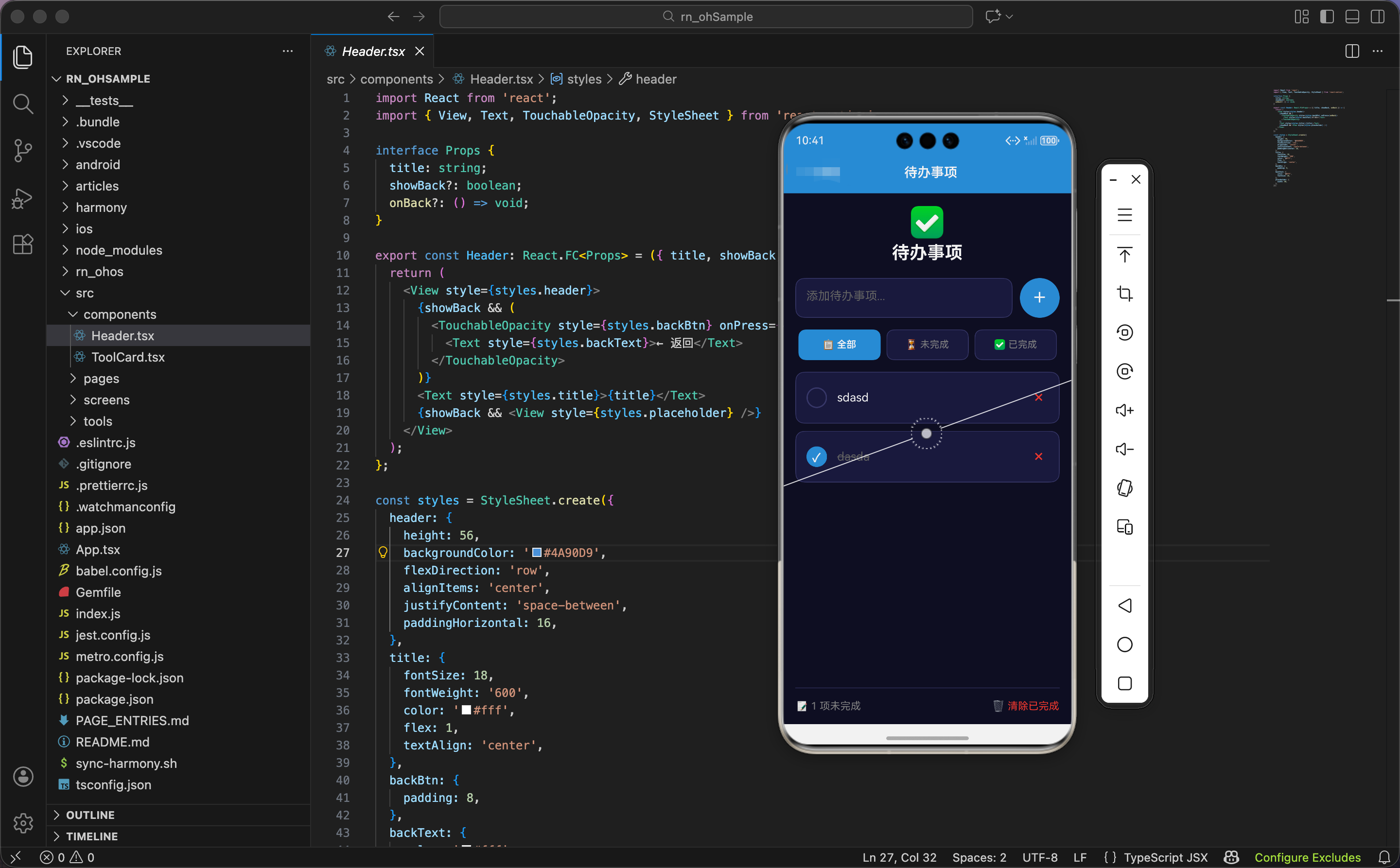
今天我们用 React Native 实现一个待办事项工具,支持添加、完成、删除任务,以及筛选功能。
数据结构
tsx
import React, { useState, useRef } from 'react';
import { View, Text, TextInput, TouchableOpacity, StyleSheet, ScrollView, Animated } from 'react-native';

interface Todo {
  id: number;
  text: string;
  done: boolean;
  anim: Animated.Value;
}
待办事项的数据结构。
四个属性:
id:唯一标识,用时间戳生成text:任务内容done:是否完成anim:动画值,控制出现和消失动画
为什么每个任务都有动画值?因为每个任务的动画是独立的。添加任务时,新任务从 0 缩放到 1。删除任务时,该任务从 1 缩放到 0。如果用全局动画值,所有任务会同时动画,效果不好。
状态设计
tsx
export const TodoList: React.FC = () => {
  const [todos, setTodos] = useState<Todo[]>([]);
  const [input, setInput] = useState('');
  const [filter, setFilter] = useState<'all' | 'active' | 'done'>('all');

  const addBtnAnim = useRef(new Animated.Value(1)).current;
  const inputAnim = useRef(new Animated.Value(1)).current;
状态设计包含任务列表、输入框、筛选器、动画值。
任务列表 :todos 是 Todo[] 数组,存储所有任务。
输入框 :input 是字符串,存储用户输入的任务内容。
筛选器 :filter 有三个值:
'all':显示全部任务'active':显示未完成任务'done':显示已完成任务
两个动画值:
addBtnAnim:添加按钮的缩放动画inputAnim:输入框的缩放动画(虽然代码中没用到)
添加任务
tsx
  const addTodo = () => {
    if (!input.trim()) return;

    Animated.sequence([
      Animated.timing(addBtnAnim, { toValue: 0.8, duration: 100, useNativeDriver: true }),
      Animated.spring(addBtnAnim, { toValue: 1, friction: 3, useNativeDriver: true }),
    ]).start();

    const newTodo: Todo = { id: Date.now(), text: input.trim(), done: false, anim: new Animated.Value(0) };
    setTodos([...todos, newTodo]);
    setInput('');

    setTimeout(() => {
      Animated.spring(newTodo.anim, { toValue: 1, friction: 5, useNativeDriver: true }).start();
    }, 50);
  };
添加按钮点击时,创建新任务,触发动画。
验证输入 :if (!input.trim()) return; 如果输入为空或只有空格,直接返回。
按钮动画:
- 先缩小到 0.8,持续 100ms
- 再弹回 1,弹簧效果
创建新任务:
id:用Date.now()生成时间戳,保证唯一text:用trim()去除首尾空格done:初始值falseanim:初始值 0
更新状态 :用展开运算符 [...todos, newTodo] 创建新数组,添加新任务。
清空输入框 :setInput('')。
延迟动画 :用 setTimeout() 延迟 50ms,让新任务先渲染,再触发动画。动画从 0 弹到 1,弹簧效果。
为什么要延迟?因为如果立即触发动画,新任务还没渲染,动画不会生效。延迟 50ms 让 React 先完成渲染,再启动动画。
切换完成状态
tsx
  const toggleTodo = (id: number) => {
    setTodos(todos.map(t => {
      if (t.id === id) {
        Animated.sequence([
          Animated.timing(t.anim, { toValue: 1.1, duration: 100, useNativeDriver: true }),
          Animated.spring(t.anim, { toValue: 1, friction: 3, useNativeDriver: true }),
        ]).start();
        return { ...t, done: !t.done };
      }
      return t;
    }));
  };
点击复选框时,切换任务的完成状态。
遍历任务 :用 map() 遍历所有任务。
找到目标任务 :if (t.id === id) 判断是否是点击的任务。
动画:
- 先放大到 1.1,持续 100ms
- 再弹回 1,弹簧效果
切换状态 :done: !t.done 取反。如果是 false 变成 true,如果是 true 变成 false。
返回新对象 :用展开运算符 { ...t, done: !t.done } 创建新对象,保持不可变性。
其他任务 :直接返回 t,不修改。
为什么用 map 而不是 forEach ?因为 map() 返回新数组,符合 React 的不可变性原则。forEach() 不返回值,无法更新状态。
删除任务
tsx
  const deleteTodo = (id: number) => {
    const todo = todos.find(t => t.id === id);
    if (todo) {
      Animated.timing(todo.anim, { toValue: 0, duration: 200, useNativeDriver: true }).start(() => {
        setTodos(todos.filter(t => t.id !== id));
      });
    }
  };
点击删除按钮时,删除任务。
找到任务 :用 find() 找到要删除的任务。
动画:把动画值从 1 缩小到 0,持续 200ms。
动画完成回调 :在 start() 的回调函数中删除任务。用 filter() 过滤掉 id 匹配的任务。
为什么在回调中删除?因为要等动画完成后再删除。如果立即删除,任务会突然消失,没有动画效果。
清除已完成
tsx
  const clearDone = () => {
    setTodos(todos.filter(t => !t.done));
  };
清除所有已完成的任务。用 filter() 过滤掉 done 为 true 的任务。
筛选和统计
tsx
  const filtered = todos.filter(t => {
    if (filter === 'active') return !t.done;
    if (filter === 'done') return t.done;
    return true;
  });

  const activeCount = todos.filter(t => !t.done).length;
根据筛选器过滤任务,统计未完成任务数量。
筛选逻辑:
'active':返回!t.done,只显示未完成任务'done':返回t.done,只显示已完成任务'all':返回true,显示全部任务
统计未完成 :用 filter() 过滤出未完成任务,再用 .length 获取数量。
界面渲染:头部和输入
tsx
  return (
    <View style={styles.container}>
      <View style={styles.header}>
        <Text style={styles.headerIcon}>✅</Text>
        <Text style={styles.headerTitle}>待办事项</Text>
      </View>

      <View style={styles.inputRow}>
        <Animated.View style={[styles.inputWrapper, { transform: [{ scale: inputAnim }] }]}>
          <TextInput style={styles.input} value={input} onChangeText={setInput} placeholder="添加待办事项..." placeholderTextColor="#666" onSubmitEditing={addTodo} />
        </Animated.View>
        <Animated.View style={{ transform: [{ scale: addBtnAnim }] }}>
          <TouchableOpacity style={styles.addBtn} onPress={addTodo} activeOpacity={0.8}>
            <Text style={styles.addBtnText}>+</Text>
          </TouchableOpacity>
        </Animated.View>
      </View>
头部显示标题,输入区域包含输入框和添加按钮。
头部:
- 图标:✅ 对勾
- 标题:待办事项
输入区域:
- 横向布局
- 输入框:占满剩余空间,占位符"添加待办事项..."
onSubmitEditing={addTodo}:按回车键时添加任务- 添加按钮:圆形,蓝色背景,"+" 号
为什么用圆形按钮?因为圆形按钮更符合移动端的设计规范。而且 "+" 号是通用的添加符号,用户一看就懂。
筛选按钮
tsx
      <View style={styles.filters}>
        {(['all', 'active', 'done'] as const).map(f => (
          <TouchableOpacity key={f} style={[styles.filterBtn, filter === f && styles.filterBtnActive]} onPress={() => setFilter(f)} activeOpacity={0.7}>
            <Text style={[styles.filterText, filter === f && styles.filterTextActive]}>
              {f === 'all' ? '📋 全部' : f === 'active' ? '⏳ 未完成' : '✅ 已完成'}
            </Text>
          </TouchableOpacity>
        ))}
      </View>
三个筛选按钮:全部、未完成、已完成。
遍历筛选器 :用 map() 遍历 ['all', 'active', 'done'] 数组。
激活状态 :filter === f && styles.filterBtnActive 如果当前筛选器等于按钮的值,应用激活样式。
按钮文字:
'all':📋 全部'active':⏳ 未完成'done':✅ 已完成
为什么用图标?因为图标能快速传达含义。📋 代表列表,⏳ 代表进行中,✅ 代表完成。
任务列表
tsx
      <ScrollView style={styles.list}>
        {filtered.map(todo => (
          <Animated.View key={todo.id} style={{
            transform: [{ scale: todo.anim }],
            opacity: todo.anim,
          }}>
            <View style={styles.todoItem}>
              <TouchableOpacity style={[styles.checkbox, todo.done && styles.checkboxDone]} onPress={() => toggleTodo(todo.id)} activeOpacity={0.7}>
                {todo.done && <Text style={styles.checkmark}>✓</Text>}
              </TouchableOpacity>
              <Text style={[styles.todoText, todo.done && styles.todoTextDone]}>{todo.text}</Text>
              <TouchableOpacity style={styles.deleteBtn} onPress={() => deleteTodo(todo.id)}>
                <Text style={styles.deleteText}>×</Text>
              </TouchableOpacity>
            </View>
          </Animated.View>
        ))}
      </ScrollView>
滚动列表显示所有任务。
遍历任务 :用 map() 遍历 filtered 数组(已筛选的任务)。
任务动画:
- 缩放:
scale: todo.anim - 透明度:
opacity: todo.anim
任务卡片:
- 复选框:圆形,点击切换完成状态
- 如果已完成,显示 ✓ 号,背景变蓝色
- 任务文字:占满剩余空间
- 如果已完成,文字变灰色,加删除线
- 删除按钮:× 号,红色
为什么用删除线?因为删除线是通用的"已完成"标记。用户看到删除线,就知道任务已完成。
底部统计
tsx
      <View style={styles.footer}>
        <Text style={styles.count}>📝 {activeCount} 项未完成</Text>
        <TouchableOpacity onPress={clearDone}>
          <Text style={styles.clearText}>🗑️ 清除已完成</Text>
        </TouchableOpacity>
      </View>
    </View>
  );
};
底部显示未完成任务数量和清除按钮。
未完成数量:📝 图标 + 数量 + "项未完成"。
清除按钮:🗑️ 图标 + "清除已完成",红色文字。
鸿蒙 ArkTS 对比:任务管理
typescript
@State todos: Todo[] = []
@State input: string = ''
@State filter: 'all' | 'active' | 'done' = 'all'

addTodo() {
  if (!this.input.trim()) return

  const newTodo: Todo = {
    id: Date.now(),
    text: this.input.trim(),
    done: false,
    anim: 0
  }
  this.todos.push(newTodo)
  this.input = ''

  animateTo({ duration: 300 }, () => {
    newTodo.anim = 1
  })
}

toggleTodo(id: number) {
  const index = this.todos.findIndex(t => t.id === id)
  if (index !== -1) {
    this.todos[index].done = !this.todos[index].done
  }
}

deleteTodo(id: number) {
  const index = this.todos.findIndex(t => t.id === id)
  if (index !== -1) {
    animateTo({ duration: 200 }, () => {
      this.todos[index].anim = 0
    })
    setTimeout(() => {
      this.todos.splice(index, 1)
    }, 200)
  }
}

clearDone() {
  this.todos = this.todos.filter(t => !t.done)
}
ArkTS 中的任务管理逻辑完全一样。核心是数组操作:push() 添加、map() 更新、filter() 删除。Date.now() 生成唯一 ID,trim() 去除空格,都是标准 JavaScript 语法。
动画差异 :ArkTS 用 animateTo() 触发动画,React Native 用 Animated.spring()。但动画效果一样:缩放和透明度。
样式定义
tsx
const styles = StyleSheet.create({
  container: { flex: 1, backgroundColor: '#0f0f23', padding: 16 },
  header: { alignItems: 'center', marginBottom: 20 },
  headerIcon: { fontSize: 40, marginBottom: 4 },
  headerTitle: { fontSize: 24, fontWeight: '700', color: '#fff' },
  inputRow: { flexDirection: 'row', marginBottom: 16 },
  inputWrapper: { flex: 1, backgroundColor: '#1a1a3e', borderRadius: 12, marginRight: 10, borderWidth: 1, borderColor: '#3a3a6a' },
  input: { padding: 14, fontSize: 16, color: '#fff' },
  addBtn: { width: 54, height: 54, backgroundColor: '#4A90D9', borderRadius: 27, justifyContent: 'center', alignItems: 'center' },
  addBtnText: { color: '#fff', fontSize: 32, fontWeight: '300' },
  filters: { flexDirection: 'row', marginBottom: 16 },
  filterBtn: { flex: 1, padding: 12, backgroundColor: '#1a1a3e', marginHorizontal: 4, borderRadius: 10, alignItems: 'center', borderWidth: 1, borderColor: '#3a3a6a' },
  filterBtnActive: { backgroundColor: '#4A90D9', borderColor: '#4A90D9' },
  filterText: { color: '#888', fontSize: 13 },
  filterTextActive: { color: '#fff', fontWeight: '600' },
  list: { flex: 1 },
  todoItem: { flexDirection: 'row', alignItems: 'center', backgroundColor: '#1a1a3e', padding: 14, borderRadius: 12, marginBottom: 10, borderWidth: 1, borderColor: '#3a3a6a' },
  checkbox: { width: 28, height: 28, borderRadius: 14, borderWidth: 2, borderColor: '#3a3a6a', marginRight: 14, justifyContent: 'center', alignItems: 'center' },
  checkboxDone: { backgroundColor: '#4A90D9', borderColor: '#4A90D9' },
  checkmark: { color: '#fff', fontSize: 16, fontWeight: '700' },
  todoText: { flex: 1, fontSize: 16, color: '#fff' },
  todoTextDone: { color: '#666', textDecorationLine: 'line-through' },
  deleteBtn: { padding: 6 },
  deleteText: { color: '#e74c3c', fontSize: 24 },
  footer: { flexDirection: 'row', justifyContent: 'space-between', paddingTop: 16, borderTopWidth: 1, borderTopColor: '#3a3a6a' },
  count: { color: '#888' },
  clearText: { color: '#e74c3c' },
});
容器用深蓝黑色背景。输入区域横向布局,添加按钮是圆形。筛选按钮横向排列,激活时背景变蓝色。任务卡片横向布局,复选框是圆形,已完成时背景变蓝色。任务文字已完成时变灰色加删除线。底部统计区域横向布局,两端对齐。
小结
这个待办事项工具展示了任务管理和筛选功能的实现。用数组操作管理任务列表,每个任务有独立的动画值。添加任务时弹簧动画,删除任务时缩小消失。筛选器支持全部、未完成、已完成三种模式。
欢迎加入开源鸿蒙跨平台社区:https://openharmonycrossplatform.csdn.net