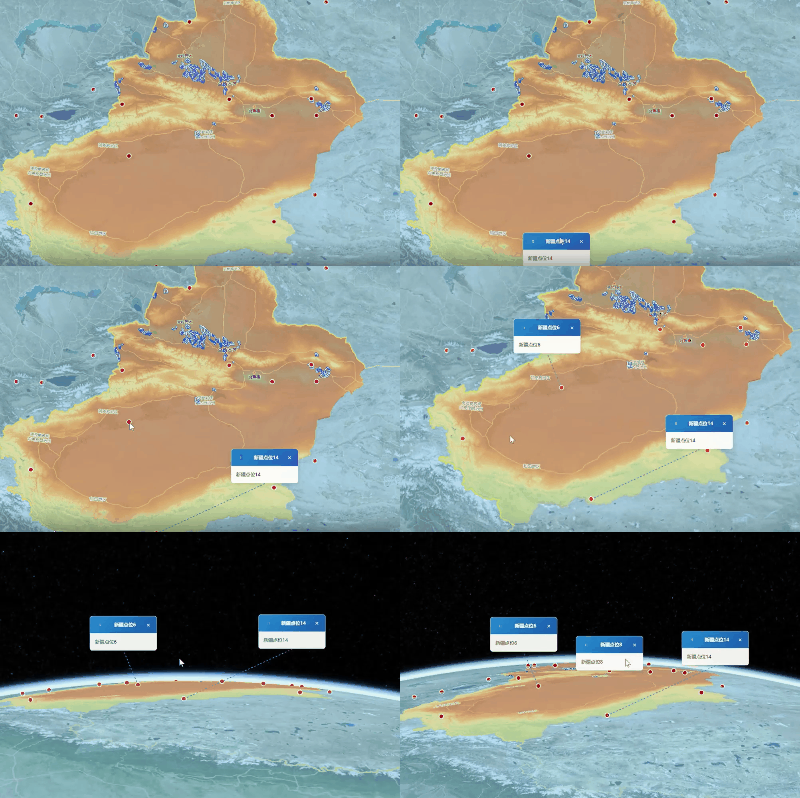
1. 概述
支持拖拽功能、引导线连接和动态位置跟随。
1.1 特点
- 动态位置跟随:弹窗位置跟随地图点位实时更新
- 拖拽功能:支持用户拖拽弹窗到任意位置
- 引导线连接:使用虚线引导线连接弹窗和点位,清晰展示关联关系
- 相对位置保持:拖拽后保持弹窗与点位的相对位置关系
- 多弹窗支持:支持同时显示多个弹窗实例
2. 主要功能与用途
2.1 核心功能
2.1.1 弹窗显示与隐藏
- 通过
visible属性控制弹窗的显示状态 - 支持动态切换显示/隐藏
- 平滑的过渡动画效果
2.1.2 拖拽功能
- 通过拖拽手柄实现弹窗拖拽
- 拖拽过程中实时更新引导线
- 拖拽结束后保持相对位置关系
- 支持全局鼠标事件监听
2.1.3 引导线连接
- 使用 SVG 绘制虚线引导线,可通过svg形式绘制其他图形,如气泡三角的符号等
- 动态计算引导线起点和终点
- 引导线始终连接点位和弹窗
2.1.4 位置跟随
- 监听地图渲染事件
- 实时更新弹窗位置
- 区分拖拽状态和自动跟随状态
- 保持拖拽后的偏移量
3. Props 属性说明
3.1 属性列表
| 属性名 | 类型 | 必填 | 默认值 | 描述 |
|---|---|---|---|---|
visible |
Boolean | 否 | false |
控制弹窗的显示状态,true 为显示,false 为隐藏 |
pointName |
String | 否 | '' |
弹窗中显示的点位名称或标题 |
position |
Object | 否 | { x: 0, y: 0 } |
弹窗的初始屏幕坐标位置,包含 x 和 y 属性 |
entity |
Object | 否 | null |
Cesium 实体对象,用于获取点位的实时屏幕坐标 |
viewer |
Object | 是 | - | Cesium Viewer 实例,用于地图渲染事件监听和坐标转换 |
id |
String | 是 | - | 弹窗的唯一标识符,用于区分不同的弹窗实例 |
3.2 属性详细说明
3.2.1 visible
- 类型 :
Boolean - 默认值 :
false - 描述 :控制弹窗的显示状态。设置为
true时显示弹窗,设置为false时隐藏弹窗。 - 使用场景:动态控制弹窗的显示和隐藏,响应用户交互或业务逻辑。
3.2.2 pointName
- 类型 :
String - 默认值 :
'' - 描述:弹窗中显示的点位名称或标题。该文本会显示在弹窗的标题栏和内容区域。
- 使用场景:显示点位名称、标注信息或其他相关文本。
3.2.3 position
- 类型 :
Object - 默认值 :
{ x: 0, y: 0 } - 描述 :弹窗的初始屏幕坐标位置,包含
x和y两个属性,分别表示屏幕坐标的横纵坐标。 - 使用场景:设置弹窗的初始位置,通常设置为点位的屏幕坐标。
3.2.4 entity
- 类型 :
Object - 默认值 :
null - 描述 :Cesium 实体对象,用于获取点位的实时屏幕坐标。该对象应包含
position属性。 - 使用场景:关联弹窗与地图点位,实现位置跟随功能。因为使用entity所以不建议数据量大的时候使用
3.2.5 viewer
- 类型 :
Object - 必填:是
- 描述:Cesium Viewer 实例,用于地图渲染事件监听和坐标转换。
- 使用场景:提供地图实例,实现弹窗与地图的交互。
3.2.6 id
- 类型 :
String - 必填:是
- 描述:弹窗的唯一标识符,用于区分不同的弹窗实例。
- 使用场景:在多弹窗场景中标识不同的弹窗,便于管理和操作。
4. 事件触发机制
4.1 事件列表
| 事件名 | 参数 | 描述 |
|---|---|---|
close |
popupId: String |
关闭弹窗时触发,传递弹窗的唯一标识符 |
drag |
dragInfo: Object |
拖拽弹窗时触发,传递拖拽信息对象 |
4.2 事件详细说明
4.2.1 close 事件
- 触发时机:用户点击关闭按钮时触发
- 参数 :
popupId:弹窗的唯一标识符(String 类型)
- 使用示例:
javascript
const closePopup = (popupId) => {
  // 根据 popupId 关闭对应的弹窗
  const index = popups.value.findIndex(popup => popup.id === popupId)
  if (index > -1) {
    popups.value.splice(index, 1)
  }
}
4.2.2 drag 事件
- 触发时机:用户拖拽弹窗时触发
- 参数 :
dragInfo:拖拽信息对象,包含以下属性:id:弹窗的唯一标识符(String 类型)position:拖拽后的屏幕坐标位置(Object 类型,包含x和y属性)
- 使用示例:
javascript
const handlePopupDrag = (dragInfo) => {
  // 根据 dragInfo.id 更新对应弹窗的位置
  const popup = popups.value.find(p => p.id === dragInfo.id)
  if (popup) {
    popup.position = dragInfo.position
  }
}
5. 插槽使用方法
5.1 插槽说明
当前版本的 WaterMapPopup 组件不提供自定义插槽。组件的内部结构和样式已经固定,包括标题栏、内容区域和关闭按钮。
5.2 自定义内容
如果需要自定义弹窗内容,可以通过修改组件模板或创建新的弹窗组件来实现。当前组件的内容区域默认显示 pointName 属性的值。
6. 样式定制指南
6.1 样式结构
组件使用 scoped 样式,样式类名如下:
.popup-container:弹窗容器,包含引导线和弹窗主体.water-map-popup:弹窗主体,包含标题栏和内容区域.popup-header:弹窗标题栏,包含拖拽手柄、标题和关闭按钮.drag-handle:拖拽手柄,用于拖拽弹窗.drag-icon:拖拽图标.popup-header h3:标题文本.close-btn:关闭按钮.popup-content:弹窗内容区域.guide-line:引导线 SVG 容器
6.2 样式定制
由于组件使用 scoped 样式,无法直接从外部修改组件内部样式。如果需要定制样式,建议:
- 修改组件源码 :直接修改组件的
<style>部分 - 使用深度选择器 :在父组件中使用
:deep()选择器覆盖样式 - 创建新组件:基于当前组件创建新的定制化组件
6.3 样式示例
css
/* 在父组件中使用深度选择器覆盖样式 */
:deep(.water-map-popup) {
  background: rgba(255, 255, 255, 0.98);
  border-radius: 12px;
}

:deep(.popup-header) {
  background: linear-gradient(135deg, #ff6b6b 0%, #c92a2a 100%);
}

:deep(.guide-line line) {
  stroke: #ff6b6b;
  stroke-width: 3;
}
7. 完整的使用示例代码
7.1 基础使用示例
vue
<template>
  <div class="map-container">
    <div id="cesiumContainer" class="cesium-container"></div>

    <!-- 单个弹窗示例 -->
    <WaterMapPopup
      :visible="popupVisible"
      :point-name="selectedPointName"
      :position="popupPosition"
      :entity="selectedPointEntity"
      :viewer="viewer"
      :id="popupId"
      @close="closePopup"
      @drag="handlePopupDrag"
    />
  </div>
</template>

<script setup>
import { ref, onMounted } from 'vue'
import * as Cesium from 'cesium'
import WaterMapPopup from '@/components/WaterMapPopup.vue'

// 地图实例
let viewer = null

// 弹窗状态
const popupVisible = ref(false)
const selectedPointName = ref('')
const popupPosition = ref({ x: 0, y: 0 })
const selectedPointEntity = ref(null)
const popupId = ref('popup_001')

onMounted(() => {
  // 初始化 Cesium Viewer
  viewer = new Cesium.Viewer('cesiumContainer', {
    // 配置选项
  })

  // 添加点位实体
  const entity = viewer.entities.add({
    position: Cesium.Cartesian3.fromDegrees(85.0, 41.0),
    point: {
      pixelSize: 10,
      color: Cesium.Color.RED
    },
    name: '测试点位'
  })

  selectedPointEntity.value = entity
})

// 关闭弹窗
const closePopup = (popupId) => {
  popupVisible.value = false
}

// 处理弹窗拖拽
const handlePopupDrag = (dragInfo) => {
  popupPosition.value = dragInfo.position
}
</script>
7.2 多弹窗使用示例
vue
<template>
  <div class="map-container">
    <div id="cesiumContainer" class="cesium-container"></div>

    <!-- 多个弹窗示例 -->
    <WaterMapPopup
      v-for="popup in popups"
      :key="popup.id"
      :id="popup.id"
      :visible="popup.visible"
      :point-name="popup.pointName"
      :position="popup.position"
      :entity="popup.entity"
      :viewer="viewer"
      @close="closePopup"
      @drag="handlePopupDrag"
    />
  </div>
</template>

<script setup>
import { ref, onMounted } from 'vue'
import * as Cesium from 'cesium'
import WaterMapPopup from '@/components/WaterMapPopup.vue'

// 地图实例
let viewer = null

// 弹窗状态
const popups = ref([])

onMounted(() => {
  // 初始化 Cesium Viewer
  viewer = new Cesium.Viewer('cesiumContainer', {
    // 配置选项
  })

  // 添加多个点位
  const points = [
    { name: '点位1', lng: 85.0, lat: 41.0 },
    { name: '点位2', lng: 86.0, lat: 42.0 },
    { name: '点位3', lng: 87.0, lat: 43.0 }
  ]

  points.forEach((point, index) => {
    const entity = viewer.entities.add({
      position: Cesium.Cartesian3.fromDegrees(point.lng, point.lat),
      point: {
        pixelSize: 10,
        color: Cesium.Color.RED
      },
      name: point.name
    })

    // 添加点击事件
    viewer.screenSpaceEventHandler.setInputAction((click) => {
      const pickedObject = viewer.scene.pick(click.position)
      if (Cesium.defined(pickedObject) && Cesium.defined(pickedObject.id)) {
        const pickedEntity = pickedObject.id
        if (pickedEntity.point) {
          openPopup(pickedEntity, click.position)
        }
      }
    }, Cesium.ScreenSpaceEventType.LEFT_CLICK)
  })
})

// 生成唯一弹窗ID
const generatePopupId = () => {
  return `popup_${Date.now()}_${Math.floor(Math.random() * 1000)}`
}

// 打开弹窗
const openPopup = (entity, position) => {
  // 检查是否已经打开该实体的弹窗
  const existingPopup = popups.value.find(popup => popup.entity === entity)
  if (existingPopup) {
    return
  }

  // 创建新弹窗实例
  const popupId = generatePopupId()
  popups.value.push({
    id: popupId,
    visible: true,
    pointName: entity.name,
    position: { x: position.x, y: position.y },
    entity: entity
  })
}

// 关闭弹窗
const closePopup = (popupId) => {
  const index = popups.value.findIndex(popup => popup.id === popupId)
  if (index > -1) {
    popups.value.splice(index, 1)
  }
}

// 处理弹窗拖拽
const handlePopupDrag = (dragInfo) => {
  const popup = popups.value.find(p => p.id === dragInfo.id)
  if (popup) {
    popup.position = dragInfo.position
  }
}
</script>
7.3 完整集成示例
vue
<template>
  <div class="map-container">
    <div id="cesiumContainer" class="cesium-container"></div>
    <!-- 多个弹窗 -->
    <WaterMapPopup
      v-for="popup in popups"
      :key="popup.id"
      :id="popup.id"
      :visible="popup.visible"
      :point-name="popup.pointName"
      :position="popup.position"
      :entity="popup.entity"
      :viewer="viewer"
      @close="closePopup"
      @drag="handlePopupDrag"
    />
  </div>
</template>

<script setup>
import { ref, onMounted, onBeforeUnmount } from 'vue'
import * as Cesium from 'cesium'
import WaterMapPopup from '@/components/WaterMapPopup.vue'

// 地图实例
let viewer = null

// 弹窗状态
const popups = ref([])

// 在新疆经纬度范围内随机生成点数据
const generateRandomPoints = () => {
  const minLng = 73.67
  const maxLng = 96.3
  const minLat = 34.42
  const maxLat = 48.17

  const pointCount = Math.floor(Math.random() * 11) + 10
  const points = []

  for (let i = 0; i < pointCount; i++) {
    const lng = minLng + Math.random() * (maxLng - minLng)
    const lat = minLat + Math.random() * (maxLat - minLat)

    points.push({
      id: i + 1,
      name: `新疆点位${i + 1}`,
      lng: lng,
      lat: lat
    })
  }

  return points
}

// 将点数据加载到地图上
const loadPointsToMap = (points) => {
  points.forEach(point => {
    const entity = viewer.entities.add({
      position: Cesium.Cartesian3.fromDegrees(point.lng, point.lat),
      point: {
        pixelSize: 10,
        color: Cesium.Color.RED,
        outlineColor: Cesium.Color.WHITE,
        outlineWidth: 2
      },
      name: point.name,
      properties: {
        id: point.id
      }
    })
  })

  // 添加点击事件监听
  viewer.screenSpaceEventHandler.setInputAction((click) => {
    const pickedObject = viewer.scene.pick(click.position)

    if (Cesium.defined(pickedObject) && Cesium.defined(pickedObject.id)) {
      const entity = pickedObject.id
      if (entity.point) {
        openPopup(entity, click.position)
      }
    }
  }, Cesium.ScreenSpaceEventType.LEFT_CLICK)
}

// 生成唯一弹窗ID
const generatePopupId = () => {
  return `popup_${Date.now()}_${Math.floor(Math.random() * 1000)}`
}

// 打开弹窗
const openPopup = (entity, position) => {
  const existingPopup = popups.value.find(popup => popup.entity === entity)
  if (existingPopup) {
    return
  }

  const popupId = generatePopupId()
  popups.value.push({
    id: popupId,
    visible: true,
    pointName: entity.name,
    position: { x: position.x, y: position.y },
    entity: entity
  })
}

// 关闭弹窗
const closePopup = (popupId) => {
  const index = popups.value.findIndex(popup => popup.id === popupId)
  if (index > -1) {
    popups.value.splice(index, 1)
  }
}

// 处理弹窗拖拽
const handlePopupDrag = (dragInfo) => {
  const popup = popups.value.find(p => p.id === dragInfo.id)
  if (popup) {
    popup.position = dragInfo.position
  }
}

onMounted(() => {
  viewer = new Cesium.Viewer('cesiumContainer', {
    imageryProvider: false,
    animation: false,
    timeline: false,
    homeButton: false,
    sceneModePicker: false,
    baseLayerPicker: false,
    geocoder: false,
    navigationHelpButton: false,
    fullscreenButton: false,
    infoBox: false,
    selectionIndicator: false
  })

  viewer.cesiumWidget.creditContainer.style.display = "none"

  // 生成随机点数据并加载到地图上
  const randomPoints = generateRandomPoints()
  loadPointsToMap(randomPoints)
})

onBeforeUnmount(() => {
  if (viewer) {
    viewer.destroy()
    viewer = null
  }
})
</script>

<style scoped>
.map-container {
  width: 100%;
  height: 100%;
  margin: 0;
  padding: 0;
  overflow: hidden;
  position: relative;
}

.cesium-container {
  width: 100%;
  height: 100%;
  position: absolute;
  top: 0;
  left: 0;
  right: 0;
  bottom: 0;
}
</style>
8. 常见问题解答及注意事项
8.1 注意事项
8.1.1 性能优化
- 避免频繁更新:弹窗位置更新会在每次地图渲染时触发,确保更新逻辑高效
- 合理使用多弹窗:过多的弹窗会影响性能,建议控制弹窗数量
- 事件监听清理:组件卸载时会自动清理事件监听,无需手动处理
8.1.2 事件处理
- 拖拽事件:拖拽事件会频繁触发,确保处理逻辑高效
- 关闭事件:关闭事件会传递弹窗 ID,确保正确处理
- 事件监听:组件会自动添加和清理事件监听,无需手动处理
8.1.3 实践
- 唯一标识 :确保每个弹窗有唯一的
id,便于管理和操作 - 实体关联 :正确传递
entity属性,确保位置跟随功能正常 - Viewer 实例 :确保
viewer属性正确传递,避免空引用错误 - 状态管理:使用响应式数据管理弹窗状态,确保界面更新及时
使用中的代码如下:
WaterMapPopup.vue
<template>
  <div class="popup-container" v-if="visible">
    <!-- 引导线 -->
    <svg class="guide-line" :style="guideLineStyle" xmlns="http://www.w3.org/2000/svg">
      <line :x1="lineStart.x" :y1="lineStart.y" :x2="lineEnd.x" :y2="lineEnd.y" stroke="#208cd7" stroke-width="2" stroke-dasharray="5,5" />
    </svg>

    <!-- 弹窗主体 -->
    <div
      class="water-map-popup"
      :style="popupStyle"
      @mousedown="startDrag"
    >
      <div class="popup-header">
        <div class="drag-handle" @mousedown.stop="startDrag">
          <span class="drag-icon">⋮⋮</span>
        </div>
        <h3>{{ pointName }}</h3>
        <button class="close-btn" @click="closePopup">
          <span>×</span>
        </button>
      </div>
      <div class="popup-content">
        <p>{{ pointName }}</p>
      </div>
    </div>
  </div>
</template>

<script setup>
import { ref, computed, onMounted, onUnmounted, watch } from 'vue'
import * as Cesium from 'cesium'

// 定义组件属性
const props = defineProps({
  visible: {
    type: Boolean,
    default: false
  },
  pointName: {
    type: String,
    default: ''
  },
  position: {
    type: Object,
    default: () => ({ x: 0, y: 0 })
  },
  entity: {
    type: Object,
    default: null
  },
  viewer: {
    type: Object,
    required: true
  },
  id: {
    type: String,
    required: true
  }
})

// 定义事件
const emit = defineEmits(['close', 'drag'])

// 拖拽状态
const isDragging = ref(false)
const dragOffset = ref({ x: 0, y: 0 })
const localPosition = ref({ ...props.position })
const offsetFromPoint = ref({ x: 0, y: 0 }) // 保存弹窗相对于点位的偏移量
const hasDragged = ref(false) // 标记弹窗是否被拖拽过

// 计算弹窗位置样式
const popupStyle = computed(() => {
  return {
    left: `${localPosition.value.x}px`,
    top: `${localPosition.value.y}px`
  }
})

// 计算引导线容器样式
const guideLineStyle = computed(() => {
  // 获取点位屏幕坐标
  const pointPosition = getPointScreenPosition()
  if (!pointPosition) return { display: 'none' }

  // 计算引导线容器的位置和大小
  const minX = Math.min(pointPosition.x, localPosition.value.x)
  const minY = Math.min(pointPosition.y, localPosition.value.y)
  const maxX = Math.max(pointPosition.x, localPosition.value.x)
  const maxY = Math.max(pointPosition.y, localPosition.value.y)

  return {
    position: 'absolute',
    left: `${minX}px`,
    top: `${minY}px`,
    width: `${maxX - minX + 20}px`,
    height: `${maxY - minY + 20}px`,
    zIndex: '1000',
    pointerEvents: 'none'
  }
})

// 计算引导线起点和终点
const lineStart = computed(() => {
  const pointPosition = getPointScreenPosition()
  if (!pointPosition) return { x: 0, y: 0 }

  const style = guideLineStyle.value
  return {
    x: pointPosition.x - parseInt(style.left),
    y: pointPosition.y - parseInt(style.top)
  }
})

const lineEnd = computed(() => {
  const style = guideLineStyle.value
  return {
    x: localPosition.value.x - parseInt(style.left),
    y: localPosition.value.y - parseInt(style.top)
  }
})

// 获取点位的屏幕坐标
const getPointScreenPosition = () => {
  if (!props.entity || !props.viewer) return null

  const cartesianPosition = props.entity.position.getValue(props.viewer.clock.currentTime)
  if (!cartesianPosition) return null

  const canvasPosition = props.viewer.scene.cartesianToCanvasCoordinates(cartesianPosition)
  if (!canvasPosition) return null

  return { x: canvasPosition.x, y: canvasPosition.y }
}

// 开始拖拽
const startDrag = (event) => {
  isDragging.value = true
  dragOffset.value = {
    x: event.clientX - localPosition.value.x,
    y: event.clientY - localPosition.value.y
  }

  // 添加全局事件监听
  document.addEventListener('mousemove', handleDrag)
  document.addEventListener('mouseup', stopDrag)
}

// 处理拖拽
const handleDrag = (event) => {
  if (!isDragging.value) return

  localPosition.value = {
    x: event.clientX - dragOffset.value.x,
    y: event.clientY - dragOffset.value.y
  }

  // 发送拖拽事件
  emit('drag', {
    id: props.id,
    position: localPosition.value
  })
}

// 停止拖拽
const stopDrag = () => {
  isDragging.value = false
  hasDragged.value = true

  // 计算并保存拖拽后的偏移量
  if (props.entity) {
    const pointPosition = getPointScreenPosition()
    if (pointPosition) {
      offsetFromPoint.value = {
        x: localPosition.value.x - pointPosition.x,
        y: localPosition.value.y - pointPosition.y
      }
    }
  }

  document.removeEventListener('mousemove', handleDrag)
  document.removeEventListener('mouseup', stopDrag)
}

// 关闭弹窗
const closePopup = () => {
  emit('close', props.id)
}

// 监听props.position变化,更新localPosition
watch(
  () => props.position,
  (newPosition) => {
    if (!isDragging.value) {
      localPosition.value = { ...newPosition }
    }
  },
  { deep: true }
)

// 组件卸载时清理事件监听
onUnmounted(() => {
  document.removeEventListener('mousemove', handleDrag)
  document.removeEventListener('mouseup', stopDrag)
})

// 监听地图渲染事件,更新引导线和弹窗位置
onMounted(() => {
  if (props.viewer) {
    const updateGuideLineAndPosition = () => {
      // 如果没有在拖拽状态,更新弹窗主体位置
      if (!isDragging.value && props.entity) {
        const pointPosition = getPointScreenPosition()
        if (pointPosition) {
          if (hasDragged.value) {
            // 如果弹窗被拖拽过,使用偏移量计算新位置
            localPosition.value = {
              x: pointPosition.x + offsetFromPoint.value.x,
              y: pointPosition.y + offsetFromPoint.value.y
            }
          } else {
            // 否则使用点位的实时屏幕坐标
            localPosition.value = { ...pointPosition }
          }
        }
      }
      // 触发引导线重新计算
      localPosition.value = { ...localPosition.value }
    }

    props.viewer.scene.postRender.addEventListener(updateGuideLineAndPosition)

    // 组件卸载时移除事件监听
    onUnmounted(() => {
      props.viewer.scene.postRender.removeEventListener(updateGuideLineAndPosition)
    })
  }
})
</script>

<style scoped>
.popup-container {
  position: absolute;
  pointer-events: none;
  z-index: 1000;
}

.water-map-popup {
  position: absolute;
  background: rgba(255, 255, 255, 0.95);
  backdrop-filter: blur(10px);
  border-radius: 8px;
  box-shadow: 0 4px 12px rgba(0, 0, 0, 0.15);
  min-width: 200px;
  z-index: 1001;
  border: 1px solid rgba(0, 0, 0, 0.1);
  pointer-events: auto;
  transform: translate(-50%, -100%);
}

.popup-header {
  display: flex;
  justify-content: space-between;
  align-items: center;
  padding: 10px 15px;
  border-bottom: 1px solid rgba(0, 0, 0, 0.1);
  background: linear-gradient(135deg, #208cd7 0%, #1557b0 100%);
  color: white;
  border-radius: 8px 8px 0 0;
}

.drag-handle {
  cursor: move;
  display: flex;
  align-items: center;
  justify-content: center;
  width: 30px;
  height: 30px;
  border-radius: 4px;
  transition: all 0.2s ease;
}

.drag-handle:hover {
  background: rgba(255, 255, 255, 0.2);
}

.drag-icon {
  font-size: 12px;
  line-height: 1;
}

.popup-header h3 {
  margin: 0;
  font-size: 14px;
  font-weight: 600;
  flex: 1;
  text-align: center;
}

.close-btn {
  background: transparent;
  border: none;
  color: white;
  font-size: 18px;
  cursor: pointer;
  padding: 0;
  width: 20px;
  height: 20px;
  display: flex;
  align-items: center;
  justify-content: center;
  border-radius: 50%;
  transition: all 0.2s ease;
}

.close-btn:hover {
  background: rgba(255, 255, 255, 0.2);
}

.popup-content {
  padding: 15px;
  font-size: 14px;
  color: #333;
}

.popup-content p {
  margin: 0;
}

.guide-line {
  position: absolute;
  pointer-events: none;
  z-index: 1000;
}
</style>
MapViewer.vue (父组件)
<template>
  <div class="map-container">
    <div id="cesiumContainer" class="cesium-container"></div>
    <WaterMapSidebar
      @toggle-layer="handleToggleLayer"
      @collapse-change="handleCollapseChange"
    />
    <!-- 渲染多个弹窗实例 -->
    <WaterMapPopup
      v-for="popup in popups"
      :key="popup.id"
      :id="popup.id"
      :visible="popup.visible"
      :point-name="popup.pointName"
      :position="popup.position"
      :entity="popup.entity"
      :viewer="viewer"
      @close="closePopup"
      @drag="handlePopupDrag"
    />
  </div>
</template>

<script setup>
import { ref, onMounted, onBeforeUnmount } from 'vue'
import * as Cesium from 'cesium'
import WaterMapPopup from "@/components/WaterMapPopup.vue";

// 初始化Cesium Viewer实例
let viewer = null

// 弹窗相关状态
const popups = ref([]) // 保存多个弹窗实例
const generatedPoints = ref([])

// 范围内随机生成点数据
const generateRandomPoints = () => {
  const minLng = 73.67
  const maxLng = 96.3
  const minLat = 34.42
  const maxLat = 48.17

  // 生成10~20个随机点
  const pointCount = Math.floor(Math.random() * 11) + 10
  const points = []

  for (let i = 0; i < pointCount; i++) {
    const lng = minLng + Math.random() * (maxLng - minLng)
    const lat = minLat + Math.random() * (maxLat - minLat)

    points.push({
      id: i + 1,
      name: `点位${i + 1}`,
      lng: lng,
      lat: lat
    })
  }

  return points
}

// 将点数据加载到地图上
const loadPointsToMap = (points) => {
  points.forEach(point => {
    // 创建点实体
    const entity = viewer.entities.add({
      position: Cesium.Cartesian3.fromDegrees(point.lng, point.lat),
      point: {
        pixelSize: 10,
        color: Cesium.Color.RED,
        outlineColor: Cesium.Color.WHITE,
        outlineWidth: 2
      },
      name: point.name,
      properties: {
        id: point.id
      }
    })

    generatedPoints.value.push(entity)
  })

  // 添加点击事件监听
  viewer.screenSpaceEventHandler.setInputAction((click) => {
    const pickedObject = viewer.scene.pick(click.position)

    if (Cesium.defined(pickedObject) && Cesium.defined(pickedObject.id)) {
      const entity = pickedObject.id
      if (entity.point) {
        // 打开弹窗,支持同时打开多个弹窗
        openPopup(entity, click.position)
      }
    }
  }, Cesium.ScreenSpaceEventType.LEFT_CLICK)
}

// 生成唯一弹窗ID
const generatePopupId = () => {
  return `popup_${Date.now()}_${Math.floor(Math.random() * 1000)}`
}

// 打开弹窗
const openPopup = (entity, position) => {
  // 检查是否已经打开该实体的弹窗
  const existingPopup = popups.value.find(popup => popup.entity === entity)
  if (existingPopup) {
    return // 已存在,不再重复打开
  }

  // 创建新弹窗实例
  const popupId = generatePopupId()
  popups.value.push({
    id: popupId,
    visible: true,
    pointName: entity.name,
    position: { x: position.x, y: position.y },
    entity: entity
  })
}

// 关闭弹窗
const closePopup = (popupId) => {
  const index = popups.value.findIndex(popup => popup.id === popupId)
  if (index > -1) {
    popups.value.splice(index, 1)
  }
}

// 处理弹窗拖拽
const handlePopupDrag = (dragInfo) => {
  const popup = popups.value.find(p => p.id === dragInfo.id)
  if (popup) {
    popup.position = dragInfo.position
  }
}

onMounted(() => {
  // 配置Cesium Ion访问令牌(如果需要)
  // Cesium.Ion.defaultAccessToken = 'your-access-token'
   // 禁用Ion服务
  Cesium.Ion.defaultAccessToken = undefined
  viewer = new Cesium.Viewer('cesiumContainer', {
    imageryProvider: false,
    animation: false,
    timeline: false,
    homeButton: false,
    sceneModePicker: false,
    baseLayerPicker: false,
    geocoder: false,
    navigationHelpButton: false,
    fullscreenButton: false,
    infoBox: false,
    selectionIndicator: false
  })
  //隐藏logo
  viewer.cesiumWidget.creditContainer.style.display = "none";

  viewer.camera.setView({
    destination: Cesium.Cartesian3.fromDegrees(85.0, 41.0, 3000000),
  })

  // 生成随机点数据并加载到地图上
  const randomPoints = generateRandomPoints()
  loadPointsToMap(randomPoints)

  // 添加窗口大小变化事件监听,确保地图适配不同屏幕尺寸
  window.addEventListener('resize', handleResize)
})


// 处理窗口大小变化,调整地图尺寸
const handleResize = () => {
  if (viewer) {
    viewer.resize()
  }
}

// 组件卸载前清理资源
onBeforeUnmount(() => {
  if (viewer) {
    viewer.destroy()
    viewer = null
  }
  window.removeEventListener('resize', handleResize)
})
</script>

<style scoped>
.map-container {
  width: 100%;
  height: 100%;
  margin: 0;
  padding: 0;
  overflow: hidden;
  position: relative;
}

.cesium-container {
  width: 100%;
  height: 100%;
  position: absolute;
  top: 0;
  left: 0;
  right: 0;
  bottom: 0;
}

/* 确保地图容器在不同屏幕尺寸下都能正确显示 */
:deep(.cesium-viewer) {
  width: 100%;
  height: 100%;
}

:deep(.cesium-viewer-cesiumWidgetContainer) {
  width: 100%;
  height: 100%;
}

:deep(.cesium-widget) {
  width: 100%;
  height: 100%;
}

:deep(.cesium-widget-credits) {
  display: none;
}
</style>