前言:为什么需要前端PDF导出?
在现代Web开发中,将网页内容导出为PDF是一项常见但颇具挑战的需求。无论是生成报告、发票、合同还是数据可视化图表,前端PDF导出都能为用户提供便捷的离线查看和打印体验。传统的PDF生成通常需要在后端完成,但随着前端技术的发展,现在我们可以直接在浏览器中实现高质量的PDF导出功能。
本文将深入探讨两个核心工具------JSPDF和HTML2Canvas,通过详细的原理分析、实战案例和最佳实践,帮助您掌握前端PDF导出的核心技术。
第一部分:工具介绍与技术选型
1.1 JSPDF:轻量级PDF生成库
JSPDF是一个纯JavaScript实现的PDF生成库,它不依赖任何服务器端组件,完全在客户端运行。这个库最初发布于2010年,经过多年的发展,已经成为前端PDF生成的事实标准。
主要特性:
-
纯客户端运行:不需要服务器支持
-
轻量级:压缩后仅约60KB
-
丰富的API:支持文本、图片、形状、字体等
-
多语言支持:包括中文在内的多种语言
-
插件系统:可通过插件扩展功能
基本使用:
javascript
// 最简单的PDF生成示例
const doc = new jsPDF();

// 添加文本
doc.text('Hello World!', 10, 10);

// 保存PDF
doc.save('document.pdf');
1.2 HTML2Canvas:网页截图神器
HTML2Canvas是一个强大的JavaScript库,它可以将HTML元素渲染为Canvas。虽然名字中包含"canvas",但它实际上是通过模拟浏览器渲染引擎来实现HTML到Canvas的转换。
工作原理:
-
解析目标元素的CSS样式
-
克隆DOM节点并应用样式
-
使用Canvas 2D API绘制每个节点
-
处理图片、渐变、阴影等复杂样式
技术特点:
-
基于Canvas:输出为标准Canvas元素
-
样式支持:支持大部分CSS属性
-
跨域处理:可以配置跨域图片加载
-
异步处理:使用Promise API
1.3 为什么选择这两个库?
组合优势:
-
JSPDF擅长PDF操作:创建、编辑、保存PDF文档
-
HTML2Canvas擅长网页渲染:准确捕获网页视觉状态
-
完美互补:HTML2Canvas生成图片,JSPDF将图片转为PDF
适用场景对比:
| 场景 | 推荐方案 | 理由 |
|---|---|---|
| 简单文本PDF | 纯JSPDF | 轻量、快速、代码简洁 |
| 表格报表 | JSPDF + 表格插件 | 结构化数据友好 |
| 复杂网页截图 | HTML2Canvas + JSPDF | 保留视觉样式 |
| 大量数据导出 | 后端生成 | 性能更好 |
第二部分:JSPDF深度解析
2.1 核心API详解
2.1.1 初始化与页面设置
javascript
// 创建PDF实例
const doc = new jsPDF({
  orientation: 'p',     // 方向:p-纵向,l-横向
  unit: 'mm',           // 单位:pt, mm, cm, in
  format: 'a4',         // 格式:a3, a4, a5, letter等
  compress: true,       // 是否压缩
  precision: 16         // 浮点数精度
});

// 页面尺寸获取
const pageWidth = doc.internal.pageSize.getWidth();
const pageHeight = doc.internal.pageSize.getHeight();

// 添加新页面
doc.addPage();

// 删除页面
doc.deletePage(2);

// 设置页面背景色
doc.setFillColor(240, 240, 240);
doc.rect(0, 0, pageWidth, pageHeight, 'F');
2.1.2 文本处理
javascript
// 基本文本设置
doc.setFont("helvetica");        // 字体
doc.setFontSize(16);             // 字号
doc.setTextColor(0, 0, 0);       // 颜色
doc.setFontStyle("bold");        // 样式:normal, bold, italic, bolditalic

// 添加文本
doc.text("单行文本", x, y);
doc.text("多行文本", x, y, {
  maxWidth: 100,                 // 最大宽度
  align: 'left',                // 对齐:left, center, right
  baseline: 'top'               // 基线:top, middle, bottom
});

// 自动换行文本
const lines = doc.splitTextToSize(
  "这是一个很长的文本,需要自动换行显示",
  pageWidth - 40
);
doc.text(lines, 20, 30);

// 多行文本带行高
const text = "第一行\n第二行\n第三行";
doc.text(text, 20, 50, {
  lineHeightFactor: 1.5
});

// 旋转文本
doc.textWithRotation("旋转文本", 100, 100, 45); // 旋转45度
2.1.3 中文支持
javascript
// 添加中文字体
// 1. 首先需要加载字体文件
const font = 'AAEAAAAQAQAABAAAR0RFRgE...'; // Base64编码的字体

// 2. 添加到JSPDF
doc.addFileToVFS('chinese-normal.ttf', font);
doc.addFont('chinese-normal.ttf', 'chinese', 'normal');

// 3. 使用中文字体
doc.setFont('chinese');
doc.text('中文字体测试', 20, 20);

// 或者使用内置的亚洲字体
doc.setFont('simhei');
doc.setFontSize(16);
doc.text('使用黑体显示中文', 20, 40);
2.1.4 图片处理
javascript
// 添加图片
const imgData = 'data:image/png;base64,iVBORw0KGgo...';

doc.addImage(imgData, 'PNG', 15, 40, 180, 160);

// 完整参数
doc.addImage({
  imageData: imgData,
  x: 15,
  y: 40,
  width: 180,
  height: 160,
  compression: 'FAST',          // 压缩等级:NONE, FAST, MEDIUM, SLOW
  rotation: 0,                  // 旋转角度
  alias: 'myImage',             // 图片别名
  format: 'PNG'                 // 格式:JPEG, PNG
});

// 获取图片属性
const imgProps = doc.getImageProperties(imgData);
console.log(`图片尺寸: ${imgProps.width}x${imgProps.height}`);

// 图片缩放模式
const scaleToFit = (imgWidth, imgHeight, maxWidth, maxHeight) => {
  const widthRatio = maxWidth / imgWidth;
  const heightRatio = maxHeight / imgHeight;
  const ratio = Math.min(widthRatio, heightRatio);
  return {
    width: imgWidth * ratio,
    height: imgHeight * ratio
  };
};
2.1.5 图形绘制
javascript
// 线条
doc.setLineWidth(0.5);          // 线宽
doc.setDrawColor(0, 0, 255);    // 线条颜色
doc.line(20, 20, 100, 20);      // 直线

// 矩形
doc.setFillColor(255, 0, 0);    // 填充色
doc.rect(20, 30, 50, 30, 'F');  // 填充矩形
doc.rect(80, 30, 50, 30, 'S');  // 描边矩形
doc.rect(140, 30, 50, 30, 'FD'); // 填充+描边

// 圆形/椭圆
doc.circle(60, 80, 20, 'FD');   // 圆形
doc.ellipse(120, 80, 30, 20, 'FD'); // 椭圆

// 多边形
const triangle = [[100, 120], [120, 100], [140, 120]];
doc.setFillColor(0, 255, 0);
doc.poly(triangle, 'F');

// 路径
doc.setDrawColor(128, 0, 128);
doc.setLineWidth(2);
doc.path('M 160 100 L 180 120 L 160 140 Z'); // SVG路径语法

// 虚线
doc.setLineDashPattern([5, 5], 0); // 5像素实线,5像素间隔
doc.line(20, 150, 200, 150);
doc.setLineDashPattern([], 0);     // 恢复实线
2.1.6 表格生成
javascript
// 使用autoTable插件
import jsPDF from 'jspdf';
import 'jspdf-autotable';

const doc = new jsPDF();

// 简单表格
doc.autoTable({
  head: [['ID', '姓名', '年龄', '城市']],
  body: [
    ['1', '张三', '28', '北京'],
    ['2', '李四', '32', '上海'],
    ['3', '王五', '25', '广州']
  ],
  startY: 20,
  theme: 'grid',                // 主题:striped, grid, plain
  styles: {
    fontSize: 10,
    cellPadding: 3,
    overflow: 'linebreak'
  },
  headStyles: {
    fillColor: [22, 160, 133],
    textColor: 255,
    fontStyle: 'bold'
  },
  columnStyles: {
    0: { cellWidth: 20 },       // 第一列宽度
    1: { cellWidth: 40 }
  },
  margin: { top: 20 },
  didDrawPage: function(data) {
    // 每页绘制的回调
    doc.setFontSize(10);
    doc.text(`第 ${data.pageNumber} 页`, data.settings.margin.left, doc.internal.pageSize.height - 10);
  }
});

// 多页表格
const largeData = [];
for (let i = 0; i < 100; i++) {
  largeData.push([i + 1, `用户${i}`, Math.floor(Math.random() * 50 + 18), '城市']);
}

doc.autoTable({
  head: [['ID', '姓名', '年龄', '城市']],
  body: largeData,
  startY: 20,
  pageBreak: 'auto',            // 自动分页
  rowPageBreak: 'avoid',        // 避免行内分页
  showHead: 'everyPage'         // 每页都显示表头
});
2.2 高级功能
2.2.1 页码和页眉页脚
javascript
function addHeaderFooter(doc, totalPages) {
  const pageWidth = doc.internal.pageSize.getWidth();
  const pageHeight = doc.internal.pageSize.getHeight();

  // 页眉
  doc.setFontSize(10);
  doc.setTextColor(100, 100, 100);
  doc.text('公司名称', 20, 15);
  doc.text(new Date().toLocaleDateString(), pageWidth - 20, 15, { align: 'right' });

  // 页脚
  doc.setFontSize(9);
  doc.text(`第 ${doc.internal.getCurrentPageInfo().pageNumber} 页 / 共 ${totalPages} 页`,
    pageWidth / 2, pageHeight - 10, { align: 'center' });

  // 页脚线
  doc.setDrawColor(200, 200, 200);
  doc.line(20, pageHeight - 15, pageWidth - 20, pageHeight - 15);
}

// 在每页绘制时调用
const totalPages = 5;
for (let i = 1; i <= totalPages; i++) {
  if (i > 1) doc.addPage();
  addHeaderFooter(doc, totalPages);
  // 添加内容...
}
2.2.2 水印功能
javascript
function addWatermark(doc, text) {
  const pageWidth = doc.internal.pageSize.getWidth();
  const pageHeight = doc.internal.pageSize.getHeight();

  // 保存当前状态
  doc.saveGraphicsState();

  // 设置水印样式
  doc.setFontSize(40);
  doc.setTextColor(200, 200, 200, 0.3); // 半透明灰色
  doc.setFont('helvetica', 'bold');

  // 计算文本宽度
  const textWidth = doc.getStringUnitWidth(text) * doc.internal.getFontSize() / doc.internal.scaleFactor;

  // 旋转和重复水印
  const angle = -45 * Math.PI / 180;
  const spacing = 150;

  doc.saveGraphicsState();
  for (let x = -pageWidth; x < pageWidth * 2; x += spacing) {
    for (let y = -pageHeight; y < pageHeight * 2; y += spacing) {
      doc.saveGraphicsState();
      doc.translate(x, y);
      doc.rotate(angle, { origin: [0, 0] });
      doc.text(text, 0, 0);
      doc.restoreGraphicsState();
    }
  }
  doc.restoreGraphicsState();
}

// 使用水印
const doc = new jsPDF();
doc.text('文档内容', 20, 20);
addWatermark(doc, '机密文件');
2.2.3 链接和书签
javascript
// 内部链接
doc.textWithLink('点击跳转到第2页', 20, 20, {
  pageNumber: 2
});

// 外部链接
doc.textWithLink('访问官网', 20, 40, {
  url: 'https://example.com'
});

// 邮件链接
doc.textWithLink('发送邮件', 20, 60, {
  url: 'mailto:contact@example.com'
});

// 添加书签
doc.outline.add(null, "封面", 1);
doc.outline.add(null, "第一章", 2);
doc.outline.add(1, "1.1 简介", 3); // 子书签

// 可点击目录
const tocY = 30;
const chapters = [
  { title: "第一章 简介", page: 1 },
  { title: "第二章 基础", page: 3 },
  { title: "第三章 高级", page: 5 }
];

chapters.forEach((chapter, i) => {
  doc.text(chapter.title, 20, tocY + i * 10);
  doc.textWithLink(`第${chapter.page}页`, 150, tocY + i * 10, {
    pageNumber: chapter.page
  });
});
第三部分:HTML2Canvas深度解析
3.1 核心原理与架构
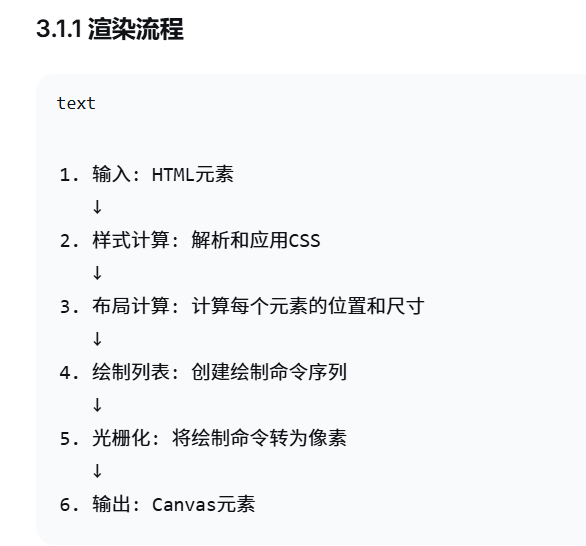
HTML2Canvas的工作原理相当复杂,它本质上是一个简化的浏览器渲染引擎。让我们深入了解它的工作流程:
3.1.2 核心组件
javascript
// HTML2Canvas内部结构示意
class HTML2CanvasRenderer {
  constructor(element, options) {
    this.element = element;
    this.options = options;
    this.canvas = document.createElement('canvas');
    this.ctx = this.canvas.getContext('2d');
  }

  async render() {
    // 1. 解析DOM树
    const root = this.parseDOM(this.element);

    // 2. 计算样式
    this.calculateStyles(root);

    // 3. 创建渲染树
    const renderTree = this.createRenderTree(root);

    // 4. 布局计算
    this.calculateLayout(renderTree);

    // 5. 绘制
    await this.draw(renderTree);

    return this.canvas;
  }

  // ... 其他方法
}
3.2 配置参数详解
javascript
const options = {
  // 基本配置
  allowTaint: false,        // 是否允许污染canvas
  useCORS: true,           // 是否使用CORS加载图片
  backgroundColor: '#ffffff', // 背景色
  scale: 2,                // 缩放比例(设备像素比)
  width: null,             // 自定义宽度
  height: null,            // 自定义高度

  // 日志和调试
  logging: true,           // 启用日志
  onclone: null,           // DOM克隆后的回调

  // 图像配置
  imageTimeout: 15000,     // 图片加载超时(ms)
  proxy: null,             // 代理服务器URL
  removeContainer: true,   // 是否移除临时容器

  // 高级配置
  foreignObjectRendering: false, // 使用foreignObject(SVG)
  ignoreElements: (element) => false, // 忽略特定元素
  onrendered: null,        // 渲染完成回调

  // 性能配置
  async: true,             // 异步渲染
  cacheBust: false,        // 缓存破坏
  letterRendering: false,  // 文字渲染优化

  // Canvas配置
  canvas: null,            // 使用现有canvas
  x: 0,                    // 水平偏移
  y: 0,                    // 垂直偏移
  scrollX: 0,              // 水平滚动
  scrollY: 0,              // 垂直滚动
  windowWidth: window.innerWidth, // 窗口宽度
  windowHeight: window.innerHeight // 窗口高度
};
第四部分:JSPDF与HTML2Canvas集成实战
4.1 基础集成方案
javascript
// 基础集成函数
async function exportToPDF(elementId, fileName = 'document.pdf', options = {}) {
  // 默认配置
  const defaultOptions = {
    pdf: {
      orientation: 'p',
      unit: 'mm',
      format: 'a4',
      compress: true
    },
    html2canvas: {
      scale: 2,
      useCORS: true,
      logging: false
    },
    margin: {
      top: 15,
      right: 15,
      bottom: 15,
      left: 15
    }
  };

  // 合并配置
  const config = {
    pdf: { ...defaultOptions.pdf, ...options.pdf },
    html2canvas: { ...defaultOptions.html2canvas, ...options.html2canvas },
    margin: { ...defaultOptions.margin, ...options.margin }
  };

  try {
    // 1. 获取目标元素
    const element = document.getElementById(elementId);
    if (!element) {
      throw new Error(`元素 #${elementId} 未找到`);
    }

    // 2. 使用html2canvas生成canvas
    console.log('开始生成canvas...');
    const canvas = await html2canvas(element, config.html2canvas);

    // 3. 获取图片数据
    const imgData = canvas.toDataURL('image/png', 1.0);
    const imgProps = {
      width: canvas.width,
      height: canvas.height
    };

    // 4. 计算PDF尺寸
    const pdfWidth = config.pdf.format === 'a4' ? 210 : 297; // A4宽度210mm
    const pdfHeight = config.pdf.format === 'a4' ? 297 : 210; // A4高度297mm

    // 可用宽度 = PDF宽度 - 左右边距
    const usableWidth = pdfWidth - config.margin.left - config.margin.right;

    // 5. 计算缩放比例
    const pixelsPerMM = imgProps.width / usableWidth;
    const scale = usableWidth / imgProps.width;
    const imgHeightMM = imgProps.height * scale;

    // 6. 创建PDF
    console.log('创建PDF文档...');
    const doc = new jsPDF(config.pdf);

    // 7. 处理分页
    const pageHeight = pdfHeight - config.margin.top - config.margin.bottom;
    let position = 0;

    if (imgHeightMM <= pageHeight) {
      // 一页能放下
      doc.addImage(imgData, 'PNG',
        config.margin.left,
        config.margin.top,
        usableWidth,
        imgHeightMM);
    } else {
      // 需要分页
      while (position < imgHeightMM) {
        if (position > 0) {
          doc.addPage();
        }

        doc.addImage(imgData, 'PNG',
          config.margin.left,
          config.margin.top - position,
          usableWidth,
          imgHeightMM);

        position += pageHeight;
      }
    }

    // 8. 保存PDF
    doc.save(fileName);
    console.log('PDF导出完成');

    return doc;
  } catch (error) {
    console.error('导出PDF失败:', error);
    throw error;
  }
}

// 使用示例
document.getElementById('export-btn').addEventListener('click', async () => {
  try {
    await exportToPDF('content', '报告.pdf', {
      pdf: {
        format: 'a4',
        orientation: 'portrait'
      },
      html2canvas: {
        scale: 3, // 更高清
        backgroundColor: '#ffffff'
      },
      margin: {
        top: 20,
        right: 20,
        bottom: 20,
        left: 20
      }
    });
  } catch (error) {
    alert('导出失败: ' + error.message);
  }
});
4.2 高级集成:智能分页与表格保护
javascript
class SmartPDFExporter {
  constructor(options = {}) {
    this.options = this.mergeOptions(options);
    this.pageBreaks = [];
  }

  mergeOptions(options) {
    const defaults = {
      elementId: null,
      fileName: 'export.pdf',
      pdf: {
        orientation: 'p',
        unit: 'mm',
        format: 'a4'
      },
      html2canvas: {
        scale: 2,
        logging: false,
        useCORS: true
      },
      styling: {
        tableProtection: true,
        keepTogetherClass: 'keep-together',
        avoidBreakClass: 'avoid-break'
      },
      margins: {
        top: 15,
        right: 15,
        bottom: 15,
        left: 15
      },
      features: {
        pageNumbers: true,
        header: true,
        footer: true,
        watermark: false
      }
    };

    return this.deepMerge(defaults, options);
  }

  deepMerge(target, source) {
    for (const key in source) {
      if (source[key] && typeof source[key] === 'object' && !Array.isArray(source[key])) {
        if (!target[key]) target[key] = {};
        this.deepMerge(target[key], source[key]);
      } else {
        target[key] = source[key];
      }
    }
    return target;
  }

  async export() {
    try {
      // 1. 验证和准备
      this.validateInput();

      // 2. 应用保护样式
      if (this.options.styling.tableProtection) {
        this.applyProtectionStyles();
      }

      // 3. 分析DOM结构
      const analysis = await this.analyzeDOM();

      // 4. 计算分页点
      this.calculatePageBreaks(analysis);

      // 5. 生成canvas
      const canvas = await this.generateCanvas();

      // 6. 创建PDF
      const pdf = await this.generatePDF(canvas, analysis);

      // 7. 保存
      pdf.save(this.options.fileName);

      return { success: true, pdf };
    } catch (error) {
      console.error('导出失败:', error);
      throw error;
    }
  }

  validateInput() {
    if (!this.options.elementId) {
      throw new Error('elementId 必须提供');
    }

    const element = document.getElementById(this.options.elementId);
    if (!element) {
      throw new Error(`元素 #${this.options.elementId} 未找到`);
    }

    this.element = element;
  }

  applyProtectionStyles() {
    const style = document.createElement('style');
    style.textContent = `
      .${this.options.styling.keepTogetherClass} {
        page-break-inside: avoid !important;
        break-inside: avoid !important;
      }

      .${this.options.styling.avoidBreakClass} {
        page-break-before: avoid !important;
        break-before: avoid !important;
      }

      table {
        page-break-inside: avoid !important;
        break-inside: avoid !important;
        border-collapse: collapse !important;
      }

      tr {
        page-break-inside: avoid !important;
        break-inside: avoid !important;
      }
    `;

    // 移除可能存在的旧样式
    const oldStyles = this.element.querySelectorAll('style[data-pdf-protection]');
    oldStyles.forEach(s => s.remove());

    style.setAttribute('data-pdf-protection', 'true');
    this.element.appendChild(style);

    // 为表格添加保护类
    const tables = this.element.querySelectorAll('table');
    tables.forEach(table => {
      table.classList.add(this.options.styling.keepTogetherClass);
    });

    // 为重要元素添加避免分页类
    const importantElements = this.element.querySelectorAll('h1, h2, .important');
    importantElements.forEach(el => {
      el.classList.add(this.options.styling.avoidBreakClass);
    });
  }

  async analyzeDOM() {
    const tables = this.element.querySelectorAll('table');
    const importantElements = this.element.querySelectorAll(`.${this.options.styling.keepTogetherClass}`);

    const elementRect = this.element.getBoundingClientRect();
    const analysis = {
      tables: [],
      importantElements: [],
      containerHeight: this.element.offsetHeight,
      containerWidth: this.element.offsetWidth
    };

    // 分析表格
    tables.forEach((table, index) => {
      const rect = table.getBoundingClientRect();
      analysis.tables.push({
        index,
        element: table,
        top: rect.top - elementRect.top,
        bottom: rect.bottom - elementRect.top,
        height: rect.height,
        rowCount: table.querySelectorAll('tr').length,
        canBreak: !table.classList.contains(this.options.styling.keepTogetherClass)
      });
    });

    // 分析重要元素
    importantElements.forEach((el, index) => {
      if (el.tagName !== 'TABLE') { // 表格已经分析过了
        const rect = el.getBoundingClientRect();
        analysis.importantElements.push({
          index,
          element: el,
          top: rect.top - elementRect.top,
          bottom: rect.bottom - elementRect.top,
          height: rect.height,
          tagName: el.tagName
        });
      }
    });

    // 按位置排序
    analysis.tables.sort((a, b) => a.top - b.top);
    analysis.importantElements.sort((a, b) => a.top - b.top);

    return analysis;
  }

  calculatePageBreaks(analysis) {
    const pdf = new jsPDF(this.options.pdf);
    const pdfWidth = pdf.internal.pageSize.getWidth();
    const pdfHeight = pdf.internal.pageSize.getHeight();

    const usableWidth = pdfWidth - this.options.margins.left - this.options.margins.right;
    const usableHeight = pdfHeight - this.options.margins.top - this.options.margins.bottom;

    // 像素到毫米的转换比例
    const pxToMM = usableWidth / analysis.containerWidth;

    const breaks = [];
    let currentPageHeightMM = 0;

    // 处理所有需要保护的元素
    const allElements = [...analysis.tables, ...analysis.importantElements]
      .sort((a, b) => a.top - b.top);

    allElements.forEach((element, index) => {
      const elementHeightMM = element.height * pxToMM;

      // 检查是否放得下
      if (currentPageHeightMM + elementHeightMM > usableHeight && currentPageHeightMM > 0) {
        // 放不下,需要分页
        if (index > 0) {
          const prevElement = allElements[index - 1];
          // 在元素前分页
          breaks.push({
            type: 'before',
            element: element,
            position: element.top,
            reason: `${element.tagName || 'table'} 无法放入当前页`
          });

          currentPageHeightMM = elementHeightMM;
        }
      } else {
        // 放得下
        currentPageHeightMM += elementHeightMM;
      }
    });

    this.pageBreaks = breaks;
    console.log('计算出的分页点:', this.pageBreaks);
  }

  async generateCanvas() {
    // 固定尺寸,防止渲染时变化
    const originalStyle = {
      width: this.element.style.width,
      height: this.element.style.height,
      position: this.element.style.position
    };

    this.element.style.width = `${this.element.offsetWidth}px`;
    this.element.style.height = `${this.element.offsetHeight}px`;
    this.element.style.position = 'relative';

    try {
      const canvas = await html2canvas(this.element, this.options.html2canvas);
      return canvas;
    } finally {
      // 恢复原始样式
      Object.assign(this.element.style, originalStyle);
    }
  }

  async generatePDF(canvas, analysis) {
    const pdf = new jsPDF(this.options.pdf);
    const pdfWidth = pdf.internal.pageSize.getWidth();
    const pdfHeight = pdf.internal.pageSize.getHeight();

    const usableWidth = pdfWidth - this.options.margins.left - this.options.margins.right;
    const usableHeight = pdfHeight - this.options.margins.top - this.options.margins.bottom;

    // 计算缩放
    const scale = usableWidth / canvas.width;
    const totalHeightMM = canvas.height * scale;

    // 如果有分页点,使用智能分页
    if (this.pageBreaks.length > 0) {
      await this.generatePDFWithBreaks(pdf, canvas, scale, usableWidth, usableHeight);
    } else {
      // 无分页点,使用简单分页
      await this.generatePDFSimple(pdf, canvas, scale, usableWidth, usableHeight);
    }

    // 添加页眉页脚
    if (this.options.features.header || this.options.features.footer) {
      this.addHeaderFooter(pdf, this.pageBreaks.length + 1);
    }

    // 添加水印
    if (this.options.features.watermark) {
      this.addWatermark(pdf);
    }

    return pdf;
  }

  async generatePDFWithBreaks(pdf, canvas, scale, usableWidth, usableHeight) {
    const imgData = canvas.toDataURL('image/png', 1.0);

    // 转换分页点为canvas像素位置
    const breakPoints = this.pageBreaks.map(breakInfo => breakInfo.position);
    breakPoints.sort((a, b) => a - b);

    // 确保从0开始,到canvas高度结束
    const allPoints = [0, ...breakPoints, canvas.height];

    let startY = 0;

    for (let i = 1; i < allPoints.length; i++) {
      const segmentHeight = allPoints[i] - startY;

      if (segmentHeight <= 0) continue;

      // 创建当前页的canvas片段
      const segmentCanvas = document.createElement('canvas');
      segmentCanvas.width = canvas.width;
      segmentCanvas.height = segmentHeight;

      const ctx = segmentCanvas.getContext('2d');
      ctx.drawImage(
        canvas,
        0, startY, canvas.width, segmentHeight,
        0, 0, canvas.width, segmentHeight
      );

      const segmentImgData = segmentCanvas.toDataURL('image/png', 1.0);
      const segmentHeightMM = segmentHeight * scale;

      // 如果不是第一页,添加新页
      if (i > 1) {
        pdf.addPage();
      }

      // 添加图片到PDF
      pdf.addImage(
        segmentImgData,
        'PNG',
        this.options.margins.left,
        this.options.margins.top,
        usableWidth,
        segmentHeightMM
      );

      startY = allPoints[i];
    }
  }

  generatePDFSimple(pdf, canvas, scale, usableWidth, usableHeight) {
    const imgData = canvas.toDataURL('image/png', 1.0);
    const totalHeightMM = canvas.height * scale;

    if (totalHeightMM <= usableHeight) {
      // 一页能放下
      pdf.addImage(
        imgData,
        'PNG',
        this.options.margins.left,
        this.options.margins.top,
        usableWidth,
        totalHeightMM
      );
    } else {
      // 需要分页
      let position = 0;
      while (position < totalHeightMM) {
        if (position > 0) {
          pdf.addPage();
        }

        pdf.addImage(
          imgData,
          'PNG',
          this.options.margins.left,
          this.options.margins.top - position,
          usableWidth,
          totalHeightMM
        );

        position += usableHeight;
      }
    }
  }

  addHeaderFooter(pdf, totalPages) {
    const pdfWidth = pdf.internal.pageSize.getWidth();
    const pdfHeight = pdf.internal.pageSize.getHeight();
    const currentPage = pdf.internal.getCurrentPageInfo().pageNumber;

    // 保存当前状态
    const originalFont = pdf.internal.getFont();
    const originalSize = pdf.internal.getFontSize();
    const originalColor = pdf.internal.getTextColor();

    // 页眉
    if (this.options.features.header) {
      pdf.setFontSize(10);
      pdf.setTextColor(100, 100, 100);

      // 左侧:标题
      pdf.text(
        this.options.fileName.replace('.pdf', ''),
        this.options.margins.left,
        this.options.margins.top - 10
      );

      // 右侧:日期
      const dateStr = new Date().toLocaleDateString();
      pdf.text(
        dateStr,
        pdfWidth - this.options.margins.right,
        this.options.margins.top - 10,
        { align: 'right' }
      );

      // 页眉线
      pdf.setDrawColor(200, 200, 200);
      pdf.line(
        this.options.margins.left,
        this.options.margins.top - 5,
        pdfWidth - this.options.margins.right,
        this.options.margins.top - 5
      );
    }

    // 页脚
    if (this.options.features.footer) {
      // 页脚线
      pdf.setDrawColor(200, 200, 200);
      pdf.line(
        this.options.margins.left,
        pdfHeight - this.options.margins.bottom + 5,
        pdfWidth - this.options.margins.right,
        pdfHeight - this.options.margins.bottom + 5
      );

      // 页码
      if (this.options.features.pageNumbers) {
        pdf.setFontSize(9);
        pdf.setTextColor(100, 100, 100);

        const pageText = `第 ${currentPage} 页 / 共 ${totalPages} 页`;
        pdf.text(
          pageText,
          pdfWidth / 2,
          pdfHeight - this.options.margins.bottom + 10,
          { align: 'center' }
        );
      }
    }

    // 恢复原始状态
    pdf.setFont(originalFont[0], originalFont[1]);
    pdf.setFontSize(originalSize);
    pdf.setTextColor(originalColor[0], originalColor[1], originalColor[2]);
  }

  addWatermark(pdf) {
    const pdfWidth = pdf.internal.pageSize.getWidth();
    const pdfHeight = pdf.internal.pageSize.getHeight();

    // 保存状态
    pdf.saveGraphicsState();

    // 设置水印样式
    pdf.setFontSize(40);
    pdf.setTextColor(200, 200, 200, 0.1);
    pdf.setFont('helvetica', 'bold');

    // 旋转和重复
    const angle = -45 * Math.PI / 180;
    const text = this.options.features.watermark.text || 'CONFIDENTIAL';

    for (let x = -pdfWidth; x < pdfWidth * 2; x += 150) {
      for (let y = -pdfHeight; y < pdfHeight * 2; y += 150) {
        pdf.saveGraphicsState();
        pdf.translate(x, y);
        pdf.rotate(angle, { origin: [0, 0] });
        pdf.text(text, 0, 0);
        pdf.restoreGraphicsState();
      }
    }

    pdf.restoreGraphicsState();
  }
}

// 使用示例
const exporter = new SmartPDFExporter({
  elementId: 'report-content',
  fileName: '智能报告.pdf',
  pdf: {
    format: 'a4',
    orientation: 'portrait'
  },
  html2canvas: {
    scale: 2,
    useCORS: true,
    backgroundColor: '#ffffff'
  },
  features: {
    pageNumbers: true,
    header: true,
    footer: true,
    watermark: {
      text: '公司机密',
      enabled: true
    }
  },
  styling: {
    tableProtection: true,
    keepTogetherClass: 'pdf-keep-together'
  }
});

// 触发导出
document.getElementById('smart-export').addEventListener('click', async () => {
  try {
    await exporter.export();
    alert('导出成功!');
  } catch (error) {
    alert('导出失败: ' + error.message);
  }
});
4.3 响应式与移动端适配
javascript
class ResponsivePDFExporter {
  constructor(options = {}) {
    this.options = {
      breakpoints: {
        mobile: 768,
        tablet: 1024,
        desktop: 1200
      },
      scaling: {
        mobile: 1,
        tablet: 1.5,
        desktop: 2
      },
      ...options
    };
  }

  detectDeviceType() {
    const width = window.innerWidth;

    if (width < this.options.breakpoints.mobile) {
      return 'mobile';
    } else if (width < this.options.breakpoints.tablet) {
      return 'tablet';
    } else {
      return 'desktop';
    }
  }

  async exportResponsive(elementId, fileName) {
    const deviceType = this.detectDeviceType();
    const scale = this.options.scaling[deviceType] || 1.5;

    console.log(`设备类型: ${deviceType}, 使用缩放: ${scale}`);

    // 调整元素样式以适应PDF
    const element = document.getElementById(elementId);
    const originalStyles = this.backupStyles(element);

    try {
      // 应用响应式样式
      this.applyResponsiveStyles(element, deviceType);

      // 生成PDF
      const canvas = await html2canvas(element, {
        scale,
        useCORS: true,
        backgroundColor: '#ffffff'
      });

      const pdf = new jsPDF({
        orientation: 'p',
        unit: 'mm',
        format: 'a4'
      });

      const pdfWidth = pdf.internal.pageSize.getWidth();
      const imgWidth = canvas.width;
      const imgHeight = canvas.height;

      // 计算缩放比例
      const margin = 10;
      const usableWidth = pdfWidth - 2 * margin;
      const scaleFactor = usableWidth / imgWidth;

      pdf.addImage(
        canvas.toDataURL('image/png', 1.0),
        'PNG',
        margin,
        margin,
        usableWidth,
        imgHeight * scaleFactor
      );

      pdf.save(fileName);

    } finally {
      // 恢复原始样式
      this.restoreStyles(element, originalStyles);
    }
  }

  backupStyles(element) {
    return {
      width: element.style.width,
      height: element.style.height,
      fontSize: element.style.fontSize,
      padding: element.style.padding,
      margin: element.style.margin,
      display: element.style.display
    };
  }

  applyResponsiveStyles(element, deviceType) {
    // 根据设备类型应用不同的样式
    const styles = {
      mobile: {
        width: '100%',
        fontSize: '12px',
        padding: '10px',
        margin: '0',
        display: 'block'
      },
      tablet: {
        width: '90%',
        fontSize: '13px',
        padding: '15px',
        margin: '0 auto',
        display: 'block'
      },
      desktop: {
        width: '80%',
        fontSize: '14px',
        padding: '20px',
        margin: '0 auto',
        display: 'block'
      }
    };

    const deviceStyles = styles[deviceType] || styles.desktop;
    Object.assign(element.style, deviceStyles);

    // 特别处理表格
    const tables = element.querySelectorAll('table');
    tables.forEach(table => {
      if (deviceType === 'mobile') {
        table.style.fontSize = '10px';
        table.style.width = '100%';
      }
    });
  }

  restoreStyles(element, originalStyles) {
    Object.assign(element.style, originalStyles);
  }
}

// 使用响应式导出
const responsiveExporter = new ResponsivePDFExporter();

// 响应式导出按钮
document.getElementById('responsive-export').addEventListener('click', () => {
  responsiveExporter.exportResponsive('content', '响应式报告.pdf');
});