SharePoint 列格式化 JSON 配置
- [一、设置Column Formating](#一、设置Column Formating)
- [二、SharePoint 列格式化 - Json解读](#二、SharePoint 列格式化 - Json解读)
-
- [1、"schema"](#1、"schema")
- [2、"elmType" 元素类型](#2、"elmType" 元素类型)
-
- (1) "a"
- (2) "button"
-
- [Ⅰ. "action": "editProps"](#Ⅰ. "action": "editProps")
- [Ⅱ. "action": "defaultClick"](#Ⅱ. "action": "defaultClick")
- [Ⅲ. "action": "delete"](#Ⅲ. "action": "delete")
- [Ⅳ. "action": "share"](#Ⅳ. "action": "share")
- [Ⅴ. "action": "executeFlow"](#Ⅴ. "action": "executeFlow")
- [3、"txtContent" 文字内容](#3、"txtContent" 文字内容)
- 4、Style属性
一、设置Column Formating
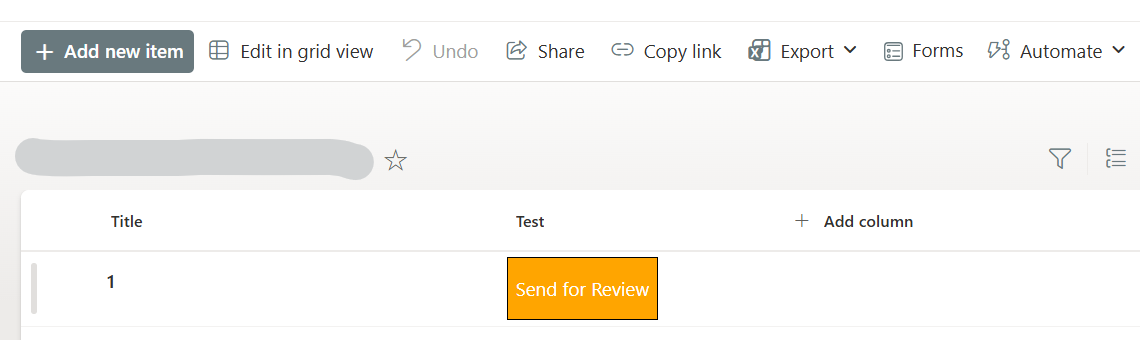
在SharePoint列表中,可以嵌入一个可使用的按钮,效果如下:
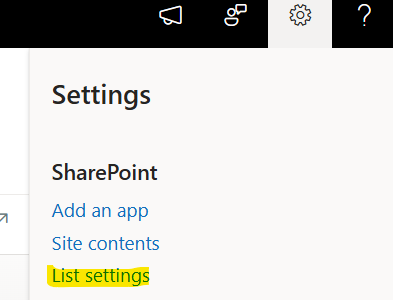
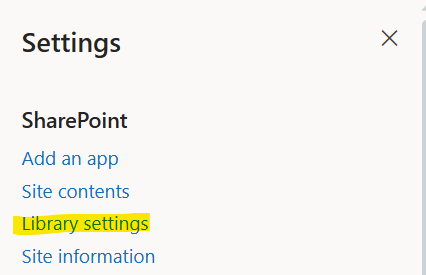
首先进入列表的设置
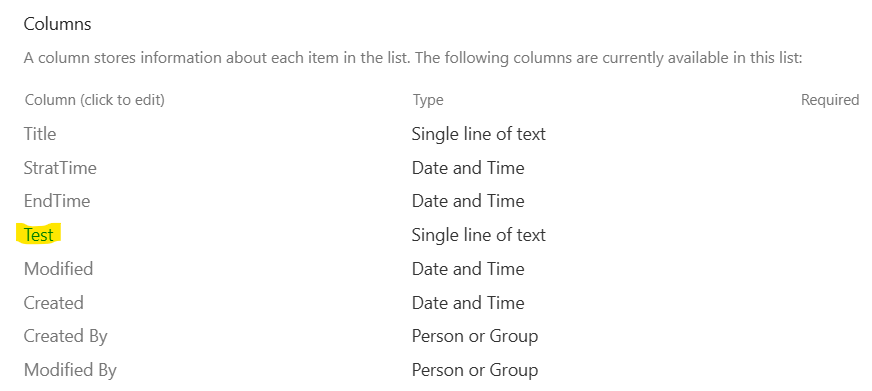
单击我们要设置的列
然后设置对应的Column Formating的值即可
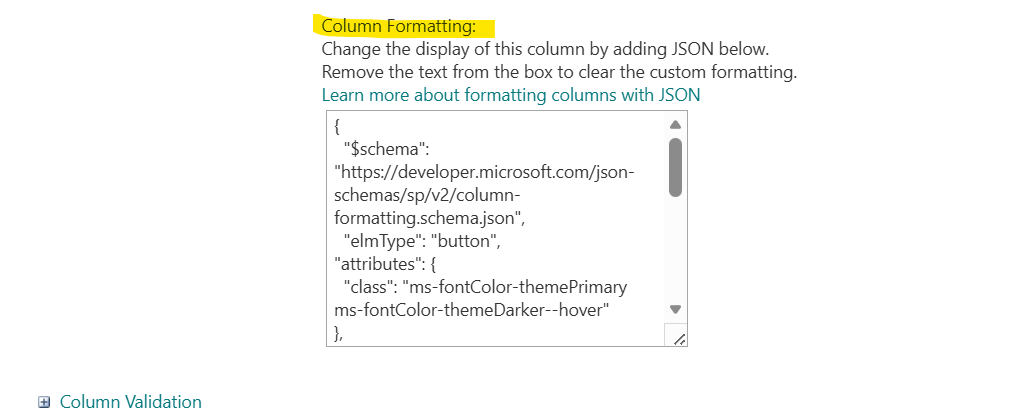
对于文档库,同样可以添加新列,进行相同的设置:
二、SharePoint 列格式化 - Json解读
1、"$schema"
这个参数相当于代码规范性检查,虽然不是必需,但是建议加上
{
  "$schema": "https://developer.microsoft.com/json-schemas/sp/v2/column-formatting.schema.json",
  // 你的配置...
}
2、"elmType" 元素类型
可选的值:span , div,button,a
(1) "a"
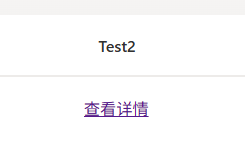
示例
{
  "elmType": "a",
  "txtContent": "查看详情",
  "attributes": {
    "href": "https://www.baidu.com/",
    "target": "_blank"
  }
}
如果链接后面要拼接动态的参数,可以参考下面的格式
"href": "='https://apps.powerapps.com/test?sourcetime=qwer&ID='+[$ID]",假设原链接为
https://apps.powerapps.com/test?sourcetime=qwer
拼接后的效果为:
https://apps.powerapps.com/test?sourcetime=qwer\&ID=1
(2) "button"
Ⅰ. "action": "editProps"
编辑本条数据:
打开编辑表单,让用户修改当前项的字段值
{
  "elmType": "button",
  "txtContent": "编辑本条数据",
  "customRowAction": {
     "action": "editProps"
  },
  "style": {
    "background-color": "green",
    "color": "white"
  }
}
Ⅱ. "action": "defaultClick"
查看详情:
打开View表单,让用户查看当前项的字段值
{
  "elmType": "button",
  "txtContent": "打开详情(View)",
  "customRowAction": {
      "action": "defaultClick"
  },
  "style": {
    "background-color": "green",
    "color": "white"
  }
}
Ⅲ. "action": "delete"
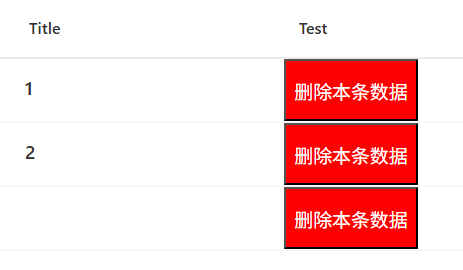
删除本条数据:
{
  "elmType": "button",
  "txtContent": "删除本条数据",
  "customRowAction": {
     "action": "delete"
  },
  "style": {
    "background-color": "red",
    "color": "white"
  }
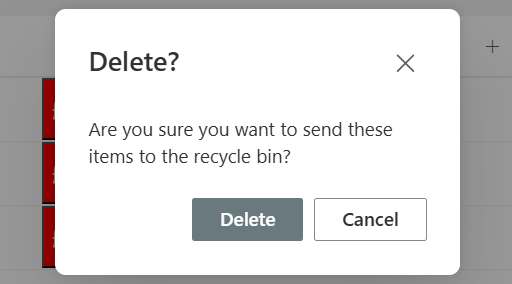
删除当前列表项,会弹出确认对话框
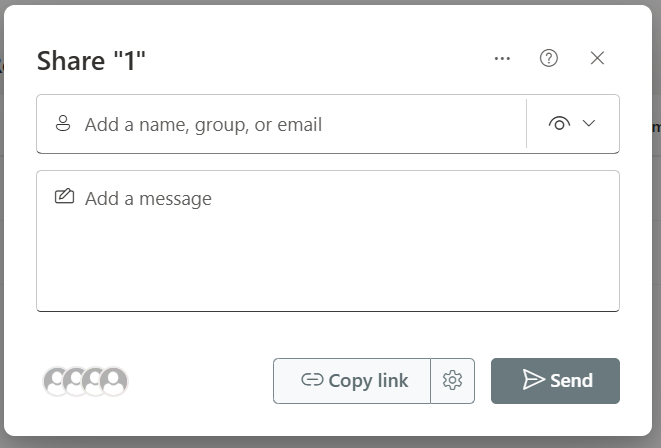
Ⅳ. "action": "share"
Share本条数据
{
  "elmType": "button",
  "txtContent": "共享",
  "customRowAction": {
      "action": "share"
  },
  "style": {
    "background-color": "green",
    "color": "white"
  }
}
会弹出Share的弹框:
Ⅴ. "action": "executeFlow"
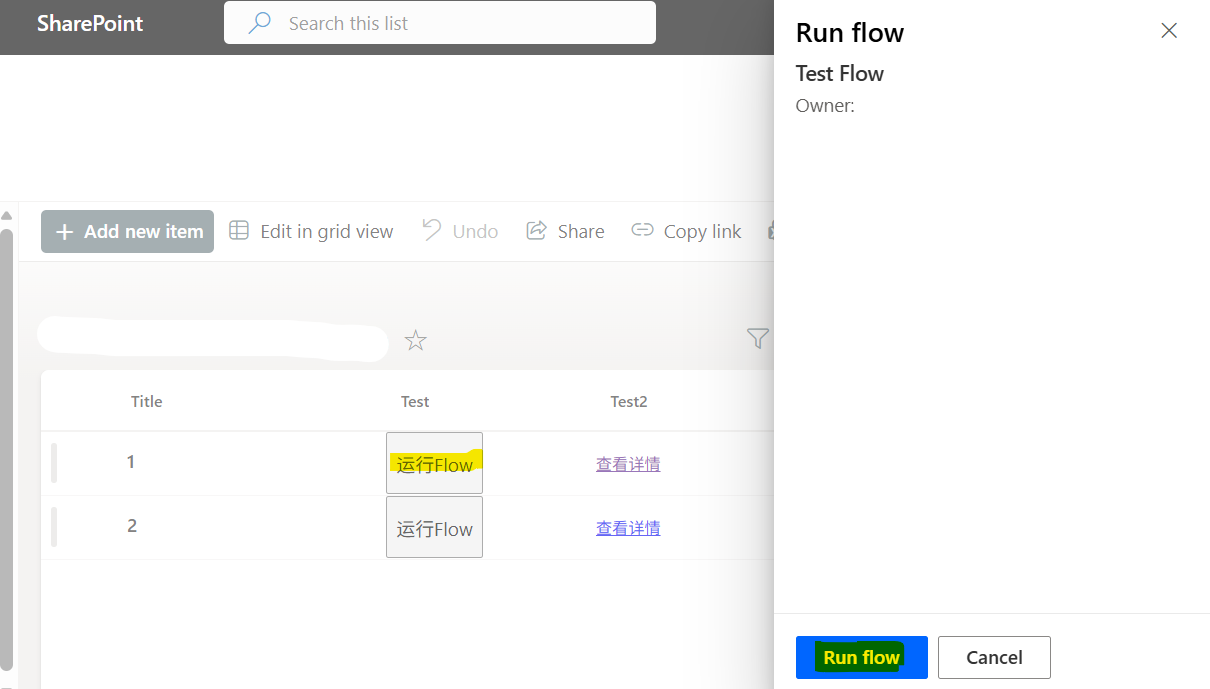
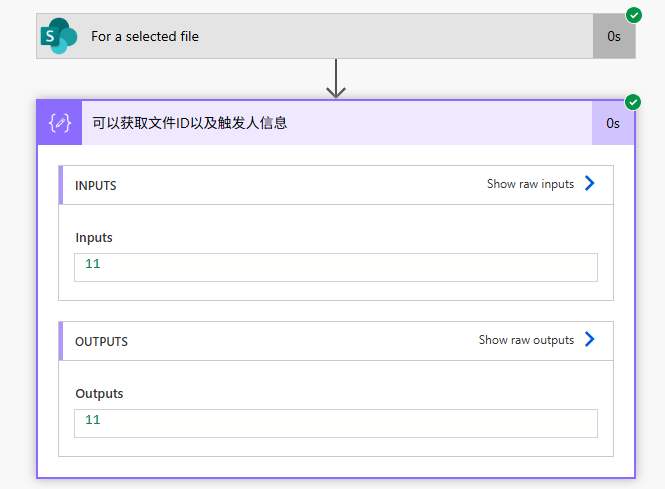
关于触发Flow:
适用的 Power Automate 流程必须使用以下触发器之一:
"手动触发流程" (Manually trigger a flow)
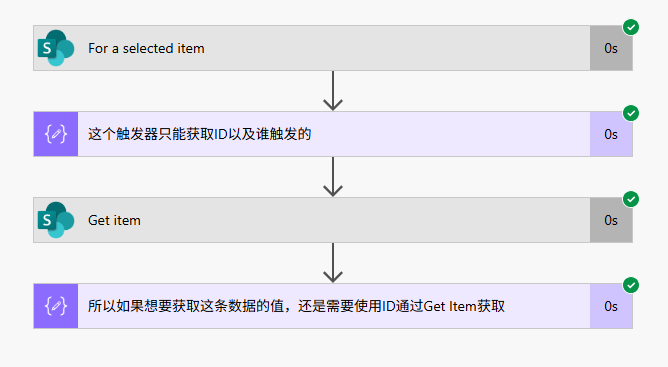
"对于选定项" (For a selected item) - SharePoint
"对于选定文件" (For a selected file) - SharePoint
{
  "elmType": "button",
  "txtContent": "运行Flow",
  "customRowAction": {
    "action": "executeFlow",
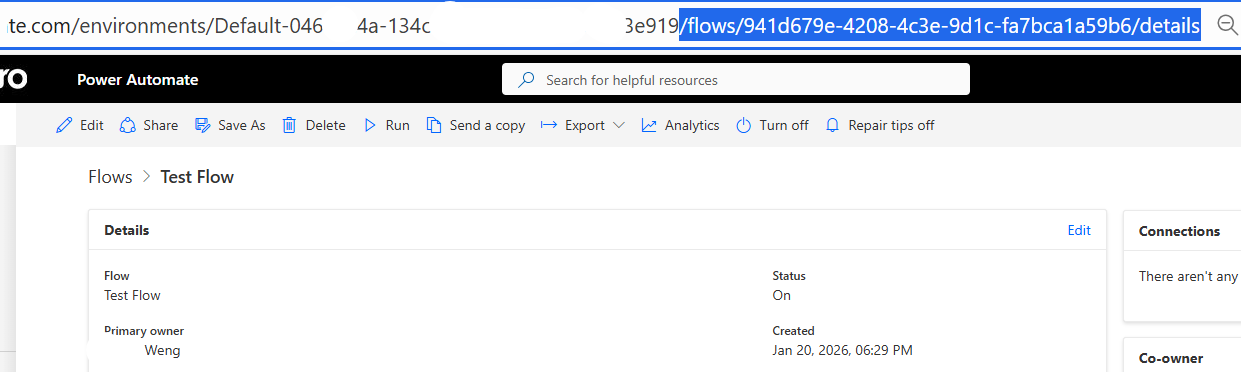
    "actionParams": "{\"id\": \"941d679e-4208-4c3e-9d1c-fa7bca1a59b6\"}"
  }
}
flows和details中间这串字符就是Flow ID
For a selected item触发器
For a selected file触发器
3、"txtContent" 文字内容
文本可引用值
可引用别的字段的值,也可以引用当前自动的值
引用其他列,形如: $Title
引用当前列, @currentField
日期列好像无法引用,自带的创建人和修改人也引用不了
ID可以,自己创建的人员列可以,人员列的引用形如 "$per.email"
我们这里配置的值,相当于是一个样式,覆盖在原本的单元格上面,与它实际存储的值无关,也不能导出这里配置的值
{
  "$schema": "https://developer.microsoft.com/json-schemas/sp/v2/column-formatting.schema.json",
  "elmType": "span",
  "txtContent":"[$Title]"
}

{
  "$schema": "https://developer.microsoft.com/json-schemas/sp/v2/column-formatting.schema.json",
  "elmType": "span",
  "txtContent":"@currentField"
}
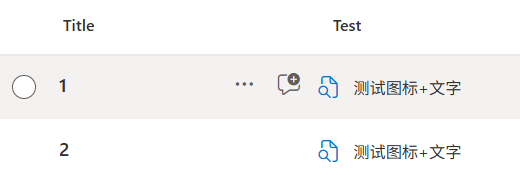
可以使用内置图标
有一些内置的图标,设置文本的时候,可以图标+文字:
{
  "elmType": "div",
  "customRowAction": {
    "action": "defaultClick"
  },
  "children": [
    {
      "elmType": "span",
      "attributes": {"iconName": "DocumentSearch"},
      "style": {
        "padding-right": "10px",
        "color": "#0078d4",
        "font-size": "16px"
      }
    },
    {
      "elmType": "span",
      "txtContent": "测试图标+文字"
    }
  ]
}
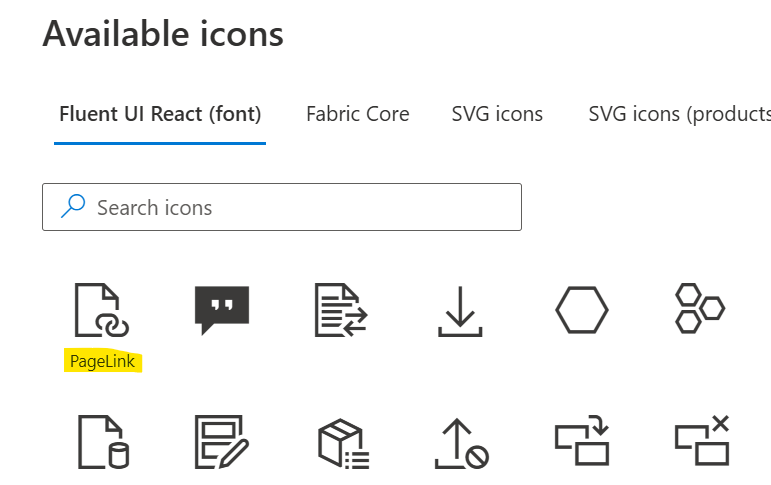
图标可以参考这个链接:
https://developer.microsoft.com/en-us/fluentui#/styles/web/icons
鼠标悬停会有图标名字,有的图标可能对不上,但是iconName可以参考
4、Style属性
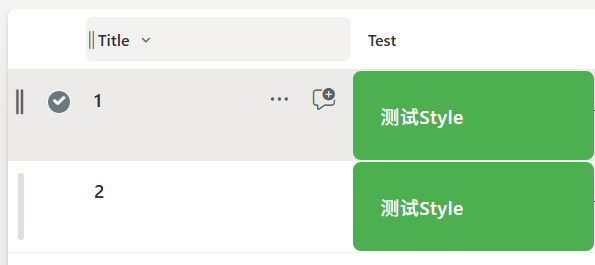
总之就是CSS样式,大家可以自己调整
{
  "elmType": "div",
  "txtContent": "测试Style",
  "style": {
    "background-color": "#4CAF50",
    "color": "white",
    "border": "none",
    "padding": "10px 20px",
    "border-radius": "6px",
    "cursor": "pointer",
    "font-weight": "500",
    "text-align": "center",
    "font-size": "14px",
    "letter-spacing": "0.5px"
  }
}
欢迎关注我的博客,与我一起学习,我将持续分享我的学习过程,我是 热爱学习的小翁同学~