文章目录
- [Flutter × OpenHarmony:构建高效文章列表界面实践](#Flutter × OpenHarmony:构建高效文章列表界面实践)
- 前言
- 背景
- [Flutter × OpenHarmony 跨端开发介绍](#Flutter × OpenHarmony 跨端开发介绍)
- 开发核心代码(详细解析)
- 心得
- 总结
Flutter × OpenHarmony:构建高效文章列表界面实践
前言
在跨端应用开发中,展示文章列表是常见的功能需求,无论是博客类应用、资讯类应用还是社区类应用,都离不开高效、灵活的列表展示。本文将基于 Flutter × OpenHarmony 的跨端开发能力,详细解析如何构建一个功能完善的文章列表区域,并实现筛选、排序、空状态显示等核心功能。
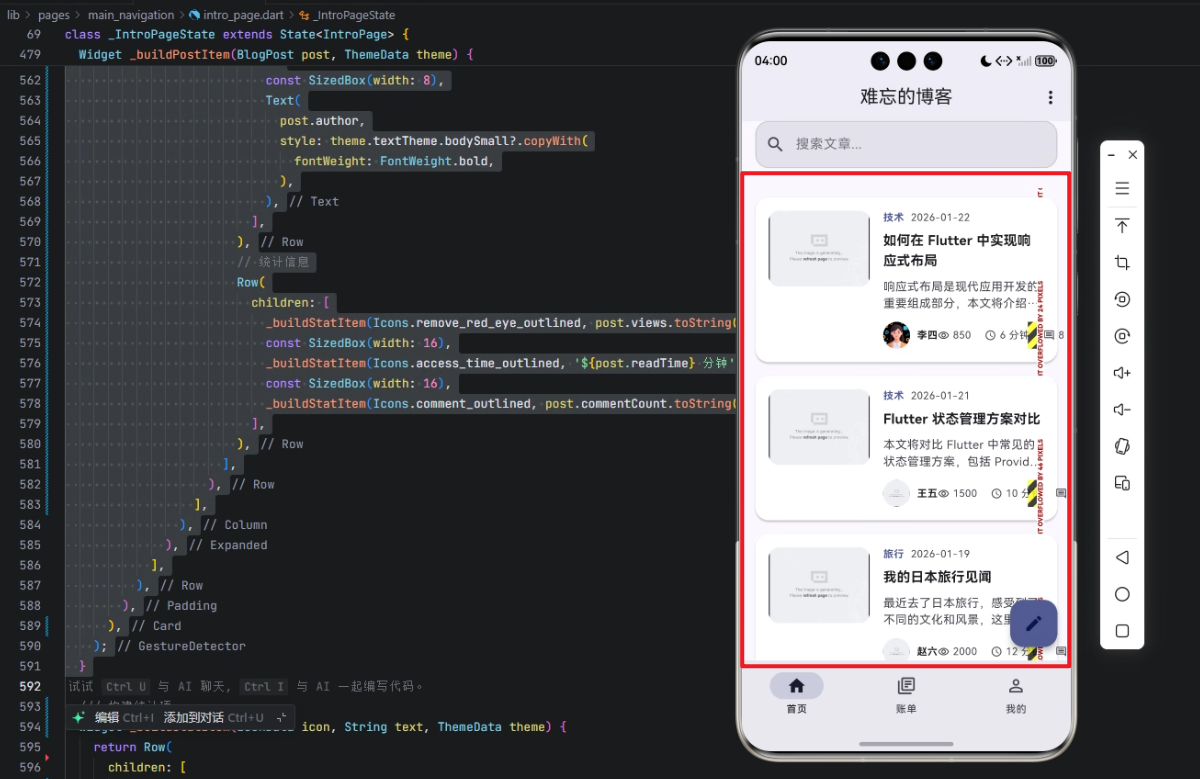
背景
随着移动端应用的多样化和设备碎片化,开发者需要面对 多端适配问题:Android、iOS 甚至 HarmonyOS 的应用界面都需保持一致。传统方式可能需要多套代码,成本高、维护难。
Flutter 提供了 一次开发、多端运行 的能力,而 OpenHarmony 提供了 华为生态下的跨设备适配能力 。结合二者,我们可以用 统一的 Dart 代码 构建在手机、平板、甚至大屏设备上都能流畅运行的文章列表模块。
Flutter × OpenHarmony 跨端开发介绍
Flutter 是 Google 推出的 UI 框架,采用 声明式 UI,支持高性能渲染和丰富的控件库。其核心优势包括:
- 热重载,开发效率高
- Widget 化设计,组件可复用
- 丰富的生态插件支持
OpenHarmony 是华为发起的开源操作系统,强调 多设备生态适配。通过与 Flutter 结合,可以实现:
- 同一套代码在 HarmonyOS、Android、iOS 上运行
- 响应式布局支持不同屏幕尺寸
- 可灵活调用设备原生能力,如相机、存储、网络
开发核心代码(详细解析)
下面以文章列表区域为例,分析如何在 Flutter × OpenHarmony 项目中实现:
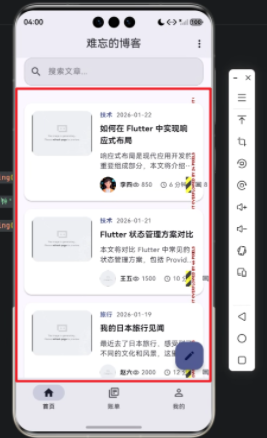
1. 构建文章列表区域
dart
Widget _buildPostsSection(ThemeData theme) {
  // 1. 根据分类、标签和搜索关键词过滤文章
  final filteredPosts = _posts.where((post) {
    if (_selectedCategory != null && !post.categories.contains(_selectedCategory)) {
      return false;
    }
    if (_selectedTag != null && !post.tags.contains(_selectedTag)) {
      return false;
    }
    if (_searchKeyword.isNotEmpty &&
        !post.title.toLowerCase().contains(_searchKeyword.toLowerCase())) {
      return false;
    }
    return true;
  }).toList();

  // 2. 构建区域组件
  return Column(
    crossAxisAlignment: CrossAxisAlignment.start,
    children: [
      // 区域标题 + 排序按钮
      Row(
        mainAxisAlignment: MainAxisAlignment.spaceBetween,
        children: [
          Text(
            _getSectionTitle(),
            style: theme.textTheme.titleLarge?.copyWith(fontWeight: FontWeight.bold),
          ),
          TextButton.icon(
            onPressed: () => _showSortOptions(context),
            icon: const Icon(Icons.sort_outlined),
            label: const Text('排序'),
          ),
        ],
      ),
      const SizedBox(height: 16),

      // 文章列表或空状态
      if (filteredPosts.isNotEmpty)
        Column(
          children: filteredPosts.map((post) => _buildPostItem(post, theme)).toList(),
        ),
      if (filteredPosts.isEmpty)
        _buildEmptyState(theme),
    ],
  );
}
解析:
- 过滤逻辑 :通过
_selectedCategory、_selectedTag和_searchKeyword控制文章展示,实现筛选功能。 - 响应式布局 :
Column+Row结合使用,保证在不同设备屏幕上布局自适应。 - 空状态处理 :
_buildEmptyState提示用户当前筛选无结果,提高用户体验。
2. 构建单条文章项
dart
Widget _buildPostItem(BlogPost post, ThemeData theme) {
  return GestureDetector(
    onTap: () => _openPost(post),
    onLongPress: () => _showPostOptions(context, post),
    child: Card(
      elevation: 2,
      shape: RoundedRectangleBorder(
        borderRadius: BorderRadius.circular(16),
      ),
      margin: const EdgeInsets.only(bottom: 16),
      child: Padding(
        padding: const EdgeInsets.all(16),
        child: Row(
          crossAxisAlignment: CrossAxisAlignment.start,
          children: [
            // 文章图片
            ClipRRect(
              borderRadius: BorderRadius.circular(12),
              child: Image.network(
                post.featuredImage,
                width: 120,
                height: 90,
                fit: BoxFit.cover,
              ),
            ),
            const SizedBox(width: 16),
            // 文章内容
            Expanded(
              child: Column(
                crossAxisAlignment: CrossAxisAlignment.start,
                children: [
                  // 分类和日期
                  if (post.categories.isNotEmpty)
                    Row(
                      children: [
                        Text(
                          post.categories[0].name,
                          style: theme.textTheme.bodySmall?.copyWith(
                            color: theme.colorScheme.primary,
                            fontWeight: FontWeight.bold,
                          ),
                        ),
                        const SizedBox(width: 8),
                        Text(
                          _formatDate(post.publishDate),
                          style: theme.textTheme.bodySmall?.copyWith(
                            color: theme.colorScheme.onSurfaceVariant,
                          ),
                        ),
                      ],
                    ),
                  const SizedBox(height: 8),
                  // 标题
                  Text(
                    post.title,
                    style: theme.textTheme.titleMedium?.copyWith(
                      fontWeight: FontWeight.bold,
                    ),
                    maxLines: 2,
                    overflow: TextOverflow.ellipsis,
                  ),
                  const SizedBox(height: 8),
                  // 摘要
                  Text(
                    post.excerpt,
                    style: theme.textTheme.bodyMedium?.copyWith(
                      color: theme.colorScheme.onSurfaceVariant,
                    ),
                    maxLines: 2,
                    overflow: TextOverflow.ellipsis,
                  ),
                  const SizedBox(height: 12),
                  // 作者与统计信息
                  Row(
                    mainAxisAlignment: MainAxisAlignment.spaceBetween,
                    children: [
                      // 作者
                      Row(
                        children: [
                          CircleAvatar(
                            radius: 16,
                            backgroundImage: NetworkImage(post.authorAvatar),
                          ),
                          const SizedBox(width: 8),
                          Text(
                            post.author,
                            style: theme.textTheme.bodySmall?.copyWith(
                              fontWeight: FontWeight.bold,
                            ),
                          ),
                        ],
                      ),
                      // 阅读量/评论/阅读时间
                      Row(
                        children: [
                          _buildStatItem(Icons.remove_red_eye_outlined, post.views.toString(), theme),
                          const SizedBox(width: 16),
                          _buildStatItem(Icons.access_time_outlined, '${post.readTime} 分钟', theme),
                          const SizedBox(width: 16),
                          _buildStatItem(Icons.comment_outlined, post.commentCount.toString(), theme),
                        ],
                      ),
                    ],
                  ),
                ],
              ),
            ),
          ],
        ),
      ),
    ),
  );
}
解析:
- 卡片式布局 :使用
Card和Padding,提供视觉分隔感。 - 图片圆角 :
ClipRRect+borderRadius实现图片圆角效果。 - 多行文本溢出处理 :标题与摘要通过
maxLines+overflow避免布局混乱。 - 作者信息与统计 :通过
Row嵌套实现灵活布局,确保在小屏设备上也能正常显示。 - 手势交互 :
GestureDetector实现点击跳转、长按弹出操作,提升交互体验。

心得
在实践中,我总结了几点关键经验:
- 列表性能优化 :文章数量多时,可改用
ListView.builder替换Column遍历,减少重绘。 - 跨端兼容性 :OpenHarmony 下部分控件可能需要调整尺寸,建议统一使用
MediaQuery获取屏幕尺寸。 - 可复用组件化 :文章项
_buildPostItem独立封装,便于在其他页面或模块复用。 - 状态管理 :筛选和排序逻辑可以结合
Provider或Riverpod管理状态,保持代码整洁。
总结
通过 Flutter × OpenHarmony,我们可以在 一次开发、多端运行 的前提下,实现功能完整、界面美观、交互友好的文章列表区域。本文提供的代码示例,从 筛选、排序、空状态、文章项布局 全面解析了实现思路,可直接应用于博客类、资讯类或社区类应用中。未来可以进一步优化列表性能、增加动画交互和多端适配效果,提升用户体验和开发效率。
欢迎加入开源鸿蒙跨平台社区:https://openharmonycrossplatform.csdn.net