Flutter for OpenHarmony:注入灵魂:购物车的数据驱动与状态管理实战
引言
在上一篇文章中,我们成功构建了一个视觉上令人满意的购物APP骨架。然而,一个真正的应用必须能够响应用户输入并动态更新其状态。想象一下,当用户在购物车中增减商品数量时,总价却纹丝不动,这将是多么糟糕的体验!这就是状态管理(State
Management) 的用武之地。
本文将承接上一篇的成果,深入探讨如何为我们的"淘淘购物"APP注入灵魂。我们将重点关注两个页面:"分类页"和"购物车页"。前者将展示如何组织和渲染动态数据;后者则是状态管理的经典战场,我们将一步步剖析问题,并找到优雅的解决方案。
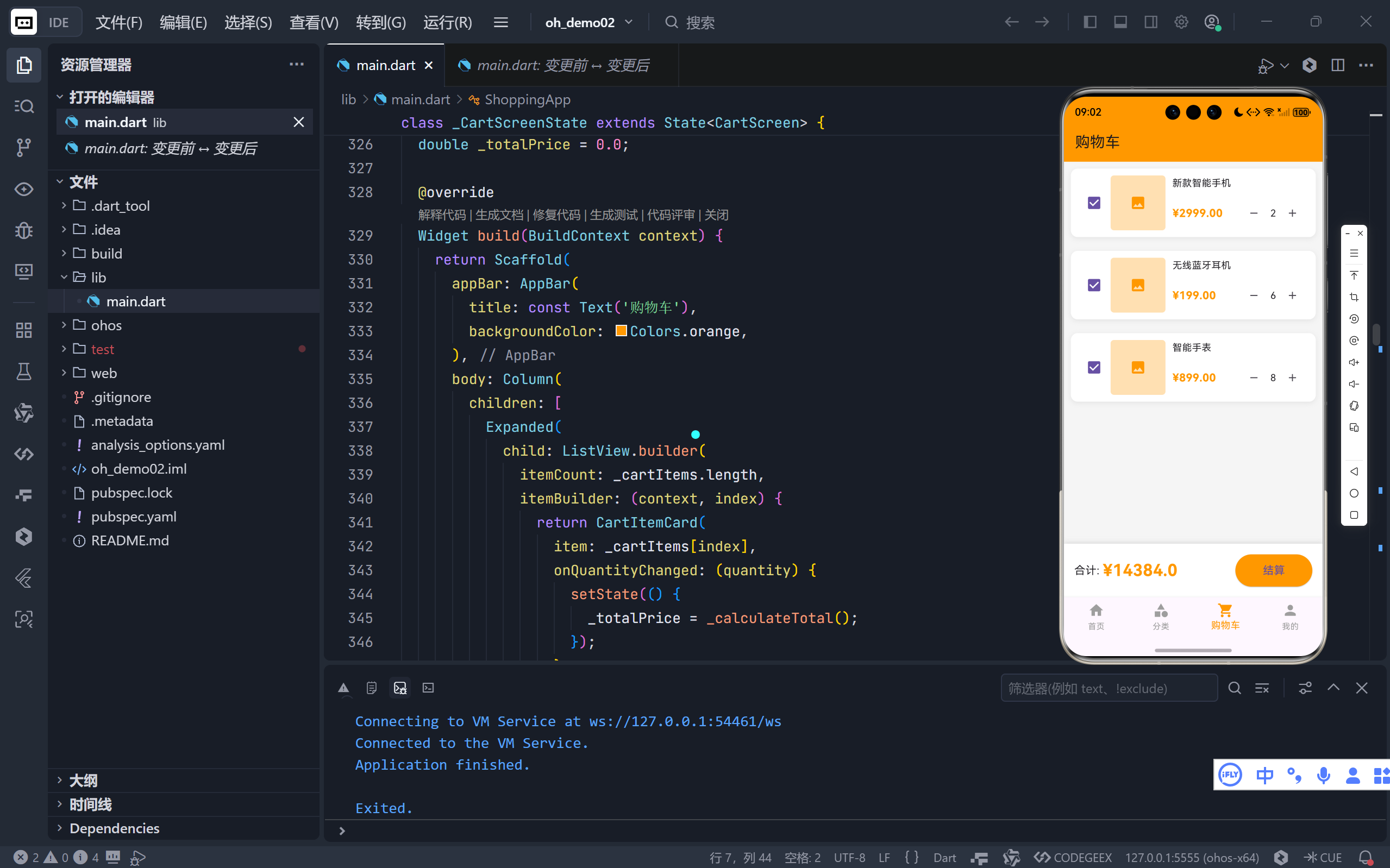
完整效果展示
完整代码展示
dart
import 'package:flutter/material.dart';
void main() {
runApp(const ShoppingApp());
}
class ShoppingApp extends StatelessWidget {
const ShoppingApp({super.key});
@override
Widget build(BuildContext context) {
return MaterialApp(
title: '淘淘购物',
theme: ThemeData(
primaryColor: Colors.orange,
scaffoldBackgroundColor: Colors.grey[100],
useMaterial3: true,
),
home: const MainScreen(),
debugShowCheckedModeBanner: false,
);
}
}
class MainScreen extends StatefulWidget {
const MainScreen({super.key});
@override
State<MainScreen> createState() => _MainScreenState();
}
class _MainScreenState extends State<MainScreen> {
int _currentIndex = 0;
final List<Widget> _screens = [
const HomeScreen(),
const CategoryScreen(),
const CartScreen(),
const ProfileScreen(),
];
@override
Widget build(BuildContext context) {
return Scaffold(
body: _screens[_currentIndex],
bottomNavigationBar: BottomNavigationBar(
currentIndex: _currentIndex,
onTap: (index) {
setState(() {
_currentIndex = index;
});
},
type: BottomNavigationBarType.fixed,
selectedItemColor: Colors.orange,
unselectedItemColor: Colors.grey,
items: const [
BottomNavigationBarItem(
icon: Icon(Icons.home),
label: '首页',
),
BottomNavigationBarItem(
icon: Icon(Icons.category),
label: '分类',
),
BottomNavigationBarItem(
icon: Icon(Icons.shopping_cart),
label: '购物车',
),
BottomNavigationBarItem(
icon: Icon(Icons.person),
label: '我的',
),
],
),
);
}
}
// 首页
class HomeScreen extends StatelessWidget {
const HomeScreen({super.key});
@override
Widget build(BuildContext context) {
return Scaffold(
appBar: AppBar(
title: const Text('淘淘购物'),
backgroundColor: Colors.orange,
elevation: 0,
actions: [
IconButton(
icon: const Icon(Icons.search),
onPressed: () {},
),
IconButton(
icon: const Icon(Icons.message),
onPressed: () {},
),
],
),
body: ListView(
children: [
// 搜索框
Container(
padding: const EdgeInsets.all(10),
color: Colors.orange,
child: Container(
padding: const EdgeInsets.symmetric(horizontal: 15),
decoration: BoxDecoration(
color: Colors.white,
borderRadius: BorderRadius.circular(20),
),
child: const TextField(
decoration: InputDecoration(
hintText: '搜索宝贝',
border: InputBorder.none,
prefixIcon: Icon(Icons.search, color: Colors.grey),
),
),
),
),
// 轮播图区域
Container(
height: 150,
margin: const EdgeInsets.all(10),
decoration: BoxDecoration(
color: Colors.orange[300],
borderRadius: BorderRadius.circular(10),
),
child: const Center(
child: Text(
'轮播图区域',
style: TextStyle(color: Colors.white, fontSize: 20),
),
),
),
// 快捷入口
Container(
padding: const EdgeInsets.all(15),
color: Colors.white,
child: GridView.count(
crossAxisCount: 5,
shrinkWrap: true,
physics: const NeverScrollableScrollPhysics(),
children: const [
QuickEntry(Icons.shopping_bag, '天猫'),
QuickEntry(Icons.card_giftcard, '聚划算'),
QuickEntry(Icons.local_offer, '优惠券'),
QuickEntry(Icons.phone_android, '数码'),
QuickEntry(Icons.style, '服饰'),
QuickEntry(Icons.home, '家居'),
QuickEntry(Icons.restaurant, '美食'),
QuickEntry(Icons.flight, '旅行'),
QuickEntry(Icons.sports_basketball, '运动'),
QuickEntry(Icons.book, '图书'),
],
),
),
const SizedBox(height: 10),
// 推荐商品
Container(
color: Colors.white,
child: Column(
crossAxisAlignment: CrossAxisAlignment.start,
children: [
const Padding(
padding: EdgeInsets.all(15),
child: Text(
'为你推荐',
style: TextStyle(
fontSize: 18,
fontWeight: FontWeight.bold,
),
),
),
GridView.builder(
shrinkWrap: true,
physics: const NeverScrollableScrollPhysics(),
padding: const EdgeInsets.all(10),
gridDelegate: const SliverGridDelegateWithFixedCrossAxisCount(
crossAxisCount: 2,
childAspectRatio: 0.75,
crossAxisSpacing: 10,
mainAxisSpacing: 10,
),
itemCount: _recommendedProducts.length,
itemBuilder: (context, index) {
return ProductCard(product: _recommendedProducts[index]);
},
),
],
),
),
],
),
);
}
}
// 快捷入口组件
class QuickEntry extends StatelessWidget {
final IconData icon;
final String label;
const QuickEntry(this.icon, this.label, {super.key});
@override
Widget build(BuildContext context) {
return Column(
children: [
Icon(icon, color: Colors.orange, size: 30),
const SizedBox(height: 5),
Text(label, style: const TextStyle(fontSize: 12)),
],
);
}
}
// 分类页
class CategoryScreen extends StatelessWidget {
const CategoryScreen({super.key});
@override
Widget build(BuildContext context) {
return Scaffold(
appBar: AppBar(
title: const Text('商品分类'),
backgroundColor: Colors.orange,
),
body: Row(
children: [
// 左侧分类列表
Container(
width: 100,
color: Colors.grey[200],
child: ListView.builder(
itemCount: _categories.length,
itemBuilder: (context, index) {
return Container(
padding: const EdgeInsets.symmetric(vertical: 20),
decoration: BoxDecoration(
color: index == 0 ? Colors.white : null,
border: index == 0
? const Border(
left: BorderSide(color: Colors.orange, width: 3))
: null,
),
child: Center(
child: Text(
_categories[index],
style: TextStyle(
color: index == 0 ? Colors.orange : Colors.black87,
fontWeight:
index == 0 ? FontWeight.bold : FontWeight.normal,
),
),
),
);
},
),
),
// 右侧商品列表
Expanded(
child: GridView.builder(
padding: const EdgeInsets.all(10),
gridDelegate: const SliverGridDelegateWithFixedCrossAxisCount(
crossAxisCount: 3,
childAspectRatio: 0.8,
crossAxisSpacing: 10,
mainAxisSpacing: 10,
),
itemCount: _subCategories.length,
itemBuilder: (context, index) {
return SubCategoryCard(category: _subCategories[index]);
},
),
),
],
),
);
}
}
// 子分类卡片
class SubCategoryCard extends StatelessWidget {
final String category;
const SubCategoryCard({super.key, required this.category});
@override
Widget build(BuildContext context) {
return Column(
children: [
Container(
width: 60,
height: 60,
decoration: BoxDecoration(
color: Colors.orange[100],
borderRadius: BorderRadius.circular(10),
),
child: const Icon(Icons.image, color: Colors.orange, size: 30),
),
const SizedBox(height: 8),
Text(
category,
style: const TextStyle(fontSize: 12),
textAlign: TextAlign.center,
),
],
);
}
}
// 购物车页
class CartScreen extends StatefulWidget {
const CartScreen({super.key});
@override
State<CartScreen> createState() => _CartScreenState();
}
class _CartScreenState extends State<CartScreen> {
double _totalPrice = 0.0;
@override
Widget build(BuildContext context) {
return Scaffold(
appBar: AppBar(
title: const Text('购物车'),
backgroundColor: Colors.orange,
),
body: Column(
children: [
Expanded(
child: ListView.builder(
itemCount: _cartItems.length,
itemBuilder: (context, index) {
return CartItemCard(
item: _cartItems[index],
onQuantityChanged: (quantity) {
setState(() {
_totalPrice = _calculateTotal();
});
},
);
},
),
),
// 底部结算栏
Container(
padding: const EdgeInsets.all(15),
decoration: BoxDecoration(
color: Colors.white,
boxShadow: [
BoxShadow(
color: Colors.grey.withOpacity(0.3),
blurRadius: 5,
offset: const Offset(0, -2),
),
],
),
child: Row(
children: [
const Text(
'合计: ',
style: TextStyle(fontSize: 16),
),
Text(
'¥$_totalPrice',
style: const TextStyle(
fontSize: 24,
color: Colors.orange,
fontWeight: FontWeight.bold,
),
),
const Spacer(),
ElevatedButton(
onPressed: () {},
style: ElevatedButton.styleFrom(
backgroundColor: Colors.orange,
padding: const EdgeInsets.symmetric(
horizontal: 40,
vertical: 12,
),
),
child: const Text('结算', style: TextStyle(fontSize: 16)),
),
],
),
),
],
),
);
}
double _calculateTotal() {
return _cartItems.fold(
0.0, (sum, item) => sum + item.price * item.quantity);
}
}
// 我的页面
class ProfileScreen extends StatelessWidget {
const ProfileScreen({super.key});
@override
Widget build(BuildContext context) {
return Scaffold(
appBar: AppBar(
title: const Text('我的淘淘'),
backgroundColor: Colors.orange,
),
body: ListView(
children: [
// 用户信息
Container(
padding: const EdgeInsets.all(20),
color: Colors.orange,
child: Column(
children: [
Container(
width: 80,
height: 80,
decoration: const BoxDecoration(
color: Colors.white,
shape: BoxShape.circle,
),
child:
const Icon(Icons.person, size: 50, color: Colors.orange),
),
const SizedBox(height: 10),
const Text(
'用户昵称',
style: TextStyle(
color: Colors.white,
fontSize: 20,
fontWeight: FontWeight.bold,
),
),
const SizedBox(height: 5),
Container(
padding:
const EdgeInsets.symmetric(horizontal: 20, vertical: 5),
decoration: BoxDecoration(
border: Border.all(color: Colors.white),
borderRadius: BorderRadius.circular(15),
),
child: const Text(
'登录/注册',
style: TextStyle(color: Colors.white),
),
),
],
),
),
const SizedBox(height: 10),
// 订单状态
Container(
padding: const EdgeInsets.all(15),
color: Colors.white,
child: Column(
children: [
Row(
mainAxisAlignment: MainAxisAlignment.spaceBetween,
children: [
const Text(
'我的订单',
style: TextStyle(
fontSize: 16,
fontWeight: FontWeight.bold,
),
),
Row(
children: const [
Text('全部订单', style: TextStyle(color: Colors.grey)),
Icon(Icons.chevron_right, color: Colors.grey),
],
),
],
),
const SizedBox(height: 15),
Row(
mainAxisAlignment: MainAxisAlignment.spaceAround,
children: const [
OrderStatusIcon(Icons.payment, '待付款'),
OrderStatusIcon(Icons.inventory, '待发货'),
OrderStatusIcon(Icons.local_shipping, '待收货'),
OrderStatusIcon(Icons.star, '待评价'),
OrderStatusIcon(Icons.replay, '退款/售后'),
],
),
],
),
),
const SizedBox(height: 10),
// 功能列表
Container(
color: Colors.white,
child: Column(
children: const [
ListTile(
leading: Icon(Icons.favorite_border, color: Colors.orange),
title: Text('我的收藏'),
trailing: Icon(Icons.chevron_right),
),
Divider(height: 1),
ListTile(
leading: Icon(Icons.location_on, color: Colors.orange),
title: Text('收货地址'),
trailing: Icon(Icons.chevron_right),
),
Divider(height: 1),
ListTile(
leading: Icon(Icons.help_outline, color: Colors.orange),
title: Text('联系客服'),
trailing: Icon(Icons.chevron_right),
),
Divider(height: 1),
ListTile(
leading: Icon(Icons.settings, color: Colors.orange),
title: Text('设置'),
trailing: Icon(Icons.chevron_right),
),
],
),
),
],
),
);
}
}
// 订单状态图标
class OrderStatusIcon extends StatelessWidget {
final IconData icon;
final String label;
const OrderStatusIcon(this.icon, this.label, {super.key});
@override
Widget build(BuildContext context) {
return Column(
children: [
Icon(icon, color: Colors.orange, size: 28),
const SizedBox(height: 5),
Text(label, style: const TextStyle(fontSize: 12)),
],
);
}
}
// 商品卡片
class ProductCard extends StatelessWidget {
final Product product;
const ProductCard({super.key, required this.product});
@override
Widget build(BuildContext context) {
return Container(
decoration: BoxDecoration(
color: Colors.white,
borderRadius: BorderRadius.circular(10),
boxShadow: [
BoxShadow(
color: Colors.grey.withOpacity(0.2),
blurRadius: 5,
offset: const Offset(0, 2),
),
],
),
child: Column(
crossAxisAlignment: CrossAxisAlignment.start,
children: [
Expanded(
child: Container(
decoration: BoxDecoration(
color: Colors.orange[100],
borderRadius:
const BorderRadius.vertical(top: Radius.circular(10)),
),
child: const Center(
child: Icon(Icons.image, color: Colors.orange, size: 50),
),
),
),
Padding(
padding: const EdgeInsets.all(8),
child: Column(
crossAxisAlignment: CrossAxisAlignment.start,
children: [
Text(
product.name,
style: const TextStyle(fontSize: 14),
maxLines: 2,
overflow: TextOverflow.ellipsis,
),
const SizedBox(height: 5),
Row(
children: [
Text(
'¥${product.price.toStringAsFixed(2)}',
style: const TextStyle(
color: Colors.orange,
fontSize: 16,
fontWeight: FontWeight.bold,
),
),
const SizedBox(width: 5),
Text(
'${product.sales}人付款',
style: const TextStyle(fontSize: 12, color: Colors.grey),
),
],
),
],
),
),
],
),
);
}
}
// 购物车商品卡片
class CartItemCard extends StatefulWidget {
final CartItem item;
final Function(int) onQuantityChanged;
const CartItemCard({
super.key,
required this.item,
required this.onQuantityChanged,
});
@override
State<CartItemCard> createState() => _CartItemCardState();
}
class _CartItemCardState extends State<CartItemCard> {
bool _isChecked = true;
@override
Widget build(BuildContext context) {
return Container(
margin: const EdgeInsets.all(10),
padding: const EdgeInsets.all(10),
decoration: BoxDecoration(
color: Colors.white,
borderRadius: BorderRadius.circular(10),
boxShadow: [
BoxShadow(
color: Colors.grey.withOpacity(0.2),
blurRadius: 5,
offset: const Offset(0, 2),
),
],
),
child: Row(
children: [
Checkbox(
value: _isChecked,
onChanged: (value) {
setState(() {
_isChecked = value ?? false;
});
},
),
Container(
width: 80,
height: 80,
decoration: BoxDecoration(
color: Colors.orange[100],
borderRadius: BorderRadius.circular(5),
),
child: const Icon(Icons.image, color: Colors.orange),
),
const SizedBox(width: 10),
Expanded(
child: Column(
crossAxisAlignment: CrossAxisAlignment.start,
children: [
Text(
widget.item.name,
style: const TextStyle(fontSize: 14),
maxLines: 2,
overflow: TextOverflow.ellipsis,
),
const SizedBox(height: 10),
Row(
mainAxisAlignment: MainAxisAlignment.spaceBetween,
children: [
Text(
'¥${widget.item.price.toStringAsFixed(2)}',
style: const TextStyle(
color: Colors.orange,
fontSize: 16,
fontWeight: FontWeight.bold,
),
),
Row(
children: [
IconButton(
icon: const Icon(Icons.remove, size: 18),
onPressed: () {
if (widget.item.quantity > 1) {
widget.item.quantity--;
widget.onQuantityChanged(widget.item.quantity);
}
},
),
Text('${widget.item.quantity}'),
IconButton(
icon: const Icon(Icons.add, size: 18),
onPressed: () {
widget.item.quantity++;
widget.onQuantityChanged(widget.item.quantity);
},
),
],
),
],
),
],
),
),
],
),
);
}
}
// 数据模型
class Product {
final String name;
final double price;
final int sales;
Product({required this.name, required this.price, required this.sales});
}
class CartItem {
final String name;
final double price;
int quantity;
CartItem({
required this.name,
required this.price,
this.quantity = 1,
});
}
// 数据
final List<Product> _recommendedProducts = [
Product(name: '新款智能手机', price: 2999.00, sales: 1000),
Product(name: '无线蓝牙耳机', price: 199.00, sales: 5000),
Product(name: '智能手表', price: 899.00, sales: 2000),
Product(name: '运动鞋', price: 399.00, sales: 3000),
Product(name: '男士休闲裤', price: 159.00, sales: 1500),
Product(name: '女士连衣裙', price: 299.00, sales: 2500),
];
final List<String> _categories = [
'热门推荐',
'手机数码',
'家用电器',
'电脑办公',
'家居家装',
'服装服饰',
'鞋靴箱包',
'运动户外',
'美妆个护',
'食品生鲜',
];
final List<String> _subCategories = [
'手机',
'平板',
'耳机',
'充电宝',
'数据线',
'保护壳',
'笔记本',
'键盘',
'鼠标',
'显示器',
'音响',
'耳机',
'冰箱',
'洗衣机',
'空调',
'电视',
'微波炉',
'电饭煲',
];
final List<CartItem> _cartItems = [
CartItem(name: '新款智能手机', price: 2999.00, quantity: 1),
CartItem(name: '无线蓝牙耳机', price: 199.00, quantity: 2),
CartItem(name: '智能手表', price: 899.00, quantity: 1),
];第一步:定义数据模型------一切的起点
在开始处理UI逻辑之前,我们必须先定义好数据的结构。这是良好编程习惯的体现,也能让后续的开发事半功倍。
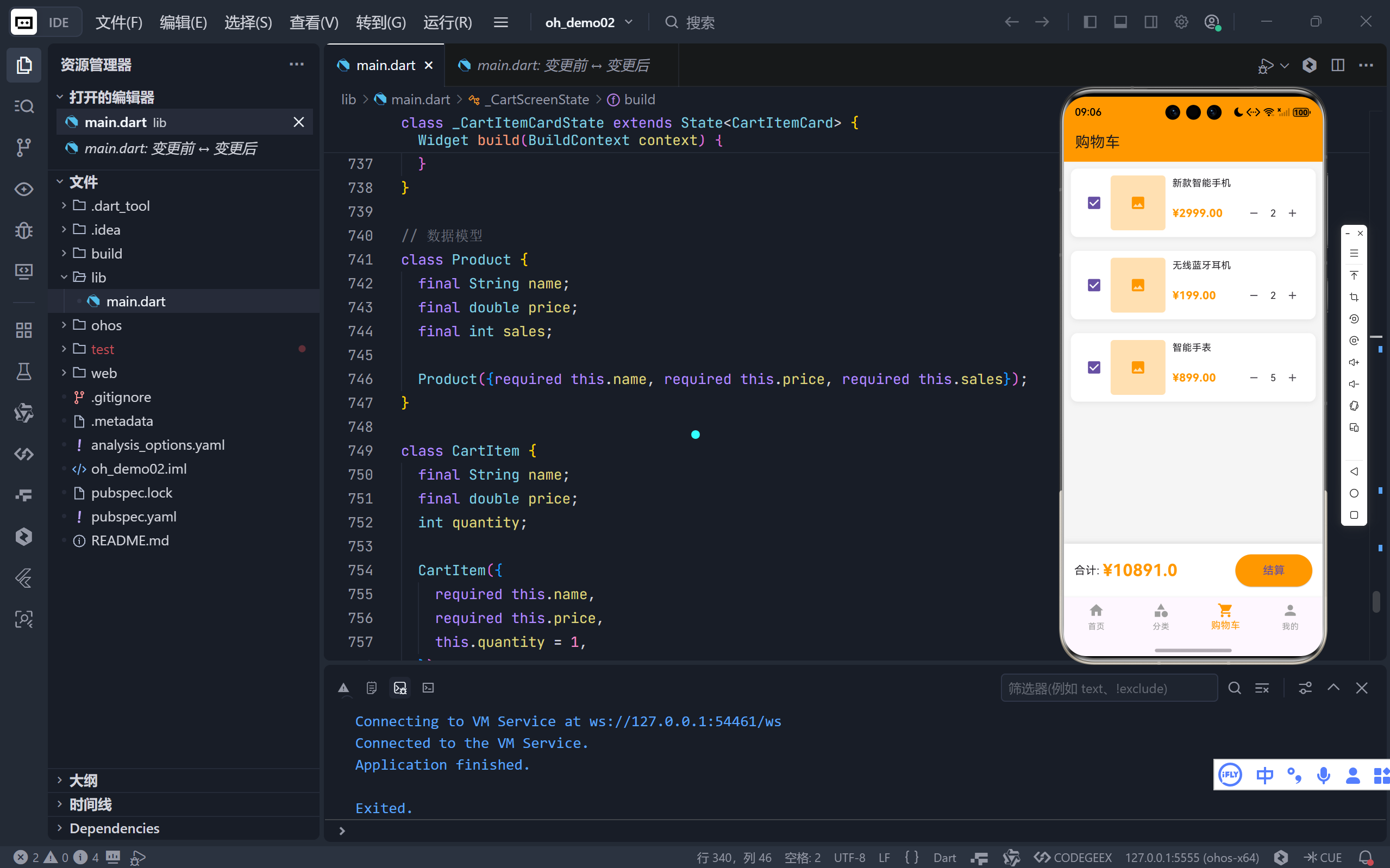
我们定义两个核心数据模型:
Product: 代表一个商品,包含名称、价格和销量。CartItem: 代表购物车中的一项,除了商品信息外,还包含一个可变的quantity(数量)。
dart
// models/product.dart & models/cart_item.dart
class Product {
  final String name;
  final double price;
  final int sales;
  // ... 构造函数
}

class CartItem {
  final String name;
  final double price;
  int quantity; // 注意:这里是var,因为数量会变

  CartItem({required this.name, required this.price, this.quantity = 1});
}
同时,我们在一个单独的data.dart文件中定义一些模拟数据(Mock Data),以便在没有后端的情况下进行开发。
dart
// data/mock_data.dart
final List<Product> _recommendedProducts = [ /* ... */ ];
final List<String> _categories = [ /* ... */ ];
final List<CartItem> _cartItems = [
  CartItem(name: '新款智能手机', price: 2999.00, quantity: 1),
  // ...
];
第二步:让"分类页"活起来
"分类页"的左侧是一个垂直的分类列表,右侧是对应子分类的网格。虽然目前我们只是静态展示,但其结构已经为未来的动态数据加载做好了准备。
- 左侧列表 :通过
ListView.builder动态生成,itemCount绑定到_categories.length。当未来从API获取分类数据时,只需替换_categories列表即可。- 右侧网格 :同理,使用
GridView.builder,itemCount绑定到_subCategories.length。
这里的SubCategoryCard组件接收一个String类型的category,未来可以轻松地将其升级为接收一个完整的SubCategory对象,以展示更多细节(如图片、商品数量等)。这种基于数据驱动的UI构建方式,使得我们的代码具有极强的扩展性。
第三步:攻克堡垒------购物车的状态管理
购物车是本文的核心。其难点在于:当任何一个商品的数量发生变化时,整个购物车的总价都必须立即、准确地更新。这是一个典型的父子组件通信和局部状态更新问题。
问题分析
在原始代码中,CartScreen是一个StatefulWidget,它持有一个_totalPrice状态。CartItemCard是它的子组件,负责渲染单个商品项及其数量控制器(+/-按钮)。
CartItemCard知道自己的数量何时改变。CartScreen知道如何计算总价,但不知道子组件内部发生了什么。
因此,我们需要建立一种通信机制,让子组件能够通知父组件"我的数量变了,请重新计算总价"。
解决方案:回调函数(Callback)
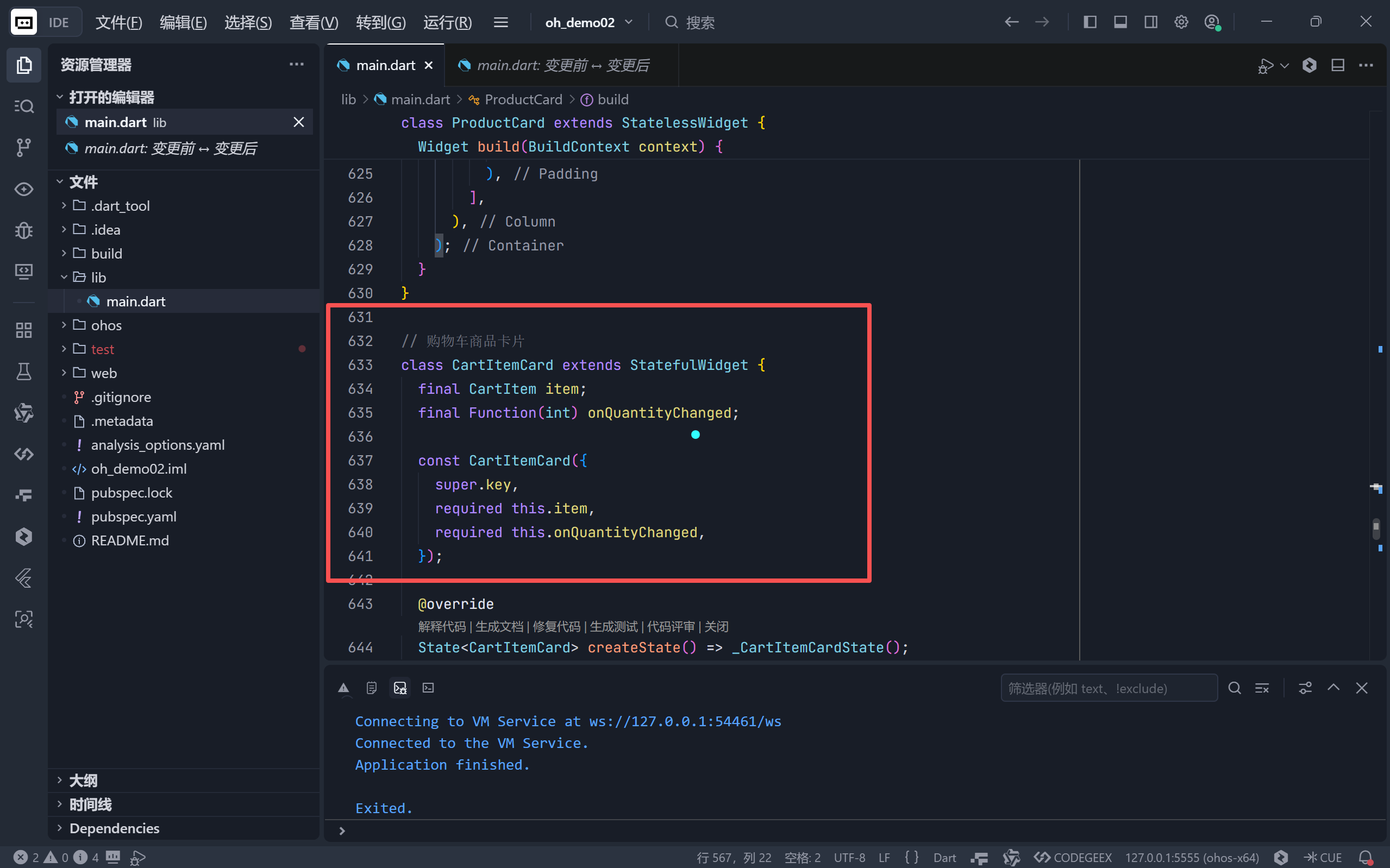
这是Flutter中最常用、最直接的父子通信方式。我们在CartItemCard的构造函数中定义一个onQuantityChanged回调。
dart
// cart_item_card.dart
class CartItemCard extends StatefulWidget {
  final CartItem item;
  final Function(int) onQuantityChanged; // 定义回调

  const CartItemCard({super.key, required this.item, required this.onQuantityChanged});
  // ...
}
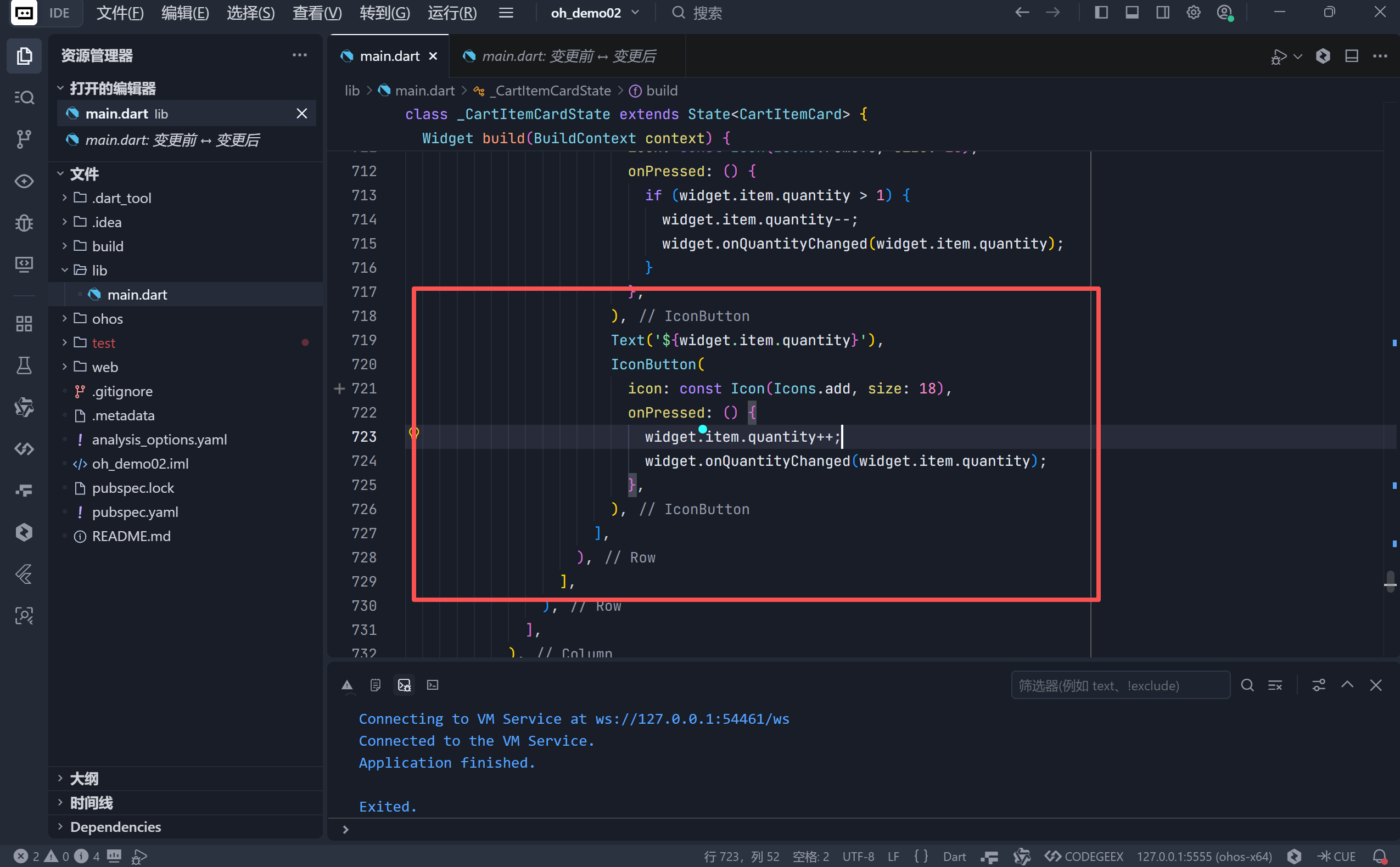
在CartItemCard的内部,当用户点击"+"或"-"按钮时,我们不仅更新自己的quantity,还会立刻调用这个回调函数,并将新的数量作为参数传递出去。
dart
// 在_CartItemCardState中
IconButton(
  icon: const Icon(Icons.add, size: 18),
  onPressed: () {
    widget.item.quantity++; // 更新数据
    widget.onQuantityChanged(widget.item.quantity); // 通知父组件
  },
),
父组件的响应
CartScreen在构建CartItemCard时,传入一个具体的回调函数。这个函数的作用就是调用setState,触发自身状态的更新,从而重新计算总价并刷新UI。
dart
// cart_screen.dart
ListView.builder(
  itemCount: _cartItems.length,
  itemBuilder: (context, index) {
    return CartItemCard(
      item: _cartItems[index],
      onQuantityChanged: (quantity) {
        // 当任意子项数量变化时,重新计算总价
        setState(() {
          _totalPrice = _calculateTotal();
        });
      },
    );
  },
),_calculateTotal方法遍历所有购物车项,累加price * quantity,得到最终的总价。
dart
double _calculateTotal() {
  return _cartItems.fold(0.0, (sum, item) => sum + item.price * item.quantity);
}
为什么这个方案有效?
- 职责分离 :
CartItemCard只关心自己的UI和数量逻辑;CartScreen只关心总价的计算和展示。两者通过清晰的接口(回调)进行通信。 - 性能可控 :每次只更新必要的状态(
_totalPrice),Flutter的setState会智能地只重绘受影响的部分,而不是整个页面。 - 简单直接:对于这种层级不深、逻辑不复杂的场景,回调函数是最轻量、最容易理解的方案。
第四步:超越基础------Checkbox与全选逻辑
一个成熟的购物车还应支持商品的勾选与全选功能。我们可以为
CartItemCard添加一个Checkbox,并为其增加一个onCheckedChanged回调。在
CartScreen中,我们可以维护一个List<bool>来记录每个商品的选中状态,或者更进一步,直接在CartItem模型中增加一个isSelected字段。当任一商品的选中状态改变,或者点击了"全选"按钮时,我们同样可以通过setState来更新UI,并在计算总价时只累加isSelected == true的商品。这进一步证明了我们当前架构的灵活性:通过在模型中增加字段,并在父子组件间传递相应的回调,就能轻松扩展功能。
总结与反思
本文我们成功地将静态UI转变为动态、可交互的应用。核心收获如下:
- 数据驱动UI:UI是数据的可视化表现。定义清晰的数据模型是开发的第一步。
- 状态管理入门 :对于简单的父子组件通信,回调函数(Callback) 是最有效、最直观的工具。
setState的威力与局限 :setState是Flutter状态管理的基石,适用于小范围、局部的状态更新。然而,当应用变得庞大,状态散落在各个StatefulWidget中时,管理和追踪状态变更将变得异常困难。
试想,如果我们的APP增加了"收藏夹"功能,收藏夹里的商品价格变动需要同步到购物车;或者用户在"首页"将商品加入购物车,需要实时更新"购物车"Tab上的小红点数量。这些跨组件、甚至跨页面的状态同步,仅靠setState和回调将变得极其繁琐和脆弱。
🌐 加入社区
欢迎加入 开源鸿蒙跨平台开发者社区 ,获取最新资源与技术支持:
技术因分享而进步,生态因共建而繁荣 。
------ 晚霞的不甘 · 与您共赴鸿蒙跨平台开发之旅