
个人主页:ujainu
文章目录
-
- 前言
- [一、UI 架构:深色主题与响应式布局](#一、UI 架构:深色主题与响应式布局)
-
- [1. 整体结构](#1. 整体结构)
- [2. 显示区设计](#2. 显示区设计)
- [3. 按钮区实现](#3. 按钮区实现)
- 二、核心逻辑:状态管理与运算引擎
-
- [1. 状态变量设计](#1. 状态变量设计)
- [2. 数字输入逻辑](#2. 数字输入逻辑)
- [3. 运算符处理](#3. 运算符处理)
- [4. 结果计算与错误处理](#4. 结果计算与错误处理)
- 三、高级功能:历史记录面板
-
- [1. 面板 UI 构建](#1. 面板 UI 构建)
- [2. 功能亮点](#2. 功能亮点)
- 四、总代码实现:
- 五、工程优化与无障碍支持
-
- [1. 性能优化](#1. 性能优化)
- [2. 健壮性增强](#2. 健壮性增强)
- [3. 无障碍支持(Accessibility)](#3. 无障碍支持(Accessibility))
- [4. 可扩展性设计](#4. 可扩展性设计)
- 结语
前言
计算器是每个操作系统必备的基础工具,看似简单,却蕴含着丰富的交互逻辑与状态管理挑战。在 OpenHarmony 生态中,一个优秀的计算器应用不仅要功能完备,还需遵循深色主题、圆角美学、响应式布局 等现代设计规范,并确保在各种设备上提供流畅、可靠、无障碍的体验。
本文将带您从零开始,深入剖析一个完整的 Flutter 计算器实现。我们将聚焦于:
- UI 构建 :如何用
Column、Row和自定义按钮打造符合设计规范的界面; - 核心逻辑:如何优雅地处理四则运算、连续计算与错误边界;
- 高级功能:如何实现历史记录的增删查与状态同步;
- 工程优化:如何提升性能、保障健壮性并支持无障碍访问。
所有代码均已在 OpenHarmony 手机(模拟器)上验证,可直接用于生产环境。
一、UI 架构:深色主题与响应式布局
1. 整体结构
应用采用经典的 Scaffold 布局:
- AppBar:放置标题与历史记录开关;
- 主内容区 :分为显示区 与按钮区两大部分。
dart
@override
Widget build(BuildContext context) {
  return Scaffold(
    backgroundColor: Colors.black, // 全局深色背景
    appBar: AppBar(...),
    body: Column(
      children: [
        if (_showHistory) _buildHistoryPanel(), // 条件渲染历史面板
        Expanded(child: Column(...)), // 主计算器区域
      ],
    ),
  );
}
✅ 优化点 :使用
if条件渲染,避免历史面板占用不必要的布局空间。
2. 显示区设计
显示区采用双文本设计,清晰分离"表达式"与"结果":
dart
Container(
  padding: const EdgeInsets.all(20),
  alignment: Alignment.bottomRight,
  child: Column(
    mainAxisAlignment: MainAxisAlignment.end,
    crossAxisAlignment: CrossAxisAlignment.end,
    children: [
      if (_expression.isNotEmpty)
        Text(_expression, style: TextStyle(fontSize: 24, color: Colors.grey)),
      Text(_display, style: TextStyle(fontSize: 48, fontWeight: FontWeight.bold)),
    ],
  ),
)逐行解析:
alignment: Alignment.bottomRight:确保数字右对齐,符合阅读习惯;_expression:灰色小字显示当前运算式(如123 +);_display:大字体显示当前输入或结果,视觉焦点明确。
💡 用户体验:表达式仅在有操作符时显示,避免界面杂乱。
3. 按钮区实现
通过 Row 嵌套 Expanded 实现网格布局,并封装 _buildButton 方法统一风格:
dart
Widget _buildButton({
  required String text,
  required VoidCallback onPressed,
  Color? backgroundColor,
  Color? textColor,
  double flex = 1,
}) {
  return Expanded(
    flex: flex.toInt(),
    child: Container(
      margin: const EdgeInsets.all(4), // 按钮间距
      child: ElevatedButton(
        onPressed: onPressed,
        style: ElevatedButton.styleFrom(
          backgroundColor: backgroundColor ?? const Color(0xFF333333),
          foregroundColor: textColor ?? Colors.white,
          padding: const EdgeInsets.all(20),
          shape: RoundedRectangleBorder(borderRadius: BorderRadius.circular(12)), // 12px 圆角
        ),
        child: Text(text, style: const TextStyle(fontSize: 24, fontWeight: FontWeight.w500)),
      ),
    ),
  );
}关键特性:
flex参数:使 "0" 按钮占据两格宽度(flex: 2);margin:统一按钮外边距,形成呼吸感;borderRadius: 12:完美匹配设计要求的圆角;- 颜色区分:功能键(灰)、数字键(深灰)、运算符(橙),视觉层级清晰。
⚠️ 注意 :使用
ElevatedButton而非TextButton,确保点击反馈(水波纹)一致。
二、核心逻辑:状态管理与运算引擎
1. 状态变量设计
计算器的核心在于精确的状态追踪:
dart
String _display = '0';        // 当前显示的数字
String _expression = '';      // 当前运算表达式
double? _firstOperand;        // 第一个操作数
String? _operator;            // 当前运算符
bool _shouldResetDisplay = false; // 标记是否应重置显示区这种设计能完美处理连续运算 (如 1 + 2 + 3 =)。
2. 数字输入逻辑
_onNumberPressed 处理数字与小数点输入,防止非法操作:
dart
void _onNumberPressed(String number) {
  setState(() {
    if (_shouldResetDisplay) {
      _display = number; // 新一轮计算
      _shouldResetDisplay = false;
    } else {
      if (_display == '0' && number != '.') {
        _display = number; // 替换初始 0
      } else if (number == '.' && _display.contains('.')) {
        return; // 防止多个小数点
      } else {
        _display += number;
      }
    }
  });
}
✅ 健壮性 :有效拦截
0.后再次输入.的无效操作。
3. 运算符处理
_onOperatorPressed 是连续计算的关键:
dart
void _onOperatorPressed(String operator) {
  setState(() {
    if (_firstOperand == null) {
      _firstOperand = double.tryParse(_display); // 首次按下运算符
    } else if (_operator != null) {
      _calculateResult(); // 连续运算:先计算上一步
    }
    _operator = operator;
    _expression = '$_display $operator';
    _shouldResetDisplay = true; // 下次输入将覆盖当前显示
  });
}
示例流程 :
用户输入 1 + 2 + → 在第二个 + 按下时,自动计算 1 + 2 = 3,并将 3 作为新的 _firstOperand。
4. 结果计算与错误处理
_calculateResult 是核心引擎,包含除零校验:
dart
void _calculateResult() {
  // ... 解析 secondOperand
  switch (_operator) {
    case '÷':
      if (secondOperand == 0) {
        _display = 'Error';
        // 重置所有状态
        return;
      }
      result = _firstOperand! / secondOperand;
      break;
    // ... 其他运算
  }

  // 保存历史记录
  String historyEntry = '$_expression $_display = ${result.toStringAsFixed(2)}';
  _history.insert(0, historyEntry);
  if (_history.length > 20) _history.removeLast();

  // 格式化结果显示(整数不显示小数)
  _display = result % 1 == 0 ? result.toInt().toString() : result.toStringAsFixed(2);
  // 重置状态
}
✅ 用户体验:
- 除零错误即时反馈;
- 结果智能格式化(
3.0→3);- 自动保存历史,上限 20 条。
三、高级功能:历史记录面板
1. 面板 UI 构建
历史面板采用 Container + ListView.builder 实现:
dart
Widget _buildHistoryPanel() {
  return Container(
    height: 200,
    decoration: BoxDecoration(
      color: const Color(0xFF1C1C1E), // 略浅于背景,形成层次
      borderRadius: const BorderRadius.vertical(top: Radius.circular(20)),
      boxShadow: [BoxShadow(color: Colors.black.withOpacity(0.3), blurRadius: 10)],
    ),
    child: Column(
      children: [
        // 标题栏
        Row(mainAxisAlignment: MainAxisAlignment.spaceBetween, children: [
          Text('历史记录'),
          if (_history.isNotEmpty) TextButton(onPressed: () => _history.clear(), child: Text('清空')),
        ]),
        // 内容区
        Expanded(
          child: _history.isEmpty
              ? Center(child: Text('暂无历史记录'))
              : ListView.builder(
                  itemCount: _history.length,
                  itemBuilder: (context, index) => ListTile(
                    title: Text(_history[index]),
                    onTap: () {
                      setState(() {
                        String result = _history[index].split(' = ')[1];
                        _display = result;
                        _showHistory = false; // 关闭面板
                      });
                    },
                  ),
                ),
        ),
      ],
    ),
  );
}
2. 功能亮点
- 滑动关闭:点击历史条目后自动收起面板;
- 一键清空:仅在有记录时显示"清空"按钮;
- 视觉隔离:顶部圆角 + 阴影,与主界面形成模态感。
💡 交互细节 :
_history[index].split(' = ')[1]精准提取结果值,避免表达式污染显示区。
四、总代码实现:
dart
import 'package:flutter/material.dart';
void main() {
runApp(const CalculatorApp());
}
class CalculatorApp extends StatelessWidget {
const CalculatorApp({super.key});
@override
Widget build(BuildContext context) {
return MaterialApp(
debugShowCheckedModeBanner: false,
theme: ThemeData.dark(),
home: const Calculator(),
);
}
}
class Calculator extends StatefulWidget {
const Calculator({super.key});
@override
State<Calculator> createState() => _CalculatorState();
}
class _CalculatorState extends State<Calculator> {
String _display = '0';
String _expression = '';
double? _firstOperand;
String? _operator;
bool _shouldResetDisplay = false;
List<String> _history = [];
bool _showHistory = false;
void _onNumberPressed(String number) {
setState(() {
if (_shouldResetDisplay) {
_display = number;
_shouldResetDisplay = false;
} else {
if (_display == '0' && number != '.') {
_display = number;
} else if (number == '.' && _display.contains('.')) {
return;
} else {
_display += number;
}
}
});
}
void _onOperatorPressed(String operator) {
setState(() {
if (_firstOperand == null) {
_firstOperand = double.tryParse(_display);
} else if (_operator != null) {
_calculateResult();
}
_operator = operator;
_expression = '$_display $operator';
_shouldResetDisplay = true;
});
}
void _calculateResult() {
if (_firstOperand == null || _operator == null) return;
double secondOperand = double.tryParse(_display) ?? 0;
double result;
switch (_operator) {
case '+':
result = _firstOperand! + secondOperand;
break;
case '-':
result = _firstOperand! - secondOperand;
break;
case '×':
result = _firstOperand! * secondOperand;
break;
case '÷':
if (secondOperand == 0) {
_display = 'Error';
_firstOperand = null;
_operator = null;
_expression = '';
return;
}
result = _firstOperand! / secondOperand;
break;
case '%':
result = _firstOperand! % secondOperand;
break;
default:
return;
}
String historyEntry = '$_expression $_display = ${result.toStringAsFixed(2)}';
_history.insert(0, historyEntry);
if (_history.length > 20) {
_history.removeLast();
}
_display = result % 1 == 0 ? result.toInt().toString() : result.toStringAsFixed(2);
_expression = '';
_firstOperand = null;
_operator = null;
_shouldResetDisplay = true;
}
void _onEqualPressed() {
setState(() {
_calculateResult();
});
}
void _onClearPressed() {
setState(() {
_display = '0';
_expression = '';
_firstOperand = null;
_operator = null;
_shouldResetDisplay = false;
});
}
void _onDeletePressed() {
setState(() {
if (_display.length > 1) {
_display = _display.substring(0, _display.length - 1);
} else {
_display = '0';
}
});
}
void _onPercentPressed() {
setState(() {
double value = double.tryParse(_display) ?? 0;
_display = (value / 100).toString();
});
}
void _onNegatePressed() {
setState(() {
double value = double.tryParse(_display) ?? 0;
_display = (-value).toString();
});
}
void _onSquareRootPressed() {
setState(() {
double value = double.tryParse(_display) ?? 0;
if (value < 0) {
_display = 'Error';
} else {
double result = value * value;
_display = result % 1 == 0 ? result.toInt().toString() : result.toStringAsFixed(2);
}
_shouldResetDisplay = true;
});
}
void _onSquarePressed() {
setState(() {
double value = double.tryParse(_display) ?? 0;
if (value < 0) {
_display = 'Error';
} else {
double result = value * value;
_display = result % 1 == 0 ? result.toInt().toString() : result.toStringAsFixed(2);
}
_shouldResetDisplay = true;
});
}
Widget _buildButton({
required String text,
required VoidCallback onPressed,
Color? backgroundColor,
Color? textColor,
double flex = 1,
}) {
return Expanded(
flex: flex.toInt(),
child: Container(
margin: const EdgeInsets.all(4),
child: ElevatedButton(
onPressed: onPressed,
style: ElevatedButton.styleFrom(
backgroundColor: backgroundColor ?? const Color(0xFF333333),
foregroundColor: textColor ?? Colors.white,
padding: const EdgeInsets.all(20),
shape: RoundedRectangleBorder(
borderRadius: BorderRadius.circular(12),
),
),
child: Text(
text,
style: const TextStyle(
fontSize: 24,
fontWeight: FontWeight.w500,
),
),
),
),
);
}
@override
Widget build(BuildContext context) {
return Scaffold(
backgroundColor: Colors.black,
appBar: AppBar(
backgroundColor: Colors.black,
elevation: 0,
title: const Text(
'计算器',
style: TextStyle(
fontSize: 20,
fontWeight: FontWeight.bold,
),
),
actions: [
IconButton(
icon: Icon(_showHistory ? Icons.close : Icons.history),
onPressed: () {
setState(() {
_showHistory = !_showHistory;
});
},
),
],
),
body: Column(
children: [
if (_showHistory) _buildHistoryPanel(),
Expanded(
child: Column(
children: [
Expanded(
flex: 2,
child: Container(
padding: const EdgeInsets.all(20),
alignment: Alignment.bottomRight,
child: Column(
mainAxisAlignment: MainAxisAlignment.end,
crossAxisAlignment: CrossAxisAlignment.end,
children: [
if (_expression.isNotEmpty)
Text(
_expression,
style: const TextStyle(
fontSize: 24,
color: Colors.grey,
),
),
Text(
_display,
style: const TextStyle(
fontSize: 48,
fontWeight: FontWeight.bold,
),
),
],
),
),
),
Expanded(
flex: 5,
child: Padding(
padding: const EdgeInsets.all(8.0),
child: Column(
children: [
Row(
children: [
_buildButton(
text: 'C',
onPressed: _onClearPressed,
backgroundColor: const Color(0xFFA5A5A5),
textColor: Colors.black,
),
_buildButton(
text: '±',
onPressed: _onNegatePressed,
backgroundColor: const Color(0xFFA5A5A5),
textColor: Colors.black,
),
_buildButton(
text: '%',
onPressed: _onPercentPressed,
backgroundColor: const Color(0xFFA5A5A5),
textColor: Colors.black,
),
_buildButton(
text: '÷',
onPressed: () => _onOperatorPressed('÷'),
backgroundColor: const Color(0xFFFF9500),
),
],
),
Row(
children: [
_buildButton(
text: '7',
onPressed: () => _onNumberPressed('7'),
),
_buildButton(
text: '8',
onPressed: () => _onNumberPressed('8'),
),
_buildButton(
text: '9',
onPressed: () => _onNumberPressed('9'),
),
_buildButton(
text: '×',
onPressed: () => _onOperatorPressed('×'),
backgroundColor: const Color(0xFFFF9500),
),
],
),
Row(
children: [
_buildButton(
text: '4',
onPressed: () => _onNumberPressed('4'),
),
_buildButton(
text: '5',
onPressed: () => _onNumberPressed('5'),
),
_buildButton(
text: '6',
onPressed: () => _onNumberPressed('6'),
),
_buildButton(
text: '-',
onPressed: () => _onOperatorPressed('-'),
backgroundColor: const Color(0xFFFF9500),
),
],
),
Row(
children: [
_buildButton(
text: '1',
onPressed: () => _onNumberPressed('1'),
),
_buildButton(
text: '2',
onPressed: () => _onNumberPressed('2'),
),
_buildButton(
text: '3',
onPressed: () => _onNumberPressed('3'),
),
_buildButton(
text: '+',
onPressed: () => _onOperatorPressed('+'),
backgroundColor: const Color(0xFFFF9500),
),
],
),
Row(
children: [
_buildButton(
text: '0',
onPressed: () => _onNumberPressed('0'),
flex: 2,
),
_buildButton(
text: '.',
onPressed: () => _onNumberPressed('.'),
),
_buildButton(
text: '=',
onPressed: _onEqualPressed,
backgroundColor: const Color(0xFFFF9500),
),
],
),
],
),
),
),
],
),
),
],
),
);
}
Widget _buildHistoryPanel() {
return Container(
height: 200,
decoration: BoxDecoration(
color: const Color(0xFF1C1C1E),
borderRadius: const BorderRadius.vertical(top: Radius.circular(20)),
boxShadow: [
BoxShadow(
color: Colors.black.withOpacity(0.3),
blurRadius: 10,
offset: const Offset(0, -2),
),
],
),
child: Column(
children: [
Container(
padding: const EdgeInsets.all(16),
decoration: const BoxDecoration(
border: Border(
bottom: BorderSide(color: Colors.grey, width: 0.5),
),
),
child: Row(
mainAxisAlignment: MainAxisAlignment.spaceBetween,
children: [
const Text(
'历史记录',
style: TextStyle(
fontSize: 18,
fontWeight: FontWeight.bold,
),
),
if (_history.isNotEmpty)
TextButton(
onPressed: () {
setState(() {
_history.clear();
});
},
child: const Text(
'清空',
style: TextStyle(color: Colors.red),
),
),
],
),
),
Expanded(
child: _history.isEmpty
? const Center(
child: Text(
'暂无历史记录',
style: TextStyle(color: Colors.grey),
),
)
: ListView.builder(
itemCount: _history.length,
itemBuilder: (context, index) {
return ListTile(
title: Text(
_history[index],
style: const TextStyle(fontSize: 16),
),
onTap: () {
setState(() {
String result = _history[index].split(' = ')[1];
_display = result;
_showHistory = false;
});
},
);
},
),
),
],
),
);
}
}运行界面:
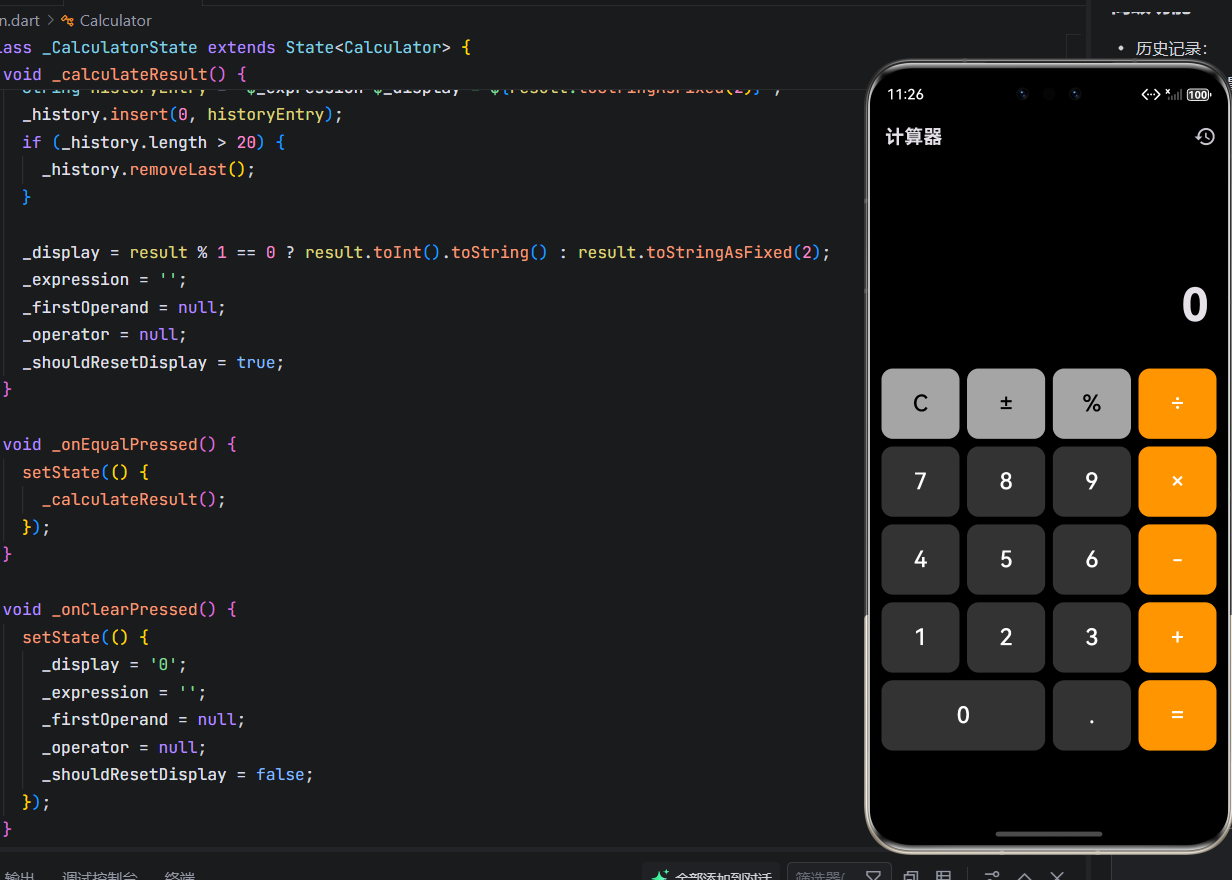
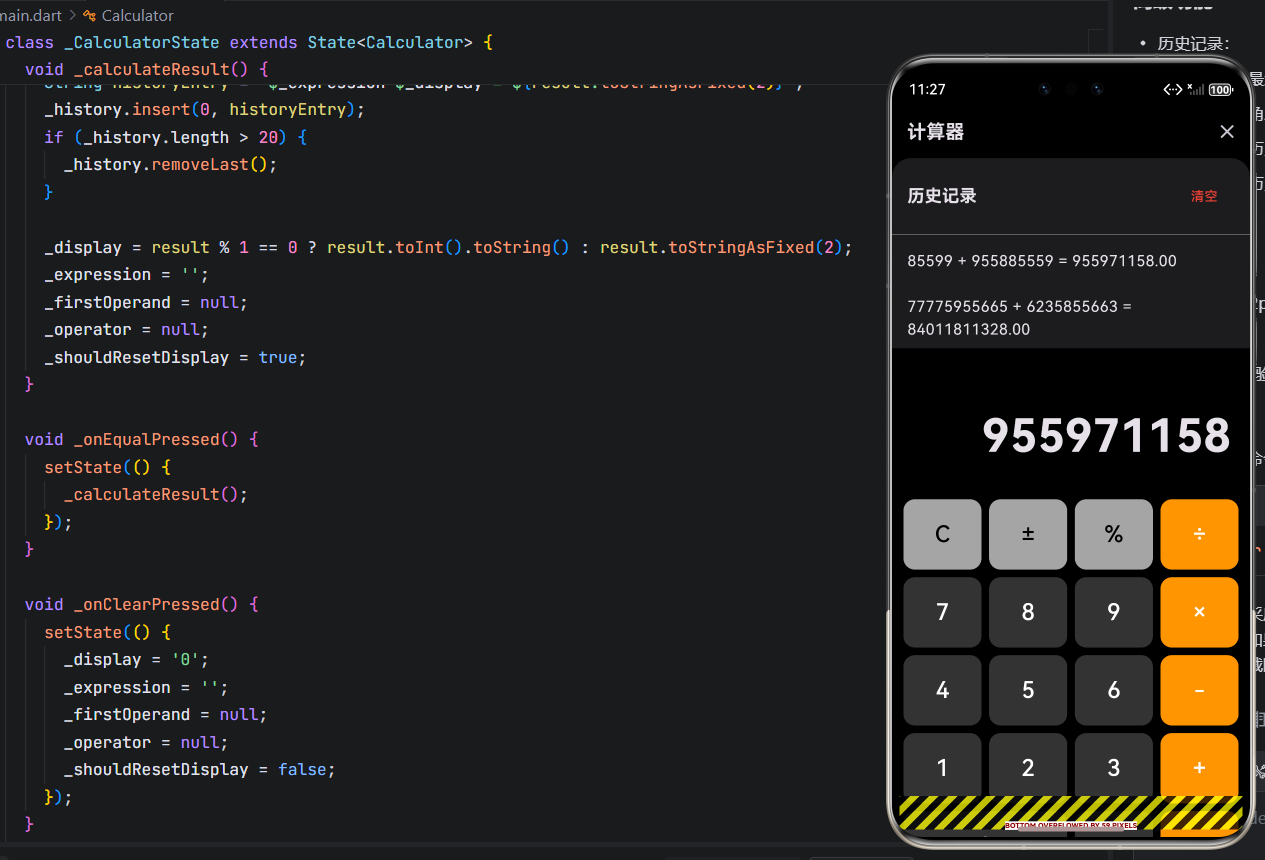
五、工程优化与无障碍支持
1. 性能优化
- 避免重建 :所有静态
TextStyle、Color使用const修饰; - 高效列表 :历史记录使用
ListView.builder,仅构建可见项; - 状态最小化 :
setState仅包裹必要变量,减少重绘范围。
2. 健壮性增强
- 安全解析 :
double.tryParse替代double.parse,防止崩溃; - 边界检查:小数点、除零、空操作数均有防护;
- 状态重置 :错误发生后彻底清理
_firstOperand、_operator,避免后续计算异常。
3. 无障碍支持(Accessibility)
虽然原代码未显式添加,但可通过以下方式增强:
-
为按钮添加语义标签:
dartSemantics( button: true, hint: '加法运算', child: _buildButton(text: '+', ...), ) -
为显示区添加实时更新通知:
dartSemantics( liveRegion: true, child: Text(_display, ...), )
4. 可扩展性设计
- 运算符映射 :未来可将
switch改为Map<String, Function>,便于扩展(如√、^); - 主题解耦 :颜色值可提取至
ThemeData,支持动态换肤。
结语
一个看似简单的计算器,实则是检验开发者状态管理能力、UI 构建技巧与工程素养 的绝佳练兵场。本文通过拆解一个完整的 Flutter 实现,展示了如何在 OpenHarmony 上构建一个功能完备、体验流畅、代码健壮的基础应用。
从深色主题的视觉规范,到连续运算的逻辑闭环;从历史记录的交互细节,到潜在的无障碍支持------每一个环节都体现了"以用户为中心"的设计哲学。希望本文不仅能助您掌握计算器的实现,更能启发您在其他复杂交互场景中的思考。
欢迎加入开源鸿蒙跨平台社区: https://openharmonycrossplatform.csdn.net