介绍:主页显示头像,点击头像进入头像详情页面,点击加号可以选中从相册或者拍照中获取相片,然后当从头像,前两个头像为默认头像,不允许删除,后面新添加的头像可以长按删除。选中了图片后,主页就会更换头像。
效果图
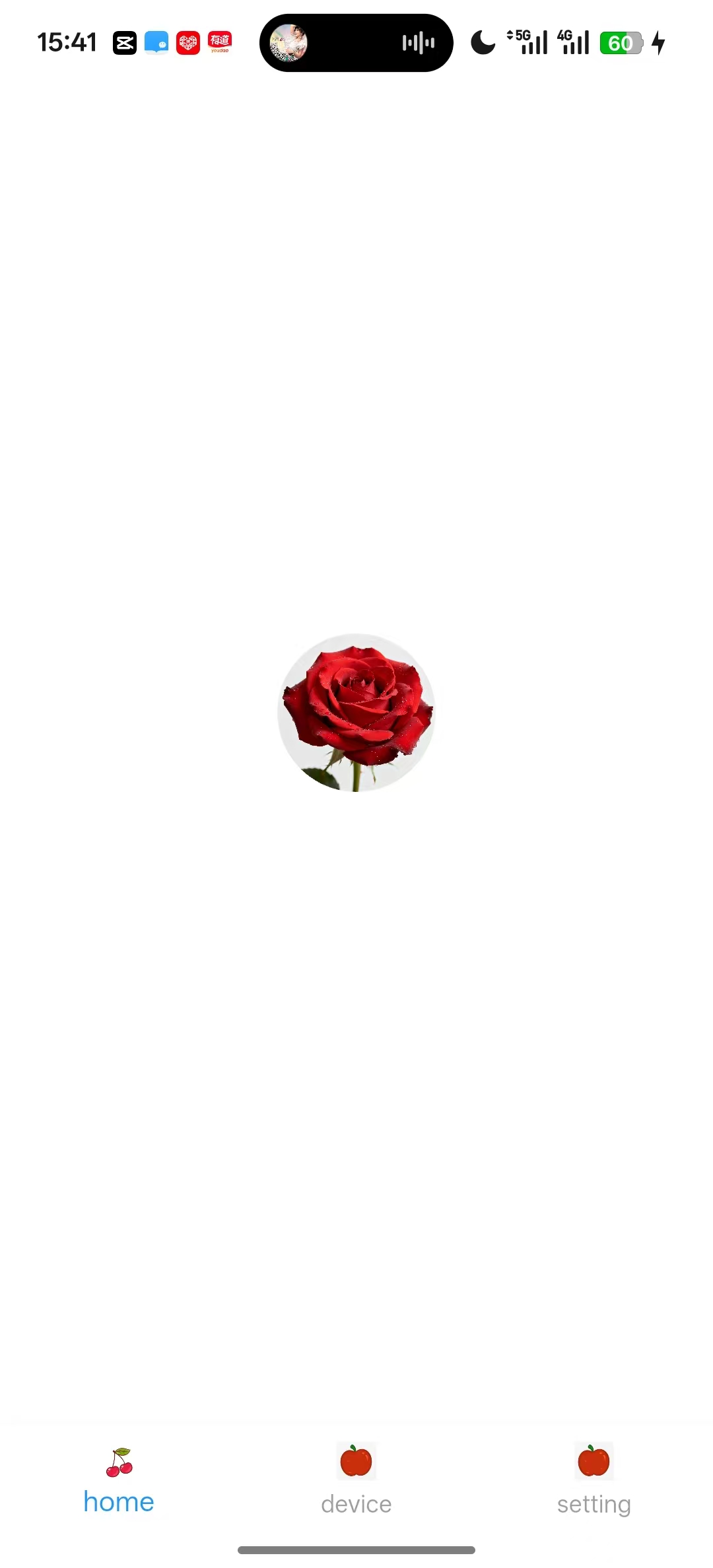
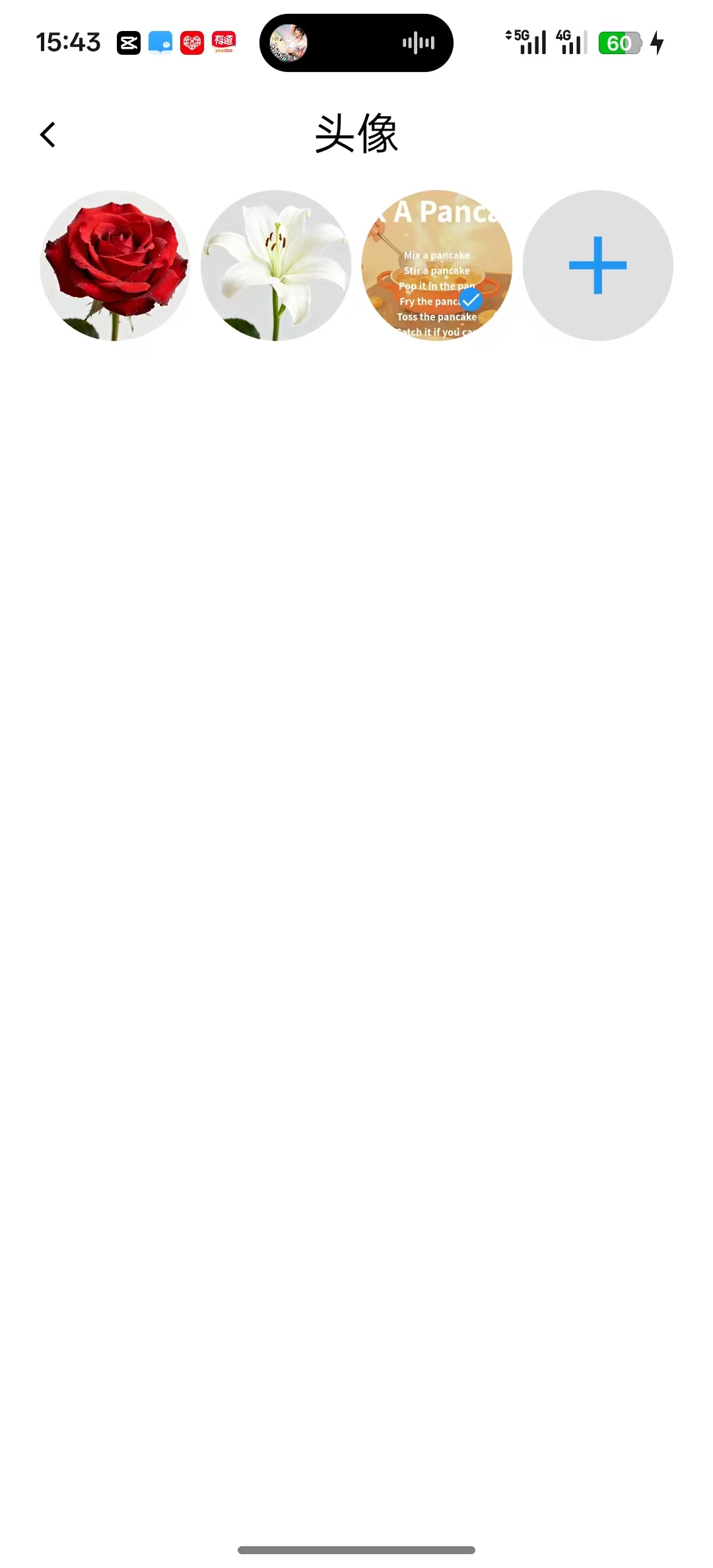

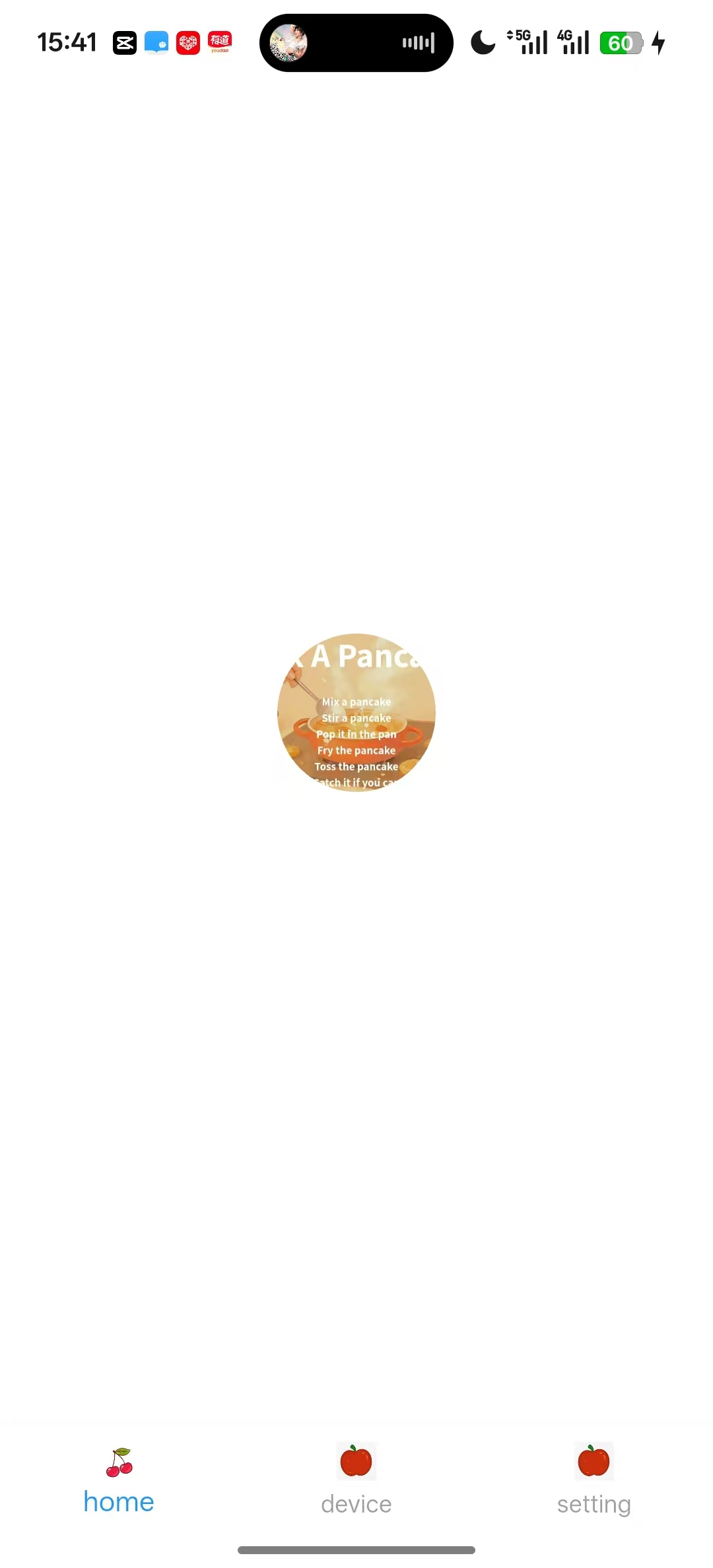
项目架构
Dart
┌─────────────────────────────────────────────────────┐
│                    UI 层 (Presentation Layer)       │
├─────────────────────────────────────────────────────┤
│   HomePage ──→ ChangePicture (头像选择页面)         │
│   (显示头像)      (管理头像列表)                    │
└─────────────────────────────────────────────────────┘
                            ↓
┌─────────────────────────────────────────────────────┐
│             业务逻辑层 (Business Logic Layer)        │
├─────────────────────────────────────────────────────┤
│   ChangePictureState                                │
│   - 图片选择逻辑                                     │
│   - 本地文件管理                                     │
│   - UI状态管理                                       │
└─────────────────────────────────────────────────────┘
                            ↓
┌─────────────────────────────────────────────────────┐
│             数据层 (Data Layer)                      │
├─────────────────────────────────────────────────────┤
│   PreferenceService (单例)                           │
│   - 数据持久化                                      │
│   - 数据序列化/反序列化                             │
│   - 默认数据管理                                    │
└─────────────────────────────────────────────────────┘
                            ↓
┌─────────────────────────────────────────────────────┐
│             存储层 (Storage Layer)                   │
├─────────────────────────────────────────────────────┤
│   SharedPreferences       File System               │
│   - 键值存储              - 本地文件存储            │
│   - 轻量级持久化          - 图片物理文件            │
└─────────────────────────────────────────────────────┘
关键点
1.持久化存储类的初始化应该放在启动APP之前,并且只能初始化一次
2.首页main页面跳转进欢迎页WelcomePage,在欢迎页面中完成了所有的初始化,再回到MyHomePage。
3.增加图片的逻辑
Dart
1.选中图片
2.保存到本地目录
3.持久化存储
4.添加到图片列表
5.显示为选中状态
6.退出页面的时候把选中的图片的文件路径传递给上一页
4.将列表转换为字符串
Dart
代码
final jsonString = picturePaths.join('|||'); //将列表转换为字符串

解释
// 假设 picturePaths = ['path1.jpg', 'path2.png', 'path3.jpg']
// 使用 '|||' 作为分隔符连接
final jsonString = 'path1.jpg|||path2.png|||path3.jpg';
5.调用图片选择器
Dart
final XFile? pickedFile = await _picker.pickImage(
 source: source, //ImageSource枚举有两个值 ImageSource.camera:调用相机拍照;ImageSource.gallery:从相册选中
 imageQuality: 80, // 图片质量 0-100
 maxWidth: 800,    // 最大宽度
 maxHeight: 800,   // 最大高度
);
实现步骤
1.增加外部库
Dart
  image_picker: ^1.1.2  # 图片选择库
  path_provider: ^2.0.0 # 文件路径处理
  path: ^1.9.0 # 路径操作
2.在安卓中的AndroidManifest.xml加入相关权限
Dart
<uses-permission android:name="android.permission.CAMERA" />
<uses-permission android:name="android.permission.READ_EXTERNAL_STORAGE" />
<uses-permission android:name="android.permission.WRITE_EXTERNAL_STORAGE" />
3.主页main进入欢迎页面
Dart
darkTheme: ThemeData.dark(),       // 深色主题
home: const WelcomePage(),//应用启动时显示的页面
routes: <String,WidgetBuilder>{
"/home":(context) => const MyHomePage(title: "My Flutter") //给页面起名字
},
4.在欢迎页面完成初始化再回来,(欢迎页面的主页的UI可以放APP的显示图片)
Dart
  Timer? timer;
  @override
  void initState() {
    super.initState();
    timer = Timer.periodic(const Duration(milliseconds: 50), (timer) {
      if(PreferenceService.instance.isInit ) { //初始化 持久化存储

        loadRouts();  //初始化
        timer.cancel();
      }
    });

  }


  void loadRouts() async {
    //进行其他初始化操作

    //回到首页
    Navigator.of(context).pushReplacementNamed("/home");
  }

  @override
  void dispose() {
    // TODO: implement dispose
    super.dispose();
    timer?.cancel();
  }
5.实现主页头像的逻辑
Dart
  //1.设立默认图片
  String currentPicture = "assets/images/rose.png";


  @override
  Widget build(BuildContext context) {
    return Scaffold(

      //2.设置UI结构
        body: Center(
          child: GestureDetector(
            onTap: () async{
              final result = await Navigator.push(context, MaterialPageRoute(builder: (context) =>
                  ChangePicture(selectedPicturePath: currentPicture,)) //接收回调的头像文件
              );
              if(result != null && result is String){
                setState(() {
                  currentPicture = result; //更新头像变成用户选中的图片
                });
              }
            },
            child: Container(
              height: 80,
              width: 80,
              child: ClipOval(
                child: _buildImage(currentPicture), //展示图片
              ),
            )
          ),
        )

    );
  }

  //=================================3.图片显示方法================================
  Widget _buildImage(String imagePath) {
    if (imagePath.startsWith('assets/')) {
      return Image.asset(
        imagePath,
        fit: BoxFit.cover,
        errorBuilder: (context, error, stackTrace) {
          return _buildErrorWidget();
        },
      );
    } else {
      return Image.file(
        File(imagePath),
        fit: BoxFit.cover,
        errorBuilder: (context, error, stackTrace) {
          return _buildErrorWidget();
        },
      );
    }
  }

  Widget _buildErrorWidget() {
    return Container(
      color: Colors.grey.shade200,
      child: Center(
        child: Icon(
          Icons.broken_image,
          color: Colors.grey,
          size: 40,
        ),
      ),
    );
  }

}
6.设计持久化存储类
Dart
import 'dart:async';
import 'package:shared_preferences/shared_preferences.dart';


///持久化存储页面,这个页面初始化应该在Welcome_page里面初始化,并且只初始化一次

class PreferenceService {


  //1.定义必要的参数
  //存储头像列表的键
  static const String _pictureListKey = 'avatar_list';
  static const List<String> _defaultPictures = [
    "assets/images/rose.png",
    "assets/images/lily.png"
  ];
  var isInit = false;

  //2.单例模式
  static final PreferenceService _instance = PreferenceService._(); //私有构造函数
  static PreferenceService get instance => _instance;
  SharedPreferences? _prefs; //实例化 持久化存储
  PreferenceService._(){
    _init();
  }

  //3.初始化
  void _init() async{
    _prefs = await SharedPreferences.getInstance();
    isInit = true;
  }

  // 4.保存图片列表
  Future<bool> savePictureList(List<String> picturePaths) async {

    try {
      final jsonString = picturePaths.join('|||'); //将列表转换为字符串
      return _prefs!.setString(_pictureListKey, jsonString); //保存到SharedPreference
    } catch (e) {
      print('保存头像列表失败: $e');
      return false;
    }
  }

  //5.获取图片列表
  Future<List<String>> getPictureList() async {

    try {
      final jsonString = _prefs!.getString(_pictureListKey); //读取数据

      //检查空数据
      if (jsonString == null || jsonString.isEmpty) {
        return List.from(_defaultPictures);
      }

      //反序列化字符串
      final List<String> paths = jsonString.split('|||');

      //初始化结果列表
      final List<String> result = [];

      // 确保默认图片在前
      for (final defaultPic in _defaultPictures) {
        result.add(defaultPic);
      }

      // 添加其他非默认、不重复的路径
      for (final path in paths) {
        if (!_defaultPictures.contains(path) && !result.contains(path)) {
          result.add(path);
        }
      }

      return result;
    } catch (e) {
      print('获取图片列表失败: $e');
      return List.from(_defaultPictures);
    }
  }

  // 6.添加单个头像
  Future<bool> addAPicture(String picturePath) async {

    final currentList = await getPictureList(); //获取当前列表

    // 避免重复添加
    if (currentList.contains(picturePath)) {
      return true;
    }

    currentList.add(picturePath); //添加到列表

    return await savePictureList(currentList);
  }

  // 7.删除单个头像
  Future<bool> deletePicture(String picturePath) async {

    final currentList = await getPictureList();//获取当前列表

    final removed = currentList.remove(picturePath); //删除

    if (removed) {
      return await savePictureList(currentList);
    }

    return false;
  }


  // 8.更新头像列表
  Future<bool> updateAvatarList(List<String> newList) async {

    // 移除重复项
    final uniqueList = newList.toSet().toList();

    // 确保默认头像在前两个位置
    for (final defaultAvatar in _defaultPictures) {
      uniqueList.remove(defaultAvatar);
    }

    //构建最终列表
    final finalList = [..._defaultPictures, ...uniqueList];
    return await savePictureList(finalList);
  }

  // 9.清理资源
  void dispose() {
    _prefs = null;
  }


}
7.头像的详情页面
Dart
import 'dart:io';
import 'package:flutter/cupertino.dart';
import 'package:flutter/material.dart';
import 'package:image_picker/image_picker.dart';
import 'package:my_flutter/preference_service.dart';
import 'package:path_provider/path_provider.dart';
class ChangePicture extends StatefulWidget {
const ChangePicture({super.key,this.selectedPicturePath});
final String? selectedPicturePath;
@override
State<StatefulWidget> createState() => _ChangePictureState();
}
class _ChangePictureState extends State<ChangePicture> {
//1.定义必要参数
int selectedIndex = 0;
final ImagePicker _picker = ImagePicker();
bool _isLoading = true; // 添加加载状态
//2.存储默认图片
List<String> pictures = [
"assets/images/rose.png",
"assets/images/lily.png"
];
//3.初始化
@override
void initState() {
super.initState();
_loadPictures();
}
//4.初始化图片列表
Future<void> _loadPictures() async{
try {
// 从存储加载图片列表
final loadedPictures = await PreferenceService.instance.getPictureList();
// 更新状态
if (mounted) {
setState(() {
pictures = loadedPictures;
// 如果传入了选中图片,重新设置索引(基于加载后的列表)
if (widget.selectedPicturePath != null) {
final index = pictures.indexOf(widget.selectedPicturePath!);
if (index != -1) {
selectedIndex = index;
}
}
_isLoading = false;
});
}
} catch (e) {
print('加载图片失败: $e');
if (mounted) {
setState(() {
// 加载失败时使用默认图片
pictures = [
"assets/images/rose.png",
"assets/images/lily.png"
];
_isLoading = false;
});
}
}
}
//5.UI框架
@override
Widget build(BuildContext context) {
return WillPopScope(
onWillPop: () async{ //不允许物理返回
return false;
},
child: Scaffold(
appBar: AppBar(
leading: IconButton(
onPressed: (){
Navigator.pop(context,pictures[selectedIndex]);
},
icon: Icon(Icons.arrow_back_ios,size: 16,color: Colors.black,),),
title: Text("头像"),
centerTitle: true,
),
body:GridView.count(
mainAxisSpacing: 5,
crossAxisCount: 4,
crossAxisSpacing: 5,
childAspectRatio: 1,
padding: EdgeInsets.symmetric(horizontal: 20),
children: List.generate(pictures.length + 1, (index){
if(index >= pictures.length){
return GestureDetector(
onTap: (){
//增加图片
pictureDialog();
},
child: Container(
height: 50,
width: 50,
decoration: BoxDecoration(
color: Color(0xFF666666).withOpacity(0.2),
shape: BoxShape.circle
),
child: Center(
child: Icon(Icons.add,size:50,color: Colors.blue,),
),
)
);
}
return GestureDetector(
//单击选中
onTap: (){
setState(() {
selectedIndex = index;
});
},
//长按删除
onLongPress: (){
deletePictureDialog(index);
},
child: Stack(
children: [
Container(
height: 80,
width: 80,
child: ClipOval(
child: _buildImage(pictures[index]),
),
),
if(selectedIndex == index)
Positioned(
right: 15,
bottom: 15,
child: Container(
height: 12,
width: 12,
decoration: BoxDecoration(
color: Colors.blue,
shape: BoxShape.circle
),
child: Icon(Icons.check,size: 12,color: Colors.white,),
)
)
],
)
);
})
)
),
);
}
//6.显示图片的方法
Widget _buildImage(String imagePath) {
if (imagePath.startsWith('assets/')) {
return Image.asset(
imagePath,
fit: BoxFit.cover,
errorBuilder: (context, error, stackTrace) {
return _buildErrorWidget();
},
);
} else {
// 本地文件路径
return Image.file(
File(imagePath),
fit: BoxFit.cover,
errorBuilder: (context, error, stackTrace) {
return _buildErrorWidget();
},
);
}
}
Widget _buildErrorWidget() {
return Container(
color: Colors.grey.shade200,
child: const Center(
child: Icon(
Icons.broken_image,
color: Colors.grey,
size: 30,
),
),
);
}
//7.添加头像的提示框
void pictureDialog(){
showDialog(
context: context,
builder: (builder){
return Dialog(
child: Container(
height: 140,
margin: EdgeInsets.symmetric(horizontal: 20),
padding: EdgeInsets.symmetric(horizontal: 20,vertical: 10),
decoration: BoxDecoration(
color: Colors.white,
borderRadius: BorderRadius.circular(15),
),
child: Column(
mainAxisSize: MainAxisSize.min,
mainAxisAlignment: MainAxisAlignment.spaceAround,
crossAxisAlignment: CrossAxisAlignment.start,
children: [
ListTile(
leading: const Icon(Icons.camera_alt, color: Colors.blue),
title: const Text("拍照", style: TextStyle(fontSize: 16)),
onTap: () {
Navigator.pop(context);
_pickImage(ImageSource.camera);
},
),
const Divider(height: 1, thickness: 1),
ListTile(
leading: const Icon(Icons.photo_library, color: Colors.blue),
title: const Text("从相册选择", style: TextStyle(fontSize: 16)),
onTap: () {
Navigator.pop(context);
_pickImage(ImageSource.gallery);
},
),
],
),
),
);
}
);
}
//8.选择图片
Future<void> _pickImage(ImageSource source) async {
try {
//调用图片选择器
final XFile? pickedFile = await _picker.pickImage(
source: source, //ImageSource枚举有两个值 ImageSource.camera:调用相机拍照;ImageSource.gallery:从相册选中
imageQuality: 80, // 图片质量 0-100
maxWidth: 800, // 最大宽度
maxHeight: 800, // 最大高度
);
if (pickedFile != null) {
// 将图片保存到应用的本地目录
final String savedPath = await _saveImageToLocal(pickedFile.path);
await PreferenceService.instance.addAPicture(savedPath); //把图片 持久化存储
setState(() {
pictures.add(savedPath);//添加列表
selectedIndex = pictures.length - 1; //选中照片
});
// 可选:显示成功提示
ScaffoldMessenger.of(context).showSnackBar(
const SnackBar(
content: Text("头像添加成功"),
duration: Duration(seconds: 2),
),
);
}
} catch (e) {
// 处理错误
_showErrorDialog("图片选择失败: ${e.toString()}");
}
}
// 9.将图片保存到本地目录
Future<String> _saveImageToLocal(String imagePath) async {
// 获取应用的文档目录
final Directory appDir = await getApplicationDocumentsDirectory();
final String imagesDir = '${appDir.path}/profile_images';
// 创建目录(如果不存在)
await Directory(imagesDir).create(recursive: true);
// 生成唯一的文件名
final String fileName = 'profile_${DateTime.now().millisecondsSinceEpoch}.jpg';
final String newPath = '$imagesDir/$fileName';
// 复制文件到新路径
final File originalFile = File(imagePath);
await originalFile.copy(newPath);
return newPath;
}
// 错误提示
void _showErrorDialog(String message) {
showDialog(
context: context,
builder: (context) {
return AlertDialog(
title: const Text("错误"),
content: Text(message),
actions: [
TextButton(
onPressed: () => Navigator.pop(context),
child: const Text("确定"),
),
],
);
},
);
}
//10.删除图片的弹窗
void deletePictureDialog(int index){
showDialog(
context: context,
builder: (builder){
return Dialog(
shape: RoundedRectangleBorder(
borderRadius: BorderRadius.circular(15)
),
child: Container(
width: 263,
padding: EdgeInsets.only(top: 20,bottom: 29,left: 34,right: 34),
decoration: BoxDecoration(
color: Colors.white,
borderRadius: BorderRadius.circular(15)
),
child:Column(
mainAxisSize: MainAxisSize.min,
mainAxisAlignment: MainAxisAlignment.center,
children: [
Text("确定删除此图片",style: TextStyle(color: Color(0xFF09172F),fontSize: 20),),
SizedBox(height: 16,),
Row(
children: [
//取消按钮
Expanded(
child: Container(
height: 44,
decoration: BoxDecoration(
color: Color(0xFF86909C).withOpacity(0.3),
borderRadius: BorderRadius.circular(10),
),
child: TextButton(
onPressed: () => Navigator.pop(context),
child: Text(
"取消",
style: TextStyle(
color: Color(0xFF09172F),
fontSize: 18
),
),
),
),
),
SizedBox(width: 70,),
//确定按钮
Expanded(
child: Container(
height: 44,
decoration: BoxDecoration(
color: Colors.red,
borderRadius: BorderRadius.circular(10)
),
child: TextButton(
onPressed: () {
Navigator.pop(context);
//删除照片
_deleteImage(index);
},
child: Text(
"删除",
style: TextStyle(
color: Colors.white,
fontSize: 18
),
),
),
),
),
],
)
],
)
),
);
}
);
}
//11.删除头像的方法
Future<void> _deleteImage(int index) async {
if (index == 0 || index == 1) {
ScaffoldMessenger.of(context).showSnackBar(
SnackBar(
content: Text("默认头像不允许删除"),
duration: Duration(seconds: 2),
),
);
return;
}
try{
// 保存要删除的路径
final String deletePath = pictures[index];
//从持久化存储中删除
await PreferenceService.instance.deletePicture(pictures[index]);
//从列表中删除
pictures.removeAt(index);
// 3. 调整选中索引
int newSelectedIndex = selectedIndex;
setState(() {
if(selectedIndex == index){
//如果删除的是当前选中的图片,选择前一张图片
newSelectedIndex = index - 1;
}else if(selectedIndex > index){
//如果删除的图片再当前选中图片之前,调整选中索引
newSelectedIndex = selectedIndex - 1;
}
selectedIndex = newSelectedIndex;
});
// 显示删除成功提示
ScaffoldMessenger.of(context).showSnackBar(
SnackBar(
content: Text("头像已删除"),
duration: Duration(seconds: 2),
),
);
}catch (e) {
print('删除图片失败: $e');
if (mounted) {
ScaffoldMessenger.of(context).showSnackBar(
SnackBar(
content: Text("删除失败: ${e.toString()}"),
duration: Duration(seconds: 2),
),
);
}
}
}
}代码实例
main
Dart
import 'package:flutter/material.dart';
import 'package:flutter_easyloading/flutter_easyloading.dart';
import 'package:my_flutter/device_page.dart';
import 'package:my_flutter/home_page.dart';
import 'package:my_flutter/setting_page.dart';
import 'package:my_flutter/welcom_page.dart';

void main() {
  runApp(const MyApp());//启动应用

}

class MyApp extends StatelessWidget {
  const MyApp({super.key});

  @override
  Widget build(BuildContext context) {
    return MaterialApp(
      title: 'Flutter Demo',//应用名称

      debugShowCheckedModeBanner: false, //隐藏调试横幅
      builder: EasyLoading.init(),
      theme: ThemeData(
        primarySwatch: Colors.blue,      // 主色调
        colorScheme: ColorScheme.fromSwatch().copyWith(
          secondary: Colors.orange, // 强调色
        ),
        primaryColor: Colors.green,
        fontFamily: 'Roboto',            // 字体
      ),
      darkTheme: ThemeData.dark(),       // 深色主题
      home: const WelcomePage(),//应用启动时显示的页面
      routes: <String,WidgetBuilder>{
        "/home":(context) => const MyHomePage(title: "My Flutter") //给页面起名字
      },
    );
  }
}

class MyHomePage extends StatefulWidget {
  const MyHomePage({super.key, required this.title});

  final String title;//页面标题

  @override
  State<MyHomePage> createState() => _MyHomePageState();
}

class _MyHomePageState extends State<MyHomePage> {

  static const _pageList = [HomePage(),DevicePage(),SettingPage()];//页面列表

  var _pageIndex = 0;//当前页面索引


  //UI建造
  @override
  Widget build(BuildContext context) {
    return Scaffold(
      body: _pageList[_pageIndex], //根据下标显示对应的页面

      bottomNavigationBar: BottomNavigationBar(//创建底部导航栏
        items: [
          BottomNavigationBarItem(
              icon: Image.asset("assets/images/apple.png",width: 20,height: 20,),//未选中图标
              activeIcon: Image.asset("assets/images/cherry.png",width: 20,height: 20,),//选中图标
              label:"home",
          ),
          BottomNavigationBarItem(
              icon: Image.asset("assets/images/apple.png",width: 20,height: 20,),//未选中图标
              activeIcon: Image.asset("assets/images/banana.png",width: 20,height: 20,),//选中图标
              label:"device",
          ),
          BottomNavigationBarItem(
              icon: Image.asset("assets/images/apple.png",width: 20,height: 20,),//未选中图标
              activeIcon: Image.asset("assets/images/mango.png",width: 20,height: 20,),//选中图标
              label:"setting",
          ),
        ],

        backgroundColor: Colors.white, //背景色
        currentIndex: _pageIndex, //当前选中索引
        unselectedItemColor: Colors.grey, //未选中颜色
        selectedItemColor: Colors.blue, //选中颜色

        onTap: (index) { //点击事件,页面切换逻辑
          if (_pageIndex == index) return; //如果点击的是当前页,不处理
          _pageIndex = index;//把传入的下标参数去找到要刷新的页面
          setState(() {}); //更新索引并触发重建
        },
        type: BottomNavigationBarType.fixed,
      ),

    );
  }
}
welcome_page
Dart
import 'dart:async';

import 'package:flutter/cupertino.dart';
import 'package:flutter/material.dart';
import 'package:flutter_easyloading/flutter_easyloading.dart';
import 'package:my_flutter/preference_service.dart';


class WelcomePage extends StatefulWidget {
  const WelcomePage({super.key});

  @override
  State<StatefulWidget> createState() => _WelcomePage();

}

class _WelcomePage extends State<WelcomePage> {


  Timer? timer;
  @override
  void initState() {
    super.initState();
    timer = Timer.periodic(const Duration(milliseconds: 50), (timer) {
      if(PreferenceService.instance.isInit ) { //初始化 持久化存储

        loadRouts();  //初始化
        timer.cancel();
      }
    });

  }


  void loadRouts() async {
    //进行其他初始化操作

    //回到首页
    Navigator.of(context).pushReplacementNamed("/home");
  }

  @override
  void dispose() {
    // TODO: implement dispose
    super.dispose();
    timer?.cancel();
  }


  @override
  Widget build(BuildContext context) {

    return  Scaffold(
      backgroundColor: Colors.white,
      body: Container(
        height: double.infinity,
        width: double.infinity,
        alignment: Alignment.center,
        child: Image.asset("assets/images/icon.png",scale: 1.5,),
      ),
    );
  }

}
home_page
Dart
import 'dart:io';
import 'package:flutter/cupertino.dart';
import 'package:flutter/material.dart';
import 'package:image_picker/image_picker.dart';
import 'package:my_flutter/http/change_picture.dart';
import 'package:path_provider/path_provider.dart';

class HomePage extends StatefulWidget {
  const HomePage({super.key});

  @override
  State<StatefulWidget> createState() => _HomePageState();
}


class _HomePageState extends State<HomePage> {


  //1.设立默认图片
  String currentPicture = "assets/images/rose.png";


  @override
  Widget build(BuildContext context) {
    return Scaffold(

      //2.设置UI结构
        body: Center(
          child: GestureDetector(
            onTap: () async{
              final result = await Navigator.push(context, MaterialPageRoute(builder: (context) =>
                  ChangePicture(selectedPicturePath: currentPicture,)) //接收回调的头像文件
              );
              if(result != null && result is String){
                setState(() {
                  currentPicture = result; //更新头像变成用户选中的图片
                });
              }
            },
            child: Container(
              height: 80,
              width: 80,
              child: ClipOval(
                child: _buildImage(currentPicture), //展示图片
              ),
            )
          ),
        )

    );
  }

  //=================================3.图片显示方法================================
  Widget _buildImage(String imagePath) {
    if (imagePath.startsWith('assets/')) {
      return Image.asset(
        imagePath,
        fit: BoxFit.cover,
        errorBuilder: (context, error, stackTrace) {
          return _buildErrorWidget();
        },
      );
    } else {
      return Image.file(
        File(imagePath),
        fit: BoxFit.cover,
        errorBuilder: (context, error, stackTrace) {
          return _buildErrorWidget();
        },
      );
    }
  }

  Widget _buildErrorWidget() {
    return Container(
      color: Colors.grey.shade200,
      child: Center(
        child: Icon(
          Icons.broken_image,
          color: Colors.grey,
          size: 40,
        ),
      ),
    );
  }

}
change_picture
Dart
import 'dart:io';
import 'package:flutter/cupertino.dart';
import 'package:flutter/material.dart';
import 'package:image_picker/image_picker.dart';
import 'package:my_flutter/preference_service.dart';
import 'package:path_provider/path_provider.dart';
class ChangePicture extends StatefulWidget {
const ChangePicture({super.key,this.selectedPicturePath});
final String? selectedPicturePath;
@override
State<StatefulWidget> createState() => _ChangePictureState();
}
class _ChangePictureState extends State<ChangePicture> {
//1.定义必要参数
int selectedIndex = 0;
final ImagePicker _picker = ImagePicker();
bool _isLoading = true; // 添加加载状态
//2.存储默认图片
List<String> pictures = [
"assets/images/rose.png",
"assets/images/lily.png"
];
//3.初始化
@override
void initState() {
super.initState();
_loadPictures();
}
//4.初始化图片列表
Future<void> _loadPictures() async{
try {
// 从存储加载图片列表
final loadedPictures = await PreferenceService.instance.getPictureList();
// 更新状态
if (mounted) {
setState(() {
pictures = loadedPictures;
// 如果传入了选中图片,重新设置索引(基于加载后的列表)
if (widget.selectedPicturePath != null) {
final index = pictures.indexOf(widget.selectedPicturePath!);
if (index != -1) {
selectedIndex = index;
}
}
_isLoading = false;
});
}
} catch (e) {
print('加载图片失败: $e');
if (mounted) {
setState(() {
// 加载失败时使用默认图片
pictures = [
"assets/images/rose.png",
"assets/images/lily.png"
];
_isLoading = false;
});
}
}
}
//5.UI框架
@override
Widget build(BuildContext context) {
return WillPopScope(
onWillPop: () async{ //不允许物理返回
return false;
},
child: Scaffold(
appBar: AppBar(
leading: IconButton(
onPressed: (){
Navigator.pop(context,pictures[selectedIndex]);
},
icon: Icon(Icons.arrow_back_ios,size: 16,color: Colors.black,),),
title: Text("头像"),
centerTitle: true,
),
body:GridView.count(
mainAxisSpacing: 5,
crossAxisCount: 4,
crossAxisSpacing: 5,
childAspectRatio: 1,
padding: EdgeInsets.symmetric(horizontal: 20),
children: List.generate(pictures.length + 1, (index){
if(index >= pictures.length){
return GestureDetector(
onTap: (){
//增加图片
pictureDialog();
},
child: Container(
height: 50,
width: 50,
decoration: BoxDecoration(
color: Color(0xFF666666).withOpacity(0.2),
shape: BoxShape.circle
),
child: Center(
child: Icon(Icons.add,size:50,color: Colors.blue,),
),
)
);
}
return GestureDetector(
//单击选中
onTap: (){
setState(() {
selectedIndex = index;
});
},
//长按删除
onLongPress: (){
deletePictureDialog(index);
},
child: Stack(
children: [
Container(
height: 80,
width: 80,
child: ClipOval(
child: _buildImage(pictures[index]),
),
),
if(selectedIndex == index)
Positioned(
right: 15,
bottom: 15,
child: Container(
height: 12,
width: 12,
decoration: BoxDecoration(
color: Colors.blue,
shape: BoxShape.circle
),
child: Icon(Icons.check,size: 12,color: Colors.white,),
)
)
],
)
);
})
)
),
);
}
//6.显示图片的方法
Widget _buildImage(String imagePath) {
if (imagePath.startsWith('assets/')) {
return Image.asset(
imagePath,
fit: BoxFit.cover,
errorBuilder: (context, error, stackTrace) {
return _buildErrorWidget();
},
);
} else {
// 本地文件路径
return Image.file(
File(imagePath),
fit: BoxFit.cover,
errorBuilder: (context, error, stackTrace) {
return _buildErrorWidget();
},
);
}
}
Widget _buildErrorWidget() {
return Container(
color: Colors.grey.shade200,
child: const Center(
child: Icon(
Icons.broken_image,
color: Colors.grey,
size: 30,
),
),
);
}
//7.添加头像的提示框
void pictureDialog(){
showDialog(
context: context,
builder: (builder){
return Dialog(
child: Container(
height: 140,
margin: EdgeInsets.symmetric(horizontal: 20),
padding: EdgeInsets.symmetric(horizontal: 20,vertical: 10),
decoration: BoxDecoration(
color: Colors.white,
borderRadius: BorderRadius.circular(15),
),
child: Column(
mainAxisSize: MainAxisSize.min,
mainAxisAlignment: MainAxisAlignment.spaceAround,
crossAxisAlignment: CrossAxisAlignment.start,
children: [
ListTile(
leading: const Icon(Icons.camera_alt, color: Colors.blue),
title: const Text("拍照", style: TextStyle(fontSize: 16)),
onTap: () {
Navigator.pop(context);
_pickImage(ImageSource.camera);
},
),
const Divider(height: 1, thickness: 1),
ListTile(
leading: const Icon(Icons.photo_library, color: Colors.blue),
title: const Text("从相册选择", style: TextStyle(fontSize: 16)),
onTap: () {
Navigator.pop(context);
_pickImage(ImageSource.gallery);
},
),
],
),
),
);
}
);
}
//8.选择图片
Future<void> _pickImage(ImageSource source) async {
try {
//调用图片选择器
final XFile? pickedFile = await _picker.pickImage(
source: source, //ImageSource枚举有两个值 ImageSource.camera:调用相机拍照;ImageSource.gallery:从相册选中
imageQuality: 80, // 图片质量 0-100
maxWidth: 800, // 最大宽度
maxHeight: 800, // 最大高度
);
if (pickedFile != null) {
// 将图片保存到应用的本地目录
final String savedPath = await _saveImageToLocal(pickedFile.path);
await PreferenceService.instance.addAPicture(savedPath); //把图片 持久化存储
setState(() {
pictures.add(savedPath);//添加列表
selectedIndex = pictures.length - 1; //选中照片
});
// 可选:显示成功提示
ScaffoldMessenger.of(context).showSnackBar(
const SnackBar(
content: Text("头像添加成功"),
duration: Duration(seconds: 2),
),
);
}
} catch (e) {
// 处理错误
_showErrorDialog("图片选择失败: ${e.toString()}");
}
}
// 9.将图片保存到本地目录
Future<String> _saveImageToLocal(String imagePath) async {
// 获取应用的文档目录
final Directory appDir = await getApplicationDocumentsDirectory();
final String imagesDir = '${appDir.path}/profile_images';
// 创建目录(如果不存在)
await Directory(imagesDir).create(recursive: true);
// 生成唯一的文件名
final String fileName = 'profile_${DateTime.now().millisecondsSinceEpoch}.jpg';
final String newPath = '$imagesDir/$fileName';
// 复制文件到新路径
final File originalFile = File(imagePath);
await originalFile.copy(newPath);
return newPath;
}
// 错误提示
void _showErrorDialog(String message) {
showDialog(
context: context,
builder: (context) {
return AlertDialog(
title: const Text("错误"),
content: Text(message),
actions: [
TextButton(
onPressed: () => Navigator.pop(context),
child: const Text("确定"),
),
],
);
},
);
}
//10.删除图片的弹窗
void deletePictureDialog(int index){
showDialog(
context: context,
builder: (builder){
return Dialog(
shape: RoundedRectangleBorder(
borderRadius: BorderRadius.circular(15)
),
child: Container(
width: 263,
padding: EdgeInsets.only(top: 20,bottom: 29,left: 34,right: 34),
decoration: BoxDecoration(
color: Colors.white,
borderRadius: BorderRadius.circular(15)
),
child:Column(
mainAxisSize: MainAxisSize.min,
mainAxisAlignment: MainAxisAlignment.center,
children: [
Text("确定删除此图片",style: TextStyle(color: Color(0xFF09172F),fontSize: 20),),
SizedBox(height: 16,),
Row(
children: [
//取消按钮
Expanded(
child: Container(
height: 44,
decoration: BoxDecoration(
color: Color(0xFF86909C).withOpacity(0.3),
borderRadius: BorderRadius.circular(10),
),
child: TextButton(
onPressed: () => Navigator.pop(context),
child: Text(
"取消",
style: TextStyle(
color: Color(0xFF09172F),
fontSize: 18
),
),
),
),
),
SizedBox(width: 70,),
//确定按钮
Expanded(
child: Container(
height: 44,
decoration: BoxDecoration(
color: Colors.red,
borderRadius: BorderRadius.circular(10)
),
child: TextButton(
onPressed: () {
Navigator.pop(context);
//删除照片
_deleteImage(index);
},
child: Text(
"删除",
style: TextStyle(
color: Colors.white,
fontSize: 18
),
),
),
),
),
],
)
],
)
),
);
}
);
}
//11.删除头像的方法
Future<void> _deleteImage(int index) async {
if (index == 0 || index == 1) {
ScaffoldMessenger.of(context).showSnackBar(
SnackBar(
content: Text("默认头像不允许删除"),
duration: Duration(seconds: 2),
),
);
return;
}
try{
// 保存要删除的路径
final String deletePath = pictures[index];
//从持久化存储中删除
await PreferenceService.instance.deletePicture(pictures[index]);
//从列表中删除
pictures.removeAt(index);
// 3. 调整选中索引
int newSelectedIndex = selectedIndex;
setState(() {
if(selectedIndex == index){
//如果删除的是当前选中的图片,选择前一张图片
newSelectedIndex = index - 1;
}else if(selectedIndex > index){
//如果删除的图片再当前选中图片之前,调整选中索引
newSelectedIndex = selectedIndex - 1;
}
selectedIndex = newSelectedIndex;
});
// 显示删除成功提示
ScaffoldMessenger.of(context).showSnackBar(
SnackBar(
content: Text("头像已删除"),
duration: Duration(seconds: 2),
),
);
}catch (e) {
print('删除图片失败: $e');
if (mounted) {
ScaffoldMessenger.of(context).showSnackBar(
SnackBar(
content: Text("删除失败: ${e.toString()}"),
duration: Duration(seconds: 2),
),
);
}
}
}
}preference_service
Dart
import 'dart:async';
import 'package:shared_preferences/shared_preferences.dart';


///持久化存储页面,这个页面初始化应该在Welcome_page里面初始化,并且只初始化一次

class PreferenceService {


  //1.定义必要的参数
  //存储头像列表的键
  static const String _pictureListKey = 'avatar_list';
  static const List<String> _defaultPictures = [
    "assets/images/rose.png",
    "assets/images/lily.png"
  ];
  var isInit = false;

  //2.单例模式
  static final PreferenceService _instance = PreferenceService._(); //私有构造函数
  static PreferenceService get instance => _instance;
  SharedPreferences? _prefs; //实例化 持久化存储
  PreferenceService._(){
    _init();
  }

  //3.初始化
  void _init() async{
    _prefs = await SharedPreferences.getInstance();
    isInit = true;
  }

  // 4.保存图片列表
  Future<bool> savePictureList(List<String> picturePaths) async {

    try {
      final jsonString = picturePaths.join('|||'); //将列表转换为字符串
      return _prefs!.setString(_pictureListKey, jsonString); //保存到SharedPreference
    } catch (e) {
      print('保存头像列表失败: $e');
      return false;
    }
  }

  //5.获取图片列表
  Future<List<String>> getPictureList() async {

    try {
      final jsonString = _prefs!.getString(_pictureListKey); //读取数据

      //检查空数据
      if (jsonString == null || jsonString.isEmpty) {
        return List.from(_defaultPictures);
      }

      //反序列化字符串
      final List<String> paths = jsonString.split('|||');

      //初始化结果列表
      final List<String> result = [];

      // 确保默认图片在前
      for (final defaultPic in _defaultPictures) {
        result.add(defaultPic);
      }

      // 添加其他非默认、不重复的路径
      for (final path in paths) {
        if (!_defaultPictures.contains(path) && !result.contains(path)) {
          result.add(path);
        }
      }

      return result;
    } catch (e) {
      print('获取图片列表失败: $e');
      return List.from(_defaultPictures);
    }
  }

  // 6.添加单个头像
  Future<bool> addAPicture(String picturePath) async {

    final currentList = await getPictureList(); //获取当前列表

    // 避免重复添加
    if (currentList.contains(picturePath)) {
      return true;
    }

    currentList.add(picturePath); //添加到列表

    return await savePictureList(currentList);
  }

  // 7.删除单个头像
  Future<bool> deletePicture(String picturePath) async {

    final currentList = await getPictureList();//获取当前列表

    final removed = currentList.remove(picturePath); //删除

    if (removed) {
      return await savePictureList(currentList);
    }

    return false;
  }


  // 8.更新头像列表
  Future<bool> updateAvatarList(List<String> newList) async {

    // 移除重复项
    final uniqueList = newList.toSet().toList();

    // 确保默认头像在前两个位置
    for (final defaultAvatar in _defaultPictures) {
      uniqueList.remove(defaultAvatar);
    }

    //构建最终列表
    final finalList = [..._defaultPictures, ...uniqueList];
    return await savePictureList(finalList);
  }

  // 9.清理资源
  void dispose() {
    _prefs = null;
  }


}