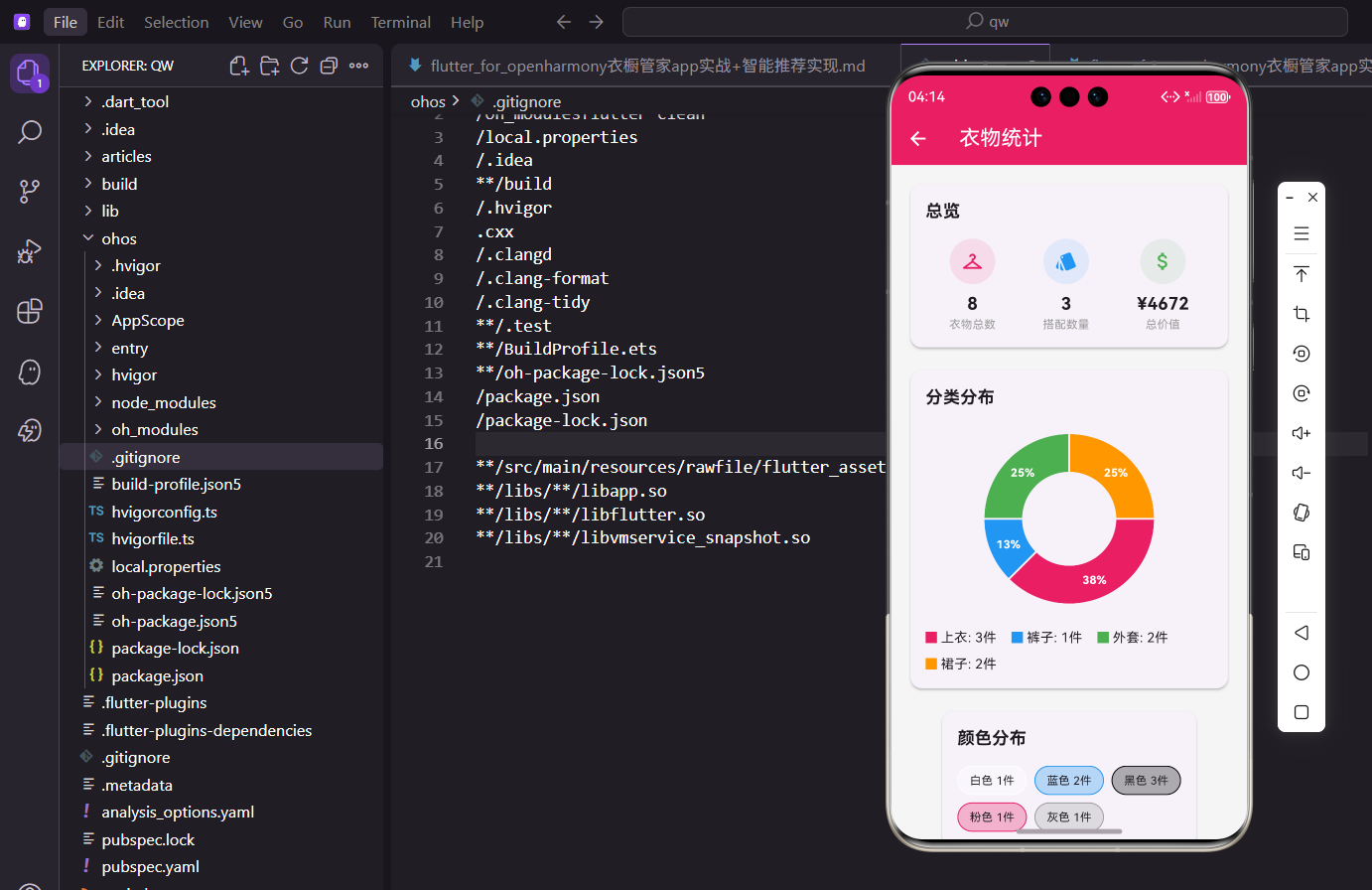
衣橱里的衣服越来越多,但你真的了解自己的穿衣习惯吗?哪些衣服穿得最多,哪些买来就压箱底了,衣橱里什么颜色的衣服最多?统计分析功能就是用来回答这些问题的。
今天这篇文章,我来详细讲讲衣橱管家App里统计分析功能的实现。这个功能用到了图表库fl_chart来做数据可视化,涉及到饼图绑定、数据聚合、列表展示等多个技术点。
功能需求分析
统计分析功能需要展示以下几类数据:
第一,总览数据,包括衣物总数、搭配数量、衣物总价值。
第二,分类分布,用饼图展示各类衣物的占比。
第三,颜色分布,展示衣橱里各种颜色的衣物数量。
第四,穿着频率,列出最常穿和很少穿的衣物。
页面基础结构
先看StatisticsScreen的定义:
dart
import 'package:flutter/material.dart';
import 'package:provider/provider.dart';
import 'package:flutter_screenutil/flutter_screenutil.dart';
import 'package:fl_chart/fl_chart.dart';
import '../../providers/wardrobe_provider.dart';
import '../../models/clothing_item.dart';

class StatisticsScreen extends StatelessWidget {
  const StatisticsScreen({super.key});

  @override
  Widget build(BuildContext context) {
    return Scaffold(
      appBar: AppBar(title: const Text('衣物统计')),
      body: Consumer<WardrobeProvider>(
        builder: (context, provider, child) {
          return SingleChildScrollView(
            padding: EdgeInsets.all(16.w),
            child: Column(
              children: [
                _buildOverviewCard(provider),
                SizedBox(height: 16.h),
                _buildCategoryChart(provider),
                SizedBox(height: 16.h),
                _buildColorChart(provider),
                SizedBox(height: 16.h),
                _buildMostWornCard(provider),
                SizedBox(height: 16.h),
                _buildLeastWornCard(provider),
              ],
            ),
          );
        },
      ),
    );
  }
}
这里用StatelessWidget就够了,因为页面不需要维护局部状态,所有数据都从Provider获取。
fl_chart是Flutter里很流行的图表库,支持饼图、柱状图、折线图等多种图表类型。
Consumer包裹整个body,这样衣物数据变化时,所有统计数据都会自动更新。
总览卡片实现
总览卡片展示三个核心数据:
dart
Widget _buildOverviewCard(WardrobeProvider provider) {
  return Card(
    child: Padding(
      padding: EdgeInsets.all(16.w),
      child: Column(
        crossAxisAlignment: CrossAxisAlignment.start,
        children: [
          Text('总览', style: TextStyle(fontSize: 18.sp, fontWeight: FontWeight.bold)),
          SizedBox(height: 16.h),
          Row(
            mainAxisAlignment: MainAxisAlignment.spaceAround,
            children: [
              _buildStatItem('衣物总数', '${provider.clothes.length}', Icons.checkroom, Colors.pink),
              _buildStatItem('搭配数量', '${provider.outfits.length}', Icons.style, Colors.blue),
              _buildStatItem('总价值', '¥${provider.getTotalValue().toStringAsFixed(0)}', Icons.attach_money, Colors.green),
            ],
          ),
        ],
      ),
    ),
  );
}
三个数据项横向排列,用Row和spaceAround实现等间距分布。
provider.clothes.length直接获取衣物列表的长度,就是衣物总数。
getTotalValue()是Provider里的方法,计算所有衣物价格的总和。
toStringAsFixed(0)把小数转成整数字符串,因为总价值不需要显示小数。
统计项的构建方法:
dart
Widget _buildStatItem(String label, String value, IconData icon, Color color) {
  return Column(
    children: [
      Container(
        padding: EdgeInsets.all(12.w),
        decoration: BoxDecoration(color: color.withOpacity(0.1), shape: BoxShape.circle),
        child: Icon(icon, color: color, size: 24.sp),
      ),
      SizedBox(height: 8.h),
      Text(value, style: TextStyle(fontSize: 18.sp, fontWeight: FontWeight.bold)),
      Text(label, style: TextStyle(fontSize: 12.sp, color: Colors.grey)),
    ],
  );
}
每个统计项由图标、数值、标签三部分组成,从上到下排列。
图标放在圆形背景里,背景色是图标颜色的浅色版本,看起来很协调。
数值用大字体粗体显示,标签用小字体灰色,主次分明。
分类分布饼图
用饼图展示各类衣物的占比:
dart
Widget _buildCategoryChart(WardrobeProvider provider) {
  final stats = provider.getCategoryStats();
  final total = stats.values.fold(0, (a, b) => a + b);

  return Card(
    child: Padding(
      padding: EdgeInsets.all(16.w),
      child: Column(
        crossAxisAlignment: CrossAxisAlignment.start,
        children: [
          Text('分类分布', style: TextStyle(fontSize: 18.sp, fontWeight: FontWeight.bold)),
          SizedBox(height: 16.h),
          SizedBox(
            height: 200.h,
            child: stats.isEmpty
                ? const Center(child: Text('暂无数据'))
                : PieChart(
                    PieChartData(
                      sections: _buildPieSections(stats, total),
                      centerSpaceRadius: 50.r,
                      sectionsSpace: 2,
                    ),
                  ),
          ),
          SizedBox(height: 16.h),
          _buildLegend(stats),
        ],
      ),
    ),
  );
}
getCategoryStats()返回一个Map,key是分类名称,value是该分类的衣物数量。
fold方法用来计算所有数量的总和,用于后面计算百分比。
PieChart是fl_chart提供的饼图组件,需要传入PieChartData配置。
centerSpaceRadius设置中间空心圆的半径,做成环形图比实心饼图更好看。
sectionsSpace设置各扇区之间的间隙,有间隙看起来更清晰。
饼图扇区的构建方法:
dart
List<PieChartSectionData> _buildPieSections(Map<String, int> stats, int total) {
  final colors = [Colors.pink, Colors.blue, Colors.green, Colors.orange, Colors.purple, Colors.teal];
  int index = 0;
  return stats.entries.map((entry) {
    final color = colors[index % colors.length];
    index++;
    return PieChartSectionData(
      value: entry.value.toDouble(),
      title: '${(entry.value / total * 100).toStringAsFixed(0)}%',
      color: color,
      radius: 40.r,
      titleStyle: TextStyle(fontSize: 12.sp, color: Colors.white, fontWeight: FontWeight.bold),
    );
  }).toList();
}
预定义一组颜色,用取模运算循环使用,这样不管有多少分类都有颜色可用。
value是扇区的数值,决定扇区的大小。
title显示在扇区上,这里显示百分比。
radius是扇区的半径,也就是环的宽度。
titleStyle设置标题的样式,白色粗体在彩色背景上对比度好。
图例的构建:
dart
Widget _buildLegend(Map<String, int> stats) {
  final colors = [Colors.pink, Colors.blue, Colors.green, Colors.orange, Colors.purple, Colors.teal];
  return Wrap(
    spacing: 16.w,
    runSpacing: 8.h,
    children: stats.entries.map((e) {
      final index = stats.keys.toList().indexOf(e.key);
      return Row(
        mainAxisSize: MainAxisSize.min,
        children: [
          Container(width: 12.w, height: 12.w, color: colors[index % colors.length]),
          SizedBox(width: 4.w),
          Text('${e.key}: ${e.value}件'),
        ],
      );
    }).toList(),
  );
}
图例用Wrap包裹,自动换行,适应不同屏幕宽度。
每个图例项由色块和文字组成,色块颜色和饼图扇区颜色对应。
mainAxisSize: MainAxisSize.min让Row只占用必要的宽度,不会撑满整行。
颜色分布展示
颜色分布用标签的形式展示:
dart
Widget _buildColorChart(WardrobeProvider provider) {
  final stats = provider.getColorStats();

  return Card(
    child: Padding(
      padding: EdgeInsets.all(16.w),
      child: Column(
        crossAxisAlignment: CrossAxisAlignment.start,
        children: [
          Text('颜色分布', style: TextStyle(fontSize: 18.sp, fontWeight: FontWeight.bold)),
          SizedBox(height: 16.h),
          Wrap(
            spacing: 8.w,
            runSpacing: 8.h,
            children: stats.entries.map((e) {
              return Container(
                padding: EdgeInsets.symmetric(horizontal: 12.w, vertical: 6.h),
                decoration: BoxDecoration(
                  color: ClothingItem.getColorFromName(e.key).withOpacity(0.3),
                  borderRadius: BorderRadius.circular(16.r),
                  border: Border.all(color: ClothingItem.getColorFromName(e.key)),
                ),
                child: Text('${e.key} ${e.value}件', style: TextStyle(fontSize: 12.sp)),
              );
            }).toList(),
          ),
        ],
      ),
    ),
  );
}
getColorStats()返回颜色统计数据,key是颜色名称,value是数量。
每个颜色用一个圆角标签展示,背景色是该颜色的浅色版本,边框是该颜色。
ClothingItem.getColorFromName把颜色名称转换成Color对象。
这种展示方式比饼图更直观,用户一眼就能看出有哪些颜色。
最常穿着列表
展示穿着次数最多的衣物:
dart
Widget _buildMostWornCard(WardrobeProvider provider) {
  final items = provider.getMostWorn();

  return Card(
    child: Padding(
      padding: EdgeInsets.all(16.w),
      child: Column(
        crossAxisAlignment: CrossAxisAlignment.start,
        children: [
          Row(
            children: [
              const Icon(Icons.trending_up, color: Colors.green),
              SizedBox(width: 8.w),
              Text('最常穿着', style: TextStyle(fontSize: 18.sp, fontWeight: FontWeight.bold)),
            ],
          ),
          SizedBox(height: 12.h),
          ...items.map((item) => ListTile(
                contentPadding: EdgeInsets.zero,
                leading: Container(
                  width: 40.w,
                  height: 40.w,
                  decoration: BoxDecoration(
                    color: ClothingItem.getColorFromName(item.color).withOpacity(0.3),
                    borderRadius: BorderRadius.circular(8.r),
                  ),
                  child: Icon(Icons.checkroom, color: ClothingItem.getColorFromName(item.color), size: 20.sp),
                ),
                title: Text(item.name),
                trailing: Text('${item.wearCount}次', style: const TextStyle(color: Colors.green, fontWeight: FontWeight.bold)),
              )),
        ],
      ),
    ),
  );
}
getMostWorn()返回穿着次数最多的几件衣物,已经按穿着次数降序排列。
标题前面加个上升趋势图标,表示这些是"热门"衣物。
用...展开操作符把map的结果展开成多个Widget。
trailing显示穿着次数,用绿色表示这是好的(穿得多说明喜欢)。
很少穿着列表
展示穿着次数最少的衣物:
dart
Widget _buildLeastWornCard(WardrobeProvider provider) {
  final items = provider.getLeastWorn();

  return Card(
    child: Padding(
      padding: EdgeInsets.all(16.w),
      child: Column(
        crossAxisAlignment: CrossAxisAlignment.start,
        children: [
          Row(
            children: [
              const Icon(Icons.trending_down, color: Colors.orange),
              SizedBox(width: 8.w),
              Text('很少穿着', style: TextStyle(fontSize: 18.sp, fontWeight: FontWeight.bold)),
            ],
          ),
          SizedBox(height: 8.h),
          Text('这些衣物可能需要更多关注', style: TextStyle(fontSize: 12.sp, color: Colors.grey)),
          SizedBox(height: 12.h),
          ...items.map((item) => ListTile(
                contentPadding: EdgeInsets.zero,
                leading: Container(
                  width: 40.w,
                  height: 40.w,
                  decoration: BoxDecoration(
                    color: ClothingItem.getColorFromName(item.color).withOpacity(0.3),
                    borderRadius: BorderRadius.circular(8.r),
                  ),
                  child: Icon(Icons.checkroom, color: ClothingItem.getColorFromName(item.color), size: 20.sp),
                ),
                title: Text(item.name),
                trailing: Text('${item.wearCount}次', style: const TextStyle(color: Colors.orange, fontWeight: FontWeight.bold)),
              )),
        ],
      ),
    ),
  );
}
getLeastWorn()返回穿着次数最少的几件衣物。
标题用下降趋势图标,表示这些衣物"冷门"。
加了一行提示文字,告诉用户这些衣物可能需要关注,是不是该穿穿了或者考虑处理掉。
穿着次数用橙色显示,表示这是需要注意的(穿得少可能是浪费)。
Provider里的统计方法
WardrobeProvider里需要实现几个统计方法:
dart
// 获取衣物总价值
double getTotalValue() {
  return clothes.fold(0.0, (sum, item) => sum + item.price);
}

// 获取分类统计
Map<String, int> getCategoryStats() {
  final stats = <String, int>{};
  for (final item in clothes) {
    stats[item.category] = (stats[item.category] ?? 0) + 1;
  }
  return stats;
}

// 获取颜色统计
Map<String, int> getColorStats() {
  final stats = <String, int>{};
  for (final item in clothes) {
    stats[item.color] = (stats[item.color] ?? 0) + 1;
  }
  return stats;
}
fold方法遍历列表并累加,初始值是0.0,每次把item.price加到sum上。
分类统计和颜色统计逻辑类似,都是遍历衣物列表,按某个属性分组计数。
用??运算符处理Map里不存在的key,不存在时默认为0。
穿着频率统计:
dart
// 获取最常穿的衣物
List<ClothingItem> getMostWorn({int limit = 5}) {
  final sorted = List<ClothingItem>.from(clothes)
    ..sort((a, b) => b.wearCount.compareTo(a.wearCount));
  return sorted.take(limit).toList();
}

// 获取最少穿的衣物
List<ClothingItem> getLeastWorn({int limit = 5}) {
  final sorted = List<ClothingItem>.from(clothes)
    ..sort((a, b) => a.wearCount.compareTo(b.wearCount));
  return sorted.take(limit).toList();
}
先复制一份列表,避免修改原列表的顺序。
sort方法按穿着次数排序,最常穿的是降序,最少穿的是升序。
take(limit)取前几个,默认取5个。
...是级联操作符,可以在同一个对象上连续调用多个方法。
fl_chart的使用技巧
fl_chart是一个功能强大的图表库,使用时有几个注意点:
dart
// pubspec.yaml里添加依赖
dependencies:
  fl_chart: ^0.66.0

// 饼图的基本用法
PieChart(
  PieChartData(
    sections: [...],           // 扇区数据
    centerSpaceRadius: 50.r,   // 中心空白半径
    sectionsSpace: 2,          // 扇区间隙
    startDegreeOffset: -90,    // 起始角度偏移
  ),
)
fl_chart支持饼图、柱状图、折线图、雷达图等多种图表。
PieChartData的sections是一个PieChartSectionData列表,每个元素代表一个扇区。
startDegreeOffset可以调整饼图的起始角度,-90表示从12点钟方向开始。
数据可视化的设计原则
做统计分析页面,有几个设计原则值得注意:
第一,数据要一目了然,用户不需要思考就能理解。
第二,颜色要有意义,比如绿色表示好,橙色表示需要注意。
第三,图表要配图例,不然用户不知道每个颜色代表什么。
第四,空状态要处理,没有数据时显示"暂无数据"而不是空白。
dart
// 空状态处理
child: stats.isEmpty
    ? const Center(child: Text('暂无数据'))
    : PieChart(...),
判断数据是否为空,为空时显示提示文字,不为空时显示图表。
这样用户知道不是页面出错了,而是确实没有数据。
性能优化考虑
统计分析涉及到数据聚合计算,如果衣物数量很多,可能会有性能问题:
dart
// 可以考虑缓存统计结果
Map<String, int>? _categoryStatsCache;

Map<String, int> getCategoryStats() {
  if (_categoryStatsCache != null) {
    return _categoryStatsCache!;
  }
  // 计算统计数据...
  _categoryStatsCache = stats;
  return stats;
}

// 数据变化时清除缓存
void addClothing(ClothingItem item) {
  clothes.add(item);
  _categoryStatsCache = null;  // 清除缓存
  notifyListeners();
}
缓存统计结果,避免每次build都重新计算。
数据变化时清除缓存,下次获取时重新计算。
对于衣橱管家这种数据量不大的应用,其实不缓存也没问题。
总结
统计分析功能的实现涉及到数据聚合、图表展示、列表渲染等多个方面。关键点在于:
用fl_chart库实现饼图,展示分类分布。
用颜色标签展示颜色分布,比图表更直观。
用列表展示穿着频率,帮助用户了解自己的穿衣习惯。
在OpenHarmony平台上,fl_chart库完全兼容,这套统计分析功能可以直接使用。通过数据可视化,用户能更好地了解自己的衣橱,做出更理性的购买决策。
欢迎加入开源鸿蒙跨平台社区:https://openharmonycrossplatform.csdn.net