XML
<Window x:Class="LightingButton.MainWindow"
        xmlns="http://schemas.microsoft.com/winfx/2006/xaml/presentation"
        xmlns:x="http://schemas.microsoft.com/winfx/2006/xaml"
        xmlns:d="http://schemas.microsoft.com/expression/blend/2008"
        xmlns:mc="http://schemas.openxmlformats.org/markup-compatibility/2006"
        mc:Ignorable="d"
        Title="MainWindow"
        Height="450"
        Width="800">
    <Grid>
        <Grid Margin="10">
            <!-- 把按钮和光效放在同一个 Grid 里,共享尺寸 -->
            <Grid x:Name="ButtonContainer"
                  Width="160"
                  Height="50">
                <!-- 按钮 -->
                <Button Content="AOI检测"
                        Foreground="White"
                        FontSize="16"
                        HorizontalAlignment="Stretch"
                        VerticalAlignment="Stretch">
                    <Button.Style>
                        <Style TargetType="Button">
                            <Setter Property="Template">
                                <Setter.Value>
                                    <ControlTemplate TargetType="Button">
                                        <Border x:Name="border"
                                                Background="{TemplateBinding Background}"
                                                CornerRadius="12">
                                            <ContentPresenter HorizontalAlignment="Center"
                                                              VerticalAlignment="Center" />
                                        </Border>
                                        <ControlTemplate.Triggers>
                                            <Trigger Property="IsMouseOver"
                                                     Value="True">
                                                <Setter TargetName="border"
                                                        Property="Background"
                                                        Value="#1976D2" />
                                            </Trigger>
                                        </ControlTemplate.Triggers>
                                    </ControlTemplate>
                                </Setter.Value>
                            </Setter>
                            <Setter Property="Background"
                                    Value="#2196F3" />
                            <Setter Property="BorderThickness"
                                    Value="0" />
                        </Style>
                    </Button.Style>
                </Button>

                <!-- 光效层:直接覆盖在按钮上 -->
                <Path x:Name="MovingGlow"
                      Stroke="#FF4081"
                      StrokeThickness="3"
                      StrokeLineJoin="Round"
                      StrokeStartLineCap="Round"
                      StrokeEndLineCap="Round"
                      Opacity="0">
                    <!-- 动态生成与按钮相同尺寸的圆角矩形 -->
                    <Path.Data>
                        <RectangleGeometry Rect="1.5,1.5,157,47"
                            RadiusX="12"
                            RadiusY="12" />
                    </Path.Data>
                    <Path.StrokeDashArray>
                        20, 80
                    </Path.StrokeDashArray>
                </Path>
            </Grid>

            <!-- 触发动画:监听整个容器 -->
            <Grid.Triggers>
                <EventTrigger RoutedEvent="Mouse.MouseEnter"
                              SourceName="ButtonContainer">
                    <BeginStoryboard x:Name="hoverGlowStoryboard">
                        <Storyboard>
                            <DoubleAnimation Storyboard.TargetName="MovingGlow"
                                             Storyboard.TargetProperty="Opacity"
                                             To="1"
                                             Duration="0:0:0.2" />
                            <DoubleAnimation Storyboard.TargetName="MovingGlow"
                                             Storyboard.TargetProperty="StrokeDashOffset"
                                             From="100"
                                             To="0"
                                             Duration="0:0:2"
                                             RepeatBehavior="Forever" />
                        </Storyboard>
                    </BeginStoryboard>
                </EventTrigger>

                <EventTrigger RoutedEvent="Mouse.MouseLeave"
                              SourceName="ButtonContainer">
                    <StopStoryboard BeginStoryboardName="hoverGlowStoryboard" />
                    <BeginStoryboard>
                        <Storyboard>
                            <DoubleAnimation Storyboard.TargetName="MovingGlow"
                                             Storyboard.TargetProperty="Opacity"
                                             To="0"
                                             Duration="0:0:0.3" />
                        </Storyboard>
                    </BeginStoryboard>
                </EventTrigger>
            </Grid.Triggers>
        </Grid>
    </Grid>
</Window>
效果如下:
当还没有选中时
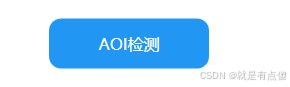
选中时