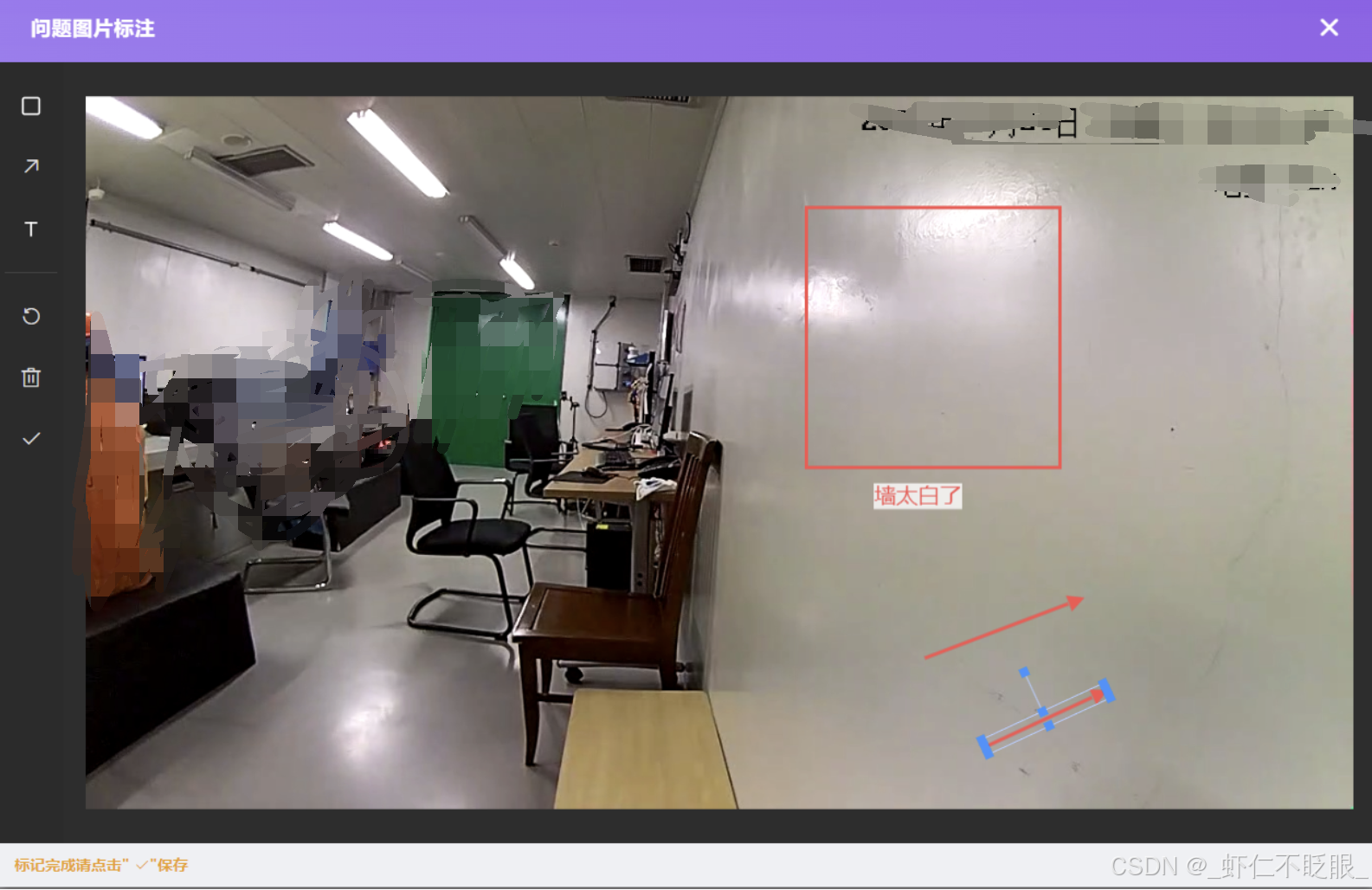
在现代的Web应用开发中,能够对图片进行标注是一项非常实用的功能。无论是在项目管理、图像处理还是教育领域,这种功能都能极大提升用户体验。本文将介绍如何利用Vue框架结合Fabric.js库来构建一个具有矩形框选、箭头绘制和文本添加功能的图片标注工具。
一、技术栈简介
- Vue.js:一个用于构建用户界面的渐进式框架,它使得我们能够轻松地构建交互式的Web界面。
- Fabric.js:一个强大的JavaScript库,它使操作HTML5 canvas元素变得更加简单。通过Fabric.js,我们可以轻松地添加、修改或删除canvas上的对象。
二、实现步骤
1. 初始化Vue项目并安装依赖
首先,你需要有一个Vue项目环境。如果你还没有,可以通过Vue CLI快速搭建。接着,安装fabric作为我们的绘图库:
bash
npm install fabric --save2. 创建ImageAnnotator组件
在本例中,我们创建了一个名为ImageAnnotator的Vue组件,它包含了工具栏(包括矩形、箭头、文字工具)和画布区域。这个组件负责加载图片,并允许用户在其上进行标注。
html
<template>
  <el-dialog
    title="问题图片标注"
    class="image-annotator-dialog"
    :custom-class="'custom-dialog'"
    :visible.sync="dialogVisible"
    width="1260px"
    :show-close="true"
    :close-on-click-modal="false"
    @closed="handleClosed"
  >
    <div class="annotator-container">
      <!-- 左侧工具栏 -->
      <div class="toolbar">
        <el-tooltip content="矩形" placement="right">
          <div
            class="tool-item"
            :class="{ active: currentMode === 'rect' }"
            @click="setMode('rect')"
          >
            <svg
              width="20"
              height="20"
              viewBox="0 0 24 24"
              fill="none"
              stroke="currentColor"
              stroke-width="2"
              stroke-linecap="round"
              stroke-linejoin="round"
              style="display: block"
            >
              <rect x="3" y="3" width="18" height="18" rx="2" ry="2" />
            </svg>
          </div>
        </el-tooltip>
        <el-tooltip content="箭头" placement="right">
          <div
            class="tool-item"
            :class="{ active: currentMode === 'arrow' }"
            @click="setMode('arrow')"
          >
            <i class="el-icon-top-right"></i>
          </div>
        </el-tooltip>
        <el-tooltip content="文字" placement="right">
          <div
            class="tool-item"
            :class="{ active: currentMode === 'text' }"
            @click="setMode('text')"
          >
            <svg
              width="20"
              height="20"
              viewBox="0 0 24 24"
              fill="none"
              stroke="currentColor"
              stroke-width="2"
              stroke-linecap="round"
              stroke-linejoin="round"
            >
              <line x1="6" y1="6" x2="18" y2="6"></line>
              <line x1="12" y1="6" x2="12" y2="20"></line>
            </svg>
          </div>
        </el-tooltip>
        <el-divider></el-divider>
        <el-tooltip content="撤销" placement="right">
          <div class="tool-item" @click="undo">
            <i class="el-icon-refresh-left"></i>
          </div>
        </el-tooltip>
        <el-tooltip content="清空标注" placement="right">
          <div class="tool-item" @click="clearAnnotations">
            <i class="el-icon-delete"></i>
          </div>
        </el-tooltip>
        <el-tooltip content="保存图片" placement="right">
          <div class="tool-item" @click="saveImage">
            <i class="el-icon-check"></i>
          </div>
        </el-tooltip>
      </div>

      <!-- 画布区域 -->
      <div class="canvas-wrapper" ref="canvasWrapper">
        <!--  v-show 避免 DOM 重建问题,或使用 key 强制刷新 -->
        <canvas
          v-show="dialogVisible"
          ref="fabricCanvas"
          :key="canvasKey"
          id="fabric-canvas"
        ></canvas>
        <!-- 图片加载失败提示 -->
        <div v-if="loadError" class="load-error">
          <i class="el-icon-picture-outline"></i>
          <p>图片加载失败</p>
          <p class="error-detail">{{ errorDetail }}</p>
          <el-button size="small" @click="retryLoad">重试</el-button>
        </div>
        <!-- 加载中提示 -->
        <div v-if="loading" class="loading">
          <i class="el-icon-loading"></i>
          <p>加载中...</p>
        </div>
      </div>
    </div>
    <div class="margin-t tips">
      标记完成请点击" <i class="el-icon-check"></i>"保存
    </div>
  </el-dialog>
</template>
3. 配置Canvas与事件绑定
初始化Fabric Canvas时,我们需要设置其尺寸,并确保监听鼠标事件以支持不同的绘图模式(如绘制矩形、箭头和文本)。通过绑定mouse:down、mouse:move和mouse:up事件,我们可以捕捉用户的绘图行为。
javascript
    // ---------- 画布初始化 ----------
    initCanvas() {
      // 确保 canvas DOM 已就绪
      if (!this.$refs.fabricCanvas) {
        console.warn("Canvas DOM 未就绪,等待重试...");
        setTimeout(() => this.initCanvas(), 50);
        return;
      }

      // 确保之前的 canvas 实例已彻底销毁
      if (this.canvas) {
        try {
          this.canvas.dispose();
        } catch (e) {
          console.warn("销毁旧 canvas 实例失败", e);
        }
        this.canvas = null;
      }

      // 获取容器尺寸
      const wrapper = this.$refs.canvasWrapper;
      if (!wrapper) {
        setTimeout(() => this.initCanvas(), 50);
        return;
      }

      const width = Math.max(600, wrapper.clientWidth - 40);
      const height = Math.max(450, wrapper.clientHeight - 40);

      // 创建新的 fabric 画布
      try {
        const canvasElement = this.$refs.fabricCanvas;
        this.canvas = new fabric.Canvas(canvasElement, {
          width,
          height,
          backgroundColor: "#1e1e1e",
        });
        console.log("Fabric canvas 创建成功", this.canvas);
      } catch (e) {
        console.error("创建 fabric canvas 失败", e);
        this.$message.error("画布初始化失败,请刷新页面重试");
        return;
      }

      // 加载当前图片
      this.loadCurrentImage();

      // 绑定鼠标事件 - 使用 fabric 的事件系统替代原生事件
      this._bindCanvasEvents();
    },

    _bindCanvasEvents() {
      if (!this.canvas) return;

      // 移除之前可能绑定的事件
      this.canvas.off("mouse:down");
      this.canvas.off("mouse:move");
      this.canvas.off("mouse:up");

      // 绑定 fabric 事件
      this.canvas.on("mouse:down", (e) => {
        if (!this.currentMode) return;
        this.startPoint = this.canvas.getPointer(e.e);
        this.isDrawing = true;
      });

      this.canvas.on("mouse:move", (e) => {
        if (!this.isDrawing || !this.currentMode || !this.startPoint) return;
        const pointer = this.canvas.getPointer(e.e);
        this.removePreview();
        const preview = this.createPreview(this.startPoint, pointer);
        if (preview) {
          this.canvas.add(preview);
          this.previewObject = preview;
          this.canvas.renderAll();
        }
      });

      this.canvas.on("mouse:up", (e) => {
        if (!this.isDrawing || !this.currentMode || !this.startPoint) return;
        const pointer = this.canvas.getPointer(e.e);
        const left = Math.min(this.startPoint.x, pointer.x);
        const top = Math.min(this.startPoint.y, pointer.y);
        const width = Math.abs(pointer.x - this.startPoint.x);
        const height = Math.abs(pointer.y - this.startPoint.y);

        this.removePreview();

        let newObject = null;

        if (this.currentMode === "rect") {
          if (width >= 5 && height >= 5) {
            newObject = this.createRect(left, top, width, height);
          }
        } else if (this.currentMode === "arrow") {
          if (Math.hypot(width, height) >= 10) {
            newObject = this.createArrow(
              this.startPoint.x,
              this.startPoint.y,
              pointer.x,
              pointer.y
            );
          }
        } else if (this.currentMode === "text") {
          newObject = this.createText(pointer.x, pointer.y);
        }

        if (newObject) {
          this.canvas.add(newObject);
          this.canvas.setActiveObject(newObject);
          this.canvas.renderAll();

          if (this.currentMode === "text" && newObject.enterEditing) {
            newObject.enterEditing();
            newObject.selectAll();
          }
        }

        this.setMode(null);
        this.isDrawing = false;
        this.startPoint = null;
      });

      // 监听对象添加,记录历史
      this.canvas.on("object:added", () => {
        this.historyStack.push("added");
      });
    },
4. 支持多种标注类型
-
矩形框选:用户可以通过拖动鼠标来选择图片中的特定区域。
-
箭头绘制:支持从一点到另一点绘制箭头,方便指示或强调内容。
-
文本添加 :用户可以直接在图片上添加说明性文字。
javascript// ---------- 标注对象工厂 ---------- createRect(left, top, width, height) { return new fabric.Rect({ left, top, width, height, fill: "transparent", stroke: "#ff4d4f", strokeWidth: 3, strokeUniform: true, hasControls: true, hasBorders: true, cornerColor: "#1890ff", cornerSize: 8, transparentCorners: false, }); }, createArrow(x1, y1, x2, y2) { const angle = Math.atan2(y2 - y1, x2 - x1) * (180 / Math.PI); const length = Math.hypot(x2 - x1, y2 - y1); const line = new fabric.Line([0, 0, length - 15, 0], { stroke: "#ff4d4f", strokeWidth: 3, originX: "center", originY: "center", }); const triangle = new fabric.Triangle({ left: length - 7, top: 0, width: 12, height: 12, angle: 90, fill: "#ff4d4f", stroke: "#ff4d4f", strokeWidth: 2, originX: "center", originY: "center", }); return new fabric.Group([line, triangle], { left: x1, top: y1, angle, hasControls: true, hasBorders: true, cornerColor: "#1890ff", cornerSize: 8, transparentCorners: false, }); }, createText(left, top) { return new fabric.IText("", { // 添加默认提示文字 left, top, fontSize: 20, fill: "#ff4d4f", backgroundColor: "rgba(255,255,255,0.8)", hasControls: true, hasBorders: true, cornerColor: "#1890ff", cornerSize: 8, transparentCorners: false, padding: 4, }); },
5. 图片加载与错误处理
为了增强用户体验,我们加入了加载提示和错误处理机制。当图片加载失败时,会显示友好的错误消息,并提供重试选项。
javascript
loadWithImageElement(url) {
const img = new Image();
img.crossOrigin = "anonymous";
img.referrerPolicy = "no-referrer";
img.src = url;
img.onload = () => {
this.loading = false;
this.onImageLoaded(img);
};
img.onerror = (err) => {
console.error("图片加载失败:", err, url);
this.loading = false;
this.loadError = true;
this.errorDetail =
"服务器未返回 CORS 头,请联系图片提供商或使用同源图片";
};
},
onImageLoaded(img) {
if (!this.canvas) {
console.error("canvas 实例不存在");
return;
}
try {
const fabricImg = new fabric.Image(img);
const scale = Math.min(
this.canvas.width / fabricImg.width,
this.canvas.height / fabricImg.height,
1
);
fabricImg.scale(scale);
fabricImg.set({
left: (this.canvas.width - fabricImg.width * scale) / 2,
top: (this.canvas.height - fabricImg.height * scale) / 2,
hasControls: false,
selectable: false,
evented: false,
lockMovementX: true,
lockMovementY: true,
});
this.canvas.clear();
this.canvas.add(fabricImg);
// 置底操作
if (typeof this.canvas.moveTo === "function") {
this.canvas.moveTo(fabricImg, 0);
} else if (typeof this.canvas.sendToBack === "function") {
this.canvas.sendToBack(fabricImg);
}
this.canvas.renderAll();
this.historyStack = [];
} catch (e) {
console.error("图片渲染失败", e);
this.loadError = true;
this.errorDetail = "图片渲染失败: " + e.message;
}
},6. 清除标注与撤销操作
提供了清除所有标注和撤销最后一次操作的功能,让用户可以更灵活地编辑他们的标注。
javascript
undo() {
if (!this.canvas) return;
const objects = this.canvas.getObjects();
if (objects.length > 1) {
this.canvas.remove(objects[objects.length - 1]);
this.historyStack.pop();
this.canvas.renderAll();
}
},三、总结
通过上述步骤,我们构建了一个基本但功能齐全的图片标注工具。当然,这只是一个起点。你可以根据自己的需求进一步扩展此工具,比如增加更多种类的标注工具、优化UI设计或是集成到更大的项目中去。
四、完整组件
html
<template>
<el-dialog
title="问题图片标注"
class="image-annotator-dialog"
:custom-class="'custom-dialog'"
:visible.sync="dialogVisible"
width="1260px"
:show-close="true"
:close-on-click-modal="false"
@closed="handleClosed"
>
<div class="annotator-container">
<!-- 左侧工具栏 -->
<div class="toolbar">
<el-tooltip content="矩形" placement="right">
<div
class="tool-item"
:class="{ active: currentMode === 'rect' }"
@click="setMode('rect')"
>
<svg
width="20"
height="20"
viewBox="0 0 24 24"
fill="none"
stroke="currentColor"
stroke-width="2"
stroke-linecap="round"
stroke-linejoin="round"
style="display: block"
>
<rect x="3" y="3" width="18" height="18" rx="2" ry="2" />
</svg>
</div>
</el-tooltip>
<el-tooltip content="箭头" placement="right">
<div
class="tool-item"
:class="{ active: currentMode === 'arrow' }"
@click="setMode('arrow')"
>
<i class="el-icon-top-right"></i>
</div>
</el-tooltip>
<el-tooltip content="文字" placement="right">
<div
class="tool-item"
:class="{ active: currentMode === 'text' }"
@click="setMode('text')"
>
<svg
width="20"
height="20"
viewBox="0 0 24 24"
fill="none"
stroke="currentColor"
stroke-width="2"
stroke-linecap="round"
stroke-linejoin="round"
>
<line x1="6" y1="6" x2="18" y2="6"></line>
<line x1="12" y1="6" x2="12" y2="20"></line>
</svg>
</div>
</el-tooltip>
<el-divider></el-divider>
<el-tooltip content="撤销" placement="right">
<div class="tool-item" @click="undo">
<i class="el-icon-refresh-left"></i>
</div>
</el-tooltip>
<el-tooltip content="清空标注" placement="right">
<div class="tool-item" @click="clearAnnotations">
<i class="el-icon-delete"></i>
</div>
</el-tooltip>
<el-tooltip content="保存图片" placement="right">
<div class="tool-item" @click="saveImage">
<i class="el-icon-check"></i>
</div>
</el-tooltip>
</div>
<!-- 画布区域 -->
<div class="canvas-wrapper" ref="canvasWrapper">
<!-- v-show 避免 DOM 重建问题,或使用 key 强制刷新 -->
<canvas
v-show="dialogVisible"
ref="fabricCanvas"
:key="canvasKey"
id="fabric-canvas"
></canvas>
<!-- 图片加载失败提示 -->
<div v-if="loadError" class="load-error">
<i class="el-icon-picture-outline"></i>
<p>图片加载失败</p>
<p class="error-detail">{{ errorDetail }}</p>
<el-button size="small" @click="retryLoad">重试</el-button>
</div>
<!-- 加载中提示 -->
<div v-if="loading" class="loading">
<i class="el-icon-loading"></i>
<p>加载中...</p>
</div>
</div>
</div>
<div class="margin-t tips">
标记完成请点击" <i class="el-icon-check"></i>"保存
</div>
</el-dialog>
</template>
<script>
import * as fabric from "fabric";
export default {
name: "ImageAnnotator",
props: {
visible: { type: Boolean, default: false },
imgSrc: { type: String },
initialIndex: { type: Number, default: 0 },
},
data() {
return {
dialogVisible: this.visible,
currentPage: this.initialIndex + 1,
canvas: null,
currentMode: null,
isDrawing: false,
startPoint: null,
historyStack: [],
previewObject: null,
loading: false,
loadError: false,
errorDetail: "",
// 添加 canvasKey 用于强制刷新 canvas DOM
canvasKey: 0,
};
},
watch: {
visible(val) {
this.dialogVisible = val;
},
dialogVisible(val) {
this.$emit("update:visible", val);
if (val) {
// 每次打开时更新 key,确保 canvas DOM 是全新的
this.canvasKey += 1;
this.$nextTick(() => {
// 确保 DOM 更新后再初始化
setTimeout(() => {
this.initCanvas();
}, 50);
});
}
},
},
beforeDestroy() {
this.handleClosed();
},
methods: {
// ---------- 画布初始化 ----------
initCanvas() {
// 确保 canvas DOM 已就绪
if (!this.$refs.fabricCanvas) {
console.warn("Canvas DOM 未就绪,等待重试...");
setTimeout(() => this.initCanvas(), 50);
return;
}
// 确保之前的 canvas 实例已彻底销毁
if (this.canvas) {
try {
this.canvas.dispose();
} catch (e) {
console.warn("销毁旧 canvas 实例失败", e);
}
this.canvas = null;
}
// 获取容器尺寸
const wrapper = this.$refs.canvasWrapper;
if (!wrapper) {
setTimeout(() => this.initCanvas(), 50);
return;
}
const width = Math.max(600, wrapper.clientWidth - 40);
const height = Math.max(450, wrapper.clientHeight - 40);
// 创建新的 fabric 画布
try {
const canvasElement = this.$refs.fabricCanvas;
this.canvas = new fabric.Canvas(canvasElement, {
width,
height,
backgroundColor: "#1e1e1e",
});
console.log("Fabric canvas 创建成功", this.canvas);
} catch (e) {
console.error("创建 fabric canvas 失败", e);
this.$message.error("画布初始化失败,请刷新页面重试");
return;
}
// 加载当前图片
this.loadCurrentImage();
// 绑定鼠标事件 - 使用 fabric 的事件系统替代原生事件
this._bindCanvasEvents();
},
_bindCanvasEvents() {
if (!this.canvas) return;
// 移除之前可能绑定的事件
this.canvas.off("mouse:down");
this.canvas.off("mouse:move");
this.canvas.off("mouse:up");
// 绑定 fabric 事件
this.canvas.on("mouse:down", (e) => {
if (!this.currentMode) return;
this.startPoint = this.canvas.getPointer(e.e);
this.isDrawing = true;
});
this.canvas.on("mouse:move", (e) => {
if (!this.isDrawing || !this.currentMode || !this.startPoint) return;
const pointer = this.canvas.getPointer(e.e);
this.removePreview();
const preview = this.createPreview(this.startPoint, pointer);
if (preview) {
this.canvas.add(preview);
this.previewObject = preview;
this.canvas.renderAll();
}
});
this.canvas.on("mouse:up", (e) => {
if (!this.isDrawing || !this.currentMode || !this.startPoint) return;
const pointer = this.canvas.getPointer(e.e);
const left = Math.min(this.startPoint.x, pointer.x);
const top = Math.min(this.startPoint.y, pointer.y);
const width = Math.abs(pointer.x - this.startPoint.x);
const height = Math.abs(pointer.y - this.startPoint.y);
this.removePreview();
let newObject = null;
if (this.currentMode === "rect") {
if (width >= 5 && height >= 5) {
newObject = this.createRect(left, top, width, height);
}
} else if (this.currentMode === "arrow") {
if (Math.hypot(width, height) >= 10) {
newObject = this.createArrow(
this.startPoint.x,
this.startPoint.y,
pointer.x,
pointer.y
);
}
} else if (this.currentMode === "text") {
newObject = this.createText(pointer.x, pointer.y);
}
if (newObject) {
this.canvas.add(newObject);
this.canvas.setActiveObject(newObject);
this.canvas.renderAll();
if (this.currentMode === "text" && newObject.enterEditing) {
newObject.enterEditing();
newObject.selectAll();
}
}
this.setMode(null);
this.isDrawing = false;
this.startPoint = null;
});
// 监听对象添加,记录历史
this.canvas.on("object:added", () => {
this.historyStack.push("added");
});
},
// ---------- 加载当前图片 ----------
loadCurrentImage() {
const url = this.imgSrc;
if (!url) {
console.warn("没有图片地址");
return;
}
this.loading = true;
this.loadError = false;
this.errorDetail = "";
// 清空画布但保留背景色
if (this.canvas) {
this.canvas.clear();
this.canvas.backgroundColor = "#1e1e1e";
this.canvas.renderAll();
}
this.loadWithImageElement(url);
},
loadWithImageElement(url) {
const img = new Image();
img.crossOrigin = "anonymous";
img.referrerPolicy = "no-referrer";
img.src = url;
img.onload = () => {
this.loading = false;
this.onImageLoaded(img);
};
img.onerror = (err) => {
console.error("图片加载失败:", err, url);
this.loading = false;
this.loadError = true;
this.errorDetail =
"服务器未返回 CORS 头,请联系图片提供商或使用同源图片";
};
},
onImageLoaded(img) {
if (!this.canvas) {
console.error("canvas 实例不存在");
return;
}
try {
const fabricImg = new fabric.Image(img);
const scale = Math.min(
this.canvas.width / fabricImg.width,
this.canvas.height / fabricImg.height,
1
);
fabricImg.scale(scale);
fabricImg.set({
left: (this.canvas.width - fabricImg.width * scale) / 2,
top: (this.canvas.height - fabricImg.height * scale) / 2,
hasControls: false,
selectable: false,
evented: false,
lockMovementX: true,
lockMovementY: true,
});
this.canvas.clear();
this.canvas.add(fabricImg);
// 置底操作
if (typeof this.canvas.moveTo === "function") {
this.canvas.moveTo(fabricImg, 0);
} else if (typeof this.canvas.sendToBack === "function") {
this.canvas.sendToBack(fabricImg);
}
this.canvas.renderAll();
this.historyStack = [];
} catch (e) {
console.error("图片渲染失败", e);
this.loadError = true;
this.errorDetail = "图片渲染失败: " + e.message;
}
},
retryLoad() {
this.loadCurrentImage();
},
// ---------- 绘制模式控制 ----------
setMode(mode) {
if (mode === null || this.currentMode === mode) {
this.currentMode = null;
if (this.canvas) {
this.canvas.selection = true;
this.canvas.skipTargetFind = false;
this.canvas.defaultCursor = "default";
}
this.removePreview();
return;
}
this.currentMode = mode;
if (this.canvas) {
this.canvas.selection = false;
this.canvas.skipTargetFind = true;
// 设置十字光标提示用户正在绘制
this.canvas.defaultCursor = "crosshair";
}
this.removePreview();
},
// ---------- 预览对象管理 ----------
removePreview() {
if (this.previewObject && this.canvas) {
this.canvas.remove(this.previewObject);
this.previewObject = null;
}
},
createPreview(start, end) {
if (!this.canvas || !this.currentMode) return null;
const left = Math.min(start.x, end.x);
const top = Math.min(start.y, end.y);
const width = Math.abs(end.x - start.x);
const height = Math.abs(end.y - start.y);
if (width < 2 || height < 2) return null;
if (this.currentMode === "rect") {
return new fabric.Rect({
left,
top,
width,
height,
fill: "transparent",
stroke: "#1890ff",
strokeWidth: 3,
strokeDashArray: [5, 5],
selectable: false,
evented: false,
hasControls: false,
hasBorders: false,
});
}
if (this.currentMode === "arrow") {
const angle = Math.atan2(end.y - start.y, end.x - start.x);
const length = Math.hypot(width, height);
if (length < 10) return null;
const line = new fabric.Line([start.x, start.y, end.x, end.y], {
stroke: "#1890ff",
strokeWidth: 3,
strokeDashArray: [5, 5],
selectable: false,
evented: false,
});
const triangle = new fabric.Triangle({
left: end.x,
top: end.y,
width: 10,
height: 10,
angle: (angle * 180) / Math.PI + 90,
fill: "#1890ff",
originX: "center",
originY: "center",
selectable: false,
evented: false,
});
return new fabric.Group([line, triangle], {
selectable: false,
evented: false,
});
}
return null;
},
    // ---------- 标注对象工厂 ----------
    createRect(left, top, width, height) {
      return new fabric.Rect({
        left,
        top,
        width,
        height,
        fill: "transparent",
        stroke: "#ff4d4f",
        strokeWidth: 3,
        strokeUniform: true,
        hasControls: true,
        hasBorders: true,
        cornerColor: "#1890ff",
        cornerSize: 8,
        transparentCorners: false,
      });
    },

    createArrow(x1, y1, x2, y2) {
      const angle = Math.atan2(y2 - y1, x2 - x1) * (180 / Math.PI);
      const length = Math.hypot(x2 - x1, y2 - y1);
      const line = new fabric.Line([0, 0, length - 15, 0], {
        stroke: "#ff4d4f",
        strokeWidth: 3,
        originX: "center",
        originY: "center",
      });
      const triangle = new fabric.Triangle({
        left: length - 7,
        top: 0,
        width: 12,
        height: 12,
        angle: 90,
        fill: "#ff4d4f",
        stroke: "#ff4d4f",
        strokeWidth: 2,
        originX: "center",
        originY: "center",
      });
      return new fabric.Group([line, triangle], {
        left: x1,
        top: y1,
        angle,
        hasControls: true,
        hasBorders: true,
        cornerColor: "#1890ff",
        cornerSize: 8,
        transparentCorners: false,
      });
    },

    createText(left, top) {
      return new fabric.IText("", {
        // 添加默认提示文字
        left,
        top,
        fontSize: 20,
        fill: "#ff4d4f",
        backgroundColor: "rgba(255,255,255,0.8)",
        hasControls: true,
        hasBorders: true,
        cornerColor: "#1890ff",
        cornerSize: 8,
        transparentCorners: false,
        padding: 4,
      });
    },
// ---------- 保存图片 ----------
saveImage() {
if (!this.canvas) {
this.$message.error("画布未初始化");
return;
}
try {
this.canvas.getElement().toDataURL();
} catch (e) {
this.$message.error(
"画布已被跨域图片污染,无法导出。请使用支持 CORS 的图片。"
);
return;
}
const canvasEl = this.canvas.getElement();
canvasEl.toBlob(
(blob) => {
if (!blob) {
this.$message.error("导出失败,请重试");
return;
}
const file = new File([blob], `annotated-${Date.now()}.png`, {
type: "image/png",
});
this.$emit("save", file);
console.log(file);
},
"image/png",
1
);
},
// ---------- 工具栏操作 ----------
 undo() {
      if (!this.canvas) return;
      const objects = this.canvas.getObjects();
      if (objects.length > 1) {
        this.canvas.remove(objects[objects.length - 1]);
        this.historyStack.pop();
        this.canvas.renderAll();
      }
    },
clearAnnotations() {
if (!this.canvas) return;
const objects = this.canvas.getObjects();
objects.forEach((obj, index) => {
if (index !== 0) {
this.canvas.remove(obj);
}
});
this.historyStack = [];
this.canvas.renderAll();
},
// ---------- 弹窗关闭清理 ----------
handleClosed() {
console.log("清理画布资源...");
// 1. 解绑 fabric 事件
if (this.canvas) {
try {
this.canvas.off("mouse:down");
this.canvas.off("mouse:move");
this.canvas.off("mouse:up");
this.canvas.off("object:added");
} catch (e) {
// 忽略
}
}
// 2. 销毁 fabric 实例
if (this.canvas) {
try {
this.canvas.dispose();
} catch (e) {
console.warn("销毁 canvas 失败", e);
}
this.canvas = null;
}
// 3. 重置所有状态
this.currentMode = null;
this.isDrawing = false;
this.loadError = false;
this.loading = false;
this.historyStack = [];
this.previewObject = null;
this.startPoint = null;
this.$emit("closed");
},
},
};
</script>
<style lang="scss" scoped>
.image-annotator-dialog {
::v-deep .el-dialog__body {
padding: 0;
height: calc(100vh - 215px);
overflow: hidden;
}
}
.annotator-container {
display: flex;
height: calc(100% - 40px);
background-color: #1e1e1e;
}
.toolbar {
width: 60px;
background: #2b2b2b;
padding: 12px 0;
display: flex;
flex-direction: column;
align-items: center;
color: #fff;
.tool-item {
width: 40px;
height: 40px;
display: flex;
align-items: center;
justify-content: center;
margin: 8px 0;
border-radius: 4px;
cursor: pointer;
transition: all 0.2s;
i {
font-size: 20px;
color: #ddd;
}
&:hover {
background: #3a3a3a;
}
&.active {
background: #1890ff;
i {
color: white;
}
}
}
.el-divider {
width: 80%;
background-color: #444;
margin: 12px 0;
}
}
.canvas-wrapper {
flex: 1;
display: flex;
justify-content: center;
align-items: center;
overflow: auto;
background: #2d2d2d;
position: relative;
}
.load-error,
.loading {
position: absolute;
top: 50%;
left: 50%;
transform: translate(-50%, -50%);
display: flex;
flex-direction: column;
align-items: center;
justify-content: center;
color: #aaa;
background: rgba(0, 0, 0, 0.7);
padding: 30px 40px;
border-radius: 8px;
i {
font-size: 48px;
margin-bottom: 16px;
}
p {
margin-bottom: 16px;
}
.error-detail {
font-size: 12px;
color: #ff7875;
margin-bottom: 16px;
}
}
.footer {
display: flex;
justify-content: space-between;
align-items: center;
padding: 12px 20px;
background: #fff;
border-top: 1px solid #e4e7ed;
.footer-right {
display: flex;
align-items: center;
gap: 12px;
}
}
.tips {
color: #999;
color: #f29f11;
font-weight: bold;
padding-left: 15px;
line-height: 30px;
}
</style>