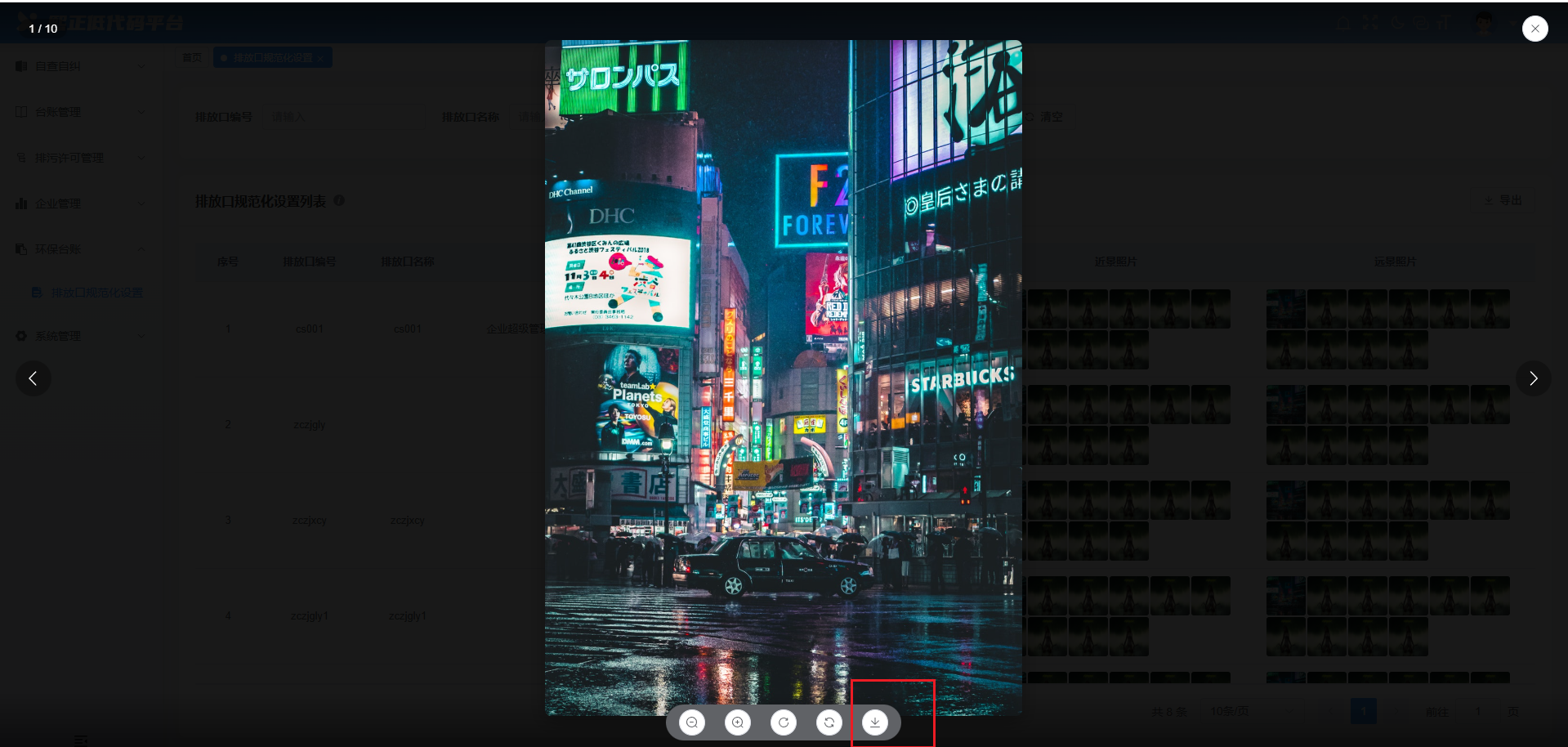
//组件
<template>
    <div class="custom-image-preview">
        <!-- 自定义预览层(替代默认预览) -->
        <div v-if="previewVisibleShow" class="custom-image-viewer" @click.self="closePreview">
            <div class="viewer-container">
                <!-- 图片展示区域 -->
                <div class="image-container" @wheel="handleWheel" @mousedown="startDrag" @mousemove="drag"
                    @mouseup="endDrag" @mouseleave="endDrag">
                    <img :src="currentImage" :style="imageStyle" class="preview-image" alt="预览图片" />
                </div>

                <!-- 顶部工具栏 -->
                <div class="viewer-toolbar top">
                    <span class="image-index">{{ currentIndex + 1 }} / {{ previewSrcList.length }}</span>
                    <div class="toolbar-actions">
                        <el-button circle @click="closePreview" :icon="Close" />
                    </div>
                </div>

                <!-- 底部工具栏 -->
                <div class="viewer-toolbar bottom">
                    <div class="zoom-controls">
                        <!-- 缩小 -->
                        <el-button circle @click="zoomOut" :icon="ZoomOut" :disabled="scale <= 0.5" />
                        <!-- 放大 -->
                        <el-button circle @click="zoomIn" :icon="ZoomIn" :disabled="scale >= 3" />
                        <!-- 旋转 -->
                        <el-button circle @click="rotateImage" :icon="RefreshRight"  />
                        <!-- 重置 -->
                        <el-button circle @click="resetImage" :icon="Refresh" />
                        <!-- 下载 -->
                        <el-button circle @click="downloadImage" :icon="Download" />
                    </div>
                </div>

                <!-- 左右切换按钮 -->
                <button v-if="previewSrcList.length > 1" class="nav-btn prev" @click="prevImage">
                    <el-icon>
                        <ArrowLeft />
                    </el-icon>
                </button>
                <button v-if="previewSrcList.length > 1" class="nav-btn next" @click="nextImage">
                    <el-icon>
                        <ArrowRight />
                    </el-icon>
                </button>
            </div>
        </div>
    </div>
</template>

<script setup lang="ts">
import { ref, computed, watch } from 'vue'
import { ElMessage } from 'element-plus'
import {
    Download,
    Close,
    ZoomIn,
    ZoomOut,
    RefreshRight,
    Refresh,
    ArrowLeft,
    ArrowRight,
    PictureFilled
} from '@element-plus/icons-vue'

interface Props {
    src: string
    previewSrcList?: string[]
    initialIndex?: number
    imageName?: string
    previewVisibleShow: boolean
}

const props = withDefaults(defineProps<Props>(), {
    src: '',
    previewSrcList: () => [],
    initialIndex: 0,
    imageName: '图片',
    previewVisibleShow: false
})

// 定义 emits
const emit = defineEmits<{
  (e: 'updatePreviewVisible', value: boolean): void
}>()

// 预览状态
const previewVisible = ref(props.previewVisibleShow)
const currentIndex = ref(props.initialIndex)
const scale = ref(1)
const rotate = ref(0)
const isDragging = ref(false)
const dragStart = ref({ x: 0, y: 0 })
const position = ref({ x: 0, y: 0 })

// 当前显示的图片
const currentImage = computed(() => {
    return props.previewSrcList[currentIndex.value] || props.src
})

// 图片样式
const imageStyle = computed(() => ({
    transform: `scale(${scale.value}) rotate(${rotate.value}deg) translate(${position.value.x}px, ${position.value.y}px)`,
    transition: isDragging.value ? 'none' : 'transform 0.3s'
}))

// 关闭预览
const closePreview = () => {
    // previewVisible.value = false
    emit('updatePreviewVisible', false)
    resetImage()
}

// 上一张
const prevImage = () => {
    if (currentIndex.value > 0) {
        currentIndex.value--
        resetImage()
    }else{
        // 循环到最后一张
        currentIndex.value = props.previewSrcList.length - 1
    }
}

// 下一张
const nextImage = () => {
    if (currentIndex.value < props.previewSrcList.length - 1) {
        currentIndex.value++
        resetImage()
    }else{
        // 循环到第一张
        currentIndex.value = 0
    }
}

// 放大
const zoomIn = () => {
    if (scale.value < 3) {
        scale.value = Math.min(scale.value + 0.2, 3)
    }
}

// 缩小
const zoomOut = () => {
    if (scale.value > 0.5) {
        scale.value = Math.max(scale.value - 0.2, 0.5)
    }
}

// 旋转
const rotateImage = () => {
    rotate.value = (rotate.value + 90) % 360
}

// 重置
const resetImage = () => {
    scale.value = 1
    rotate.value = 0
    position.value = { x: 0, y: 0 }
}

// 鼠标滚轮缩放
const handleWheel = (e: WheelEvent) => {
    e.preventDefault()
    const delta = e.deltaY > 0 ? -0.1 : 0.1
    scale.value = Math.min(Math.max(scale.value + delta, 0.5), 3)
}

// 拖拽开始
const startDrag = (e: MouseEvent) => {
    if (scale.value > 1) {
        isDragging.value = true
        dragStart.value = { x: e.clientX - position.value.x, y: e.clientY - position.value.y }
    }
}

// 拖拽中
const drag = (e: MouseEvent) => {
    if (isDragging.value && scale.value > 1) {
        position.value = {
            x: e.clientX - dragStart.value.x,
            y: e.clientY - dragStart.value.y
        }
    }
}

// 拖拽结束
const endDrag = () => {
    isDragging.value = false
}

// 下载图片
const downloadImage = async () => {
    try {
        // 显示加载提示
        const loading = ElMessage({
            message: '正在下载图片...',
            type: 'info',
            duration: 0
        })

        // 获取图片数据
        const response = await fetch(currentImage.value)
        const blob = await response.blob()

        // 创建下载链接
        const url = window.URL.createObjectURL(blob)
        const link = document.createElement('a')
        link.style.display = 'none'
        link.href = url

        // 设置下载文件名
        const extension = blob.type.split('/')[1] || 'jpg'
        link.download = `${props.imageName}_${new Date().getTime()}.${extension}`

        // 触发下载
        document.body.appendChild(link)
        link.click()

        // 清理
        setTimeout(() => {
            document.body.removeChild(link)
            window.URL.revokeObjectURL(url)
            loading.close()
            ElMessage.success('图片下载成功')
        }, 100)

    } catch (error) {
        console.error('下载图片失败:', error)
        ElMessage.error('下载图片失败,请稍后重试')
    }
}

// 键盘事件
const handleKeyDown = (e: KeyboardEvent) => {
    if (!previewVisible.value) return

    switch (e.key) {
        case 'Escape':
            closePreview()
            break
        case 'ArrowLeft':
            prevImage()
            break
        case 'ArrowRight':
            nextImage()
            break
        case '+':
            zoomIn()
            break
        case '-':
            zoomOut()
            break
        case 'r':
            rotateImage()
            break
    }
}

// 监听键盘事件
watch(previewVisible, (visible) => {
    if (visible) {
        window.addEventListener('keydown', handleKeyDown)
    } else {
        window.removeEventListener('keydown', handleKeyDown)
    }
})
watch(() => props.initialIndex, (newVal) => {
  currentIndex.value = newVal
})
</script>

<style scoped lang="scss">
.custom-image-preview {
    display: inline-block;
}

.custom-image-viewer {
    position: fixed;
    top: 0;
    left: 0;
    width: 100vw;
    height: 100vh;
    background-color: rgba(0, 0, 0, 0.9);
    z-index: 10000;
    display: flex;
    justify-content: center;
    align-items: center;
}

.viewer-container {
    position: relative;
    width: 100%;
    height: 100%;
    display: flex;
    justify-content: center;
    align-items: center;
}

.image-container {
    width: 100%;
    height: 100%;
    display: flex;
    justify-content: center;
    align-items: center;
    overflow: hidden;
    cursor: grab;

    &:active {
        cursor: grabbing;
    }
}

.preview-image {
    max-width: 90vw;
    max-height: 90vh;
    object-fit: contain;
    border-radius: 8px;
    box-shadow: 0 8px 24px rgba(0, 0, 0, 0.3);
    transition: transform 0.3s;
    user-select: none;
    pointer-events: none;
}

.viewer-toolbar {
    position: absolute;
    left: 0;
    right: 0;
    padding: 16px 24px;
    display: flex;
    justify-content: space-between;
    align-items: center;
    background: linear-gradient(to bottom, rgba(0, 0, 0, 0.5), transparent);
    color: white;
    z-index: 10001;

    &.top {
        top: 0;
    }

    &.bottom {
        bottom: 0;
        background: linear-gradient(to top, rgba(0, 0, 0, 0.5), transparent);
        justify-content: center;
    }
}

.toolbar-actions {
    display: flex;
    gap: 12px;
}

.image-index {
    font-size: 14px;
    background: rgba(0, 0, 0, 0.3);
    padding: 4px 12px;
    border-radius: 20px;
}

.zoom-controls {
    display: flex;
    gap: 12px;
    align-items: center;
    background: #606266;
    padding: 8px 16px;
    border-radius: 40px;
    height: 44px;

    .zoom-percent {
        color: white;
        font-size: 14px;
        min-width: 60px;
        text-align: center;
    }
}

.nav-btn {
    position: absolute;
    top: 50%;
    transform: translateY(-50%);
    width: 44px;
    height: 44px;
    border-radius: 50%;
    background: rgba(0, 0, 0, 0.3);
    border: none;
    color: white;
    font-size: 24px;
    display: flex;
    justify-content: center;
    align-items: center;
    cursor: pointer;
    transition: all 0.3s;
    z-index: 10001;

    &:hover {
        background: rgba(0, 0, 0, 0.6);
        transform: translateY(-50%) scale(1.1);
    }

    &.prev {
        left: 20px;
    }

    &.next {
        right: 20px;
    }
}

:deep(.el-button) {
    &.el-button--small {
        padding: 8px;
    }

    .el-icon {
        font-size: 16px;
    }
}
</style>
//使用
 <CustomImagePreview :preview-visible-show="previewShow" :src="previewSrcUrl" :initial-index="showIndex"
      :preview-src-list="getImageList(srcList, 'near')" :image-name="`_近景`" @updatePreviewVisible="previewShow = $event" />

const srcList = [
  'https://fuss10.elemecdn.com/8/27/f01c15bb73e1ef3793e64e6b7bbccjpeg.jpeg',
  'https://fuss10.elemecdn.com/1/8e/aeffeb4de74e2fde4bd74fc7b4486jpeg.jpeg',
  'https://fuss10.elemecdn.com/1/8e/aeffeb4de74e2fde4bd74fc7b4486jpeg.jpeg',
  'https://fuss10.elemecdn.com/1/8e/aeffeb4de74e2fde4bd74fc7b4486jpeg.jpeg',
  'https://fuss10.elemecdn.com/1/8e/aeffeb4de74e2fde4bd74fc7b4486jpeg.jpeg',
  'https://fuss10.elemecdn.com/1/8e/aeffeb4de74e2fde4bd74fc7b4486jpeg.jpeg',
  'https://fuss10.elemecdn.com/1/8e/aeffeb4de74e2fde4bd74fc7b4486jpeg.jpeg',
  'https://fuss10.elemecdn.com/1/8e/aeffeb4de74e2fde4bd74fc7b4486jpeg.jpeg',
  'https://fuss10.elemecdn.com/1/8e/aeffeb4de74e2fde4bd74fc7b4486jpeg.jpeg',
  'https://fuss10.elemecdn.com/1/8e/aeffeb4de74e2fde4bd74fc7b4486jpeg.jpeg'
]
// 获取图片列表(根据实际数据结构调整)
const getImageList = (row: any, type: 'near' | 'far') => {
  if (type === 'near') {
    return row.nearImageUrl ? [row.nearImageUrl] : srcList
  } else {
    return row.farImageUrl ? [row.farImageUrl] : srcList
  }
}
// 预览图片弹窗是否显示
const previewShow = ref(false)
// 预览图片弹窗当前显示的图片
const previewSrcUrl = ref('')
// 预览图片弹窗当前显示的图片索引
const showIndex = ref(0)
// 预览图片
const handlePreview = (src: string, index: number) => {
  previewShow.value = true
  previewSrcUrl.value = src;
  showIndex.value = index
}

写一个按钮调用此函数即可handlePreview