承上一篇: nodejs:如何使用 express markdown-it 和 mermaid.min.js 10.9 实现 Md 中 mermaid 图表的渲染
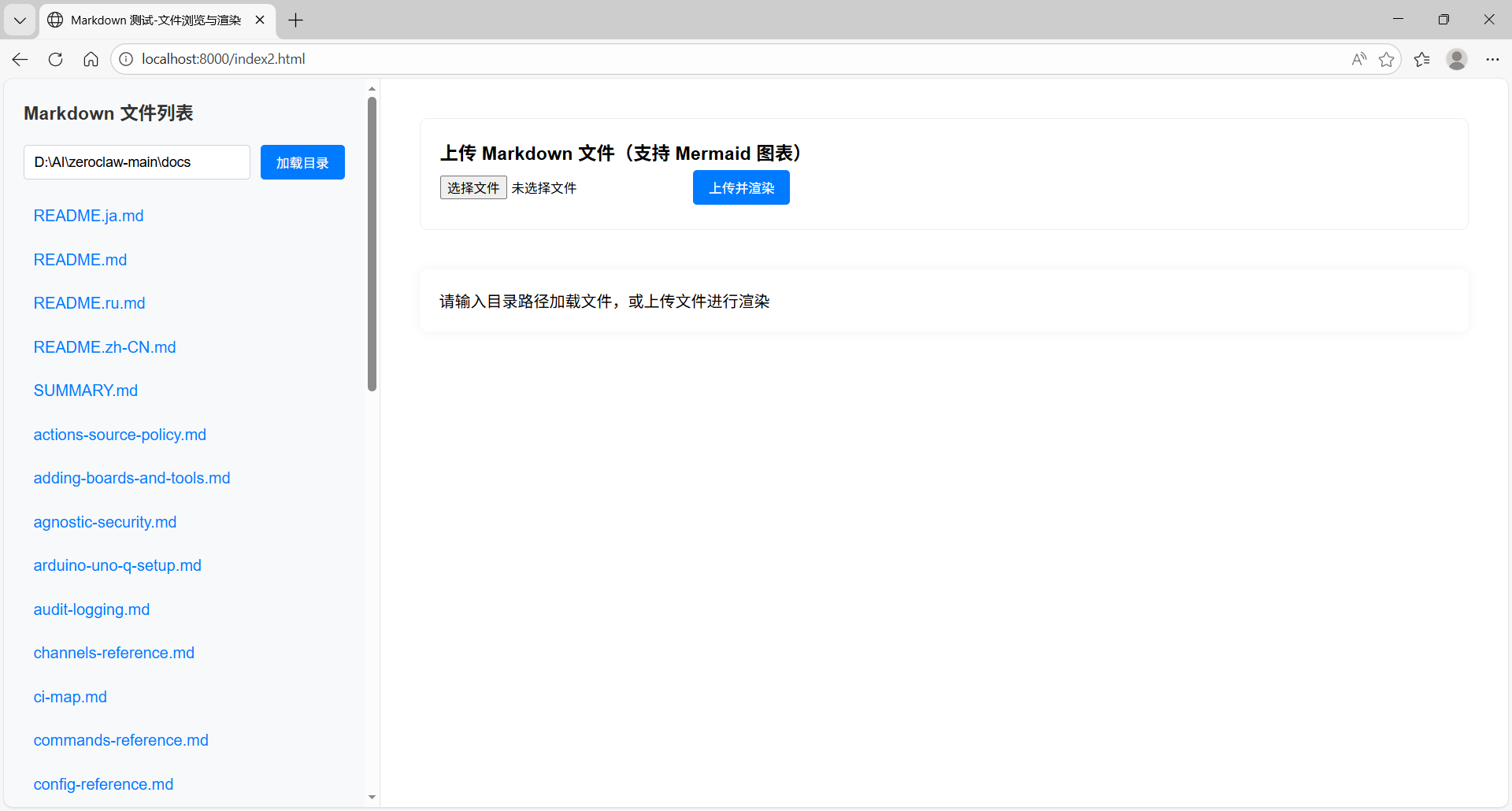
我想改编 server1.js ,网页分为两部分(左边占25%,右边占75%),左边功能:打开文件夹(某个目录),然后在左边页面列出有哪些*.md文件名(有超链接),点击某个文件名,就上传文件,渲染HTML显示在右边网页中。
改造方案说明
- 页面布局改为左右分栏(25% + 75%)
- 左侧实现指定目录下
.md文件列表(带超链接) - 点击左侧文件链接,异步加载并渲染 Markdown 内容到右侧
- 保留原有的文件上传功能(可选)
改造后代码
1. 前端页面(public/index2.html)
html
<!DOCTYPE html>
<html lang="zh-CN">
<head>
    <meta charset="UTF-8">
    <title>Markdown 测试-文件浏览与渲染</title>
    <style>
        * { margin: 0; padding: 0; box-sizing: border-box; }
        body { font-family: Arial, sans-serif; }
        .layout { display: flex; height: 100vh; }

        /* 左侧文件列表栏 */
        .file-sidebar {
            width: 25%;
            background: #f8f9fa;
            border-right: 1px solid #dee2e6;
            padding: 20px;
            overflow-y: auto;
        }
        .file-sidebar h3 { margin-bottom: 20px; color: #333; }
        /* 目录输入框样式 */
        .dir-input-container {
            margin-bottom: 20px;
            display: flex;
            gap: 10px;
        }
        #dirPath {
            flex: 1;
            padding: 8px 10px;
            border: 1px solid #ced4da;
            border-radius: 4px;
            font-size: 14px;
        }
        #loadDirBtn {
            padding: 8px 16px;
            background: #007bff;
            color: white;
            border: none;
            border-radius: 4px;
            cursor: pointer;
        }
        #loadDirBtn:hover {
            background: #0056b3;
        }
        .file-list { list-style: none; }
        .file-list li { margin: 10px 0; }
        .file-list a {
            color: #007bff;
            text-decoration: none;
            display: block;
            padding: 8px 10px;
            border-radius: 4px;
            transition: background 0.2s;
        }
        .file-list a:hover {
            background: #e9ecef;
            color: #0056b3;
        }

        /* 右侧渲染内容区 */
        .content-area {
            width: 75%;
            padding: 40px;
            overflow-y: auto;
        }
        .mermaid { margin: 20px 0; }
        pre { background: #f5f5f5; padding: 10px; border-radius: 5px; margin: 10px 0; }
        .upload-form {
            margin-bottom: 40px;
            padding: 20px;
            border: 1px solid #eee;
            border-radius: 8px;
            background: #fff;
        }
        input[type="file"] { margin: 10px 0; }
        button {
            padding: 8px 16px;
            background: #007bff;
            color: white;
            border: none;
            border-radius: 4px;
            cursor: pointer;
        }
        button:hover { background: #0056b3; }
        #markdown-content {
            background: #fff;
            padding: 20px;
            border-radius: 8px;
            box-shadow: 0 0 10px rgba(0,0,0,0.05);
        }
        .error { color: #dc3545; margin-top: 10px; font-size: 14px; }
        .loading { color: #6c757d; font-style: italic; }
    </style>
    <script src="/mermaid.min.js"></script>
</head>
<body>
    <div class="layout">
        <!-- 左侧文件列表栏 -->
        <div class="file-sidebar">
            <h3>Markdown 文件列表</h3>

            <!-- 目录路径输入框 -->
            <div class="dir-input-container">
                <input type="text" id="dirPath" placeholder="输入目录路径,例如 D:\docs">
                <button id="loadDirBtn">加载目录</button>
            </div>
            <div id="dirError" class="error"></div>

            <ul id="file-list" class="file-list">
                <li class="loading">加载中...</li>
            </ul>
        </div>

        <!-- 右侧内容渲染区 -->
        <div class="content-area">
            <div class="upload-form">
                <h3>上传 Markdown 文件(支持 Mermaid 图表)</h3>
                <form id="mdUploadForm" enctype="multipart/form-data" method="POST" action="/upload-md">
                    <input type="file" name="mdFile" accept=".md,.txt" required>
                    <button type="submit">上传并渲染</button>
                </form>
            </div>

            <div id="markdown-content">
                <p>请输入目录路径加载文件,或上传文件进行渲染</p>
            </div>
        </div>
    </div>

    <script>
        // 初始化mermaid
        mermaid.initialize({ startOnLoad: true });

        // 前端预校验路径是否为无效路径(核心函数)
        function isInvalidDirPath(dirPath) {
            // 1. 空路径判定为无效
            if (!dirPath || dirPath.trim() === '') {
                return true;
            }
            const path = dirPath.trim();

            // 2. 校验路径格式(拦截明显的格式错误)
            const winDriveRegex = /^[a-zA-Z]:[\\/]/; // Windows盘符开头(如 D:\ 或 D:/)
            const unixRootRegex = /^\/|^~/; // Unix/Linux根目录或用户目录开头(如 / 或 ~)

            // 判断是Windows还是Unix系统路径
            const isWindowsPath = winDriveRegex.test(path);
            const isUnixPath = unixRootRegex.test(path);

            // 3. 既不是Windows格式也不是Unix格式,判定为无效
            if (!isWindowsPath && !isUnixPath) {
                return true;
            }

            // 4. 拦截包含非法字符的路径
            const illegalChars = /[<>|?*]/; // Windows非法字符
            if (illegalChars.test(path)) {
                return true;
            }

            // 5. 拦截明显的无效路径特征
            if (path.includes('//') && !isWindowsPath) { // Unix下连续斜杠(除了开头)
                return true;
            }
            if (path.includes('\\\\') && isWindowsPath) { // Windows下连续反斜杠(除了开头)
                return true;
            }

            // 以上校验都通过,判定为「格式有效」(无法验证物理存在性)
            return false;
        }

        // 加载指定目录下的MD文件列表
        async function loadFileList(dirPath = '') {
            // 前端预校验:如果是无效路径,直接弹窗提示,不请求后端
            if (dirPath && isInvalidDirPath(dirPath)) {
                alert('目录路径不存在(无效路径)');
                document.getElementById('dirError').textContent = '目录路径不存在(无效路径)';
                document.getElementById('file-list').innerHTML = '<li>加载失败</li>';
                return; // 终止后续逻辑,不发送请求
            }

            try {
                // 清空错误提示
                document.getElementById('dirError').textContent = '';
                const fileListEl = document.getElementById('file-list');
                fileListEl.innerHTML = '<li class="loading">加载中...</li>';

                let url = '/get-md-files';
                if (dirPath) {
                    url += `?dirPath=${encodeURIComponent(dirPath)}`;
                }

                const res = await fetch(url);
                if (!res.ok) {
                    const errData = await res.json().catch(() => ({ error: '加载文件列表失败' }));
                    throw new Error(errData.error || '加载文件列表失败');
                }

                const files = await res.json();
                fileListEl.innerHTML = '';

                if (files.length === 0) {
                    fileListEl.innerHTML = '<li>该目录下暂无.md文件</li>';
                    return;
                }

                files.forEach(file => {
                    const li = document.createElement('li');
                    const a = document.createElement('a');
                    a.href = '#';
                    a.textContent = file;
                    // 点击文件链接:模拟上传逻辑加载文件
                    a.onclick = () => simulateUploadFile(dirPath, file);
                    li.appendChild(a);
                    fileListEl.appendChild(li);
                });
            } catch (err) {
                document.getElementById('dirError').textContent = err.message;
                document.getElementById('file-list').innerHTML = '<li>加载失败</li>';
                console.error('加载文件列表出错:', err);
            }
        }

        // 模拟上传文件:读取文件内容并发送给后端渲染(和表单上传效果一致)
        async function simulateUploadFile(dirPath, filename) {
            try {
                document.getElementById('markdown-content').innerHTML = '<p class="loading">正在加载并渲染文件...</p>';

                // 1. 先从后端获取文件内容(替代前端直接读取本地文件)
                let url = `/load-md-file?filename=${encodeURIComponent(filename)}`;
                if (dirPath) {
                    url += `&dirPath=${encodeURIComponent(dirPath)}`;
                }

                const res = await fetch(url);
                if (!res.ok) {
                    const errData = await res.json().catch(() => ({ error: '加载文件内容失败' }));
                    throw new Error(errData.error || '加载文件内容失败');
                }

                // 2. 获取渲染后的HTML(和上传接口返回的内容一致)
                const renderedHtml = await res.text();

                // 3. 更新右侧内容,并重渲染mermaid
                document.getElementById('markdown-content').innerHTML = renderedHtml;
                mermaid.contentLoaded();

            } catch (err) {
                document.getElementById('markdown-content').innerHTML = `<p style="color: #dc3545;">${err.message}</p>`;
                console.error('模拟上传文件出错:', err);
            }
        }

        // 绑定加载目录按钮事件
        document.getElementById('loadDirBtn').addEventListener('click', () => {
            const dirPath = document.getElementById('dirPath').value.trim();
            loadFileList(dirPath);
        });

        // 绑定回车提交事件
        document.getElementById('dirPath').addEventListener('keypress', (e) => {
            if (e.key === 'Enter') {
                document.getElementById('loadDirBtn').click();
            }
        });

        // 页面加载时初始化(加载默认目录)
        window.onload = () => {
            loadFileList();
        };

        // 保留原上传表单的功能(兼容原有逻辑)
        document.getElementById('mdUploadForm').addEventListener('submit', async (e) => {
            e.preventDefault(); // 阻止默认表单提交
            const formData = new FormData(e.target);
            try {
                const res = await fetch('/upload-md', {
                    method: 'POST',
                    body: formData
                });
                const html = await res.text();
                // 替换页面内容(保持和原逻辑一致)
                document.body.innerHTML = html;
                // 重新初始化mermaid
                mermaid.initialize({ startOnLoad: true });
            } catch (err) {
                document.getElementById('markdown-content').innerHTML = `<p style="color: #dc3545;">上传失败:${err.message}</p>`;
            }
        });
    </script>
</body>
</html>
2. 后端服务(server2.js)
javascript
// server2.js
const express = require('express');
const markdownIt = require('markdown-it');
const fs = require('fs');
const path = require('path');
const multer = require('multer');

// 初始化 Express 应用
const app = express();

// 配置静态文件目录
app.use(express.static(path.join(__dirname, 'public')));

// ====================== 配置项 ======================
// 指定要浏览的MD文件目录(请修改为你的实际目录路径)
//const MD_FILE_DIR = path.join(__dirname, 'md-files');
const MD_FILE_DIR = 'D:/AI/zeroclaw-main/docs'
// 确保目录存在
if (!fs.existsSync(MD_FILE_DIR)) {
    fs.mkdirSync(MD_FILE_DIR, { recursive: true });
    console.log(`创建MD文件目录: ${MD_FILE_DIR}`);
}

// ====================== 配置文件上传 ======================
const upload = multer({
  storage: multer.memoryStorage(),
  limits: {
    fileSize: 1024 * 1024 * 5 // 5MB
  },
  fileFilter: (req, file, cb) => {
    const allowedTypes = ['.md', '.markdown'];
    const ext = path.extname(file.originalname).toLowerCase();
    if (allowedTypes.includes(ext)) {
      cb(null, true);
    } else {
      cb(new Error('仅支持上传 .md 或 .markdown 格式的文件!'), false);
    }
  }
});

// ====================== 配置 markdown-it ======================
const md = markdownIt({
  html: true,
  linkify: true,
  typographer: true
});

// 注册 mermaid 解析插件
md.use(function(md) {
  const fence = md.renderer.rules.fence;
  md.renderer.rules.fence = function(tokens, idx, options, env, self) {
    const token = tokens[idx];
    if (token.info.trim() === 'mermaid') {
      const code = token.content.trim();
      return `<div class="mermaid">${code}</div>`;
    }
    return fence(tokens, idx, options, env, self);
  };
});

// 读取静态 HTML 文件(缓存)
const indexHtml = fs.readFileSync(path.join(__dirname, 'public', 'index2.html'), 'utf8');

// ====================== 新增接口:获取MD文件列表 ======================
app.get('/get-md-files', (req, res) => {
  try {
    // 读取目录下所有.md文件
    const files = fs.readdirSync(MD_FILE_DIR)
      .filter(file => path.extname(file).toLowerCase() === '.md')
      .sort(); // 按名称排序
    res.json(files);
  } catch (error) {
    console.error('读取文件列表失败:', error);
    res.status(500).json({ error: '读取文件列表失败' });
  }
});

// ====================== 新增接口:加载指定MD文件并渲染 ======================
app.get('/load-md-file', (req, res) => {
  try {
    const filename = decodeURIComponent(req.query.filename);
    // 安全检查:防止路径遍历
    if (filename.includes('..') || !filename.endsWith('.md')) {
      return res.status(400).send('无效的文件名');
    }

    const filePath = path.join(MD_FILE_DIR, filename);
    if (!fs.existsSync(filePath)) {
      return res.status(404).send('文件不存在');
    }

    // 读取文件内容并渲染为HTML
    const mdContent = fs.readFileSync(filePath, 'utf8');
    const renderedHtml = md.render(mdContent);
    res.send(renderedHtml);

  } catch (error) {
    console.error('加载MD文件失败:', error);
    res.status(500).send(`加载文件失败:${error.message}`);
  }
});

// ====================== 原有接口 ======================
// 1. 首页:返回上传页面
app.get('/', (req, res) => {
  res.sendFile(path.join(__dirname, 'public', 'index2.html'));
});

// 2. 处理 Markdown 文件上传 + 解析 + 渲染
app.post('/upload-md', upload.single('mdFile'), async (req, res) => {
  try {
    if (!req.file) {
      return res.status(400).send('<h1>错误</h1><p>请选择要上传的 Markdown 文件!</p>');
    }

    const mdContent = req.file.buffer.toString('utf8');
    const renderedHtml = md.render(mdContent);
    const finalHtml = indexHtml.replace('<div id="markdown-content"></div>', renderedHtml);
    res.send(finalHtml);

  } catch (error) {
    console.error('处理上传文件时出错:', error);
    res.status(500).send(`
      <h1>出错了</h1>
      <p>处理上传的 Markdown 文件失败:${error.message}</p>
      <a href="/">返回上传页面</a>
    `);
  }
});

// 启动服务
const port = 8000;
app.listen(port, () => {
  console.log(`服务已启动:http://localhost:${port}`);
  console.log(`MD文件目录:${MD_FILE_DIR}`);
  console.log(`访问 http://localhost:${port}/index2.html 即可浏览和渲染MD文件`);
});
使用步骤
-
目录结构准备:
项目根目录/ ├── public/ │ ├── index.html 和 index2.html // 前端页面 │ └── mermaid.min.js // mermaid脚本文件 ├── md-files/ // MD文件目录(自动创建) │ ├── test1.md │ ├── test2.md │ └── ... └── server2.js // 后端服务 -
安装依赖 :
npm install express@4 markdown-it@13 multer@1.4
-
下载mermaid脚本 :
curl -O https://cdn.jsdelivr.net/npm/mermaid@10.9/dist/mermaid.min.js
保存到
public目录下 -
启动服务 :
node server2.js
-
访问页面 :
打开浏览器访问
http://localhost:8000/index2.html
核心功能说明
-
左侧文件列表:
- 自动加载指定目录下的所有
.md文件 - 每个文件名称都是可点击的超链接
- 点击后异步加载文件内容并渲染
- 自动加载指定目录下的所有
-
右侧内容渲染:
- 渲染 Markdown 内容(支持 Mermaid 图表)
- 保留原有文件上传功能
- 响应式布局,适配不同屏幕
-
安全防护:
- 防止路径遍历攻击(检查文件名是否包含
..) - 仅允许加载
.md后缀文件 - 文件大小限制(5MB)
- 防止路径遍历攻击(检查文件名是否包含
自定义修改
- 修改
MD_FILE_DIR常量可以指定不同的MD文件目录 - 调整CSS样式可以修改页面布局和外观
- 扩展
fileFilter可以支持更多文件类型 - 增加文件上传到指定目录的功能(可选)