在平常Canvas开发中,经常会遇到直线的点击事件问题,对于这类问题通常的做法就是使用isPointInStroke,但直接使用存在一个问题就是直线的宽度较小时,鼠标点击不太容易选中。下面是针对这类问题总结的一些优化方法。
使用isPointInStroke
平常开发中,经常使用isPointInStroke方法判断鼠标点击位置是否位于直线上,常规代码如下:
vue
<script setup>
    import { ref, onMounted } from 'vue';

    const canvasRef = ref();
    let ctx;
    let isLineSelected = false;

    // 直线的起点和终点坐标
    const lineStart = { x: 100, y: 200 };
    const lineEnd = { x: 500, y: 200 };

    const clear = () => {
        // 清除画布
        ctx.clearRect(0, 0, ctx.canvas.width, ctx.canvas.height);
    }

    // 绘制直线的函数
    const drawLine = () => {

        // 设置线条样式
        ctx.strokeStyle = isLineSelected ? '#ff0000' : '#000000';
        ctx.lineWidth = isLineSelected ? 4 : 2;

        // 绘制直线
        ctx.beginPath();
        ctx.moveTo(lineStart.x, lineStart.y);
        ctx.lineTo(lineEnd.x, lineEnd.y);
        ctx.stroke();
    };
    onMounted(() => {
        if (canvasRef.value) {
            const canvas = canvasRef.value;
            canvas.width = window.innerWidth;
            canvas.height = window.innerHeight;
            ctx = canvas.getContext('2d');

            drawLine();

            // 添加鼠标点击事件监听器
            canvasRef.value.addEventListener('click', e => {
                const rect = canvasRef.value.getBoundingClientRect();
                const x = e.clientX - rect.left;
                const y = e.clientY - rect.top;

                if (ctx.isPointInStroke(x, y)) {
                    isLineSelected = !isLineSelected;
                    clear()
                    drawLine();
                }
            });
        }
    });
</script>
这样我们就可以实现鼠标点击的选中效果,但是这种方法并不完美,当线的宽度较小时,这是就很难选中这条线。 下面我们来优化一下,依旧使用isPointInStroke这个方法,代码如下:
javascript
// 检测点击是否在直线上的函数
const isPointOnLine = (x, y) => {
    if (!ctx) return false;

    // 创建直线路径
    ctx.beginPath();
    ctx.moveTo(lineStart.x, lineStart.y);
    ctx.lineTo(lineEnd.x, lineEnd.y);

    // 设置鼠标点击时的容错率
    ctx.lineWidth = 10;

    // 使用 Canvas API 的 isPointInStroke 方法检测点击是否在直线上
    return ctx.isPointInStroke(x, y);
};
if (isPointOnLine(x, y)) {
    isLineSelected = !isLineSelected;
    clear()
    drawLine();
}
我们把判断条件写成一个方法,在判断之前模拟一条起始坐标和终点坐标相同的线,为了解决线的宽度较小时不太容易选中的问题, 我们在模拟这条线是设置一个较大的宽度,这样就可以优化鼠标点击时不容易选中的问题了。
使用点到直线的距离公式
除了使用isPointInStroke方法判断鼠标点击位置是否位于直线上,我们还可以使用点到直线的距离公式判断鼠标点击位置是否位于直线上。计算点到直线的距离公式有很多种方法,比如一般式、参数式、向量式等。因为这里我们已知直线的两个坐标和鼠标点击 位置的坐标,使用向量叉积来计算点到直线的距离更为方便。
点到直线的距离公式如下: 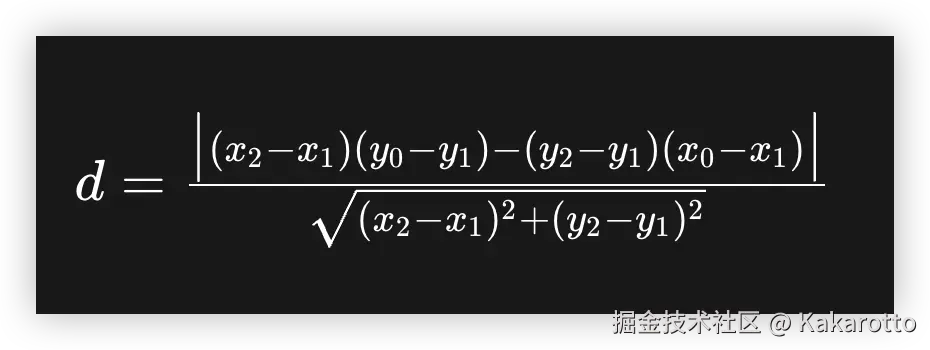 其中, (x1,y1) 和 (x2,y2) 是直线的两个坐标, (x0,y0) 是鼠标点击位置的坐标。代码实现如下:
javascript
/**
 * 计算点到直线的距离
 * @param x0 点的 x 坐标
 * @param y0 点的 y 坐标
 * @param x1 直线上一点的 x 坐标
 * @param y1 直线上一点的 y 坐标
 * @param x2 直线上另一点的 x 坐标
 * @param y2 直线上另一点的 y 坐标
 * @param threshold 距离阈值,默认为 10
 * @returns 点到直线的距离是否小于阈值
 */
function pointToLineDistance(x0, y0, x1, y1, x2, y2, threshold = 10) {
  // 计算向量 AB
  const vectorABx = x2 - x1;
  const vectorABy = y2 - y1;

  // 计算向量 AP
  const vectorAPx = x0 - x1;
  const vectorAPy = y0 - y1;

  // 计算叉乘的绝对值(点到直线的距离的分子)
  const crossProduct = Math.abs(vectorABx * vectorAPy - vectorABy * vectorAPx);

  // 计算线段 AB 的长度
  const segmentLength = Math.hypot(vectorABx, vectorABy);

  // 处理线段长度为 0 的情况(两点重合)
  if (segmentLength < 1e-6) {
    // 计算点到点的距离
    const pointDistance = Math.hypot(vectorAPx, vectorAPy);
    return pointDistance < threshold;
  }

  // 计算点到直线的距离
  const distance = crossProduct / segmentLength;

  return distance < threshold;
}
总结
这两种方法都可以解决线的宽度较小时鼠标点击不容易选中的问题。在数据量不是很大的时候,推荐使用isPointInStroke方法, 在Canvas中直线是最小的单位,创建和绘制直线都是非常快的操作,不会对性能造成太大影响。当数据量大的时候,频繁的创建也会导致性能问题,这时候使用数学方法计算点到直线的距离会更加高效,不依赖 Canvas 状态,计算精确,可定制性强。