视频
-
- [1、VideoContext wx.createVideoContext(string id, Object this)](#1、VideoContext wx.createVideoContext(string id, Object this))
- [2、wx.chooseVideo(Object object)](#2、wx.chooseVideo(Object object))
- [3、wx.saveVideoToPhotosAlbum(Object object)](#3、wx.saveVideoToPhotosAlbum(Object object))
- [4、wx.openVideoEditor(Object object)](#4、wx.openVideoEditor(Object object))
- [5、wx.getVideoInfo(Object object)](#5、wx.getVideoInfo(Object object))
- [6、wx.compressVideo(Object object)](#6、wx.compressVideo(Object object))
- [7、wx.checkDeviceSupportHevc(Object object)](#7、wx.checkDeviceSupportHevc(Object object))
- [8、wx.chooseMedia(Object object)](#8、wx.chooseMedia(Object object))
1、VideoContext wx.createVideoContext(string id, Object this)
创建 video 上下文 VideoContext 对象。建议使用 wx.createSelectorQuery 获取 context 对象。
- string id:video组件的id
- Object this:在自定义组件下,当前组件实例的this,以操作组件内 video 组件
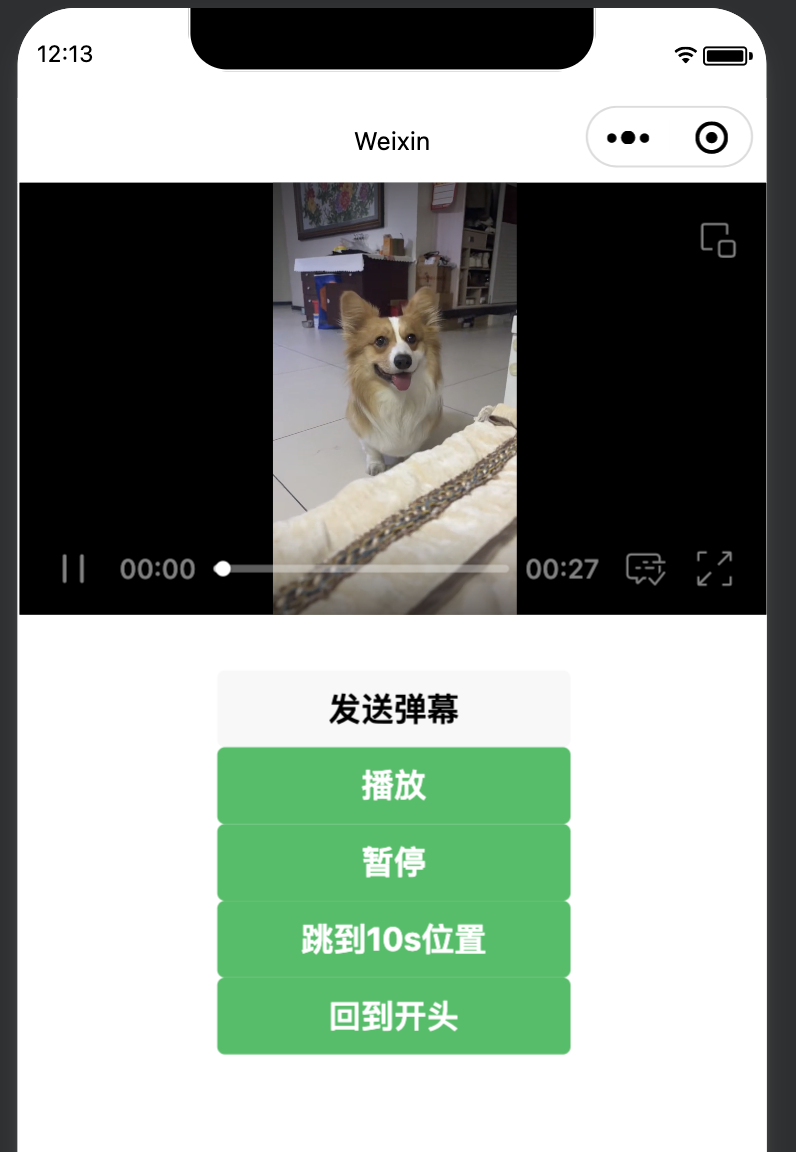
获取VideoContext对象之后,就可以对视频做相关操作了。VideoContext对象常用函数如表所示。
| 接口 | 功能和用途 |
|---|---|
VideoContext.play() |
播放视频 |
VideoContext.pause() |
暂停视频 |
VideoContext.stop() |
停止视频 |
VideoContext.seek(number position) |
跳转到指定位置 |
VideoContext.sendDanmu(Object data) |
发送弹幕 |
VideoContext.playbackRate(number rate) |
设置倍速播放 |
VideoContext.requestFullScreen(Object object) |
进入全屏 |
VideoContext.exitFullScreen() |
退出全屏 |
VideoContext.showStatusBar() |
显示状态栏,仅在OS全屏下有效 |
VideoContext.hideStatusBar() |
隐藏状态栏,仅在OS全屏下有效 |
仅支持网络url,无法播放项目内本地路径视频。
html
<view class="section tc">
  <video id="myVideo" src="http://127.0.0.1:8080/download/2.mp4" danmu-list="{{danmulist}}" enable-danmu danmu-btn controls style="width: 100%;"></video>
  <view class="btn-area">
    <input bindblur="bindInputBlur"/>
    <button bind:tap="bindSendDanmu">发送弹幕</button>
  </view>
</view>
<button type="primary" bind:tap="audioPlay">播放</button>
<button type="primary" bind:tap="audioPause">暂停</button>
<button type="primary" bind:tap="audio14">跳到10s位置</button>
<button type="primary" bind:tap="audioStart">回到开头</button>
js
function getRandomColor() {
  const rgb = []
  for(let i = 0; i < 3; ++i) {
    let color = Math.floor(Math.random() * 256).toString(16)
    color = color.length == 1 ? '0' + color : color
    rgb.push(color)
  }
  return '#' + rgb.join('')
}

Page({
  data: {
    src: '',
    danmuList: [
      {text: "第1s出现的弹幕", color: "#ff0000", time: 1},
      {text: "第3s出现的弹幕", color: "#ff00ff", time: 3}
    ]
  },
  inputValue: "",
  onReady: function(res) {
    this.videoContext = wx.createVideoContext('myVideo')
  },
  bindInputBlur(e) {
    this.inputValue = e.detail.value
  },
  bindSendDanmu() {
    this.videoContext.sendDanmu({
      text: this.inputValue,
      color: getRandomColor()
    })
  },
  audioPlay() {
    this.videoContext.play()
  },
  audioPause() {
    this.videoContext.pause()
  },
  audio14() {
    this.videoContext.seek(10)
  },
  audioStart() {
    this.videoContext.seek(0)
  }
})
2、wx.chooseVideo(Object object)
拍摄视频或从手机相册中选视频。
参数:Object object
| 属性 | 类型 | 默认值 | 必填 | 说明 |
|---|---|---|---|---|
sourceType |
Array.<string> | 'album', 'camera' | 否 | 视频选择的来源可选值如下: album:从相册选择视频 camera:使用相机拍摄视频 |
compressed |
boolean | true | 否 | 是否压缩所选择的视频文件 |
maxDuration |
number | 60 | 否 | 拍摄视频最长拍摄时间,单位秒 |
camera |
string | 'back' | 否 | 默认拉起的是前置或者后置摄像头。部分 Android 手机下由于系统 ROM 不支持无法生效,可选值如下: back:后置摄像头 front:前置摄像头 |
success |
function | 否 | 接口调用成功的回调函数 | |
fail |
function | 否 | 接口调用失败的回调函数 | |
complete |
function | 否 | 接口调用结束的回调函数(调用成功、失败都会执行) |
object.success回调函数:
参数:Object res
| 属性 | 类型 | 说明 |
|---|---|---|
| tempFilePath | string | 选定视频的临时文件路径 (本地路径) |
| duration | number | 选定视频的时间长度 |
| size | number | 选定视频的数据量大小 |
| height | number | 返回选定视频的高度 |
| width | number | 返回选定视频的宽度 |
html
<view>
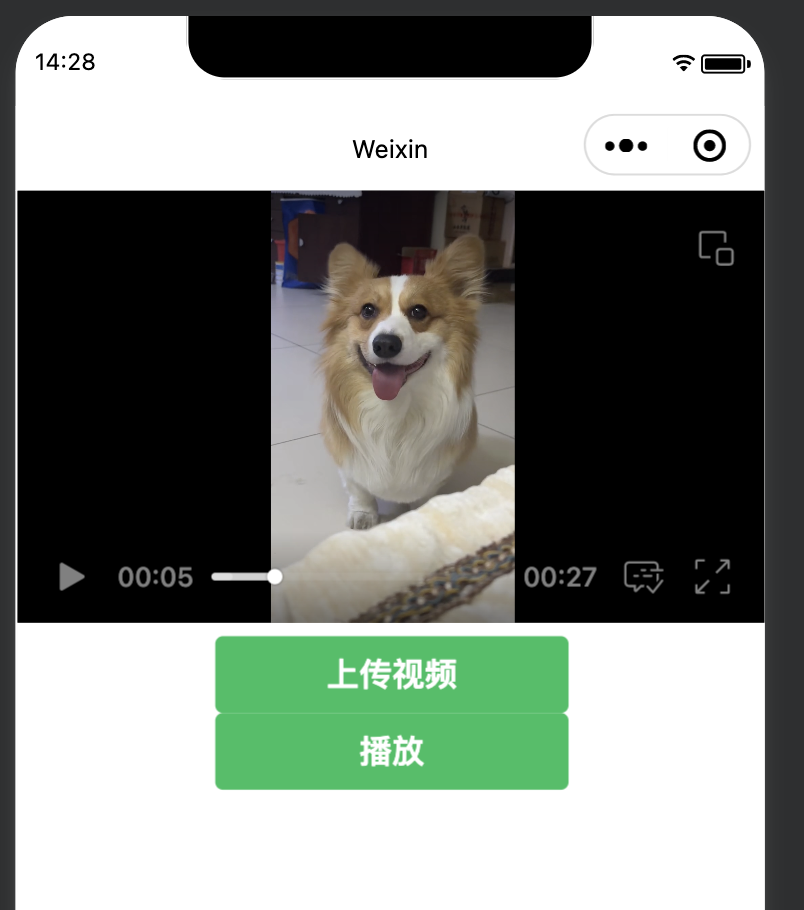
  <video style="width: 100%;" id="myVideo" src="{{src}}" danmu-list="{{danmuList}}" enable-danmu danmu-btn controlls></video>
</view>
<button type="primary" bind:tap="uploadvideo">上传视频</button>
<button type="primary" bind:tap="audioPlay">播放</button>
js
Page({
  data: {
    src: "",
  },
  inputValue: "",
  onReady(res) {

  },
  uploadvideo: function() {
    wx.chooseVideo({
      sourceType: ["album", "camera"],
      maxDuration: 60,
      camera: "back",
      success: (res)=>{
        this.setData({
          src: res.tempFilePath
        })
      }
    })
  },
  audioPlay: function() {
    this.videoContext = wx.createVideoContext('myVideo')
    this.videoContext.play()
  }
})
3、wx.saveVideoToPhotosAlbum(Object object)
保存视频到系统相册。支持mp4视频格式。
参数:Object object
| 属性 | 类型 | 默认值 | 必填 | 说明 |
|---|---|---|---|---|
filePath |
string | 是 | 视频文件路径,可以是临时文件路径也可以是永久文件路径 (本地路径) | |
success |
function | 否 | 接口调用成功的回调函数 | |
fail |
function | 否 | 接口调用失败的回调函数 | |
complete |
function | 否 | 接口调用结束的回调函数(调用成功、失败都会执行) |
html
<view>
  <video style="width:100%;" id="myVideo" src="{{src}}" danmu-list="{{danmuList}}" enable-danmu danmu-btn controls></video>
</view>
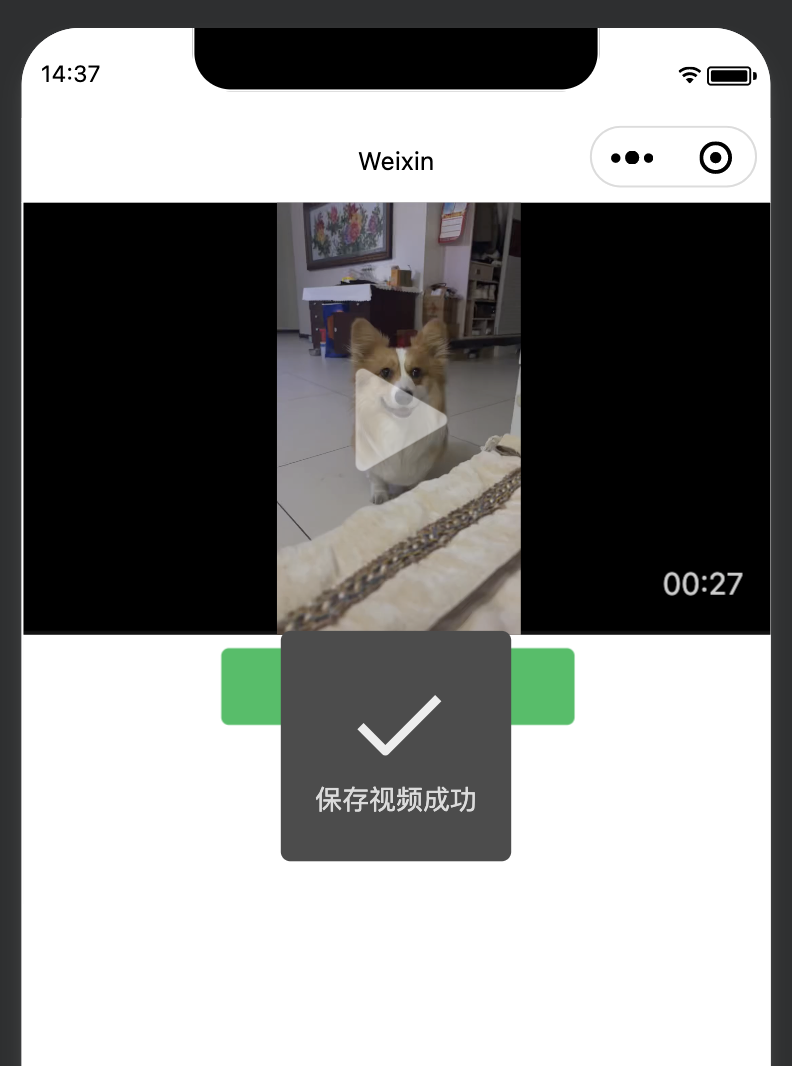
<button type="primary" bind:tap="save">保存视频</button>
js
Page({
  inputValue: "",
  data: {
    src: "http://127.0.0.1:8080/download/2.mp4"
  },
  save: function() {
    wx.downloadFile({
      url: this.data.src,
      success: (res)=>{
        if(res.statusCode == 200) {
          wx.saveVideoToPhotosAlbum({
            filePath: res.tempFilePath,
            success: (res)=>{
              wx.showToast({
                title: "保存视频成功"
              })
            },
            fail: (res)=>{
              wx.showToast({
                title: "保存图片失败"
              })
            }
          })
        }
      }
    })
  }
})
4、wx.openVideoEditor(Object object)
打开视频编辑器
参数:Object object
| 属性 | 类型 | 默认值 | 必填 | 说明 |
|---|---|---|---|---|
filePath |
string | 是 | 视频源的路径,只支持本地路径 | |
minDuration |
string | 是 | 视频裁剪的最小长度 | |
maxDuration |
string | 是 | 视频裁剪的最大长度 | |
success |
function | 否 | 接口调用成功的回调函数 | |
fail |
function | 否 | 接口调用失败的回调函数 | |
complete |
function | 否 | 接口调用结束的回调函数(调用成功、失败都会执行) |
object.success回调函数:
参数:Object res
| 属性 | 类型 | 说明 |
|---|---|---|
| duration | number | 剪辑后生成的视频文件的时长,单位毫秒(ms) |
| size | number | 剪辑后生成的视频文件大小,单位字节数(byte) |
| tempFilePath | string | 编辑后生成的视频文件的临时路径 |
| tempThumbPath | string | 编辑后生成的缩略图文件的临时路径 |
5、wx.getVideoInfo(Object object)
获取视频详细信息。
参数:Object object
| 属性 | 类型 | 默认值 | 必填 | 说明 |
|---|---|---|---|---|
src |
string | 是 | 视频文件路径,可以是临时文件路径也可以是永久文件路径 | |
success |
function | 否 | 接口调用成功的回调函数 | |
fail |
function | 否 | 接口调用失败的回调函数 | |
complete |
function | 否 | 接口调用结束的回调函数(调用成功、失败都会执行) |
object.success回调函数:
参数:Object res
| 属性 | 类型 | 说明 |
|---|---|---|
| orientation | string | 画面方向 |
| type | string | 视频格式 |
| duration | number | 视频长度 |
| size | number | 视频大小,单位 kB |
| height | number | 视频的长,单位 px |
| width | number | 视频的宽,单位 px |
| fps | number | 视频帧率 |
| bitrate | number | 视频码率,单位 kbps |
6、wx.compressVideo(Object object)
压缩视频接口。开发者可指定压缩质量 quality 进行压缩。当需要更精细的控制时,可指定 bitrate、fps、和 resolution,当 quality 传入时,这三个参数将被忽略。原视频的相关信息可通过 getVideoInfo 获取。
参数:Object object
| 属性 | 类型 | 默认值 | 必填 | 说明 |
|---|---|---|---|---|
src |
string | 是 | 视频文件路径,可以是临时文件路径也可以是永久文件路径 | |
quality |
string | 否 | 压缩质量,可选值为: low:低 medium:中 high:高 |
|
bitrate |
number | 是 | 码率,单位 kbps | |
fps |
number | 是 | 帧率 | |
resolution |
number | 是 | 相对于原视频的分辨率比例,取值范围(0, 1] | |
success |
function | 否 | 接口调用成功的回调函数 | |
fail |
function | 否 | 接口调用失败的回调函数 | |
complete |
function | 否 | 接口调用结束的回调函数(调用成功、失败都会执行) |
object.success回调函数:
参数:Object res
| 属性 | 类型 | 说明 |
|---|---|---|
| tempFilePath | string | 压缩后的临时文件地址 |
| size | string | 压缩后的大小,单位 kB |
7、wx.checkDeviceSupportHevc(Object object)
查询设备是否支持 H.265 编码。
参数:Object object
| 属性 | 类型 | 默认值 | 必填 | 说明 |
|---|---|---|---|---|
success |
function | 否 | 接口调用成功的回调函数 | |
fail |
function | 否 | 接口调用失败的回调函数 | |
complete |
function | 否 | 接口调用结束的回调函数(调用成功、失败都会执行) |
object.success回调函数:
参数:Object res
| 属性 | 类型 | 说明 |
|---|---|---|
| supportHevc | Boolean | 设备是否支持 H.265 编码 |
js
wx.checkDeviceSupportHevc({
  success (res) {
    const supportHevc = res.supportHevc
  }
})
8、wx.chooseMedia(Object object)
拍摄或从手机相册中选择图片或视频。
参数:Object object
| 属性 | 类型 | 默认值 | 必填 | 说明 |
|---|---|---|---|---|
count |
number | 9 | 否 | 最多可以选择的文件个数,基础库2.25.0前,最多可支持9个文件,2.25.0及以后最多可支持20个文件 |
mediaType |
Array.<string> | 'image', 'video' | 否 | 文件类型,可选值:image:只能拍摄图片或从相册选择图片 video:只能拍摄视频或从相册选择视频 mix:可同时选择图片和视频 |
sourceType |
Array.<string> | 'album', 'camera' | 否 | 图片和视频选择的来源,可选值: album:相册 camera:相机 |
maxDuration |
number | 10 | 否 | 拍摄视频最长拍摄时间,单位秒。时间范围为 3s 至 60s 之间。不限制相册。 |
sizeType |
Array.<string> | 'original', 'compressed' | 否 | 是否压缩所选文件,基础库2.25.0前仅对 mediaType 为 image 时有效,2.25.0及以后对全量 mediaType 有效 |
camera |
string | 'back' | 否 | 仅在 sourceType 为 camera 时生效,使用前置或后置摄像头,可选值如下: back:后置 front:前置 |
success |
function | 否 | 接口调用成功的回调函数 | |
fail |
function | 否 | 接口调用失败的回调函数 | |
complete |
function | 否 | 接口调用结束的回调函数(调用成功、失败都会执行) |
object.success回调函数:
参数:Object res
| 属性 | 类型 | 说明 |
|---|---|---|
| tempFiles | Array.<Object> | 本地临时文件列表 |
| type | string | 文件类型,有效值有 image 、video、mix |
其中tempFiels结构如下:
| 结构属性 | 类型 | 说明 |
|---|---|---|
| tempFilePath | string | 本地临时文件路径 (本地路径) |
| size | number | 本地临时文件大小,单位 B |
| duration | number | 视频的时间长度 |
| height | number | 视频的高度 |
| width | number | 视频的宽度 |
| thumbTempFilePath | string | 视频缩略图临时文件路径 |
| fileType | string | 文件类型,可选值如下: image:图片 video:视频 |
js
wx.chooseMedia({
  count: 9,
  mediaType: ['image','video'],
  sourceType: ['album', 'camera'],
  maxDuration: 30,
  camera: 'back',
  success(res) {
    console.log(res.tempFiles[0].tempFilePath)
    console.log(res.tempFiles[0].size)
  }
})