欢迎加入开源鸿蒙跨平台社区:https://openharmonycrossplatform.csdn.net
📌 开发环境声明:本文基于 React Native 0.72.90 版本进行开发适配
🚀 一、开篇引言
图片加载是最常见也是最影响性能的场景之一。React Native 内置的 Image 组件虽然能满足基本需求,但在处理大量图片、列表滚动等场景时往往表现不佳。react-native-fast-image 是一个高性能的图片加载组件,它封装了 iOS 的 SDWebImage 和 Android 的 Glide,提供了优秀的内存管理和缓存机制。本文将带你深入了解如何在 HarmonyOS 平台上集成和使用 react-native-fast-image,实现高效的图片加载体验。
1.1 你将学到什么?
- ✅ react-native-fast-image 的核心概念与工作原理
- ✅ HarmonyOS 平台的完整集成流程
- ✅ 多种实战场景的代码实现(图片列表、头像组件、预加载优化)
- ✅ 图片加载回调与错误处理
- ✅ 缓存管理与性能优化
1.2 适用人群
- 正在进行 React Native 鸿蒙化迁移的开发者
- 需要优化图片加载性能的应用开发者
- 对跨平台高性能组件开发感兴趣的技术爱好者
📦 二、库概览
2.1 基本信息
| 项目 | 内容 |
|---|---|
| 库名称 | react-native-fast-image |
| 维护方 | DylanVann |
| 最新版本 | 8.6.3 (RN 0.72) |
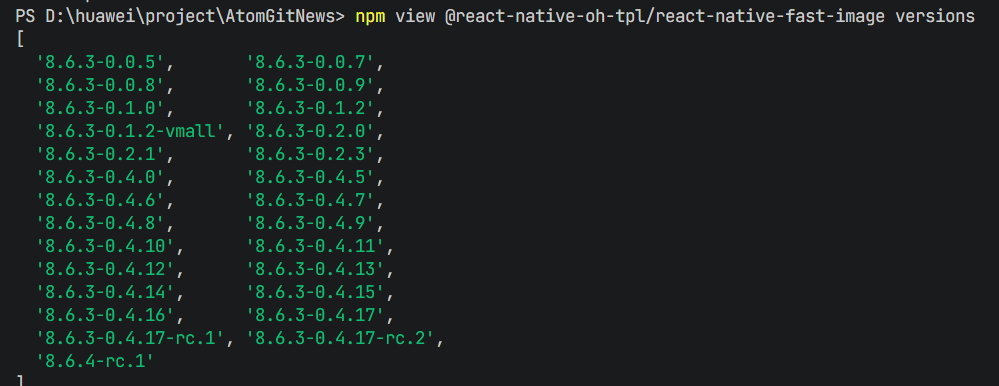
| RN 0.72 适配包 | @react-native-oh-tpl/react-native-fast-image@8.6.3-0.4.17 |
| 官方仓库 | https://github.com/DylanVann/react-native-fast-image |
| 鸿蒙适配仓库 | https://github.com/react-native-oh-library/react-native-fast-image |
| 开源协议 | MIT |
2.2 核心能力矩阵
| 能力项 | 描述 | HarmonyOS 支持 |
|---|---|---|
| 远程图片加载 | 支持网络 URL 加载 | ✅ 完全支持 |
| 本地图片加载 | 支持本地资源加载 | ✅ 完全支持 |
| 图片缓存 | 内存缓存和磁盘缓存 | ✅ 完全支持 |
| 预加载 | 预加载图片到缓存 | ✅ 完全支持 |
| 加载回调 | 开始、进度、完成、错误回调 | ✅ 完全支持 |
| 优先级控制 | 加载优先级设置 | ❌ 暂不支持 |
| 缓存策略 | 自定义缓存模式 | ❌ 暂不支持 |
| 着色 | 图片颜色叠加 | ✅ 完全支持 |
2.3 技术架构图
原生平台层
Bridge Layer
React Native 应用层
FastImage Component (JS/TS)
Props: source, resizeMode
Events: onLoad, onError
Methods: preload, clearCache
Native Module
FastImagePackage
FastImageViewManager
iOS
SDWebImage
Android
Glide
HarmonyOS
Image (ArkTS)
2.4 与同类方案对比
| 特性 | react-native-fast-image | React Native Image | expo-image |
|---|---|---|---|
| HarmonyOS 支持 | ✅ | ✅ | ⚠️ 需适配 |
| 内存缓存 | ✅ 自动管理 | ⚠️ 手动管理 | ✅ |
| 磁盘缓存 | ✅ 自动管理 | ⚠️ 有限支持 | ✅ |
| 预加载 | ✅ | ❌ | ✅ |
| 加载进度 | ✅ | ❌ | ✅ |
| 优先级控制 | ✅ | ❌ | ✅ |
| 列表滚动性能 | 优秀 | 一般 | 优秀 |
⚡ 三、快速开始
3.1 环境要求
| 依赖项 | 版本要求 |
|---|---|
| React Native | 0.72.x |
| RNOH (鸿蒙框架) | 0.72.90 |
| HarmonyOS SDK | 6.0.0.47+ (API 20) |
| DevEco Studio | 5.0.3+ / 6.0+ |
| Node.js | 16.18.0+ / 18.x |
3.2 版本说明
| 三方库版本 | 发布信息 | 支持RN版本 |
|---|---|---|
| 8.6.3-0.4.17 | @react-native-oh-tpl/react-native-fast-image Releases | 0.72 |
3.3 一键安装
创建鸿蒙项目的过程不在进行描述了,不懂得看这篇:https://blog.csdn.net/u011178696/article/details/151932277
bash
# 安装鸿蒙适配包
npm install @react-native-oh-tpl/react-native-fast-image@8.6.3-0.4.17-rc.1
3.4 验证安装
bash
# 检查 package.json
type package.json | findstr fast-image

# 预期输出
# "@react-native-oh-tpl/react-native-fast-image": "^8.6.3-0.4.17-rc.1"
🔧 四、HarmonyOS 集成详解
4.1 配置清单
📌 按顺序完成以下配置,缺一不可
| 步骤 | 配置文件 | 操作 | 重要程度 |
|---|---|---|---|
| 1 | harmony/oh-package.json5 | 添加 overrides | ⭐⭐⭐ |
| 2 | harmony/entry/oh-package.json5 | 添加 har 依赖 | ⭐⭐⭐ |
| 3 | harmony/entry/src/main/cpp/CMakeLists.txt | 配置编译链接 | ⭐⭐⭐ |
| 4 | harmony/entry/src/main/cpp/PackageProvider.cpp | 引入头文件 | ⭐⭐⭐ |
| 5 | harmony/entry/src/main/ets/RNPackagesFactory.ts | 引入 Package | ⭐⭐⭐ |
💡 注意:react-native-fast-image 8.6.3-0.4.17 版本暂不支持 Autolink,需要手动配置原生依赖。
4.2 步骤详解(一定要根据自己的版本来)
步骤一:配置 overrides

json
// 文件:harmony/oh-package.json5
{
  "name": "MyApplication",
  "version": "1.0.0",
  "description": "Please describe the basic information.",
  "main": "",
  "author": "",
  "license": "",
  "dependencies": {},
  "overrides": {
    "@rnoh/react-native-openharmony": "0.72.90"
  }
}
步骤二:引入原生端代码
💡 提供两种引入方式,推荐使用 方法一(har 包引入)
方法一:通过 har 包引入(推荐)
📌 har 包位于三方库安装路径的
harmony文件夹下
打开 harmony/entry/oh-package.json5,添加以下依赖:
json
{
  "name": "entry",
  "version": "1.0.0",
  "description": "Please describe the basic information.",
  "main": "",
  "author": "",
  "license": "",
  "dependencies": {
    "@rnoh/react-native-openharmony": "0.72.90",
    "@react-native-oh-tpl/react-native-fast-image": "file:../../node_modules/@react-native-oh-tpl/react-native-fast-image/harmony/fast_image.har"
  }
}
点击 DevEco Studio 右上角的 Sync Now 按钮,或在终端执行:
bash
cd harmony/entry
ohpm install
方法二:直接链接源码
📌 目前 DevEco Studio 不支持通过源码引入外部 module,需要将源码通过操作改成 harmony 工程的内部模块
步骤 1:复制源码到 harmony 工程根目录
将 <RN工程>/node_modules/@react-native-oh-tpl/react-native-fast-image/harmony/ 目录下的源码 fast_image 复制到 harmony 工程根目录下:
harmony/
├── entry/
├── fast_image/          ← 复制过来的源码目录
└── build-profile.json5
步骤 2 :在 build-profile.json5 添加模块配置
打开 harmony/build-profile.json5,添加以下模块:
json
{
  "app": {
    "signingConfigs": [],
    "products": [],
    "buildModeSet": []
  },
  "modules": [
    {
      "name": "entry",
      "srcPath": "./entry",
      "targets": []
    },
    {
      "name": "fast_image",
      "srcPath": "./fast_image"
    }
  ]
}
💡 如果存在
build-profile.template.json5文件,也需要同步添加上述 modules 配置。
步骤 3:修改源码中的依赖版本
打开 harmony/fast_image/oh-package.json5,修改 @rnoh/react-native-openharmony 版本与项目一致:
json
{
  "name": "fast_image",
  "version": "1.0.0",
  "description": "Please describe the basic information.",
  "main": "",
  "author": "",
  "license": "",
  "dependencies": {
    "@rnoh/react-native-openharmony": "0.72.90"
  }
}
步骤 4 :在 entry/oh-package.json5 添加依赖
打开 harmony/entry/oh-package.json5,添加以下依赖:
json
{
  "name": "entry",
  "version": "1.0.0",
  "description": "Please describe the basic information.",
  "main": "",
  "author": "",
  "license": "",
  "dependencies": {
    "@rnoh/react-native-openharmony": "0.72.90",
    "@react-native-oh-tpl/react-native-fast-image": "file:../fast_image"
  }
}
步骤 5:同步项目
点击 DevEco Studio 右上角的 Sync Now 按钮,或在终端执行:
bash
cd harmony/entry
ohpm install
步骤三:配置 CMake 编译
c
# 文件:harmony/entry/src/main/cpp/CMakeLists.txt

project(rnapp)
cmake_minimum_required(VERSION 3.4.1)
set(CMAKE_SKIP_BUILD_RPATH TRUE)
set(RNOH_APP_DIR "${CMAKE_CURRENT_SOURCE_DIR}")
set(NODE_MODULES "${CMAKE_CURRENT_SOURCE_DIR}/../../../../../node_modules")
+ set(OH_MODULES "${CMAKE_CURRENT_SOURCE_DIR}/../../../oh_modules")
set(RNOH_CPP_DIR "${CMAKE_CURRENT_SOURCE_DIR}/../../../../../../react-native-harmony/harmony/cpp")
set(LOG_VERBOSITY_LEVEL 1)
set(CMAKE_ASM_FLAGS "-Wno-error=unused-command-line-argument -Qunused-arguments")
set(CMAKE_CXX_FLAGS "-fstack-protector-strong -Wl,-z,relro,-z,now,-z,noexecstack -s -fPIE -pie")
set(WITH_HITRACE_SYSTRACE 1)
add_compile_definitions(WITH_HITRACE_SYSTRACE)

add_subdirectory("${RNOH_CPP_DIR}" ./rn)

# RNOH_BEGIN: manual_package_linking_1
add_subdirectory("../../../../sample_package/src/main/cpp" ./sample-package)
+ add_subdirectory("${OH_MODULES}/@react-native-oh-tpl/react-native-fast-image/src/main/cpp" ./fast-image)
# RNOH_END: manual_package_linking_1

file(GLOB GENERATED_CPP_FILES "./generated/*.cpp")

add_library(rnoh_app SHARED
    ${GENERATED_CPP_FILES}
    "./PackageProvider.cpp"
    "${RNOH_CPP_DIR}/RNOHAppNapiBridge.cpp"
)
target_link_libraries(rnoh_app PUBLIC rnoh)

# RNOH_BEGIN: manual_package_linking_2
target_link_libraries(rnoh_app PUBLIC rnoh_sample_package)
+ target_link_libraries(rnoh_app PUBLIC rnoh_fast_image)
# RNOH_END: manual_package_linking_2
步骤四:引入 Package(C++ 层)
cpp
// 文件:harmony/entry/src/main/cpp/PackageProvider.cpp

#include "RNOH/PackageProvider.h"
#include "generated/RNOHGeneratedPackage.h"
#include "SamplePackage.h"
+ #include "FastImagePackage.h"

using namespace rnoh;

std::vector<std::shared_ptr<Package>> PackageProvider::getPackages(Package::Context ctx) {
    return {
        std::make_shared<RNOHGeneratedPackage>(ctx),
        std::make_shared<SamplePackage>(ctx),
        + std::make_shared<FastImagePackage>(ctx),
    };
}
步骤五:引入 Package(ArkTS 层)
typescript
// 文件:harmony/entry/src/main/ets/RNPackagesFactory.ts

+ import { FastImagePackage } from '@react-native-oh-tpl/react-native-fast-image/ts';

export function createRNPackages(ctx: RNPackageContext): RNPackage[] {
  return [
    new SamplePackage(ctx),
    + new FastImagePackage(ctx)
  ];
}
4.3 同步与编译
bash
# 进入 entry 目录
cd harmony/entry

# 执行依赖同步
ohpm install

# 返回项目根目录
cd ../..
在 DevEco Studio 中点击右上角的 Sync Now 按钮,等待同步完成后编译运行。
4.4 添加 harmony 运行环境
在项目中的 package.json 中添加运行命令,harmony 运行使用 npm run harmony 命令
json
"scripts": {
  "android": "react-native run-android",
  "ios": "react-native run-ios",
  "lint": "eslint .",
  "start": "react-native start",
  "test": "jest",
  "harmony": "react-native bundle-harmony --dev"
},
💻 五、实战演练
场景一:基础图片加载
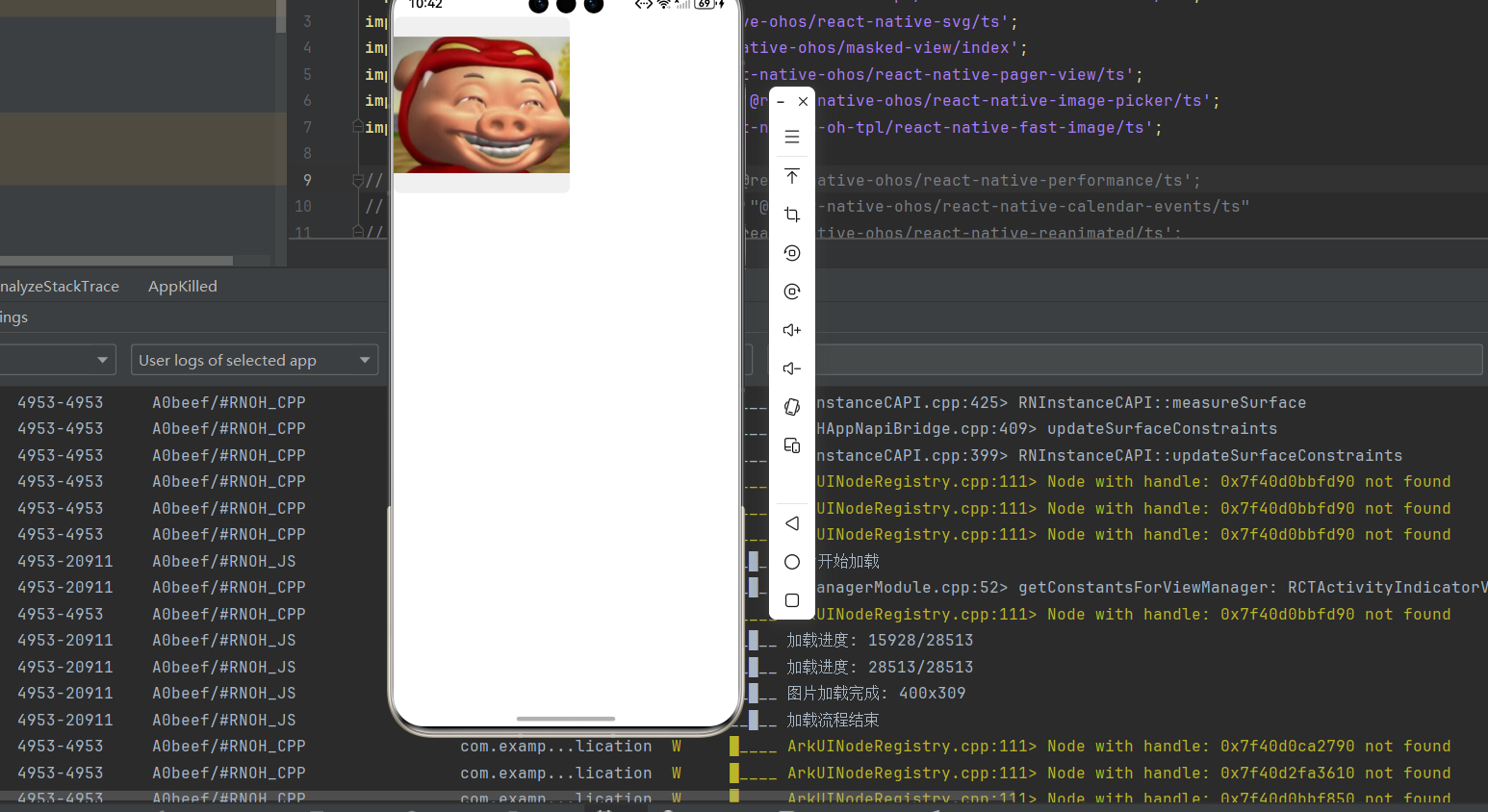
需求描述:实现一个基础的网络图片加载组件,支持加载状态显示和错误处理。
实现代码:
javascript
import React, { useState } from 'react';
import {
  View,
  Text,
  StyleSheet,
  ActivityIndicator,
} from 'react-native';
import FastImage, {
  OnLoadEvent,
  OnProgressEvent,
} from 'react-native-fast-image';

interface ImageLoaderProps {
  uri: string;
  width?: number;
  height?: number;
  borderRadius?: number;
}

export default function ImageLoader({
  uri = "https://c-ssl.dtstatic.com/uploads/blog/202301/04/20230104230849_a9a24.thumb.400_0.jpeg",
  width = 200,
  height = 200,
  borderRadius = 8,
}: ImageLoaderProps) {
  const [loading, setLoading] = useState(false);
  const [error, setError] = useState(false);
  const [imageSize, setImageSize] = useState({ width: 0, height: 0 });

  const handleLoadStart = () => {
    setLoading(true);
    setError(false);
    console.log('图片开始加载');
  };

  const handleProgress = (event: OnProgressEvent) => {
    const { loaded, total } = event.nativeEvent;
    console.log(`加载进度: ${loaded}/${total}`);
  };

  const handleLoad = (event: OnLoadEvent) => {
    setLoading(false);
    const { width: w, height: h } = event.nativeEvent;
    setImageSize({ width: w, height: h });
    console.log(`图片加载完成: ${w}x${h}`);
  };

  const handleError = () => {
    setLoading(false);
    setError(true);
    console.log('图片加载失败');
  };

  const handleLoadEnd = () => {
    console.log('加载流程结束');
  };

  if (error) {
    return (
      <View style={[styles.errorContainer, { width, height, borderRadius }]}>
        <Text style={styles.errorText}>加载失败</Text>
      </View>
    );
  }

  return (
    <View style={[styles.container, { width, height, borderRadius }]}>
      <FastImage
        style={styles.image}
        source={{ uri }}
        resizeMode={FastImage.resizeMode.contain}
        onLoadStart={handleLoadStart}
        onProgress={handleProgress}
        onLoad={handleLoad}
        onError={handleError}
        onLoadEnd={handleLoadEnd}
      />
      {loading && (
        <View style={styles.loadingOverlay}>
          <ActivityIndicator size="large" color="#4c669f" />
        </View>
      )}
    </View>
  );
}

const styles = StyleSheet.create({
  container: {
    overflow: 'hidden',
    backgroundColor: '#f0f0f0',
  },
  image: {
    width: '100%',
    height: '100%',
  },
  loadingOverlay: {
    ...StyleSheet.absoluteFillObject,
    justifyContent: 'center',
    alignItems: 'center',
    backgroundColor: 'rgba(255,255,255,0.8)',
  },
  errorContainer: {
    justifyContent: 'center',
    alignItems: 'center',
    backgroundColor: '#f5f5f5',
    borderWidth: 1,
    borderColor: '#ddd',
  },
  errorText: {
    fontSize: 14,
    color: '#999',
  },
});使用示例:
javascript
import ImageLoader from './ImageLoader';

function App() {
  return (
    <View style={styles.container}>
      <ImageLoader
        uri="https://res8.vmallres.com/pimages/uomcdn/CN/pms/202205/gbom/6941487259298/428_428_D7BFF22D4678EB68440F914B352214C4mp_tds.png"
        width={300}
        height={300}
      />
    </View>
  );
}
场景二:图片列表优化
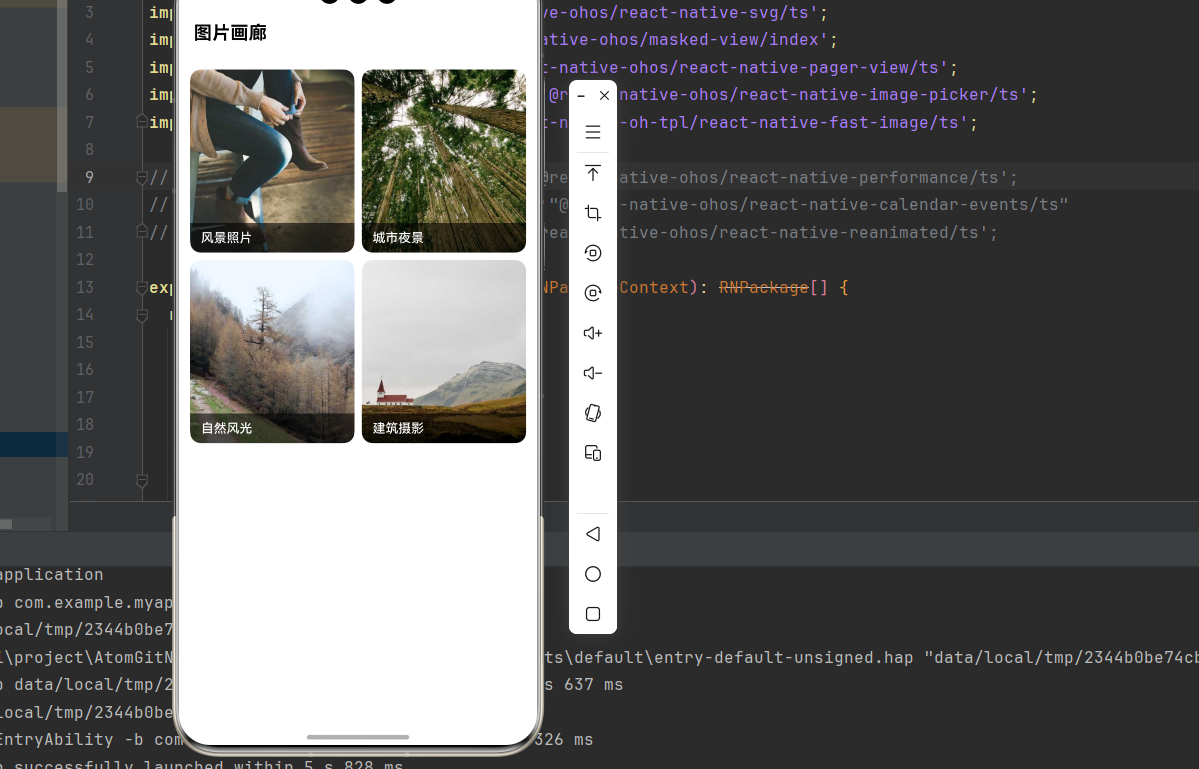
需求描述:实现一个高性能的图片列表,利用 FastImage 的缓存机制优化滚动性能。
实现代码:
javascript
import React, { useCallback, useMemo } from 'react';
import {
  View,
  Text,
  StyleSheet,
  FlatList,
  TouchableOpacity,
} from 'react-native';
import FastImage from 'react-native-fast-image';

interface ImageItem {
  id: string;
  uri: string;
  title: string;
}

interface ImageGridProps {
  images: ImageItem[];
  onImagePress?: (item: ImageItem) => void;
  columns?: number;
}

export default function ImageGrid({
  images,
  onImagePress,
  columns = 2,
}: ImageGridProps) {
  const renderItem = useCallback(
    ({ item, index }: { item: ImageItem; index: number }) => {
      return (
        <TouchableOpacity
          style={styles.itemContainer}
          onPress={() => onImagePress?.(item)}
          activeOpacity={0.8}
        >
          <FastImage
            style={styles.image}
            source={{ uri: item.uri }}
            resizeMode={FastImage.resizeMode.cover}
          />
          <View style={styles.titleOverlay}>
            <Text style={styles.title} numberOfLines={1}>
              {item.title}
            </Text>
          </View>
        </TouchableOpacity>
      );
    },
    [onImagePress]
  );

  const keyExtractor = useCallback(
    (item: ImageItem) => item.id,
    []
  );

  const getItemLayout = useCallback(
    (_: any, index: number) => ({
      length: 200,
      offset: 200 * Math.floor(index / columns),
      index,
    }),
    [columns]
  );

  return (
    <FlatList
      data={images}
      renderItem={renderItem}
      keyExtractor={keyExtractor}
      numColumns={columns}
      getItemLayout={getItemLayout}
      showsVerticalScrollIndicator={false}
      contentContainerStyle={styles.listContainer}
      initialNumToRender={10}
      maxToRenderPerBatch={10}
      windowSize={5}
      removeClippedSubviews={true}
    />
  );
}

const styles = StyleSheet.create({
  listContainer: {
    padding: 8,
  },
  itemContainer: {
    flex: 1,
    margin: 4,
    height: 200,
    borderRadius: 12,
    overflow: 'hidden',
    backgroundColor: '#f0f0f0',
  },
  image: {
    width: '100%',
    height: '100%',
  },
  titleOverlay: {
    position: 'absolute',
    bottom: 0,
    left: 0,
    right: 0,
    backgroundColor: 'rgba(0,0,0,0.6)',
    paddingVertical: 8,
    paddingHorizontal: 12,
  },
  title: {
    fontSize: 14,
    fontWeight: '500',
    color: '#FFFFFF',
  },
});使用示例:
javascript
// 补全所有缺失的引入
import React from 'react';
import { View, Text, StyleSheet } from 'react-native';
import ImageGrid from './ImageGrid';

// 示例数据
const SAMPLE_IMAGES = [
  {
    id: '1',
    uri: 'https://picsum.photos/400/400?random=1',
    title: '风景照片',
  },
  {
    id: '2',
    uri: 'https://picsum.photos/400/400?random=2',
    title: '城市夜景',
  },
  {
    id: '3',
    uri: 'https://picsum.photos/400/400?random=3',
    title: '自然风光',
  },
  {
    id: '4',
    uri: 'https://picsum.photos/400/400?random=4',
    title: '建筑摄影',
  },
];

// 补全样式
function GalleryScreen() {
  const handleImagePress = (item: { id: string; uri: string; title: string }) => {
    console.log('点击图片:', item.title);
  };

  return (
    <View style={styles.container}>
      <Text style={styles.header}>图片画廊</Text>
      <ImageGrid
        images={SAMPLE_IMAGES}
        onImagePress={handleImagePress}
        columns={2}
      />
    </View>
  );
}

// 缺失的样式
const styles = StyleSheet.create({
  container: {
    flex: 1,
    backgroundColor: '#fff',
  },
  header: {
    fontSize: 20,
    fontWeight: 'bold',
    padding: 16,
  },
});

export default GalleryScreen;
场景三:头像组件
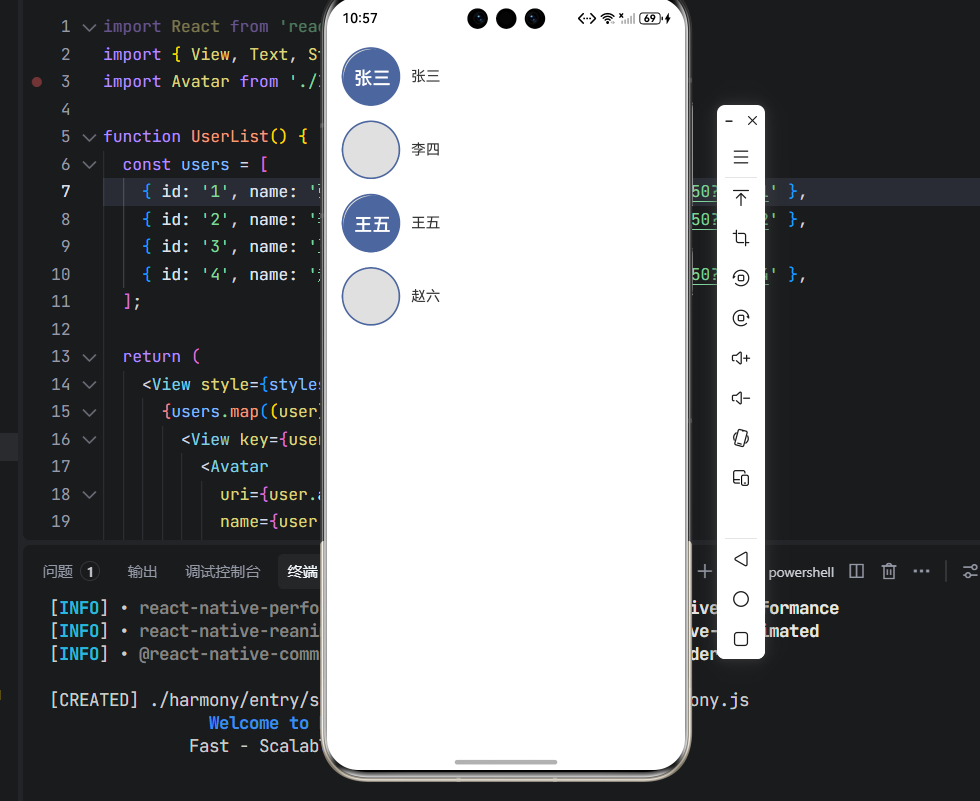
需求描述:实现一个支持多种尺寸和样式的头像组件,支持默认头像和加载状态。
实现代码:
javascript
import React, { useState } from 'react';
import {
  View,
  Text,
  StyleSheet,
  TouchableOpacity,
} from 'react-native';
import FastImage from 'react-native-fast-image';

type AvatarSize = 'small' | 'medium' | 'large' | 'xlarge';

interface AvatarProps {
  uri?: string;
  name?: string;
  size?: AvatarSize;
  borderRadius?: number;
  onPress?: () => void;
  showBorder?: boolean;
  borderColor?: string;
}

const SIZE_MAP: Record<AvatarSize, number> = {
  small: 32,
  medium: 48,
  large: 64,
  xlarge: 96,
};

const FONT_SIZE_MAP: Record<AvatarSize, number> = {
  small: 12,
  medium: 16,
  large: 20,
  xlarge: 32,
};

export default function Avatar({
  uri,
  name,
  size = 'medium',
  borderRadius,
  onPress,
  showBorder = false,
  borderColor = '#4c669f',
}: AvatarProps) {
  const [error, setError] = useState(false);
  const avatarSize = SIZE_MAP[size];
  const fontSize = FONT_SIZE_MAP[size];
  const actualBorderRadius = borderRadius ?? avatarSize / 2;

  const getInitials = (name: string): string => {
    const parts = name.trim().split(' ');
    if (parts.length >= 2) {
      return (parts[0][0] + parts[1][0]).toUpperCase();
    }
    return name.slice(0, 2).toUpperCase();
  };

  const renderPlaceholder = () => (
    <View
      style={[
        styles.placeholder,
        {
          width: avatarSize,
          height: avatarSize,
          borderRadius: actualBorderRadius,
        },
      ]}
    >
      <Text style={[styles.initials, { fontSize }]}>
        {name ? getInitials(name) : '?'}
      </Text>
    </View>
  );

  const content = (
    <View
      style={[
        styles.container,
        {
          width: avatarSize,
          height: avatarSize,
          borderRadius: actualBorderRadius,
        },
        showBorder && {
          borderWidth: 2,
          borderColor,
        },
      ]}
    >
      {uri && !error ? (
        <FastImage
          style={styles.image}
          source={{ uri }}
          resizeMode={FastImage.resizeMode.cover}
          onError={() => setError(true)}
        />
      ) : (
        renderPlaceholder()
      )}
    </View>
  );

  if (onPress) {
    return (
      <TouchableOpacity onPress={onPress} activeOpacity={0.8}>
        {content}
      </TouchableOpacity>
    );
  }

  return content;
}

const styles = StyleSheet.create({
  container: {
    overflow: 'hidden',
    backgroundColor: '#e0e0e0',
  },
  image: {
    width: '100%',
    height: '100%',
  },
  placeholder: {
    justifyContent: 'center',
    alignItems: 'center',
    backgroundColor: '#4c669f',
  },
  initials: {
    fontWeight: '600',
    color: '#FFFFFF',
  },
});使用示例:
javascript
import React from 'react';
import { View, Text, StyleSheet } from 'react-native';
import Avatar from './Avatar';

function UserList() {
  const users = [
    { id: '1', name: '张三', avatar: 'https://i.pravatar.cc/150?img=1' },
    { id: '2', name: '李四', avatar: 'https://i.pravatar.cc/150?img=2' },
    { id: '3', name: '王五', avatar: '' },
    { id: '4', name: '赵六', avatar: 'https://i.pravatar.cc/150?img=4' },
  ];

  return (
    <View style={styles.container}>
      {users.map((user) => (
        <View key={user.id} style={styles.userItem}>
          <Avatar
            uri={user.avatar}
            name={user.name}
            size="large"
            showBorder
            onPress={() => console.log('点击用户:', user.name)}
          />
          <Text style={styles.userName}>{user.name}</Text>
        </View>
      ))}
    </View>
  );
}

// 补全缺失的样式
const styles = StyleSheet.create({
  container: {
    flex: 1,
    padding: 16,
    backgroundColor: '#fff',
  },
  userItem: {
    flexDirection: 'row',
    alignItems: 'center',
    marginBottom: 16,
    gap: 12,
  },
  userName: {
    fontSize: 16,
    color: '#333',
  },
});

export default UserList;
场景四:图片预加载与缓存管理
需求描述:实现图片预加载功能,提升用户体验,并提供缓存清理能力。
实现代码:
javascript
import React, { useEffect, useState } from 'react';
import {
  View,
  Text,
  StyleSheet,
  TouchableOpacity,
  Alert,
} from 'react-native';
import FastImage from 'react-native-fast-image';

interface CacheManagerProps {
  preloadImages?: string[];
}

export default function CacheManager({ preloadImages = [] }: CacheManagerProps) {
  const [preloadStatus, setPreloadStatus] = useState<'idle' | 'loading' | 'done'>('idle');

  useEffect(() => {
    if (preloadImages.length > 0) {
      handlePreload();
    }
  }, []);

  const handlePreload = async () => {
    if (preloadImages.length === 0) {
      Alert.alert('提示', '没有需要预加载的图片');
      return;
    }

    setPreloadStatus('loading');

    try {
      const sources = preloadImages.map((uri) => ({ uri }));
      await FastImage.preload(sources);
      setPreloadStatus('done');
      Alert.alert('成功', `已预加载 ${preloadImages.length} 张图片`);
    } catch (error) {
      setPreloadStatus('idle');
      Alert.alert('错误', '预加载失败');
    }
  };

  const handleClearMemoryCache = async () => {
    try {
      await FastImage.clearMemoryCache();
      Alert.alert('成功', '内存缓存已清理');
    } catch (error) {
      Alert.alert('错误', '清理内存缓存失败');
    }
  };

  const handleClearDiskCache = async () => {
    try {
      await FastImage.clearDiskCache();
      Alert.alert('成功', '磁盘缓存已清理');
    } catch (error) {
      Alert.alert('错误', '清理磁盘缓存失败');
    }
  };

  return (
    <View style={styles.container}>
      <Text style={styles.title}>缓存管理</Text>

      <View style={styles.statusContainer}>
        <Text style={styles.statusText}>
          预加载状态: {
            preloadStatus === 'idle' ? '未开始' :
            preloadStatus === 'loading' ? '加载中...' : '已完成'
          }
        </Text>
      </View>

      <TouchableOpacity style={styles.button} onPress={handlePreload}>
        <Text style={styles.buttonText}>预加载图片</Text>
      </TouchableOpacity>

      <TouchableOpacity
        style={[styles.button, styles.clearButton]}
        onPress={handleClearMemoryCache}
      >
        <Text style={styles.buttonText}>清理内存缓存</Text>
      </TouchableOpacity>

      <TouchableOpacity
        style={[styles.button, styles.clearButton]}
        onPress={handleClearDiskCache}
      >
        <Text style={styles.buttonText}>清理磁盘缓存</Text>
      </TouchableOpacity>
    </View>
  );
}

const styles = StyleSheet.create({
  container: {
    padding: 16,
    backgroundColor: '#fff',
    borderRadius: 12,
    margin: 16,
  },
  title: {
    fontSize: 18,
    fontWeight: 'bold',
    marginBottom: 16,
    color: '#333',
  },
  statusContainer: {
    padding: 12,
    backgroundColor: '#f5f5f5',
    borderRadius: 8,
    marginBottom: 16,
  },
  statusText: {
    fontSize: 14,
    color: '#666',
  },
  button: {
    backgroundColor: '#4c669f',
    paddingVertical: 12,
    paddingHorizontal: 24,
    borderRadius: 8,
    marginBottom: 12,
    alignItems: 'center',
  },
  clearButton: {
    backgroundColor: '#e74c3c',
  },
  buttonText: {
    fontSize: 16,
    fontWeight: '600',
    color: '#FFFFFF',
  },
});
📋 六、API 详解
6.1 Props 属性
| 属性名 | 描述 | 类型 | 必填 | HarmonyOS 支持 |
|---|---|---|---|---|
| source.uri | 远程图片地址 | string | 是 | ✅ |
| source.headers | 请求头信息,如 { Authorization: 'token' } | object | 否 | ✅ |
| source.priority | 加载优先级 | enum | 否 | ❌ |
| source.cache | 缓存模式 | enum | 否 | ❌ |
| defaultSource | 默认图片(本地资源) | number | 否 | ✅ |
| resizeMode | 缩放模式 | enum | 否 | ✅ |
| onLoadStart | 图片开始加载时触发 | function | 否 | ✅ |
| onProgress | 图片加载过程中触发,返回加载进度 | function | 否 | ✅ |
| onLoad | 图片加载成功时触发,返回图片宽高 | function | 否 | ✅ |
| onError | 图片加载失败时触发 | function | 否 | ✅ |
| onLoadEnd | 图片加载结束时触发(无论成功或失败) | function | 否 | ✅ |
| tintColor | 图片着色,将非透明像素替换为指定颜色 | string| number | 否 | ✅ |
6.2 resizeMode 枚举值
| 值 | 描述 |
|---|---|
| contain | 保持宽高比缩放,完整显示在容器内 |
| cover | 保持宽高比缩放,填满容器 |
| stretch | 拉伸图片填满容器,不保持宽高比 |
| center | 居中显示,不缩放 |
6.3 静态方法
| 方法名 | 描述 | 参数 | HarmonyOS 支持 |
|---|---|---|---|
| FastImage.preload | 预加载图片到缓存 | sources: { uri: string }\[\] | ✅ |
| FastImage.clearMemoryCache | 清理内存缓存 | 无 | ✅ |
| FastImage.clearDiskCache | 清理磁盘缓存 | 无 | ✅ |
6.4 事件对象类型
typescript
// 加载进度事件
interface OnProgressEvent {
  nativeEvent: {
    loaded: number;  // 已加载字节数
    total: number;   // 总字节数
  };
}

// 加载完成事件
interface OnLoadEvent {
  nativeEvent: {
    width: number;   // 图片宽度
    height: number;  // 图片高度
  };
}
⚠️ 七、常见问题与解决方案
7.1 图片不显示
问题描述:图片加载后不显示,或显示空白。
可能原因与解决方案:
-
URL 格式问题
javascript// ❌ 错误:URL 缺少协议 source={{ uri: 'example.com/image.png' }} // ✅ 正确:完整的 URL source={{ uri: 'https://example.com/image.png' }} -
样式问题
javascript// ❌ 错误:未设置尺寸 <FastImage source={{ uri }} /> // ✅ 正确:设置明确的尺寸 <FastImage style={{ width: 200, height: 200 }} source={{ uri }} /> -
HTTPS 证书问题(Android)
- 在 AndroidManifest.xml 中添加
android:usesCleartextTraffic="true"
- 在 AndroidManifest.xml 中添加
7.2 图片加载缓慢
问题描述:首次加载图片时速度较慢。
解决方案:
-
使用预加载
javascript// 在应用启动时预加载常用图片 FastImage.preload([ { uri: 'https://example.com/avatar_default.png' }, { uri: 'https://example.com/logo.png' }, ]); -
使用缩略图
javascript// 先加载小图,再加载大图 <FastImage source={{ uri: thumbnailUrl }} onLoad={() => { // 加载完成后可以预加载高清图 FastImage.preload([{ uri: highResUrl }]); }} />
7.3 内存占用过高
问题描述:应用内存占用持续增长。
解决方案:
javascript
// 在合适的时机清理缓存
useEffect(() => {
  return () => {
    // 组件卸载时清理内存缓存
    FastImage.clearMemoryCache();
  };
}, []);

// 用户手动清理
const handleClearCache = async () => {
  await FastImage.clearMemoryCache();
  await FastImage.clearDiskCache();
};
7.4 HarmonyOS 特有问题
问题描述:部分属性在 HarmonyOS 上不支持。
解决方案:
| 不支持属性 | 替代方案 |
|---|---|
| source.priority | 暂无替代方案,默认按加载顺序处理 |
| source.cache | 暂无替代方案,使用默认缓存策略 |
📊 八、最佳实践
8.1 性能优化建议
-
合理设置图片尺寸
javascript// 根据容器大小选择合适的图片尺寸 const getImageUrl = (baseUrl: string, size: number) => { return `${baseUrl}?w=${size}&h=${size}`; }; -
列表优化配置
javascript<FlatList data={images} renderItem={renderItem} keyExtractor={keyExtractor} initialNumToRender={10} maxToRenderPerBatch={10} windowSize={5} removeClippedSubviews={true} getItemLayout={getItemLayout} /> -
使用 React.memo 避免重复渲染
javascriptconst ImageItem = React.memo(({ uri, title }) => ( <FastImage source={{ uri }} style={styles.image} /> ));
8.2 错误处理规范
javascript
const ImageWithErrorHandling = ({ uri }) => {
  const [error, setError] = useState(false);
  const [retryCount, setRetryCount] = useState(0);

  const handleError = () => {
    if (retryCount < 3) {
      setRetryCount(retryCount + 1);
    } else {
      setError(true);
    }
  };

  if (error) {
    return <DefaultImage />;
  }

  return (
    <FastImage
      key={`retry-${retryCount}`}
      source={{ uri }}
      onError={handleError}
    />
  );
};
8.3 TypeScript 类型定义
typescript
import FastImage, {
  ResizeMode,
  OnLoadEvent,
  OnProgressEvent,
  Source,
} from 'react-native-fast-image';

interface CustomImageProps {
  source: Source | number;
  style?: StyleProp<ImageStyle>;
  resizeMode?: ResizeMode;
  onLoad?: (event: OnLoadEvent) => void;
  onError?: () => void;
}
🔗 九、参考资料
- react-native-fast-image 官方文档
- HarmonyOS 适配仓库
- React Native Image 官方文档
- SDWebImage (iOS)
- Glide (Android)