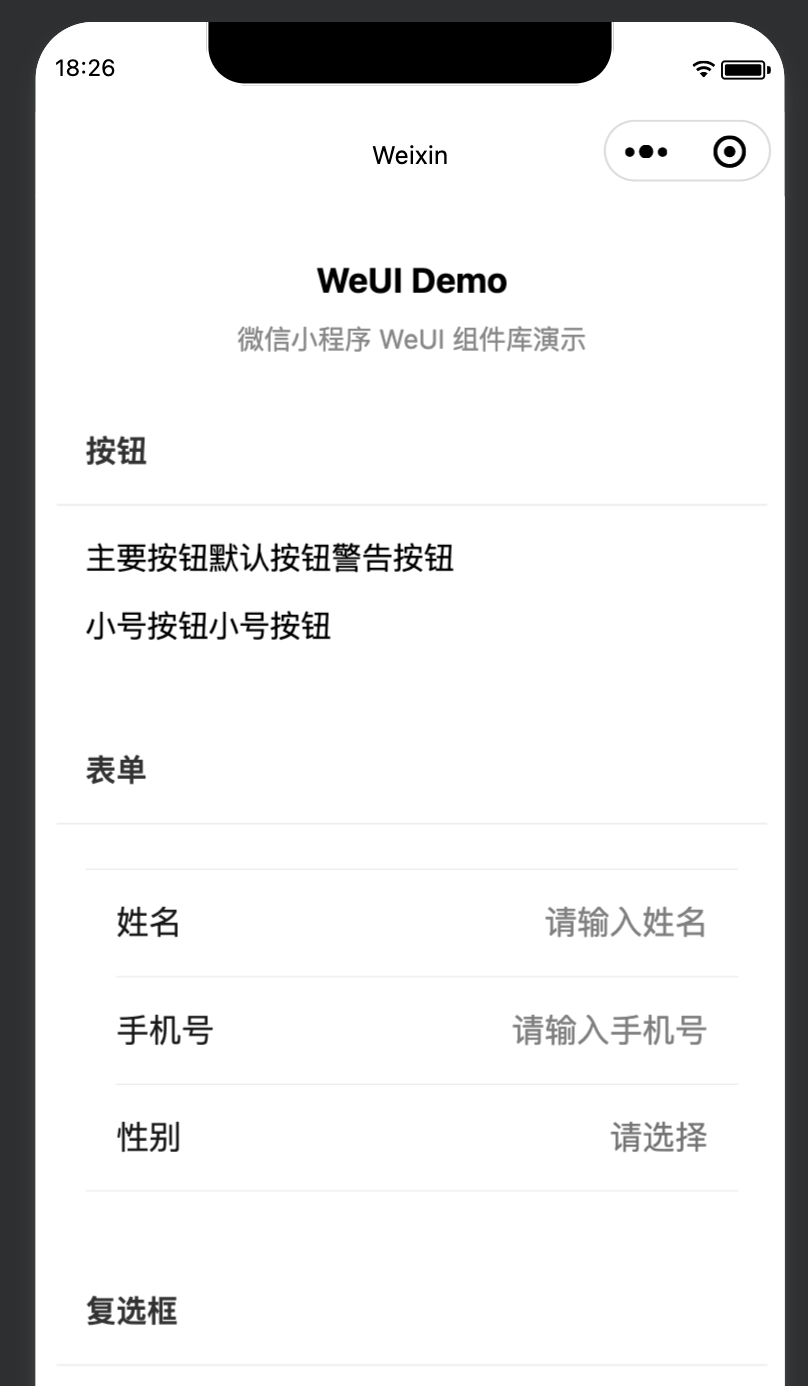
引入WeUI组件库
一、 useExtendedLib 扩展库引入
在app.json中配置
json
{
  "useExtendedLib": {
    "weui": true
  }
}
二、npm安装
初始化npm:
在项目根目录打开终端,执行:
bash
npm init -y安装 WeUI 组件库
bash
npm install weui-miniprogram安装完成后,项目根目录会出现 node_modules文件夹,其中包含 weui-miniprogram。
在微信开发者工具中构建 npm
- 打开微信开发者工具
- 点击顶部菜单 工具 → 构建 npm
- 等待构建完成,控制台显示 "npm 构建完成"
构建成功后,项目根目录会生成 miniprogram_npm文件夹,WeUI 组件就在这里。
引入WeUI样式:
在 app.wxss文件顶部添加:
css
/* app.wxss */

/* 引入 WeUI 基础样式 */
@import 'weui-miniprogram/weui-wxss/dist/style/weui.wxss';
三、注册并使用组件
3.1、全局注册
在 app.json中注册常用组件:
json
{
  "pages": [
    "pages/index/index"
  ],
  "window": {
    "navigationBarTitleText": "WeUI Demo"
  },
  "usingComponents": {
    "mp-cells": "weui-miniprogram/cells/cells",
    "mp-cell": "weui-miniprogram/cell/cell",
    "mp-icon": "weui-miniprogram/icon/icon",
    "mp-form": "weui-miniprogram/form/form",
    "mp-checkbox-group": "weui-miniprogram/checkbox-group/checkbox-group",
    "mp-checkbox": "weui-miniprogram/checkbox/checkbox",
    "mp-uploader": "weui-miniprogram/uploader/uploader",
    "mp-toptips": "weui-miniprogram/toptips/toptips",
    "mp-dialog": "weui-miniprogram/dialog/dialog",
    "mp-msg": "weui-miniprogram/msg/msg",
    "mp-loading": "weui-miniprogram/loading/loading",
    "mp-search-bar": "weui-miniprogram/searchbar/searchbar",
    "mp-tabbar": "weui-miniprogram/tabbar/tabbar",
    "mp-navigation-bar": "weui-miniprogram/navigation-bar/navigation-bar"
  }
}
3.2、局部注册
如果只在某个页面使用某些组件,可以在该页面的 .json文件中注册:
json
{
  "usingComponents": {
    "mp-cells": "weui-miniprogram/cells/cells",
    "mp-cell": "weui-miniprogram/cell/cell"
  }
}
四、使用示例
html
<!-- pages/index/index.wxml -->

<!-- 页面标题 -->
<view class="page">
  <view class="page__hd">
    <view class="page__title">WeUI Demo</view>
    <view class="page__desc">微信小程序 WeUI 组件库演示</view>
  </view>

  <!-- 按钮示例 -->
  <view class="page__bd">
    <view class="section">
      <view class="section__title">按钮</view>
      <view class="section__content">
        <mp-button type="primary" bindtap="onPrimaryTap">主要按钮</mp-button>
        <mp-button type="default">默认按钮</mp-button>
        <mp-button type="warn">警告按钮</mp-button>

        <view style="margin-top: 20rpx;">
          <mp-button type="primary" size="mini">小号按钮</mp-button>
          <mp-button type="default" size="mini">小号按钮</mp-button>
        </view>
      </view>
    </view>

    <!-- 表单示例 -->
    <view class="section">
      <view class="section__title">表单</view>
      <view class="section__content">
        <mp-form>
          <mp-cells>
            <mp-cell title="姓名" required>
              <input
                slot="footer"
                class="weui-input"
                placeholder="请输入姓名"
                bindinput="onNameInput"
              />
            </mp-cell>
            <mp-cell title="手机号" required>
              <input
                slot="footer"
                class="weui-input"
                type="number"
                maxlength="11"
                placeholder="请输入手机号"
                bindinput="onPhoneInput"
              />
            </mp-cell>
            <mp-cell title="性别" is-link>
              <picker
                slot="footer"
                mode="selector"
                range="{{genderOptions}}"
                bindchange="onGenderChange"
              >
                <view class="weui-input">{{selectedGender || '请选择'}}</view>
              </picker>
            </mp-cell>
          </mp-cells>
        </mp-form>
      </view>
    </view>

    <!-- 复选框示例 -->
    <view class="section">
      <view class="section__title">复选框</view>
      <view class="section__content">
        <mp-checkbox-group bindchange="onCheckboxChange">
          <mp-checkbox
            label="选项一"
            value="option1"
            checked="false"
          />
          <mp-checkbox
            label="选项二"
            value="option2"
            checked="true"
          />
          <mp-checkbox
            label="选项三"
            value="option3"
            checked="false"
          />
        </mp-checkbox-group>
      </view>
    </view>

    <!-- 上传图片示例 -->
    <view class="section">
      <view class="section__title">上传图片</view>
      <view class="section__content">
        <mp-uploader
          files="{{files}}"
          binddelete="onUploadDelete"
          bindselect="onUploadSelect"
          bindfail="onUploadFail"
        />
      </view>
    </view>

    <!-- 消息提示示例 -->
    <view class="section">
      <view class="section__title">消息提示</view>
      <view class="section__content">
        <mp-button type="primary" bindtap="showSuccessMsg">成功提示</mp-button>
        <mp-button type="warn" bindtap="showWarnMsg">警告提示</mp-button>
        <mp-button type="default" bindtap="showLoading">加载中</mp-button>
      </view>
    </view>
  </view>
</view>
js
// pages/index/index.js

Page({
  data: {
    // 表单数据
    name: '',
    phone: '',
    selectedGender: '',
    genderOptions: ['男', '女'],

    // 复选框数据
    checkboxValues: [],

    // 上传文件数据
    files: []
  },

  // 输入框事件处理
  onNameInput(e) {
    this.setData({ name: e.detail.value });
  },

  onPhoneInput(e) {
    this.setData({ phone: e.detail.value });
  },

  onGenderChange(e) {
    const index = e.detail.value;
    this.setData({ selectedGender: this.data.genderOptions[index] });
  },

  // 复选框变化
  onCheckboxChange(e) {
    this.setData({ checkboxValues: e.detail });
  },

  // 文件上传处理
  onUploadSelect(e) {
    const { files } = e.detail;
    // 这里可以调用 wx.uploadFile 上传到服务器
    this.setData({ files: [...this.data.files, ...files] });
  },

  onUploadDelete(e) {
    const { index } = e.detail;
    const files = [...this.data.files];
    files.splice(index, 1);
    this.setData({ files });
  },

  onUploadFail(e) {
    wx.showToast({
      title: '上传失败',
      icon: 'none'
    });
  },

  // 消息提示
  showSuccessMsg() {
    wx.showToast({
      title: '操作成功',
      icon: 'success'
    });
  },

  showWarnMsg() {
    wx.showModal({
      title: '警告',
      content: '这是一个警告提示',
      showCancel: false,
      confirmColor: '#E64340'
    });
  },

  showLoading() {
    wx.showLoading({
      title: '加载中...'
    });
    setTimeout(() => {
      wx.hideLoading();
    }, 2000);
  },

  // 按钮点击事件
  onPrimaryTap() {
    wx.showToast({
      title: '点击了主要按钮',
      icon: 'none'
    });
  }
});
css
/* pages/index/index.wxss */

.page {
  padding: 20rpx;
}

.page__hd {
  padding: 40rpx 0;
  text-align: center;
}

.page__title {
  font-size: 36rpx;
  font-weight: bold;
  color: #000;
}

.page__desc {
  margin-top: 10rpx;
  font-size: 28rpx;
  color: #888;
}

.section {
  margin-bottom: 40rpx;
  background-color: #fff;
  border-radius: 16rpx;
  overflow: hidden;
}

.section__title {
  padding: 30rpx;
  font-size: 32rpx;
  font-weight: bold;
  color: #333;
  border-bottom: 1rpx solid #eee;
}

.section__content {
  padding: 30rpx;
}

.weui-input {
  text-align: right;
}