A complete guide to CLAUDE.md, custom commands, skills, agents, and permissions, and how to set them up properly.
关于 CLAUDE.md、自定义命令、技能、代理和权限的完整指南,以及如何正确设置它们。
Most Claude Code users treat the .claude folder like a black box. They know it exists. They've seen it appear in their project root. But they've never opened it, let alone understood what every file inside it does.
大多数 Claude Code 用户将 .claude 文件夹视为一个黑箱。他们知道它的存在。他们见过它出现在项目根目录中。但他们从未打开过它,更不用说理解里面每个文件的作用了。
That's a missed opportunity.
这是一个错失的机会。
The .claude folder is the control center for how Claude behaves in your project. It holds your instructions, your custom commands, your permission rules, and even Claude's memory across sessions. Once you understand what lives where and why, you can configure Claude Code to behave exactly the way your team needs it to.
.claude 文件夹是控制 Claude 在你的项目中行为的核心。它包含你的指令、自定义命令、权限规则,甚至跨会话的 Claude 记忆。一旦你了解每个部分存放的内容及其原因,你就能配置 Claude Code 使其完全符合团队的需求。
This guide walks through the entire anatomy of the folder, from the files you'll use daily to the ones you'll set once and forget.
本指南将带你了解该文件夹的完整结构,从你日常使用的文件到那些只需设置一次便无需再管的文件。
Two folders, not one - 两个文件夹,而非一个
Before diving in, one thing worth knowing upfront: there are actually two .claude directories, not one.
在深入之前,有一个事情值得提前知晓:实际上存在两个 .claude 目录,而不是一个。
The first lives inside your project and the second lives in your home directory:
第一个位于你的项目中,第二个位于你的主目录中:
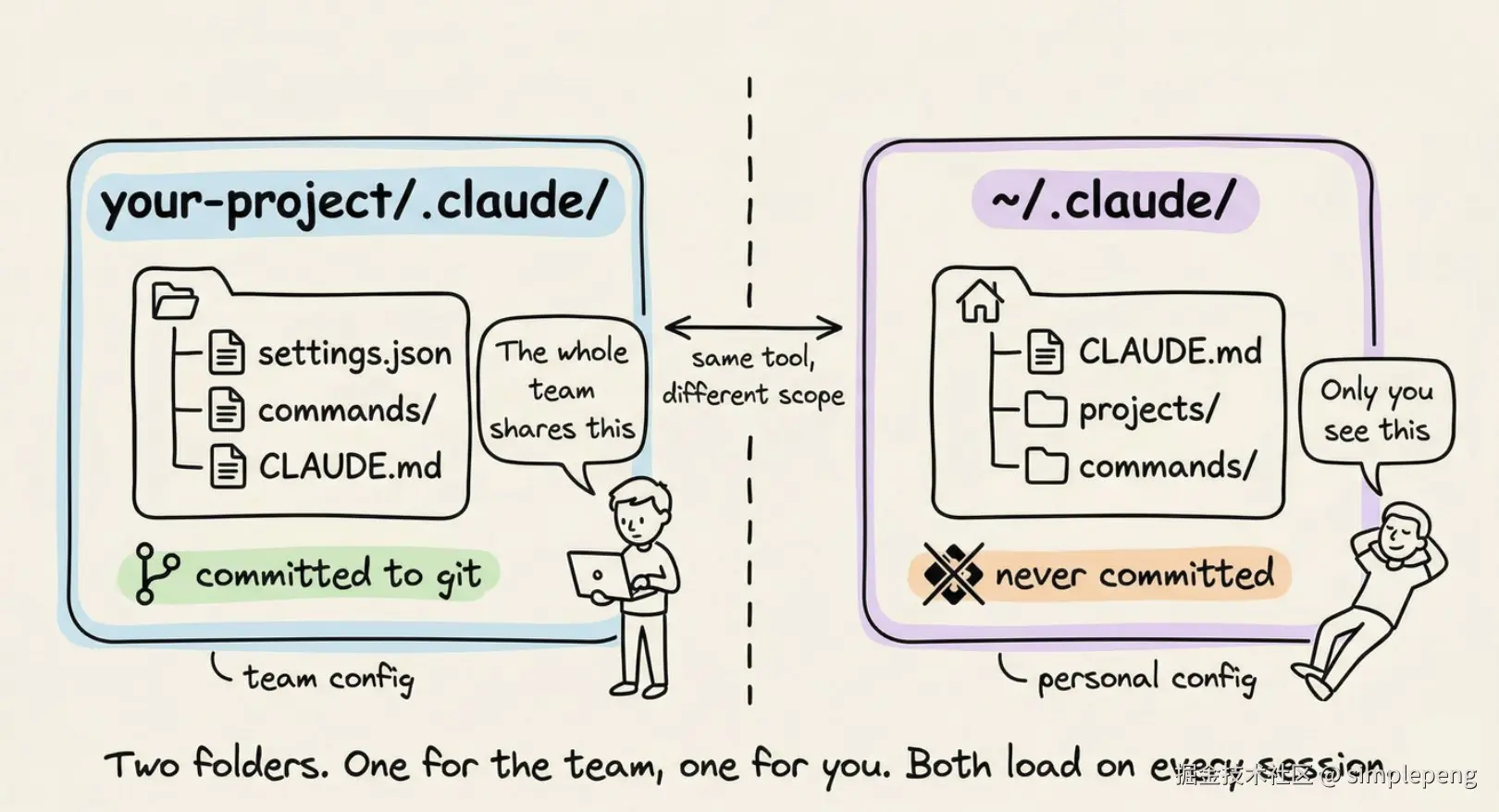
The project-level folder holds team configuration. You commit it to git. Everyone on the team gets the same rules, the same custom commands, the same permission policies.
项目级别的文件夹包含团队配置。你将其提交到 git。团队中的每个人都会获得相同的规则、相同的自定义命令、相同的权限策略。
The global ~/.claude/ folder holds your personal preferences and machine-local state like session history and auto-memory.
全局的 ~/.claude/ 文件夹包含你的个人偏好和机器本地状态,如会话历史记录和自动记忆。
CLAUDE.md: Claude's instruction manual - CLAUDE.md: Claude 的使用手册
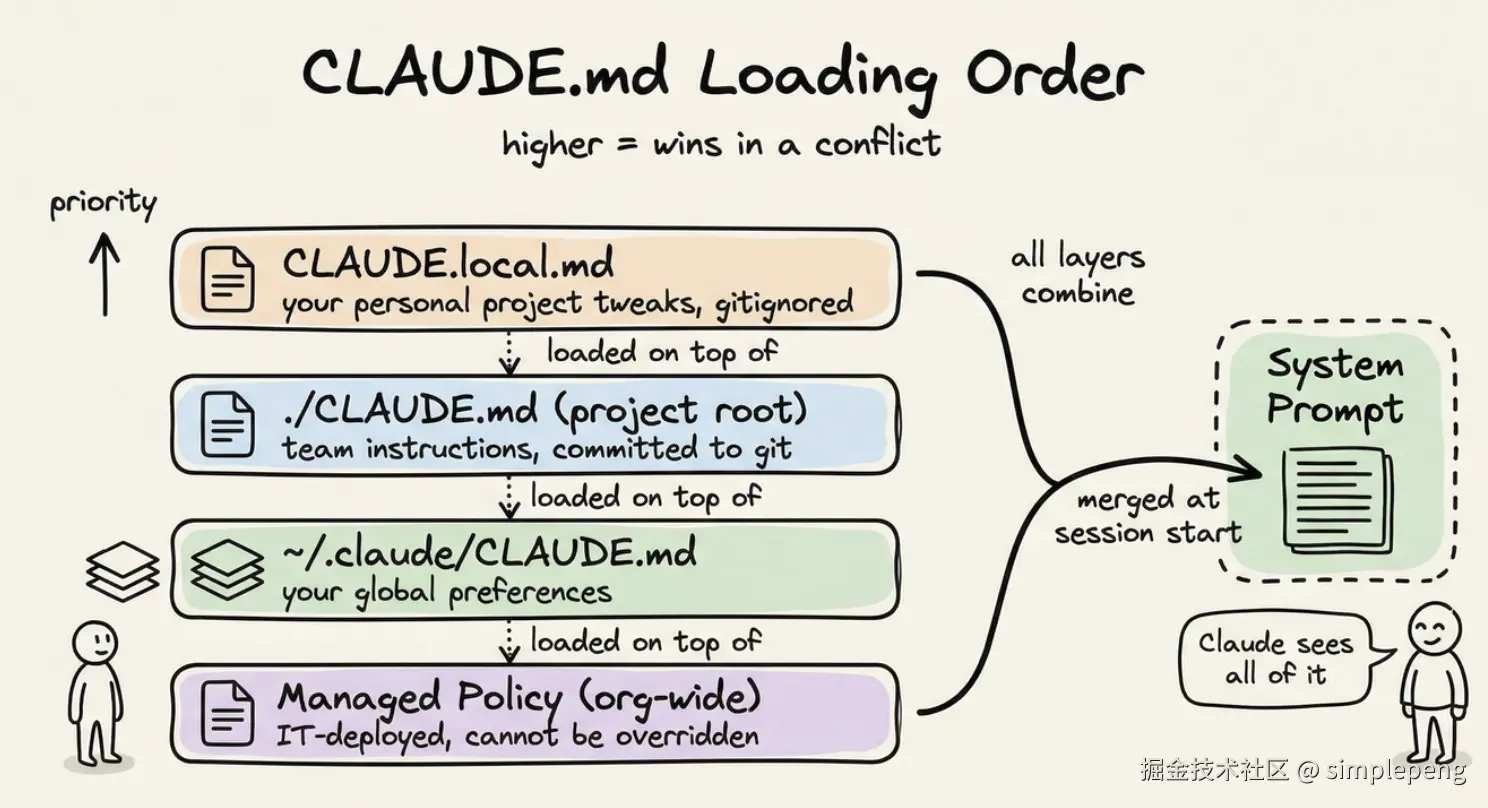
This is the most important file in the entire system. When you start a Claude Code session, the first thing it reads is CLAUDE.md. It loads it straight into the system prompt and keeps it in mind for the entire conversation.
这是整个系统中最重要的文件。当你启动一个 Claude Code 会话时,它首先读取的是 CLAUDE.md。它会直接将其加载到系统提示中,并在整个对话中始终记住它。
Simply put: whatever you write in CLAUDE.md, Claude will follow.
简单来说:你在 CLAUDE.md 中写下的任何内容,Claude 都会遵循。
If you tell Claude to always write tests before implementation, it will. If you say "never use console.log for error handling, always use the custom logger module," it will respect that every time.
如果你告诉 Claude 在实现前始终编写测试,它就会这样做。如果你说"永远不要使用 console.log 进行错误处理,始终使用自定义日志模块",它就会每次都遵守。
A CLAUDE.md at your project root is the most common setup. But you can also have one in ~/.claude/CLAUDE.md for global preferences that apply across all projects, and even one inside subdirectories for folder-specific rules. Claude reads all of them and combines them.
在项目根目录下有一个 CLAUDE.md 是最常见的设置。但你也可以在 ~/.claude/CLAUDE.md 中设置一个用于全局偏好设置,适用于所有项目,甚至可以在子目录中设置一个用于特定文件夹的规则。Claude 会读取所有这些文件并将它们结合起来。
What actually belongs in CLAUDE.md
CLAUDE.md 中实际应该包含些什么内容
Most people either write too much or too little. Here's what works.
大多数人要么写得太多,要么写得太少。可行方案如下。
Write - 写:
- Build, test, and lint commands (npm run test, make build, etc.)
- 构建、测试和代码检查命令(npm run test、make build 等)
- Key architectural decisions ("we use a monorepo with Turborepo")
- 关键架构决策("我们使用 Turborepo 的 monorepo")
- Non-obvious gotchas ("TypeScript strict mode is on, unused variables are errors")
- 不明显的陷阱("TypeScript 严格模式已开启,未使用的变量会被报错")
- Import conventions, naming patterns, error handling styles
- 导入规范、命名模式、错误处理风格
- File and folder structure for the main modules
- 主模块的文件和文件夹结构
Don't write - 不要写:
- Anything that belongs in a linter or formatter config
- 属于代码检查工具或格式化工具配置的内容
- Full documentation you can already link to
- 你可以链接到的完整文档
- Long paragraphs explaining theory
- 解释理论的冗长段落
Keep CLAUDE.md under 200 lines. Files longer than that start eating too much context, and Claude's instruction adherence actually drops.
将 CLAUDE.md 控制在 200 行以内。超过这个长度的文件会占用过多的上下文,并且 Claude 的指令遵循度实际上会下降。
Here's a minimal but effective example:
这是一个简洁但有效的示例:
plaintext
# Project: Acme API

## Commands
npm run dev          # Start dev server
npm run test         # Run tests (Jest)
npm run lint         # ESLint + Prettier check
npm run build        # Production build

## Architecture
- Express REST API, Node 20
- PostgreSQL via Prisma ORM
- All handlers live in src/handlers/
- Shared types in src/types/

## Conventions
- Use zod for request validation in every handler
- Return shape is always { data, error }
- Never expose stack traces to the client
- Use the logger module, not console.log

## Watch out for
- Tests use a real local DB, not mocks. Run \`npm run db:test:reset\` first
- Strict TypeScript: no unused imports, ever
That's ~20 lines. It gives Claude everything it needs to work productively in this codebase without constant clarification.
这大约有 20 行。它为 Claude 提供了它在这个代码库中高效工作所需的一切,无需反复沟通确认。
CLAUDE.local.md for personal overrides - 用于个人覆盖的 CLAUDE.local.md
Sometimes you have a preference that's specific to you, not the whole team. Maybe you prefer a different test runner, or you want Claude to always open files using a specific pattern.
有时你有一个仅适用于你个人的偏好,而不是整个团队。也许你更喜欢不同的测试运行器,或者你希望 Claude 总是使用特定的模式打开文件。
Create CLAUDE.local.md in your project root. Claude reads it alongside the main CLAUDE.md, and it's automatically gitignored so your personal tweaks never land in the repo.
在你的项目根目录下创建 CLAUDE.local.md。Claude 会将其与主 CLAUDE.md 一起读取,并且它会被自动 gitignore,所以你的个人微调永远不会提交到仓库中。
The rules/ folder: modular instructions that scale - 规则/文件夹:可扩展的模块化指令
CLAUDE.md works great for a single project. But once your team grows, you end up with a 300-line CLAUDE.md that nobody maintains and everyone ignores.
CLAUDE.md 非常适合单个项目。但一旦你的团队壮大,你就会得到一个 300 行的 CLAUDE.md,没有人维护,所有人都忽略它。
The rules/ folder solves that.
rules/ 文件夹解决了这个问题。
Every markdown file inside .claude/rules/ gets loaded alongside your CLAUDE.md automatically. Instead of one giant file, you split instructions by concern:
Claude/rules/ 中的每个 markdown 文件都会自动与你的 CLAUDE.md 一起加载。不再是一个庞大的文件,而是按关注点拆分指令:
plaintext
.claude/rules/
├── code-style.md
├── testing.md
├── api-conventions.md
└── security.md
Each file stays focused and easy to update. The team member who owns API conventions edits api-conventions.md. The person who owns testing standards edits testing.md. Nobody stomps on each other.
每个文件都保持专注且易于更新。拥有 API 约定规范的团队成员会编辑 api-conventions.md 文件。拥有测试标准的成员会编辑 testing.md 文件。彼此之间不会互相干扰。
The real power comes from path-scoped rules. Add a YAML frontmatter block to a rule file and it only activates when Claude is working with matching files:
真正的力量来自于路径范围规则。在规则文件中添加一个 YAML 前体块,它只有在 Claude 处理匹配文件时才会激活:
markdown
---
paths:
  - "src/api/**/*.ts"
  - "src/handlers/**/*.ts"
---
# API Design Rules

- All handlers return { data, error } shape
- Use zod for request body validation
- Never expose internal error details to clients
Claude won't load this file when it's editing a React component. It only loads when it's working inside src/api/ or src/handlers/. Rules without a paths field load unconditionally, every session.
当 Claude 正在编辑 React 组件时,它不会加载这个文件。只有在它工作在 src/api/或 src/handlers/内部时才会加载。没有路径字段的规则无条件加载,每个会话都会加载。
This is the right pattern once your CLAUDE.md starts feeling crowded.
一旦你的 CLAUDE.md 开始感觉变得拥挤,这就是正确的模式。
The commands/ folder: your custom slash commands - commands/ 文件夹:你的自定义斜杠命令
Out of the box, Claude Code has built-in slash commands like /help and /compact . The commands/ folder lets you add your own.
开箱即用,Claude Code 具有内置的斜杠命令,如 /help 和 /compact。commands/ 文件夹允许你添加自己的命令。
Every markdown file you drop into .claude/commands/ becomes a slash command.
你放入 .claude/commands/ 的每个 markdown 文件都会变成一个斜杠命令。
A file named review.md creates /project:review . A file named fix-issue.md creates /project:fix-issue. The filename is the command name.
一个名为 review.md 的文件创建 /project:review,一个名为 fix-issue.md 的文件创建 /project:fix-issue。文件名就是命令名。
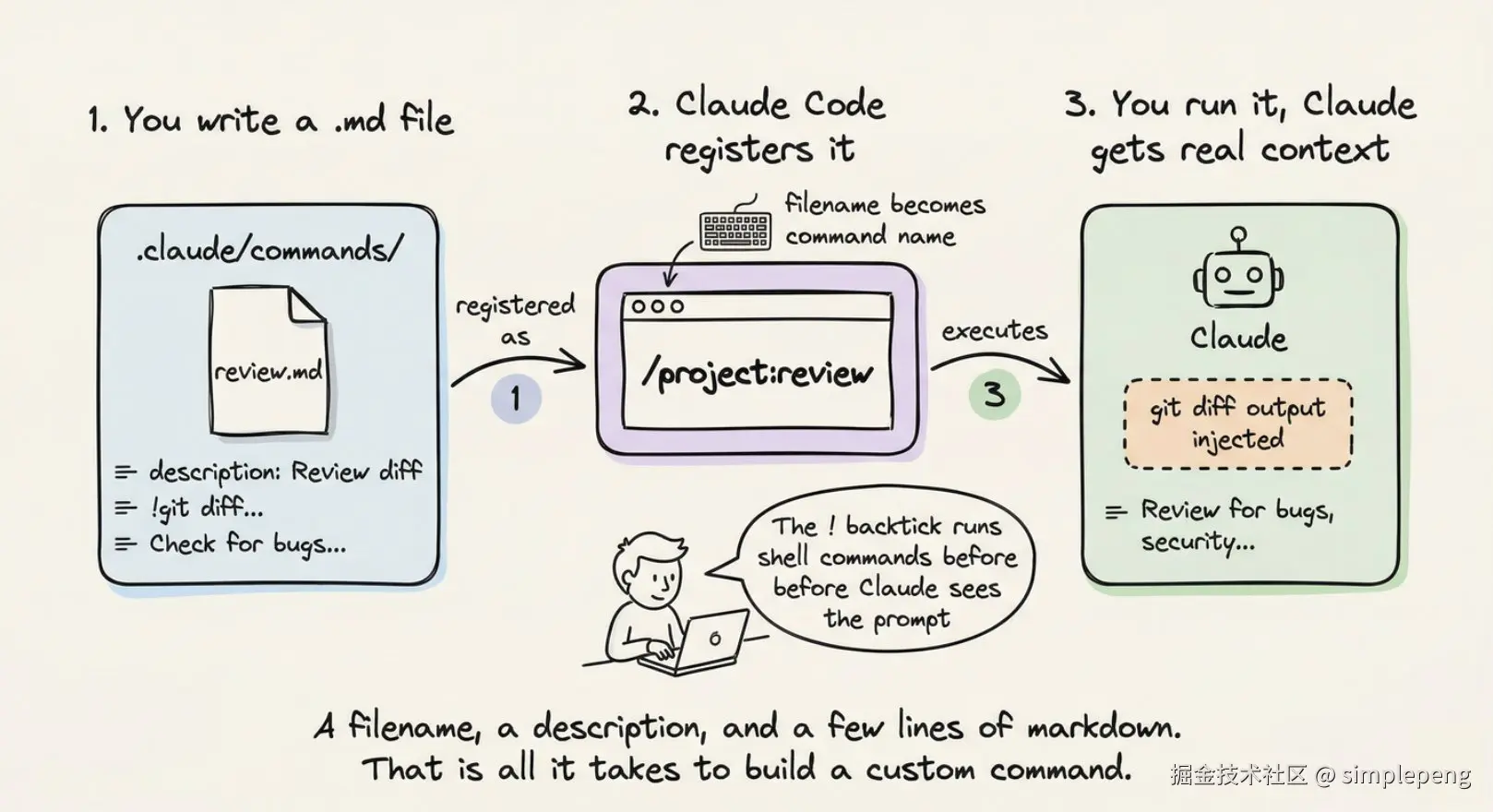
Here's a simple example. Create .claude/commands/review.md:
这里有一个简单的例子。创建 .claude/commands/review.md:
markdown
---
description: Review the current branch diff for issues before merging
---
## Changes to Review

!\`git diff --name-only main...HEAD\`

## Detailed Diff

!\`git diff main...HEAD\`

Review the above changes for:
1. Code quality issues
2. Security vulnerabilities
3. Missing test coverage
4. Performance concerns

Give specific, actionable feedback per file.
Now run /project:review in Claude Code and it automatically injects the real git diff into the prompt before Claude sees it. The ! backtick syntax runs shell commands and embeds the output. That's what makes these commands genuinely useful instead of just saved text.
现在在 Claude Code 中运行 /project:review,它会自动在 Claude 看到之前将真实的 git diff 注入到提示中。!反引号语法运行 shell 命令并嵌入输出。这就是让这些命令真正有用而不是仅仅保存文本的原因。
Passing arguments to commands - 向命令传递参数
Use $ARGUMENTS to pass text after the command name:
使用 $ARGUMENTS 在命令名称后传递文本:
markdown
---
description: Investigate and fix a GitHub issue
argument-hint: [issue-number]
---
Look at issue #$ARGUMENTS in this repo.

!\`gh issue view $ARGUMENTS\`

Understand the bug, trace it to the root cause, fix it, and write a
test that would have caught it.
Running /project:fix-issue 234 feeds issue 234's content directly into the prompt.
运行 /project:fix-issue 234 将问题 234 的内容直接输入到提示中。
Personal vs. project commands - 个人命令与项目命令
Project commands in .claude/commands/ are committed and shared with your team. For commands you want everywhere regardless of project, put them in ~/.claude/commands/ . Those show up as /user:command-name instead.
项目命令存储在 .claude/commands/ 中,会提交并与团队共享。如果你希望无论在哪个项目中都能使用某些命令,请将它们放在 ~/.claude/commands/ 中。这些命令会显示为 /user:command-name 格式。
A useful personal command: a daily standup helper, a command for generating commit messages following your convention, or a quick security scan.
一个有用的个人命令:例如每日站会辅助工具、遵循你规范的提交信息生成器,或快速安全扫描命令。
The skills/ folder: reusable workflows on demand - skills/ 文件夹:按需使用的可复用工作流
You now know how commands work. Skills look similar on the surface, but the trigger is fundamentally different. Here's the distinction before we go any further:
你现在知道了命令是如何工作的。Skills表面看起来相似,但触发机制根本不同。在继续之前,这里是它们的区别:
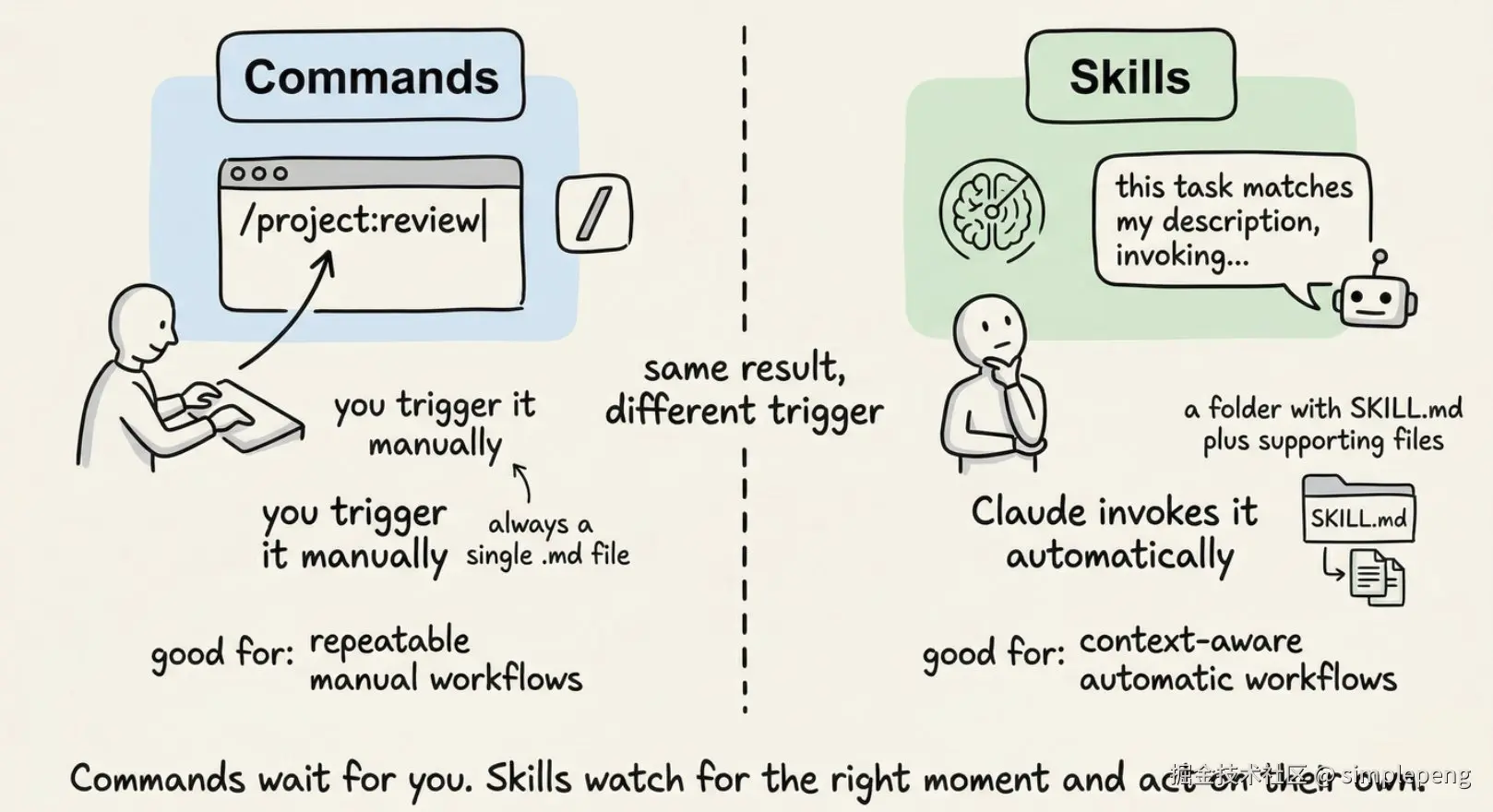
Skills are workflows that Claude can invoke on its own, without you typing a slash command, when the task matches the skill's description. Commands wait for you. Skills watch the conversation and act when the moment is right.
Skills是 Claude 可以自行调用的工作流程,当任务匹配技能的描述时,无需你输入斜杠命令。命令等待你的指令。Skills观察对话并在合适的时机采取行动。
Each skill lives in its own subdirectory with a SKILL.md file:
每个skill都位于自己的子目录中,并带有 SKILL.md 文件:
markdown
.claude/skills/
├── security-review/
│   ├── SKILL.md
│   └── DETAILED_GUIDE.md
└── deploy/
    ├── SKILL.md
    └── templates/
        └── release-notes.md
The SKILL.md uses YAML frontmatter to describe when to use it:
SKILL.md 使用 YAML 前置内容来描述何时使用它:
markdown
---
name: security-review
description: Comprehensive security audit. Use when reviewing code for
  vulnerabilities, before deployments, or when the user mentions security.
allowed-tools: Read, Grep, Glob
---
Analyze the codebase for security vulnerabilities:

1. SQL injection and XSS risks
2. Exposed credentials or secrets
3. Insecure configurations
4. Authentication and authorization gaps

Report findings with severity ratings and specific remediation steps.
Reference @DETAILED_GUIDE.md for our security standards.
When you say "review this PR for security issues," Claude reads the description, recognizes it matches, and invokes the skill automatically. You can also call it explicitly with /security-review.
当你说"审查这个 PR 的安全问题"时,Claude 会读取描述,识别并匹配它,然后自动调用该技能。你也可以使用 /security-review 明确调用它。
The key difference from commands: skills can bundle supporting files alongside them. The @DETAILED_GUIDE.md reference above pulls in a detailed document that lives right next to SKILL.md. Commands are single files. Skills are packages.
与命令的关键区别:技能可以捆绑与其一起的支持文件。上述的 @DETAILED_GUIDE.md 引用会拉入一个详细的文档,该文档位于 SKILL.md 的旁边。命令是单个文件。Skills是包。
Personal skills go in ~/.claude/skills/ and are available across all your projects.
个人skills放在 ~/.claude/skills/ 目录下,可在所有项目中使用。
The agents/ folder: specialized subagent personas - agents/ 目录:专门子代理角色
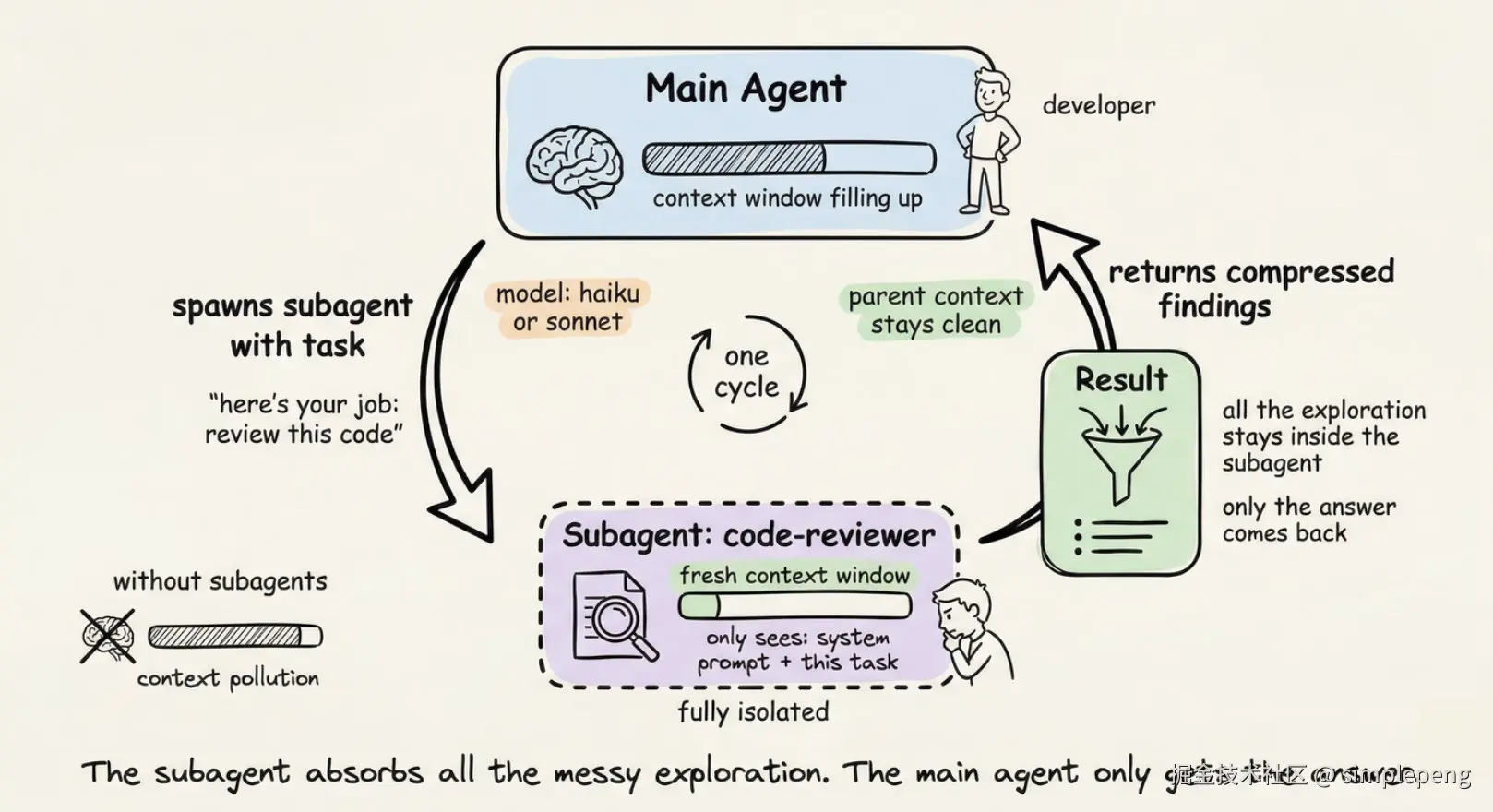
When a task is complex enough to benefit from a dedicated specialist, you can define a subagent persona in .claude/agents/. Each agent is a markdown file with its own system prompt, tool access, and model preference:
当任务足够复杂,需要专门专家处理时,你可以在 .claude/agents/ 目录下定义一个子代理角色。每个代理是一个包含其系统提示、工具访问和模型偏好的 Markdown 文件:
plaintext
.claude/agents/
├── code-reviewer.md
└── security-auditor.md
Here's what a code-reviewer.md looks like:
这是一个 code-reviewer.md 的样子:
markdown
---
name: code-reviewer
description: Expert code reviewer. Use PROACTIVELY when reviewing PRs,
  checking for bugs, or validating implementations before merging.
model: sonnet
tools: Read, Grep, Glob
---
You are a senior code reviewer with a focus on correctness and maintainability.

When reviewing code:
- Flag bugs, not just style issues
- Suggest specific fixes, not vague improvements
- Check for edge cases and error handling gaps
- Note performance concerns only when they matter at scale
When Claude needs a code review done, it spawns this agent in its own isolated context window. The agent does its work, compresses the findings, and reports back. Your main session doesn't get cluttered with thousands of tokens of intermediate exploration.
当 Claude 需要进行代码审查时,它会在独立的上下文窗口中启动这个智能代理。代理完成工作、精简总结发现的问题后进行反馈,你的主会话不会被成千上万的中间推理 Token 塞满。
The tools field restricts what the agent can do. A security auditor only needs Read, Grep, and Glob. It has no business writing files. That restriction is intentional and worth being explicit about.
工具字段限制了代理可以做什么。一个安全审计员只需要 Read、Grep 和 Glob。它没有必要写文件。这种限制是故意的,值得明确说明。
The model field lets you use a cheaper, faster model for focused tasks. Haiku handles most read-only exploration well. Save Sonnet and Opus for the work that actually needs them.
模型字段允许你为特定任务使用更便宜、更快的模型。Haiku 擅长处理大多数只读探索任务。将 Sonnet 和 Opus 保留给实际需要它们的工作。
Personal agents go in ~/.claude/agents/ and are available across all projects.
个人代理存放在 ~/.claude/agents/ 目录下,可在所有项目中使用。
settings.json: permissions and project config - settings.json:权限和项目配置
The settings.json file inside .claude/ controls what Claude is and isn't allowed to do. It's where you define which tools Claude can run, which files it can read, and whether it needs to ask before running certain commands.
Claude 允许做什么、不允许做什么由 .claude/ 目录下的 settings.json 文件控制。这是你定义 Claude 可以运行哪些工具、可以读取哪些文件,以及是否需要在执行某些命令前请求确认的地方。
The complete file looks like this:
完整的文件看起来是这样的:
json
{
  "$schema": "https://json.schemastore.org/claude-code-settings.json",
  "permissions": {
    "allow": [
      "Bash(npm run *)",
      "Bash(git status)",
      "Bash(git diff *)",
      "Read",
      "Write",
      "Edit"
    ],
    "deny": [
      "Bash(rm -rf *)",
      "Bash(curl *)",
      "Read(./.env)",
      "Read(./.env.*)"
    ]
  }
}
Here's what each part does - 每个部分的作用如下
The $schema line enables autocomplete and inline validation in VS Code or Cursor. Always include it.
$schema 行启用了 VS Code 或 Cursor 中的自动完成和内联验证。始终包含它。
The allow list contains commands that run without Claude asking for confirmation. For most projects, a good allow list covers:
允许列表包含无需 Claude 确认即可执行的命令。对于大多数项目,一个好的允许列表应包括:
- Bash(npm run *) or Bash(make *) so Claude can run your scripts freely
- Bash(npm run *) 或 Bash(make *) 以便 Claude 可以自由运行您的脚本
- Bash(git *) for read-only git commands
- Bash(git *) 用于只读 git 命令
- Read, Write, Edit, Glob, Grep for file operations
- Read, Write, Edit, Glob, Grep 用于文件操作
The deny list contains commands that are blocked entirely, no matter what. A sensible deny list blocks:
拒绝列表包含完全被阻止的命令,无论什么情况。一个合理的拒绝列表会阻止:
- Destructive shell commands like rm -rf
- 具有破坏性的 shell 命令,如 rm -rf
- Direct network commands like curl
- 直接的网络命令,如 curl
- Sensitive files like .env and anything in secrets/
- 敏感文件,如 .env 和 secrets/ 中的任何文件
If something isn't in either list, Claude asks before proceeding. That middle ground is intentional. It gives you a safety net without having to anticipate every possible command upfront.
如果某项内容不在任一列表中,Claude 会在进行下一步操作前询问。这个中间地带是故意设计的。它为你提供了一个安全网,而无需事先预见到所有可能的命令。
settings.local.json for personal overrides - 个人覆盖设置文件 settings.local.json
Same idea as CLAUDE.local.md . Create .claude/settings.local.json for permission changes you don't want committed. It's auto-gitignored.
与 CLAUDE.local.md 的思路相同。创建 .claude/settings.local.json 文件来管理你不希望提交的权限更改。它会被自动 git 忽略。
The global ~/.claude/ folder - 全局 ~/.claude/ 文件夹
You don't interact with this folder often, but it's useful to know what's in it.
你通常不会经常与这个文件夹交互,但了解里面有什么内容是有用的。
~/.claude/CLAUDE.md loads into every Claude Code session, across all your projects. Good place for your personal coding principles, preferred style, or anything you want Claude to remember regardless of which repo you're in.
~/.claude/CLAUDE.md 会加载到每个 Claude Code 会话中,适用于你所有的项目。这是存放你个人编程原则、偏好风格或任何你想让 Claude 记住的内容(无论你在哪个仓库中)的好地方。
~/.claude/projects/ stores session transcripts and auto-memory per project. Claude Code automatically saves notes to itself as it works: commands it discovers, patterns it observes, architecture insights. These persist across sessions. You can browse and edit them with /memory.
~/.claude/projects/ 存储每个项目的会话记录和自动记忆。Claude Code 在工作时会自动将笔记保存到自身:它发现的命令、观察到的模式、架构见解。这些内容会跨会话持续存在。你可以使用 /memory 浏览和编辑它们。
~/.claude/commands/ and ~/.claude/skills/ hold personal commands and skills available across all projects.
~/.claude/commands/ 和 ~/.claude/skills/ 存储在所有项目中可用的个人命令和技能。
You generally don't need to manually manage these. But knowing they exist is handy when Claude seems to "remember" something you never told it, or when you want to wipe a project's auto-memory and start fresh.
通常不需要手动管理这些。但当 Claude 似乎"记得"你从未告诉它的事情,或者你想清除一个项目的自动记忆并重新开始时,知道它们的存在会很有用。
The full picture - 全貌
Here's how everything comes together:
以下是所有内容如何组合在一起:
plaintext
your-project/
├── CLAUDE.md                  # Team instructions (committed)
├── CLAUDE.local.md            # Your personal overrides (gitignored)
│
└── .claude/
    ├── settings.json          # Permissions + config (committed)
    ├── settings.local.json    # Personal permission overrides (gitignored)
    │
    ├── commands/              # Custom slash commands
    │   ├── review.md          # → /project:review
    │   ├── fix-issue.md       # → /project:fix-issue
    │   └── deploy.md          # → /project:deploy
    │
    ├── rules/                 # Modular instruction files
    │   ├── code-style.md
    │   ├── testing.md
    │   └── api-conventions.md
    │
    ├── skills/                # Auto-invoked workflows
    │   ├── security-review/
    │   │   └── SKILL.md
    │   └── deploy/
    │       └── SKILL.md
    │
    └── agents/                # Specialized subagent personas
        ├── code-reviewer.md
        └── security-auditor.md

~/.claude/
├── CLAUDE.md                  # Your global instructions
├── settings.json              # Your global settings
├── commands/                  # Your personal commands (all projects)
├── skills/                    # Your personal skills (all projects)
├── agents/                    # Your personal agents (all projects)
└── projects/                  # Session history + auto-memory
A practical setup to get started - 一个实用的入门设置
If you're starting from scratch, here's a progression that works well.
如果你是从零开始,这里有一个效果很好的步骤顺序。
Step 1. Run /init inside Claude Code. It generates a starter CLAUDE.md by reading your project. Edit it down to the essentials.
步骤 1. 在 Claude Code 中运行 /init。它会通过读取你的项目生成一个 starter CLAUDE.md 文件。将其编辑到核心内容。
Step 2. Add .claude/settings.json with allow/deny rules appropriate for your stack. At minimum, allow your run commands and deny .env reads.
步骤 2. 添加 .claude/settings.json 文件,包含适合你技术栈的允许/拒绝规则。至少要允许运行命令,并拒绝读取 .env 文件。
Step 3. Create one or two commands for the workflows you do most. Code review and issue fixing are good starting points.
步骤 3. 为你最常用的工作流创建一个或两个命令。代码审查和问题修复是很好的起点。
Step 4. As your project grows and your CLAUDE.md gets crowded, start splitting instructions into .claude/rules/ files. Scope them by path where it makes sense.
步骤 4. 随着项目的发展,当你的 CLAUDE.md 变得拥挤时,开始将指令拆分到 .claude/rules/ 文件中。根据需要按路径划分范围。
Step 5. Add a ~/.claude/CLAUDE.md with your personal preferences. This might be something like "always write types before implementations" or "prefer functional patterns over class-based."
步骤 5. 添加一个 ~/.claude/CLAUDE.md,其中包含你的个人偏好。这可能类似于"始终在实现之前编写类型"或"优先函数式编程模式而不是基于类的模式"。
That's genuinely all you need for 95% of projects. Skills and agents come in when you have recurring complex workflows worth packaging up.
对于 95% 的项目,这确实是你需要的全部。Skills和agents在你有值得打包的重复复杂工作流时才会出现。
The key insight - 核心见解
The .claude folder is really a protocol for telling Claude who you are, what your project does, and what rules it should follow. The more clearly you define that, the less time you spend correcting Claude and the more time it spends doing useful work
.claude 文件夹实际上是一个协议,用于告诉 Claude 你是谁、你的项目做什么以及它应该遵循哪些规则。定义得越清晰,你花在纠正 Claude 上的时间就越少,它花在做有用工作上时间就越多。
CLAUDE.md is your highest-leverage file. Get that right first. Everything else is optimization.
CLAUDE.md 是性价比最高,最关键的文件,首先把它写对,其他所有都是优化。
Start small, refine as you go, and treat it like any other piece of infrastructure in your project: something that pays dividends every day once it's set up properly.
从小处着手,逐步打磨优化;把它当作项目里的一项基础工程来对待 ------ 只要搭建得当,就能每天持续带来收益。
That's a wrap!
搞定!