【Vue实战】打造全能文件预览组件:支持PDF/Word/Excel/PPT/音视频及Markdown(基于vue-office)
文章目录
前言
好久没有更新了,一直在忙于准备高项考试,唉~,今天发一篇!!
业务场景
公司业务体系中,出彩在外的销售团队,客户经理等,在途中需要用电脑平板向客户展示公司的手册,技术方案,报价等各种文档证明,并且可提供下载,经过讨论,最终封装成文档组件查看器。
先看效果在谈实现
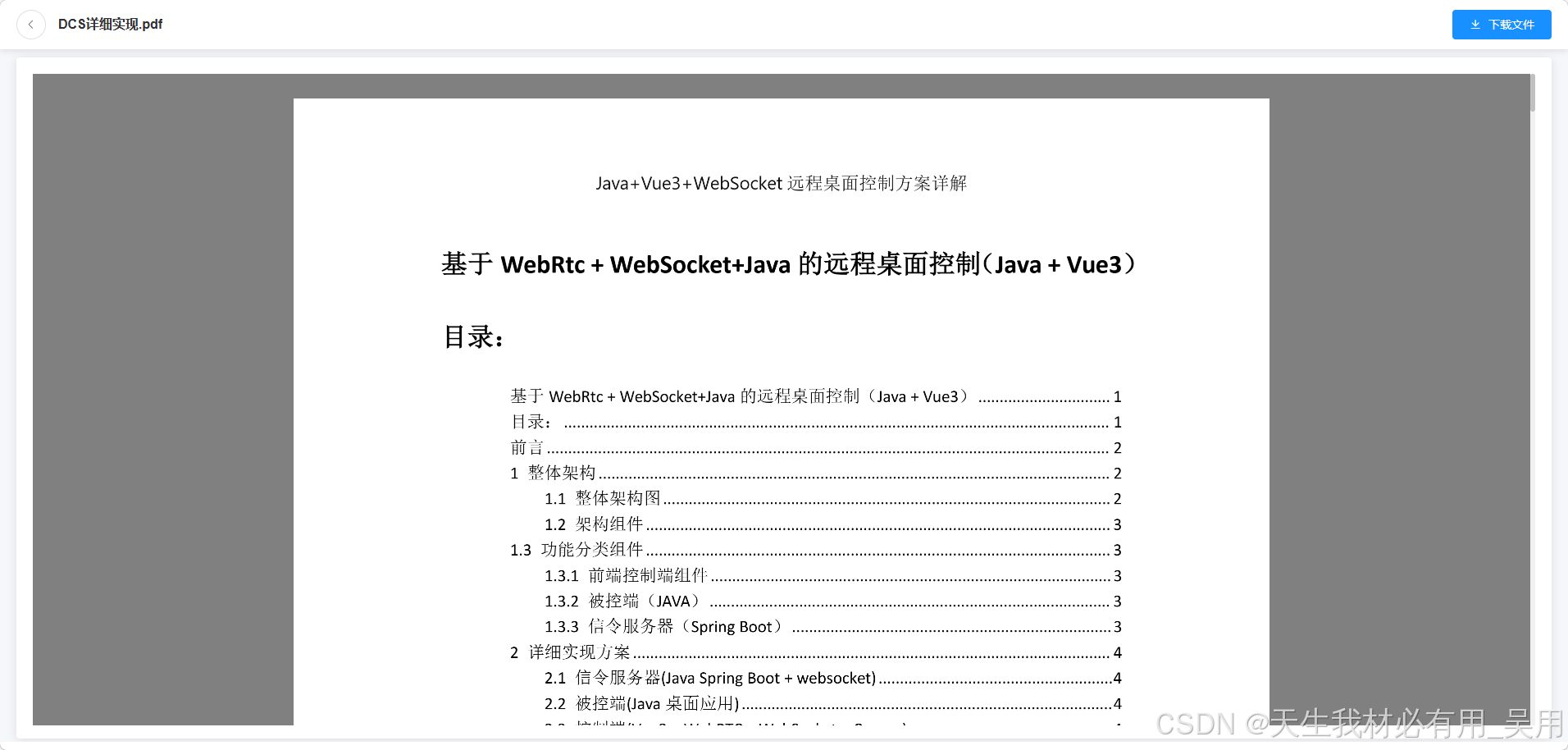
pdf预览效果:
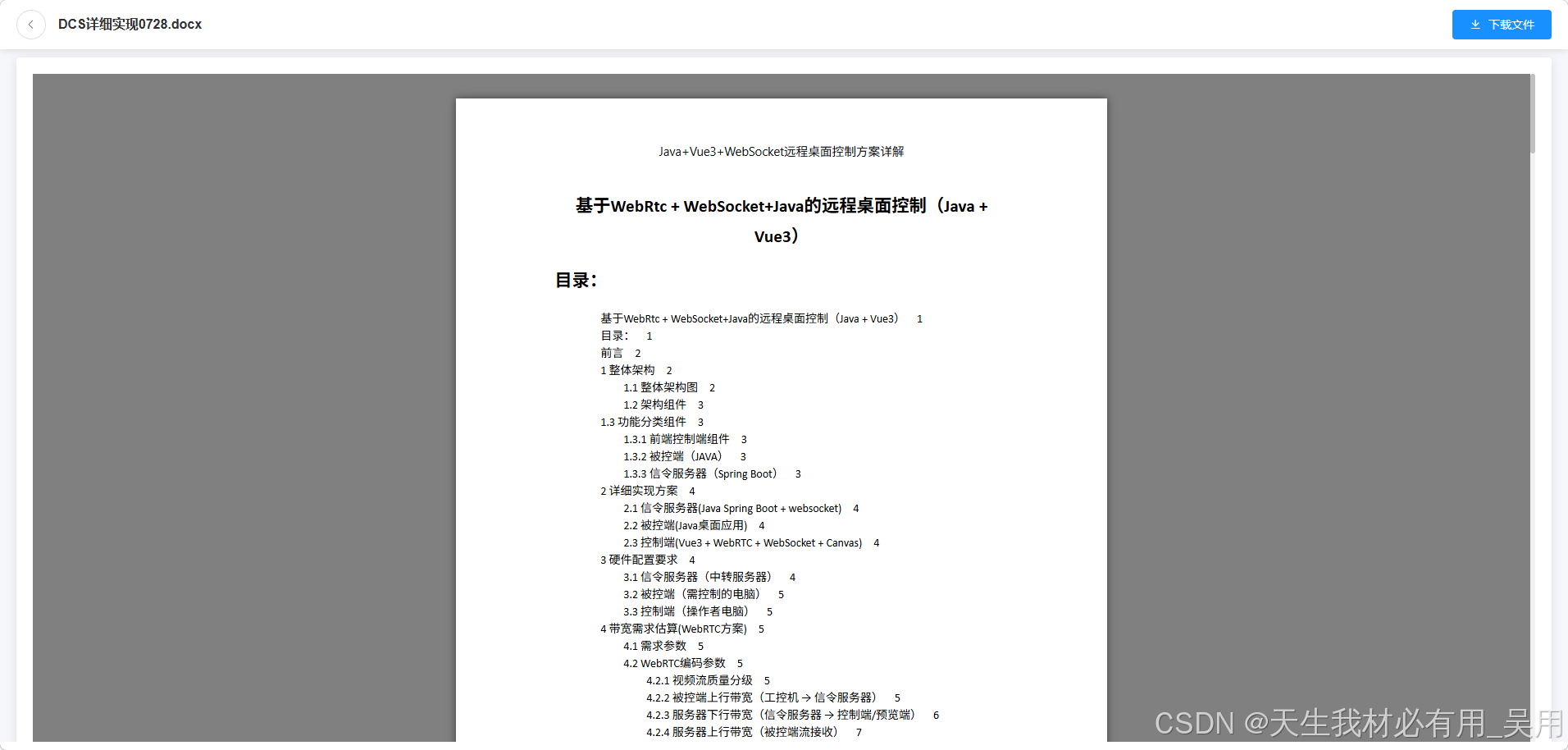
docx预览效果:
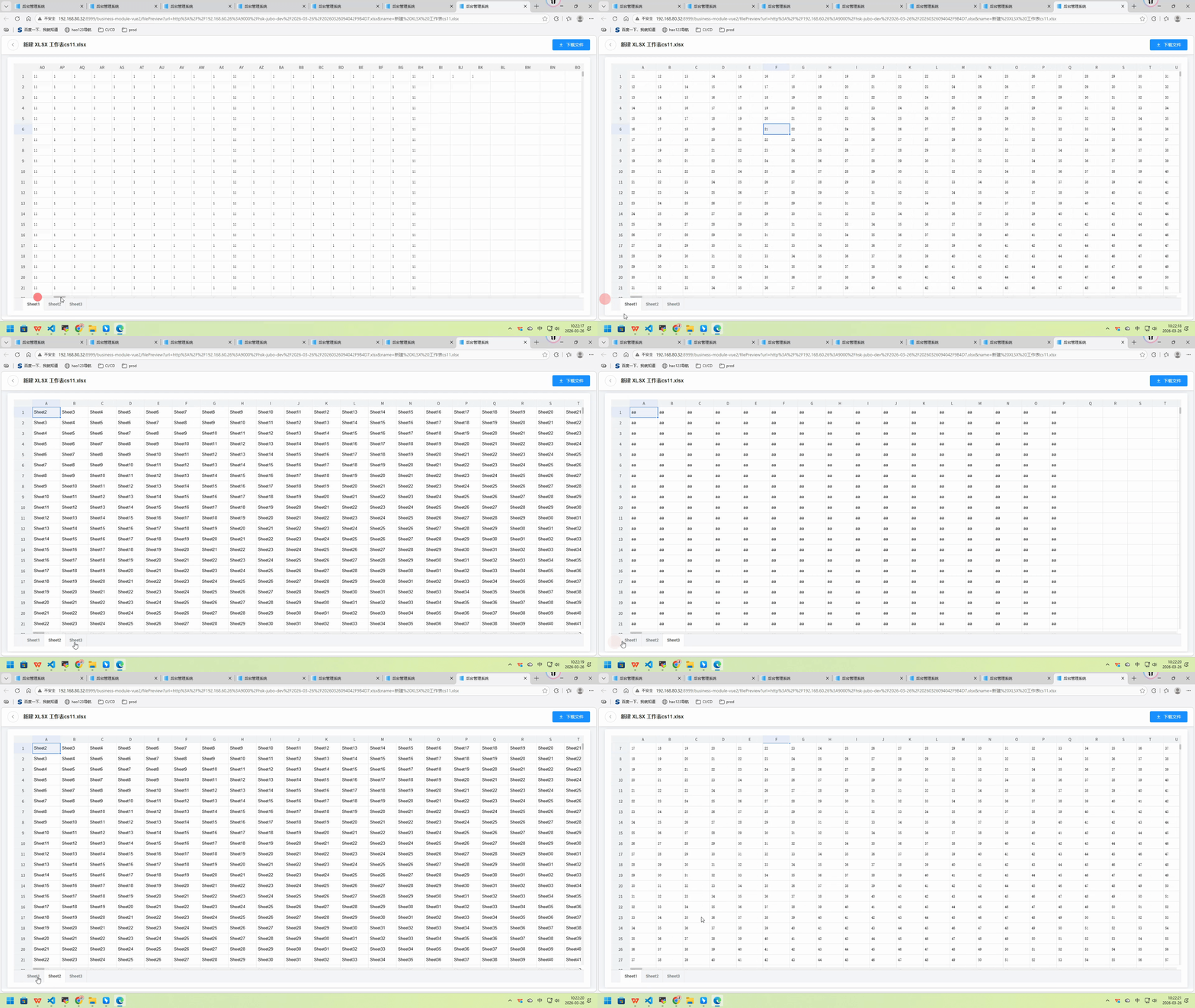
excel预览效果:
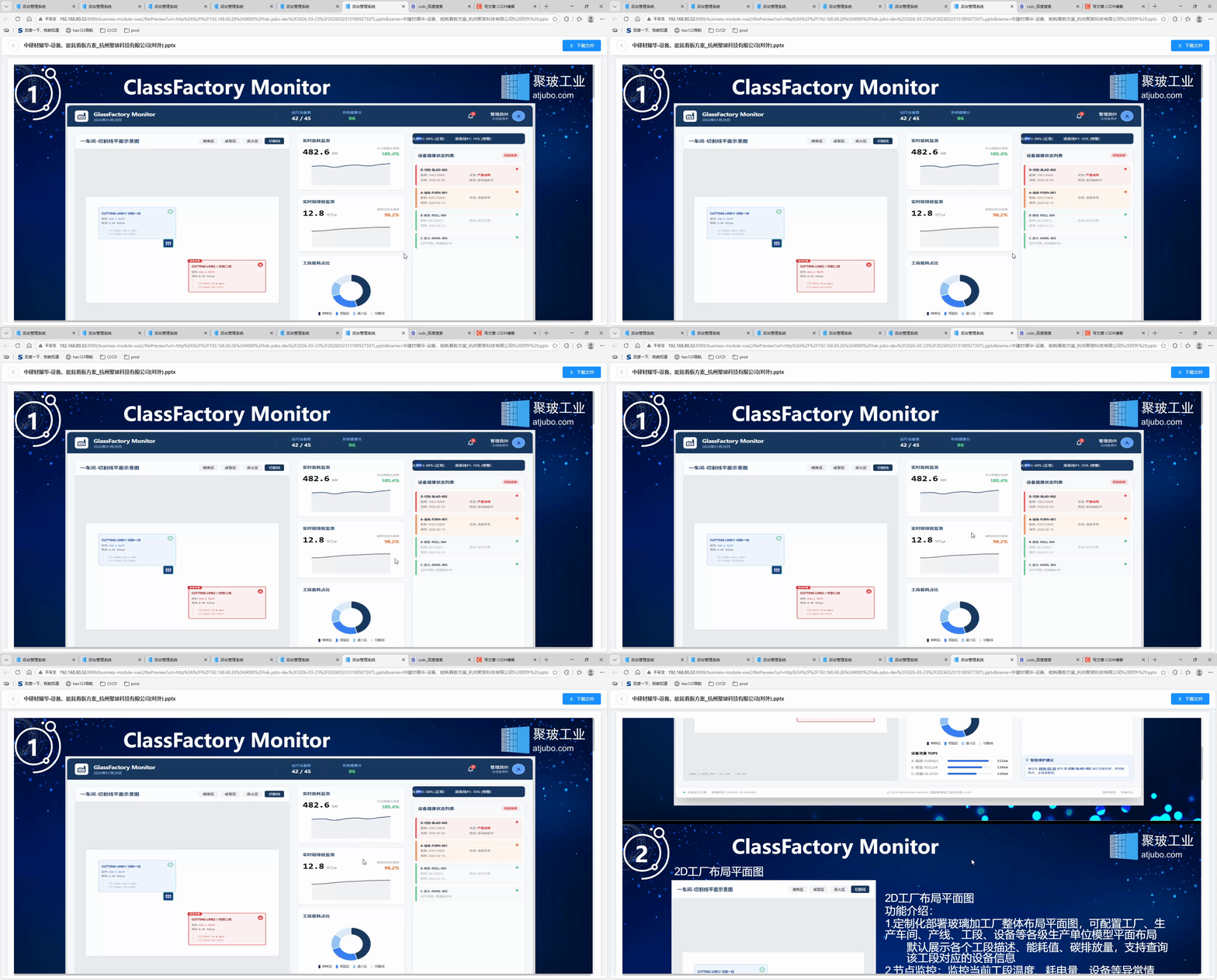
ppt预览效果:
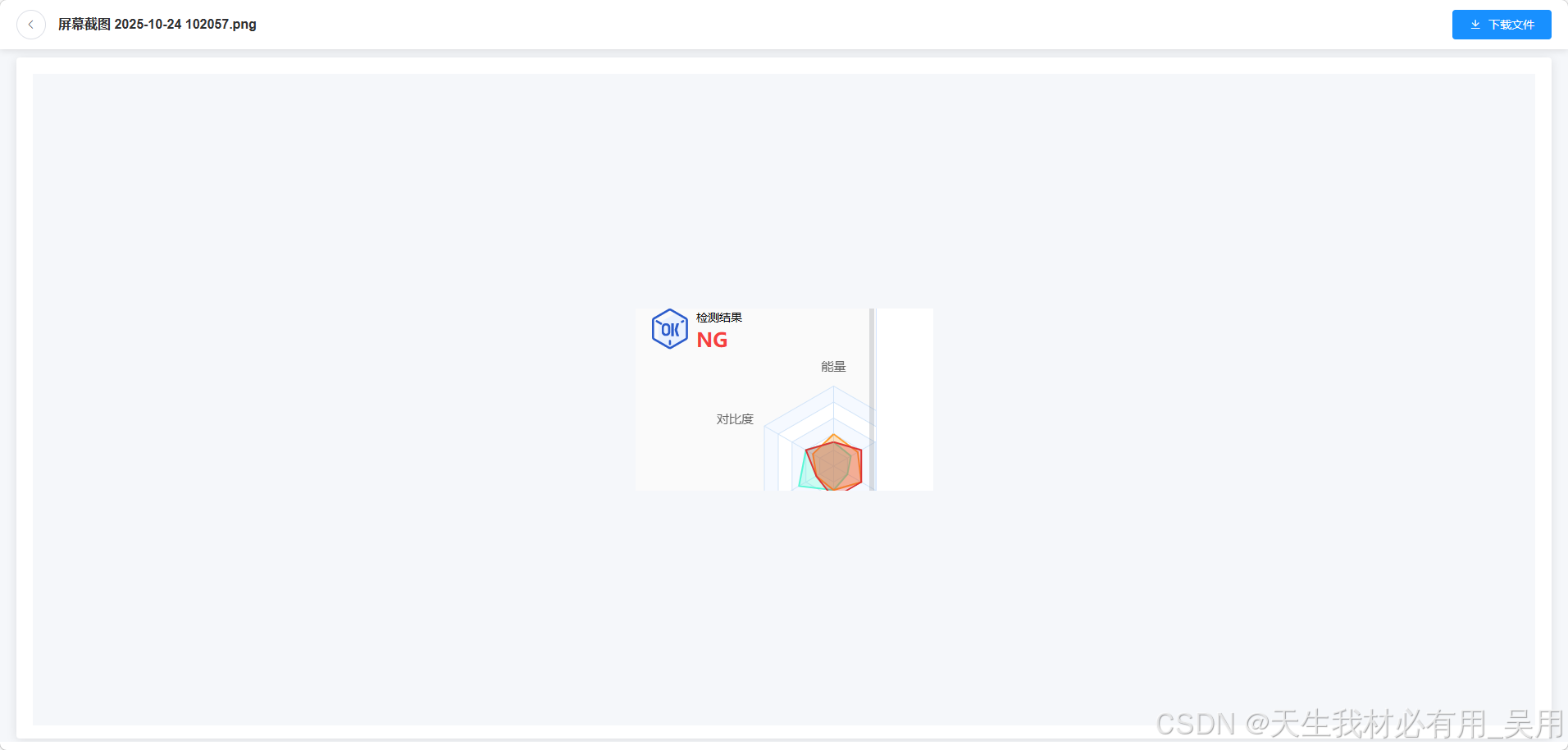
图片预览效果
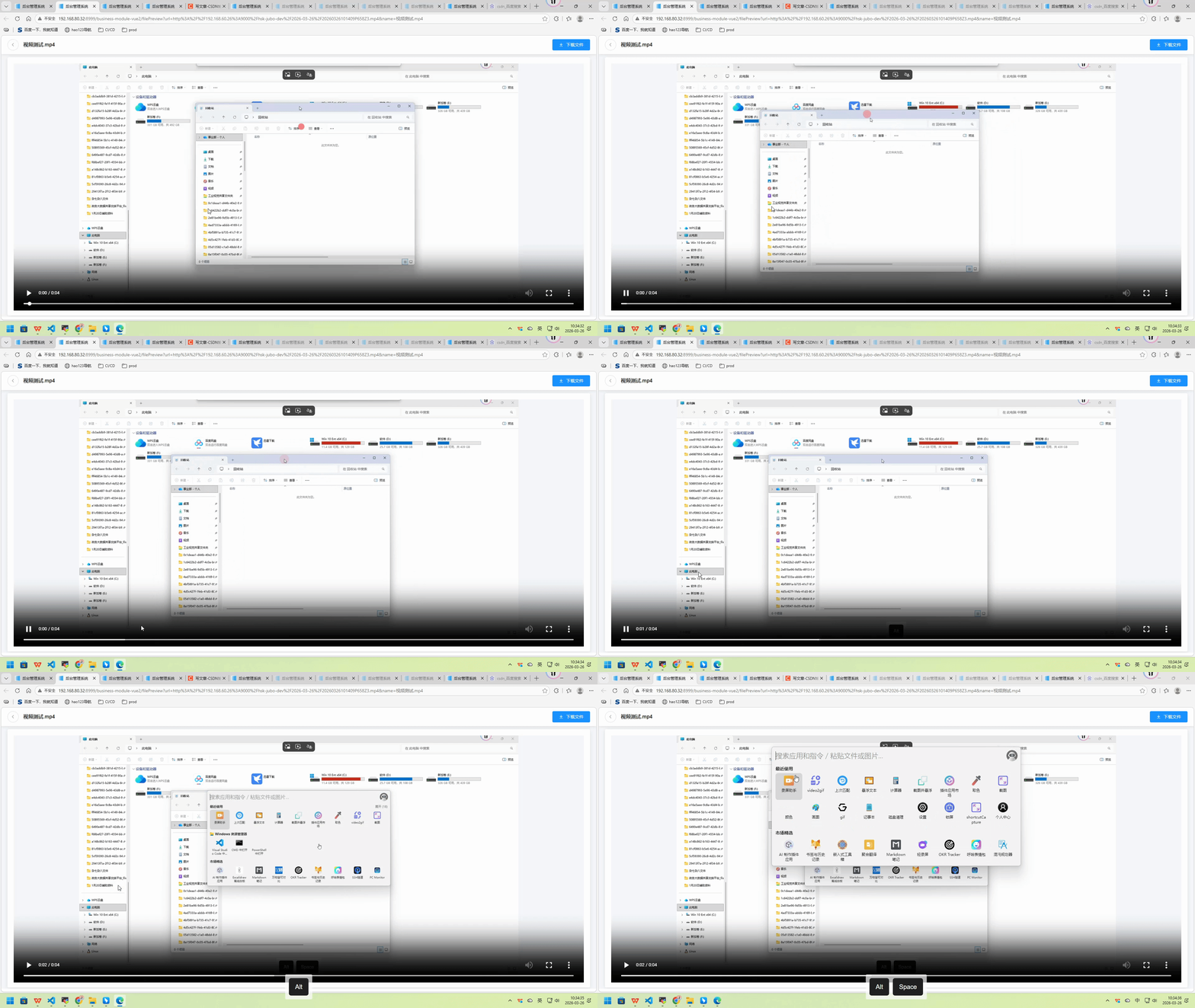
视频预览效果
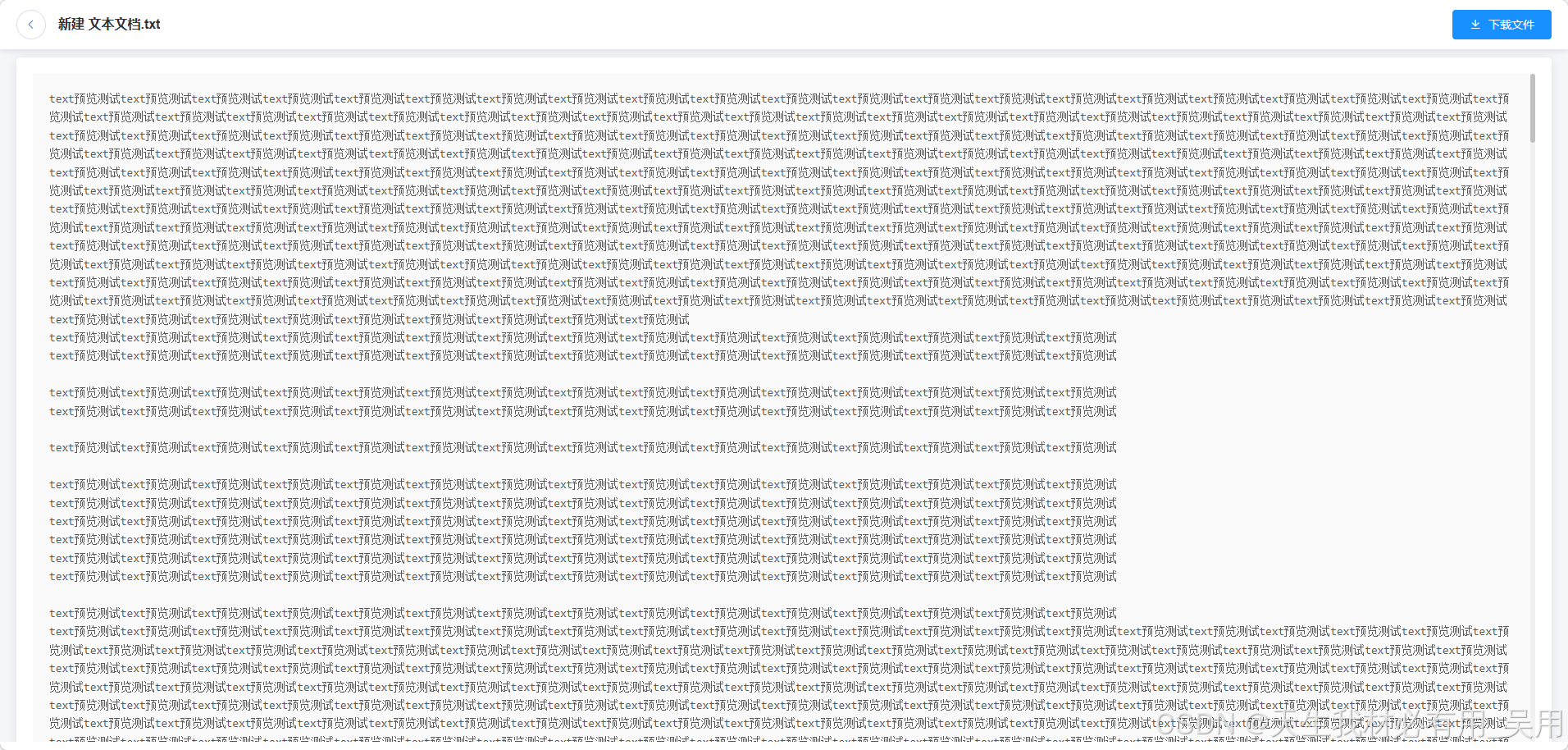
.txt文本文件预览效果
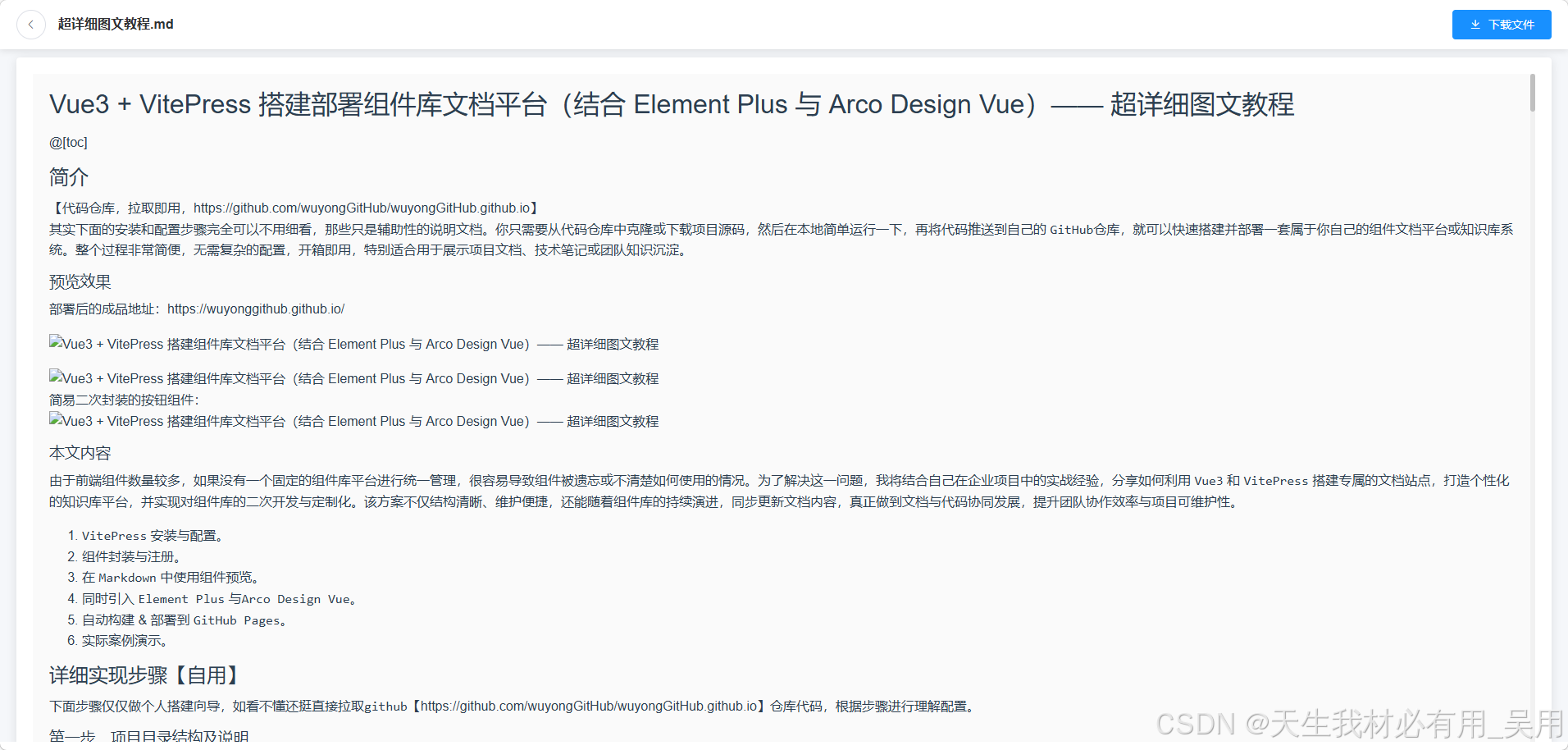
MD文档预览效果
技术栈
框架:
- Vue 2.x
UI 库:
- Element UI
核心依赖:
- @vue-office/pdf (PDF 预览)
- @vue-office/docx (Word 预览)
- @vue-office/excel (Excel 预览)
- @vue-office/pptx (PPT 预览 - 注:部分场景需公网链接)
- marked (Markdown 渲染)
- axios (文件流下载)
安装依赖
bash
npm install @vue-office/pdf @vue-office/docx @vue-office/excel @vue-office/pptx marked axios实现代码:
javascript
<template>
  <div class="file-preview-container">
    <!-- 顶部导航栏:包含返回和下载 -->
    <div class="preview-header">
      <div class="header-left">
        <el-button icon="el-icon-arrow-left" circle @click="goBack"></el-button>
        <span class="file-title">{{ fileName }}</span>
      </div>
      <div class="header-right">
        <el-button type="primary" icon="el-icon-download" @click="downloadFile">
          下载文件
        </el-button>
      </div>
    </div>

    <!-- 预览内容区域 -->
    <div
      class="preview-content"
      v-loading="loading"
      element-loading-text="正在加载文件..."
      style="position: relative"
    >
      <!-- 1. 图片预览 -->
      <div v-if="fileType === 'image'" class="media-wrapper">
        <img
          :src="fileUrl"
          alt="预览图片"
          style="max-width: 100%; max-height: 100%; object-fit: contain"
        />
      </div>

      <!-- 2. 视频预览 -->
      <div v-else-if="fileType === 'video'" class="media-wrapper">
        <video
          :src="fileUrl"
          controls
          style="width: 100%; max-height: 100%"
          autoplay
        ></video>
      </div>

      <!-- 3. 音频预览 -->
      <div v-else-if="fileType === 'audio'" class="media-wrapper">
        <audio :src="fileUrl" controls style="width: 100%" autoplay></audio>
      </div>

      <!-- 4. PDF 预览 (使用 vue-office) -->
      <div
        v-else-if="fileType === 'pdf'"
        class="office-wrapper office-wrapper-pdf"
      >
        <vue-office-pdf
          :src="fileUrl"
          @rendered="renderedHandler"
          style="height: 100%; width: 100%"
        />
      </div>

      <!-- 5. Word (.docx) 预览 (使用 vue-office) -->
      <div v-else-if="fileType === 'word'" class="office-wrapper">
        <div class="office-wrapper-docx">
          <vue-office-docx
            :src="fileUrl"
            @rendered="renderedHandler"
            style="height: 100%; width: 100%"
          />
        </div>
      </div>

      <!-- 6. Excel (.xlsx/.xls) 预览 (使用 vue-office) -->
      <div
        v-else-if="fileType === 'excel'"
        class="office-wrapper office-wrapper-excel"
      >
        <vue-office-excel
          :src="fileUrl"
          :options="options"
          @rendered="renderedExcelHandler"
        />
      </div>

      <!-- 7. TXT / MD 预览 -->
      <div
        v-else-if="fileType === 'text' || fileType === 'markdown'"
        class="text-wrapper"
      >
        <pre v-if="fileType === 'text'">{{ textContent }}</pre>
        <div
          v-else-if="fileType === 'markdown'"
          class="markdown-body"
          v-html="markdownContent"
        ></div>
      </div>

      <!-- 8. PPT (.pptx) 预览 -->
      <!-- 注意:纯前端预览 PPTX 较复杂,vue-office 目前主要支持 docx/xlsx/pdf。
           方案 A: 如果后端能转 PDF,最好转 PDF 后用 pdf 模式预览。
           方案 B: 使用微软在线预览 (需公网链接)。
           这里暂时用提示或尝试用微软预览 iframe (如果链接是公网) -->
      <div
        v-else-if="fileType === 'ppt' || fileType === 'pptx'"
        class="ppt-wrapper"
      >
        <vue-office-pptx
          v-if="isPublicUrl"
          :src="fileUrl"
          @rendered="renderedHandler"
          style="height: 100%; width: 100%"
        />
        <div v-else class="empty-tip">
          <i class="el-icon-warning-outline"></i>
          <p>PPT 预览需要公网链接或后端转换为 PDF。</p>
          <p>当前为内网链接,请直接下载查看。</p>
        </div>
      </div>

      <!-- 9. 不支持的格式 -->
      <div v-else class="empty-tip">
        <i class="el-icon-document-remove"></i>
        <p>暂不支持预览该文件格式</p>
        <el-button type="primary" @click="downloadFile">立即下载</el-button>
      </div>
    </div>
  </div>
</template>

<script lang="">
import VueOfficePdf from "@vue-office/pdf";
import VueOfficeDocx from "@vue-office/docx";
import VueOfficeExcel from "@vue-office/excel";
import VueOfficePptx from "@vue-office/pptx";
import { marked } from "marked";

import "@vue-office/excel/lib/index.css";
import "@vue-office/docx/lib/index.css";
// import "@vue-office/pptx/lib/index.css";
import axios from "axios";
export default {
  name: "FilePreview",
  components: {
    VueOfficePdf,
    VueOfficeDocx,
    VueOfficeExcel,
    VueOfficePptx,
  },
  data() {
    return {
      fileUrl: "",
      fileName: "",
      fileType: "", // image, video, audio, pdf, word, excel, ppt, text, markdown
      textContent: "",
      loading: true,
      isPublicUrl: false, // 简单判断是否为 http/https 开头
      options: {
        xls: false, //预览xlsx文件设为false;预览xls文件设为true
        minColLength: 1000, // excel最少渲染多少列,如果想实现xlsx文件内容有几列,就渲染几列,可以将此值设置为0.
        minRowLength: 1000, // excel最少渲染多少行,如果想实现根据xlsx实际函数渲染,可以将此值设置为0.
        widthOffset: 10, //如果渲染出来的结果感觉单元格宽度不够,可以在默认渲染的列表宽度上再加 Npx宽
        heightOffset: 10, //在默认渲染的列表高度上再加 Npx高
        beforeTransformData: (workbookData) => {
          return workbookData;
        }, //底层通过exceljs获取excel文件内容,通过该钩子函数,可以对获取的excel文件内容进行修改,比如某个单元格的数据显示不正确,可以在此自行修改每个单元格的value值。
        transformData: (workbookData) => {
          return workbookData;
        }, //将获取到的excel数据进行处理之后且渲染到页面之前,可通过transformData对即将渲染的数据及样式进行修改,此时每个单元格的text值就是即将渲染到页面上的内容
      },
    };
  },
  computed: {
    markdownContent() {
      // 1. 获取 .md 文件所在的目录路径
      let baseUrl = "";
      if (this.fileUrl) {
        const urlObj = new URL(this.fileUrl, window.location.origin);
        // 移除文件名,保留目录路径,并确保以 / 结尾
        baseUrl = urlObj.pathname.substring(
          0,
          urlObj.pathname.lastIndexOf("/") + 1
        );

        // 如果是相对路径启动的 fetch,这里可能需要更复杂的逻辑来确定 base
        // 简单处理:如果 fileUrl 包含 http,直接截取
        if (this.fileUrl.startsWith("http")) {
          baseUrl = this.fileUrl.substring(
            0,
            this.fileUrl.lastIndexOf("/") + 1
          );
        }
      }

      // 2. 配置 marked 选项
      marked.setOptions({
        baseUrl: baseUrl, // 关键:设置基础路径,marked 会自动拼接相对路径
        gfm: true, // 启用 GitHub 风格 Markdown
        breaks: true, // 启用换行
      });

      return marked(this.textContent);
    },
  },
  created() {
    // 从路由获取参数
    this.fileUrl = this.$route.query.url;
    this.fileName = this.$route.query.name || "未知文件";

    if (!this.fileUrl) {
      this.$message.error("未找到文件地址");
      this.loading = false;
      return;
    }

    this.isPublicUrl =
      this.fileUrl.startsWith("http://") || this.fileUrl.startsWith("https://");
    this.analyzeFileType();
  },
  methods: {
    analyzeFileType() {
      const lowerName = this.fileName.toLowerCase();
      const urlLower = this.fileUrl.toLowerCase();

      // 优先从文件名判断,其次从 URL
      const getNameExt = () => {
        if (lowerName.includes("."))
          return lowerName.substring(lowerName.lastIndexOf(".") + 1);
        if (urlLower.includes("."))
          return urlLower.substring(urlLower.lastIndexOf(".") + 1);
        return "";
      };

      const ext = getNameExt();

      if (["jpg", "jpeg", "png", "gif", "bmp", "webp", "svg"].includes(ext)) {
        this.fileType = "image";
        this.loading = false;
      } else if (["mp4", "webm", "ogg", "mov"].includes(ext)) {
        this.fileType = "video";
        this.loading = false;
      } else if (["mp3", "wav", "ogg", "aac"].includes(ext)) {
        this.fileType = "audio";
        this.loading = false;
      } else if (ext === "pdf") {
        this.fileType = "pdf";
      } else if (ext === "docx") {
        this.fileType = "word";
      } else if (["xlsx", "xls"].includes(ext)) {
        this.fileType = "excel";
      } else if (ext === "pptx") {
        this.fileType = "ppt";
        this.loading = false; // PPT 主要是 iframe 加载,不需要 vue-office 的 rendered 事件
      } else if (ext === "txt") {
        this.fileType = "text";
        this.fetchTextContent();
      } else if (ext === "md") {
        this.fileType = "markdown";
        this.fetchTextContent();
      } else {
        this.fileType = "unknown";
        this.loading = false;
      }
    },

    // 获取文本内容 (TXT / MD)
    fetchTextContent() {
      this.loading = true;
      // 注意:如果文件跨域,可能需要后端代理或配置 CORS
      fetch(this.fileUrl)
        .then((res) => res.text())
        .then((text) => {
          this.textContent = text;
          this.loading = false;
        })
        .catch((err) => {
          console.error(err);
          this.$message.error("文件内容加载失败,可能是跨域问题");
          this.loading = false;
        });
    },
    renderedExcelHandler() {
      console.log("Excel 渲染完成");
      this.loading = false;
      // 方案 A: 延迟触发 resize,等待 DOM 完全稳定
      setTimeout(() => {
        window.dispatchEvent(new Event("resize"));
      }, 100);
    },
    renderedHandler() {
      console.log("Excel 渲染完成");
      this.loading = false;

      // 方案 A: 延迟触发 resize,等待 DOM 完全稳定
      setTimeout(() => {
        window.dispatchEvent(new Event("resize"));
      }, 100);
    },

    goBack() {
      window.close();
      setTimeout(() => {
        if (!window.closed) {
          window.history.back();
        }
      }, 100);
    },

    async downloadFile() {
      this.$message.success(`开始下载:${this.fileName}`);
      // 1. 获取 URL
      const url = this.fileUrl;
      let customFileName = this.fileName || "未命名";
      if (!customFileName) {
        //  fallback: 如果没名字,再从 URL 截取
        customFileName = url.substring(url.lastIndexOf("/") + 1);
      }
      if (customFileName && !customFileName.includes(".")) {
        // 你可以根据实际业务判断后缀,比如从 url 里取后缀,或者硬编码
        const suffix = url.substring(url.lastIndexOf("."));
        customFileName = customFileName + (suffix || ".txt");
      }
      try {
        // 2. 发起请求
        const response = await axios({
          method: "get",
          url: url,
          responseType: "blob",
          // headers: { Authorization: "Bearer " + getToken() }, // 如果需要鉴权请解开
        });

        // 3. 创建 Blob 对象
        const blob = new Blob([response.data], { type: "text/plain" });

        // 4. 创建临时下载链接
        const link = document.createElement("a");
        link.href = window.URL.createObjectURL(blob);

        // 使用自定义的名字
        link.download = customFileName;

        // 5. 触发点击
        document.body.appendChild(link);
        link.click();

        // 6. 清理资源
        document.body.removeChild(link);
        window.URL.revokeObjectURL(link.href);
      } catch (error) {
        console.error("下载失败:", error);
        this.$message.error("下载失败,请检查网络或跨域设置");
      }
    },
  },
};
</script>

<style lang="less" scoped>
.file-preview-container {
  height: calc(100vh - 10px);
  overflow: hidden;
  background-color: #f5f7fa;
}

.preview-header {
  display: flex;
  justify-content: space-between;
  align-items: center;
  padding: 0 20px;
  height: 60px;
  background: #fff;
  box-shadow: 0 2px 8px rgba(0, 0, 0, 0.1);
  z-index: 10;
  width: 100%;

  .header-left {
    display: flex;
    align-items: center;
    .file-title {
      margin-left: 15px;
      font-size: 16px;
      font-weight: bold;
      color: #303133;
      max-width: 600px;
      overflow: hidden;
      text-overflow: ellipsis;
      white-space: nowrap;
    }
  }
}

.preview-content {
  padding: 20px;
  margin-top: 10px;
  padding-bottom: 16px;
  background: #fff;
  margin-left: 20px;
  margin-right: 20px;
  border-radius: 4px;
  box-shadow: 0 2px 12px 0 rgba(0, 0, 0, 0.1);
  position: relative;

  .media-wrapper,
  .office-wrapper {
    width: 100%;
    height: 100%;
    display: block;
    overflow: hidden;
  }
  .office-wrapper-docx {
    height: calc(100vh - 100px) !important;
    overflow: auto !important;
  }

  .text-wrapper {
    width: 100%;
    height: 100%;
    height: calc(100vh - 100px) !important;
    overflow: auto;
    text-align: left;
    padding: 20px;
    box-sizing: border-box;
    background: #fafafa;

    pre {
      font-family: Consolas, Monaco, "Andale Mono", monospace;
      white-space: pre-wrap;
      word-wrap: break-word;
      font-size: 14px;
      line-height: 1.6;
    }

    .markdown-body {
      font-size: 16px;
      line-height: 1.6;
      color: #2c3e50;
    }
  }

  .ppt-wrapper {
    width: 100%;
    height: calc(100vh - 100px);
    iframe {
      border: none;
    }
  }

  .empty-tip {
    text-align: center;
    color: #909399;

    i {
      font-size: 48px;
      margin-bottom: 10px;
      display: block;
    }
    p {
      margin: 10px 0;
    }
  }
}

.office-wrapper-excel {
  height: calc(100vh - 120px) !important;
  width: 100% !important;
  overflow: auto !important;
}

.office-wrapper-pdf {
  height: calc(100vh - 120px) !important;
  width: 100% !important;
  overflow: auto !important;
}
.media-wrapper {
  width: 100% !important;
  height: calc(100vh - 120px) !important; /* 确保继承父容器高度 */
  display: flex !important; /* 开启 Flex */
  justify-content: center !important; /* 水平居中 */
  align-items: center !important; /* 垂直居中 */
  overflow: hidden !important; /* 防止内容溢出 */
  background-color: #f5f7fa !important;
}

.media-wrapper img,
.media-wrapper video {
  max-width: 100% !important;
  max-height: 100% !important;
  object-fit: contain !important; /* 保持比例,不留黑边或裁剪 */
}

.media-wrapper audio {
  width: 80% !important; /* 音频播放器通常不需要占满全宽,留点边距好看 */
  max-width: 600px !important;
}
</style>
完结~