欢迎加入开源鸿蒙跨平台社区 :https://openharmonycrossplatform.csdn.net
📋 前言
在移动应用开发中,数据可视化是展示信息的重要方式。react-native-chart-kit 是一个轻量级、易用的图表库,基于 react-native-svg 实现,支持多种常见图表类型。它提供了简洁的 API 和丰富的配置选项,让开发者能够快速在应用中集成精美的图表效果。
🎯 库简介
基本信息
- 库名称 :
react-native-chart-kit - 版本信息: 6.12.0
- 官方仓库: https://github.com/indiespirit/react-native-chart-kit
- 主要功能 :
- 📈 折线图
- 📉 贝塞尔曲线图
- 📊 柱状图
- 📦 堆叠柱状图
- 🥧 饼图
- ⭕ 进度环
- 🗓️ 贡献图/热力图
支持的图表类型
| 图表类型 | 组件名 | 说明 |
|---|---|---|
| 折线图 | LineChart |
显示数据趋势变化 |
| 贝塞尔曲线图 | LineChart + bezier |
平滑曲线展示 |
| 柱状图 | BarChart |
对比不同类别数据 |
| 堆叠柱状图 | StackedBarChart |
显示多层数据对比 |
| 饼图 | PieChart |
显示数据占比 |
| 进度环 | ProgressChart |
显示进度百分比 |
| 贡献图 | ContributionGraph |
类似 GitHub 贡献热力图 |
兼容性验证
在以下环境验证通过:
- RNOH : 0.72.90; SDK : HarmonyOS 6.0.0; IDE: DevEco Studio 6.0.2
前置依赖react-native-svg
需要先安装这个库:https://blog.csdn.net/2402_83107102/article/details/159203447
📦 安装步骤
1. 安装依赖
在项目根目录执行以下命令:
bash
# 安装 react-native-chart-kit
npm install react-native-chart-kit@^6.12.0
2. 验证安装
安装完成后,检查 package.json 文件:
json
{
  "dependencies": {
    "react-native-chart-kit": "^6.12.0",
  }
}
🔧 HarmonyOS 平台配置
如果项目中已经配置过 react-native-svg,则无需重复配置,可以直接使用。
📖 API 详解
🔷 图表通用配置 (chartConfig) ⭐
所有图表组件都接受一个 chartConfig 配置对象,用于统一设置图表的样式和颜色。
typescript
const chartConfig = {
  backgroundColor: '#e26a00',
  backgroundGradientFrom: '#fb8c00',
  backgroundGradientTo: '#ffa726',
  color: (opacity = 1) => `rgba(255, 255, 255, ${opacity})`,
  labelColor: (opacity = 1) => `rgba(255, 255, 255, ${opacity})`,
};| 属性 | 类型 | 必填 | 说明 |
|---|---|---|---|
backgroundColor |
string | ❌ | 背景颜色 |
backgroundGradientFrom |
string | ❌ | 背景渐变起始颜色 |
backgroundGradientTo |
string | ❌ | 背景渐变结束颜色 |
backgroundGradientFromOpacity |
number | ❌ | 起始颜色透明度 |
backgroundGradientToOpacity |
number | ❌ | 结束颜色透明度 |
fillShadowGradientFrom |
string | ❌ | 数据区域填充起始颜色 |
fillShadowGradientTo |
string | ❌ | 数据区域填充结束颜色 |
color |
function | ✅ | 返回数据颜色的函数 |
labelColor |
function | ✅ | 返回标签颜色的函数 |
decimalPlaces |
number | ❌ | 小数位数 |
strokeWidth |
number | ❌ | 线条宽度 |
barPercentage |
number | ❌ | 柱状图宽度百分比 |
barRadius |
number | ❌ | 柱状图圆角 |
propsForBackgroundLines |
object | ❌ | 背景线样式 |
propsForLabels |
object | ❌ | 标签样式 |
propsForDots |
object | ❌ | 数据点样式 |
使用示例:
typescript
const chartConfig = {
  backgroundColor: '#1cc910',
  backgroundGradientFrom: '#eff3ff',
  backgroundGradientTo: '#efefef',
  decimalPlaces: 2,
  color: (opacity = 1) => `rgba(0, 0, 0, ${opacity})`,
  labelColor: (opacity = 1) => `rgba(0, 0, 0, ${opacity})`,
  style: {
    borderRadius: 16,
  },
  propsForDots: {
    r: '6',
    strokeWidth: '2',
    stroke: '#ffa726',
  },
};
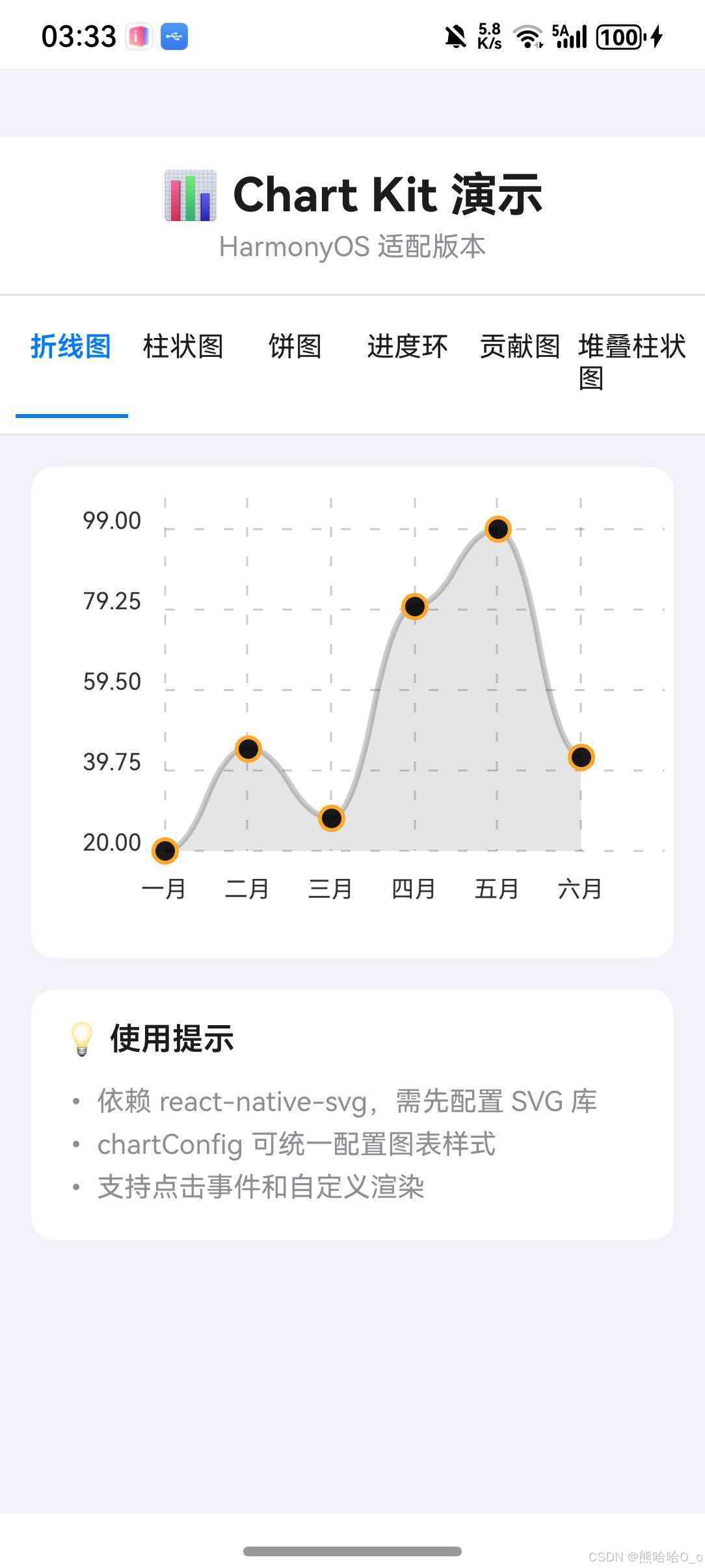
🔷 折线图 (LineChart) 📈
LineChart 用于显示数据随时间或其他连续变量的变化趋势,支持贝塞尔曲线平滑显示。
typescript
import { LineChart } from 'react-native-chart-kit';

<LineChart
  data={{
    labels: ['一月', '二月', '三月', '四月', '五月', '六月'],
    datasets: [{ data: [20, 45, 28, 80, 99, 43] }],
  }}
  width={screenWidth}
  height={220}
  chartConfig={chartConfig}
/>| 属性 | 类型 | 必填 | 说明 |
|---|---|---|---|
data |
object | ✅ | 图表数据对象 |
width |
number | ✅ | 图表宽度 |
height |
number | ✅ | 图表高度 |
chartConfig |
object | ✅ | 图表配置对象 |
bezier |
boolean | ❌ | 是否使用贝塞尔曲线,默认 false |
withDots |
boolean | ❌ | 是否显示数据点,默认 true |
withShadow |
boolean | ❌ | 是否显示阴影,默认 true |
withInnerLines |
boolean | ❌ | 是否显示内部网格线,默认 true |
withOuterLines |
boolean | ❌ | 是否显示外部边框线,默认 true |
withVerticalLines |
boolean | ❌ | 是否显示垂直网格线,默认 true |
withHorizontalLines |
boolean | ❌ | 是否显示水平网格线,默认 true |
withVerticalLabels |
boolean | ❌ | 是否显示垂直标签,默认 true |
withHorizontalLabels |
boolean | ❌ | 是否显示水平标签,默认 true |
fromZero |
boolean | ❌ | Y 轴是否从零开始,默认 false |
yAxisLabel |
string | ❌ | Y 轴标签前缀 |
yAxisSuffix |
string | ❌ | Y 轴标签后缀 |
xAxisLabel |
string | ❌ | X 轴标签后缀 |
horizontalLabelRotation |
number | ❌ | 水平标签旋转角度 |
verticalLabelRotation |
number | ❌ | 垂直标签旋转角度 |
onDataPointClick |
function | ❌ | 数据点点击回调 |
getDotColor |
function | ❌ | 自定义数据点颜色 |
getDotProps |
function | ❌ | 自定义数据点属性 |
使用示例:
typescript
const data = {
  labels: ['一月', '二月', '三月', '四月', '五月', '六月'],
  datasets: [{
    data: [20, 45, 28, 80, 99, 43],
    color: (opacity = 1) => `rgba(134, 65, 244, ${opacity})`,
    strokeWidth: 2,
  }],
};

<LineChart
  data={data}
  width={screenWidth}
  height={220}
  chartConfig={chartConfig}
  bezier
  withDots
  withShadow
  fromZero
  yAxisLabel="$"
  yAxisSuffix="k"
  onDataPointClick={({ value, index }) => {
    console.log(`点击了第 ${index + 1} 个数据点,值为 ${value}`);
  }}
/>
🔷 柱状图 (BarChart) 📊
BarChart 用于对比不同类别的数据,适合展示离散数据的比较。
typescript
import { BarChart } from 'react-native-chart-kit';

<BarChart
  data={{
    labels: ['一月', '二月', '三月', '四月', '五月'],
    datasets: [{ data: [20, 45, 28, 80, 99] }],
  }}
  width={screenWidth}
  height={220}
  chartConfig={chartConfig}
/>| 属性 | 类型 | 必填 | 说明 |
|---|---|---|---|
data |
object | ✅ | 图表数据对象 |
width |
number | ✅ | 图表宽度 |
height |
number | ✅ | 图表高度 |
chartConfig |
object | ✅ | 图表配置对象 |
withVerticalLabels |
boolean | ❌ | 是否显示垂直标签,默认 true |
withHorizontalLabels |
boolean | ❌ | 是否显示水平标签,默认 true |
fromZero |
boolean | ❌ | Y 轴是否从零开始,默认 false |
yAxisLabel |
string | ❌ | Y 轴标签前缀 |
yAxisSuffix |
string | ❌ | Y 轴标签后缀 |
showBarTops |
boolean | ❌ | 是否显示柱顶,默认 true |
showValuesOnTopOfBars |
boolean | ❌ | 是否在柱顶显示数值,默认 false |
horizontalLabelRotation |
number | ❌ | 水平标签旋转角度 |
verticalLabelRotation |
number | ❌ | 垂直标签旋转角度 |
使用示例:
typescript
const data = {
  labels: ['一月', '二月', '三月', '四月', '五月'],
  datasets: [{
    data: [20, 45, 28, 80, 99],
  }],
};

<BarChart
  data={data}
  width={screenWidth}
  height={220}
  chartConfig={chartConfig}
  fromZero
  showValuesOnTopOfBars
  yAxisLabel="$"
/>
🔷 堆叠柱状图 (StackedBarChart) 📦
StackedBarChart 用于显示多层数据的对比,每个柱子可以包含多个数据层。
typescript
import { StackedBarChart } from 'react-native-chart-kit';

<StackedBarChart
  data={{
    labels: ['Q1', 'Q2', 'Q3', 'Q4'],
    legend: ['产品A', '产品B', '产品C'],
    data: [
      [60, 60, 60],
      [30, 30, 60],
      [70, 40, 50],
      [50, 60, 40],
    ],
    barColors: ['#dfe4ea', '#ced6e0', '#a4b0be'],
  }}
  width={screenWidth}
  height={220}
  chartConfig={chartConfig}
/>| 属性 | 类型 | 必填 | 说明 |
|---|---|---|---|
data |
object | ✅ | 图表数据对象,包含 labels、legend、data、barColors |
width |
number | ✅ | 图表宽度 |
height |
number | ✅ | 图表高度 |
chartConfig |
object | ✅ | 图表配置对象 |
hideLegend |
boolean | ❌ | 是否隐藏图例,默认 false |
数据对象结构:
| 属性 | 类型 | 说明 |
|---|---|---|
labels |
string\[\] | X 轴标签数组 |
legend |
string\[\] | 图例标签数组 |
data |
number\[\]\[\] | 二维数组,每个数组代表一个柱子的各层数据 |
barColors |
string\[\] | 各层的颜色数组 |
使用示例:
typescript
const data = {
  labels: ['Q1', 'Q2', 'Q3', 'Q4'],
  legend: ['产品A', '产品B'],
  data: [
    [60, 40],
    [30, 60],
    [70, 50],
    [50, 40],
  ],
  barColors: ['#667eea', '#764ba2'],
};

<StackedBarChart
  data={data}
  width={screenWidth}
  height={220}
  chartConfig={chartConfig}
  hideLegend={false}
/>
🔷 饼图 (PieChart) 🥧
PieChart 用于显示各部分占整体的比例关系,适合展示百分比数据。
typescript
import { PieChart } from 'react-native-chart-kit';

<PieChart
  data={[
    { name: '产品A', population: 45, color: '#e26a00', legendFontColor: '#7F7F7F', legendFontSize: 15 },
    { name: '产品B', population: 30, color: '#fb8c00', legendFontColor: '#7F7F7F', legendFontSize: 15 },
    { name: '产品C', population: 25, color: '#ffa726', legendFontColor: '#7F7F7F', legendFontSize: 15 },
  ]}
  width={screenWidth}
  height={220}
  chartConfig={chartConfig}
  accessor="population"
/>| 属性 | 类型 | 必填 | 说明 |
|---|---|---|---|
data |
array | ✅ | 饼图数据数组 |
width |
number | ✅ | 图表宽度 |
height |
number | ✅ | 图表高度 |
chartConfig |
object | ✅ | 图表配置对象 |
accessor |
string | ✅ | 数据对象中用于计算比例的属性名 |
bgColor |
string | ❌ | 背景颜色,默认透明 |
paddingLeft |
string | ❌ | 左边距,默认 "15" |
center |
number\[\] | ❌ | 饼图中心偏移 x, y |
absolute |
boolean | ❌ | 是否显示绝对值而非百分比,默认 false |
hasLegend |
boolean | ❌ | 是否显示图例,默认 true |
avoidFalseZero |
boolean | ❌ | 是否避免零值显示,默认 false |
数据对象结构:
| 属性 | 类型 | 说明 |
|---|---|---|
name |
string | 数据项名称 |
population |
number | 数据值(属性名可自定义) |
color |
string | 扇形颜色 |
legendFontColor |
string | 图例文字颜色 |
legendFontSize |
number | 图例文字大小 |
使用示例:
typescript
const data = [
  { name: '产品A', population: 45, color: '#e26a00', legendFontColor: '#7F7F7F', legendFontSize: 15 },
  { name: '产品B', population: 30, color: '#fb8c00', legendFontColor: '#7F7F7F', legendFontSize: 15 },
  { name: '产品C', population: 25, color: '#ffa726', legendFontColor: '#7F7F7F', legendFontSize: 15 },
];

<PieChart
  data={data}
  width={screenWidth}
  height={220}
  chartConfig={chartConfig}
  accessor="population"
  bgColor="transparent"
  paddingLeft="15"
  center={[10, 50]}
  absolute
  hasLegend
/>
🔷 进度环 (ProgressChart) ⭕
ProgressChart 用于显示进度或完成百分比,以环形图的形式展示。
typescript
import { ProgressChart } from 'react-native-chart-kit';

<ProgressChart
  data={{
    labels: ['进度1', '进度2', '进度3'],
    data: [0.4, 0.6, 0.8],
  }}
  width={screenWidth}
  height={220}
  chartConfig={chartConfig}
/>| 属性 | 类型 | 必填 | 说明 |
|---|---|---|---|
data |
object | ✅ | 进度数据对象,包含 labels 和 data |
width |
number | ✅ | 图表宽度 |
height |
number | ✅ | 图表高度 |
chartConfig |
object | ✅ | 图表配置对象 |
strokeWidth |
number | ❌ | 环形宽度,默认 16 |
radius |
number | ❌ | 环形半径,默认 32 |
hideLegend |
boolean | ❌ | 是否隐藏图例,默认 false |
数据对象结构:
| 属性 | 类型 | 说明 |
|---|---|---|
labels |
string\[\] | 进度标签数组 |
data |
number\[\] | 进度值数组,取值范围 0-1 |
使用示例:
typescript
const data = {
  labels: ['下载', '上传', '处理'],
  data: [0.4, 0.6, 0.8],
};

<ProgressChart
  data={data}
  width={screenWidth}
  height={220}
  chartConfig={chartConfig}
  strokeWidth={16}
  radius={32}
  hideLegend={false}
/>
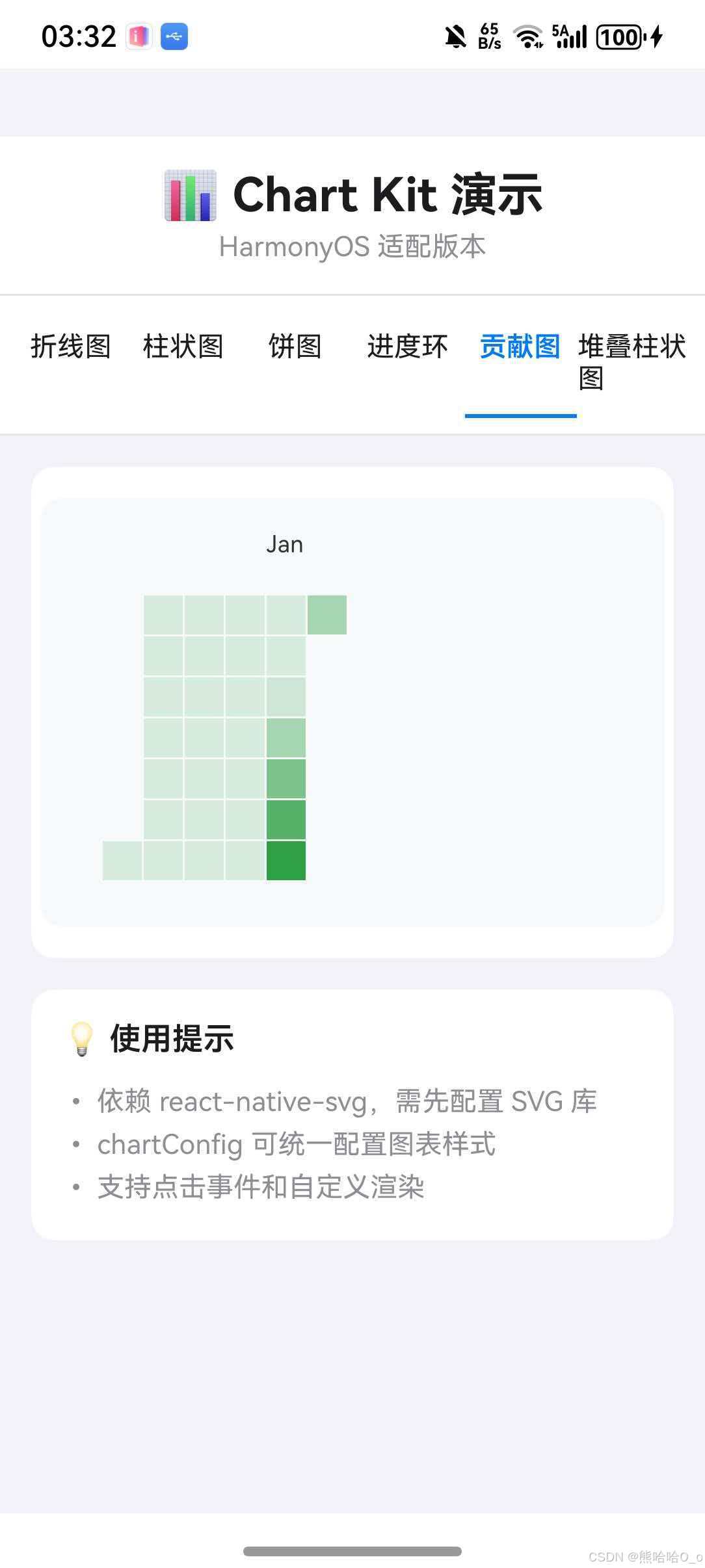
🔷 贡献图 (ContributionGraph) 🗓️
ContributionGraph 用于显示类似 GitHub 贡献热力图的图表,适合展示时间序列的活动频率。
typescript
import { ContributionGraph } from 'react-native-chart-kit';

<ContributionGraph
  values={[
    { date: '2024-01-02', count: 1 },
    { date: '2024-01-03', count: 2 },
    { date: '2024-01-04', count: 3 },
  ]}
  endDate={new Date('2024-01-08')}
  numDays={105}
  width={screenWidth}
  height={220}
  chartConfig={chartConfig}
  accessor="count"
/>| 属性 | 类型 | 必填 | 说明 |
|---|---|---|---|
values |
array | ✅ | 贡献数据数组 |
endDate |
Date | ✅ | 结束日期 |
numDays |
number | ✅ | 显示的天数 |
width |
number | ✅ | 图表宽度 |
height |
number | ✅ | 图表高度 |
chartConfig |
object | ✅ | 图表配置对象 |
accessor |
string | ✅ | 数据对象中用于显示的属性名 |
gutterSize |
number | ❌ | 方块间距,默认 4 |
squareSize |
number | ❌ | 方块大小,默认 16 |
horizontal |
boolean | ❌ | 是否水平布局,默认 true |
showMonthLabels |
boolean | ❌ | 是否显示月份标签,默认 true |
onDayPress |
function | ❌ | 日期点击回调 |
数据对象结构:
| 属性 | 类型 | 说明 |
|---|---|---|
date |
string | 日期字符串,格式 'YYYY-MM-DD' |
count |
number | 该日期的贡献次数 |
使用示例:
typescript
const commitsData = [
  { date: '2024-01-02', count: 1 },
  { date: '2024-01-03', count: 2 },
  { date: '2024-01-04', count: 3 },
  { date: '2024-01-05', count: 4 },
  { date: '2024-01-06', count: 5 },
  { date: '2024-01-07', count: 2 },
];

<ContributionGraph
  values={commitsData}
  endDate={new Date('2024-01-07')}
  numDays={30}
  width={screenWidth}
  height={220}
  chartConfig={chartConfig}
  accessor="count"
  gutterSize={4}
  squareSize={16}
  horizontal
  showMonthLabels
  onDayPress={(value) => {
    console.log('点击日期:', value);
  }}
/>
💻 完整代码示例
typescript
import React, { useState } from 'react';
import {
  View,
  Text,
  StyleSheet,
  ScrollView,
  TouchableOpacity,
  SafeAreaView,
} from 'react-native';
import {
  LineChart,
  BarChart,
  PieChart,
  ProgressChart,
  ContributionGraph,
  StackedBarChart,
} from 'react-native-chart-kit';

const chartConfig = {
  backgroundColor: '#ffffff',
  backgroundGradientFrom: '#ffffff',
  backgroundGradientTo: '#ffffff',
  decimalPlaces: 2,
  color: (opacity = 1) => `rgba(0, 0, 0, ${opacity})`,
  labelColor: (opacity = 1) => `rgba(0, 0, 0, ${opacity})`,
  style: {
    borderRadius: 16,
  },
  propsForDots: {
    r: '6',
    strokeWidth: '2',
    stroke: '#ffa726',
  },
};

const contributionChartConfig = {
  backgroundColor: '#f6f8fa',
  backgroundGradientFrom: '#f6f8fa',
  backgroundGradientTo: '#f6f8fa',
  decimalPlaces: 0,
  color: (opacity = 1) => `rgba(46, 160, 67, ${opacity})`,
  labelColor: (opacity = 1) => `rgba(0, 0, 0, ${opacity})`,
  style: {
    borderRadius: 16,
  },
};

type ChartType = 'line' | 'bar' | 'pie' | 'progress' | 'contribution' | 'stacked';

const chartTypes: { id: ChartType; title: string }[] = [
  { id: 'line', title: '折线图' },
  { id: 'bar', title: '柱状图' },
  { id: 'pie', title: '饼图' },
  { id: 'progress', title: '进度环' },
  { id: 'contribution', title: '贡献图' },
  { id: 'stacked', title: '堆叠柱状图' },
];

function ChartKitDemo() {
  const [currentChart, setCurrentChart] = useState<ChartType>('line');

  const lineData = {
    labels: ['一月', '二月', '三月', '四月', '五月', '六月'],
    datasets: [{
      data: [20, 45, 28, 80, 99, 43],
    }],
  };

  const barData = {
    labels: ['一月', '二月', '三月', '四月', '五月'],
    datasets: [{
      data: [20, 45, 28, 80, 99],
    }],
  };

  const pieData = [
    { name: '产品A', population: 45, color: '#e26a00', legendFontColor: '#7F7F7F', legendFontSize: 15 },
    { name: '产品B', population: 30, color: '#fb8c00', legendFontColor: '#7F7F7F', legendFontSize: 15 },
    { name: '产品C', population: 25, color: '#ffa726', legendFontColor: '#7F7F7F', legendFontSize: 15 },
  ];

  const progressData = {
    labels: ['进度1', '进度2', '进度3'],
    data: [0.4, 0.6, 0.8],
  };

  const contributionData = [
    { date: '2024-01-02', count: 1 },
    { date: '2024-01-03', count: 2 },
    { date: '2024-01-04', count: 3 },
    { date: '2024-01-05', count: 4 },
    { date: '2024-01-06', count: 5 },
    { date: '2024-01-07', count: 2 },
  ];

  const stackedData = {
    labels: ['Q1', 'Q2', 'Q3', 'Q4'],
    legend: ['产品A', '产品B'],
    data: [
      [60, 40],
      [30, 60],
      [70, 50],
      [50, 40],
    ],
    barColors: ['#dfe4ea', '#a4b0be'],
  };

  const chartWidth = 320;
  const chartHeight = 220;

  const renderChart = () => {
    switch (currentChart) {
      case 'line':
        return (
          <LineChart
            data={lineData}
            width={chartWidth}
            height={chartHeight}
            chartConfig={chartConfig}
            bezier
            style={styles.chart}
          />
        );
      case 'bar':
        return (
          <BarChart
            data={barData}
            width={chartWidth}
            height={chartHeight}
            chartConfig={chartConfig}
            yAxisLabel=""
            yAxisSuffix=""
            style={styles.chart}
          />
        );
      case 'pie':
        return (
          <PieChart
            data={pieData}
            width={chartWidth}
            height={chartHeight}
            chartConfig={chartConfig}
            accessor="population"
            backgroundColor="transparent"
            paddingLeft="15"
            style={styles.chart}
          />
        );
      case 'progress':
        return (
          <ProgressChart
            data={progressData}
            width={chartWidth}
            height={chartHeight}
            chartConfig={chartConfig}
            style={styles.chart}
          />
        );
      case 'contribution':
        return (
          <ContributionGraph
            values={contributionData}
            endDate={new Date('2024-01-07')}
            numDays={30}
            width={chartWidth}
            height={chartHeight}
            chartConfig={contributionChartConfig}
            accessor="count"
            tooltipDataAttrs={() => ({})}
            style={styles.chart}
          />
        );
      case 'stacked':
        return (
          <StackedBarChart
            data={stackedData}
            width={chartWidth}
            height={chartHeight}
            chartConfig={chartConfig}
            hideLegend={false}
            style={styles.chart}
          />
        );
    }
  };

  return (
    <SafeAreaView style={styles.container}>
      <View style={styles.header}>
        <Text style={styles.title}>📊 Chart Kit 演示</Text>
        <Text style={styles.subtitle}>HarmonyOS 适配版本</Text>
      </View>

      <View style={styles.tabBar}>
        {chartTypes.map((item) => (
          <TouchableOpacity
            key={item.id}
            style={[styles.tab, currentChart === item.id && styles.tabActive]}
            onPress={() => setCurrentChart(item.id)}
          >
            <Text style={[styles.tabText, currentChart === item.id && styles.tabTextActive]}>
              {item.title}
            </Text>
          </TouchableOpacity>
        ))}
      </View>

      <ScrollView style={styles.content}>
        <View style={styles.chartContainer}>
          {renderChart()}
        </View>

        <View style={styles.tipsContainer}>
          <Text style={styles.tipsTitle}>💡 使用提示</Text>
          <Text style={styles.tipText}>• 依赖 react-native-svg,需先配置 SVG 库</Text>
          <Text style={styles.tipText}>• chartConfig 可统一配置图表样式</Text>
          <Text style={styles.tipText}>• 支持点击事件和自定义渲染</Text>
        </View>
      </ScrollView>
    </SafeAreaView>
  );
}

const styles = StyleSheet.create({
  container: {
    flex: 1,
    backgroundColor: '#F2F2F7',
  },
  header: {
    backgroundColor: '#fff',
    paddingVertical: 16,
    paddingHorizontal: 20,
    borderBottomWidth: 1,
    borderBottomColor: '#E5E5EA',
  },
  title: {
    fontSize: 24,
    fontWeight: 'bold',
    color: '#1C1C1E',
    textAlign: 'center',
  },
  subtitle: {
    fontSize: 14,
    color: '#8E8E93',
    textAlign: 'center',
    marginTop: 4,
  },
  tabBar: {
    flexDirection: 'row',
    backgroundColor: '#fff',
    paddingVertical: 8,
    paddingHorizontal: 8,
    borderBottomWidth: 1,
    borderBottomColor: '#E5E5EA',
  },
  tab: {
    flex: 1,
    paddingVertical: 10,
    alignItems: 'center',
    borderBottomWidth: 2,
    borderBottomColor: 'transparent',
  },
  tabActive: {
    borderBottomColor: '#007AFF',
  },
  tabText: {
    fontSize: 14,
    color: '#1C1C1E',
  },
  tabTextActive: {
    color: '#007AFF',
    fontWeight: '600',
  },
  content: {
    flex: 1,
    padding: 16,
  },
  chartContainer: {
    backgroundColor: '#fff',
    borderRadius: 12,
    padding: 16,
    alignItems: 'center',
  },
  chart: {
    borderRadius: 12,
  },
  tipsContainer: {
    backgroundColor: '#fff',
    borderRadius: 12,
    padding: 16,
    marginTop: 16,
  },
  tipsTitle: {
    fontSize: 16,
    fontWeight: '600',
    color: '#1C1C1E',
    marginBottom: 12,
  },
  tipText: {
    fontSize: 14,
    color: '#8E8E93',
    lineHeight: 22,
  },
});

export default ChartKitDemo;
⚠️ 注意事项
1. 依赖配置
本库依赖 react-native-svg,必须先完成 SVG 库的原生配置才能正常使用。
2. 布局建议
推荐使用固定宽度(如 320)配合 flex: 1 容器实现自适应布局,避免使用 Dimensions 获取屏幕尺寸导致的兼容性问题。
3. 性能优化
- 避免在滚动列表中渲染过多复杂图表
- 使用
useMemo缓存图表数据 - 对于大数据量,考虑分页或聚合显示
📊 API 支持情况总览
图表类型支持
| 图表类型 | HarmonyOS 支持 |
|---|---|
| LineChart | ✅ |
| BarChart | ✅ |
| StackedBarChart | ✅ |
| PieChart | ✅ |
| ProgressChart | ✅ |
| ContributionGraph | ✅ |
属性支持
| 属性 | HarmonyOS 支持 |
|---|---|
| data | ✅ |
| width/height | ✅ |
| chartConfig | ✅ |
| bezier | ✅ |
| withDots | ✅ |
| withShadow | ✅ |
| onDataPointClick | ✅ |
📝 总结
react-native-chart-kit 提供了丰富的图表类型和简洁的 API,非常适合需要数据可视化的应用场景。在 HarmonyOS 平台上,只需配置好 react-native-svg 依赖即可正常使用所有功能。