一、适用版本
本文所述功能适用于 Harmony OS NEXT / 5.0 / API 12 + 版本,确保在这些版本的鸿蒙系统上能顺利实现并展现预期效果。
二、效果展示
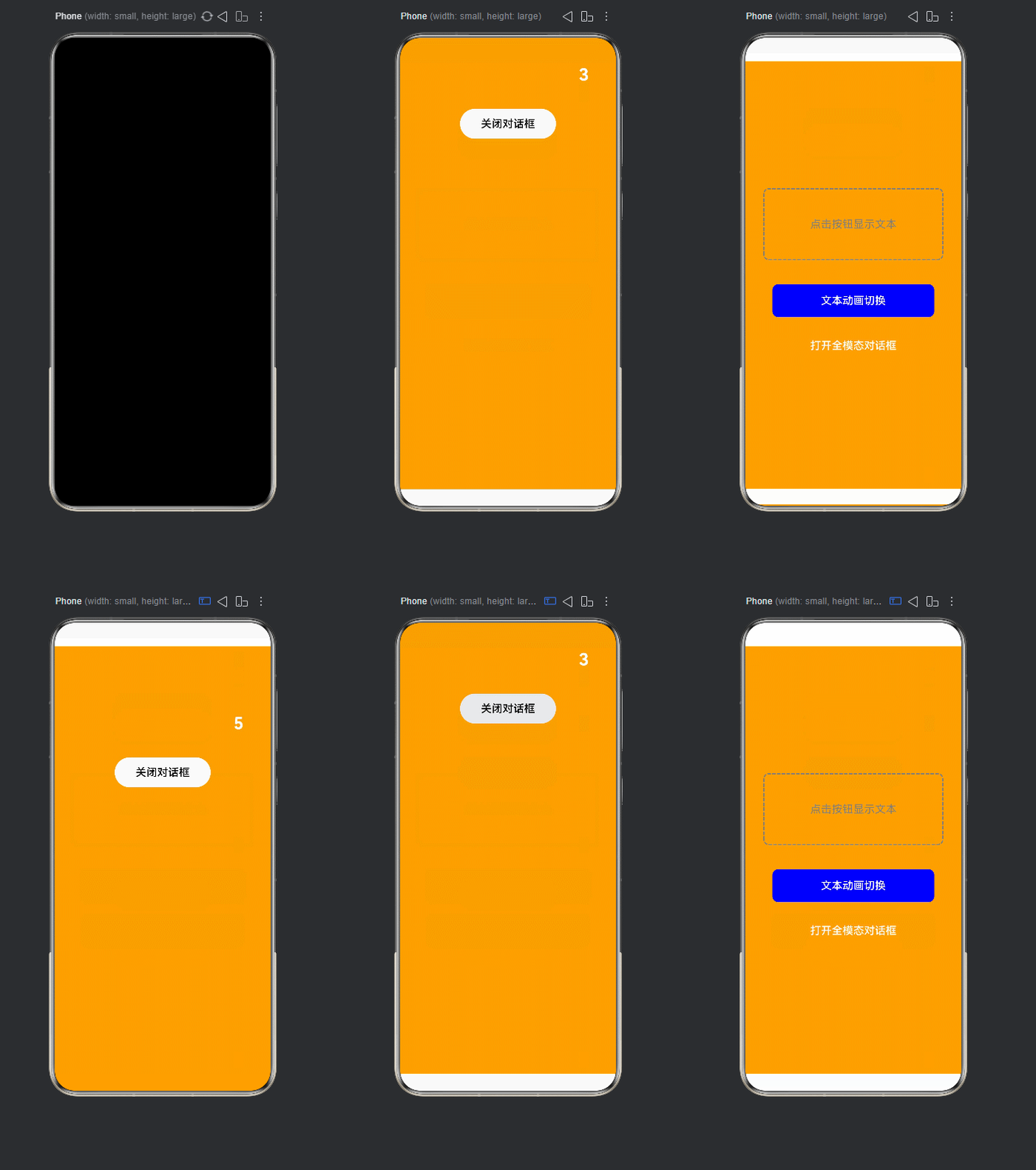
三、实现逻辑
(一)组件状态管理
通过 @State 装饰器定义多个状态变量,如 message、showMessage、showDialog、timer 和 timerCount,分别用于存储文本内容、控制文本显示状态、控制对话框显示状态、存储定时器标识以及倒计时数值,以此来管理组件内不同元素的状态变化。
(二)对话框内容构建
利用 @Builder 装饰器创建 getDialogContent 方法,在该方法内使用 Column 和 Row 布局容器搭建对话框的结构,包含倒计时文本显示和关闭按钮,为用户提供清晰的交互界面。
(三)倒计时逻辑实现
在 beginCount 方法中借助 setInterval 函数实现倒计时功能,每秒更新一次 timerCount 的值。当 timerCount 减为 0 时,清除定时器,重置 timerCount 的值并关闭对话框,实现倒计时与对话框关闭的联动逻辑。
(四)组件生命周期处理
通过 aboutToAppear 和 aboutToDisappear 这两个组件生命周期方法,在组件即将显示时自动打开对话框并启动倒计时,在组件即将消失时清除定时器,确保资源的合理利用和功能的正常运行。
(五)页面布局与交互
在 build 方法中,使用 Column 布局将页面分为内容区域和按钮区域。内容区域根据 showMessage 的状态显示不同文本,按钮区域的两个按钮分别绑定相应的点击事件,实现文本动画切换和打开全模态对话框的功能。最后通过 bindContentCover 将对话框以全模态形式展示在页面上,并设置默认的模态过渡效果。
四、源码
(一)组件源码
css
@Entry
@Component
struct BindContentCover {
    @State message: string = 'Hello World';
    @State showMessage: boolean = false;
    @State showDialog: boolean = false;
    @State timer: number = -1;
    @State timerCount: number = 3;

    @Builder
    getDialogContent() {
        return Column() {
            Row() {
                Text(`${this.timerCount}`)
                   .height(28)
                   .fontSize(28)
                   .fontWeight(FontWeight.Bold)
                   .fontColor(Color.White)
                   .margin(25);
            }
           .width('100%')
           .justifyContent(FlexAlign.End)
           .padding(20);

            Button('关闭对话框')
               .width(160)
               .height(50)
               .backgroundColor(Color.White)
               .fontColor(Color.Black)
               .fontSize(18)
               .fontWeight(FontWeight.Medium)
               .borderRadius(25)
               .onClick(() => {
                    this.showDialog = false;
                });
        }
       .width('100%')
       .height('100%')
       .backgroundColor(Color.Orange);
    }

    beginCount() {
        this.timer = setInterval(() => {
            if (this.timerCount === 0) {
                clearInterval(this.timer);
                this.timerCount = 5;
                this.showDialog = false;
                return;
            }
            this.timerCount--;
        }, 1000);
    }

    aboutToDisappear(): void {
        clearInterval(this.timer);
    }

    aboutToAppear(): void {
        this.showDialog = true;
        this.beginCount();
    }

    build() {
        return Column() {
            // 内容区域
            Column() {
                if (this.showMessage) {
                    Text(this.message)
                       .fontSize(50)
                       .fontWeight(FontWeight.Bolder)
                       .fontColor(Color.Blue);
                } else {
                    Text('点击按钮显示文本')
                       .fontSize(18)
                       .fontColor(Color.Gray);
                }
            }
           .height(120)
           .width('100%')
           .justifyContent(FlexAlign.Center)
           .alignItems(HorizontalAlign.Center)
           .border({ width: 2, color: Color.Gray, style: BorderStyle.Dashed })
           .borderRadius(8)
           .margin({ bottom: 40 });

            // 按钮区域
            Column() {
                Button('文本动画切换')
                   .width('90%')
                   .height(55)
                   .backgroundColor(Color.Blue)
                   .fontColor(Color.White)
                   .fontSize(18)
                   .fontWeight(FontWeight.Medium)
                   .borderRadius(10)
                   .margin({ bottom: 20 })
                   .onClick(() => {
                        animateTo({ duration: 1000 }, () => {
                            this.showMessage =!this.showMessage;
                        });
                    });

                Button('打开全模态对话框')
                   .width('90%')
                   .height(55)
                   .backgroundColor(Color.Orange)
                   .fontColor(Color.White)
                   .fontSize(18)
                   .fontWeight(FontWeight.Medium)
                   .borderRadius(10)
                   .onClick(() => {
                        this.showDialog = true;
                        this.beginCount();
                    });
            }
           .width('100%')
           .alignItems(HorizontalAlign.Center);
        }
       .width('100%')
       .height('100%')
       .justifyContent(FlexAlign.Center)
       .padding(30)
       .backgroundColor(Color.Orange)
       .bindContentCover(this.showDialog, this.getDialogContent(), {
            modalTransition: ModalTransition.DEFAULT
        });
    }
}
(二)Ability 源码
javascript
import { AbilityConstant, ConfigurationConstant, UIAbility, Want } from '@kit.AbilityKit';
import { hilog } from '@kit.PerformanceAnalysisKit';
import { window } from '@kit.ArkUI';
import { BusinessError } from '@kit.BasicServicesKit';

const DOMAIN = 0x0000;

export default class EntryAbility extends UIAbility {
    onCreate(want: Want, launchParam: AbilityConstant.LaunchParam): void {
        try {
            this.context.getApplicationContext().setColorMode(ConfigurationConstant.ColorMode.COLOR_MODE_NOT_SET);
        } catch (err) {
            hilog.error(DOMAIN, 'testTag', 'Failed to set colorMode. Cause: %{public}s', JSON.stringify(err));
        }
        hilog.info(DOMAIN, 'testTag', '%{public}s', 'Ability onCreate');
    }

    onDestroy(): void {
        hilog.info(DOMAIN, 'testTag', '%{public}s', 'Ability onDestroy');
    }

    onWindowStageCreate(windowStage: window.WindowStage): void {
        hilog.info(DOMAIN, 'testTag', '%{public}s', 'Ability onWindowStageCreate');

        windowStage.getMainWindow().then((mainWindow) => {
            mainWindow.setWindowLayoutFullScreen(true).then(() => {
                hilog.info(DOMAIN, 'testTag', 'Succeeded in setting full screen layout.');
            }).catch((fullScreenErr: BusinessError) => {
                hilog.error(DOMAIN, 'testTag', 'Failed to set full screen layout. Cause: %{public}s', JSON.stringify(fullScreenErr));
            });
        }).catch((err: BusinessError) => {
            hilog.error(DOMAIN, 'testTag', 'Failed to get main window. Cause: %{public}s', JSON.stringify(err));
        });

        windowStage.loadContent('pages/bindContentCover', (err) => {
            if (err.code) {
                hilog.error(DOMAIN, 'testTag', 'Failed to load the content. Cause: %{public}s', JSON.stringify(err));
                return;
            }
            hilog.info(DOMAIN, 'testTag', 'Succeeded in loading the content.');
        });
    }

    onWindowStageDestroy(): void {
        hilog.info(DOMAIN, 'testTag', '%{public}s', 'Ability onWindowStageDestroy');
    }

    onForeground(): void {
        hilog.info(DOMAIN, 'testTag', '%{public}s', 'Ability onForeground');
    }

    onBackground(): void {
        hilog.info(DOMAIN, 'testTag', '%{public}s', 'Ability onBackground');
    }
}
五、源码详细分析
(一)EntryAbility 部分
- onCreate 方法 :
- 尝试通过
this.context.getApplicationContext().setColorMode(ConfigurationConstant.ColorMode.COLOR_MODE_NOT_SET)设置应用的颜色模式,以确保应用在不同设备和主题下有一致的显示效果。 - 使用
try - catch块捕获可能出现的错误,并通过hilog工具记录错误信息,便于开发者定位问题。
- 尝试通过
- onWindowStageCreate 方法 :
- 首先获取主窗口
windowStage.getMainWindow(),然后将窗口设置为全屏模式mainWindow.setWindowLayoutFullScreen(true)。通过then - catch处理设置成功与失败的情况,成功时记录成功日志,失败时记录错误日志。 - 接着使用
windowStage.loadContent('pages/bindContentCover')加载包含BindContentCover组件的页面,同样通过then - catch处理加载过程中的成功与失败情况,并记录相应日志。
- 首先获取主窗口
- 其他生命周期方法 :
onDestroy、onWindowStageDestroy、onForeground和onBackground方法通过hilog记录日志,用于跟踪应用在不同生命周期阶段的状态变化,帮助开发者理解应用的运行流程。
(二)BindContentCover 组件部分
- 状态变量 :
@State message存储要显示的核心文本内容,初始值为'Hello World',可以根据业务需求进行修改。@State showMessage作为一个布尔型状态变量,控制message文本的显示与隐藏,从而实现文本切换效果。@State showDialog同样是布尔型变量,用于控制全模态对话框的显示与隐藏。@State timer用于存储setInterval创建的定时器标识,以便在需要时清除定时器,避免内存泄漏。@State timerCount存储倒计时的数值,控制对话框中倒计时的显示与逻辑。
- 对话框构建方法
getDialogContent:- 使用
Column和Row布局容器搭建对话框结构。Row中放置倒计时文本,通过设置height、fontSize、fontWeight、fontColor和margin等属性,使其在右上角以合适的样式显示。 Button组件作为关闭对话框的操作按钮,设置了width、height、backgroundColor、fontColor、fontSize、fontWeight、borderRadius等样式属性,并绑定点击事件,点击时将showDialog设置为false,从而关闭对话框。
- 使用
- 倒计时方法
beginCount:- 使用
setInterval函数创建一个定时器,每 1000 毫秒(1 秒)执行一次回调函数。 - 在回调函数中,检查
timerCount是否为 0。如果为 0,清除定时器clearInterval(this.timer),重置timerCount为 5,并将showDialog设置为false,关闭对话框。否则,将timerCount的值减 1。
- 使用
- 组件生命周期方法 :
aboutToAppear方法在组件即将显示时调用,将showDialog设置为true,打开对话框,并调用beginCount方法启动倒计时,确保每次组件显示时对话框和倒计时都能正常工作。aboutToDisappear方法在组件即将消失时调用,清除定时器clearInterval(this.timer),防止定时器持续运行造成内存泄漏。
- 页面构建方法
build:- 使用
Column布局将页面分为上下两部分。上半部分为内容区域,根据showMessage的值决定显示message文本还是提示点击的文本,并对文本进行样式设置,包括fontSize、fontWeight、fontColor、border和borderRadius等,同时设置了高度、宽度、对齐方式和下边距。 - 下半部分为按钮区域,同样使用
Column布局。两个Button组件分别设置了width、height、backgroundColor、fontColor、fontSize、fontWeight、borderRadius等样式属性,并绑定相应的点击事件。"文本动画切换" 按钮通过animateTo方法实现文本显示状态的平滑切换,"打开全模态对话框" 按钮则打开对话框并启动倒计时。 - 最后,通过
bindContentCover方法将对话框以全模态形式展示在页面上,并设置modalTransition为ModalTransition.DEFAULT,即默认的模态过渡效果。
- 使用
六、错误处理
在开发过程中,可能会遇到以下常见错误:
(一)页面加载失败
- 产生原因 :
pages/bindContentCover路径配置错误,或者该页面文件不存在。 - 解决方法:仔细检查路径是否与项目目录结构一致,确保页面文件存在且位置正确。可以通过打印日志或在开发工具中查看文件路径来辅助排查问题。
(二)定时器未清除导致内存泄漏
- 产生原因 :在组件销毁时(如
aboutToDisappear方法中)未正确清除定时器,使得定时器持续运行。 - 解决方法 :确保在
aboutToDisappear方法中调用clearInterval(this.timer),以清除定时器,释放资源。同时,可以在控制台打印日志,确认定时器是否被正确清除。
(三)样式显示异常
- 产生原因:样式属性设置错误,例如颜色值、尺寸单位等设置不符合要求,或者布局容器嵌套错误。
- 解决方法:仔细检查样式属性的设置,参考官方文档确认颜色值、尺寸单位等的正确使用方法。对于布局容器嵌套问题,可以通过打印布局结构或在开发工具的预览功能中查看布局情况,逐步排查并调整布局。
七、总结
本功能如同为鸿蒙应用打造了一套有趣且实用的交互 "工具箱",主要实现了三个关键功能:一是通过按钮点击实现文本的平滑切换,为用户提供不同的提示信息;二是能够打开全模态对话框,并带有倒计时功能,增加了交互的趣味性和实用性;三是通过合理的组件生命周期管理和状态控制,确保功能的稳定运行。核心在于以简洁明了的代码逻辑,实现丰富多样的用户交互效果,为用户带来流畅、有趣的使用体验。同时,通过对可能出现的错误进行分析和处理,帮助开发者在开发过程中避免常见问题,提高开发效率和应用质量。