🚀 在 VS Code 中,让 Copilot 连接任何 OpenAI 兼容 API
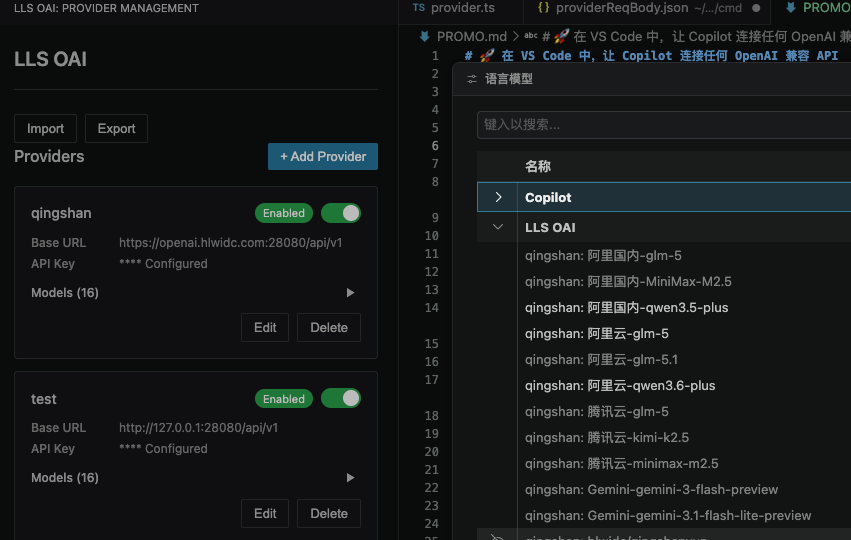
!在这里插入图片描述(https://i-blog.csdnimg.cn/direct/1ff6422854084e04ab6139d6bb895945.png
功能特点
🔌 多供应商支持
支持同时管理多个 OpenAI 兼容 API 提供商,包括 OpenAI、DeepSeek、SiliconFlow、Ollama、Anthropic Claude、Google Gemini 等。不同供应商可以配置不同的 API Key,一个界面统一管理所有配置。
🔐 企业级安全存储
所有 API Key 都通过 VS Code 原生的 Secret Storage 加密存储,不会明文暴露在配置文件中。密钥仅存储在本地,安全可靠,换设备后需要重新配置。
🎨 可视化配置界面
告别复杂的 JSON 配置,告别修改 settings.json。使用直观的 WebView 界面,通过鼠标点击即可完成所有配置操作。添加、编辑、删除提供商和模型,一切都在友好的图形界面中完成。
🔧 完整的工具调用支持
完美支持函数调用(Function Calling / Tool Use)功能。当 Copilot 需要调用工具完成任务时,扩展会正确处理请求,将工具结果返回给模型,确保复杂任务能够顺利完成。
📊 灵活的模型配置
每个模型都支持丰富的配置选项:上下文长度、最大输出 tokens、Temperature、Top-P 等参数均可独立设置。同一个模型可以创建多个配置,满足不同场景的需求。
💾 导入导出功能
一键导出所有配置为 JSON 文件,方便备份和迁移。导入功能让你可以快速恢复配置或在多台设备间同步设置。API Key 不会随配置导出,确保安全。
⚡ 实时状态监控
状态栏实时显示当前使用的模型和提供商信息。快速切换模型,无需打开配置界面,即可完成模型切换。
快速开始
-
安装扩展
在 VS Code 中搜索 "LLS OAI" 或访问 VS Code Marketplace 进行安装。
-
打开配置界面
按下
Ctrl+Shift+P(macOS 为Cmd+Shift+P)打开命令面板,输入LLS OAI: Manage Providers,回车确认。 -
添加提供商
点击界面中的 "Add Provider" 按钮,填写以下信息:
- Provider Name:提供商名称(用于区分不同配置)
- Base URL :API 端点地址,例如
https://api.openai.com/v1 - API Key:你的 API 密钥
-
添加模型
在提供商配置中,点击 "Add Model",填写模型信息:
- Model ID :模型标识符,如
gpt-4o - Display Name:显示名称,如 "GPT-4o"
- Context Length :上下文长度,如
128000 - 其他参数根据需要调整
- Model ID :模型标识符,如
-
开始使用
打开 Copilot Chat 界面,点击模型选择器,选择 "LLS OAI" 提供商,然后选择你配置的模型,即可开始对话!
适用场景
- 使用国产大模型:接入 DeepSeek、Kimi、GLM、Qwen 等国产模型,享受更快的响应速度和更低的价格
- 使用本地模型:通过 Ollama 在本地运行模型,保护隐私,数据不外传
- 多模型对比:同时配置多个模型,方便对比不同模型的回答效果
- 自定义 API 代理:通过配置自己的 API 代理服务,绕过网络限制
技术支持
如遇到问题或有任何建议,欢迎在 GitHub Issues 提交反馈。
🚀 Connect Copilot to Any OpenAI-Compatible API in VS Code
Features
🔌 Multi-Provider Support
Manage multiple OpenAI-compatible API providers simultaneously, including OpenAI, DeepSeek, SiliconFlow, Ollama, Anthropic Claude, Google Gemini, and more. Configure different API keys for different providers and manage everything from a unified interface.
🔐 Enterprise-Grade Security
All API keys are encrypted and stored using VS Code's native Secret Storage. Keys are never exposed in configuration files and are stored locally only. Re-configuration is required when switching devices.
🎨 Visual Configuration UI
Say goodbye to complex JSON configurations and manual settings.json editing. Use an intuitive WebView interface to complete all configurations with simple mouse clicks. Add, edit, and delete providers and models in a friendly graphical interface.
🔧 Complete Tool Calling Support
Full support for Function Calling / Tool Use. When Copilot needs to call tools to complete tasks, the extension correctly handles requests and returns tool results to the model, ensuring complex tasks are completed smoothly.
📊 Flexible Model Configuration
Each model supports rich configuration options: context length, max output tokens, Temperature, Top-P, and other parameters can be set independently. Create multiple configurations for the same model to meet different scenario requirements.
💾 Import/Export
One-click export of all configurations to a JSON file for easy backup and migration. Import functionality allows you to quickly restore configurations or sync settings across multiple devices. API keys are not exported with configurations for security.
⚡ Real-Time Status Monitoring
The status bar displays the currently used model and provider information in real-time. Switch models quickly without opening the configuration interface.
Quick Start
-
Install the Extension
Search for "LLS OAI" in VS Code or visit VS Code Marketplace to install.
-
Open Configuration Interface
Press
Ctrl+Shift+P(macOS:Cmd+Shift+P) to open the Command Palette, typeLLS OAI: Manage Providers, and press Enter. -
Add a Provider
Click "Add Provider" and fill in:
- Provider Name: Provider identifier (used to distinguish different configurations)
- Base URL : API endpoint, e.g.,
https://api.openai.com/v1 - API Key: Your API key
-
Add Models
In the provider configuration, click "Add Model" and fill in model information:
- Model ID : Model identifier, e.g.,
gpt-4o - Display Name: Display name, e.g., "GPT-4o"
- Context Length : Context length, e.g.,
128000 - Adjust other parameters as needed
- Model ID : Model identifier, e.g.,
-
Start Using
Open the Copilot Chat interface, click the model picker, select "LLS OAI" provider, then choose your configured model and start chatting!
Use Cases
- Use Chinese LLMs: Access DeepSeek, Kimi, GLM, Qwen and other domestic models for faster response speeds and lower costs
- Use Local Models: Run models locally through Ollama, protecting privacy with no data leakage
- Compare Multiple Models: Configure multiple models simultaneously for easy comparison of responses
- Custom API Proxy: Bypass network restrictions by configuring your own API proxy service
Support
For issues or suggestions, feel free to submit feedback at GitHub Issues.
安装 & 源代码
License | 许可证
MIT