一、环境确认
首先确认你的操作系统类型,这决定了使用哪个包管理工具:
bash
cat /etc/os-release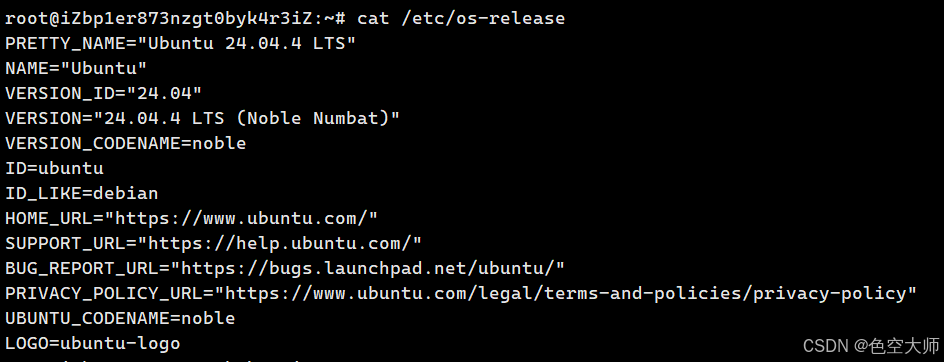
| 操作系统 | 包管理工具 |
|---|---|
| Ubuntu/Debian | apt |
| CentOS/RHEL/RockyLinux | yum 或 dnf |
| Alibaba Cloud Linux | yum |
二、Ubuntu/Debian 系统安装步骤
1. 更新软件源并安装
bash
sudo apt update
sudo apt install nginx -y
2. 启动并设置开机自启
bash
# 启动 Nginx 服务
sudo systemctl start nginx

# 设置开机自启
sudo systemctl enable nginx

# 查看运行状态(应显示 active (running))
sudo systemctl status nginx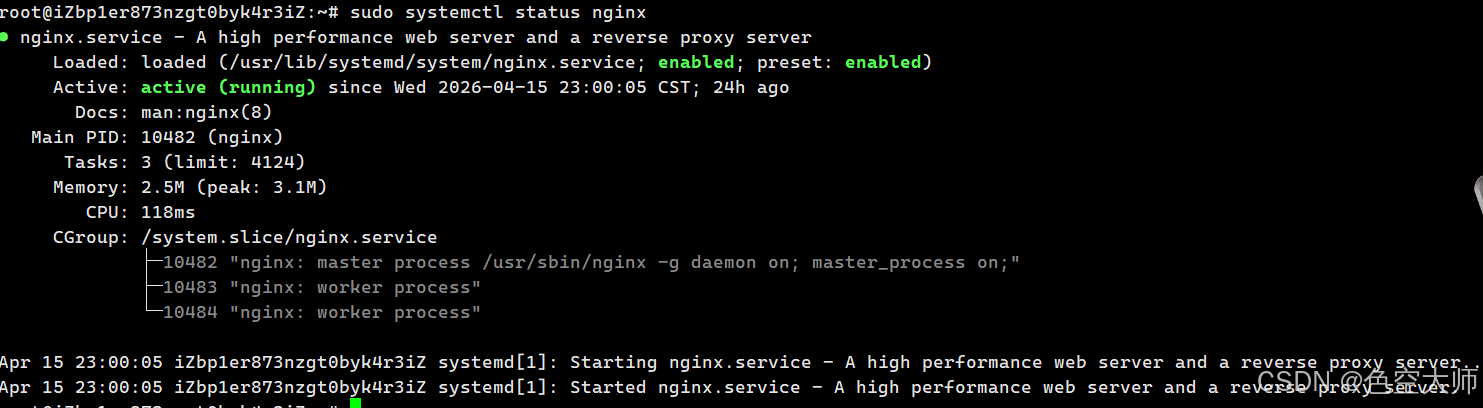
3. 配置防火墙(如果使用 ufw)
bash
# 允许 Nginx 的 HTTP 流量
sudo ufw allow 'Nginx HTTP'

# 或直接开放 80 端口
sudo ufw allow 80/tcp

# 查看防火墙状态
sudo ufw status
三、CentOS/RHEL 系统安装步骤
1. 安装 EPEL 源并安装 Nginx
bash
# 安装 EPEL 扩展源(CentOS 7/8 需要)
sudo yum install epel-release -y

# 安装 Nginx
sudo yum install nginx -y
2. 启动并设置开机自启
bash
sudo systemctl start nginx
sudo systemctl enable nginx
sudo systemctl status nginx
3. 开放防火墙端口(如果使用 firewalld)
bash
sudo firewall-cmd --permanent --add-service=http
sudo firewall-cmd --reload
四、验证安装是否成功
方法一:本地 curl 测试
bash
curl -I http://localhost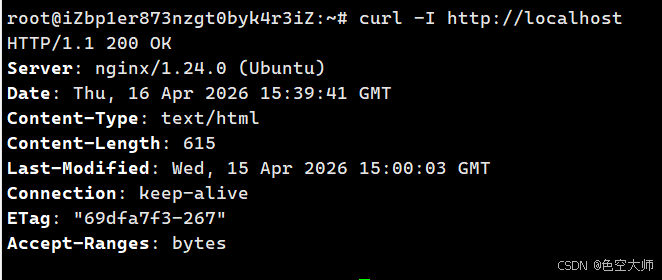
方法二:浏览器访问
在浏览器中输入你的服务器公网 IP,看到 "Welcome to nginx" 页面即表示安装成功
五、常用管理命令
| 操作 | 命令 |
|---|---|
| 启动 | sudo systemctl start nginx |
| 停止 | sudo systemctl stop nginx |
| 重启 | sudo systemctl restart nginx |
| 重载配置 | sudo systemctl reload nginx |
| 查看状态 | sudo systemctl status nginx |
| 测试配置 | sudo nginx -t |
| 查看错误日志 | sudo tail -f /var/log/nginx/error.log |
六、默认网站根目录
| 操作系统 | 默认根目录 | 说明 |
|---|---|---|
| Ubuntu/Debian | /var/www/html/ | apt 安装的默认目录 |
| CentOS/RHEL | /usr/share/nginx/html/ | yum 安装的默认目录 |
| 源码编译 | /usr/local/nginx/html/ | 编译时指定的路径 |
七、查看当前 Nginx 根目录
bash
# 查看 Nginx 配置中的根目录
grep -r "root" /etc/nginx/conf.d/
grep -r "root" /etc/nginx/sites-enabled/

# 或查看默认配置
cat /etc/nginx/sites-available/default | grep root